The Command Line Interface
Introduction
You've probably seen it in the movies: an elite computer hacker sitting in front of a black screen with green glowing text, furiously typing in commands and saying something like "I'll isolate the router and freeze their packets!" or "Spike them!" What these "hackers" are actually doing is interacting with a Command Line Interface. Sometimes we'll refer to the Command Line Interface as the CLI.
Nearly every computer has a CLI. On Mac you can use Terminal (Command + Space bar then just type "terminal" and press enter), while on Windows you should use Git Bash which you should have installed back in the Intro to Git lesson.
You can use the CLI to:
- navigate the folders on your computer
- create files, folders, and programs
- edit files and programs
- run your computer programs
All About Directories
Computers are organized in a hierarchy of folders, where on folder can contain many folders and files. Programmers often refer to folders and directories, and the terms are interchangeable. This directory hierarchy forms a tree, like the small tree seen in the image below. We can use the CLI to navigate these trees on your computer.
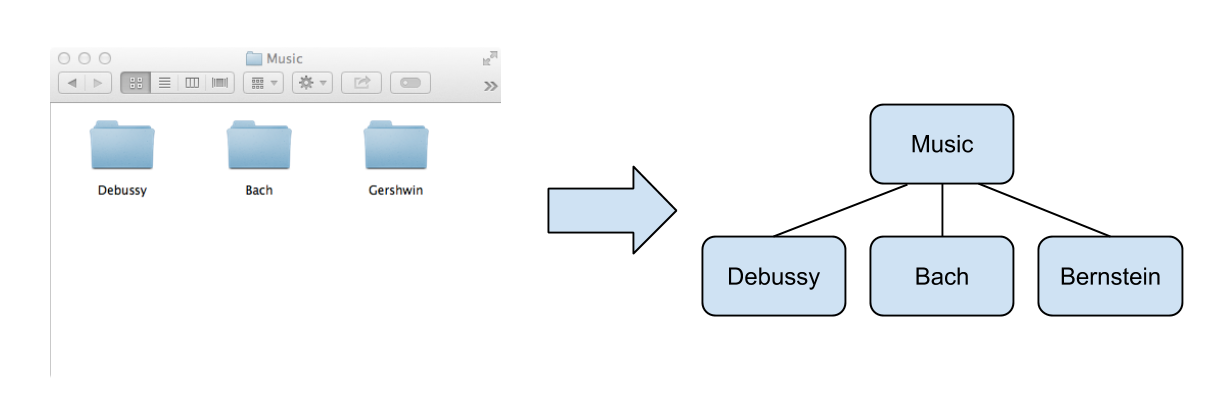
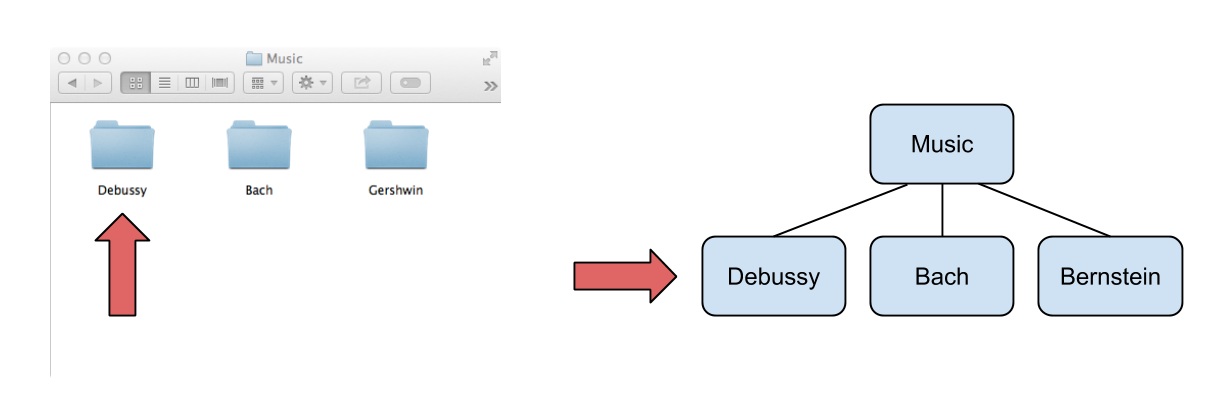
As you can see in the image below, my Debussy directory is contained in my Music directory. This is the simplest case of how directories are structured.
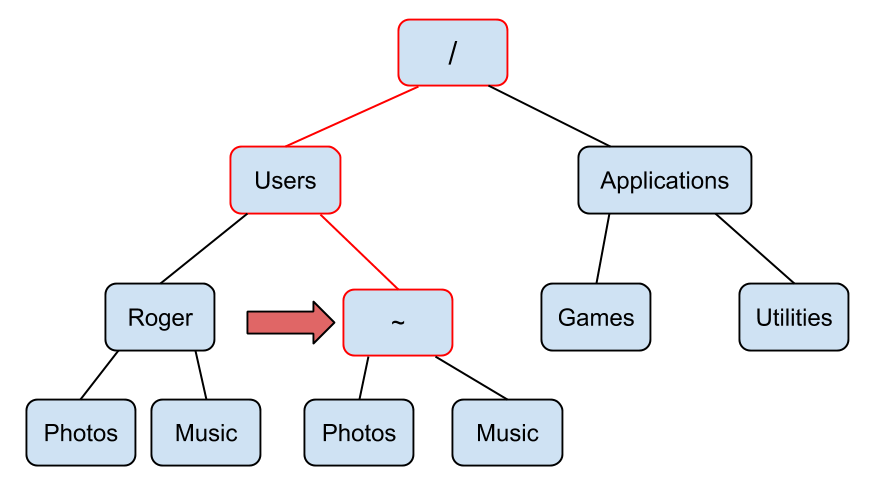
The directory structure on most computers is much more complicated, but the structure on your computer probably looks something like this:

There are a few special directories that you should be aware of on your computer. The directory at the top of this tree is called the root directory. The root directory contains all other directories, and is represented by a slash (/).
The home directory is another special directory that is represented by a tilde (~). Your home directory contains your personal files, like your photos, documents, and the contents of your desktop. When you log into a computer through the CLI you usually start off in your home directory (more on that soon).
Navigating directories with the CLI
Windows users: open Git Bash. If you don't have Git Bash installed, you can download it here.
Mac users: open Terminal. Pro Tip: You can quickly open Terminal by pressing Command + Space, typing "terminal," and then hitting enter.
You should now have your CLI open and it should look similar to my CLI:
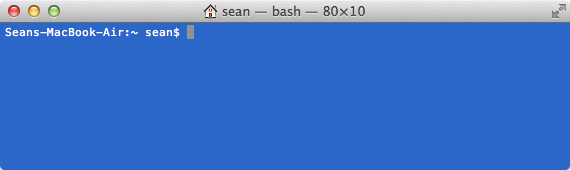
On your CLI you will see your prompt, which will looks something like the name of your computer, followed by your username, followed by a dollar sign ($). When you open up your CLI you will be in your home directory, but soon you'll be navigating the whole directory structure. Whatever directory you're currently working with in your CLI is called the working directory.
The Path
You can imagine tracing all of the directories from your root directory to the directory you're currently in. This is called the "path" to your working directory.
In your CLI prompt, type pwd and press enter. pwd is a small computer program which in an acronym for print working directory. After entering a command, you should get the same prompt as you had before.
You use the CLI prompt by typing in a command and pressing enter. pwd can be used at any time to display the path to your working directory.
Formula for CLI commands
- CLI commands generally follow this recipe:
[command] [flags] [arguments]
[command] is the CLI command which does a specific task[flags] are options we give to the command to trigger certain behaviors, preceded by a hyphen (-)[arguments] can be what the command is going to modify, or other options for the command
Depending on the command there can be zero or more flags and arguments, for example pwd is a command that requires no flags or arguments.
The Command Catalog
clear
clear will clear out the commands in your CLI window.
~$ pwd
/Users/sean
~$ clear
ls
ls lists files and folders in the current directoryls -a lists hidden and unhidden files and foldersls -al lists details for hidden and unhidden files and folders- Notice that
-a and -l are flags (they're preceded by a -)
- They can be combined into the flag:
-al
~$ ls
Desktop   Photos   Music
~$ ls -a
Desktop   Photos   Music  .Trash  .DS_Store
~$
cd
cd stands for "change directory"cd takes as an argument the directory you want to visitcd with no argument takes you to your home directorycd .. allows you to change directory to one level above your current directory
~$ cd Music/Debussy
~$ pwd
/Users/sean/Music/Debussy
~$ cd ..
~$ pwd
/Users/sean/Music
~$ cd
~$ pwd
/Users/sean
~$
mkdir
mkdir stands for "make directory"- Just like: right click -> create new folder
mkdir takes as an argument the name of the directory you're creating
~$ mkdir Documents
~$ ls
Desktop   Photos  Music   Documents
~$ cd Documents
~$ pwd
/Users/sean/Documents
~$ cd
~$
touch
touch creates an empty file
~$ touch test_file
~$ ls
Desktop   Photos  Music   Documents   test_file
~$
cp
cp stands for "copy"cp takes as its first argument a file, and as its second argument the path to where you want the file to be copied
~$ cp test_file Documents
~$ cd Documents
~$ ls
test_file
~$ cd ..
~$
cp can also be used for copying the contents of directories, but you must use the -r flag- The line:
cp -r Documents More_docs copies the contents of Documents into More_docs
~$ mkdir More_docs
~$ cp -r Documents More_docs
~$ cd More_docs
~$ ls
test_file
~$ cd ..
~$
rm
rm stands for "remove"rm takes the name of a file you wish to remove as its argument
~$ ls
Desktop   Photos  Music   Documents   More_docs   test_file
~$ rm test_file
~$ ls
Desktop   Photos  Music   Documents   More_docs
~$
- You can also use
rm to delete entire directories and their contents by using the -r flag
- Be very careful when you do this, there is no way to undo an
rm
~$ ls
Desktop   Photos  Music   Documents   More_docs
~$ rm -r More_docs
~$ ls
Desktop   Photos  Music   Documents
~$
mv
mv stands for "move"- With
mv you can move files between directories
~$ touch new_file
~$ mv new_file Documents
~$ ls
Desktop   Photos  Music   Documents
~$ cd Documents
~$ ls
test_file   new_file
~$
- You can also use
mv to rename files
~$ ls
test_file   new_file
~$ mv new_file renamed_file
~$ ls
test_file renamed_file
~$
echo
echo will print whatever arguments you provide
~$ echo Hello World!
Hello World!
~$
date
date will print today's date
~$ date
Mon Nov  4 20:48:03 EST 2013
~$
Exercises
Using your new command line skills, try each exercise below. You can reveal our answers to each exercise by clicking the blue box. Do not change your working directory or take any other action without being explicitly instructed to do so. You should however feel free to create, copy, and delete directories and files from the command line just to experiment and to get more practice!
- Create a folder called
cli_exercise and make it your working directory.
~$ mkdir cli_exercise
~$ cd cli_exercise
- Create a new folder called
myFolder, and then initialize a file in myFolder called myFile.txt.
~$ mkdir myFolder
~$ touch myFolder/myFile.txt
- Copy
myFolder and its contents to a new folder inside of cli_exercise called newDir. (There should be two folders in cli_exercise after you run this command)
- Initialize a new file in
newDir called newFile.txt.
~$ touch newDir/newFile.txt
- Copy
newFile.txt into myFolder.
~$ cp myDir/newFile.txt myFolder
- Change your working directory to
myFolder and rename newFile.txt to textDoc.txt.
~$ cd myFolder
~$ mv newFile.txt textDoc.txt
- Move
textDoc.txt into newDir without changing your working directory.
~$ mv textDoc.txt ../newDir
- Change your working directory to one level above your current working directory, then delete
myFolder and all of its contents.
~$ cd ..
~$ rm -r myFolder
Resources
Other Useful Commands