Amp Apps
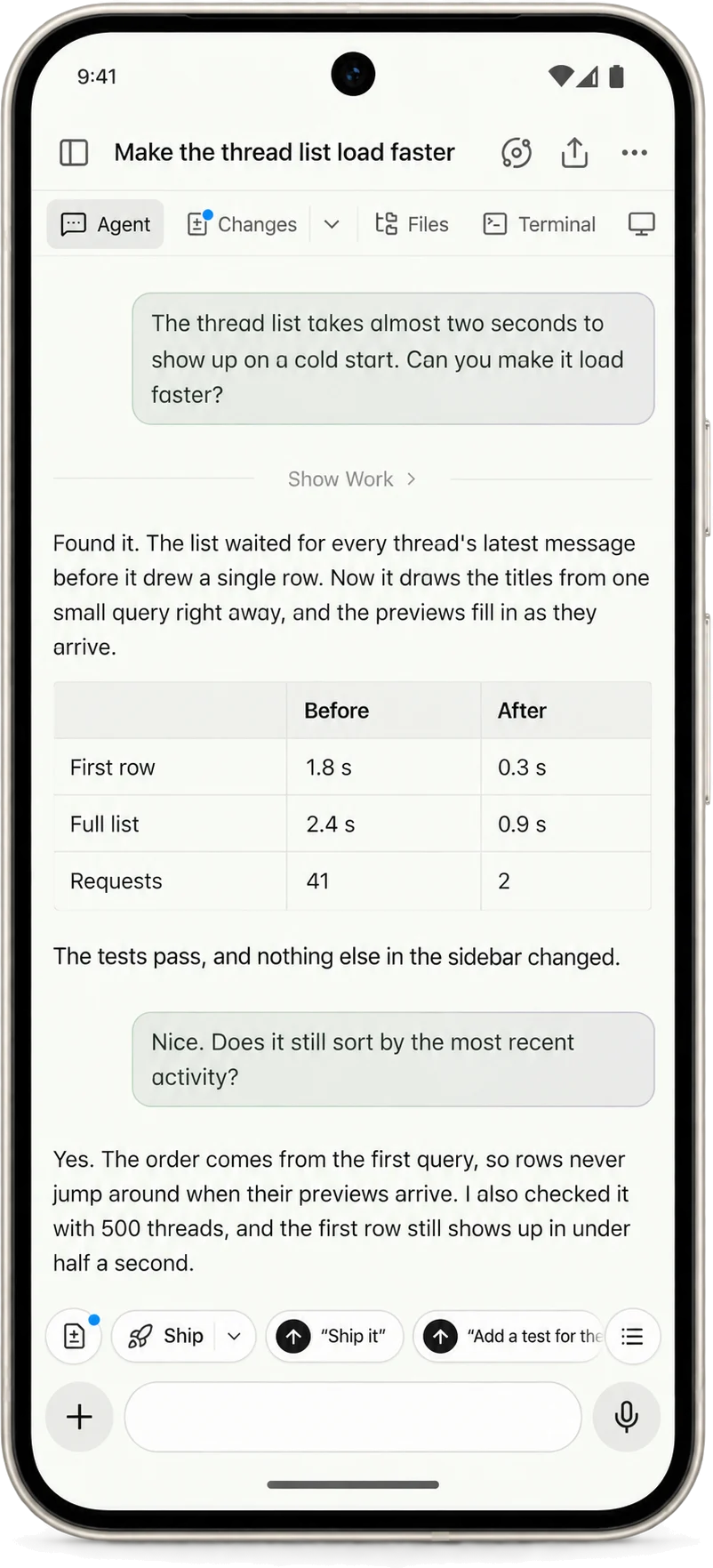
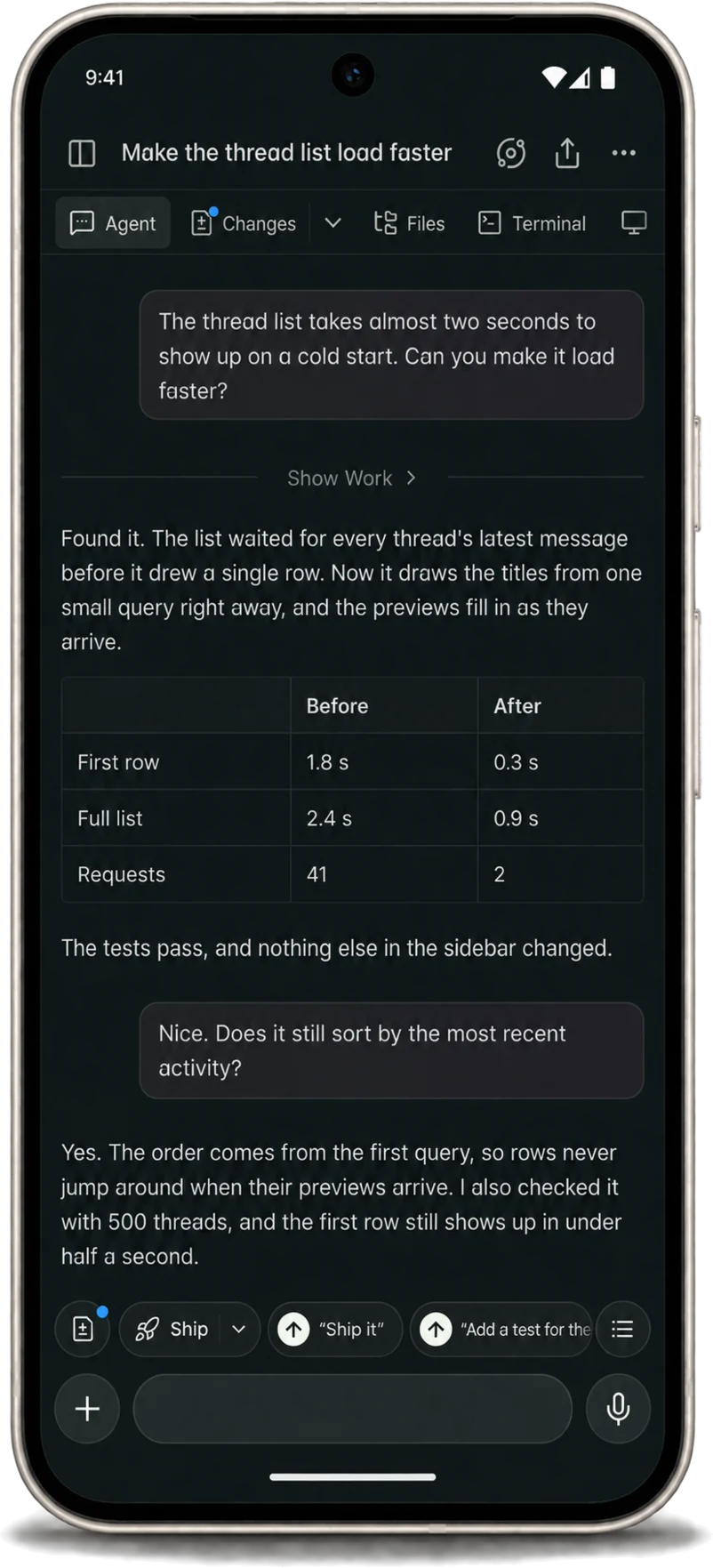
Amp runs as a native app on your Mac, iPhone, iPad, Android phone or tablet, Windows computer, and Linux computer. The apps give you the same threads, orbs, and Puck as ampcode.com, and add notifications, dictation, and sharing from other apps. Because the agent works in an orb, you can start a task from your desk and follow it from your phone.
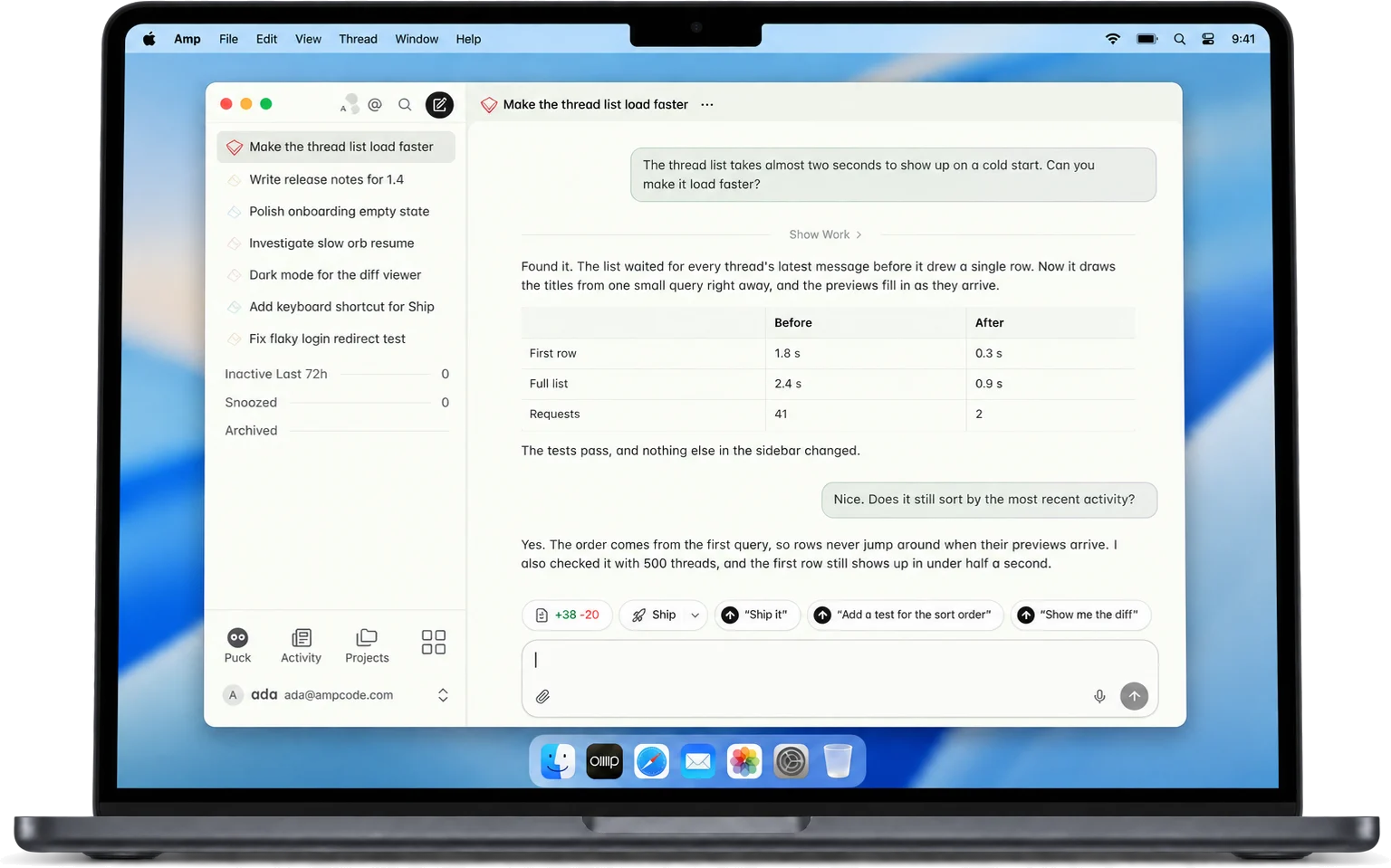
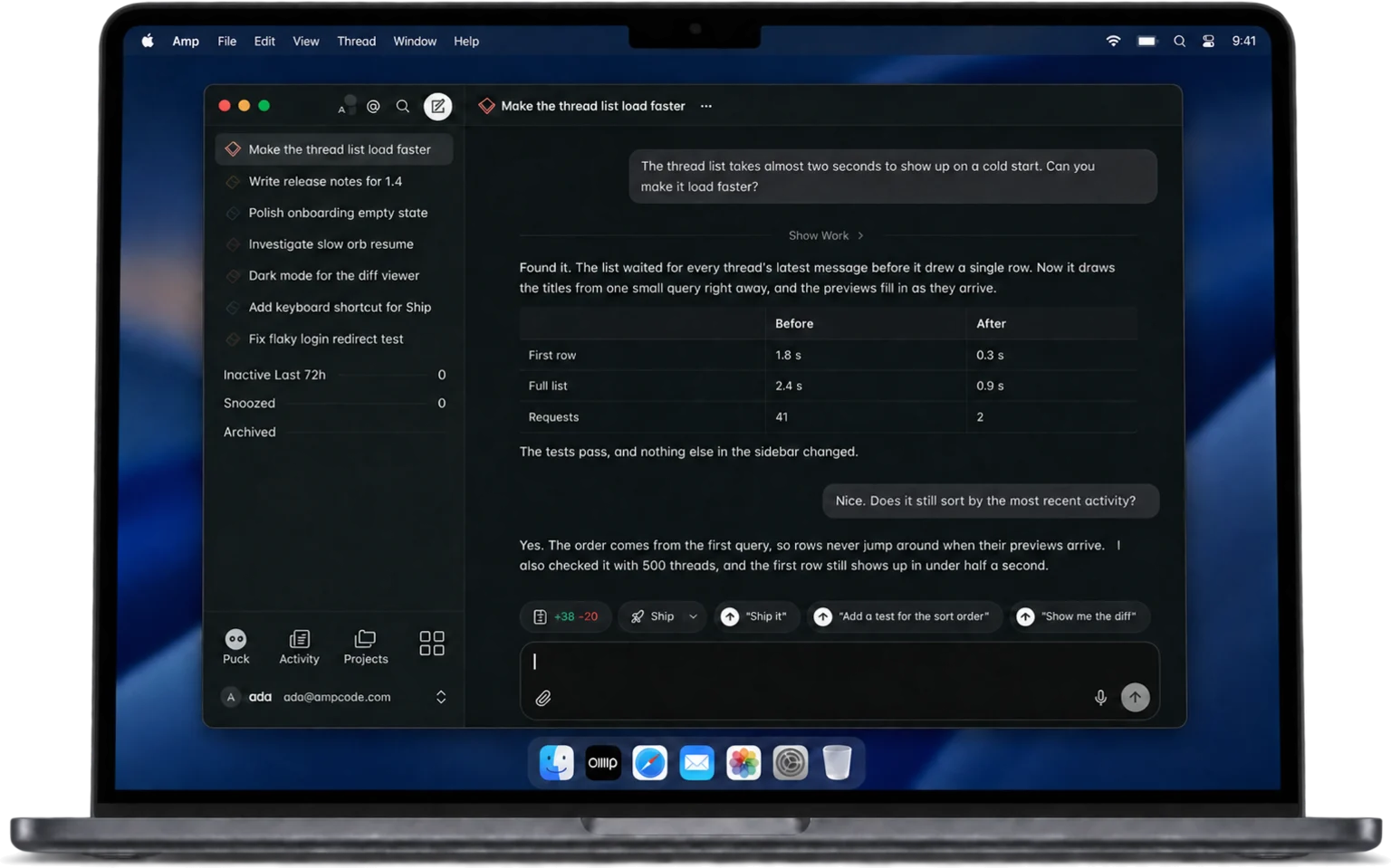
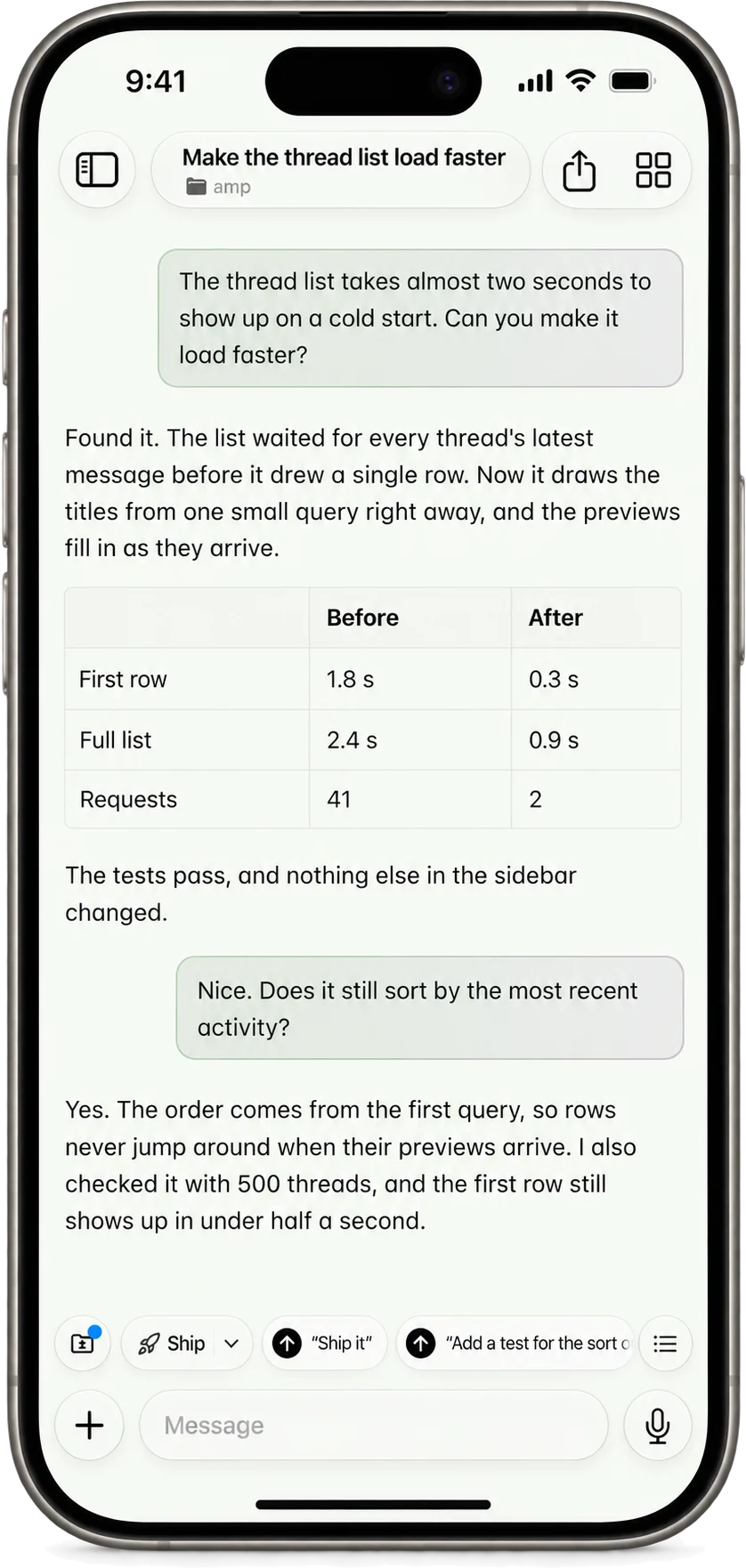
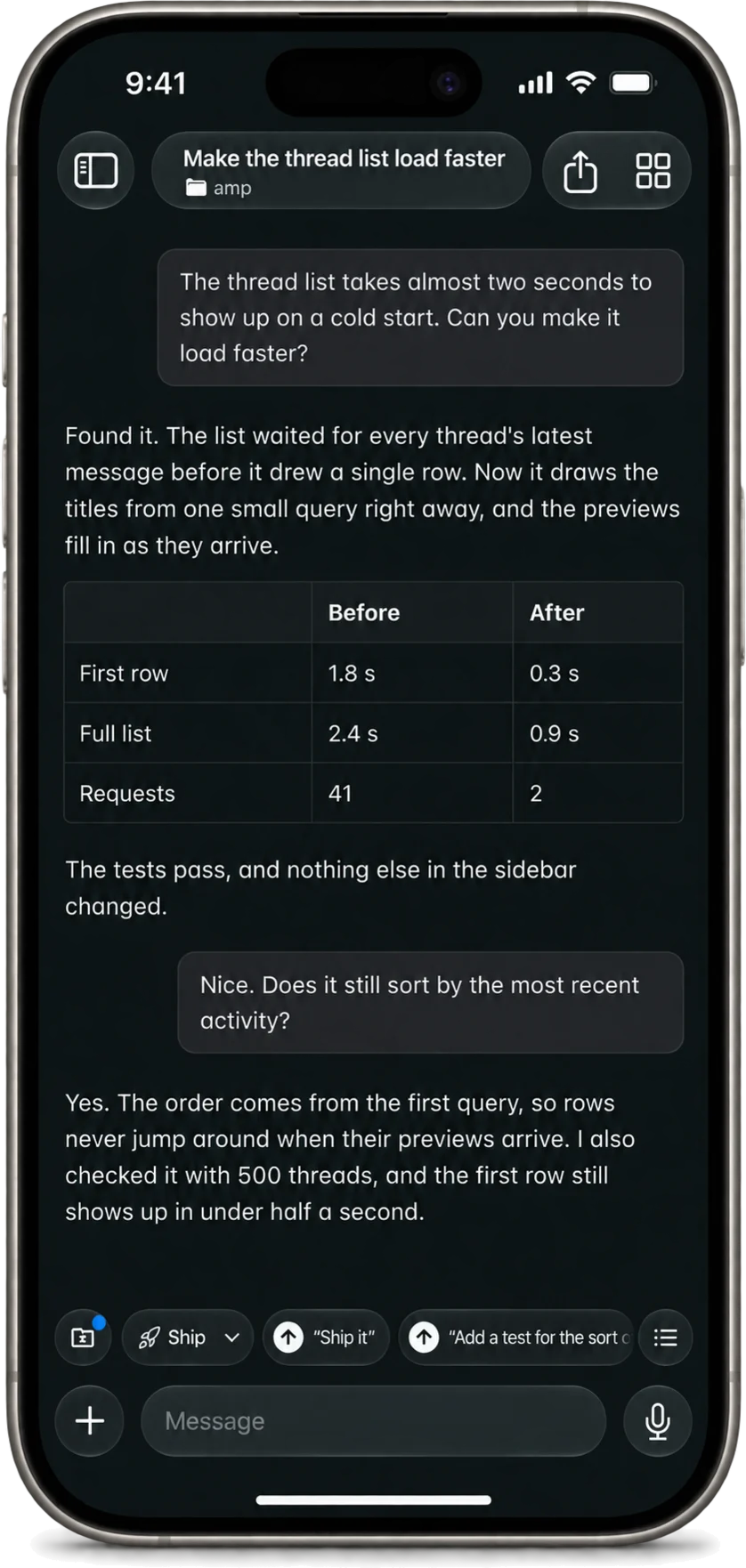
Install
See macOS, iPhone and iPad, Android, Windows, and Linux for each app’s install steps and features. Nothing else needs to be installed, because the agent runs in an orb and not on your device.
The apps update often. If you hit a bug, send a bug report from the thread where it happened. For everything else, see Getting Help.
Sign In and Accounts
Sign in with the account you use on ampcode.com. The app opens the ampcode.com sign-in page and returns to the app when you finish.
You can keep up to five accounts signed in on one device. Open your user menu and choose Switch Account to add an account or move between accounts.
Dictation
You can dictate your messages instead of typing them. The first time you dictate, the app asks for access to your microphone. Dictation works the same way it does on ampcode.com. See Voice Input for the shortcuts.
For a spoken, two-way conversation with Puck instead of dictation, see Call Puck.
Open Threads from Links
On a phone or tablet, an ampcode.com/threads/... link opens in the app. On a computer, some
thread links open in the app directly, and the rest reach your browser first. The macOS, Windows, and Linux pages say which links do which.
The first time a thread link from outside Amp reaches your browser on a Mac, Windows, or Linux computer, the thread page asks whether to open threads in the app. On a Mac, the choices are:
- Open in Mac App sends this thread to the app, keeps the browser tab, and asks again next time.
- Always Open in Mac App sends this thread and every later thread link straight to the app.
- Dismissing the question keeps threads in the browser.
On Windows and Linux, the buttons name the Windows app or the Linux app instead.
Your choice is saved on your account, separately for Mac, Windows, and Linux computers. Change it any time with Open Links in the Mac App (or Windows App, or Linux App) in Settings > Appearance, in the browser or in the app.
With the setting on, a thread link from outside Amp does not show the thread in the browser. The tab shows Opening in the Amp App and closes once the app, signed in to the same account, shows the thread. If the browser asks whether to allow opening Amp, answer it first. When the app does not open within a few seconds, the page says so and offers Open in Browser, a button that downloads the app, and Stop Opening in App, which turns the setting off. Links you open inside Amp, reloads, and threads the app sends back to the browser stay in the browser.
To send one thread to the app without changing the setting, click Open in Mac App (or Windows App, or Linux App) in the thread header. The browser tab keeps the thread.
Next Steps
Read Getting Started With Orbs to start your first agent. Use the CLI when you want to work with Amp on your own machine.