Move Lightroom Classic folders without losing the catalog connection

LR-FolderCraft rebuilds the folder tree of an Adobe Lightroom Classic library on disk and in the catalog, in one operation, so that not a single photo turns up missing afterwards.
Free, open source, no account, no telemetry, no cost. Install it · Read the safety story · Source code

The problem you probably arrived with
Your Lightroom library grew into a handful of huge year folders. You would like a proper structure — by year, month and day, by camera, by ISO week — but every obvious way to get there is a trap:
- Moving folders in Finder or Windows Explorer breaks the catalog. Lightroom shows question marks on the folders and "the file named … is offline or missing" on the photos, and reconnecting thousands of them by hand is not a weekend project.
- Dragging folders inside Lightroom's own Folders panel does keep the catalog intact, but it moves one folder at a time, it is slow on tens of thousands of files, and a crash halfway through leaves you nowhere.
- Re-importing loses your develop settings, collections, flags, keywords and history. It is not an option.
What LR-FolderCraft does instead
It reads the catalog, works out where every photo should live under the structure you choose, then moves the files and rewrites the catalog's folder records to match — as one operation, on tens of thousands of photos, in minutes.
lrfc plan  ~/Pictures/Photos.lrcat --structure day      # see it first, nothing is touched
lrfc apply ~/Pictures/Photos.lrcat --structure day      # then do it
lrfc undo  .../journal.jsonl                            # and take it back if you want to
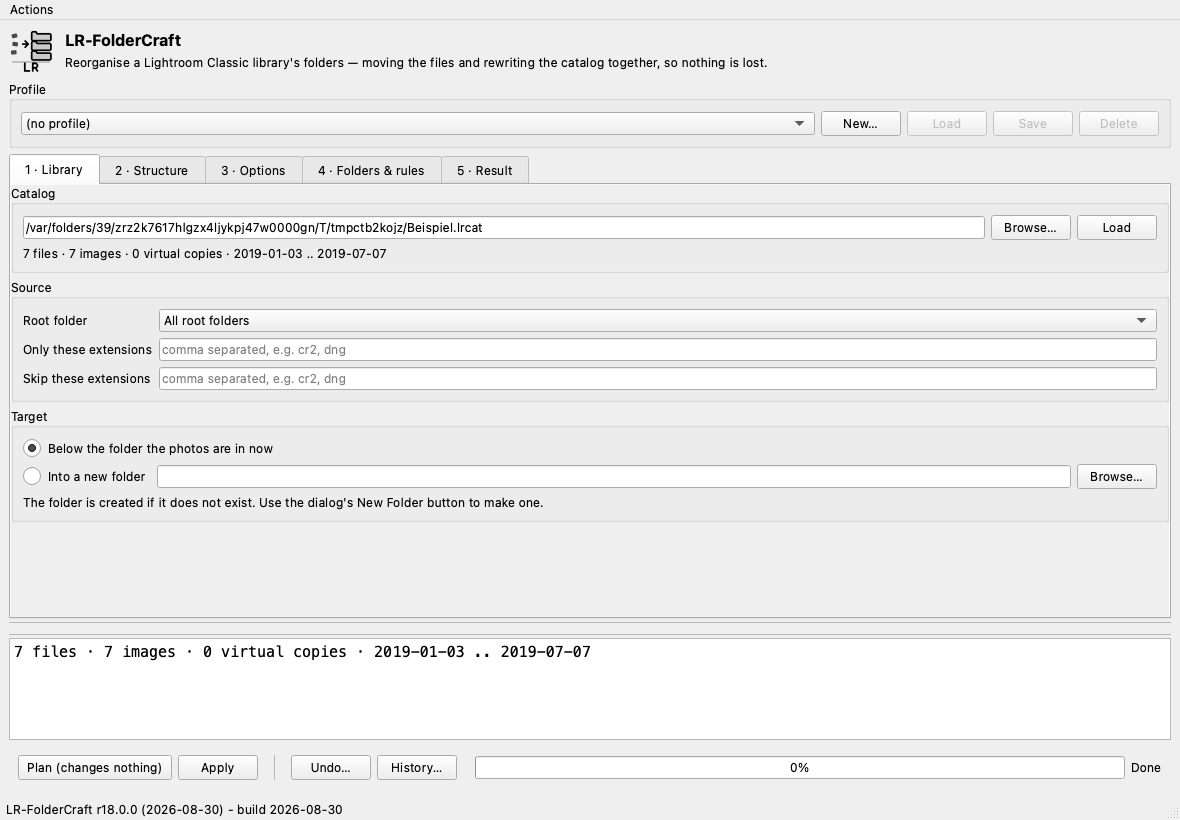
Or in a window, if you prefer one:
Why you can trust it with your library
This is the part that matters, and it is why the tool exists at all.
- The dry run is the default.
planwrites nothing, anywhere. You read the whole plan before anything happens. - The catalog is backed up before it is touched, and the backup is verified.
- The catalog is written last. Files move first and every move is written
to a journal as it happens. If the machine dies mid-run, the catalog is
untouched — and
lrfc resumeputs the files back or carries the run to the end, whichever you want. - Every run can be undone. The journal is the record of what actually happened, so undo is exact, not a guess. Records, logs and a copy of the settings are stored next to the catalog they belong to.
- It was proven at scale before it was published: a real 51,049-photo, 2.36 TB library, migrated and reversed many times, verified byte-identical each time across ten catalog tables, all 51,049 paths and every file on disk.
- The catalog is opened read-only while planning, and Lightroom must be closed — the tool refuses to start otherwise.
What it can do
- Structures by year / month / day, ISO week, camera, lens, ISO, file type,
or your own template — cumulative date levels (
2019 / 2019-01 / 2019-01-03) included. - Rules per folder: keep a themed folder as it is, move it unchanged to the new location, file it into the structure, sort only what is inside it.
- Folders already named
2019-01-03 Weddingcan be filed into the new structure with their extra text preserved. - Sidecar files (
.xmp), virtual copies, stacks and raw+JPEG pairs are handled together. - Files on disk that the catalog does not know about are collected into one clearly named folder rather than left scattered.
- Three front ends — command line, terminal interface, and a window — all with the same abilities, in English and German.
Requirements and limits
| Works with | Adobe Lightroom Classic (the catalog-based one) |
| Does not work with | Lightroom CC / the cloud-based Lightroom, which has no folder tree to rebuild |
| Runs on | macOS and Windows, Python 3.9 or newer |
| Licence | MIT or GPL-3.0-or-later — your choice |
Install it → Full documentation →
---
Lightroom-Ordner verschieben, ohne die Katalogverknüpfung zu verlieren
LR-FolderCraft baut den Ordnerbaum einer Adobe-Lightroom-Classic-Bibliothek neu auf — auf der Festplatte und im Katalog, in einem Zug, sodass hinterher kein einziges Foto als fehlend auftaucht.
Frei, quelloffen, ohne Konto, ohne Telemetrie, kostenlos. Installieren · Wie sicher das ist · Quelltext

Das Problem, mit dem Sie vermutlich hier sind
Ihre Lightroom-Bibliothek ist in eine Handvoll riesiger Jahresordner hineingewachsen. Sie hätten gern eine ordentliche Struktur — nach Jahr, Monat und Tag, nach Kamera, nach Kalenderwoche — aber jeder naheliegende Weg dorthin ist eine Falle:
- Ordner im Finder oder Explorer verschieben zerreißt den Katalog. Lightroom zeigt Fragezeichen auf den Ordnern und „Die Datei … ist offline oder fehlt" auf den Fotos. Tausende davon von Hand wieder zu verknüpfen ist kein Wochenendprojekt.
- Ordner in Lightrooms eigenem Ordner-Bedienfeld ziehen hält den Katalog zwar heil, bewegt aber immer nur einen Ordner, ist bei Zehntausenden Dateien quälend langsam, und ein Absturz mittendrin lässt Sie im Nirgendwo stehen.
- Neu importieren verliert Entwicklungseinstellungen, Sammlungen, Markierungen, Stichwörter und Verlauf. Das kommt nicht infrage.
Was LR-FolderCraft stattdessen tut
Es liest den Katalog, ermittelt für jedes Foto den Ort, an den es nach der von Ihnen gewählten Struktur gehört, verschiebt dann die Dateien und schreibt die Ordnereinträge des Katalogs passend um — als einen Vorgang, über Zehntausende Fotos, in Minuten.
lrfc --lang de plan  ~/Bilder/Fotos.lrcat --structure day   # erst ansehen, nichts wird angefasst
lrfc --lang de apply ~/Bilder/Fotos.lrcat --structure day   # dann ausführen
lrfc --lang de undo  .../journal.jsonl                      # und zurücknehmen, wenn Sie mögen
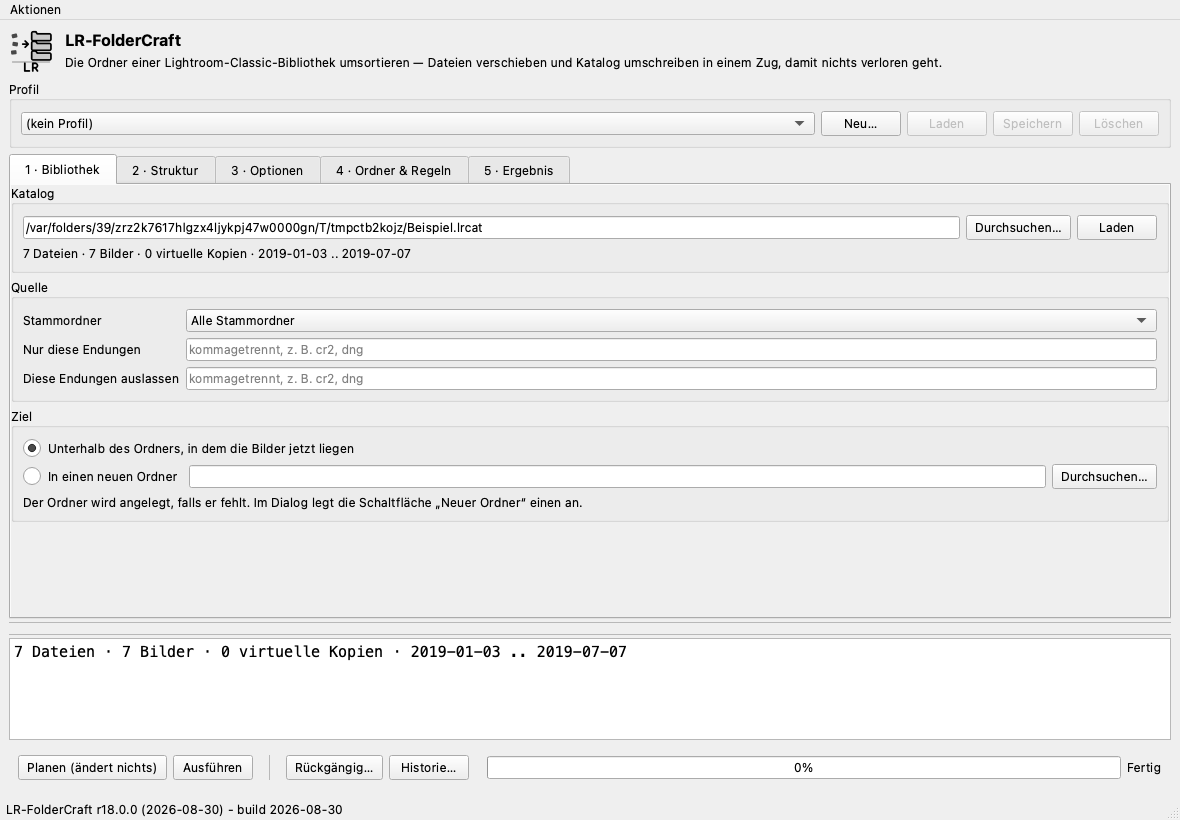
Oder in einem Fenster, wenn Ihnen das lieber ist:
Warum Sie ihm Ihre Bibliothek anvertrauen können
Das ist der Punkt, auf den es ankommt — und der Grund, warum es das Werkzeug überhaupt gibt.
- Der Probelauf ist der Normalfall.
planschreibt nirgendwo etwas. Sie lesen den vollständigen Plan, bevor irgendetwas geschieht. - Der Katalog wird gesichert, bevor er angefasst wird, und die Sicherung wird geprüft.
- Der Katalog wird zuletzt geschrieben. Erst wandern die Dateien, und jede
Verschiebung wird sofort in ein Journal geschrieben. Stirbt die Maschine
mittendrin, ist der Katalog unberührt — und
lrfc resumestellt die Dateien zurück oder führt den Lauf zu Ende, wie Sie möchten. - Jeder Lauf lässt sich rückgängig machen. Das Journal hält fest, was tatsächlich geschah; die Rücknahme ist damit exakt und keine Vermutung. Aufzeichnungen, Protokolle und eine Kopie der Einstellungen liegen neben dem Katalog, zu dem sie gehören.
- Es wurde in echter Größe belegt, bevor es veröffentlicht wurde: eine reale Bibliothek mit 51.049 Fotos und 2,36 TB, viele Male umgestellt und zurückgenommen, jedes Mal byte-identisch geprüft — über zehn Katalogtabellen, alle 51.049 Pfade und jede Datei auf der Platte.
- Der Katalog wird zum Planen nur lesend geöffnet, und Lightroom muss geschlossen sein — sonst startet das Werkzeug gar nicht erst.
Was es kann
- Strukturen nach Jahr / Monat / Tag, Kalenderwoche, Kamera, Objektiv, ISO,
Dateityp oder eigener Vorlage — kumulative Datumsebenen
(
2019 / 2019-01 / 2019-01-03) eingeschlossen. - Regeln je Ordner: einen thematischen Ordner so lassen, wie er ist, ihn unverändert an den neuen Ort verschieben, ihn in die Struktur einreihen oder nur seinen Inhalt sortieren.
- Ordner, die bereits
2019-01-03 Hochzeitheißen, lassen sich mit ihrem Zusatztext in die neue Struktur einreihen. - Beipackdateien (
.xmp), virtuelle Kopien, Stapel und RAW+JPEG-Paare werden zusammen behandelt. - Dateien auf der Platte, die der Katalog nicht kennt, wandern in einen eindeutig benannten Ordner, statt verstreut liegen zu bleiben.
- Drei Oberflächen — Kommandozeile, Terminaloberfläche und Fenster — alle mit demselben Funktionsumfang, auf Deutsch und Englisch.
Voraussetzungen und Grenzen
| Arbeitet mit | Adobe Lightroom Classic (der katalogbasierten Fassung) |
| Arbeitet nicht mit | Lightroom CC / dem Cloud-Lightroom, das keinen Ordnerbaum hat, den man umbauen könnte |
| Läuft auf | macOS und Windows, Python 3.9 oder neuer |
| Lizenz | MIT oder GPL-3.0-or-later — Sie wählen |