GeezerVisonThe World Wide Web, restored to 800 pixels of glory. | ||||||||||||||||||||||||||||||||||||||||||||||||||||||||||||||||||||||||||||||||||||||||||||||||||||||||||||||||||||||||||||||||||||||||||||||||||||||||||||||||||||||||||||||||||||||||||||||
| Home|About|Gaming cabinet|Archives|How it works|Starter sites | ||||||||||||||||||||||||||||||||||||||||||||||||||||||||||||||||||||||||||||||||||||||||||||||||||||||||||||||||||||||||||||||||||||||||||||||||||||||||||||||||||||||||||||||||||||||||||||||
GeezerVison is showing bkgm.com — All About GNU Backgammon All About GNUBy now, it�s fairly common knowledge that just about all the top players make use of the neural-net backgammon programs such as Snowie, or the older Jellyfish. The impact these programs have had on the way the game is understood and played cannot be overstated. Players of all levels have the option of purchasing these revolutionary �bots� (short for robots) in order to not only have the pleasure of getting a drubbing by a world-class opponent as many times as they want, but also have it analyze their moves, games, and matches. The program will point out our mistakes, tell us how big a blunder our move was, and list the best moves. It is still up to us to understand why our move or cube action was wrong, however there is no question such a tool is priceless. Perhaps �priceless� is a poor choice of words as the price is by no means a given. Though the programs come with different options depending on how much one is willing to spend, a version with all the trimmings, such as importing one�s matches, analyzing the games, grading your play, allowing rollouts, etc. will set you back no less than $380 for Snowie or �only� $220 for the older, and less sophisticated Jellyfish. This would seem to indicate that a top-quality aide is only in reach of someone with deep pockets or a deep commitment. If not, one has to look at some of the free offerings available on the Internet. That's where GNU comes in. Personally, when I first heard of GNU Backgammon, I immediately remembered with a grimace my first experience with an old version of GNU Chess several years earlier: an engine that barely played at an expert level, as opposed to other master-level programs, an absolute bare minimum in functions, and graphics that reminded me of my first Atari video game system ... from back in 1977. The surprise that awaited me couldn't have been greater. GNU Backgammon is first of all a neural-net program of World-Class strength. It is based on the same technology from which Jellyfish and Snowie originated.
FeaturesHow strong is GNU?On GamesGrid, the famous online server where many of the world's best play, a bot called GGRaccoon, using the GNU 0.13 engine and playing on a weaker setting so that it plays instantly, has achieved a rating as high as 2165 and is a favorite sparring partner of the top players there.A match was also done using Tony Lezard's Dueller software where GNU 0.13 played 100 7-point matches against Snowie 4 using their ideal settings. Although GNU won with a convincing 56-44, subsequent analysis, taking into account the luck factor, revealed that they were of exactly the same strength. GNU 0.14 is 1.18% stronger at 0-ply (the setting of GGRaccoon) than GNU 0.13 at 0-ply in money games. GNU is made of 3 neural nets: the contact net which is the main net for middlegame positions, the crashed net, and the race net which is so that GNU does not suffer from the common bane of backgammon programs: the non-contact bearin. For more information on how the neural nets were developed, see Joseph Heled's (the developer) site The GNUbg Training Program. Be sure to select full instead of concise at the bottom left of the site if you do visit it. Brief feature listAside from offering an analytical engine of the highest order, GNU's interface provides a very impressive number of features for users, many of which are not available in commercial programs. It's worth mentioning that GNU Backgammon is also available for MacOS, Solaris, Linux, and other operating systems. There are also programs using the GNU engine running on Pocket PC PDAs, and the source is available to be ported to PDAs.
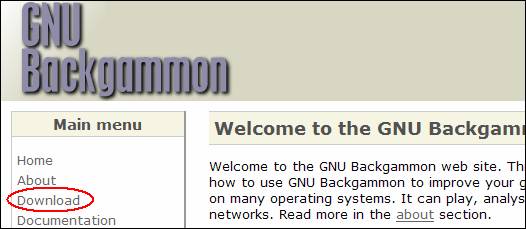
Where to get itThe official site of GNU Backgammon is either http://www.gnu.org/software/gnubg/ or http://www.gnubg.org though to download an installable version of the program, you�ll want to go to the second site. Go there and select Download.
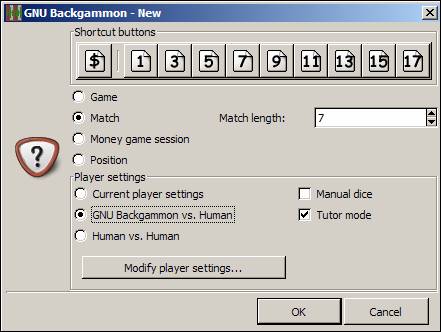
Playing a gameThe first and most basic feature is to simply set up a game and play, so let�s start with that. Start the program and maximize the window. If the appearance isn�t to your liking, you will find out how to customize it further below.Starting a gameTo start a game, just click on the New button and a small window will open
Rolling dice and doublingTo roll the dice, simply click on the empty space of the board on the right side. The same goes for doubling, where you can just click on the cube on the board.
ToolbarWhile playing, you can access the main functions through the toolbar at the top:
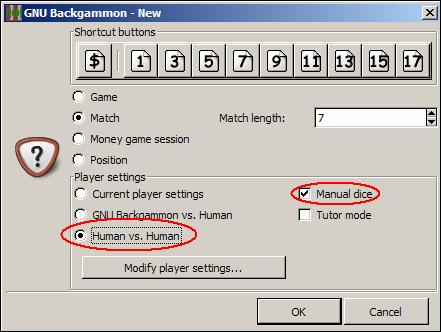
Human vs. HumanYou may wish to use GNU to keep track of a game or match against a friend, and play directly on GNU, or you may wish to enter a game from another source such as a book or a videotape for safekeeping and analysis. Start a game by clicking on the New button. In the window, select Human vs. Human. Select Manual dice if you want to enter the dice played, and not have GNU roll them.
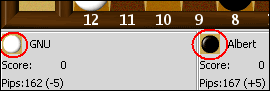
 button. You can set/change whose turn it is to play by clicking on the small checker next to the player's name at the bottom.
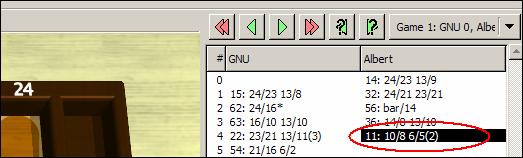
To enter the moves, just play as you normally would against GNU: clicking on the board to roll the dice, selecting the dice rolled, and then playing the move. If you make a mistake and enter the wrong dice, just go to the Game menu again and select Set dice. If you make a mistake in the move played, and want to correct this, go to the Game Record (the move list), click on the move you want to change,
If you wanted to double, the simplest way is to click on the move before, re-enter it, and then double. GNU will automatically continue the game with your change and erase the moves that came after. If you don�t see the move list, go to the View menu, and select Game Record.
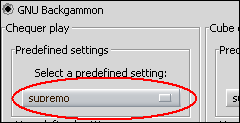
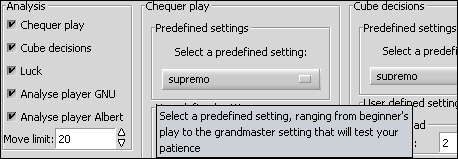
Player strengthFirst set the settings by clicking on the Settings menu at the top, then click on Players. This opens a window displaying the settings for GNU or allowing you to play against someone else (or even have GNU play against itself). At the top there is a tab where you can also set your name for the player. For the GNU engine, I prefer the pre-defined setting of Supremo or World Class for both checker play and cube decisions. At this setting it will take some time to play at given moments which may not be to the taste of everyone, so if you want a top-notch game, just a fraction worse, but almost instant, select Expert instead. You may also get tired of getting beat up by it (if you think it cheats, read the section A Word about 'Cheating'), in which case, you can select more modest playing levels.
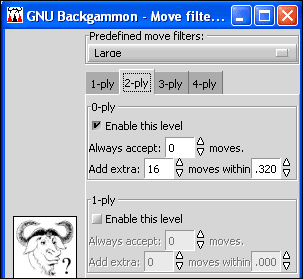
If you are a Snowie user, or have seen Snowie's analysis, you may wonder why my recommended level of play (Supremo) is set at 2-ply when Snowie's strongest setting is at 3-ply. The reason is simply one of nomenclature, or naming. Snowie starts counting at 1-ply whereas GNU starts at 0-ply, so GNU's 2-ply is in fact the same search depth as Snowie's 3-ply. Move FilterThe move filter allows you to control exactly how many moves GNU is examining at each ply. A ply is basically one move played by one side, thus if both sides played a move, it would be one whole move, but two plies, one for each side. To change the specific settings, press the Modify... button.Although the level presets, such as World Class, Supremo, etc. are tested and good, you may want to know or control how GNU filters its moves to analyze and how many.
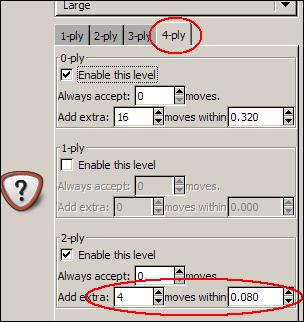
If you are playing Expert level (this is what GGRaccoon is set at) or another 0-ply setting, the Move Filter settings will not change a thing, as Expert level automatically examines all moves. At Supremo level, this changes though, as it takes a selection of the best moves from 0-ply and examines them at 2-ply. This means that for those selected moves it will calculate all the possibilities 2 plies ahead and evaluate them, allowing it to find better moves. Since Supremo is a 2-ply setting, we are only interested in the 2-ply settings of Large as in the figure above. 3-ply or 4-ply settings will have no effect here because Supremo doesn't examine at that depth. In the figure above, we can see it first will Always accept 0 moves. This first line means that it won't force any moves to be analyzed at 2-ply, it will only analyze moves according to the second line. If it had said it would always analyze 2 moves, this would mean that no matter how ridiculously bad the 2nd move was compared to the 1st, it would analyze both at 2-ply. The second line says it will Add extra 16 moves within 0.320. This means that provided they aren't more than 0.320 equity worse than the top move, it will select a maximum of 16 moves to analyze at 2-ply. For example, in the diagram below
the 2nd best move is no less than 0.453 equity worse than the top choice, so it didn't bother analyzing them at 2-ply as it is unlikely to change its mind on what the best move is. Take a look at the figure below now:
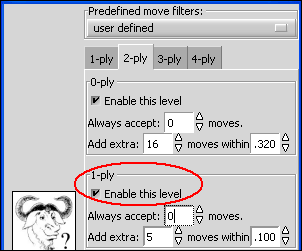
Here, the exact same settings were maintained, but the 1-ply filter was activated. This just means that those 16 moves selected from the 0-ply are sent instead to be analyzed at 1-ply, and then up to 5 moves from 1-ply will be sent to be analyzed at 2-ply. So this would actually be faster than the previous setting (and weaker), since a maximum of only 5 moves would be analyzed at 2-ply depth.
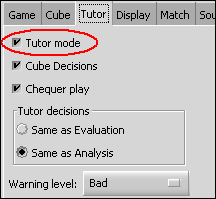
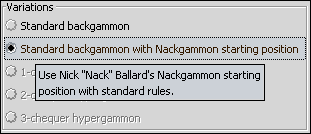
Before going any further, do not forget to click on Save settings at the bottom of the Settings menu. You must do this every time you make changes you wish the program to remember the next time you load it. Playing options and TutorIn the Settings menu, select Options, and a small window opens. Here, you can activate automatic bear-off (it will automatically take off the most checkers if it can sparing you the effort of playing obvious moves), choose the equity table to be used (Woolsey's, Snowie's, etc.), select Nackgammon, choose to play with manual dice (you play with your own personal dice instead of the computer's) and a great teaching tool: the Tutor Mode.When activated, the Tutor mode has GNU analyzing your moves and/or cube decisions and comparing them with its choices. You set the threshold for its alerts, so if you set it for bad, it will only warn you when you make a bad mistake. It will then allow you to re-examine your choice, go right ahead with it, or provide a 'hint' essentially showing you its analysis.
My personal choices are to set the limit to bad, and to set the Tutor decisions as Same as Analysis.
Backgammon variationsBackgammon has a number of variations, some of which are quite popular on the servers. The main ones are Nackgammon and Hypergammon, both of which are supported by GNU, as well as an Eastern variation of the rules not allowing more than 5 checkers on a single point. GNU is also capable of directly importing and recognizing Nackgammon and Hypergammon games played on the servers for analysis.
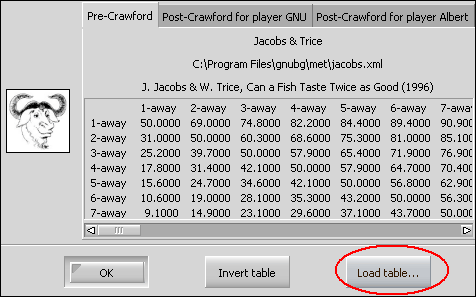
Advanced Playing InformationFor players seeking more advanced information on the position, GNU also provides information on the Match Equity Table (MET), race theory (Kleinman count, Thorp count), a powerful Market Window/Gammon value viewer, and a new tool called the Temperature Map courtesy of Sho Sengoku.Match Equity TableThe Match Equity Table can be viewed at any moment by entering the Analyze menu and selecting Match Equity Table. There you will see table values including Pre-Crawford and Post-Crawford scores. The table used by GNU is by no means imposed, and you can select any of a number of provided ones, including the Snowie MET, Woolsey's, Jacob and Trice's, etc. by selecting Load Table.
In the window that opens, enter the met directory on the right, and then on the left choose the table you want. The tables all end with the .XML extension, so to select the Jacobs and Trice table, choose jacobs.xml. Again, don't forget to save the settings (Settings menu
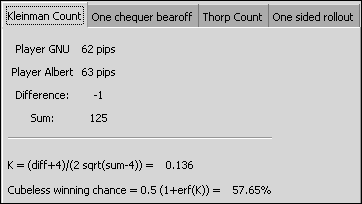
Kleinman and Thorp countsIf the game situation is a race, one can look up what the Kleinman count or Thorp count has to say about it.
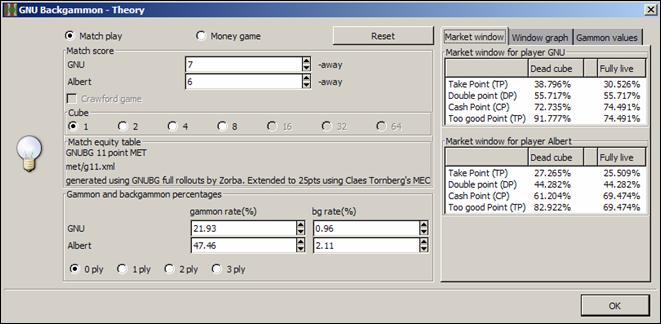
Market Window/Gammon valueGNU offers a powerful Market Window/Gammon values tool (Analyze menu Market Window) to the advanced or aspiring player. This tool will answer all questions on a position's take point, double point, etc. for both players at any match situation, including side-by-side dead-cube/live-cube scores. If you wish to see how other match scores would affect the figures, you can simply use the arrows, and you can change the cube value. And if it is a money game, then the respective double, beaver, raccoon, redouble values will be shown instead.
Temperature MapSho Sengoku conceived and developed the idea of the Temperature Map, which is now available to GNU users. Essentially what it does is allow you to see the possible consequences of a move or cube decision in a visual manner. It is available in the Analysis pane, and in the Hint window. The best way to understand this is to give an example.
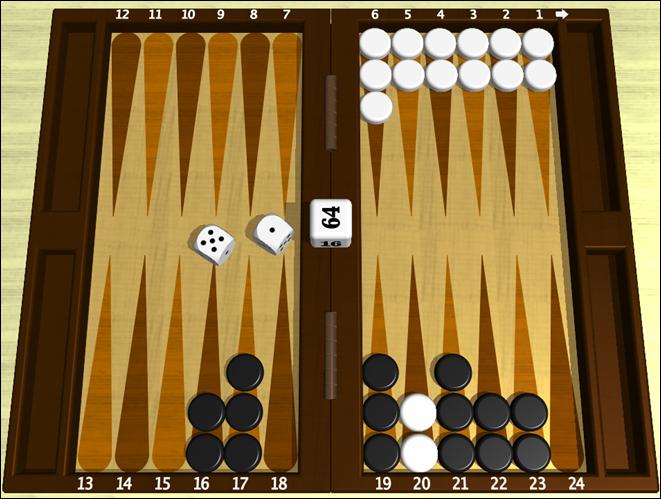
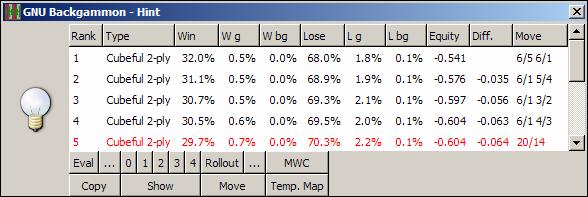
Commenting on the position above, as can be seen in the Hint window below, GNU says that running off the anchor with 20/14 would lose 0.064 equity compared to the best move 6/5 6/1.
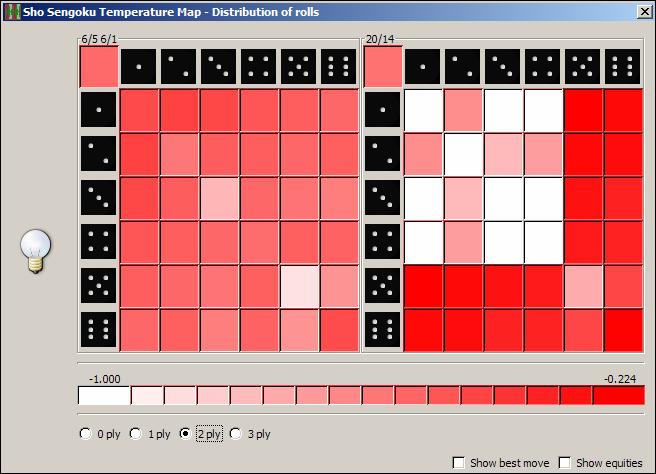
It explains this to us through its estimated percentages of wins and losses, but even trusting the numbers, it is sometimes difficult for a player to see why one is worse than the other. This is a classic "pay now, pay later" situation, ideally suited for the Temperature Map. To see it I highlight the moves I want to compare, and then press the Temp. Map button. To select more than one move, keep the Ctrl key pressed and click on the moves you want to examine. Here is what it shows me:
The whiter the squares the worse the roll would be for me, and the darker the red, the better. We can see that after 20/14 there would be a number of possible rolls that would lead to disastrous situations compared to the ugly, but necessary 6/5 6/1. If for example, you wanted to see why a certain roll, flagged with a white square, plays worse, you can click on Show best move, and the best move after each roll will appear in the corresponding square. Likewise, checking Show equities would show the resulting equities of each case scenario.
The Temperature Map is also available for cube decisions. Why cube decisions you might ask? The reason is that it allows you to see the volatility of the position, and would thus allow you to see quickly and easily the potential market losers of a position. You can set the depth of the analysis as seen at the bottom of the figure above, but be warned that even a 2-ply analysis of all the possibilities can take some time.
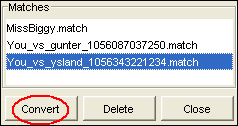
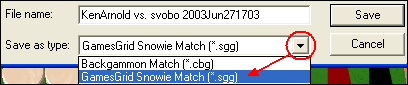
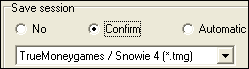
Importing and Exporting gamesGNU allows users to import matches from a variety of formats, including the Jellyfish formats, the FIBS oldmoves format, the Snowie GamesGrid format (.sgg), the TrueMoneyGames format (.tmg), and even Snowie's Standard Text Format among others. It also allows you to export your games and positions into the Jellyfish format (.mat), HTML (including easily customizable graphics), a readable text format with diagrams (.txt), and even a PDF document. If you'd like to share a position and some analysis in text format, you can have GNU send this directly to the Windows clipboard for pasting.Importing gamesSince many players who play online will want to make use of this to analyze their matches, or at the very least see how they did, below are step-by-step instructions on how to do this whether you play at FIBS, GamesGrid, or TrueMoneyGames. Essentially, you just want to save the games in a format that GNU can read and then import them.
To import a match or position, just press the
FIBS—Importing and analyzingThese instructions are for use with JavaFIBS, my preferred FIBS client.
GamesGrid—Importing and analyzing
TrueMoneyGames—Importing and analyzing
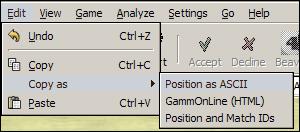
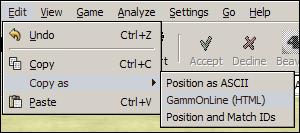
Exporting games/positionsGNU allows users to Export their games and matches into a variety of formats such as the Jellyfish formats, text format, not to mention PDF, LaTex, PostScript, and even HTML. Note that when exporting to these formats you get the moves, diagrams at each move, the analysis, and even the game/match statistics. In text format you'll see the boards in ASCII art, and in PDF, you'll literally get an instant e-book of the match. It also can export board positions and Gammonline HTML to the Windows clipboard for easy pasting.Windows Clipboard export
PNG Image exportYou may also wish to simply save the board position as an image file that you can add to a Word document or HTML document for example. To do so, go to the File menu and select Export, then Position, and PNG. Be careful to add .PNG to the name when saving the image. The board image saved will use the color scheme currently being used. If you wish a different color scheme, change the design (for more info see Appearance: Board designs). You can also change the size of the image that is created by entering the Settings menu, then Export, and at the bottom right of the window that opens, set the size you want.HTML exportGNU is capable of creating elegant HTML files so that you can publish your games on the web. It will create them exactly according to your specifications, including the number of moves, what it analyzed, the board design of your choice, and even the match/game statistics. Here is a sample of what it looks like:
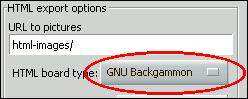
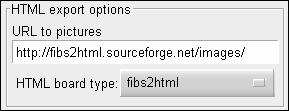
To set all the settings as you'd like, you need to go to the Settings menu and then select Export. There you can choose, down to the smallest details, what it will display and how. The 'how' concerns the images used to produce board positions. This is chosen at the bottom of the window and you can choose between its own HTML images or two others, which are FIBS and BBS. You can choose what the board in the HTML page will look like, and have it appear exactly as the board design (see Appearance: Board designs for more on this) you are using in GNU. To do so, you need to create a directory to place the images and then export them. First, go to the File menu, select Export, and then HTML Images... Find a directory to place them in, or create your own by pressing the Create Directory button at the top. I'd suggest using the default name \html-images. Now enter the directory and press the Ok button. Be careful to remember the name of the directory you placed the images in, including capital letters if you used any. Now go to the Settings menu, select Export and then at the bottom select GNU Backgammon board images (circled in red below) and type the name of the directory.
Analyzing matchesGNU also comes with a set of functions that allow it to analyze a game or match, provide a detailed graded report, and allow you to navigate through the moves to quickly see the mistakes made.Before starting, you'll want to configure the settings first, though this will only need to be done once. Go to Settings and select Analysis. A fairly large window will open, allowing you to play with as many settings as you could want. This is also where you set the thresholds for the Tutor mode (dubious, bad, etc.). Feel free to look around, but I simply set this to analyze checker play, cube decisions, and luck, and set the level of analysis at World Class for both checker play and cube decisions. The Move limit setting is to set the maximum number of moves it will display in the Hint window and the Analysis pane.
If you just played a match at an online server, import it first, then go to the Analyze menu and select Analyze match. If you only want to analyze a specific game, open it and then select Analyze game. Once started, you will see a bar in the bottom right corner showing the progress made in both the number of moves and percentage completed.
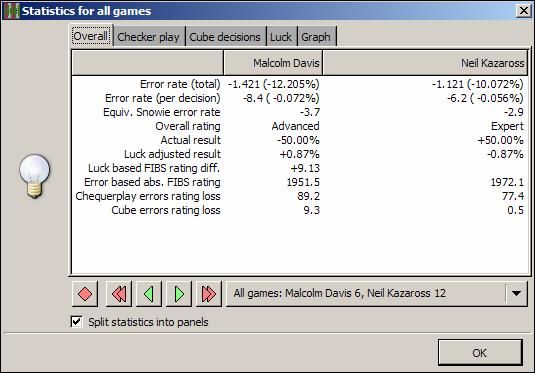
Analysis Results and GradeOnce GNU has finished analyzing your games, you'll want to see the report and then go over the bloopers. In the Analyze menu, select Match statistics, and a window will open. Feel free to resize it (clicking and dragging the edges) to show more information. It will show you the results of both players side by side, allowing you to quickly compare notes.
You can click on the tabs at the top see the detailed information on how you did specifically in checker play, cubes, and even how lucky or unlucky you were, and see the individual grades for each area. If you right-click on the information, you will have the choice to copy it or all the pages into the Windows clipboard, that you can paste wherever you like. It is very revealing when you see a very different evaluation of your checker play as opposed to your cube decisions. Another feature (in my opinion) is that GNU only grades your checker play according to non-forced moves, contrary to Snowie which grades while including moves that were spent on the bar or that were forced. In other words, if you played 50 moves but 10 of those were spent on the bar (you can hardly make a mistake if you can�t play), then GNU will average your error rate according to the 40 unforced moves.
You can save these results with the match (File GNU can be quite tough on the grades, much harder than Snowie 4, so an Advanced grade in GNU could easily be an Expert or World Class grade in Snowie 4. Below are the limits of each grade: Snowie's thresholds (to understand the Snowie rating) are:
GNU's thresholds are:
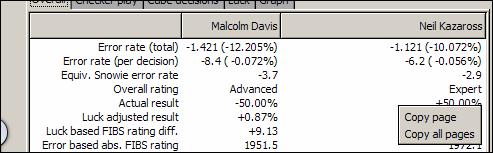
GNU will also attribute an estimated Elo rating of your play based on the FIBS rating system, but it will only do so for match play. You can also copy the results of the report to another document. To do this, click on any of the lines, then right-click with the mouse, and select either Copy Page or Copy all Pages.
Player RecordsYou can keep track of the results obtained by yourself and your opponents using the Player Records. There you can store the statistics of your matches and keep records of the average results obtained such as checker play, cube decisions, and luck. It will also break down the results according to the last 20 games played, the last 100, etc.
To add results to an existing account, or simply create a new account in which to add the results (of course you must first have an analyzed match open), go to the Analyze menu, and select Add to Player Records and Match statistics. If the account doesn't already exist, GNU will create it automatically and add the results. If you wish to remove an account, then click on the name in the Player Records, and press the Erase button.
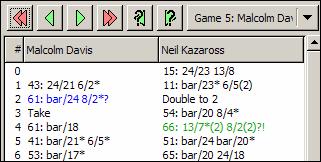
Reviewing moves and mistakesOnce you have seen the results of the report, you will probably want to go over the mistakes you made. To do this, you'll need to be sure both the Game Record and the Analysis panes are visible. If you don�t see them, or are unsure, go to the View menu, and activate them.Game RecordThe Game Record pane is located at the top right, and will list the moves, games, and errors:
It always shows the last move of the last game when you open or import a match. You can navigate backwards and forwards move-by-move with the green arrows, and game-by-game with the red arrows. If you use the buttons with the question marks on the green arrows, it will go from mistake-to-mistake. The side-by-side list with colored commentary (note that you must first analyze the match or move before) allows you to quickly overview who made more mistakes in a game, and identify what mistakes and how bad they were. Remember you can set the limits of what is considered a mistake by GNU in the Analysis options in the Settings menu. Here is a summary of what the colors and codes mean. The early versions of GNU didn�t have the color coding, so they used punctuation marks, standard in chess notation, to describe the moves.
Since every move has two decisions involved, a checker play and a cube decision, one can make two mistakes in a single move, and thus see something like: 63: 24/15!??? Though it may seem like GNU got overly enthusiastic about its comments, the fact is there are two separate comments above. The first punctuation (!?) is for the checker play, and the second (??) is for the cube, so here a dubious checker play was made, and a cube decision blunder was also made. Note that you can ignore this if you like, and stick to the color coding, as described below. If all this seems a bit disorienting at first, with a bit of practice, it will become second nature.
Hint window & Analysis paneYou can see GNU�s analysis either in the Hint window by pressing the button on the toolbar, or in the Analysis pane after a game or move has been analyzed (see Analyzing matches above). You will see a window open showing the best to worst moves from top to bottom or an analysis of the cube decision.
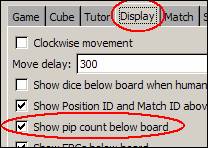
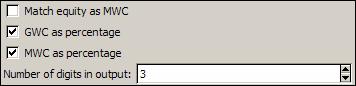
Checker play analysisA first suggestion is to go to the Settings menu, then Appearance, and in it, to the right, make sure the box for GWC as Percentage is checked. Here is what it shows for the dubious move shown above:
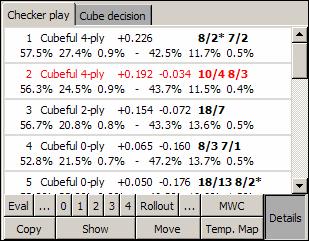
First of all, if you are new to backgammon software, and the above looks hopelessly complicated, relax, it isn't nearly that bad. Let's look at the 5th line in red, the move that was played, and figure out what it all means:
As you can see, it shows the best moves considered, with the move actually played in red, plus the various equity scores for gammons, etc. Most players will focus on the last three, which are the total equity of the move, the difference in equity between the move played and GNU's top choice, and what move is being evaluated. However, since GNU can�t explain why one move is better than another, looking at the win percentage, and the respective percentages of gammon wins and gammon losses can help.
That�s all nice and well for the Hint window, however the Analysis pane, if activated, will appear below the Game Record a bit differently. If you don�t see it at all, be sure it is activated in the View menu. Remember also that you must first have analyzed moves or games (Analyze menu
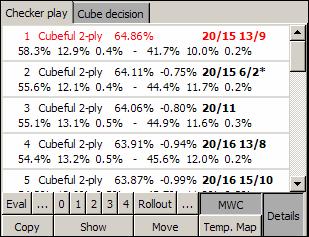
The organization is similar to the Hint window described above, and the information is identical. The top line of each move shows the rank, the type (depth), the equity and the move played (in boldface). The line below shows the move�s winning percentages, the gammon winning chances, and the backgammon percentages, followed by the respective percentages of the opponent. See above for a detailed description. Cube analysis
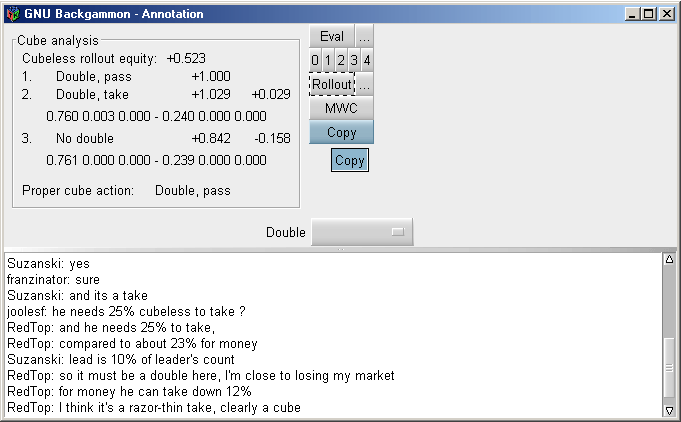
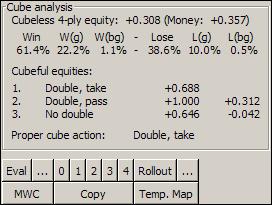
In the diagram above, you can see how its cube analysis looks like. First you will see that aside from the pure cubeless equity, it also says (Money: +0.357). The reason is that the cube analysis was from a match, where the score can completely change the value and correctness of a double or not, and GNU tells you what the equity would be if the decision were in a money game. Below you can see the expected win/loss percentages, just as for checker play, and below that you can see the actual cube analysis. Here is what you are seeing:
Proper cube action obviously represents what should be done on both sides, in other words you should double, since not doubling would be a 0.042 mistake as we saw, and your opponent should take, since dropping would be a 0.312 blunder. Other analysis functionsIf you�d like to copy the analysis of a move(s) or cube decision to a document, highlight the moves that interest you, and press Copy. If you want to highlight more than one, keep the Ctrl key pressed while selecting the moves. Then paste it where you wish. Don�t forget to change the font to Courier New size 9 or 10 if you wish to maintain the formatting.If you'd like to see how the different moves it analyzed appear on the board, press the Show button.
Now just click on a move you want to see and the board will display it. To see another move, just click on it. This allows you to quickly see and compare the moves it analyzed. To exit Show mode to be able to analyze the moves or run rollouts, click on the Show button again.
You'll also note a button called the Temp. Map
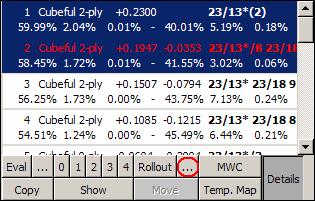
You may also want to have GNU analyze a few select moves a bit deeper. To do this you can have it go a 3rd ply, a 4th ply, or even do a rollout. To do a 3-ply or 4-ply analysis, select the moves you want analyzed, and then press the
Let's have it do a 3-ply analysis of the three moves highlighted above. Just click on the number '3' and it will do a 3-ply analysis. Be a little patient as 3 plies is considerably slower than 2 plies, but it shouldn't be too long. If you want to customize the evaluator, click on the button indicated with a small red circle
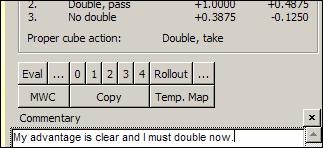
Here we see the results of the 2-ply analysis, displayed not only in percentiles, but in Match Winning Chances, as opposed to Game Winning Chances. Commenting movesYou can add or read text comments on moves or cube decisions. This is available through the Commentary pane, available through the View menu (View Commentary).
These comments are saved with the game score and can also be exported into HTML, PDF, text files, or any of the other Export options.
RolloutsSo what's a rollout? A rollout is when you have the program play against itself a set amount of times (number of trials) and then sum up all the results of wins, losses, gammons, etc. from those games to give a more precise evaluation of a move/position. The interest is that the program may easily be underestimating some features/dangers of a position, and not realize this by only looking a couple of plies ahead. By playing it out, things will happen, and the game will unfold, giving it more accurate information on the consequences of a move.One can do a full rollout, meaning it will play the position out until the last checker is born off, or it can be a truncated rollout, playing to a certain depth in plies, enough to evaluate the consequences, or even a mixture of settings.
Rollouts can be done at any time either directly from the Analyze menu with the Rollout option, or from the Hint window. To use the rollout function you must first select the moves you want to rollout, otherwise the button will remain grayed out and inaccessible. You will want to set your preferred options the first time by clicking on the
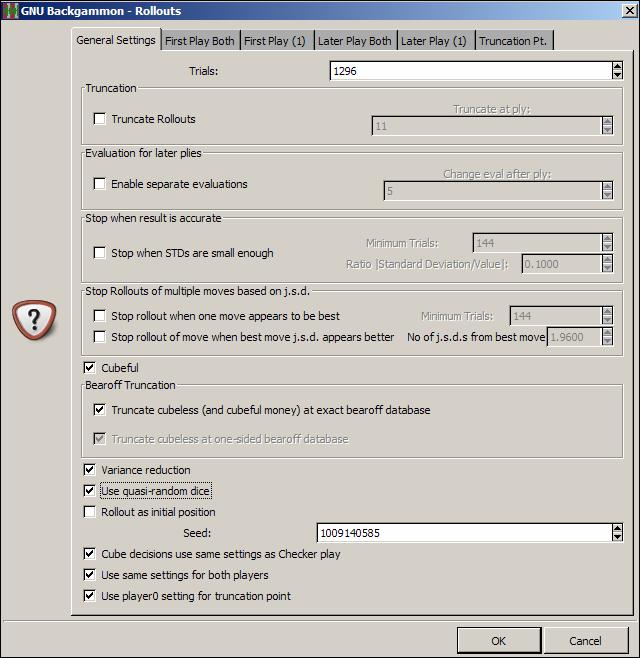
GNU offers a vast number of ways to set the rollouts, allowing you as many possibilities for efficiency as possible. Its 0-ply play is incredibly strong and practically instant, so it can help give meaningful results very quickly. GNU also plays according to score in its rollouts (using the match equity table of your choice naturally), which Snowie 4 does not for example. I will explain the main options, share the results of some of the testing that has been done, and share my preferences. When one opens the rollout options window for the first time, it can look vastly intimidating and confusing.
However, it really isn't, so let's run through it from top to bottom and see what GNU can do for you. Playing StrengthTo set the primary playing strength used in the rollouts, click on the tab First Play Both at the top:
This is where you configure the primary strength of play. If you want to set a different playing strength for the cube decisions, you must go to the General Settings tab and at the bottom deactivate the option Cube decisions use same settings as Checker play. TrialsThe topmost part under the tab General Settings is where you set the number of trials.
The number of trials is simply the number of games you want GNU to play out (or roll out) as it collects the results. The more trials the better as this reduces the error margin of the results. After all, if it won a certain position 2 times in 3, it could be a fluke, but after hundreds or thousands of trials with variance reduction (see below) the results become far more trustworthy. Truncated rolloutsTruncated rollouts are rollouts played to a certain number of moves as opposed to full rollouts. You may feel that the program doesn't really need to play the game to the last move to know whether a move leads to good positions on average or bad ones.
In the above figure the setting is 11 plies, so GNU will play out 11 moves, stop and evaluate the resulting position, and then start the next trial. This is far faster of course, and is particularly desirable if you want to analyze using a 2-ply playing strength which might be too slow for a full rollout. Evaluation for later pliesOne can set GNU to use a different playing strength after a specified number of plies in the Evaluation for later plies.
For example, suppose you had a backgame situation to rollout. Although you wanted the game to be rolled out at 0-ply (1900-2000 Elo), you didn't trust the first plies to be the best. Enabling this as above, you could set the first 8 plies to be played at Supremo (2-ply) and the rest of the game at 0-ply, giving you a bit of both worlds. In fact this has been tested and shown to be very efficient for exactly that type of scenario. So how does one set the playing strength of the first 5 plies (for example) and after? At the top, there are those mysterious tabs:
If you click on the tab First Play Both, you can set the strength of the first plies to be played. Naturally, if you haven't activated the Evaluation for later plies option this will be the default rollout playing strength. Now, once you have set this, click on the Later Play Both, and you will be able to set the playing strength for the subsequent plies. You can use this option in both full rollouts and truncated rollouts. Stop at specific Standard DeviationObviously, a rollout with too few trials will not yield reliable results due to the large Standard Deviation, or in other words how much the result could be wrong by. The more trials the smaller the possible error, however how many trials are necessary? Unfortunately, this can vary a lot according to the position, so to get a Standard Deviation of 0.020 (meaning the equity given could be actually 0.020 more or 0.020 less) one position might need 400 trials, and another might need 1400. This option is designed to address this problem.
In the figure above, the margin was set to 0.100 and a minimum of 144 games were requested. Stop at specific Joint Standard Deviation"When comparing the results of two plays, each of which has an associated random uncertainty (standard deviation), a joint standard deviation needs to be calculated. If s1 and s2 are the respective uncertainties, the the joint standard deviation is given by sj = sqrt(s1*s1 + s2*s2). If s1 and s2 are close (which is almost always the case in backgammon rollouts where the same number of trials were used for each play), this simplifies to s*sqrt(2) = 1.4*s." (Chuck Bower, Understanding Uncertainty, 2001.)
This option allows you to set a rollout to stop when a specific j.s.d. has been reached to compare two moves. You can have it stop when there is no longer any doubt which move is better, or you can have it continue until a certain degree of precision has been reached (you not only want to know which move is best, but by how much), while requiring a minimum number of trials before stopping. CubefulThis option is designed to activate or not cubeful rollouts.
A cubeful rollout means that it is using the cube in the rollout and, just as in a normal game, might stop the rollout short due to a doubled cube that is passed. Bearoff TruncationSince GNU comes with bearoff databases allowing not only perfect play but perfect evaluations of a position as well, it makes since to have the program stop a rollout when it reaches one of these databases.
Here one can activate or de-activate this option, though it is on by default.
Quasi-Random diceNormally, GNU will roll the dice out completely randomly, but this may not be desirable in the rollouts. The reason is that luck may cause a number of flukes to happen, especially in the first roll. What if in your trials, the first roll it played never included some numbers which might lead to a slight change in its evaluation? The variance reduction will compensate for this, but so does the option to use quasi-random dice.
This option deliberately alternates the first roll for every trial so that every possible first roll will have been played after 36 trials, starting with 1 and 1, then 1 and 2, all the way to 6 and 6. The idea is to help negate the luck in the rollouts a bit more. However, this also means that if used, one must use a number of trials that is a multiple of 36. That is why 1296 trials (or 2592 or 3888) is a good number to run rollouts as it is 36 x 36. Rollout as initial positionIf you plan to do a rollout on one of the opening moves you will want to activate the option Rollout as initial position.
The reason is that in the opening move one is not allowed to roll a double. This guarantees this will be respected if you roll from the opening position. SeedThe seed is a random number that you can choose and that is linked to the random dice generator. It doesn't affect the randomness by any means, and its sole purpose is to allow you or others to exactly reproduce rollout results.
If you see a posted rollout result with the played settings (strength and number of trials), the type of random dice generator chosen, and the seed, you should be able to exactly reproduce the results by using the same settings and the same seed. Same cube and checker settingsYou may want to use different settings for the cube decisions than the checker play. If so, uncheck the option Cube decisions use same settings as Checker play.
Same settings for both playersAlthough the obvious choice (and the default one) is to have both players use the same settings, you can also choose not to.
By deactivating the Use same settings for both players option, you can configure different checker and cube play settings for each side. Thus one side could be playing at Expert level, and the other at Supremo. To set the different playing strengths, you'll now make use of two other tabs at the top:
Once you have opted for individual settings for each side, you must set them. Without this option, the tabs First Play Both and Later Play Both establish the playing strength for both sides. With it, they only determine the playing strength of the first player. You must go to First Play (1) to set the level to be used for the other player. If you have activated Evaluation for later plies you must also set the Later Play (1). Final truncated evaluationIf you are using a truncated rollout, you may be concerned about the final and decisive evaluation. For example, you might be content to let it play 17 plies at 0-ply to evaluate the resulting position, but want a little more precision on the evaluation of the final position. You can change this by deactivating the Use player0 setting for truncation point.
When deactivated, you can set a different playing level for that final evaluation. It goes without saying that this is pointless for a full rollout. To set the level, you'll need to go to the top to the Truncation Point tab.
My suggested settingsA lot of testing has been done by a number of people seeking to find the most reliable settings under different circumstances, as well as spotting the unreliable ones. I'd like to especially thank Michael Depreli, Ian Shaw, Ian Dunstan and Neil Kazaross for their painstaking research and the huge amount of computer time spent gathering and processing the data. The results helped answer a number of questions that reflect in my choice settings.The first thing to note is that the 0-ply checker play is indeed extremely strong (as any victim of GGRaccoon can attest to) and due to its speed is usually ideal for full rollouts. It is only less than ideal for backgame situations, prime vs. prime situations, and positions where timing is an important consideration. So for pretty much any other situation, it can be used confidently. There has been significant questioning of the odd-ply play as it has often been seen that 1-ply would produce erratic results. Tests have shown that this is true of cube decision, but 1-ply checker play is a bit stronger than 0-ply as one would expect. The primary setting is what I use the most and covers 95% of my rollouts, giving excellent results within a few minutes.
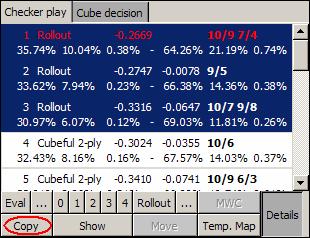
Stopping and continuing rolloutsIf you are running a rollout but must stop it before reaching a satisfactory answer, you can stop the rollout and then continue it later. After stopping the rollout, save it. When you open it and go back to the move, if it is a checker play, select the moves you had been analyzing (or only the ones you want to continue) and just press the Rollout button. There is no need to reset the settings, as GNU will remember the exact same settings it had been using when it first began the rollout.Copy and Paste resultsOnce you have set your choices, press Ok, and then the Rollout button. When you are done, you may wish to copy the results to a document or e-mail for example. To do so, just select the moves that interest you, keeping the Ctrl key pressed to select more than one, and then press the Copy button as shown.
To see the results, just paste them on the document (Ctrl-V or Shift-Ins for Windows users).
If you are using Word or Wordpad, it is suggested you set the pasted text to the font Courier New, and the size to 9 or 10, else the formatting will be lost, and it may be difficult to read. Once more: Remember to save your settings before exiting the program or you will need to reconfigure your settings the next time you use GNU.
Setting up a positionNaturally, other than matches and games, you might just want to set up a position from a book or other source, and ask GNU's expert advice. First, you must start a new game or match, and then just press the Edit button, located at the top in the toolbar.
Names and scoreAt the bottom, you will see you have the option of setting the scores or the names of the players.Side, cube, and diceIf you want to change the dice on the board, click on the side of the board where you would normally click to roll the dice. If you click on the left-side of the board it will propose the dice for the top player, and if you click on the right-side of the board it will present the dice for the bottom player.You can set whose turn it is to play by clicking on the small checker next to the player's name at the bottom.
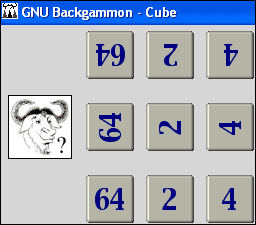
You can also set the turn of the player to move in the Game menu and by selecting Set turn at the bottom. To set the cube position and value click on the cube or enter the Game menu and select Set cube. A small window will appear with cubes set in all directions.
The cubes that are upside down are for the top player, the ones rightside up are for the bottom player, and if you wish to set the cube in the center, choose the ones facing sideward. If you want the cube at its initial value in the center, choose the 64 cube facing sideward.
Just copy the code after the Position ID into your GNU's space (highlight it and press Ctrl-C) for the Position ID.
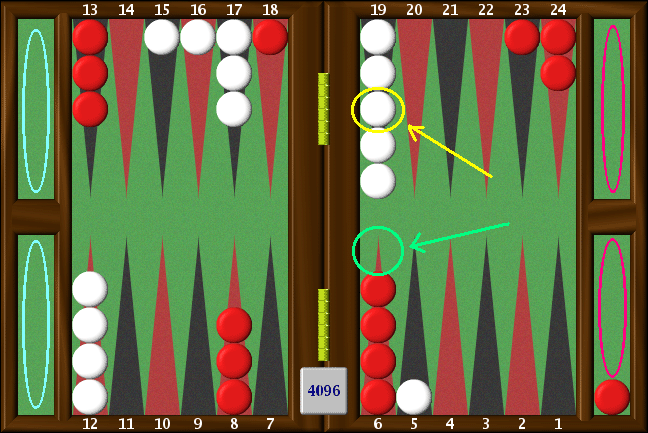
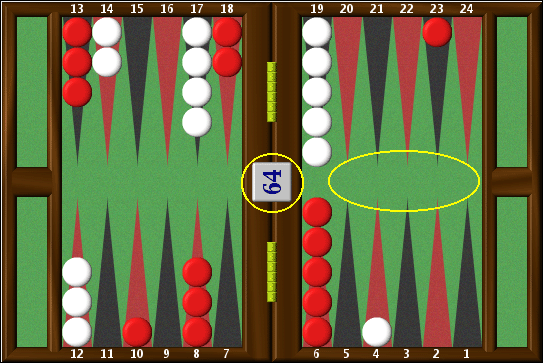
Now do the same for the Match ID, and that's all there is to it. Checker setupMoving and setting up the checkers is quite easy and Snowie users will feel at home as the method is identical. To remove or add white checkers to a point for example, use the right mouse button and click on the point. You determine the number of checkers to be added or removed by the height of the point you press. For example, in the following diagram,
if you have 5 white checkers on the 19-point and only want to have 3, click with the right mouse button on the 3rd checker where the yellow arrow indicates and the top two will be removed. Adding checkers is the same, so if you wanted to add a red checker to the 6-point you would place the cursor where the green arrow indicates and left-click. If you want to quickly get the starting position, you can click on the area indicated by the blue ellipses on the left, and if you want to quickly clear the board of all checkers, click instead on the right side on the area indicated by the pink ellipses. Try it and experiment a little. It's much easier to do than to explain. Once the position is set up, press the Edit button again to exit Edit mode. Now just go to the Analyze menu and select Hint (suggested even for rollouts). Attention, this isn't a suggestion, you must exit the Edit mode before asking for GNU to evaluate the position otherwise you will get odd results.
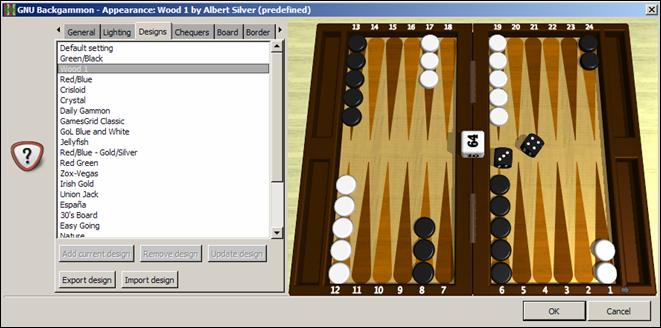
AppearanceSkinsYou can change the overall appearance of the menus through a number of skins included with the installation, however this cannot be done from within the program and must done manually. The procedure is fairly painless if you aren't afraid of moving a couple of files in the Windows Explorer.Open Windows Explorer, and enter the \Program Files\gnubg directory. In it there is a directory called \Themes, where the skins are located, and in that, you will see a number of directories with the names of the skins they contain. Enter the directory you want and copy the files in it to the main \gnubg directory. It will ask you if you want to overwrite the files in it. Say yes, and start GNU to see the changes. It is important to copy and not move the files, so if you're not Windows savvy, this means holding the Ctrl key on the keyboard down while dragging the files. Keep the Ctrl key pressed when you let go of the mouse button. Board designs—2D and 3DThe appearance of the boards can also be changed making use of a number of presets, or you can design your own. To make changes, go to the Settings menu and select Appearance. A window will appear, displaying a number of tabs at the top. Select Designs and you will see a list of the preset board designs, as well as thumbnails of what they look like. To choose one, just click on the name of the preset and press Ok. That's all there is to it.
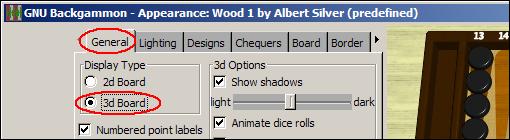
If you�d like to enjoy a 3D board, go to the General tab, and select 3D board:
Here and in the Lighting tab you can also set and control as much of the appearance as possible, allowing you also a great deal of creative possibilities.
Full Screen BoardYou can also enjoy a full screen game, without panels, toolbars, or any other distractions, by going to the View menu, and selecting Full screen. If you have a large screen it can be quite an experience, and it can also be a nice way to play against a friend if you have no board nearby.
To exit the Full Screen mode, just press the Esc key. Creating Original DesignsYou can also make your own designs and save them. Using the tabs at the top, you can change the appearance of the board and if you really like your new design, go back to the Designs tab and save it by pressing Add current design and then Save designs. Send the GNU team your best ones, pressing the Export design button, and they may include them in the next release.
ConclusionBy now it should be clear that while a number of backgammon players have complained about the steep prices of top commercial software excluding them from the tools and type of progress available to more fortunate players, that complaint is now definitely without foundation.It's true that it is ever a work in progress and has its rough edges, but with time they will undoubtedly be ironed out for the most part. It is also an engine that is stronger than its older top-of-the-line siblings in GamesGrid, and at its price (free), one would have to be crazy not to have it, even if one does own the legendary Snowie. After all, two heads are better than one. I would like to effusively thank the authors of GNU Backgammon and its numerous contributors, and would also like to suggest that anyone enjoying their efforts make a contribution to the Free Software Foundation (FSF), the principal organizational sponsor of the GNU Project, as a token of appreciation. The FSF survives mostly off the contributions, however small, of private donations, and without it, those loud complaints mentioned above would be entirely justified.
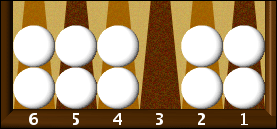
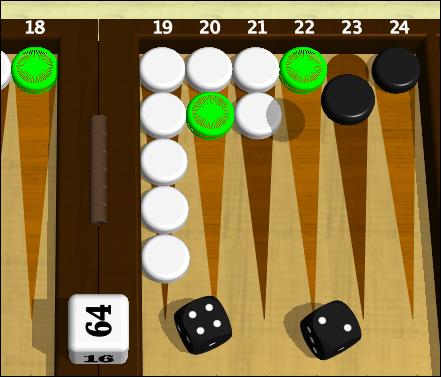
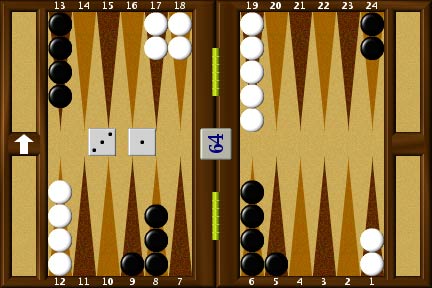
A Word about 'Cheating'By far, the most common complaint seen about all backgammon software, weak or strong, is that it must be cheating to get so lucky. Most of these complaints stem from a lack of understanding of probabilities, and how skillful play will affect luck or the possibility of lucky rolls.To begin with, let it be stated that there is no bias of any kind, and the source code of GNU is open to any doubting it. If you still cannot believe it, feel free to use your own dice by entering the Settings menu and selecting Options, and then in the right side Manual dice. If you are rigorously honest about your results, you will find no difference in the long run. Probabilities are what rule supreme in backgammon. As there is indeed an uncontrollable luck factor, one cannot guarantee a victory or loss no matter how stacked up the chances are. So, good backgammon strategy is designed to maximize the good rolls for the playing side, and minimize the good rolls for the other side. In other words, after the best play, there will be less good rolls for the other side. If the other side doesn't realize what is happening, then it will seem like a never-ending streak of bad luck. It's not; it's the consequence of good playing. GNU is among the very best, so use it and learn with it. You can set it at a much weaker setting, and watch how its luck dries up. The mathematics behind probabilities are also usually very poorly understood. Take for example the situation below. If your opponent had a checker on the bar, what is his chance of entering that single point?
If you said 11 chances in 36 or a little over 30%, good for you, but if you said 1 in 6 then you need a little brushing up. 1 in 6 would be correct if your opponent were only using one die, but with two, the chances add up to 11 in 36. So how come you never enter and GNU does? It may seem like that at times, but it's really not the case. It is natural to focus more on what causes us anguish making reality look quite distorted, but maybe you were very unlucky. Stories of hard luck abound. In a live game, I once played my opening move, and then lost to a backgammon without ever playing another move. My opponent hit me, and I danced for the rest of the game. I wasn't even able to avoid a backgammon. A top professional once told me of an instance where he was giving a gammon, got hit, and lost after dancing 7 straight times against a 3-point board. Does it seem to get more doubles? What about those doubles you rolled while on the bar? They don't count, you say? Sorry, but lady luck makes no case of guaranteeing the double will arrive at the right time. Good strategy will help you be able to use it when it does arrive.
AcknowledgementsI would like to thank the developers of GNU backgammon for their unprecedented generosity to the backgammon community and remarkable work.
Christian Athlon This tutorial may be freely distributed in any form, though modifications to the content may only be made with the author's permission.
Version 3.00
Last updated: September 16, 2006 Copyright � 2006 — Albert Silver
| ||||||||||||||||||||||||||||||||||||||||||||||||||||||||||||||||||||||||||||||||||||||||||||||||||||||||||||||||||||||||||||||||||||||||||||||||||||||||||||||||||||||||||||||||||||||||||||||
| You are visitor 01402503 — GeezerVison does not store the pages you look up. Best viewed with Netscape Navigator 4.7 or Internet Explorer 6 at 800×600. No cookies required. | ||||||||||||||||||||||||||||||||||||||||||||||||||||||||||||||||||||||||||||||||||||||||||||||||||||||||||||||||||||||||||||||||||||||||||||||||||||||||||||||||||||||||||||||||||||||||||||||
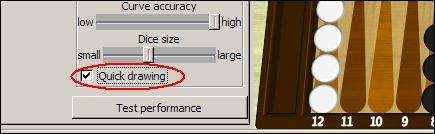
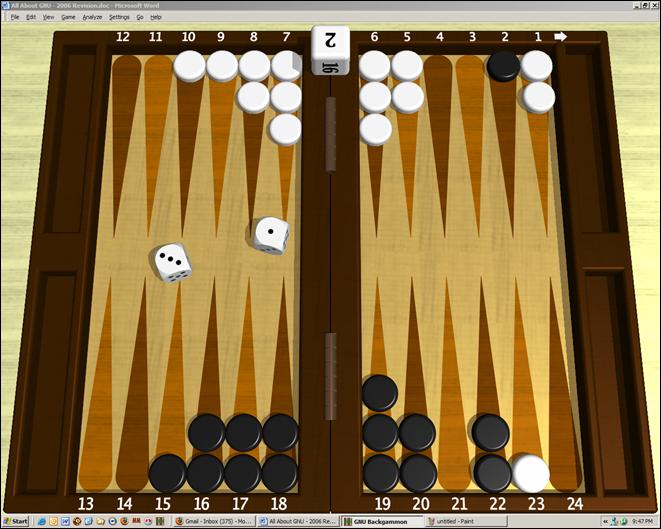
 Tip: You can also play GNU with a full-screen 3D board and 3D dice rolling. See


 button on the toolbar. Then select the type of file you wish to import, locate the file, and that's that.
 so it will save the game when you are done.

 . This is a powerful tool conceived and developed by Sho Sengoku. Please refer to the
 or
 .
 , and change the parameters you want. Now just click on the Eval button, and let it compute its results. You may also prefer to see the Match Winning Chances of the moves instead of the equity. This shows the chances of winning the match as opposed to the evaluation according to a single game. To do so, press the MWC button:
 button to the right of the Rollout button.