GV

GeezerVison

The World Wide Web, restored to 800 pixels of glory.

Home|About|Gaming cabinet|Archives|How it works|Starter sites

On this site

  • ComputingForGeeks
  • Series
  • Cheat Sheets
  • Linux
  • AI
  • DevOps
  • Databases
  • Containers
  • Kubernetes
  • Security
  • Cloud
  • More
  • Virtualization
  • Networking

This view

  • Original page
  • New address

GeezerVison is showing computingforgeeks.com — Install DeepSeek Harness (dsh) on Ubuntu & Linux | ComputingForGeeks

The thing DeepSeek open sourced on 13 August is not a model. DeepSeek Harness, or dsh once it is on your PATH, is the runtime that wraps a model and turns it into an agent: the turn loop, the tool calls, the kernel sandbox those tools execute inside, the session log, and a browser UI to drive the whole thing. The model itself is a plugin. So is the sandbox. So is the web server.

Original content from computingforgeeks.com - post 170852

That distinction is where most people lose the first five minutes. Installing DeepSeek Harness gets you a harness you can rewire: point it at DeepSeek, at Anthropic or at your own Ollama box, and keep every session on your own disk. This guide covers what dsh is, how a task moves through it, the Node 24 floor, and a first agent run that edits a real file. We first ran it on Ubuntu 26.04 in August 2026, then on 12 November 2026 reinstalled dsh 0.2.2-rc.1 on fresh Ubuntu 26.04 and 24.04 VMs, on archive Node 18 and 22 and on NodeSource Node 24, because this release raised the Node requirement.

What DeepSeek Harness actually is

DeepSeek Harness is an MIT-licensed agent harness: the code between a language model and your filesystem. It ships the pieces a coding agent needs and leaves each one swappable, because the whole thing is built on the Cordis plugin framework and the organising rule is that everything is a plugin. The model route is a plugin row. The bash tool is a plugin row. The permission policy that decides whether that bash tool may write to /etc is a plugin row.

The repository went public on 13 August 2026 alongside the V4-Pro launch and passed 167,000 stars inside a week, which is the fastest ramp of anything we have covered here. It is still labelled a developer preview, and the project says so in capital letters: expect compatibility-breaking changes between release candidates. Pin the version you tested.
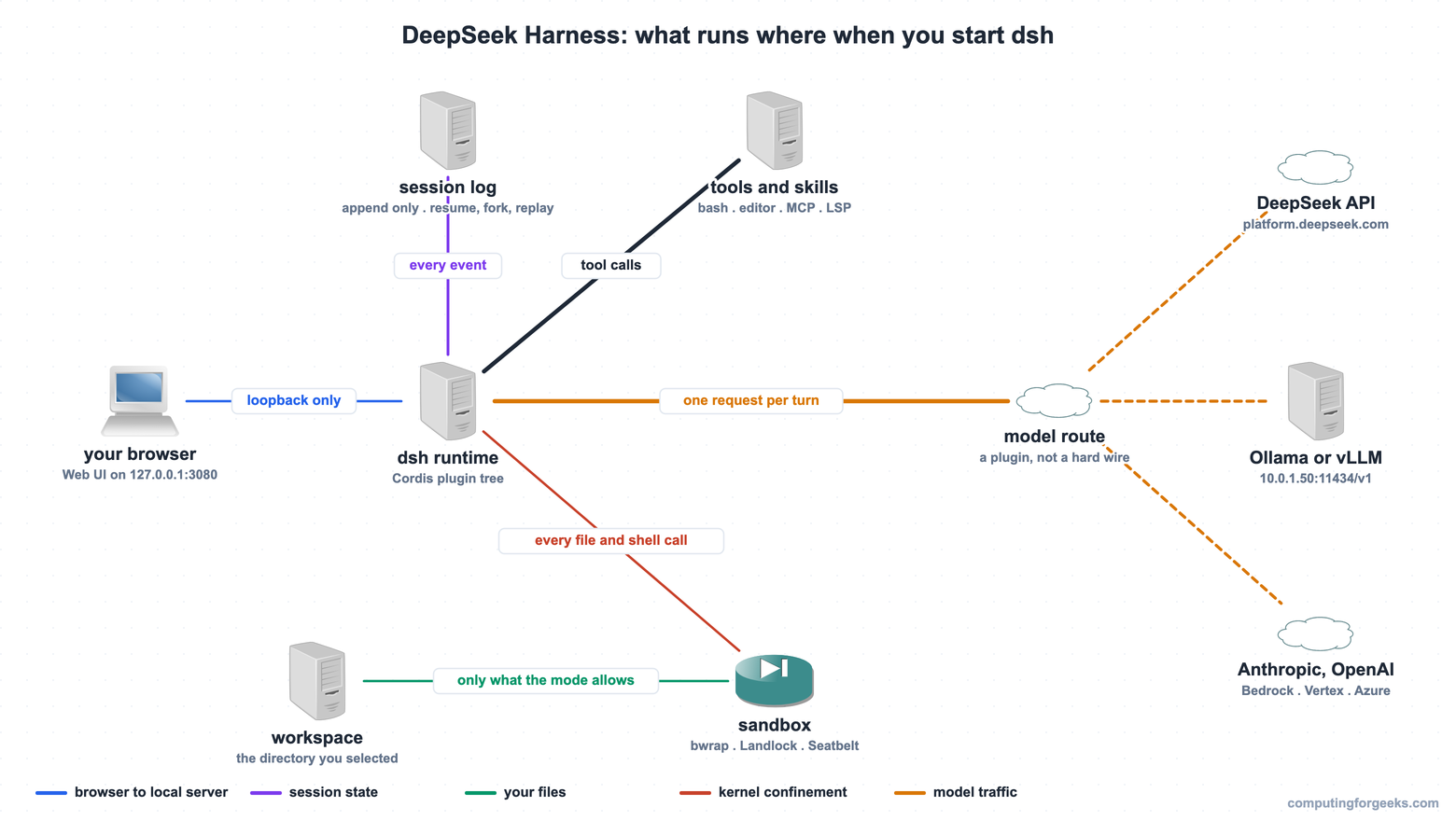
DeepSeek Harness architecture diagram showing the dsh runtime, sandbox, session log and model routes

What you get in the box, on top of that plugin tree: a Web UI, a one-shot headless mode, a Python SDK that bundles its own Node runtime, an MCP bridge, an Agent Client Protocol server, an LSP tool, a PTY terminal, subagents, workflows, plan and goal state, context compaction, and a hooks bridge that maps the supported subset of an existing Claude Code hooks.json onto the harness hook surface once you point it at the file. If you already run agents, the useful mental model is that dsh occupies the same slot as Claude Code or OpenCode, except the seams are exposed and the model behind it is your choice.

Study resourcesA harness like dsh hides the agent loop behind one command. Planning, tool calling and memory, the patterns that loop is built on, are explained in our AI agent book picks. Our top pick there is Build an AI Agent (From Scratch) by Jungjun Hur.Paid link: we may earn a commission at no extra cost to you. Details.

How a task moves through dsh

Nothing the model asks for runs directly. Every turn follows the same path, and knowing that path is what makes the permission modes and the session log make sense later.
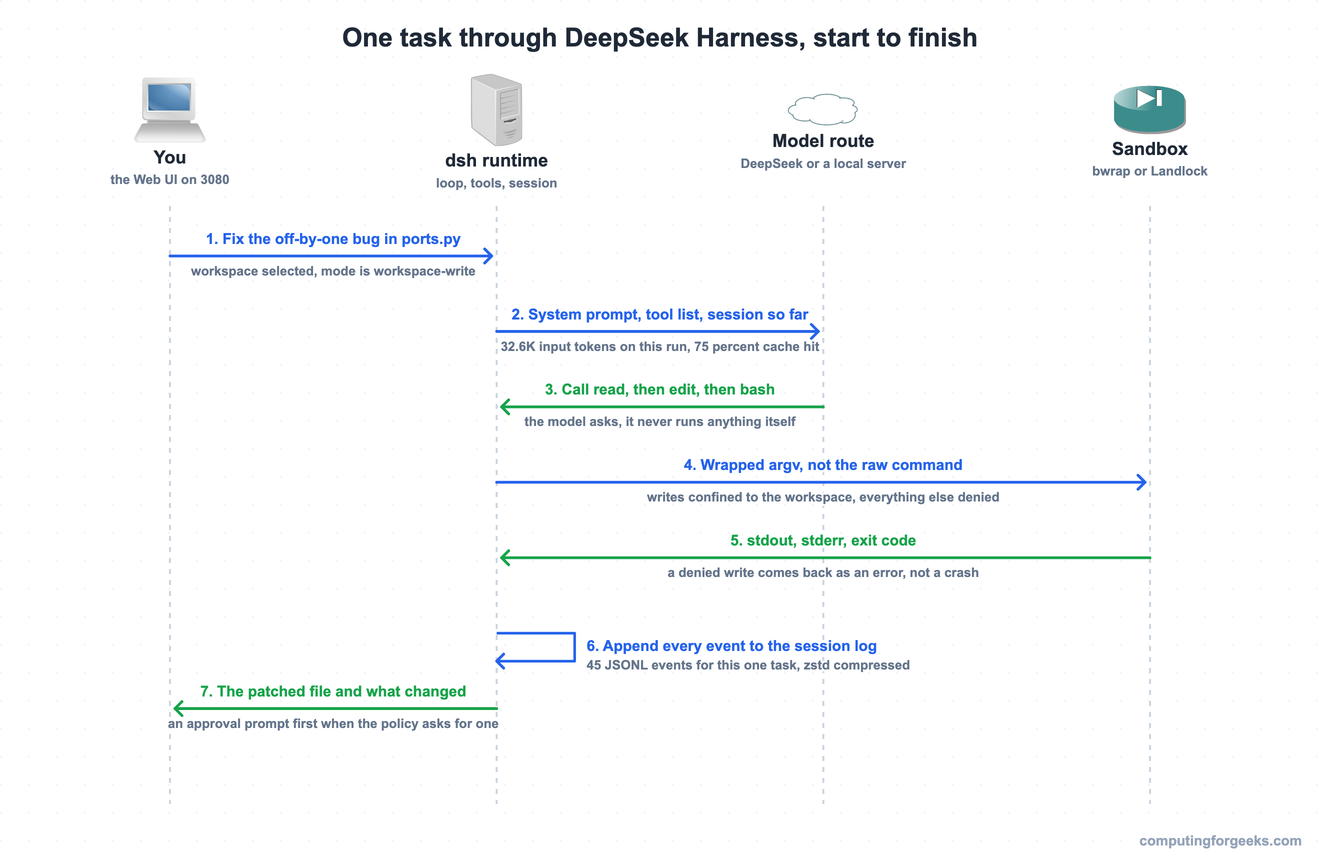
Sequence diagram of one task through DeepSeek Harness: prompt, model route, tool call, sandbox, session log, answer

Your prompt goes to the runtime, the runtime assembles the system prompt plus the tool list plus the session so far and sends one request to whichever model route you configured. The model replies with a tool call, not with an action. The runtime is what turns that request into a real process, wraps the argv in a sandbox, runs it, and hands back stdout, stderr and the exit code. Every one of those steps is appended to the session log before the answer reaches your screen.

The run stats are visible at the bottom of the UI, and they are worth reading once. Fixing a one-line bug in a 15-line Python file cost this much:

1 turns . 4 steps | LLM 7.3s . Tool call 0.1s | TTFT avg 1.1s . 190 tok/s | Cache hit 75% | Input 32.6K tok . Output 572 tok

32,600 input tokens for a task that needed 572 output tokens. That is the standing cost of the system prompt, the tool schemas and the runtime context injection, and it is the same shape of overhead we measured when digging into context engineering for AI agents. Prompt caching absorbed 75% of it here, which is why the turn still finished in seven and a half seconds.

The session itself lands under $DSH_HOME/sessions/, one directory per workspace, as an append-only JSONL stream compressed with zstd. That one task produced 81 events. Reading it back needs the zstd tools, which are not on every minimal image:

sudo apt install -y zstd
zstdcat ~/.dsh/sessions/--home-engine-demo-app--/session-a7201b25-*/session.v4.jsonl.zstd | head -4

The file is session.v4.jsonl.zstd, not session.jsonl.zstd: the v4 is the log format version, and it was the same name on 0.2.1-rc.5 when we built the cheat sheet. Each session directory also holds a session.lock. Name the session you want rather than globbing the workspace, because a workspace accumulates one directory per run. Swap in your own user’s workspace directory; this one is a session from the November recheck. The first four lines tell you the permission preset, the sandbox mode and the approval policy the session was born with:

{"type":"session","version":4,"id":"session-a7201b25-a7ac-48e6-9e3d-cd40fde0094e","createdAt":1794419283754,"cwd":"/home/engine/demo-app","isSeeded":false,"delegationDepth":0}
{"type":"permission/preset","seq":0,"time":1794419283773,"data":{"preset":"workspace-write"}}
{"type":"sandbox/mode","seq":1,"time":1794419283779,"data":{"mode":"workspace-write"}}
{"type":"approval/policy","seq":2,"time":1794419283779,"data":{"policy":"ask"}}

Resume, fork, search and replay all read that same stream, so there is no second database to keep in sync.

What dsh needs before you install it

One hard requirement and one soft one. The hard requirement is Node 24.9.0 or newer. The published 0.2.2-rc.1 package declares it in its own manifest, so you can read the floor straight from the registry before installing anything:

npm view @deepseek-ai/[email protected] engines

The answer is a single range, and Node 22 is outside it:

{ node: '>=24.9.0' }

That is a change from earlier builds. The August ones documented ^22.19.0 || >=24.0.0 in the repository, and neither 0.1.0-rc.8 nor 0.2.1-rc.5 carries an engines field on npm at all. Guides written then, this one included, told Ubuntu readers to use Node 22. The soft requirement is bubblewrap, which the sandbox prefers on Linux and falls back from when it is missing.

ItemUbuntu 26.04 (Resolute)Ubuntu 24.04 (Noble)
Archive Node version22.22.1, below the 24.9.0 floor18.19.1, far too old
Install pathNodeSource setup_24.xNodeSource setup_24.x
Landlock in kernelYes (kernel 7.0, CONFIG_SECURITY_LANDLOCK=y)Yes (kernel 7.0 on the GCP image)
bubblewrapapt install bubblewrap, 0.11.1apt install bubblewrap, 0.9.0

Until this release candidate, 26.04 was the one Ubuntu where the archive Node just worked. That is over: both releases now need Node 24 from NodeSource, and the archive nodejs package is the wrong one to install on either of them.

npm WARN EBADENGINE Unsupported engine

This is what the archive Node 22 on Ubuntu 26.04 gives you, and it is easy to scroll past. npm treats engines as advice unless engine-strict is set, so it prints the warning, installs all 659 packages anyway and exits 0:

npm WARN EBADENGINE Unsupported engine {
npm WARN EBADENGINE   package: '@deepseek-ai/[email protected]',
npm WARN EBADENGINE   required: { node: '>=24.9.0' },
npm WARN EBADENGINE   current: { node: 'v22.22.1', npm: '9.2.0' }
npm WARN EBADENGINE }

A script or Ansible task that checks only the exit code reports success. In our run, dsh --version and dsh web even started on Node 22.22.1, which makes the warning more dangerous, not less: you are on a runtime outside the range the package declares, and the next release candidate is free to use a Node 24 API and fail at launch the way Node 18 does below. Treat the warning as an install failure and move to Node 24.

npm WARN EBADENGINE when installing DeepSeek Harness dsh 0.2.2-rc.1 on Ubuntu 26.04 archive Node 22.22.1, with the install still exiting 0

The exit status of 0 at the bottom is the trap. Nothing in the pipeline stops, so the warning has to be read by a person.

SyntaxError: The requested module ‘node:util’ does not provide an export named ‘parseEnv’

This is what Node 18 produces, and it is worth recognising because the message never mentions Node versions. On the Ubuntu 24.04 archive Node 18.19.1, npm printed EBADENGINE for dsh and for several of its dependencies, added 651 packages and still exited 0. The first dsh --version then failed with exit code 1:

file:///usr/local/lib/node_modules/@deepseek-ai/dsh/node_modules/@deepseek-ai/dsh-app-boot/lib/index.js:4
import { inspect, parseEnv } from "node:util";
                  ^^^^^^^^
SyntaxError: The requested module 'node:util' does not provide an export named 'parseEnv'
    at ModuleJob._instantiate (node:internal/modules/esm/module_job:123:21)
    ...

Node.js v18.19.1

util.parseEnv landed in Node 21.7 and was backported to 20.12, so the import fails at module instantiation before any dsh code runs. Check node -v first and the whole class of problem disappears.

Install Node.js and the dsh package

The same steps work on Ubuntu 26.04 and 24.04, and they replace the apt install nodejs npm route this guide used before. Skip the archive nodejs and npm packages: the nodejs package from the NodeSource repository carries its own npm. Download the setup script for the Node 24 line rather than piping it straight into a root shell, so you can read it before it runs:

curl -fsSL https://deb.nodesource.com/setup_24.x -o nodesource_setup.sh

Run it with sudo -E. It adds the NodeSource apt repository for node_24.x and refreshes the package lists:

sudo -E bash nodesource_setup.sh

The last lines confirm the repository and tell you what to install next:

2026-11-12 07:13:50 - Repository configured successfully.
2026-11-12 07:13:50 - To install Node.js, run: apt install nodejs -y

Install Node.js from that repository:

sudo apt install -y nodejs

Confirm the runtime clears the floor before going any further:

node -v

Anything from v24.9.0 up is fine. Both VMs got Node v24.22.3 with npm 11.19.1, and on 26.04 apt-cache policy nodejs showed the candidate as 24.22.3-1nodesource1. Ubuntu 26.04 is not on NodeSource’s support matrix yet, but the script writes a distro-independent nodistro repository and it installed cleanly there too:

v24.22.3

Now the harness itself. A global install puts dsh on PATH for every shell and every systemd unit later:

sudo npm install -g @deepseek-ai/dsh

It is a big dependency tree, and it keeps growing between release candidates. On a 4 vCPU VM with Node 24 the install pulled 654 packages in 42 seconds, with no EBADENGINE block this time:

added 654 packages in 42s

The npm 11.19.1 that NodeSource ships adds one new message here: npm warn install-scripts 5 packages have install scripts not yet covered by allowScripts, followed by the five package names, node-pty among them. It is a notice about npm’s script allowlist rather than a failure: the install still exited 0, and dsh --version and the Web UI both worked straight after it on our VM. The same message prints the npm install -g --allow-scripts=... line to use if your policy, or a later npm, wants those five packages allowed explicitly.

Check what you actually got, because release candidates land every few days and an unpinned install takes whatever latest points at that morning:

dsh --version

On both November runs it reported this:

0.2.2-rc.1

The dist-tags show where each channel points. On 12 November next had already moved one candidate past latest, which is exactly why pinning matters:

npm view @deepseek-ai/dsh dist-tags

The output names all three channels:

{ alpha: '0.2.2-alpha.3', next: '0.2.2-rc.2', latest: '0.2.2-rc.1' }

Pin it with sudo npm install -g @deepseek-ai/[email protected] once a config works, so the next release candidate cannot change it under you. The candidate on next and the alpha build both declare the same >=24.9.0 floor, so Node 24 covers them too.

If you would rather not install anything, npx @deepseek-ai/dsh web works and downloads the same tree into the npx cache on first run. The gotcha there is that the first invocation looks frozen for a minute or two while npm fetches more than 600 packages with no progress output. Install globally on any box you will use more than once.

Whichever route you take, the subcommand is not optional. The launcher exits with error: --profile <name> is required when you run dsh on its own.

NodeSource setup_24.x installing Node.js 24 on Ubuntu 24.04, then a clean npm install of DeepSeek Harness dsh 0.2.2-rc.1 with the Web UI on 127.0.0.1:3080

That is the whole install. The binary is on PATH and the server answers on loopback, which is everything the next step needs. On Node 24 we rechecked the install and the Web UI start on both releases. The first task, its run stats and the sandbox refusal below come from the August run of a 0.1.x build on Node 22. The session log header and launcher path come from an 11 November install of 0.2.2-rc.1 on Node 22.22.1, which is below that release’s floor. If you plan to point dsh at a local Ollama model instead of the DeepSeek API, the DeepSeek Harness local model guide picks up from here and covers the MISSING_CREDENTIAL errors that route throws.

Start the Web UI and give it a model

Start the server from the directory you intend to work in, because the invoking directory becomes the default workspace root:

cd ~/demo-app
dsh web --no-open

It prints one line and stays in the foreground:

dsh web: http://127.0.0.1:3080/?token=<redacted>

The token in that URL is the login, so open the full link: a plain request to the port without it gets a 401. Drop --no-open on a desktop and it opens your browser for you. That bind address is not decoration, and it is worth verifying:

ss -ltnp | grep 3080

Loopback only, which is the correct default for a process holding an API key and holding write access to your source tree. On Node 24 the process shows up as MainThread rather than node:

LISTEN 0      511        127.0.0.1:3080      0.0.0.0:*    users:(("MainThread",pid=2827,fd=21))

Running it on a lab box? Forward the port. Moving the bind is not really an option anyway, because the web app rejects --host 0.0.0.0 outright: it calls the wildcard address unsupported, since binding every interface would expose remote code execution to the network, and asks for one concrete IPv4 or IPv6 address instead. One SSH tunnel from your workstation and the UI behaves exactly as it does locally:

ssh -N -L 3080:127.0.0.1:3080 [email protected]

First load throws up a notice that the project is in testing for harness developers. Read it and click Continue; it does not come back.

DeepSeek Harness Web UI showing the Internal Testing Notice on first launch

Now the model. Open Settings then Models, paste a key from platform.deepseek.com into the DeepSeek card and save. The route becomes usable on the next request with no restart. Keys are write-only in the UI: the page gets a redacted descriptor back, never the secret, and the value lands in $DSH_HOME/.credentials.yaml while settings keep only a reference to it.

DeepSeek Harness Settings Models page showing the DeepSeek provider card, Add provider and Add a custom provider

For a headless box or a CI runner there is no page to click, so hand the key in through the launching environment. That layer sits at the top of the credential order and is visibly read-only, so it beats anything stored on disk, which is exactly what a per-run override should do:

DEEPSEEK_API_KEY=your-key-here dsh --profile headless "summarise this repository"

Get the direction right, because it is counter-intuitive. A key in $DSH_HOME/.env is the lowest layer, below the managed store, so once you have saved a key through the Models page a stale one in that file is silently ignored rather than winning.

Add provider covers Anthropic, OpenAI, Bedrock, Vertex, Azure and Codex from the shipped catalog. Add a custom provider is the one that matters for a self-hosted setup: give it a lowercase provider ID, a base URL such as http://10.0.1.50:11434/v1 for an Ollama host, the openai-completions protocol and at least one model id. Plain OpenAI-compatible servers usually need two compatibility switches on top of that, which is a long enough story for its own guide.

Pick a workspace and run the first task

The composer stays locked until a workspace is selected, which trips people up on a fresh install. Click Choose workspace, add the directory you started dsh in, select it, and the input box comes alive.

The test project was deliberately broken. A port parser with the classic Python range mistake, on line 9 of a 15-line file:

def parse_ports(spec):
    out = []
    for part in spec.split(","):
        if "-" in part:
            a, b = part.split("-")
            out.extend(range(int(a), int(b)))
        else:
            out.append(int(part))
    return out

The task was to fix the off-by-one so that a range like 80-83 includes 83, then run the script to prove it. Four steps later the agent had read the file, patched line 9, executed the script and reported back with the output inline.

DeepSeek Harness Web UI session with Think, Edit and Bash tool rows and the run statistics bar

Each tool row expands in place, so the Bash row shows the working directory, the command and its output without leaving the conversation. The file on disk changed the way you would want a colleague to change it:

out.extend(range(int(a), int(b) + 1))

Running it by hand afterwards confirms the same result the agent claimed, which is the only verification that counts:

python3 ports.py 80-83

83 is now in the list:

[80, 81, 82, 83]

Total elapsed from prompt to patched file was seven and a half seconds, and the diff is four characters.

Read the trajectory when the agent does something odd

The Chat tab is the polite view. The Trajectory tab next to it is the one to reach for when a run goes sideways, and it is the part of the web UI worth learning before you need it. It lays the turn out as a timeline with input, model and tool lanes across the top, then every message in order: the system prompt, your prompt, the runtime context injection, each assistant turn, and each tool call with its raw JSON arguments and the raw result.

DeepSeek Harness Trajectory tab showing the timeline and raw read, edit and bash tool call payloads

Seeing the exact edit payload, with the old string and the new string the model asked for, ends most arguments about what an agent “decided” to do. The Session log button in the top right downloads the same events as the JSONL file described earlier, which is the format to parse if you want to build reporting on top of agent runs.

The four built-in agent presets

A preset is the plugin composition a session runs: its tools, its prompt, its capabilities. Four ship with the package and you switch between them per session, or duplicate one and edit it.

PresetIDWhat it composes
Standard modestandardFull coding agent: file editing, shell, file and web search, skills, planning, goals, subagents, workflows
PTC modecodeEverything Standard has, exposed through the Code Mode SDK so the model writes one TypeScript program instead of many separate tool calls
Minimal modeminimalTwo tools only: a persistent bash and str_replace_editor
Creator modecordisStandard plus runtime inspection, plugin experiments and preset-authoring guidance, for building your own presets
DeepSeek Harness Agent presets settings page showing Standard mode, PTC mode, Minimal mode and Creator mode

PTC mode is the interesting one for anyone watching token budgets. Collapsing a multi-step operation into a single generated TypeScript program cuts the round trips, which is the same lever behind the tooling in our guide on reducing agent token usage.

Minimal mode carries a sharp edge that is easy to miss. Its persistent bash goes through the sandbox policy, but its str_replace_editor talks to the local filesystem service directly and can address any absolute path the runtime process can see, whatever the sandbox mode says. That is a deliberate upstream design choice for a bare two-tool runtime, and it means Minimal mode is the wrong preset for an unattended job on a machine you care about. Run it in a disposable checkout or a container.

Run one task without the browser

The headless profile answers a single question in a fresh persisted session, prints the final answer and exits. No UI, no daemon:

cd ~/demo-app
dsh --profile headless "In one sentence, say what parse_ports returns for the spec 80-83,443. Do not edit any file."

Standard output is the answer and nothing else, which makes it pipe-friendly:

`parse_ports("80-83,443")` returns the list `[80, 81, 82, 83, 443]`.

The session still lands in $DSH_HOME/sessions/ exactly as a UI session does, so a cron job and a browser session are the same thing to the storage layer. The other headless flags, --patch overlays, --dump-config and the slash commands are collected in our dsh cheat sheet, with a printable PDF.

What the sandbox actually blocks

Three permission presets ship, and each one binds a sandbox mode to an approval policy. The default for a new session is the middle one.

PresetSandbox modeApproval policyEffect
Read onlyread-onlyaskNo writes anywhere, including the workspace
Workspace writeworkspace-writeaskWrites confined to the session workspace root
Danger full accessdanger-full-accessneverNo confinement and no prompts

Note what the third row really says. Turning the sandbox off also turns the approval prompts off, so there is no second line of defence behind it. Set the mode per session in the composer, or per process with an environment variable:

DSH_PERMISSION_MODE=read-only dsh --profile headless "audit this repo and report findings"

Enforcement is real rather than advisory. On Linux dsh reaches for bubblewrap first and falls back to Landlock, and the Landlock launcher ships inside the npm package as a prebuilt native binary rather than something you compile:

ls -l /usr/local/lib/node_modules/@deepseek-ai/dsh/node_modules/@deepseek-ai/node-addon-system-linux-x64/bin/

The package was renamed since launch. On 0.2.2-rc.1 the launcher sits in node-addon-system-linux-x64 next to glibc and musl helper directories, and the August path under node-addon-landlock-run-linux-x64 no longer exists:

total 48
drwxr-xr-x 2 root root  4096 Nov 11 17:42 glibc
-rwxr-xr-x 1 root root 38552 Nov 11 17:42 landlock-run
drwxr-xr-x 2 root root  4096 Nov 11 17:42 musl

The same November VM also shows the v4 session log next to that launcher:

Terminal showing the dsh session.v4.jsonl.zstd session log read with zstdcat and the landlock-run launcher in the node-addon-system package

If a script of yours still points at the old addon path, the binary is gone from there and the script fails before the sandbox ever starts.

Asking a workspace-write session to write outside its workspace produces a kernel-level refusal, not a polite decline from the model:

[stderr]
bash: line 1: /home/jmutai/outside.txt: Read-only file system
[sandbox: file access denied under workspace-write mode]
[sandbox: escalation available - retry this exact command once with sandbox_permissions (the narrowest wider mode that suffices) + justification; the approval prompt asks the user]
[exit code: 1]

The agent gets one sanctioned escalation attempt, and it has to name the narrowest mode that would work plus a justification, which then goes to you as a prompt. In headless mode there is nobody to prompt, so it fails closed with “no approval channel is available” and the file is never created. That is the behaviour you want in CI.

Terminal showing dsh headless mode output and the workspace-write sandbox denying a write outside the workspace

If neither backend is usable the harness raises SANDBOX_UNAVAILABLE instead of quietly running your agent unconfined, which is the right call and the opposite of what most tools do.

Where dsh is rough right now

Worth knowing before you wire it into anything that matters. The version story is the first snag: release candidates have shipped every few days since launch, the next tag runs ahead of latest, and the project has openly promised breaking changes, so record the exact rc a working config was tested against. Even the session log moved on: the August build wrote version 0 headers and the current one writes version 4 into session.v4.jsonl.zstd, so any script that reads those logs needs a recheck after an upgrade. The English documentation is thin compared to what is in the source tree, and several answers only turn up in package READMEs and architecture notes rather than the user guide.

The runtime floor moved the same way, from Node 22 to 24.9.0 between candidates, and npm only warns about it. Before every upgrade, read the engines field of the version you are about to install rather than trusting the box that ran the last one.

Two smaller things are worth knowing up front. A bare npx @deepseek-ai/dsh sits silent for a minute or more on first run while it fetches the dependency tree, long enough to look hung. And dsh plugin forwards to pnpm inside the profile directory, so managing out-of-tree plugins means having pnpm around even though the base install never asked for it.

None of that is unusual for a preview that is a week old. The pieces that matter are already solid: the sandbox refuses correctly, the session log is honest, and swapping the model route is a config change rather than a fork. Next in this series we put dsh side by side with Claude Code on the seams that actually differ, then wire it to a local model so no prompt leaves the box, which pairs naturally with running DeepSeek V4 Flash locally and with the tool-plumbing tradeoffs covered in MCP vs RAG vs agent skills.

Josphat Mutai

Founder of Computingforgeeks. Senior Systems Engineer with over a decade of hands-on experience building and managing production infrastructure. Core expertise in Linux/UNIX administration, cloud platforms (AWS, GCP, Azure), and Kubernetes ecosystems (EKS, GKE, OpenShift). Deep experience with virtualization (KVM, Proxmox, OpenStack), infrastructure as code (Terraform, Terragrunt, Ansible, Crossplane), GitOps workflows (ArgoCD, FluxCD), Nix/NixOS, and container orchestration at scale. Currently focused on integrating AI and LLMs into DevOps and platform engineering workflows. Every guide on this site is tested on real systems before publishing.

Keep reading

Ollama Models Cheat Sheet: Best Models by VRAM, Tested (PDF) AI Ollama Models Cheat Sheet: Best Models by VRAM, Tested (PDF) Open Source LLM Comparison Table (2026) AI Open Source LLM Comparison Table (2026) Claude Code Cheat Sheet: Commands, Shortcuts and Flags (PDF) AI Claude Code Cheat Sheet: Commands, Shortcuts and Flags (PDF) DeepSeek Harness Cheat Sheet: dsh Commands, Config, Errors (PDF) AI DeepSeek Harness Cheat Sheet: dsh Commands, Config, Errors (PDF) DeepSeek Harness With Ollama: Local Model Setup, vLLM, llama.cpp AI DeepSeek Harness With Ollama: Local Model Setup, vLLM, llama.cpp Gemini CLI Cheat Sheet: Commands, Slash Commands and Flags (PDF) AI Gemini CLI Cheat Sheet: Commands, Slash Commands and Flags (PDF)

Leave a Comment Cancel reply

You are visitor 01402503 — GeezerVison does not store the pages you look up.
Best viewed with Netscape Navigator 4.7 or Internet Explorer 6 at 800×600. No cookies required.