The GitHub Copilot CLI 1.0.105 help lists 73 slash commands and 31 model IDs. One flag, --yolo, lets the agent touch any path, run any command and fetch any URL without asking you first. This Copilot CLI cheat sheet puts what you’ll actually use on one page, from install and sign-in to slash commands, flags, MCP config, permission modes and model switching, with a printable PDF.
Original content from computingforgeeks.com - post 180113
Every capture comes from Copilot CLI 1.0.105, installed and run on an Ubuntu 26.04 VM in October 2026 and checked against GitHub’s docs in November 2026, so the help text, config files and errors are that release’s, and later 1.0.x builds add a few commands. The lab account had no Copilot seat, which means the captures stop at sign-in and you won’t see model replies here.
Copilot CLI Cheat Sheet (Quick Reference)
Scan these tables first when you only need the syntax. Where a section further down shows real output, it also covers the catch behind the command, so you can jump there when a row doesn’t behave the way you expect. The same tables make up the PDF. The lab had no Copilot seat, so any row not shown with output below (including --with-token, brew, the session flags, /model, the permission and model flags and /delegate) is taken from copilot--help, copilothelpcommands and GitHub’s command reference, not from a run.
OAuth sign-in (device code over SSH, browser on a desktop)
copilotlogin--device-code
Force the one-time code flow
copilotlogin--with-token<token.txt
Read a fine-grained PAT from stdin
export COPILOT_GITHUB_TOKEN=github_pat_...
Headless auth; beats GH_TOKEN and GITHUB_TOKEN
/login
Sign in from inside a session
/logout
Drop the stored OAuth login
Start, resume and script
Command
What it does
copilot
Start an interactive session in this folder
copilot-i"fixthefailingtest"
Start interactive and run a first prompt
copilot-p"summarizethisrepo"-s
Run one prompt, print only the answer, exit
copilot--continue
Resume the most recent session
copilot--resume
Pick a past session (or pass an ID or name)
copilot--plan
Start in plan mode
copilot--autopilot
Start in autopilot mode
copilot-C~/src/api
Change directory before starting
Keyboard shortcuts
Key
What it does
shift+tab
Cycle Interactive, Plan and Autopilot modes
?
Quick help overlay
@
Mention a file
#
Mention an issue or pull request
ctrl+c
Cancel (press twice to exit)
escesc
Clear input, interrupt, stop agents or rewind
ctrl+r
Reverse search prompt history
ctrl+g
Edit the prompt in $EDITOR
ctrl+s
Stash or pop the current prompt
ctrl+t
Toggle the reasoning display
Everyday slash commands
Command
What it does
/model
Switch the model for this session
/permissions
Pick Manual, Assisted or Allow All
/plan
Write a plan before touching code
/diff
Review changes in the current directory
/review
Run the code review agent
/context
Show context window usage
/compact
Summarize history to free context
/usage
AI credits used this session
/rewind
Undo the last turn and its file edits
/delegate
Hand the session to GitHub to open a PR
/init
Generate repo instructions
/clear
Abandon the session and start fresh
Permissions and approval
Flag
What it does
--allow-tool='shell(git:*)'
Approve every git subcommand
--deny-tool='shell(gitpush)'
Block one command; deny always wins
--allow-tool='write'
Approve all file edits
--allow-all-tools
Approve every tool (common in -p runs)
--add-dir~/workspace
Grant access to another directory
--allow-url=github.com
Approve a domain (HTTPS by default)
--allow-all
Tools, paths and URLs at once (same as –yolo)
/allow-all
Same as –allow-all, mid-session
Models
Command
What it does
copilot--modelgpt-6.1-sol
Start with a specific model
copilot--modelauto
Let Copilot route each request
copilot--reasoning-efforthigh
Set effort: none up to max
copilotconfigmodelclaude-opus-5.5
Save a default in settings.json
export COPILOT_MODEL=claude-sonnet-5.5
Default model for this shell
MCP servers
Command
What it does
copilotmcpaddcontext7--npx-y@upstash/context7-mcp
Add a local stdio server
copilotmcpadd--transporthttpnotionURL
Add a remote HTTP server
copilotmcplist
List servers and their state
copilotmcpgetcontext7
Show one server’s config
copilotmcpdisablenotion
Turn a server off without deleting it
--additional-mcp-config@mcp.json
Add servers for one session only
--disable-builtin-mcps
Drop the built-in servers (github-mcp-server, githubiq)
Config and instructions
Command or file
What it does
copilotconfig--list
Show saved settings
copilotconfigbannernever
Set one key in ~/.copilot/settings.json
copilotconfig--repo<key><value>
Write .github/copilot/settings.json instead
copilotinstructionlist
Show which instruction files load
~/.copilot/mcp-config.json
User MCP servers
AGENTS.md
Repo instructions (CLAUDE.md and copilot-instructions.md load too)
Install Copilot CLI on Linux
The install script is the fastest path because it drops a self-contained binary and needs no Node.js at all. It downloads the latest release tarball from GitHub, validates its checksum and writes copilot to ~/.local/bin for a normal user (or /usr/local/bin when you pipe it to sudobash):
curl -fsSLhttps://gh.io/copilot-install| bash
On a fresh Ubuntu 26.04 cloud image the script finished cleanly. It could not offer to fix PATH over a non-interactive SSH session, though, so it printed a /dev/tty error in the middle of the output.
Installing GitHub Copilot CLI...
Downloading from: https://github.com/github/copilot-cli/releases/latest/download/copilot-linux-x64.tar.gz
✓ Checksum validated
✓ GitHub Copilot CLI installed to /home/joshua/.local/bin/copilot

Notice: /home/joshua/.local/bin is not in your PATH

Would you like to add it to /home/joshua/.profile? [y/N] bash: line 178: /dev/tty: No such device or address

Installation complete! To get started, run:
  export PATH="/home/joshua/.local/bin:$PATH" && copilot help
That error is harmless, because the binary is already in place by the time the prompt fails. You only need to add the directory to PATH yourself, otherwise every shell opened before you log in again answers copilot:commandnotfound. Ubuntu’s default ~/.profile adds ~/.local/bin only if the directory existed at login, so a session that was open before the install also misses it until you reload the shell. The installer prints the fix itself, as its last line above shows; run it now and log in again later to make it stick:
export PATH="$HOME/.local/bin:$PATH"&& copilot help
If your team pins tools through npm, use the package instead. It needs Node.js 22 or newer, and Ubuntu 26.04’s own archive already ships Node 22.22.1, so you don’t need the NodeSource repo.
Both routes landed on the same release. The difference shows up at update time: the standalone binary downloads new versions in the background and applies them on the next launch, while an npm install only reports that one exists, so you rerun npminstall-g yourself. Set COPILOT_AUTO_UPDATE=false or pass --no-auto-update when you need a frozen version; per copilothelpenvironment, auto-update is already off when a CI variable such as CI is set.
The screenshot is the lab box after the MCP and config steps below were run against it. It shows version 1.0.105, two MCP servers with one disabled, and four saved settings, and each of those gets its own section below if you want to reproduce it.
This is the full installer run from the lab VM, so you can compare it line by line with your own terminal:
If your output stops before the Checksumvalidated line (and shows no warning about a missing sha256sum), the download failed and nothing was installed. The /dev/tty line only means the script had no terminal to ask its PATH question on.
Sign In with a Device Code or Token
Copilot CLI works with every Copilot plan, Free included, but it won’t send a single prompt until it knows who you are. Running a prompt on a fresh install is the quickest way to see the three ways in, because the error lists them.
copilot -p"say hi"
The process exits with status 1, so a script that calls Copilot fails fast instead of hanging on a login prompt:
Error: No authentication information found.

Copilot can be authenticated with GitHub using an OAuth Token or a Fine-Grained Personal Access Token.

To authenticate, you can use any of the following methods:
  • Start 'copilot' and run the '/login' command
  • Set the COPILOT_GITHUB_TOKEN, GH_TOKEN, or GITHUB_TOKEN environment variable
  • Run 'gh auth login' to authenticate with the GitHub CLI
Per copilotlogin--help, on a laptop copilotlogin opens the browser. Over SSH it detects the remote session and switches to the device code flow on its own, which is what you want on a server. Inside a session, /login walks you through it:
Pick GitHub.com or GitHub Enterprise Cloud (*.ghe.com).
Pick “Sign in with a device code” or “Sign in with your browser”.
Copy the one-time code it prints and wait for approval.
The device code screen looks like this, with the code masked here:
 ◎ Waiting for authorization...
 Enter one-time code: XXXX-XXXX at https://github.com/login/device
 Press any key to copy to clipboard and open browser...
Open https://github.com/login/device on any machine, type the code and approve the app. The lab stopped at this screen, so the rest comes from GitHub’s authentication docs: the token lands in the system keychain. A headless server usually has no keychain, so the CLI asks whether to store the token in plain text in ~/.copilot/config.json, and if you agree, anyone who can read your home directory can use your Copilot seat. Keep that directory at mode 700 on shared boxes, which is how the first copilot run created it on the lab VM.
Use a token for CI and headless runs
For automation, skip the login and export a token. Copilot checks COPILOT_GITHUB_TOKEN, then GH_TOKEN, then GITHUB_TOKEN, and any of them beats a stored login, which is the usual reason a machine suddenly runs as the wrong account. For a PAT, that means a fine-grained token owned by your personal account with the Copilot Requests permission. OAuth tokens from the Copilot CLI or gh apps also work. A classic ghp_ token is rejected before any request goes out:
The error names the variable it read, which helps when a CI runner already exports GH_TOKEN for the gh CLI (the trailing “To fix this” list is trimmed here):
Error: Classic Personal Access Tokens (ghp_) are not supported by Copilot.

The GH_TOKEN environment variable contains a classic PAT.
Please use a Fine-Grained Personal Access Token or another authentication method.
Put the fine-grained token in COPILOT_GITHUB_TOKEN so it wins over whatever GH_TOKEN holds, and feed it from your secret store rather than typing it on the command line. If you already use the GitHub CLI, its OAuth login works too, because Copilot falls back to ghauthtoken when nothing else is set.
Both sign-in failures from this section, captured back to back on the lab VM, look like this in a terminal:
The first error lists the three ways in. The second one names GH_TOKEN as the variable it read, which tells you exactly which export to replace.
Use the Keyboard Shortcuts and Modes
Press ? on an empty prompt to get the quick help overlay. This is the full list it printed in 1.0.105, which is where the shortcut table above comes from:
 /help       show full help                                    ctrl+a       go to line start
 ?           show quick help                                   ctrl+e       go to line end
 /           commands                                          ctrl+u       delete from cursor to beginning of line
 @           mention files                                     ctrl+k       delete from cursor to end of line
 #           mention issues and pull requests                  meta+←/→     move cursor by word
 shift+tab   switch modes                                      shift+enter  insert newline
 ctrl+s      stash/pop current prompt                          ctrl+g       edit prompt in $EDITOR
 ctrl+q      enqueue prompt
 ctrl+r      reverse search history
 ctrl+o      toggle all timeline
 ctrl+c      cancel
 ctrl+c×2    exit
 esc esc     clear input, interrupt, stop agents, or rewind
 ctrl+t      toggle reasoning display
 ctrl+x → o  open most recent link
shift+tab changes the agent mode, not the approval mode, and the two get confused a lot. Each press moves the footer through three modes in this order:
Interactive: you prompt, it answers and asks before acting.
Plan: it writes a plan first and waits for you to accept it.
Autopilot: it keeps working toward the goal without handing control back.
The footer kept reading ManualApproval through all three, because approval is a separate setting: Autopilot changes how long the agent keeps going, while tool approvals follow /permissions, covered two sections down. Set defaultMode in settings if you want new sessions to start in Plan.
The overlay renders in two columns, with editing keys on the right, which is how it looked in the lab session:
Press any key to close it. The same list is reachable at any time, so you don’t need to memorize the rarer ones like ctrl+q.
Pick a Slash Command by Job
Type / to open the command picker, or run copilothelpcommands outside a session to read all 73 with their descriptions. The CLI groups them itself, and that grouping is the quickest way to find one. These are the groups and the commands worth learning first in each:
Group
Commands
Use them to
Agent environment
/init, /agent, /skills, /mcp, /plugin
Set up instructions, custom agents, skills and MCP servers
Agents and subagents
/model, /delegate, /fleet, /autopilot, /tasks
Change the model, hand work to GitHub, run subagents in parallel
Plan, research, side questions, settings and spend caps
Going by their help text, /rewind and /diagnose are the two to learn first. The first reverts the last turn’s file changes as well as the conversation, so a bad edit costs one command instead of a gitcheckout. The second reads the session logs and explains why a permission request needed approval. That beats guessing at pattern syntax when an allow rule doesn’t match.
/ask answers a side question without adding it to history, so it does not eat the context you need for the actual task. Use it for “what does this flag do” questions in the middle of a long refactor, and keep /compact for when /context shows the window filling up.
Set Permissions and Approval Modes
By default Copilot auto-approves reads, asks before every write and shell command, and can only touch the current directory, its subdirectories and the system temp directory. Run /permissions to switch the approval mode for the session:
Select Permission Mode

❯ 1. Manual Approval ✓         Require approval for each request
  2. Assisted Permissions      Approve requests an LLM safety check deems safe; handle others according to the execution mode
  3. Allow All                 Auto-approve all tool, path, and URL requests

Assisted Permissions use a probabilistic LLM review to reduce approval prompts. They are not a security boundary and may approve dangerous
or unintended actions. Use managed restrictions, sandboxing, least-privilege credentials, and egress controls for enforceable protection.
The warning under Assisted is the CLI’s own, and it’s right. A second model deciding what’s safe is a convenience, so keep Manual on anything with production credentials and get speed from narrow allow rules instead. To start every session in a mode, set defaultPermissionMode to manual, assisted or allow-all in settings.
Allow and deny rules take a kind(argument) pattern, and copilothelppermissions documents four kinds:
shell(cmd) matches a command; shell(git:*) matches every git subcommand but not gitea
write(path) matches file edits; a relative path like write(.env) matches that name in any directory
ServerName(tool) matches one MCP tool, or the whole server without the parentheses
url(domain) matches web access; a bare domain means HTTPS only
Deny always wins, even over --allow-all-tools, which makes “everything except” rules safe to write. This example is copied from the examples in copilot--help 1.0.105. It needs a signed-in session, so the lab did not run it:
The write(.env) matching is the one to remember. If you deny write(.env) to protect secrets, it blocks edits to every .env in the tree, which is usually what you want. Use an absolute path when you only mean one file.
--allow-all and --yolo are the same flag, and both open tools, paths and URLs at once. That is fine on a throwaway VM or container where the worst case is a rebuild. On your workstation it means the agent can edit files outside the repo and reach any host, so you are better off with a short allow list you grow as prompts come up.
Here is the /permissions picker from the lab session, with Manual Approval still ticked as the default:
Press 1, 2 or 3 to switch, or esc to keep Manual Approval. The choice lasts for the session unless you save defaultPermissionMode.
Switch Models in Copilot CLI
According to GitHub’s command reference, you run /model in a session to change models and pick auto to let Copilot route each request (shown as Copilot Fusion on accounts with dynamic Auto tiers). The lab could not open the picker without a seat. The picker needs a signed-in account, because the list comes from your plan and your org’s policy rather than from the binary. That means a model you saw on a colleague’s machine may simply be missing from yours if their org enabled it and yours did not. Without any sign-in, the CLI refuses outright:
✗ You must be signed in to select a model. Run /login to sign in again.
Outside the picker, per copilothelpconfig and copilothelpenvironment, the model key in ~/.copilot/settings.json holds your default, COPILOT_MODEL sets one for a shell, and --model or /model override the variable for a single session. Save a default once:
copilot configmodelgpt-6.1-sol
The CLI confirms the write, and the session footer picked up the new model on the next launch:
Set model to "gpt-6.1-sol" in settings.json.
GitHub’s docs list claude-sonnet-5.5 as the default. copilothelpconfig printed these 31 IDs as valid values for model, though your plan decides which ones the picker actually offers. On Copilot Free and Student, the GitHub changelog says models come through Auto selection only, so expect a pinned ID to have no effect on those plans:
Per copilothelpbilling and copilothelplimits (the lab never opened the picker), usage on the current billing platform is measured in AI credits per token, so the model you pick is also a cost decision. The /model picker shows input, cached input and output prices next to each model, and /usage shows what the session has spent so far. Three controls keep a session in budget:
Start with --max-ai-credits200, or run /limitssetmax-ai-credits200 mid-session.
Check /usage before a large refactor and switch to a cheaper model if it is climbing.
The credit cap is soft. The minimum is 30 credits, and because usage is only known after a call returns, one expensive call can run past the limit before the CLI blocks the next one. Set the cap a little under what you can actually afford. For the same knobs in other agents, see the Codex CLI cheat sheet and the Claude Code cheat sheet.
Add MCP Servers to Copilot CLI
The GitHub MCP server (github-mcp-server) ships built in and needs no config entry. Add others with copilotmcpadd: a local server goes after --, and a remote one takes --transporthttp and a URL:
The Notion line only shows the header syntax: Notion’s hosted server expects OAuth or a Notion MCP token, so swap in whatever auth your server documents. Each add prints the stored entry, with header values masked in the output:
Added server "context7"

context7
  Type: local
  Command: npx -y @upstash/context7-mcp
  Tools: * (all)
  Source: User
Added server "notion"

notion
  Type: http
  URL: https://mcp.notion.com/mcp
  Headers:
    Authorization: ***
  Tools: * (all)
  Source: User
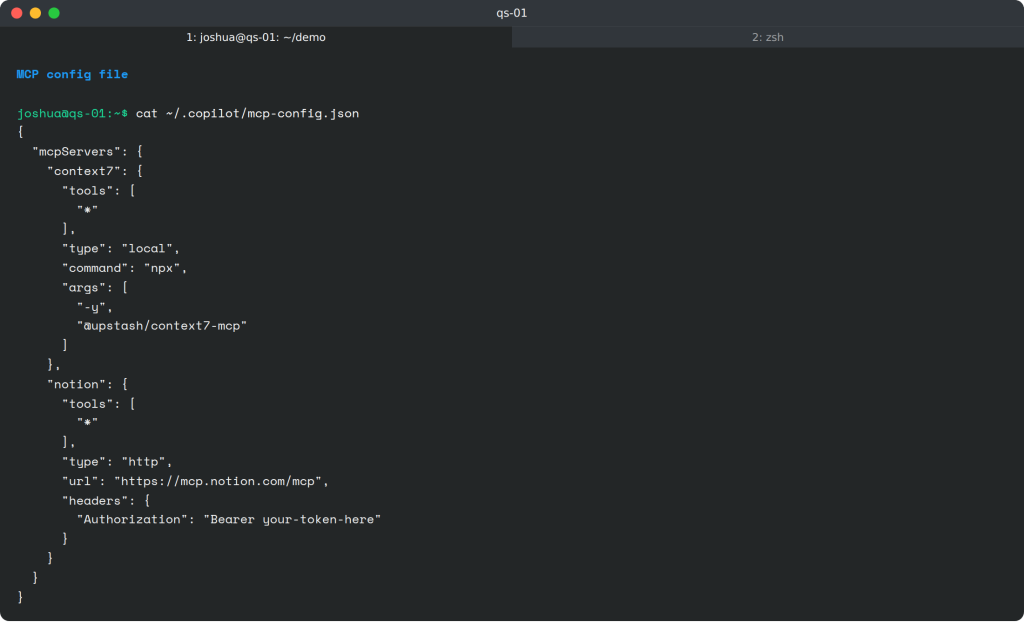
Masked on screen does not mean masked on disk. Both servers went into ~/.copilot/mcp-config.json, and the bearer token sits there in plain text, so anything that backs up or syncs your home directory now carries it too. Read the file back after every add:
cat ~/.copilot/mcp-config.json
This is the file format to copy when you’d rather edit JSON than run the command:
Treat that file like a credentials file: check its permissions and keep it out of dotfile repos. For a project, commit the same mcpServers block as .github/mcp.json so the team shares it. Keep personal servers in ~/.copilot/mcp-config.json or pass them with --additional-mcp-config. Don’t add a .mcp.json next to it: per the docs and the 1.0.108 release notes, a .mcp.json in the same directory replaces .github/mcp.json instead of adding to it, so every shared server silently disappears. Project entries still override user entries with the same name. It doesn’t read .vscode/mcp.json. Turn a server off without losing its config:
copilot mcpdisablenotion
copilot mcplist
The list marks it disabled, and the name moves into disabledMcpServers in settings.json:
Disabled MCP server "notion".
User servers:
  context7 (local)
  notion (http, disabled)
For a one-off session, --additional-mcp-config@extra.json adds servers without touching your saved config, and --disable-builtin-mcps removes the built-in servers (github-mcp-server and githubiq) when you want a clean tool list. In -p mode, servers from a project’s .mcp.json or .github/mcp.json only load once you trust the folder, pass --trust-folder, or set GITHUB_COPILOT_PROMPT_MODE_WORKSPACE_MCP=true in CI.
The same mcp-config.json as it looked on disk after the two copilotmcpadd commands:
Note the plain-text Authorization header, which is the reason to keep this file out of shared dotfile repos.
Configure settings.json and Instructions
User settings live in ~/.copilot/settings.json, and copilotconfig edits it with dot notation, so you rarely open the file. A key that holds a list, such as allowedUrls, gets one item appended per call:
The list shows everything saved so far, including the model and the disabled MCP server from earlier:
Added "docs.github.com" to allowedUrls in settings.json.
Set banner to "never" in settings.json.
disabledMcpServers=notion
model=gpt-6.1-sol
allowedUrls=docs.github.com
banner=never
Add --repo to write .github/copilot/settings.json for the whole team, or --local for a personal .github/copilot/settings.local.json (add it to .gitignore). ~/.copilot/config.json still exists, but it only holds internal state such as trusted folders, and settings you put there are ignored. Set COPILOT_HOME to move the whole directory, which is handy for keeping a separate profile per client.
Instructions come from more places than most agents read. Copilot combines AGENTS.md, CLAUDE.md, GEMINI.md, .github/copilot-instructions.md, .github/instructions/**/*.instructions.md, .claude/rules/**/*.md and ~/.copilot/copilot-instructions.md, with no priority between them. Check what a session will actually load:
copilot instructionlist
In the test repo with only an AGENTS.md, that’s the single source it found:
Repository instructions:
  • AGENTS.md
      from AGENTS.md
A repo that already carries a CLAUDE.md for Claude Code feeds it to Copilot too, so contradictions between the two files reach the model as one blended prompt. Run this command before you blame the model for ignoring a rule, and use --no-custom-instructions to test a prompt with none of them.
Script Copilot CLI with -p
-p runs one prompt and exits, which is how Copilot goes into scripts, cron jobs and CI. A non-interactive run can’t stop to ask for approval, so anything you haven’t granted up front is refused. The 1.0.105 help calls --allow-all-tools required for this mode, but GitHub’s programmatic usage docs run -p with narrow lists such as --allow-tool='shell(git:*)' too. Those docs and copilot--help are the source for the steps below. Scripted runs need a seat, so none of this was run in the lab:
Export a fine-grained PAT as COPILOT_GITHUB_TOKEN from your CI secrets.
Add -s to print only the answer, or --output-formatjson for one JSON object per line.
Deny the dangerous commands explicitly, because deny beats --allow-all-tools.
Cap the spend with --max-ai-credits and keep the usage report with --usage-output-file.
Put together from those docs and the flags in copilot--help, a review job that runs the tests but may not push or edit files through the write tool would look like this (untested here):
copilot -p"Run the test suite and summarize any failures"\--allow-all-tools--deny-tool='shell(git push), write'\--max-ai-credits200--usage-output-fileusage.json-s
Deny rules are a short blocklist, not a sandbox. write only covers the file-edit tool, so a shell redirect or any command you didn’t name (ghprmerge, rm) still runs under --allow-all-tools. Run CI jobs in a throwaway container for that reason. Without -s, every run ends with a stats footer and a resume hint, even a failed one, so you can pick up the transcript interactively with copilot--resume=<id>. This footer came from the first local-model run below, the one on a 4 GB VM that failed after 69 seconds:
Add --share to save the session as Markdown when the job finishes, which makes a decent CI artifact for reviewing what the agent did.
Point Copilot CLI at a Local Ollama Model
Copilot CLI can skip GitHub entirely and talk to your own provider. Set COPILOT_PROVIDER_BASE_URL and a model, and it needs no sign-in at all. Ollama, vLLM and other OpenAI-compatible endpoints use the default openai provider type. Against a local Ollama server, that’s two variables:
export COPILOT_PROVIDER_BASE_URL=http://localhost:11434/v1
export COPILOT_MODEL=qwen3:1.7b
copilot -p"Run ls and tell me how many files are in this directory."--allow-tool='shell(ls)'
The first try, on a 2 vCPU VM with 4 GB RAM, failed after 69 seconds: Copilot retried five times and gave up with 500llama-serverprocesshasterminated:signal:killed, most likely because the model server ran out of memory. Resized to 4 vCPU and 8 GB (still no GPU), the same command didn’t produce an answer either, and the Ollama 0.40.13 log shows why. Copilot’s system prompt and tool definitions came to 11,867 tokens for a one-line question, and the 4096-token context Ollama defaults to on a box without a large GPU truncated that to 2,050 with no error on the Copilot side:
Even the truncated prompt crawled through prefill at about 2.5 tokens per second (t=395.32s for the first 1,024 tokens), and the run was stopped by a 500-second timeout after 8m 16s of wall time. Start Ollama with a bigger context so the whole prompt fits. The lab ran ollamaserve by hand, so the variable goes on the command line:
OLLAMA_CONTEXT_LENGTH=16384 ollama serve
If Ollama runs as the systemd service from its install script, a second ollamaserve would collide with it, and Ollama’s FAQ sets the variable in a sudosystemctleditollama drop-in instead (the lab ran ollamaserve by hand and did not use the service). With 16384, the log showed the full prompt going through (n_ctx_slot=16384, task.n_tokens=11873) and no truncation warning, but the 90-second test still ended before any answer. The bigger problem is hardware. At 2.5 tokens per second, a CPU-only box cannot get through a 12K-token prompt in useful time, so give a local model behind Copilot CLI a GPU and pick one that supports tool calling. Treat 16K as the floor that fits the first prompt. Ollama’s context length docs recommend at least 64,000 tokens for coding agents, because every turn adds to the 11.9K the system prompt already uses. Without a GPU, use a hosted provider or the regular Copilot sign-in. Two more points from the BYOK docs: entries in providers.json take precedence over the COPILOT_PROVIDER_* variables, and an unknown model can default to a 128,000-token prompt limit, so set COPILOT_PROVIDER_MAX_PROMPT_TOKENS to match a small local model. The OpenCode cheat sheet covers an agent built around local and third-party models from the start.
The Ollama log from the 8 GB run shows the truncation and the prefill speed in three lines:
Prefill alone needed about 400 seconds for 1,024 tokens, so the CPU-only lab VM never got to the point where Copilot receives an answer.
Fix Copilot CLI Sign-In and MCP Errors
These are the errors the lab hit, with the exact text so you can match them to your own terminal. Two of them point you at the wrong cause, which is why each one comes with what it actually means.
Error: “Authentication token found but could not be validated”
A fine-grained token that GitHub rejects produces this, along with the HTTP status from the user lookup (the same three sign-in options as the first error follow, trimmed here):
Error: Authentication token found but could not be validated.

  Failed to fetch PAT user login (401): GitHub returned: Bad credentials

Your token may still be valid. Check your network connection and try again.
Despite the hint about the network, a 401 means the token itself is bad: expired, revoked or mistyped. Check which variable is set with env|grep-E '^(COPILOT_GITHUB|GH|GITHUB)_TOKEN', since the first one in that order wins, then generate a new fine-grained PAT with the Copilot Requests permission.
Error: “Failed to connect to MCP server … failed to spawn MCP server process”
The context7 server from the MCP section failed on the first interactive launch, because the cloud image had no Node.js and therefore no npx:
 ! Failed to connect to MCP server "context7": failed to spawn MCP server process: No such file or directory (os error 2): No such file or
   directory (os error 2). Execute '/mcp show context7' to inspect or check the logs.

 ● MCP Servers reloaded: 0 servers connected, 1 failed (context7)
copilotmcpadd never checks that the command exists, so this only shows up at session start. “No such file or directory” points at the launcher, not the server: install Node.js (or whatever the command field names), or give the full path in mcp-config.json. The session keeps running without that server, so a missing tool later in the chat often traces back to this line scrolled off the top.
Error: “You must be signed in to select a model”
/model fetches the model list from your account, so it fails on a session that never signed in, even when settings.json already names a model and the footer shows it. The footer only echoes your saved setting, and it does not prove the model is available to you. Run /login first. If you’re on BYOK with COPILOT_PROVIDER_BASE_URL, set the model with COPILOT_MODEL or --model, as copilothelpproviders documents. GitHub’s BYOK docs also say /model can discover a local Ollama model and save it to providers.json, which the lab did not try.
For the official reference behind these flags, GitHub keeps the Copilot CLI command reference current, and /changelog inside the CLI summarizes what each release changed. If you split work across agents, the Gemini CLI cheat sheet covers Google’s equivalent.
You are visitor 01402503 — GeezerVison does not store the pages you look up. Best viewed with Netscape Navigator 4.7 or Internet Explorer 6 at 800×600. No cookies required.



 AI
Ollama Models Cheat Sheet: Best Models by VRAM, Tested (PDF)
 AI
Open Source LLM Comparison Table (2026)
 AI
Claude Code Cheat Sheet: Commands, Shortcuts and Flags (PDF)
 AI
Self-Host LibreChat with Ollama, LiteLLM and SearXNG Web Search
 AI
OpenClaw Security Hardening with Ollama: Sandbox, Tools, Skills
 AI
Deploy Infrastructure with Claude Code and Terraform