GeezerVison is showing docs.gimp.org — 14.2. Creating a Basic Shape
| 14.2. Creating a Basic Shape |

|
14. Drawing Simple Objects |
 |
14.2. Creating a Basic Shape
-
GIMP is not designed to be used for
drawing.[4]
However, you may create shapes by either painting them using the
technique described in Section 14.1, “Drawing a Straight Line” or by using
the selection tools. Of course, there are various other ways to
paint a shape, but we'll stick to the easiest ones here. So, create
a new image and check that the
foreground and background
colors are different.
-
Figure 7.37. Creating a rectangular selection
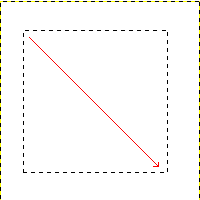
The screenshot shows how a rectangular selection is created.
Press and hold the left mouse button while you move the mouse
in the direction of the red arrow.
Basic shapes like rectangles or ellipses, can be
created using the
selection tools. This
tutorial uses a rectangular selection as an example. So,
choose the rectangular
selection tool and create a new selection: press and
hold the left mouse button while you move the mouse to another
position in the image (illustrated in figure
Figure 7.37, “Creating a rectangular selection”). The selection is created
when you release the mouse button. For more
information about key modifiers see
selection tools.
-
Figure 7.38. Rectangular selection filled with foreground color
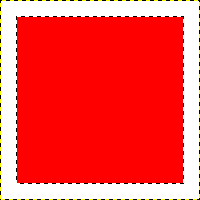
The screenshot shows a rectangular selection filled with the
foreground color.
After creating the selection, you can either create a filled
or an outlined shape with the foreground color of your choice.
If you go for the first option, choose a
foreground color
and fill the selection with the
bucket fill tool.
If you choose the latter option, create an outline by using
theStroke
selection menu item from the Edit
menu. If you're satisfied with the result,
remove the selection.

