GeezerVisonThe World Wide Web, restored to 800 pixels of glory. |
| Home|About|Gaming cabinet|Archives|How it works|Starter sites |
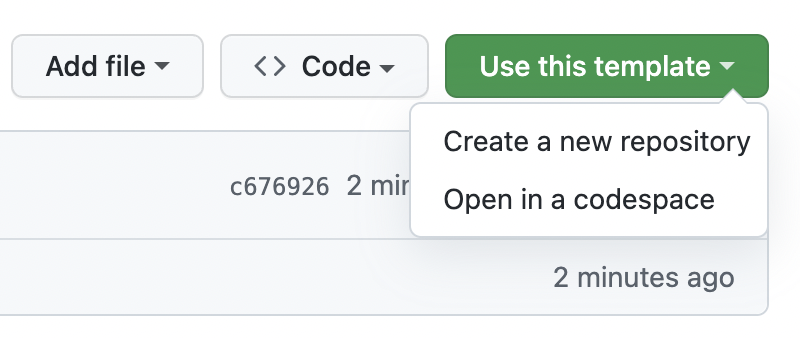
GeezerVison is showing docs.github.com — Quickstart for GitHub Codespaces - GitHub Docs Quickstart for GitHub CodespacesGet started with GitHub Codespaces quickly. In this articleIntroductionIn this guide, you'll create a codespace from a template repository and explore some of the essential features available to you within the codespace. You'll work in the browser version of Visual Studio Code, which is initially the default editor for GitHub Codespaces. After trying out this quickstart you can use Codespaces in other editors, and you can change the default editor. Links are provided at the end of this guide. From this quickstart, you'll learn how to create a codespace, connect to a forwarded port to view your running application, publish your codespace to a new repository, and personalize your setup with extensions. For more information on exactly how GitHub Codespaces works, see the companion guide Deep dive into GitHub Codespaces. Creating your codespace
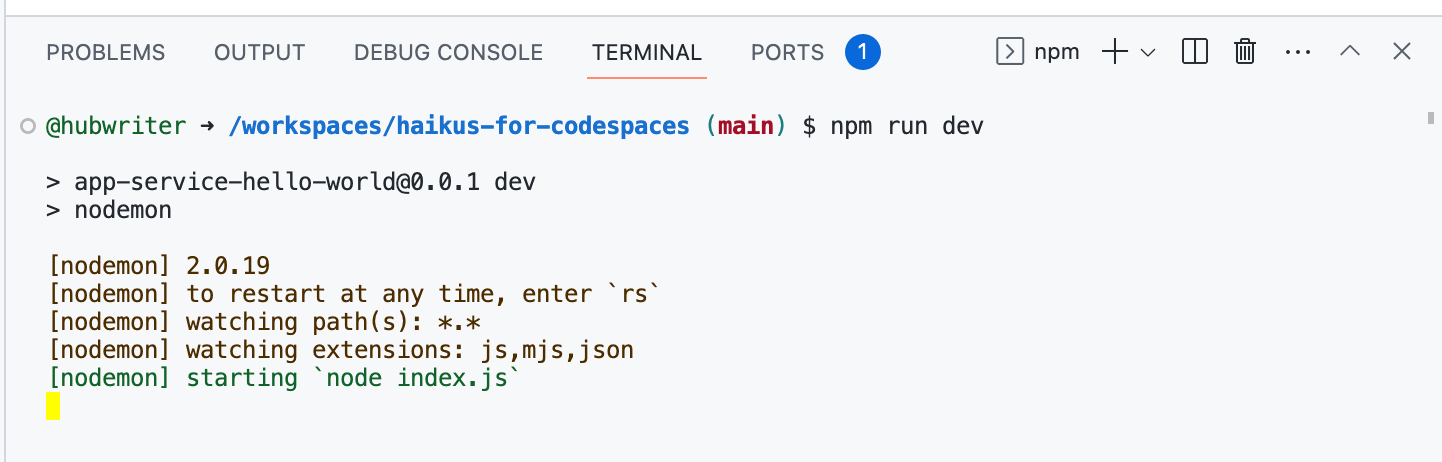
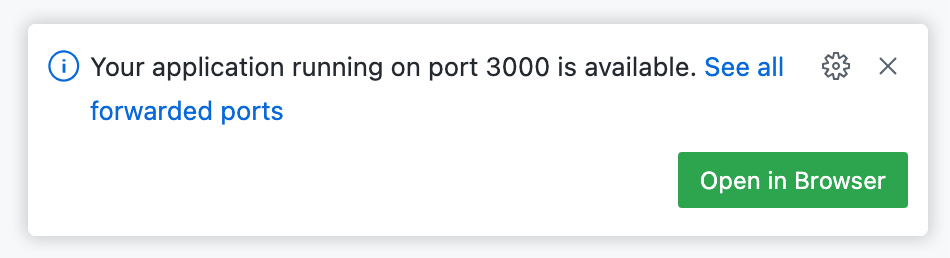
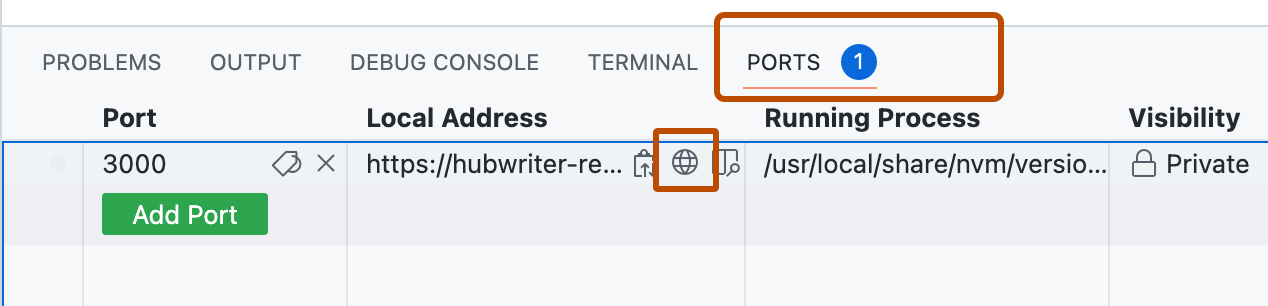
Running the applicationOnce your codespace is created, the template repository will be automatically cloned into it. Now you can run the application and launch it in a browser.
Edit the application and view changes
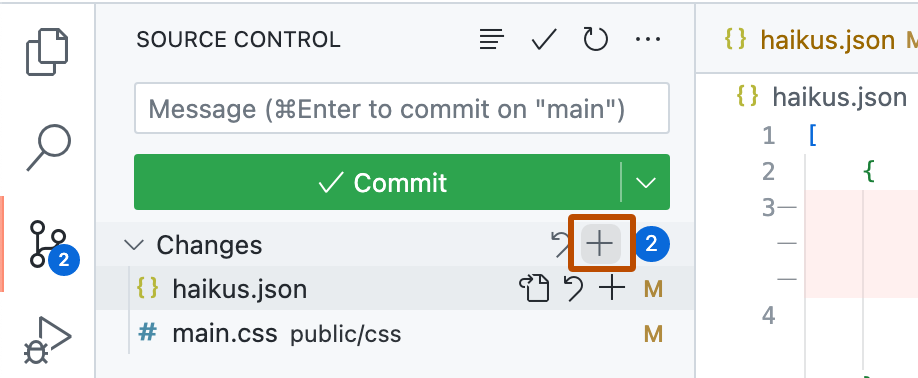
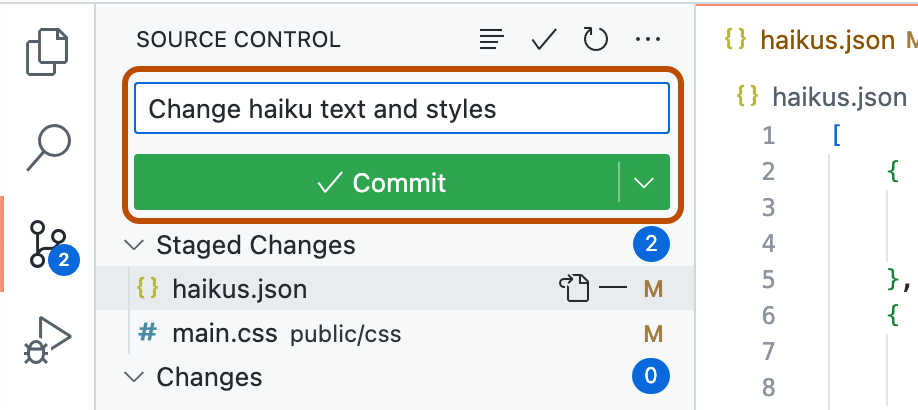
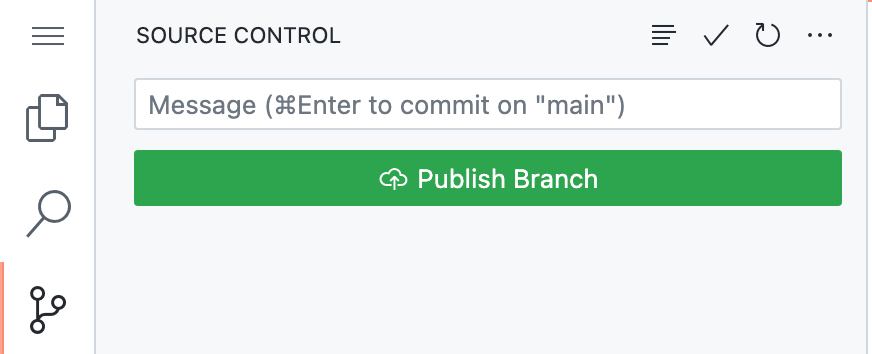
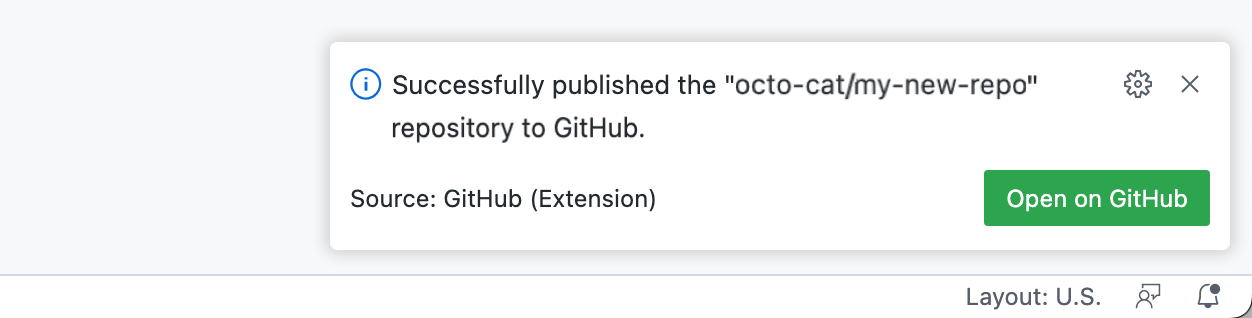
Committing and pushing your changesNow that you've made a few changes, you can use the integrated terminal or the source view to publish your work to a new repository.
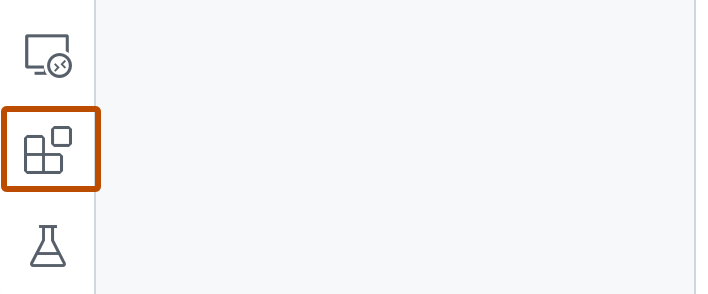
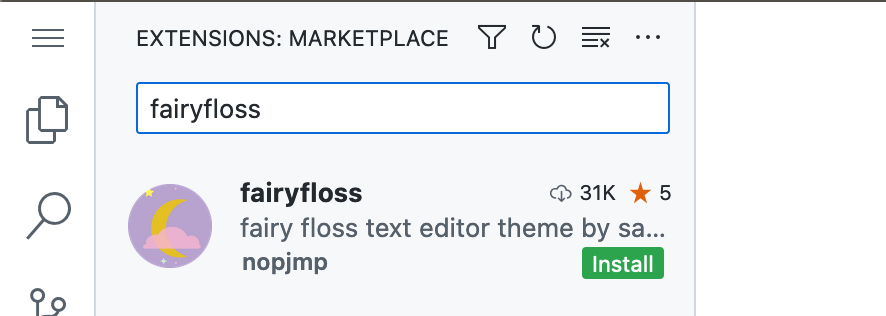
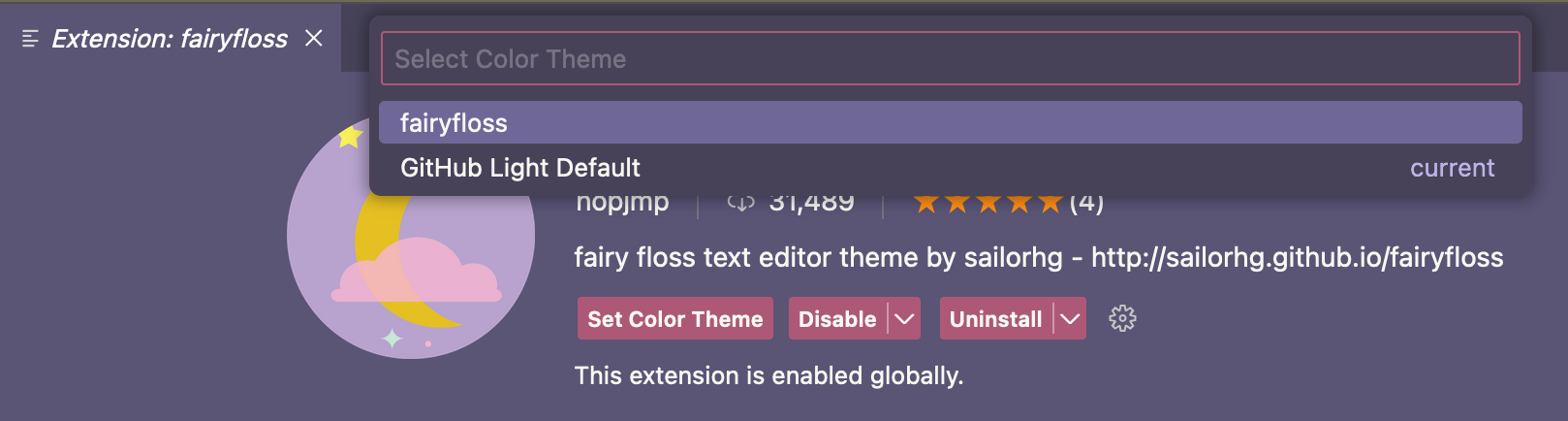
Personalizing with an extensionWhen you connect to a codespace using the browser, or the Visual Studio Code desktop application, you can access the Visual Studio Code Marketplace directly from the editor. For this example, you'll install a VS Code extension that alters the theme, but you can install any extension that's useful for your workflow.
About Settings SyncYou can enable Settings Sync to sync extensions and other settings across devices and instances of VS Code. Your synced settings are cached in the cloud. If Settings Sync is turned on in a codespace, any updates you make to your settings in the codespace are pushed to the cloud, and any updates you push to the cloud from elsewhere are pulled into your codespace. For more information, see Personalizing GitHub Codespaces for your account. Next stepsYou've successfully created, personalized, and run your first application within a codespace but there's so much more to explore! Here are some helpful resources for taking your next steps with GitHub Codespaces.
Further reading |
| You are visitor 01402503 — GeezerVison does not store the pages you look up. Best viewed with Netscape Navigator 4.7 or Internet Explorer 6 at 800×600. No cookies required. |