GeezerVisonThe World Wide Web, restored to 800 pixels of glory. | ||||||||||||||||||
| Home|About|Gaming cabinet|Archives|How it works|Starter sites | ||||||||||||||||||
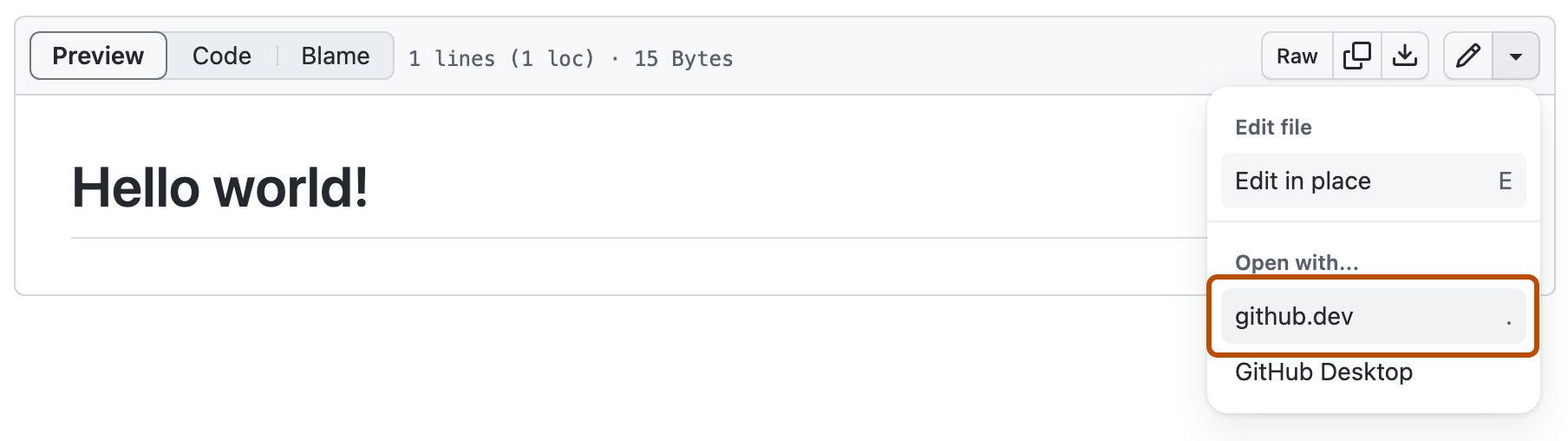
GeezerVison is showing docs.github.com — Using VS Code for the Web from GitHub - GitHub Docs Using VS Code for the Web from GitHubYou can open a repository or pull request in VS Code for the Web directly from GitHub to browse code, edit files, and commit your changes. In this articleNote Opening a repository at About VS Code for the WebVS Code for the Web is a lightweight editing experience that runs entirely in your browser. With VS Code for the Web, you can navigate files and source code repositories from GitHub, and make and commit code changes. You can open any repository, fork, or pull request in the editor. VS Code for the Web is available to everyone for free on GitHub.com. VS Code for the Web provides many of the benefits of Visual Studio Code, such as search, syntax highlighting, and a source control view. You can also use Settings Sync to share your own VS Code settings with the editor. See Settings Sync in the VS Code documentation. VS Code for the Web runs entirely in your browser’s sandbox. The editor doesn’t clone the repository, but instead uses the GitHub Repositories extension to carry out most of the functionality that you will use. Your work is saved in the browser’s local storage until you commit it. You should commit your changes regularly to ensure that they're always accessible. You must be signed in to GitHub to use VS Code for the Web. Opening VS Code for the Web from GitHubYou can open any GitHub repository in VS Code for the Web in any of the following ways:
Codespaces and VS Code for the WebBoth VS Code for the Web and GitHub Codespaces allow you to edit your code straight from your repository. However, both have slightly different benefits, depending on your use case.
Using source controlWhen you use VS Code for the Web, all actions are managed through the "Source Control" view, which is located in the Activity Bar on the left hand side. For more information on the "Source Control" view, see Version Control in the VS Code documentation. Because VS Code for the Web uses the GitHub Repositories extension to power its functionality, you can switch branches without needing to stash changes. See GitHub Repositories in the VS Code documentation. Create a new branch
Commit your changes
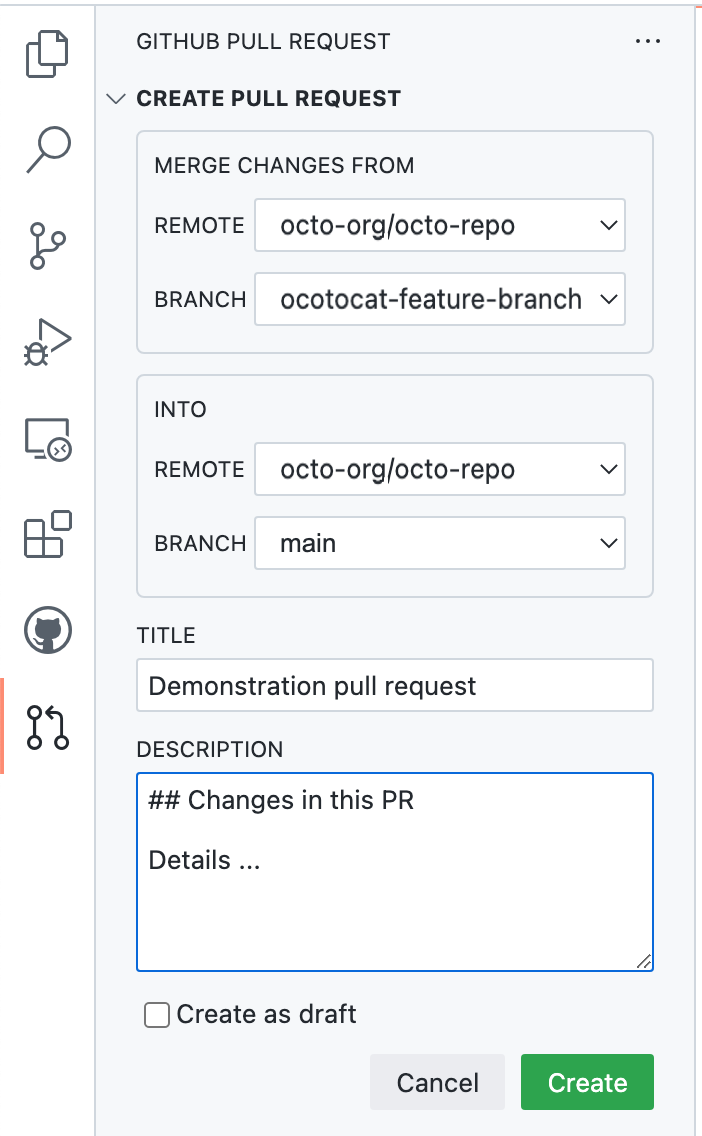
Create a pull request
Working with an existing pull requestYou can use VS Code for the Web to work with an existing pull request.
Using extensionsVS Code for the Web supports VS Code extensions that have been specifically created or updated to run in the web. These extensions are known as "web extensions". To learn how you can create a web extension or update your existing extension to work for the web, see Web extensions in the VS Code documentation. Extensions that can run in VS Code for the Web will appear in the Extensions View and can be installed. If you use Settings Sync, any compatible extensions are also installed automatically. For information, see Settings Sync in the VS Code documentation. | ||||||||||||||||||
| You are visitor 01402503 — GeezerVison does not store the pages you look up. Best viewed with Netscape Navigator 4.7 or Internet Explorer 6 at 800×600. No cookies required. |
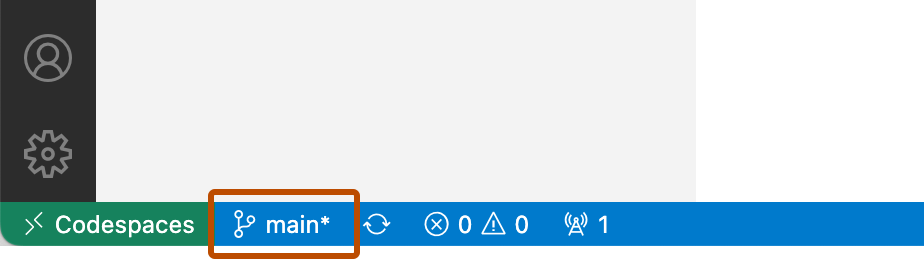
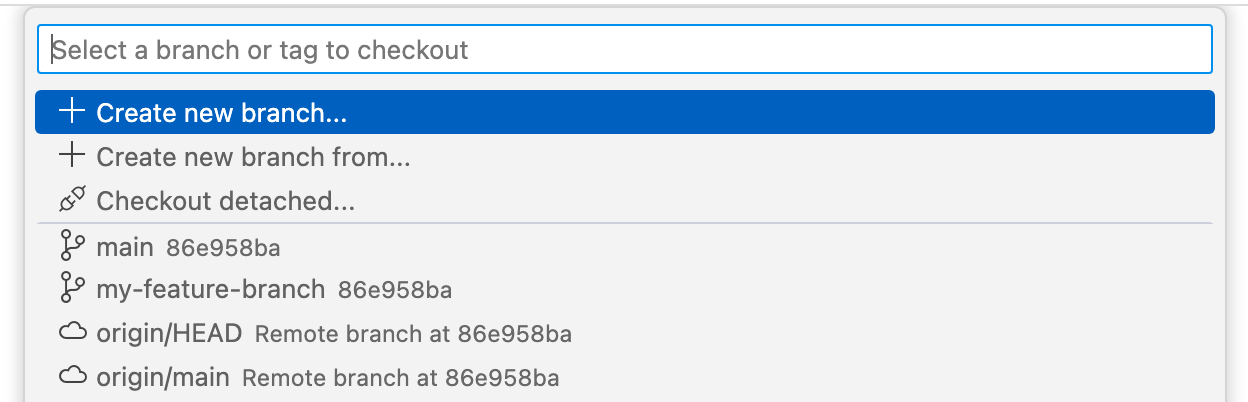 Any uncommitted changes you have made in your old branch will be available on your new branch.