GeezerVisonThe World Wide Web, restored to 800 pixels of glory. |
| Home|About|Gaming cabinet|Archives|How it works|Starter sites |
GeezerVison is showing docs.lammps.org — 10.6.3. LAMMPS Python Tutorial — LAMMPS documentation 10.6.3. LAMMPS Python TutorialOverviewThe In addition to this flat ctypes interface, the
Finally, the API exposes some additional features for IPython integration into Jupyter notebooks, e.g. for embedded visualization output from dump style image. Quick StartNote If you only want to use LAMMPS from Python and do not need to compile it yourself, you can also install a pre-compiled LAMMPS package that includes the Python module via conda. System-wide or User InstallationStep 1: Building LAMMPS as a shared libraryTo use LAMMPS inside of Python it has to be compiled as shared library. This library is then loaded by the Python interface. In this example we enable the MOLECULE package and compile LAMMPS with PNG and JPEG output support enabled. cd $LAMMPS_DIR # MPI, PNG, JPEG, and FFMPEG support are auto-detected cmake -S cmake -B build-shared -D PKG_MOLECULE=on -D PKG_PYTHON=on \ -D PKG_GRAPHICS=on -D BUILD_SHARED_LIBS=on cmake --build build-shared cd $LAMMPS_DIR/src # add LAMMPS packages if necessary make yes-MOLECULE make yes-PYTHON make yes-GRAPHICS # compile shared library using Makefile make mpi mode=shlib LMP_INC="-DLAMMPS_PNG -DLAMMPS_JPEG" JPG_LIB="-lpng -ljpeg" Step 2: Installing the LAMMPS Python moduleNext install the LAMMPS Python module into your current Python installation with: cmake --build build-shared --target install-python make install-python
This will create a so-called “wheel” and then install the LAMMPS Python module from that “wheel” either into a system folder (provided the command is executed with root privileges) or into your personal Python module folder. Note Recompiling the shared library requires re-installing the Python package. Handling an “externally-managed-environment” Error Some Python installations made through Linux distributions
(e.g. Ubuntu 24.04LTS or later) will prevent installing the LAMMPS
Python module into a system folder or a corresponding folder of the
individual user as attempted by the These guidelines suggest to create a virtual environment and install
the LAMMPS Python module there (see below). This is generally a good
idea and the LAMMPS developers recommend this, too. If, however, you
want to proceed and install the LAMMPS Python module regardless, you
can install the “wheel” file (see above) manually with the Installation inside of a virtual environmentYou can use virtual environments to create a custom Python environment specifically tuned for your workflow. Benefits of using a virtual environment
Prerequisite (e.g. on Ubuntu) sudo apt install python3-venv Creating a virtual environment with LAMMPS installed# create virtual environment named 'testing' python3 -m venv $HOME/python/testing # activate 'testing' environment source $HOME/python/testing/bin/activate Now configure and compile the LAMMPS shared library as outlined above with the virtual environment active. CMake will then use the Python interpreter of the virtual environment. If the shared library has already been configured before the virtual environment was activated, you need to re-run CMake to update the location of the Python executable to the location in the virtual environment with: cmake -S cmake -B build-shared -D Python_EXECUTABLE=$(which python) Then install the LAMMPS Python module (for the traditional make build
use # install LAMMPS package in virtual environment cmake --build build-shared --target install-python # install other useful packages pip install matplotlib jupyterlab mpi4py pandas # ... use LAMMPS from Python ... # return to the original shell environment deactivate Creating a new lammps instanceTo create a lammps object you need to first import the class from the lammps
module. By using the default constructor, a new from lammps import lammps L = lammps() See the LAMMPS Python documentation for how to customize the instance creation with optional arguments. When the instance is no longer needed, it can be deleted with
with lammps() as L: L.command("units real") # ... more LAMMPS commands ... CommandsSending a LAMMPS command with the library interface is done using
the For instance, let’s take the following LAMMPS command: region box block 0 10 0 5 -0.5 0.5 This command can be executed with the following Python code if L.command("region box block 0 10 0 5 -0.5 0.5") For convenience, the L.cmd.region("box block", 0, 10, 0, 5, -0.5, 0.5) Note that each parameter is set as Python number literal. With the wrapper each command takes an arbitrary parameter list and transparently merges it to a single command string, separating individual parameters by white-space. The benefit of this approach is avoiding redundant command calls and easier
parameterization. With the L.command(f"region box block {xlo} {xhi} {ylo} {yhi} {zlo} {zhi}") The wrapper accepts parameters directly and will convert them automatically to a final command string. L.cmd.region("box block", xlo, xhi, ylo, yhi, zlo, zhi) Note When running in IPython you can use Tab-completion after Accessing atom dataAll per-atom properties that are part of the atom style in the current simulation can be accessed using the
nlocal = L.extract_setting("nlocal")
nall = L.extract_setting("nall")
print("Number of local atoms ", nlocal, "  Number of local and ghost atoms ", nall)

# access via ctypes directly
atom_id = L.extract_atom("id")
print("Atom IDs", atom_id[0:nlocal])

# access through numpy wrapper
atom_type = L.numpy.extract_atom("type")
print("Atom types", atom_type)

x = L.numpy.extract_atom("x")
v = L.numpy.extract_atom("v")
print("positions array shape", x.shape)
print("velocity array shape", v.shape)
# turn on communicating velocities to ghost atoms
L.cmd.comm_modify("vel", "yes")
v = L.numpy.extract_atom('v')
print("velocity array shape", v.shape)
Some properties can also be set from Python since internally the data of the C++ code is accessed directly: # set position in 2D simulation x[0] = (1.0, 0.0) # set position in 3D simulation x[0] = (1.0, 0.0, 1.) Retrieving the values of thermodynamic data and variablesTo access thermodynamic data from the last completed timestep,
you can use the result = L.get_thermo("ke") # kinetic energy result = L.get_thermo("pe") # potential energy # value of an equal-style variable named "t" result = L.extract_variable("t") / 2.0 Error handlingLAMMPS uses C++ exceptions for errors, and the C language library interface captures and records them. The Python module checks for errors after each call into LAMMPS and then re-throws them as a Python exception. This way you can handle LAMMPS errors in the conventional way through the Python exception handling mechanism: from lammps import lammps, MPIAbortException L = lammps() try: L.command("unknown_command") except MPIAbortException as e: # error on only some of the MPI processes; LAMMPS cannot continue print("Fatal LAMMPS error:", e) raise except Exception as e: # error on all MPI processes print("LAMMPS error:", e) An Warning Capturing a LAMMPS exception in Python can still mean that the current LAMMPS process is in an illegal state and must be terminated. It is advised to save your data and terminate the Python instance as quickly as possible. Using LAMMPS in IPython notebooks and JupyterIf the LAMMPS Python package is installed for the same Python interpreter as IPython, you can use LAMMPS directly inside of an IPython notebook inside of Jupyter. Jupyter is a powerful integrated development environment (IDE) for many dynamic languages like Python, Julia and others, which operates inside of any web browser. Besides auto-completion and syntax highlighting it allows you to create formatted documents using Markdown, mathematical formulas, graphics and animations intermixed with executable Python code. It is a great format for tutorials and showcasing your latest research. To launch an instance of Jupyter simply run the following command inside your Python environment (this assumes you followed the Quick Start instructions): jupyter lab
Interactive Python ExamplesExamples of IPython notebooks can be found in the Validating a dihedral potentialThis example ( phi = [d * math.pi / 180 for d in range(360)] pos = [(1.0, math.cos(p), math.sin(p)) for p in phi] x = L.numpy.extract_atom("x") pe = [] for p in pos: x[3] = p L.cmd.run(0, "post", "no") pe.append(L.get_thermo("pe")) By evaluating the potential energy for each position we can verify that trajectory with the analytical formula. To compare both solutions, we plot both trajectories over each other using matplotlib, which embeds the generated plot inside the IPython notebook. 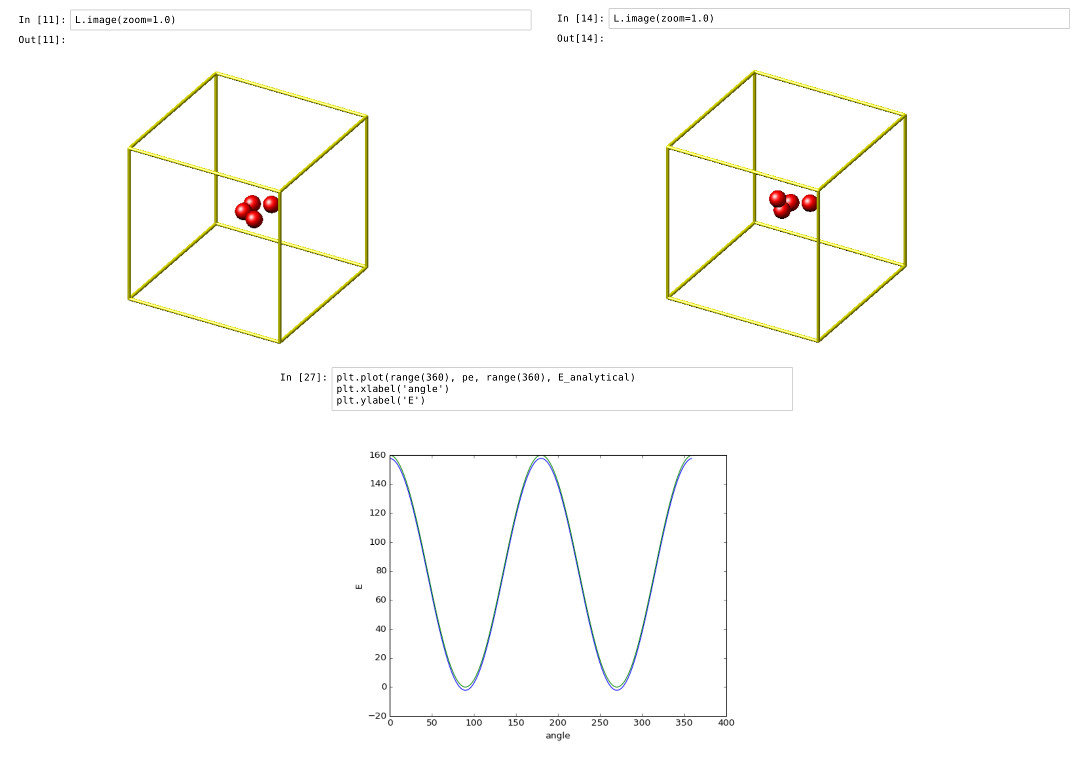
Running a Monte Carlo relaxationThis second example ( Initially, a 2D system is created in a state with minimal energy. 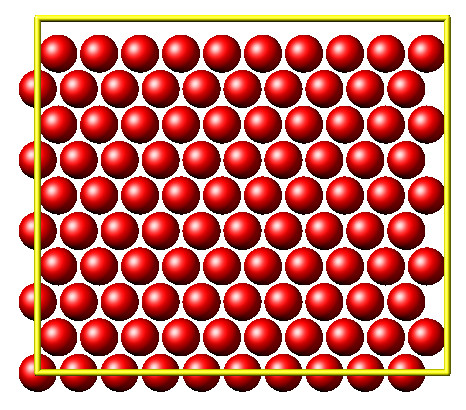
It is then disordered by moving each atom by a random delta. random.seed(27848) deltaperturb = 0.2 pos = L.numpy.extract_atom("x") for i in range(len(pos)): x, y = pos[i][0], pos[i][1] dx = deltaperturb * random.uniform(-1, 1) dy = deltaperturb * random.uniform(-1, 1) pos[i] = (x+dx, y+dy, 0) L.cmd.run(0, "post", "no") 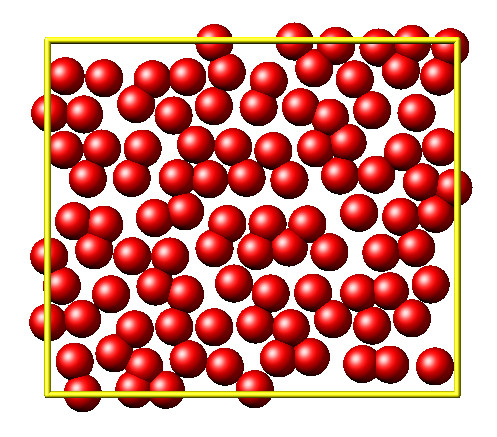
Finally, the Monte Carlo algorithm is implemented in Python. It continuously moves random atoms by a random delta and only accepts certain moves. estart = L.get_thermo("pe") elast = estart naccept = 0 energies = [estart] niterations = 3000 deltamove = 0.1 kT = 0.05 natoms = L.extract_global("natoms") for i in range(niterations): pos = L.numpy.extract_atom("x") iatom = random.randrange(0, natoms) current_atom = pos[iatom] x0, y0 = current_atom[0], current_atom[1] dx = deltamove * random.uniform(-1, 1) dy = deltamove * random.uniform(-1, 1) pos[iatom] = (x0+dx, y0+dy, 0) L.cmd.run(1, "pre no post no") e = L.get_thermo("pe") energies.append(e) if e <= elast: naccept += 1 elast = e elif random.random() <= math.exp(natoms*(elast-e)/kT): naccept += 1 elast = e else: pos[iatom] = (x0, y0, 0) The energies of each iteration are collected in a Python list and finally plotted using matplotlib. 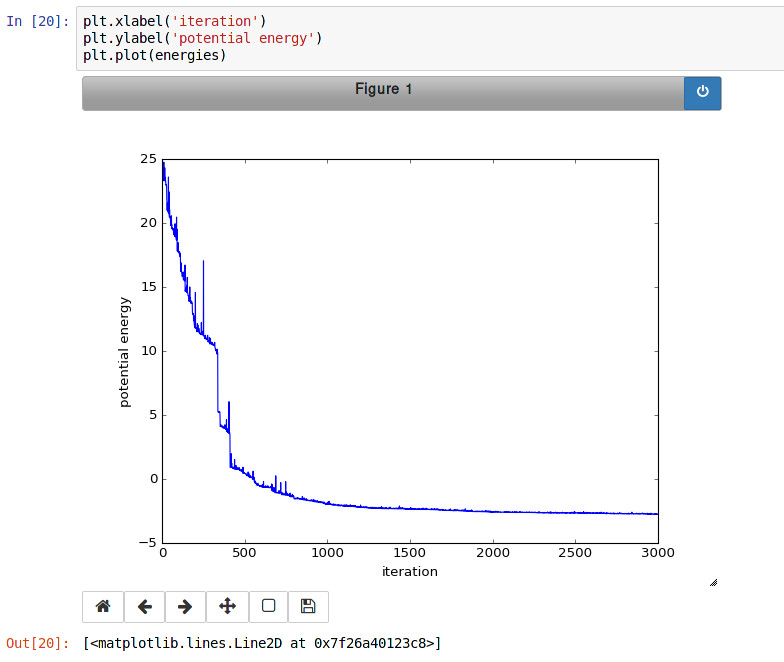
The IPython notebook also shows how to use dump commands and embed video files inside of the IPython notebook. |
| You are visitor 01402775 — GeezerVison does not store the pages you look up. Best viewed with Netscape Navigator 4.7 or Internet Explorer 6 at 800×600. No cookies required. |