GeezerVisonThe World Wide Web, restored to 800 pixels of glory. |
| Home|About|Gaming cabinet|Archives|How it works|Starter sites |
GeezerVison is showing learn.microsoft.com — Manual installation steps for older versions of WSL Note Access to this page requires authorization. You can try signing in or changing directories. Access to this page requires authorization. You can try changing directories. Manual installation steps for older versions of WSLFor simplicity, we generally recommend using the Step 1 - Enable the Windows Subsystem for LinuxYou must first enable the "Windows Subsystem for Linux" optional feature before installing any Linux distributions on Windows. Open PowerShell as Administrator (Start menu > PowerShell > right-click > Run as Administrator) and enter this command: We recommend now moving on to Step 2 - Check requirements for running WSL 2, updating to WSL 2, but if you wish to only install WSL 1, you can now restart your machine and move on to Step 6 - Install your Linux distribution of choice. To update to WSL 2, wait to restart your machine and move on to the next step. Step 2 - Check requirements for running WSL 2To update to WSL 2, you must be running Windows 10...
or Windows 11. Note Builds lower than 18362 do not support WSL 2. Use the Windows Update Assistant to update your version of Windows. The Windows version 1903 support is also only for x64 systems. If you are using an Arm64 version of Windows, you will need to upgrade to Windows 10 version 2004 or later for full access to WSL 2. For more info, see WSL 2 support coming to Windows 10 Versions 1903 and 1909. To check your version and build number, select Windows logo key + R, type winver, select OK. Update to the latest Windows version in the Settings menu. Note If you are running Windows 10 version 1903 or 1909, open "Settings" from your Windows menu, navigate to "Update & Security" and select "Check for Updates". Your Build number must be 18362.1049+ or 18363.1049+, with the minor build # over .1049. Read more: WSL 2 Support is coming to Windows 10 Versions 1903 and 1909. Step 3 - Enable Virtual Machine featureBefore installing WSL 2, you must enable the Virtual Machine Platform optional feature. Your machine will require virtualization capabilities to use this feature. Open PowerShell as Administrator and run: Restart your machine to complete the WSL install and update to WSL 2. Step 4 - Download the Linux kernel update packageThe Linux kernel update package installs the most recent version of the WSL 2 Linux kernel for running WSL inside the Windows operating system image. (To run WSL from the Microsoft Store, with more frequently pushed updates, use
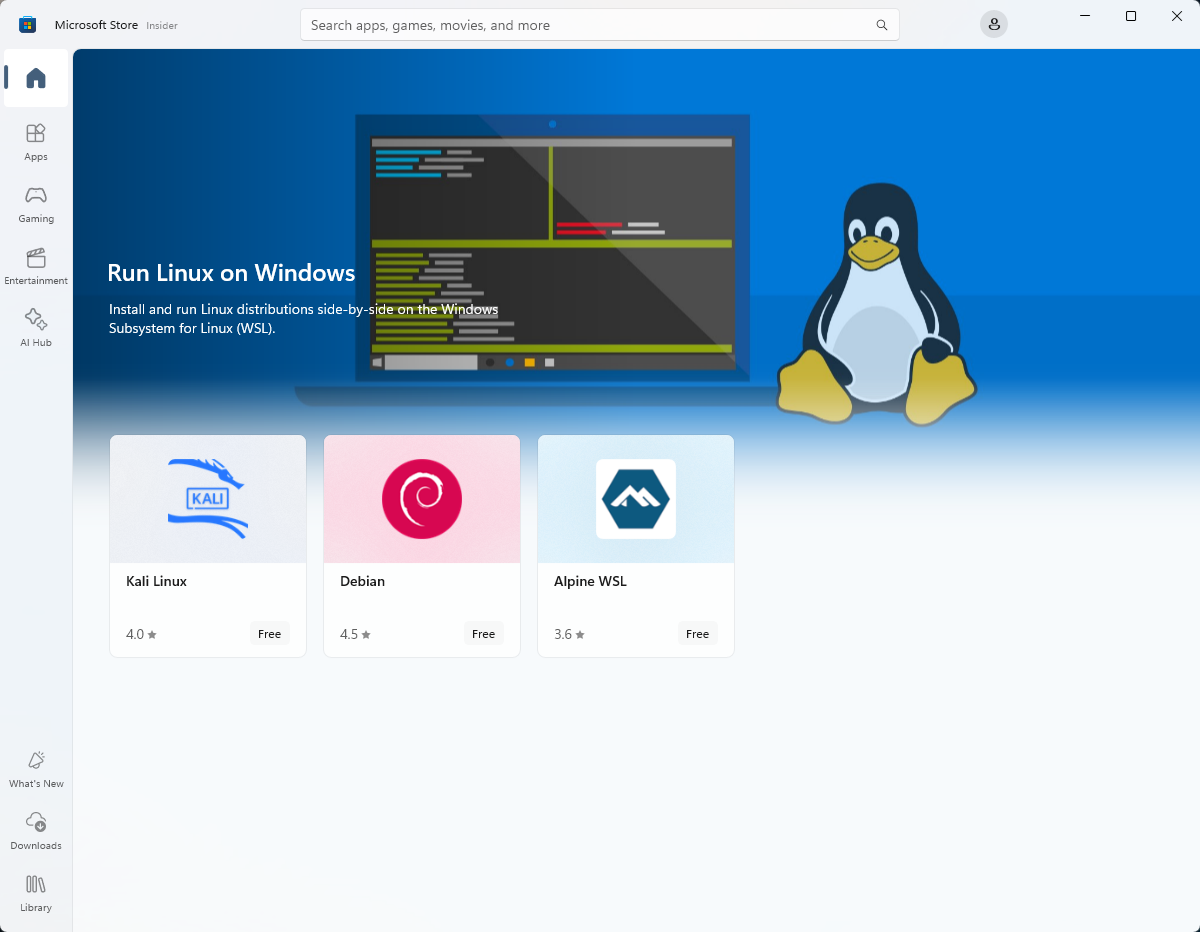
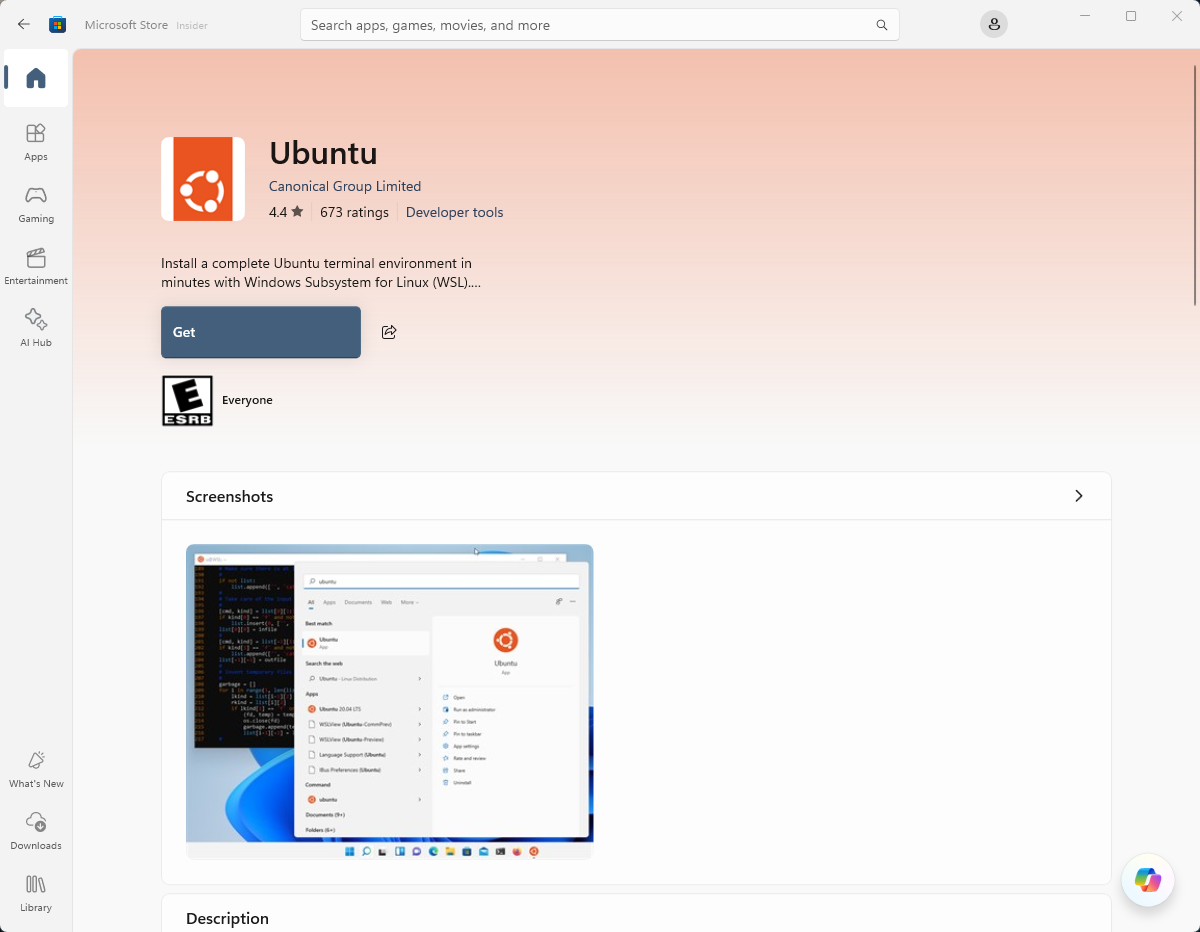
Once the installation is complete, move on to the next step - setting WSL 2 as your default version when installing new Linux distributions. (Skip this step if you want your new Linux installs to be set to WSL 1). Note For more information, read the article changes to updating the WSL2 Linux kernel, available on the Windows Command Line Blog. Step 5 - Set WSL 2 as your default versionOpen PowerShell and run this command to set WSL 2 as the default version when installing a new Linux distribution: Step 6 - Install your Linux distribution of choice
The first time you launch a newly installed Linux distribution, a console window will open and you'll be asked to wait for a minute or two for files to de-compress and be stored on your PC. All future launches should take less than a second. You will then need to create a user account and password for your new Linux distribution.
CONGRATULATIONS! You've successfully installed and set up a Linux distribution that is completely integrated with your Windows operating system! Troubleshooting installationIf you run into an issue during the install process, check the installation section of the troubleshooting guide. Downloading distributionsThere are some scenarios in which you may not be able (or want) to, install WSL Linux distributions using the Microsoft Store. You may be running a Windows Server or Long-Term Servicing (LTSC) desktop OS SKU that doesn't support Microsoft Store, or your corporate network policies and/or admins do not permit Microsoft Store usage in your environment. In these cases, while WSL itself is available, you may need to download Linux distributions directly. If the Microsoft Store app is not available, you can download and manually install Linux distributions using these links:
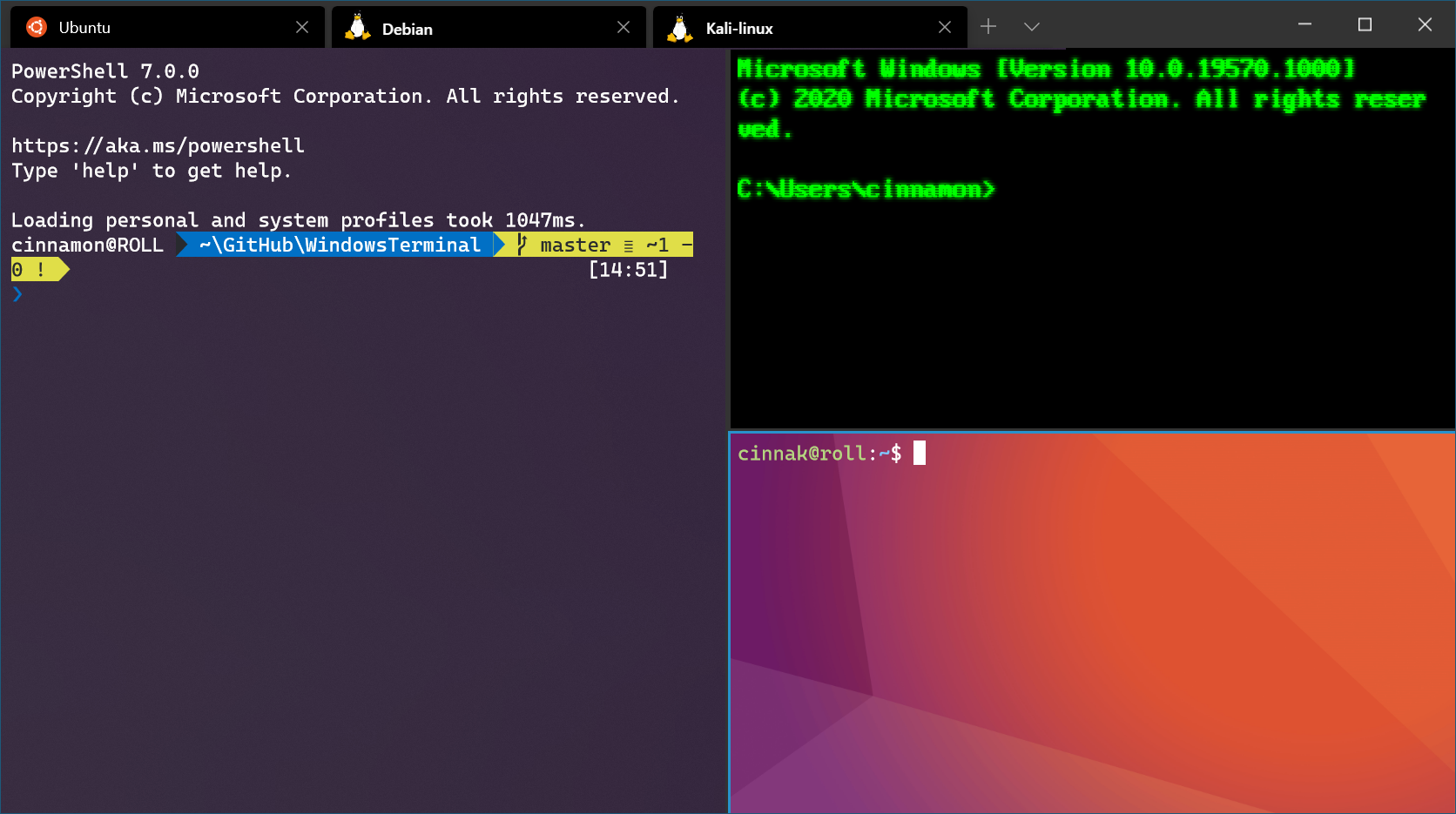
This will cause the If you prefer, you can also download your preferred distribution(s) via the command line, you can use PowerShell with the Invoke-WebRequest cmdlet. For example, to download Ubuntu 20.04: Tip If the download is taking a long time, turn off the progress bar by setting You also have the option to use the curl command-line utility for downloading. To download Ubuntu 24.04 LTS with curl: In this example, Installing the package with Add-AppxPackageNote The following command won't work on Server Core installations Once the distribution has been downloaded, navigate to the folder containing the download and run the following command in that directory, where Once the package has finished installing, you can start running the new distribution by double-clicking the appx file. (The command If you are using Windows server, or run into problems running the command above you can find the alternate install instructions on the Windows Server documentation page to install the Once your distribution is installed, follow the instructions to create a user account and password for your new Linux distribution. Install Windows Terminal (optional)Using Windows Terminal enables you to open multiple tabs or window panes to display and quickly switch between multiple Linux distributions or other command lines (PowerShell, Command Prompt, Azure CLI, etc). You can fully customize your terminal with unique color schemes, font styles, sizes, background images, and custom keyboard shortcuts. Learn more.
Collaborate with us on GitHub
The source for this content can be found on GitHub, where you can also create and review issues and pull requests. For more information, see our contributor guide.

Windows Subsystem for Linux FeedbackWas this page helpful? NoAdditional resources
|
| You are visitor 01402792 — GeezerVison does not store the pages you look up. Best viewed with Netscape Navigator 4.7 or Internet Explorer 6 at 800×600. No cookies required. |