GeezerVisonThe World Wide Web, restored to 800 pixels of glory. |
| Home|About|Gaming cabinet|Archives|How it works|Starter sites |
GeezerVison is showing docs.px.dev — Using Pixie | Using the CLI You can interact with the Pixie platform using the CLI, web-based Live UI or API. Scripts run in the CLI omit certain visualizations seen in the Live UI. For this reason, we recommend that developers who are new to Pixie begin by using the Live UI. Pixie needs to be installed on your Kubernetes cluster. If it is not already installed, please consult our install guides. Run the following command to list all of Pixie's open source scripts.
You can run any PxL script using:
Let's try run Pixie's
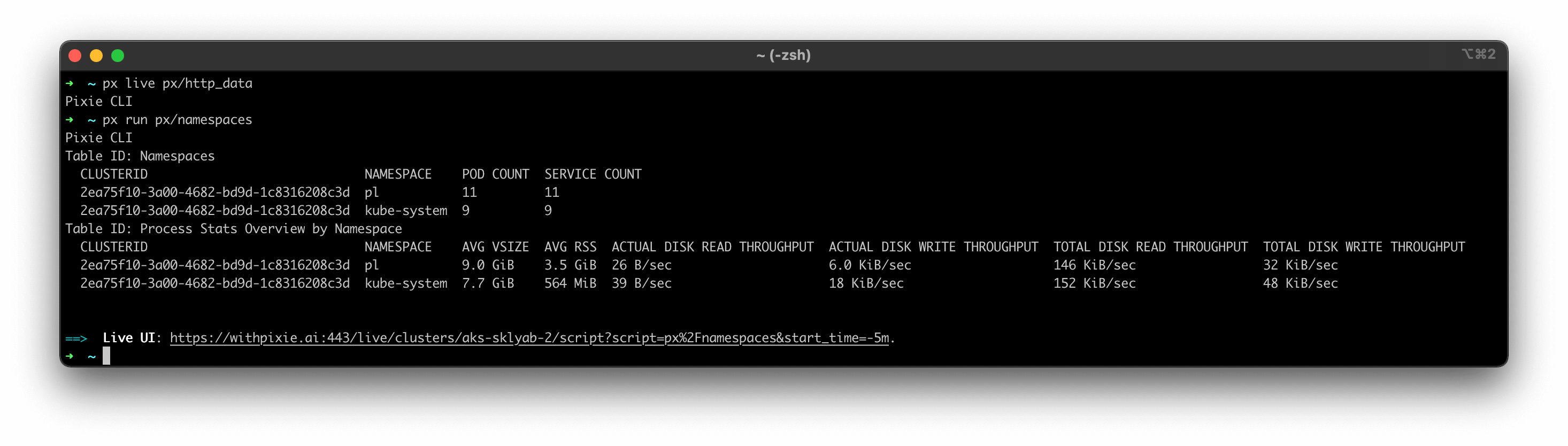 This script outputs two tables. The first table lists the namespaces on the current cluster and their pod and service counts. The second table lists the high-level resource consumption by namespace. If Pixie is installed on multiple clusters, Pixie will use the cluster in the current kubectl context. To specify a different cluster, pass the
To show a the input arguments for any PxL script:
Pixie's
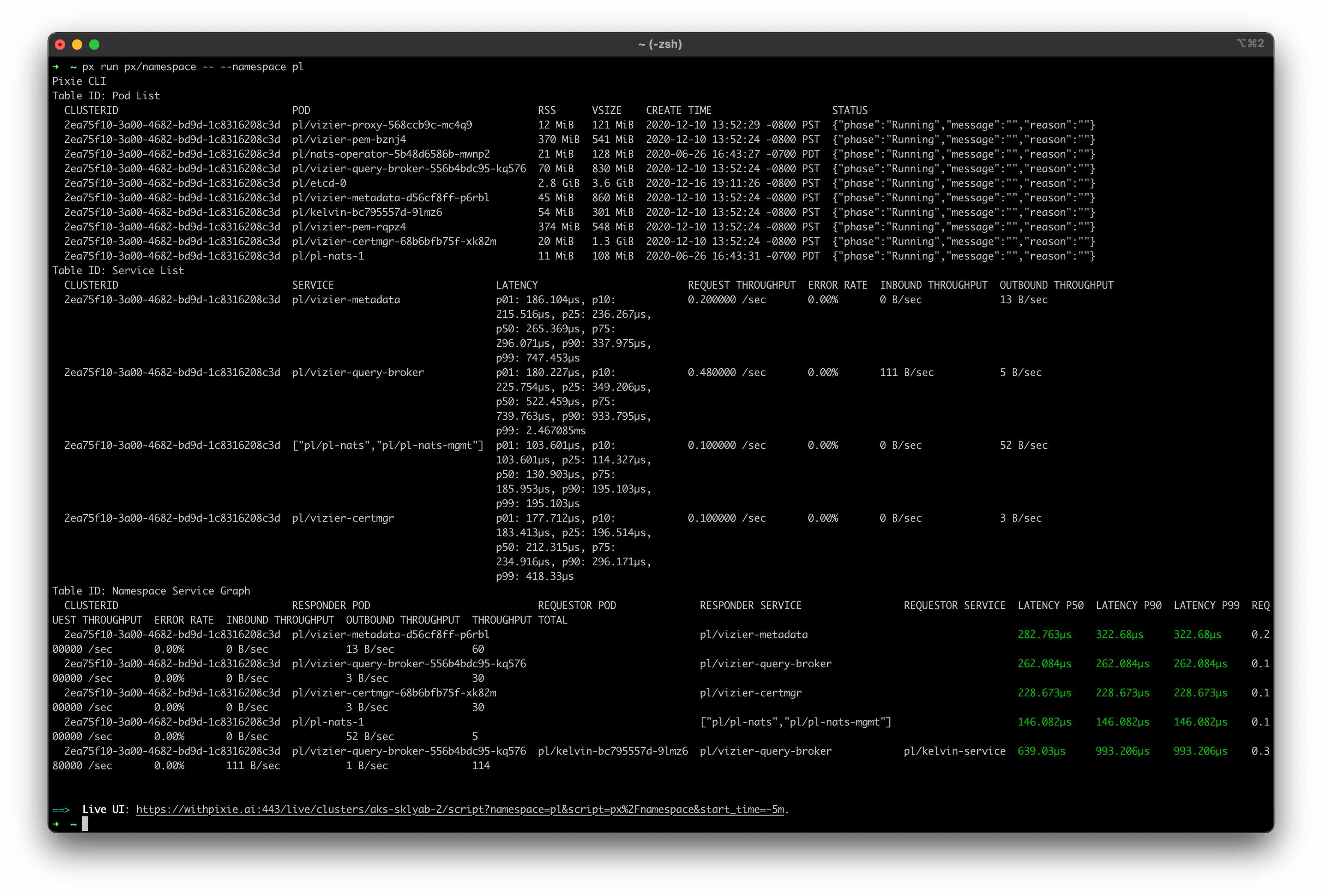 This script outputs three tables and the output is difficult to view in the terminal. For scripts with verbose output (like the Pixie supports
The Live CLI provides interactive views for output tables. To run the Live CLI, use
The 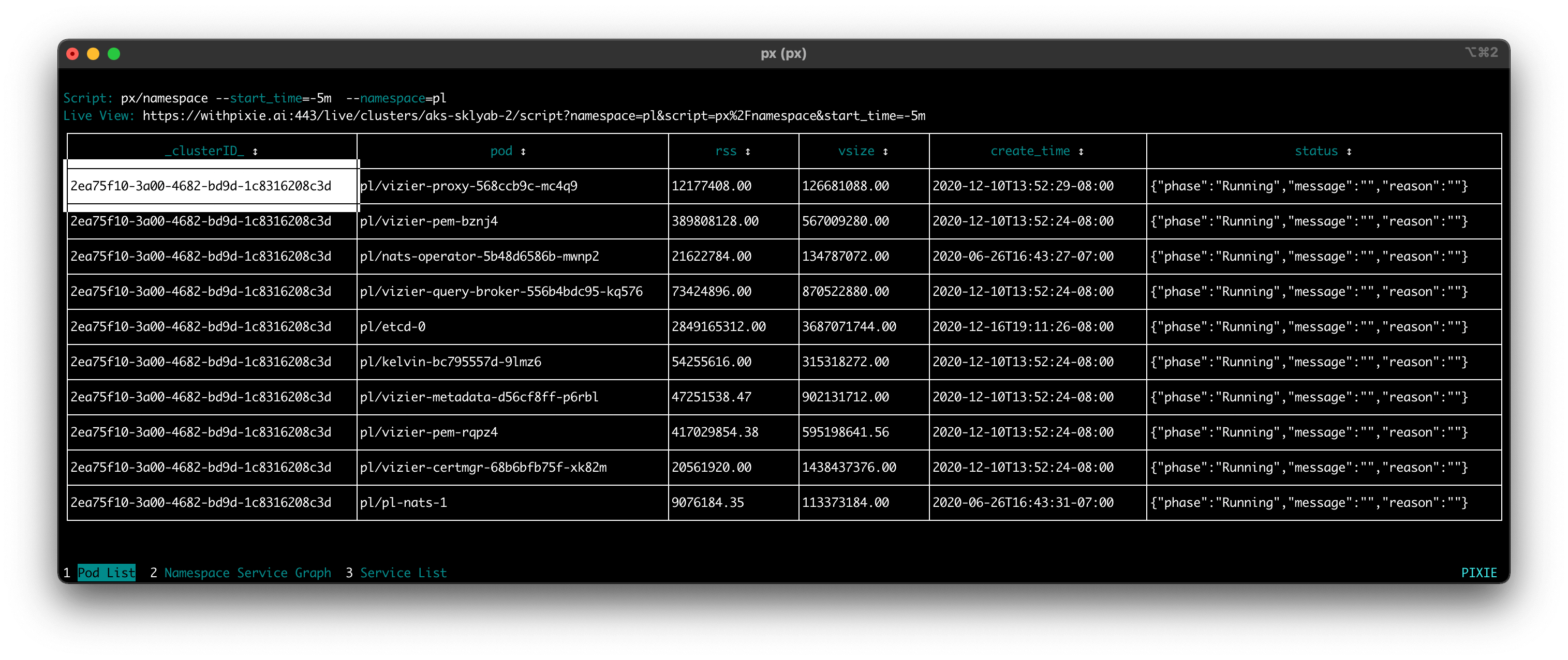 You can interact with the Live CLI output:
PxL has support for building visualizations (graphs, charts, etc), which can be viewed in Pixie's Live UI. A link to the Live UI view of a particular script is included in each script output in the CLI. The Live UI link appears at the bottom of the output of any 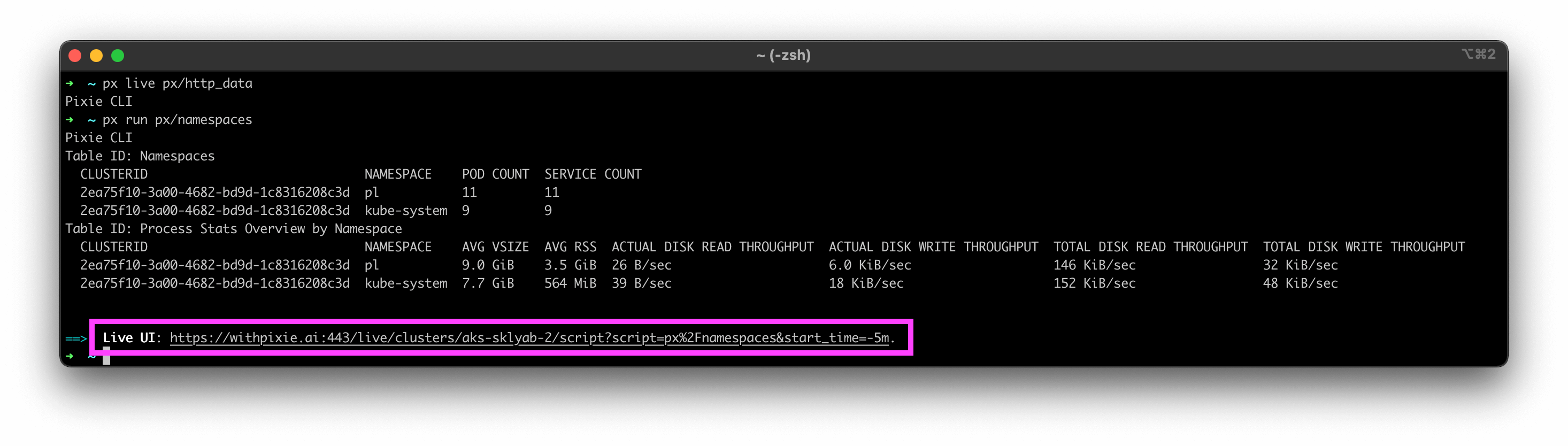 And at the top of the Live CLI output. 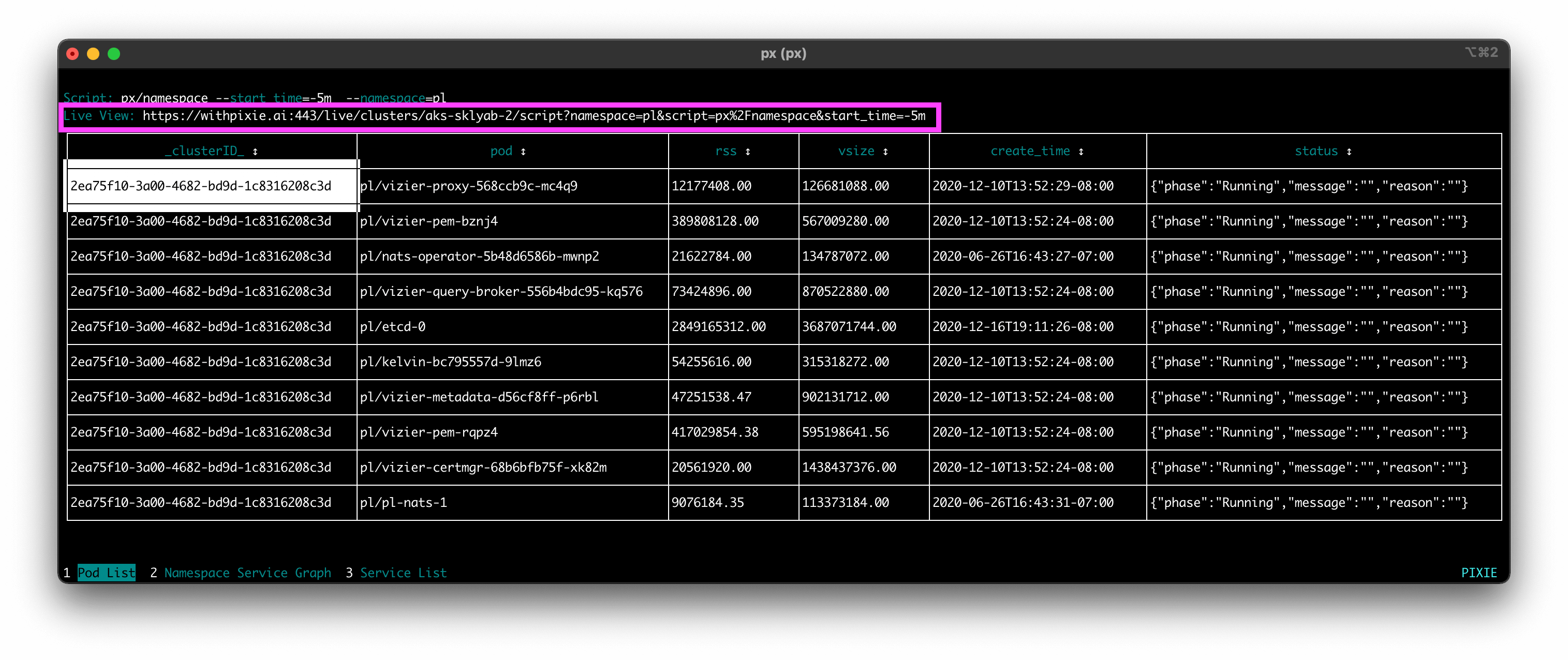 To learn how to use Pixie for a specific use case, check out one of the following tutorials:
To learn how to write custom PxL scripts, check out this tutorial. To run your own PxL script using the CLI, use the
Pixie offers end-to-end encryption for telemetry data requested by the CLI. For more information, see the FAQ. Encryption is controlled by the
Use the following commands to show the status of Pixie on your cluster:
To view all available Pixie CLI commands:
SetupPixie's Open Source ScriptsRunning your first PxL ScriptSelecting the ClusterPassing Arguments to a ScriptDifferent Ways of Viewing a Script's OutputOutput in a Different FormatUse the Live CLISwitch to the Live ViewUse Case TutorialsRunning a Custom PxL ScriptAdvancedEnd-to-End EncryptionDebugging Pixie using the CLI This site uses cookies to provide you with a better user experience. By using Pixie, you consent to our use of cookies. |
| You are visitor 01402503 — GeezerVison does not store the pages you look up. Best viewed with Netscape Navigator 4.7 or Internet Explorer 6 at 800×600. No cookies required. |