GeezerVison is showing github.com — IntelliJ-IDEA-Tutorial/database-introduce.md at master · anderslu/IntelliJ-IDEA-Tutorial
/
database-introduce.md
Copy path 20 lines (13 loc) · 1.85 KB
/
database-introduce.md
Copy pathFile metadata and controls
20 lines (13 loc) · 1.85 KB
Copy raw file
Download raw file
Edit and raw actions
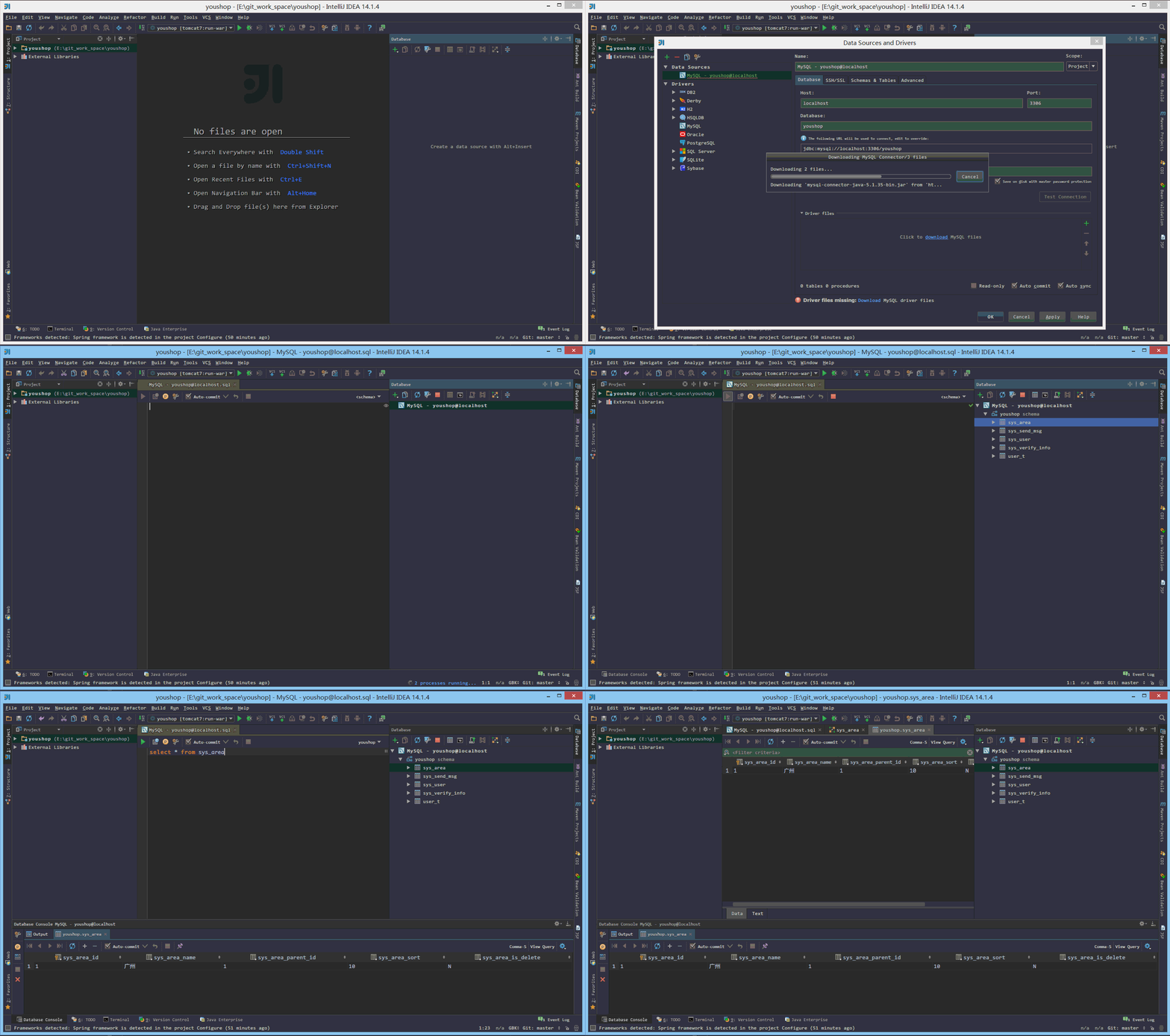
- 表面上很多人认为配置 Database 就是为了有一个 GUI 管理数据库功能,但是这并不是 IntelliJ IDEA 的 Database 最重要特性。数据库的 GUI 工具有很多,IntelliJ IDEA 的 Database 也没有太明显的优势。IntelliJ IDEA 的 Database 最大特性就是对于 Java Web 项目来讲,常使用的 ORM 框架,如 Hibernate、Mybatis 有很好的支持,比如配置好了 Database 之后,IntelliJ IDEA 会自动识别 domain 对象与数据表的关系,也可以通过 Database 的数据表直接生成 domain 对象等等。
- 如上图 Gif 所示,这是一个完成的配置 Database 过程,对于数据库需要的依赖包,IntelliJ IDEA 可以自动帮我们下载,所以我们只要配置对应的连接参数即可。
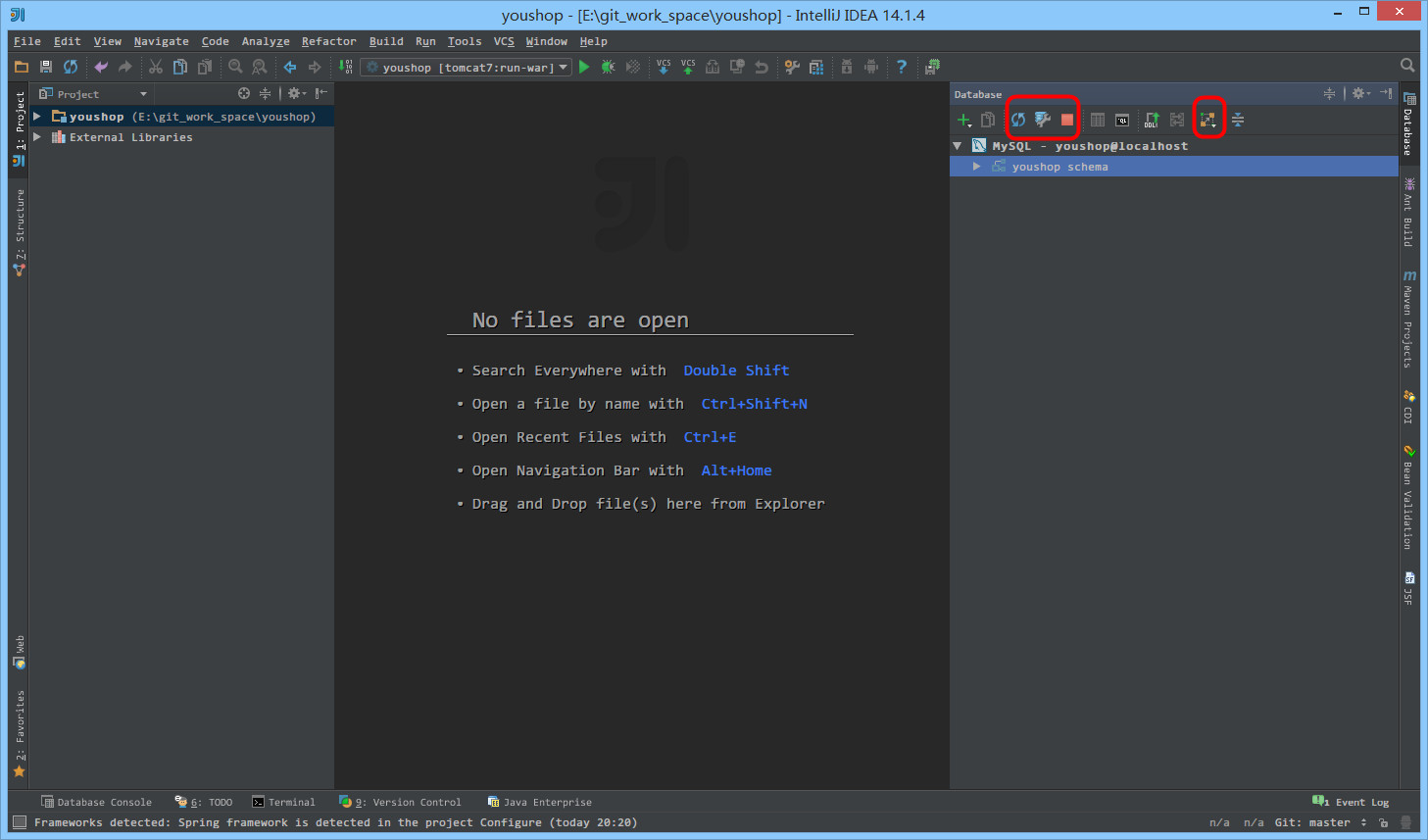
- 如上图标注的红圈所示,这是 Database 常用的四个操作。
- 第一个按钮是:同步当前数据库连接。这个是最重要的操作,有一些情况下,当我们配置好连接之后,没有显示数据表,那就是需要点击该按钮进行同步。还有一种情况就是我们在 IntelliJ IDEA 之外用其他工具操作数据库,比如新建表。而此时 IntelliJ IDEA 的 Database 如果没有同步到新表,也是需要点击此按钮进行同步的。
- 第二个按钮是:配置当前连接,跟我们首次设置连接的界面是一样的。
- 第三个按钮是:断开当前的连接。
- 第四个按钮是:查看当前所选对象的图标结构,比如我们当前选中的是整个数据库名,我们如果点击此按钮,则是显示该数据库下的所有数据表的图标结构图。

