An Arduino MIDI foot switch that you set up from your browser or Android phone, in two versions: MIDI Muppet Max (four buttons) and MIDI Muppet HX (two buttons). Pick your pedal, pick a command for every switch and save it over USB. Based on MIDI Muppet HX by Matthias Wientapper.
Open the web editor · Download the Android app · all releases
Install the firmware, choose what every switch does and save it to the pedal – in the browser, or in the Android app with a USB OTG cable. No Arduino IDE needed. To install the APK, allow your browser or file manager to install unknown apps when Android asks.


- Connect the Arduino in the pedal to the computer with a USB cable.
- The first time: choose your Arduino (Nano / Pro Mini 5 V or Pro Mini 3.3 V), click Install firmware and pick the Arduino's port. The editor finds the bootloader (Nano with the old or new bootloader, or Pro Mini), checks the chip and installs the right firmware. A Pro Mini is programmed through its USB–serial adapter, with DTR connected so the editor can restart it.
- Click Connect pedal. The pedal restarts and blinks green/red while it is in setup mode. Press a switch on the pedal and it lights up in the editor.
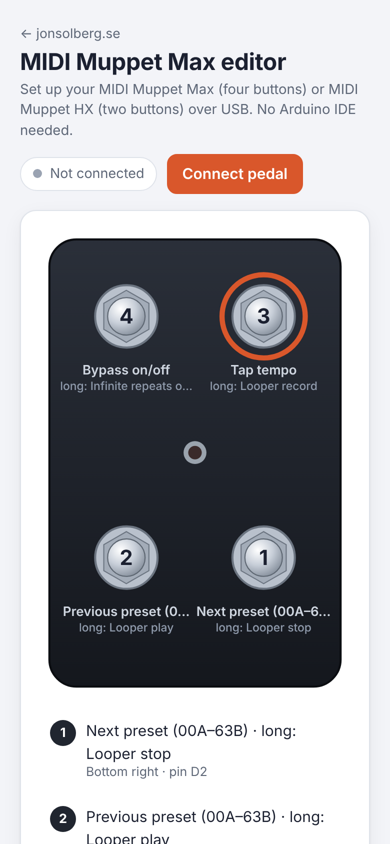
- Start from the ready-made setup for your pedal, or click a switch in the picture and choose its commands.
- Click Save to pedal, disconnect and play. The settings are kept in the Arduino's EEPROM.
Setups can also be exported to a file and imported again. If the pedal has older firmware, the editor suggests an update (firmware 5 adds bank + program, used by the Strymon pedals).
-
Computer: Chrome, Edge or Opera. The editor uses Web Serial to talk to the Arduino.
-
Android app: the same editor as an app, so no browser is needed. Connect the pedal with a USB OTG cable; the app talks to the Arduino's USB chip (CH340, FTDI, CP210x or CDC-ACM) through Android's own USB support, and plugging in the pedal can open the app directly. Setups are exported and imported as files, like in the browser.
-
Android phone: Chrome and a USB OTG cable. Web Serial on Android only lists Bluetooth devices, so the editor drives the USB chip itself through WebUSB (CH340, FTDI, CP210x and CDC-ACM boards).
-
Firefox has Web Serial since version 151, but on Windows it can't yet receive data from boards with a CH340 USB chip (most Nano clones): the read stream ends at once, again and again (Mozilla bug 2053974). The editor tells you when that happens.


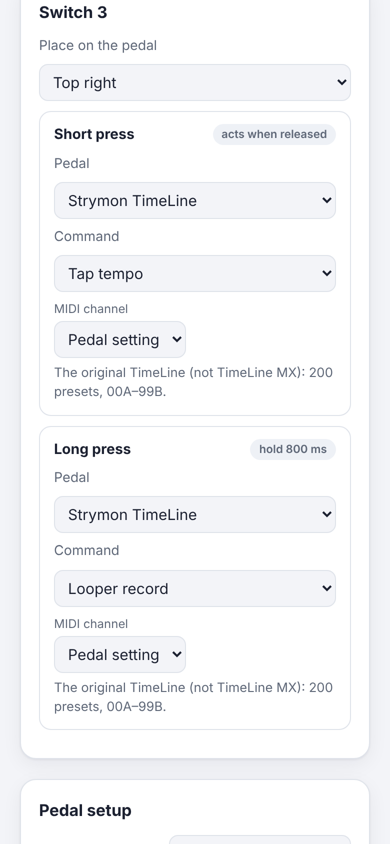
Every switch has a short press and a long press. For each one you choose the pedal first, then the command; the command list changes with the pedal:
| Pedal | Commands |
|---|---|
| Any MIDI device (default) | Program Change, Control Change, CC toggle, CC momentary, next/previous program in a range, bank + program |
| BOSS MD-200 | Memory, next/previous memory, Manual, effect on/off, ON/OFF, MEMORY/TAP, CTL 1 and CTL 2 footswitches, RATE, DEPTH, E.LEVEL, PARAM 1–3 and expression to a value |
| BOSS RC-500 | Memory 1–99, next/previous memory, and through ASSIGN: track 1/2 rec/play, play/stop and clear, current track rec/play and clear, track select, undo/redo, start all, tap tempo, rhythm play/stop, fill and variation, loop FX on/off, or any other ASSIGN target |
| Line 6 HX Stomp | Tap tempo, tuner, preset and snapshot up/down, snapshot 1–8, FS1–FS5, all bypass, looper, footswitch mode |
| Strymon Iridium | Preset 1–300, Favorite, Manual mode, next/previous preset, bypass, FAV and ON footswitches, amp (round, chime, punch), amp bypass, cab, room size, every knob to a value, volume pedal and its pre/post position, expression, MIDI expression on/off |
| Strymon TimeLine (not MX) | Preset 00A–99B, next/previous preset, bypass, tap tempo, A and B footswitches, infinite repeats, looper (record, play, stop, undo, redo, reverse, half speed) |
| Wampler Terraform | Preset, next/previous preset, bypass, tap tempo, effect, rotary fast/slow, routing |
The commands follow each maker's official MIDI documentation:
- Strymon Iridium and TimeLine: the MIDI CC charts in Strymon's user manuals. On the Iridium, program 0 is the Favorite and bank 0 program 127 is Manual mode.
- BOSS MD-200: every function has its own CC number, set in the pedal's menu (RTC, DPC, ELC, P1C–P3C, SWC, MEC, C1C, C2C, EPC, EFC), and CC IN must be on. The editor shows the number each command uses – set the same number on the pedal, or pick Any MIDI device to send another. Program 1 is MANUAL, programs 2–128 are memories 1–127.
- BOSS RC-500: apart from Program Change (memories), the RC-500 is controlled through ASSIGN. Each command shows a CC number and an ASSIGN target: in the RC-500 memory set ASSIGN ON, SOURCE = that CC (1–31 or 64–95), SRC MODE = MOMENT and TARGET = the function. ASSIGN settings are saved per memory.
BOSS 200-series pedals and the RC-500 need both 0 and 127 for a switch, which is what the held commands send.
A switch without a long press reacts as soon as you step on it. With a long press, the short press is sent when you lift your foot. The long press time and the MIDI channel are settings too, and each command can use its own channel.
One setup per pedal, for the four button MIDI Muppet Max:
| Setup | Switches 1–4 (long press in brackets) |
|---|---|
| BOSS MD-200 | next memory 1–4 · previous memory 1–4 (Manual) · CTL 1 while held · effect on/off |
| BOSS RC-500 | next memory · previous memory · memory 2 (4) · memory 1 (3) |
| Line 6 HX Stomp | MIDI Muppet HX modes on 1–2 · tap (tuner) · CC 6 toggle (all bypass) |
| Strymon Iridium | next preset · previous preset (Favorite) · FAV while held · bypass (amp bypass) |
| Strymon TimeLine | next preset (looper stop) · previous preset (looper play) · tap (record) · bypass (infinite repeats) |
| Wampler Terraform | next preset · previous preset (preset 1) · tap (rotary speed) · bypass |
There is also MIDI Muppet HX (two buttons) – as it came, and an empty setup for any other MIDI device.
The pedal picture in the editor has a working LED that does what the real one does: it blinks green/red in setup mode, flashes three times green when the pedal starts, goes dark while firmware is installed and flashes when you press a switch (on the pedal or in the picture). A program change flashes 1–4 times, a toggle flashes green for on and red for off.
On the pedal, the LED can flash when a switch sends, light only while a switch is held (green, then red once a long press starts) or stay off, optionally with a faint red glow when idle to show the pedal is on. The brightness is adjustable for both colours (green uses software PWM on Timer2). Common cathode and common anode bicolor LEDs both work: if the LED is lit when it should be off, choose common anode.

Choose MIDI Muppet HX (two buttons) as the pedal, or the ready-made setup with the same name. UP (D2) and DN (D3) work as in the original, and the MIDI channel and looper settings are set in the editor instead of by holding a switch at power-up. The firmware is built for 16 MHz (Nano, Pro Mini 5 V) and 8 MHz (Pro Mini 3.3 V) boards.

Midi Muppet Max Top view

| Arduino pin | Connected to |
|---|---|
| D2, D3 | Foot switches 1 and 2 (HX: UP / DN), other leg to ground |
| D6, D8 | Foot switches 3 and 4 (HX: TAP / FOUR), other leg to ground |
| D4, D5 | Bicolor LED green / red via 220R, common pin to ground (common cathode) or 5V (common anode) |
| TX (D1) | MIDI pin 5 via 220R |
| 5V | MIDI pin 4 via 220R |
| VIN / RAW, GND | 9V power socket |
The switches use the Arduino's internal pull-ups, so they need no resistors. For a 3.3V Arduino, see the resistor values in the original build guide.
The web editor installs the universal firmware for you. The other sketches are fixed setups for one pedal each, for those who prefer to change the code and upload it with the Arduino IDE.
| Sketch | Pedal | What it does |
|---|---|---|
midi_muppet_max_config |
Any MIDI device | Universal firmware for the web editor, for MIDI Muppet Max and MIDI Muppet HX |
midi_muppet_max_hx |
Line 6 HX Stomp | Preset/snapshot scrolling, FS4/FS5, looper, tuner, tap tempo, all bypass |
midi_muppet_max_rc500 |
BOSS RC-500 Loop Station | Recalls 8 memories (short and long press) with Program Change |
midi_muppet_max_terraform |
Wampler Terraform | Recalls 8 presets (short and long press) with Program Change |
- Install the libraries with the Arduino IDE library manager (the universal firmware needs none): OneButton (all other sketches) and JC_Button (HX Stomp sketch).
- Open the sketch for your pedal.
- Select your board, for example Arduino Nano with processor ATmega168 (or ATmega328P).
- Disconnect the MIDI cable while uploading, since MIDI uses the same TX pin as the USB upload.
All sketches build for both the ATmega168 and the ATmega328P.
The UP/DN switches work like the original MIDI Muppet HX. TAP and FOUR are new:
| Switch | Click | Long press |
|---|---|---|
| UP | Next preset / snapshot, FS5, looper play/stop | Snapshot mode on/off, looper undo/redo |
| DN | Previous preset / snapshot, FS4, looper record/overdub | Tuner |
| TAP | Tap tempo | Tuner |
| FOUR | Toggles MIDI CC 6 (assign it to a block on the HX Stomp) | All bypass on/off |
| UP + DN | Cycle Scroll → FS → Looper mode |
| Mode | LED |
|---|---|
| Scroll | red |
| FS / Snapshot | green |
| Tuner | blinking green |
| Looper | play: green, record: red, overdub: yellow |
Power-up settings, as in the original:
- Hold DN while powering up to set the MIDI channel (UP/DN changes it, hold both to exit).
- Hold UP while powering up to turn looper mode on (UP) or off (DN), hold both to exit.
Each switch sends one Program Change on a short press and another on a long press. Change the PROGRAMS
table and MIDI_CHANNEL at the top of the sketch to pick your own presets. The LED flashes green for a short
press and red for a long press, and the number of flashes shows the preset's position in its bank of four.
Default mapping (PC 0 = preset 1):
| Switch | Short press | Long press |
|---|---|---|
| ONE (D2) | preset 2 | preset 6 |
| TWO (D3) | preset 1 | preset 5 |
| THREE (D6) | preset 4 | preset 8 |
| FOUR (D8) | preset 3 | preset 7 |
android/ is a small app around the same editor page (editor/index.html, copied in at build time). A WebView
has neither Web Serial nor WebUSB, so the app gives the editor a navigator.usb of its own
(assets/android-usb.js), backed by Android's USB host API (UsbBridge.java). The editor's USB serial drivers
run unchanged. The release workflow builds the APK and adds it to the release.
After power-up the universal firmware listens on USB at 115200 baud (57600 on 8 MHz boards) for 1.5 seconds. If the editor says hello, it stays in setup mode. Otherwise it switches the serial port to MIDI speed (31250) and works as a foot switch, so nothing is sent to your other pedals while it listens. The setup protocol is plain text and is described at the top of the sketch.
tests/ runs the real compiled firmware in the simavr AVR simulator:
test_firmware.pychecks the setup protocol, every action type, short/long press timing, all HX Stomp modes, the two switch mode and the LED options on ATmega168 and ATmega328P, at 16 and 8 MHz.e2e.jsopens the editor in headless Chrome with a simulated serial port (or, withUSB_CH340=1, a simulated CH340 over WebUSB, as on Android) wired to the simulated pedal. WithANDROID_APP=1the same CH340 sits behind a simulated Android app bridge (window.AndroidUsb), so the app's USB layer (android/app/src/main/assets/android-usb.js) is tested with the real editor. It installs the firmware through the real ATmega168 Nano bootloader and the 3.3 V Pro Mini bootloader, then connects, edits, saves and checks the pedal's EEPROM and MIDI output.
tools/build_editor.py          # builds firmware/*.hex and editor/index.html
gcc -O2 -o tests/harness tests/harness.c -lsimavr -lelf
python3 tests/test_firmware.py
node tests/e2e.js <firmware.elf> atmega168 <ATmegaBOOT_168_diecimila.hex> nano168 16
SIM_MHZ=8 node tests/e2e.js <firmware.elf> atmega328p <ATmegaBOOT_168_atmega328_pro_8MHz.hex> promini 8
The first version of this project was three separate sketches. Since then:
- Credit and the original BSD licence are in every sketch, not just the HX one.
- HX Stomp: long press on FOUR toggles all bypass (before, it could only bypass, never turn back on).
- HX Stomp: long press on TAP enters tuner mode properly, so the LED and the UP/DN switches know the tuner is on.
- HX Stomp: leaving the MIDI channel or looper settings returns to the mode you were in. Before, it fell back to scroll mode, and leaving the looper settings didn't save properly.
- HX Stomp: the tuner LED blinks steadily instead of flickering when the tuner is first opened.
- HX Stomp: MIDI CC numbers have names, and unused switches and libraries (
Wire.h, extra JC_Button objects) are removed. - RC-500 / Terraform: the two identical sketches are rewritten with a single settings table and shared click handlers instead of eight near-identical functions.
- Uses
setClickMs()instead of the deprecatedsetClickTicks()in current OneButton.
This project is built on MIDI Muppet HX by Matthias Wientapper, a two button MIDI foot switch for the HX Stomp. The HX Stomp sketch here is his code extended to four switches, and the other sketches reuse his MIDI and LED code. Thank you, Matthias. His build guide, schematic and photos are well worth a look if you want to build one yourself.
The MIDI Muppet Max editor and firmware are free, open source and have no ads. If you find them useful, you can support me on Ko-fi ❤️
Copyright © 2026 Jon Solberg
This program is free software: you can redistribute it and/or modify it under the terms of the GNU General Public License as published by the Free Software Foundation, either version 3 of the License, or (at your option) any later version.
This program is distributed in the hope that it will be useful, but WITHOUT ANY WARRANTY; without even the implied warranty of MERCHANTABILITY or FITNESS FOR A PARTICULAR PURPOSE. See the GNU General Public License for more details.
Code from MIDI Muppet HX is Copyright © 2020 Matthias Wientapper, used under the BSD 3-Clause License. Its copyright notice is kept in every sketch.