GeezerVison is showing github.com — visualpython/docs/visualization/6.-wordcloud.md at main · visualpython/visualpython
/
6.-wordcloud.md
Copy path 67 lines (28 loc) · 1.52 KB
/
6.-wordcloud.md
Copy pathFile metadata and controls
67 lines (28 loc) · 1.52 KB
Copy raw file
Download raw file
Edit and raw actions
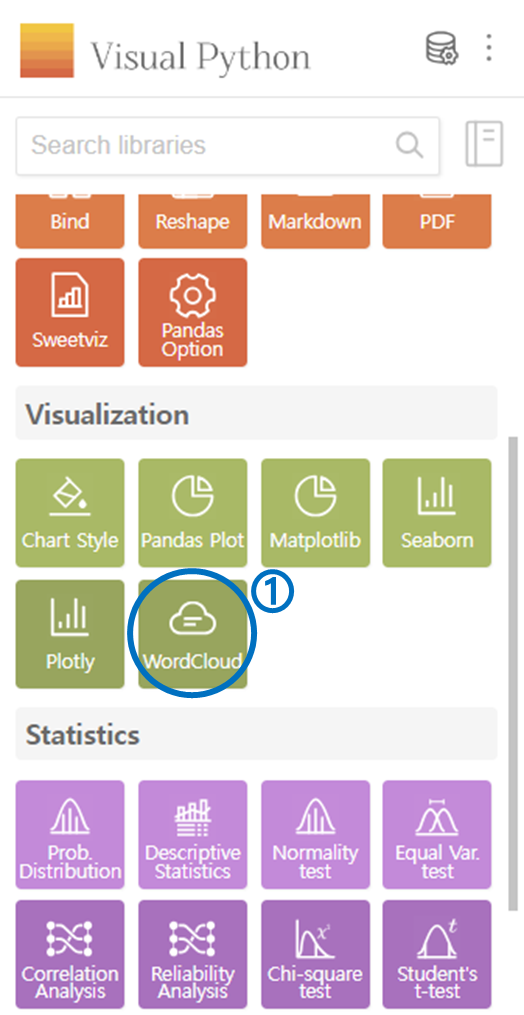
- Click on the WordCloud in the Visualization category.
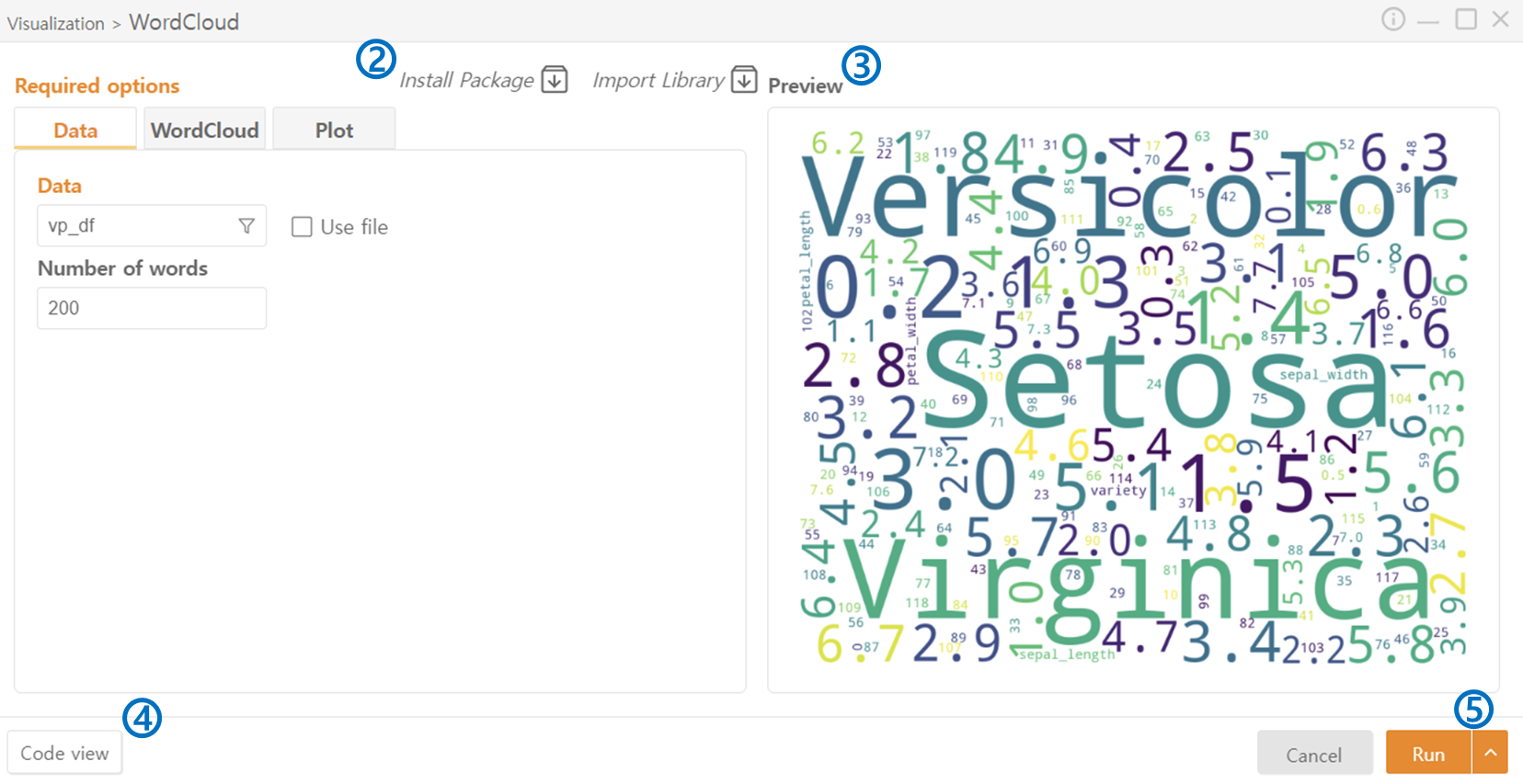
- Click on Install Package and Import Library to install or load the necessary packages for code execution.
- Preview: the WordCloud that will be generated.
- Code View: Preview the Code that will be executed.
- Run: Execute the code.
Data
WordCloud
Plot
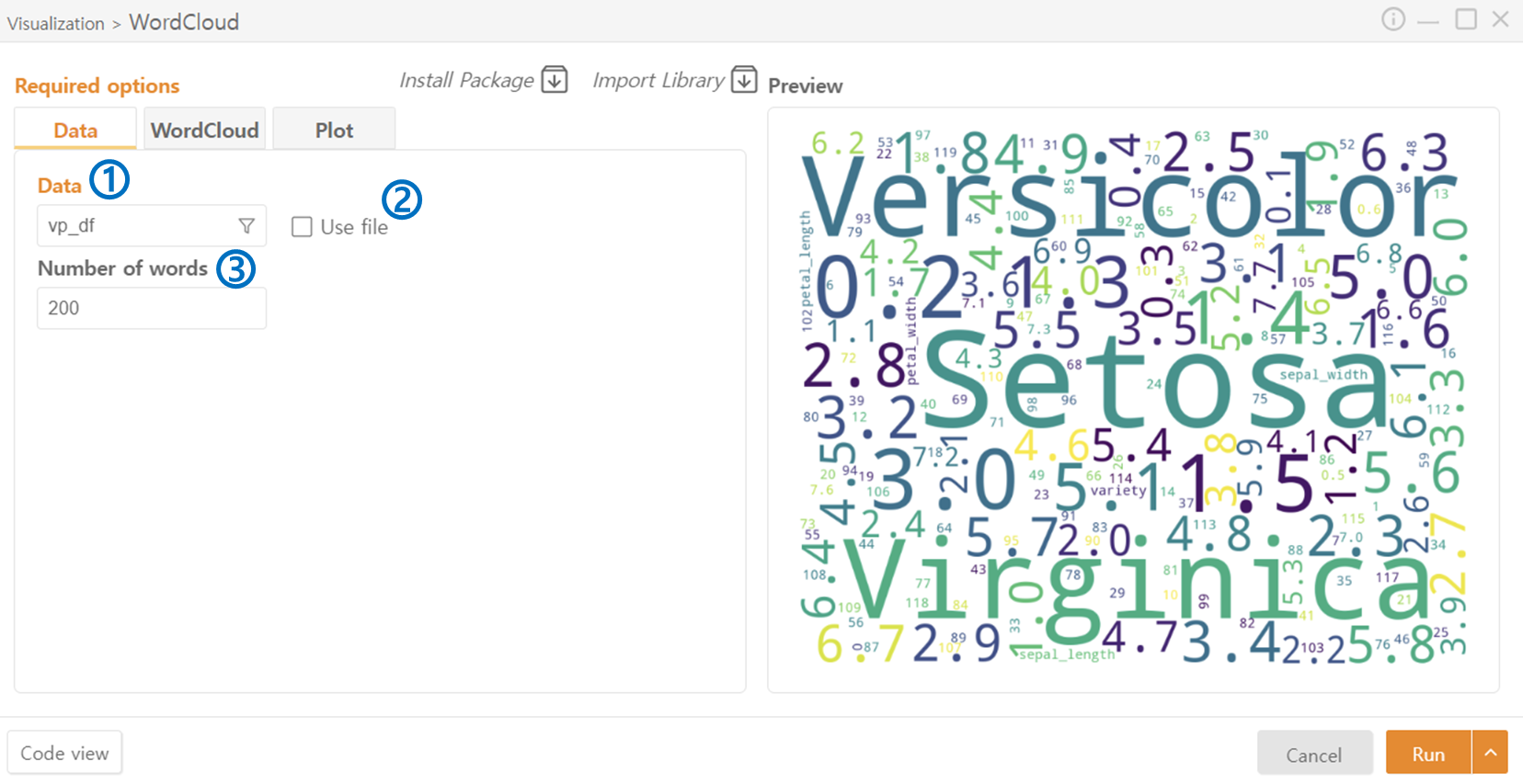
- Data: Select the Dataframe to be used for WordCloud. Alternatively, use the Funnel icon to choose specific columns.
- Check Use File to load a file than the one currently in memory for WordCloud.
- Set the Number of Words to be used in the WordCloud.
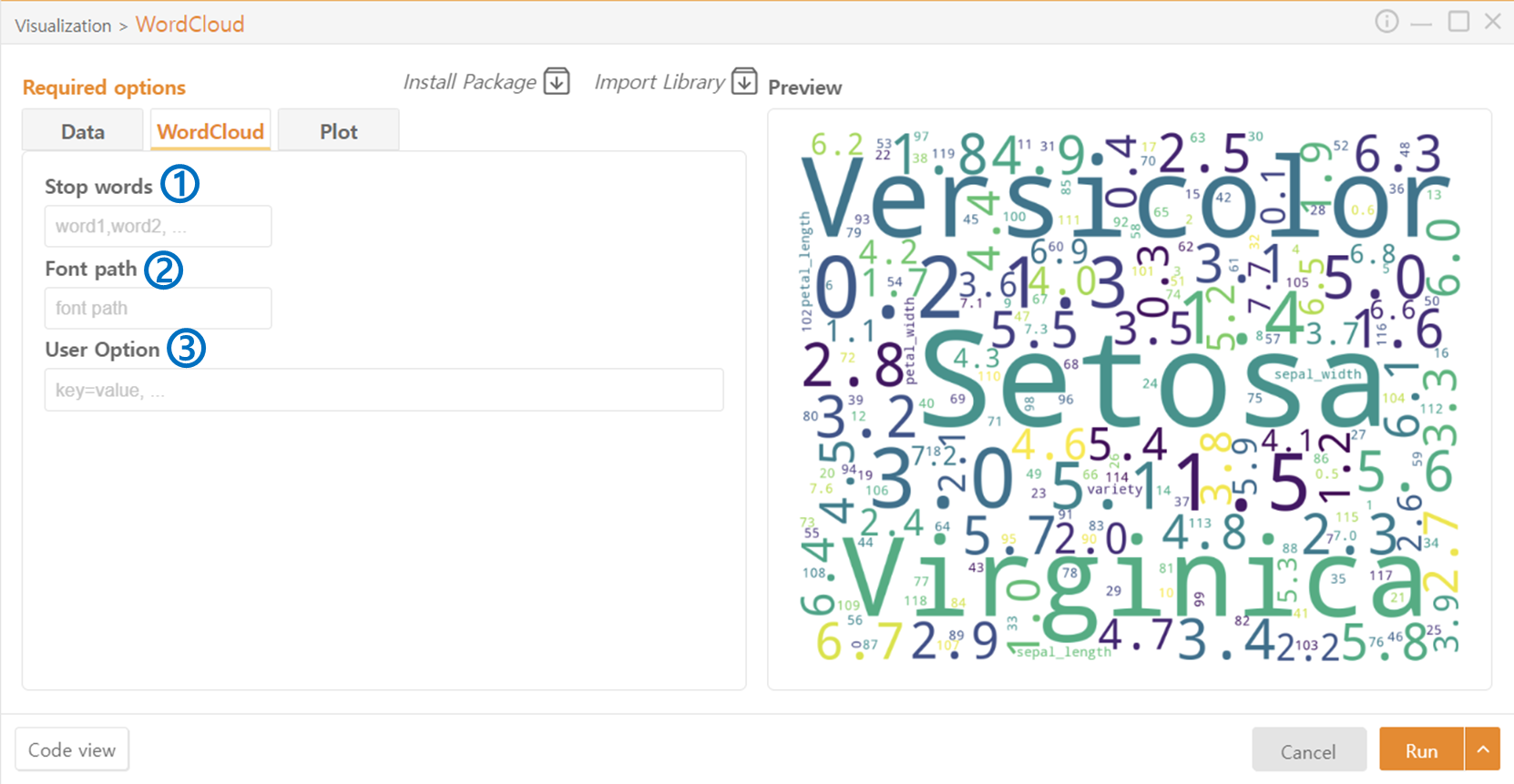
- Stop Words: Enter the words to be excluded from the WordCloud.
- Font Path: Choose a font.
- User Option: Optionally provide additional desired options.
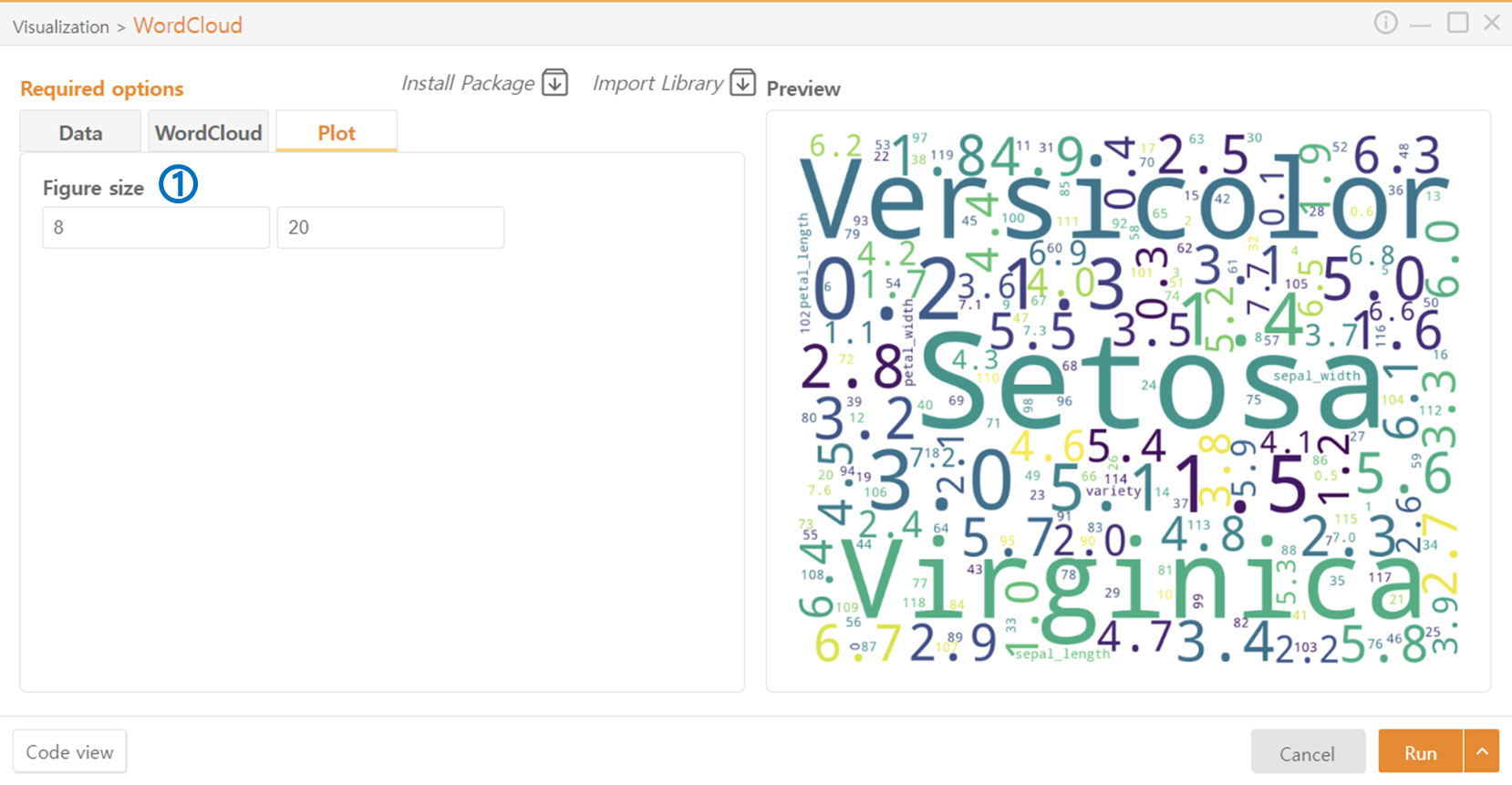
- Figure Size: Set the size of the WordCloud Image to be generated.


