GeezerVisonThe World Wide Web, restored to 800 pixels of glory. |
| Home|About|Gaming cabinet|Archives|How it works|Starter sites |
GeezerVison is showing inventwithpython.com — Introduction BUY THIS BOOK: No Starch Press (free ebook) | Amazon | Barnes and Noble | Powell's | Bookshop.org | Goodreads | Kobo | Thriftbooks
SUPPORT THE AUTHOR: Patreon or Donate Directly
Next: Bagels
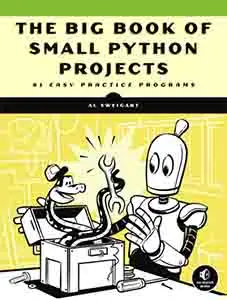
Programming was so easy when it was just following The problem is that following a tutorial is great for learning concepts, but that isn’t necessarily the same thing as learning to create original programs from scratch. The common advice given at this stage is to examine the source code of open source software or to work on your own projects, but open source projects aren’t always well documented or especially accessible to newcomers. And while it’s motivating to work on your own project, you’re left completely without guidance or structure. This book provides you with practice examples of how programming concepts are applied, with a collection of over 80 games, simulations, and digital art programs. These aren’t code snippets; they’re full, runnable Python programs. You can copy their code to become familiar with how they work, experiment with your own changes, and then attempt to re-create them on your own as practice. After a while, you’ll start to get ideas for your own programs and, more importantly, know how to go about creating them. How to Design Small ProgramsProgramming has proven to be a powerful skill, creating billion-dollar tech companies and amazing technological advances. It’s easy to want to aim high with your own software creations, but biting off more than you can chew can leave you with half-finished programs and frustration. However, you don’t need to be a computer genius to code fun and creative programs. The Python programs in this book follow several design principles to aid new programmers in understanding their source code:
The text-based programs may seem old school, but this style of programming cuts out the distractions and potholes that downloading graphics, installing additional libraries, and managing project folders bring. Instead, you can just focus on the code. Who Is This Book For?This book is written for two groups of people. The people in the first group are those who have already learned the basics of Python and programming but are still unsure of how to write programs on their own. They may feel that programming hasn’t “clicked” for them. They may be able to solve the practice exercises from their tutorials but still struggle to picture what a complete program “looks like.” By first copying and then later re-creating the games in this book, they’ll be exposed to how the programming concepts they’ve learned are assembled into a variety of real programs. The people in the second group are those who are new to programming but are excited and a bit adventurous. They want to dive right in and get started making games, simulations, and number-crunching programs right away. They’re fine with copying the code and learning along the way. Or perhaps they already know how to program in another language but are new to Python. While it’s no substitute for a complete introductory Python course, this book contains a brief introduction to Python basics and how to use the debugger to examine the inner workings of a program as it runs. Experienced programmers might have fun with the programs in this book as well, but keep in mind that this book was written for beginners. About This BookWhile the bulk of this book is dedicated to the featured programs, there are also extra resources with general programming and Python information. Here’s what’s contained in this book:
How to Learn from the Programs in This BookThis book doesn’t teach Python or programming concepts like a traditional tutorial. It has a learn-by-doing approach, where you’re encouraged to manually copy the programs, play with them, and inspect their inner workings by running them under a debugger. The point of this book isn’t to give a detailed explanation of programming language syntax, but to show solid examples of programs that perform an actual activity, whether it’s a card game, an animation, or exploration of a mathematical puzzle. As such, I recommend the following steps:
When copying the code from this book, you don’t necessarily have to type the comments (the text at the end of a line following the Each program has been given a set of tags to describe it, such as board game, simulation, artistic, and two-player. An explanation of each of these tags and a cross-index of tags and projects can be found in Appendix A. The projects are listed in alphabetical order, however. Downloading and Installing PythonPython is the name of both the programming language and the interpreter software that runs your Python code. The Python software is completely free to download and use. You can check if you already have Python installed from a command line window. On Windows, open the Command Prompt program and then enter On macOS and Linux, open the Terminal program and then enter This book uses Python version 3. Several backward-incompatible changes were made between Python 2 and 3, and the programs in this book require at least Python version 3.1.1 (released in 2009) to run. If you see an error message telling you that Python cannot be found or the version reports Python 2, you can download the latest Python installer for your operating system from https://python.org/. If you’re having trouble installing Python, you can find more instructions at https://installpython3.com/. Downloading and Installing the Mu EditorWhile the Python software runs your program, you’ll type the Python code into a text editor or integrated development environment (IDE) application. I recommend using Mu Editor for your IDE if you are a beginner because it’s simple and doesn’t distract you with an overwhelming number of advanced options. Open https://codewith.mu/ in your browser. On Windows and macOS, download the installer for your operating system and then run it by double-clicking the installer file. If you are on macOS, running the installer opens a window where you must drag the Mu icon to the Applications folder icon to continue the installation. If you are on Ubuntu, you’ll need to install Mu as a Python package. In that case, open a new Terminal window and run Running the Mu EditorOnce it’s installed, let’s start Mu:
The first time Mu runs, a Select Mode window appears with the following options: Adafruit CircuitPython, BBC micro:bit, Pygame Zero, and Python 3. Select Python 3. You can always change the mode later by clicking the Mode button at the top of the editor window. You’ll be able to enter the code into Mu’s main window and then save, open, and run your files from the buttons at the top. Running IDLE and Other EditorsYou can use any number of editors for writing Python code. The Integrated Development and Learning Environment (IDLE) software installs along with Python, and it can serve as a second editor if for some reason you can’t get Mu installed or working. Let’s start IDLE now:
There are several other free editors you can use to enter and run Python code, such as:
Installing Python ModulesMost of the programs in this book only require the Python Standard Library, which is installed automatically with Python. However, some programs require third-party modules such as For the Mu Editor, you must install the 1.1.0-alpha version (or later). As of 2020, you can find this version at the top of the download page at https://codewith.mu/en/download under the “Try the Alpha of the Next Version of Mu” section. After installation, click the gear icon in the lower-left corner of the window to bring up the Mu Administration window. Select the Third Party Packages tab, enter For the Visual Studio Code or IDLE editor, open the editor and run the following Python code from the interactive shell: The number No matter which editor you use, you can try running Copying the Code from This BookProgramming is a skill that you improve by programming. Don’t just read the code in this book or copy and paste it to your computer. Take the time to enter the code into the editor for yourself. Open a new file in your code editor and enter the code. Pay attention to the line numbers in this book and your editor to make sure you aren’t accidentally skipping any lines. If you encounter errors, use the online diff tool at https://inventwithpython.com/bigbookpython/diff/ to show you any differences between your code and the code in this book. To get a better understanding of these programs, try running them under the debugger. After entering the source code and running it a few times, try making experimental changes to the code. The comments marked with Next, try re-creating the program from scratch without looking at the source code in this book. It doesn’t have to be exactly the same as this program; you can invent your own version! Once you’ve worked through the programs in this book, you might want to start creating your own. Most modern video games and software applications are complicated, requiring teams of programmers, artists, and designers to create. However, many board, card, and paper-and-pencil games are often simple enough to re-create as a program. Many of these fall under the category of “abstract strategy games.” You can find a list of them at https://en.wikipedia.org/wiki/List_of_abstract_strategy_games. Running Programs from the TerminalThe programming projects in this book that use the When the terminal window appears, you should change the current directory to the folder with your .py files with the Then, to run Python programs, enter You can terminate programs run from the terminal by pressing ctrl-C rather than close the terminal window itself. Running Programs from a Phone or TabletIdeally you’ll have a laptop or desktop computer with a full keyboard to write code, as tapping on a phone or even tablet keyboard can be tedious. While there are no established Python interpreters for Android or iOS, there are websites that host online Python interactive shells you can use from a web browser. These will also work for laptops and desktops, in case you’re an instructor who doesn’t have account permission to install new software on your classroom’s computers. The websites https://repl.it/languages/Python3/ and https://www.pythonanywhere.com/ have Python interpreters that are free to use in your web browser. These websites will work with most of the projects in this book. However, they won’t work with programs that make use of third-party modules, such as How to Get HelpUnless you can hire a private tutor or have a programmer friend who can answer your programming questions, you’ll need to rely on yourself to find answers to your questions. Fortunately, your questions have almost certainly been asked before. Being able to find answers on your own is an important skill for programmers to learn. Don’t feel discouraged if you find yourself constantly looking up answers to your programming questions online. You may feel like it’s “cheating” to check online instead of memorizing everything about programming from the start, but as long as you’re learning, it’s not cheating. Even professional software developers search the internet on a daily basis. In this section, you’ll learn how to ask smart questions and search for answers on the internet. When your program tries to carry out an invalid instruction, it displays an error message called a traceback. The traceback tells you what kind of error occurred and which line of code the error occurred on. Here’s an example of a program that had an error while calculating how many slices of pizza each person should get: From this traceback, you might not realize that the problem is that the If you’re unable to find the solution to your problem by searching the internet, you can post your question to an online forum or email someone. To make this process as efficient as possible, ask specific, well-stated questions. This means providing full source code and error message details, explaining what you’ve already tried, and telling your helper what operating system and version of Python you’re using. Not only will the posted answers solve your problem, but they can help future programmers who have your same question and find your post. Typing CodeYou don’t have to be able to type fast to be a programmer, but it helps. While many people take a “hunt and peck” approach to typing, a faster typing speed can make programming less of a chore. As you work through the programs in this book, you’ll want your eyes on the code and not on your keyboard. There are free websites for learning how to type, such as https://typingclub.com/ or https://www.typing.com/. A good typing program will display a keyboard and transparent hands on the screen so you can practice without the bad habit of looking down at the keyboard to find keys. Like every skill, typing is a matter of practice, and writing code can provide you with plenty of opportunities to type. Keyboard shortcuts allow you to perform actions in a fraction of the time it takes to move the mouse to a menu and perform the action. A shortcut is often written like “ctrl-C,” which means pressing down one of the two ctrl keys on either side of the keyboard and then pressing the C key. It does not mean pressing the ctrl key once, followed by pressing the C key. You can discover the common shortcuts, such as ctrl-S to save and ctrl-C to copy, by using the mouse to open the menu bar at the top of the application (in Windows and Linux) or top of the screen (in macOS). It’s well worth the time to learn and use these keyboard shortcuts. Other shortcuts are not so obvious. For example, alt-tab on Windows and Linux and command-tab on macOS allow you to switch focus to another application’s window. You can hold the alt or command key down and repeatedly press tab to select a specific window to switch to. Copying and PastingThe clipboard is a feature of your operating system that can temporarily store data for pasting. While this data can be text, images, files, or other types of information, we’ll be dealing with text data in this section. Copying text places a copy of the currently selected text onto the clipboard. Pasting text enters the text on the clipboard into wherever the text cursor currently is, as though you had instantly typed it yourself. Copying and pasting text frees you from having to retype text that already exists on your computer, whether it’s a single line or hundreds of pages. To copy and paste text, first select, or highlight, the text to copy. You can do this by holding down the primary mouse button (which is the left button, if the mouse is set for right-handed users) and dragging over the text to select it. However, holding down the SHIFT key and moving the cursor with the keyboard shortcuts is often faster and more precise. Many applications allow you to double-click a word to immediately select the entire word. You can also often triple-click to immediately select an entire line or paragraph. The next step is to press ctrl-C on Windows or command-C on macOS to copy the selected text to the clipboard. The clipboard can only hold one selection of text, so copying text replaces anything that was previously on the clipboard. Finally, move the cursor to where you want the text to appear and press ctrl-V on Windows or command-V on macOS to paste the text. You can paste as many times as you want; the text remains on the clipboard until you copy new text to replace it. Finding and Replacing TextDan Russell, a search anthropologist at Google, explained in a 2011 Atlantic article that when he studied people’s computer usage habits, 90 percent of them didn’t know they could press ctrl-F (on Windows and Linux) or command-F (on macOS) to search for words in their applications. This is an incredibly useful feature, not just in code editors, but in word processors, web browsers, spreadsheet applications, and almost every kind of program that displays text. You can press ctrl-F to bring up a Find window to enter a word to find in the program. Often the F3 key will repeat this search to highlight the next occurrence of the word. This feature can save you an extraordinary amount of time compared to manually scrolling through your document to find a word. Editors also have a find-and-replace feature, which is often assigned the ctrl-H or command-H shortcut. This allows you to locate occurrences of one bit of text and replace it with another. This is useful if you want to rename a variable or function. However, you need to be careful using the find-and-replace feature because you could unintentionally replace text that matched your find criteria by coincidence. The DebuggerA debugger is a tool that runs programs one line at a time and lets you inspect the current state of the program’s variables. It’s a valuable tool for tracking down bugs. This section will explain the features of the Mu Editor’s debugger. Don’t worry; every debugger will have these same features, even if the user interface looks different. To start a program in the debugger, use the Debug menu item in your IDE instead of the Run menu item. The debugger will start in a paused state on the first line of your program. All debuggers have the following buttons: Continue, Step In, Step Over, Step Out, and Stop. Clicking the Continue button causes the program to execute normally until it terminates or reaches a breakpoint. (I describe breakpoints later in this section.) If you are done debugging and want the program to continue normally, click the Continue button. Clicking the Step In button causes the debugger to execute the next line of code and then pause again. If the next line of code is a function call, the debugger will “step into” that function and jump to the first line of code of that function. Clicking the Step Over button executes the next line of code, similar to the Step In button. However, if the next line of code is a function call, the Step Over button will “step over” the code in the function. The function’s code executes at full speed, and the debugger will pause as soon as the function call returns. Using the Step Over button is more common than using the Step In button. Clicking the Step Out button causes the debugger to execute lines of code at full speed until it returns from the current function. If you have stepped into a function call with the Step In button and now simply want to keep executing instructions until you get back out, click the Step Out button to “step out” of the current function call. If you want to stop debugging entirely and not bother to continue executing the rest of the program, click the Stop button. The Stop button immediately terminates the program. You can set a breakpoint on a particular line and let the program run at normal speed until it reaches the breakpoint line. At that point, the debugger pauses to let you inspect the variables and lets you resume stepping through individual lines of code. In most IDEs, you can set a breakpoint by double-clicking the line numbers on the left side of the window. The values currently stored in the program’s variables are displayed somewhere in the debugging window in every debugger. However, one common method of debugging your programs is print debugging: adding SummaryProgramming is a fun, creative skill to develop. Whether you’ve mastered the basics of Python syntax or simply want to dive into some real Python programs, the projects in this book will spark new ideas for what’s possible with as little as a few pages of code. The best way to work through these programs isn’t to merely read their code or copy and paste it to your computer. Take the time to manually type the code from this book into your editor to develop the muscle memory of writing code. This also slows you down so you can consider each line as you type, instead of merely skimming it over with your eyes. Look up any instructions you don’t recognize using an internet search engine, or experiment with them in the interactive shell. Finally, take it upon yourself to re-create the program from scratch and then modify it with features of your own. These exercises give you a solid foundation for how programming concepts are applied to create actual, runnable programs. And most of all, don’t forget to have fun! Next: Bagels |
| You are visitor 01402503 — GeezerVison does not store the pages you look up. Best viewed with Netscape Navigator 4.7 or Internet Explorer 6 at 800×600. No cookies required. |