

Several years after Ubuntu abandoned the Unity desktop environment, a few volunteers put effort to release a new version 7.6. Heck! Their Ubuntu Unity project is now an official Ubuntu flavor.
If you liked the Unity desktop and want to try it again, you don’t necessarily have to use Ubuntu Unity. Arch Linux users have a way to install it.

For a brief time, it was available in AUR but that’s not the case anymore. There is no mention of the Unity desktop anywhere on Arch Wiki and AUR website.
That means it is not officially supported on Arch Linux but I still took it for a spin.
In this tutorial, I’ll show you how to install Unity 7 on Arch Linux and share my experience with it.
Installing Unity on Arch Linux (for advanced users)
This is pretty straightforward but one might face some hiccups.
The installation involves adding an unofficial repository (packages are signed and also hosted by Unity 7 developers themselves). Hence, you don’t have to bother about installing or building packages from the AUR.
Warning: The process involves removing the existing desktop environment. That may not be suitable for everyone. Only follow it if you are willing to use Unity only. Making a backup with Timeshift like too is also advisable.
Step 1: Adding the arch-unity repository
As the repository has signed packages you have to add its signature to pacman.
curl https://unity.ruds.io/repo.key | sudo pacman-key --add -
sudo pacman-key --lsign-key 3FB6809130A5DB7F
Now you need to add the repository to the configuration file of pacman i.e., /etc/pacman.conf.
You can use any of the text editors to edit the file. I am using nano here.
sudo nano /etc/pacman.confNow, add the repository just above the community repository. This is the text you should be adding:
[arch-unity]
SigLevel = Required DatabaseOptional
Server = https://unity.ruds.io/arch-unity
The resulting file should look something like this.
...
[extra]
Include = /etc/pacman.d/mirrorlist

#[community-testing]
#Include = /etc/pacman.d/mirrorlist

[arch-unity]
SigLevel = Required DatabaseOptional
Server = https://unity.ruds.io/arch-unity

[community]
Include = /etc/pacman.d/mirrorlist

# If you want to run 32 bit applications on your x86_64 system,
# enable the multilib repositories as required here.

#[multilib-testing]
#Include = /etc/pacman.d/mirrorlist
...
Now you are done with adding the repository and one step closer to experiencing Unity on Arch.
Step 2: Removing the desktop already installed
This step is crucial as the arch-unity repository has few packages that conflict with packages in the community repository. That is why the repository is added above the community repository in the configuration file.
To have minimum conflicts I will advise removing the packages belonging to the desktop environment you are currently using especially GTK/GNOME based ones.
If you attempt to install it straight away without removing your current desktop you might not to able to install it as shown in the screenshot below.

I am providing some commands to remove your current desktop below.
Reboot or log out the system and boot into TTY using Ctrl+Alt+F3 (or similar) shortcut keys.
Now, to remove GNOME use:
sudo pacman -Rns gnome gnome-extra
The above command may refuse to run if there is no package installed from the groups you mention for removal e.g., no package from gnome-extra was installed. Then, I had to omit it for the removal to happen as shown in the screenshot above.
For XFCE use:
sudo pacman -Rns xfce4 xfce4-goodiesFor MATE use:
sudo pacman -Rns mate mate-extraNote that the above commands can make your GUI unresponsive so you should use the above commands in TTY only.
Step 3: Installing Unity 7 desktop
You have added the arch-unity repo and removed the packages that may conflict with unity packages.
You can now enter the following command to install the unity desktop.
sudo pacman -Syu unity-meta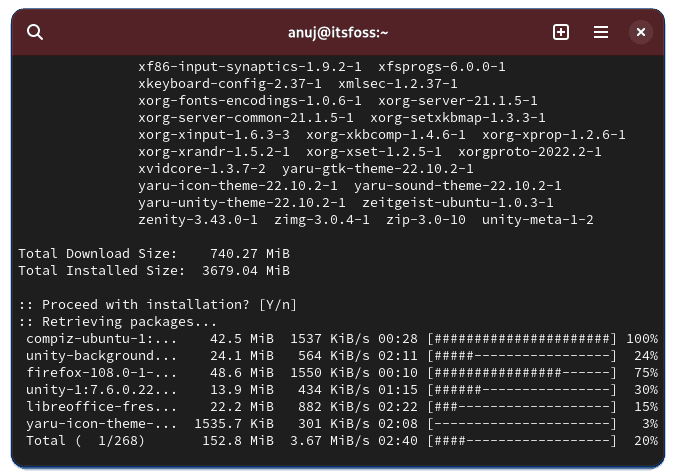
Note that the above command will also update your system as partial upgrades are not supported by Arch Linux. Also, the meta package includes a Login Manager, Office suite, Web browser, etc.
You might get some prompts about package conflicts. You have to replace all the packages (provided in arch-unity repository with official ones) so press ‘Y’ without quotes then enter whenever prompted.
Step 4: Enabling LightDM display manager
The meta package you installed above includes LightDM so you can enable it to use it as default. For this use the command below to set LightDM as the default display manager.
sudo systemctl enable -f lightdm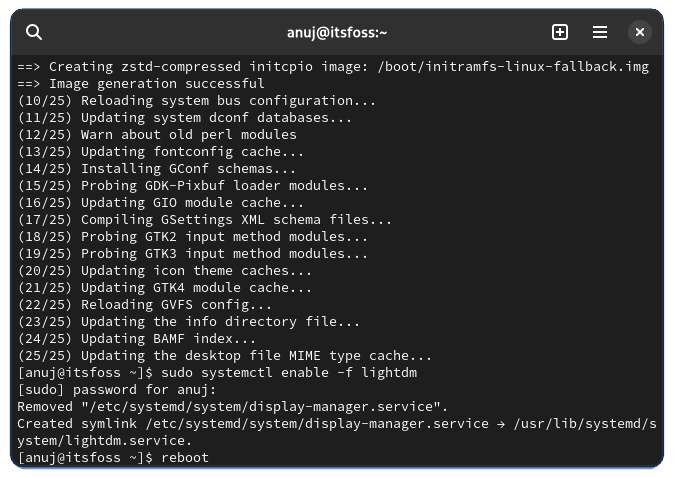
You can use any other display manager but developers provide a Unity theme/greeter for LightDM. I will recommend the same to be used as default.
Now just reboot and log in to use Unity 7 on Arch Linux. You will be greeted with LightDM (using Unity Theme) as shown in the screenshot below.

Once you enter your password you will be in the Unity desktop.
My Thoughts
I am very appreciative of the efforts by the community members (especially Rudra) to resurrect an abandoned project like Unity. I didn’t like Unity as a desktop with my short interaction. Because at the end of the day this is a six-year-old desktop which is quite evident.
The compositor did not correctly render GTK4 or applications which use CSD (Client side decorations) and had strange artifacts around the windows. I am not complaining as this is expected from a desktop environment that saw no development for a long time.
I also found the RAM usage to be on the higher side as shown in the screenshot below, i.e., around a Gigabyte.

In my opinion, this desktop can only cater to Unity fans and can not be recommended over GNOME or KDE Plasma anytime soon.
What are your thoughts about Unity desktop? Let me know.
If this helped you, consider supporting It's FOSS
It's FOSS has been helping people use Linux for the past 14 years. Help us stay independent from big tech. Become a Plus member, enjoy ad-free reading and get 5 eBooks.
Skip the AI slop and SEO spam in your Google results
Tell Google you prefer It's FOSS, and it will show our Linux news and tutorials, created by experienced Linux users, more often when you search. It takes just a click.
Set as preferred sourceGet FOSS Weekly in your inbox
A wholesome Linux newsletter with the latest releases, relevant news, tips and tutorials, trivia and memes, quizzes and deals for desktop Linux users. Free, every week.