GeezerVison is showing learn.microsoft.com (truncated) — Visual Studio 2026 release notes
Note
Access to this page requires authorization. You can try signing in or changing directories.
Access to this page requires authorization. You can try changing directories.
Visual Studio release notes
We're excited to announce the availability of the Visual Studio 2026 November update. This release marks the beginning of a new era for Visual Studio with deep platform integration of AI, stronger fundamentals, and improved performance.
Download Visual Studio 2026 to enjoy these new features and improvements.
November Update 18.12.0
Released on November 10, 2026.
IDE
Work in Solution Explorer's File System view
Browse your repository's physical layout, switch solutions, and run project commands from Solution Explorer's File System view.
Solution Explorer's File System view lets you explore your repository's physical layout while keeping solution and project actions within reach.
Browse your repository's physical layout
Switch to File System view to browse files as they exist on disk, including documentation, build assets, and configuration files outside your projects. In a repository, the view starts at the repository root; otherwise, it starts at the solution folder. Switch back to Solution view for project structure, dependencies, and loaded projects.

To keep both layouts visible, choose New Solution Explorer View from the context menu and put Solution and File System views side by side. You don't need a separate window merely to switch views.
Switch solutions from File System view
If your repository contains several solutions, you can open another one without leaving its physical folder layout. Double-click a solution file in File System view, then choose whether to open it in your current Visual Studio instance or a new one.

Run project commands without switching views
Right-click a project in File System view to use Build, Rebuild, Clean, or Set as Startup Project. You can explore files outside the solution and use common project commands from the same view.
These actions apply to projects in the active solution. Projects outside that solution don't enable the build actions.

Restore MSBuild dependencies in Open Folder
Run MSBuild Restore from Open Folder without opening a solution first.
When you work in Open Folder, you can prepare MSBuild dependencies without opening a solution first. Right-click a supported solution or project file and choose Restore to run the MSBuild Restore target through the folder's existing build-action workflow.
For a project that belongs to a discovered solution, the action preserves its solution-specific targeting. This keeps restore in the project's solution context even though you're working from the folder view.
This action doesn't apply to CMake or other build providers, and excludes C++ .vcxproj files.

More settings in updated Options
The updated Options experience includes product-update, Dev Containers, and graphics capture settings without resetting your preferences.
The updated Options experience brings more existing settings into the same interface without resetting your saved preferences.
Manage product updates
Manage Background Downloads, Operation Mode, and supported Update on Close behavior in updated Options. Your existing defaults and saved choices remain, and the installer action is still available.
Controls reflect product capabilities and organizational policy. If policy disables Update on Close, the page retains the explanation instead of presenting a setting you can change.
Find Dev Containers settings
Open Cross Platform → Dev Containers in updated Options to manage existing container preferences. Your saved settings and host selection stay synchronized with the existing store; you don't need to recreate your container setup. This integration ships with the CMake Linux extension.
Configure graphics captures
The seven existing graphics Capture controls now appear in updated Options. Compatibility mode and HUD options use positive labels, and the page updates when another process changes the shared capture values. The migrated page replaces the legacy placeholder rather than showing two competing pages.
ANSI colors in the Output window 📣
Render ANSI-colored tool output without raw escape sequences obscuring messages.
If a tool emits ANSI-colored messages, you can now read those colors directly in the Output window instead of seeing raw escape sequences mixed into the text.
Enable colorized output in Visual Studio's visual-experience settings to try it. The option starts disabled, so you keep verbatim output until you choose color rendering.

When you enable the option, Visual Studio removes escape sequences from the displayed text and preserves their color transitions. Selection, copying, and searching then use the visible text, not the hidden sequences.
Leave the option off if you need the original output exactly as the tool emitted it, including escape sequences.
📣 See feature ticket to share your feedback and continue the conversation.
Read compact language-server hover tips 📣
Language-server hover tips show syntax-colored signatures and examples in a compact view that covers less of your code.
Hover tips from language servers now show fenced code in compact, syntax-colored views instead of large generic panels. Signatures and examples take less space over the editor, and the prominent Copy Code control is removed.

Markdown links and keyboard navigation still work. The embedded code is a read-only display, not another editor that takes focus or offers text selection. This applies to language-server hover content, not every Quick Info provider.
📣 See feature ticket to share your feedback and continue the conversation.
Preview more image formats 📣
Solution Explorer previews more image formats, including TIFF, DDS, and WebP, without opening an editor.
Hover over an image in Solution Explorer to preview TIFF, DDS, JPEG XR, HD Photo, Windows Media Photo, or WebP, alongside existing PNG, JPEG, GIF, BMP, and ICO support. Previews also work in Open Folder, matching the formats available in the editor.
Some formats, including WebP, may require the appropriate Windows image codecs.

📣 See feature ticket to share your feedback and continue the conversation.
Tab and window management improvements 📣
Customize tool-window tabs, close tabs to the right, and cancel accidental window drags.
Customize tool-window tabs
Choose how much space tool-window tabs can use by setting their minimum and maximum widths. Go to Tools → Options → Environment → Tabs → Tool Window Tabs to customize the limits.

Before

After

Tool-window tabs shrink to their content size and your minimum width before truncating labels with an ellipsis and shrinking all tabs uniformly.

Tool-window tabs also use a consistent 24-pixel height, show clearer drag feedback, and improve high-contrast behavior.
Close tabs to the right
Right-click a document tab or a tool window docked in the document well and select Close Tabs to the Right. With vertical tabs, choose Close Tabs Below instead. The command follows visible tab order, keeps pinned and unpinned groups separate, and leaves preview tabs open.

Cancel a window drag
While dragging a docked window, press Esc before releasing the mouse button. Visual Studio cancels the drag and returns the window to its previous docked position.
📣 See feature ticket to share your feedback and continue the conversation.
Syntax highlighting and TextMate updates
Read more file types with improved syntax highlighting and try a faster Preview TextMate matcher.
Visual Studio's editor improves syntax colors across more file types. TextMate matching also gains a separate Preview option.
Edit TOML and Rust with updated grammars
TOML files now support syntax highlighting, code folding, brace completion, and comment/uncomment commands through a new TextMate grammar.

The updated Rust TextMate grammar improves syntax highlighting and recognizes newer Rust language features.
Read registry and solution files more easily
Registry (.reg) and package-definition (.pkgdef) files now highlight comments, sections, assignments, strings, deletion syntax, and typed values. Package-definition highlighting also recognizes qword: values and #include directives. Solution files gain highlighting for their structure too.


Try faster TextMate matching
Enable Use faster TextMate grammar matching in Preview Features to try the new matcher. It searches eligible grammar rules together and keeps the existing matcher for unsupported cases.
In a local benchmark using one 1.09 MB TypeScript fixture, parsing fell from 8.989 seconds to 1.882 seconds. This result describes that fixture, not a guaranteed improvement for every file. The matcher doesn't replace the JavaScript or TypeScript language service.
Productivity
Control inline suggestions in comments 📣
Turn off automatic inline suggestions in comments without disabling them in code.
Turn off automatic inline suggestions in comments without disabling them in code. Open Tools → Options → Text Editor → Preferences and clear Show suggestions in comments.
The preference starts enabled to preserve existing behavior and includes C# XML documentation and C++ comments. You can still explicitly request completion in a comment when you want it.

📣 See feature ticket to share your feedback and continue the conversation.
Follow line lengths with editor rulers 📣
Display editor guides at configured columns to follow your repository's line-length conventions.
The editor adds line guides so you can follow your repository's configured line lengths while writing.

Use rulers to display one or more guides:
rulers = 80, 120
When rulers isn't specified, Visual Studio falls back to max_line_length:
max_line_length = 120
If both properties are present, rulers takes precedence. Set either property to unset to suppress an inherited value. The guide color follows the Visual Studio theme and can be customized through Tools → Options → Environment → Fonts and Colors.
📣 See feature ticket to share your feedback and continue the conversation.
Markdown links and heading navigation 📣
Create Markdown links by dragging files and follow links directly to headings in other documents.
Adding links and images to Markdown is now as easy as drag and drop. Drag a file from Solution Explorer or Windows File Explorer onto the Markdown editor, and Visual Studio inserts the correct Markdown syntax at the drop location. Regular files become links, while supported image files become image references.

Visual Studio handles the path details for you. Links use paths relative to the current Markdown document, with normalized separators and encoded spaces, so they're portable across machines and ready to use immediately. The original file stays in place, so you can build documentation without interrupting your workflow.
Follow links to headings
In the Markdown preview, follow a link such as [Installation](setup.md#installation) to open the target file and scroll both its editor and preview to the matching heading.
This also works in a standalone preview. Visual Studio waits for the destination preview to finish rendering, including asynchronous content such as Mermaid diagrams, before scrolling to the heading.
📣 See feature ticket 1, feature ticket 2 to share your feedback and continue the conversation.
GitHub Copilot
Manage Copilot instruction files 📣
The new Copilot Chat experience brings repository and organization guidance together with instruction-file browsing in AI Customization.
In the new Copilot Chat experience, use AI Customization to browse instruction files and check the repository and organization guidance available to your session.
Browse instruction files
Find the instruction files available to your Chat session without searching their folders. Open AI Customization to browse sources grouped by scope. Filter the table and inspect full-path tooltips. From a source's ... menu, choose Edit to open its file or Open in File Explorer to find it on disk.

Use repository instructions
Add your project's coding conventions, build steps, testing guidance, and other repository instructions to AGENTS.md at the solution root. Copilot uses those instructions while working in the solution.
If your repository already uses AGENTS.md with other coding agents and command-line tools, you no longer need to maintain a separate copy of the same guidance just for Visual Studio. This helps keep Copilot's behavior consistent across your development tools.
Follow organization guidance
New Chat sessions also use your organization's Copilot custom instructions, so you don't need to copy shared organization guidance into each repository. Visual Studio refreshes that guidance in running and resumed sessions when it changes, and removes old guidance when the organization clears it.
Custom agents receive organization instructions too. The instruction-source list explains when custom instructions are disabled, so you can distinguish missing guidance from a disabled preference.
📣 See feature ticket to share your feedback and continue the conversation.
Manage Copilot skills
The new Copilot Chat experience adds individual skill controls in AI Customization.
In the new Copilot Chat experience, open AI Customization to review skills discovered in your solution, repository, user folders, and built-in locations without searching each folder yourself. Workspace discovery follows the active Chat session.
Enable or disable individual skills to choose which ones Copilot can use. Visual Studio saves those choices for later sessions, and built-in skills start disabled so you can decide which to enable. In new Chat sessions, these per-skill controls replace the previous experience's single Enable Skills preference.
Use a skill's ... menu to edit its SKILL.md file or open its folder in File Explorer.

Manage Copilot MCP servers
The new Copilot Chat experience lets you manage MCP tools, assets, configuration, and authentication in AI Customization.
In the new Copilot Chat experience, use MCP Servers in AI Customization to manage the tools and assets available to your session and configure server connections.
Inspect MCP tools and assets
Open MCP Servers in AI Customization to search a server's tools and enable or disable them individually. Disabled tools stay visible so you can turn them back on. Separate pages show the server's prompts, resources, and read-only instructions.


Configure and add MCP servers
Edit configuration inputs on the server's Inputs page and select Save. Open the server's configuration file when it has one, or revoke saved authentication even when the server is offline. Built-in servers and non-file sources don't offer an editable configuration file.
To add a server, select the plus button on MCP Servers. It opens the existing add-server dialog, so configuration and validation follow the same workflow without returning to the previous tool picker.

Configure Copilot model connections 📣
Copilot Chat model management adds API-format choices, multiple provider connections, and searchable Microsoft Foundry pickers.
Copilot Chat's model-management experience gives you more control over connections to models you bring yourself.
Choose a model's API format
When adding a custom model, use Model API format to select the request format your endpoint supports: Completions or Responses for supported non-Anthropic providers, or Messages for Anthropic. Choosing a format doesn't add capabilities to the endpoint; it must support the requests and tools you use.
Existing configurations migrate to the provider's default format: Messages for Anthropic and Completions for other providers. Check the format when connecting to a deployment that expects the Responses API.

Keep multiple provider connections
Add more than one configuration for the same provider, keeping separate endpoints or accounts without replacing your existing connection. Each configuration has its own identity and credentials, so model lookup keeps those connections separate. Existing configurations migrate without requiring you to recreate them.

Enter a Configuration name when adding a provider to distinguish connections, such as separate work and personal accounts.

Search Microsoft Foundry pickers
During Microsoft Foundry setup, search inside the subscription and resource dropdowns instead of scrolling through every entry. Resource filtering matches both name and location, and typing a filter preserves the active selection. Your account's existing access permissions still apply.


📣 See feature ticket 1, feature ticket 2 to share your feedback and continue the conversation.
A more capable Copilot Chat 📣
The new Copilot Chat experience adds independent session modes, editor context, trusted paths, multiple session tabs, and a shared user-agent folder.
The new Copilot Chat experience is now the default for eligible accounts in Visual Studio. It respects an explicit choice to disable editor preview features in your account.
Use Copilot to investigate unfamiliar code, implement features, fix bugs, refactor across files, and work through longer tasks with less back-and-forth. The new experience also improves performance during longer sessions and gives you more ways to customize how Copilot works.
Behind the scenes, it's built on the Copilot SDK, the shared foundation used by the Copilot CLI and the GitHub Copilot app. This helps Visual Studio benefit more quickly from improvements across Copilot while continuing to provide an experience designed for Visual Studio developers.

Attach files to your prompt
Drag one or more files from Windows File Explorer or Solution Explorer into Chat to attach them to your prompt instead of opening them in the editor. Images attach as files too, using the same attachment workflow as the + button.

Generate tests with the Test agent
Choose Test from the agent picker to generate tests in the new Chat experience. You need Copilot and its testing capability enabled. The agent follows your selected Chat experience; returning to the previous experience also returns to its previous testing agent.
Choose conversation and tool modes separately
Choose Interactive for the usual request-and-response flow or Autopilot to keep working until the agent considers the task complete. Select Manual or Allow all independently for tool permissions.
With Autopilot and Manual together, tools that aren't configured for automatic approval are rejected rather than waiting for a prompt. Choosing Allow all shows a warning. Visual Studio saves these modes with the session and restores them when you return; you can also configure defaults in Options.
Use Configure Defaults from the mode menu to open the Chat settings for Default Conversation Mode and Default Tool Permissions.

Keep session context available
Open multiple Chat sessions in separate tabs without replacing the conversation currently in view. Pop-outs are enabled by default in the new experience, and each tab keeps its own conversation.
Copilot can also receive your active file, cursor or selection, file length, and visible line range. Settings control whether to include editor context with requests and whether to refresh it before tool calls. This helps Copilot follow your location if you navigate while it works, without repeating unchanged context.
Manage Copilot trusted paths
The Trust settings page now includes a separate list of Copilot trusted paths. Add the working paths you want Copilot to trust without changing the rest of Visual Studio's workspace trust choices.
Copilot no longer inherits trust merely because a workspace is trusted, a path is in a well-known location, or the general trust service is disabled. Your Copilot choices persist through settings, and organizations can manage them through policy.
Use the shared user-agent folder
Visual Studio now creates and discovers user custom agents in %USERPROFILE%\.copilot\agents by default, matching Copilot CLI. It no longer defaults to %USERPROFILE%\.github\agents.
Visual Studio doesn't move existing agent files. If you used the previous default folder, move your agent files to the new folder or explicitly set the user-agent directory to %USERPROFILE%\.github\agents in Visual Studio settings. If you've already configured a custom directory, that setting stays unchanged. Workspace agents remain in your repository's .github\agents folder.
Help us improve
We'd love your feedback. If something is missing or not working, send it through Help → Send Feedback → Report a Problem so we know what to prioritize next.
If needed, you can return to the previous experience by turning off Use new Copilot chat experience under Tools → Options → GitHub → Copilot → Copilot Chat, then restarting Visual Studio.
📣 See feature ticket to share your feedback and continue the conversation.
Performance
A more responsive Visual Studio
Spend less time loading and closing large solutions, opening designers and dialogs, or refreshing status and diagnostics.
Visual Studio reduces repeated work when loading and closing large solutions, opening designers and dialogs, and refreshing the UI. You don't need to enable new settings to benefit.
Open large C++ solutions faster
Visual Studio reuses project-directory information while refreshing C++ comment tasks and removes an expensive, unused telemetry query during solution opening. In the PR's test scenarios, the measured Parse Solution phase took about 20% less time for Chromium and 9% less for Unreal Engine. These figures describe that phase, not a guaranteed reduction in total solution-load time.
Close large solutions with less waiting
Closing a solution no longer scans every open document again for each project it removes. Visual Studio also avoids repeated file-watch cleanup and unnecessary activation of cached C++ projects during teardown. These changes reduce the work required to close solutions with many projects and tracked files.
Keep source-control refreshes responsive
Large source-control status changes can refresh many Solution Explorer icons at once. Visual Studio now processes that work in bounded batches, letting the UI render between batches instead of waiting for every pending icon update. You keep the same status indicators and Git workflow.

Refresh large Error List result sets faster
Legacy diagnostic providers now avoid repeatedly inserting each result into a sorted collection when refreshing the Error List. This reduces UI work when a provider reports many items at once. The change preserves the diagnostics and targets this legacy-provider path, not every diagnostic source.
Open Add New Item with less waiting
When you open Add New Item, Visual Studio loads template registrations and caches for the current project family first. It no longer initializes every registered project type before showing the dialog.
You keep the same template choices, project-switching behavior, and user-template refresh. This changes when Visual Studio does the work, not which templates your project can use.

Reduce designer startup work
- Windows Forms: Complex designers no longer repeat the same registry and loader discovery for every native wrapper object. Visual Studio reuses activation setup on the relevant thread while still creating a fresh wrapper for each object. The improvement targets setup overhead, not your form's initialization code.
- UWP XAML: The designer reuses framework dependency identities already resolved from SDK manifests instead of reopening and parsing complete app packages for the same information. The path-based check remains available when an identity is incomplete. This targets UWP designer startup, not every XAML project type.
Debugging & diagnostics
Debug crash dumps with Copilot
Investigate crashes and hangs faster with Copilot analysis directly from the dump summary page.
Get a head start on investigating crashes and hangs with Debug with Copilot for dump debugging.
Open a dump file in Visual Studio and select Debug with Copilot from the Debug tab on the dump summary page. Visual Studio starts the dump-debugging session and automatically launches Copilot analysis, helping you understand the captured state and investigate likely causes without manually starting a separate Copilot conversation.
Copilot tailors the initial analysis to the available context: analyzing an exception, investigating an async hang when the main thread is waiting on a task, or providing a general debugging analysis.

For the best results, open the matching solution and make the corresponding source files and symbols available to Visual Studio.
Inspect debugger state through MCP
Visual Studio Debugger MCP adds conditional breakpoints and structured inspection of frame locals and arguments.
Visual Studio Debugger MCP gives agents more precise ways to stop execution and inspect the values available in a debug frame.
Set conditional breakpoints
Configure expression and hit-count conditions on source and function breakpoints, including combinations with logpoints. An agent can stop only when a condition is met or collect targeted information instead of interrupting on every hit.
Conditions work across launch, attach, continue, and breakpoint updates. If evaluating a condition fails, the debugger still stops and reports the error. Condition syntax depends on the debugger adapter.
Inspect locals and arguments
The debugger_get_locals tool returns arguments and local variables for a selected stopped stack frame. Results include names, types, values or evaluation diagnostics, and whether each value can be expanded.
Agents can discover the frame's available values before choosing what to inspect next, rather than guessing expression names. The tool reports unavailable or failed evaluations; it doesn't imply that every value can be evaluated in every debugging state.
Git tooling
Open solution filters from TFVC
Find and open solution filters through Source Control Explorer and Team Explorer.
If you use solution filters to work with a subset of a large solution, you can now reach those filters through TFVC's solution-navigation workflow.
Open a .slnf file from Source Control Explorer, or find solution filters alongside solutions on the Team Explorer page. You can keep the filter in source control and reach it through the same navigation workflow as the rest of your solution.
Visual Studio recognizes the file as a solution filter, not a standalone solution. Regular solution files keep their existing behavior.
Resolve Git conflicts with AI
Use AI to resolve Git conflicts, then understand, review, and refine the proposed resolutions.
Copilot can now resolve Git conflicts for you, starting from Auto Resolve in Git Changes, the merge editor, or the Merge branches dialog. The merge editor can also display resolutions made in your working directory, helping you understand and review conflict resolutions.
Resolve existing conflicts
When you start a merge in Visual Studio, it checks for potential conflicts. You can choose Auto Resolve from the Merge branches dialog. If there are no conflicts, no requests will be sent, and no tokens will be spent.

For a Git operation already in progress, conflicted files appear under Unmerged Changes in the Git Changes window. Select one or more files and then choose Auto Resolve from the context menu. If you're already in the merge editor, select Auto Resolve in the toolbar.

Review conflict resolutions
Copilot summarizes its conflict-resolution decisions and provides rationale based on your Git history. Even if you aren't familiar with the changes on either branch, you can use this to check how each conflict was resolved. If you need more details, ask Copilot for further explanation or, if you are satisfied with the results, ask it to stage the resolutions and complete the merge.

To review changes to unmerged files from an agent, including one outside Visual Studio, open a file under Unmerged Changes in the Git Changes window. Compare the incoming and current versions at the top with the resolved result below.
Tip: To start over, select Restart resolutions from the Accept Merge dropdown.

Review pull requests faster with Change Groups
Use AI-generated groups, tags, summaries, and review guidance to understand and track large pull requests.
Large pull requests often mix features, tests, refactoring, and supporting changes across many files. Change Groups uses GitHub Copilot to organize related changes into focused review units, helping you understand the structure of a pull request before opening every file.

Each group includes scannable tags that explain how its changes are related and what to expect. A concise description summarizes the intent of the group, while Review focus highlights areas that may need closer attention.
As you review, you can:
- Drag groups into the order you prefer to review them.
- Use checkboxes to track your progress across groups and files.
- Navigate between comments without losing your place.
- Review related files together instead of reconstructing the change from a flat file list.
Git and pull request improvements 📣
Manage reviews, open pull requests through Copilot, customize merge messages, and copy commit IDs in Visual Studio.
These updates help you find, review, and merge pull requests in Visual Studio. The View pull requests for a Git repository Preview feature starts enabled by default.
- Comment filtering lets you narrow comments by status or author to focus on the feedback you need in the Overview and file changes views.
- Reviewer management lets you add or remove reviewers on active GitHub and Azure DevOps pull requests. Azure DevOps adds reviewers as optional reviewers.
- Image uploads in GitHub comments let you paste a screenshot or another image directly into a pull request discussion. (Already supported in Azure DevOps.)
- Find a pull request by ID by filtering the pull-request list to locate a specific review.
- Merge message editing lets you customize the commit title and body before merging or setting a pull request to auto-complete in GitHub or Azure DevOps.

Open reviews through Copilot
Ask Copilot to open a pull request by number, for example, Open PR 42. In sessions using first-party SDK agents, the built-in Reviews subagent can open that pull request in Visual Studio or identify PRs already open in review windows.

These initial tools provide review context; they don't imply autonomous code review or automatic comment resolution. Existing authentication and repository-access requirements apply.
Copy commit IDs from history
In Git History, right-click a single commit and select Copy Commit ID to copy its full SHA without opening Commit Details and selecting the identifier manually.
The command works in branch, file, and folder history, making it easier to reference commits in pull requests, work items, terminal commands, and documentation. It doesn't require the pull-request Preview feature.

📣 See feature ticket to share your feedback and continue the conversation.
Testing
Inspect test failures and logs more easily 📣
Compare expected and actual strings side by side and open test logs from the result header.
When expected and actual strings don't match, Test Explorer can now display them side by side and highlight the differences. Quickly spot subtle changes in long or multiline strings - even a single mismatched character - without searching through a wall of error text.
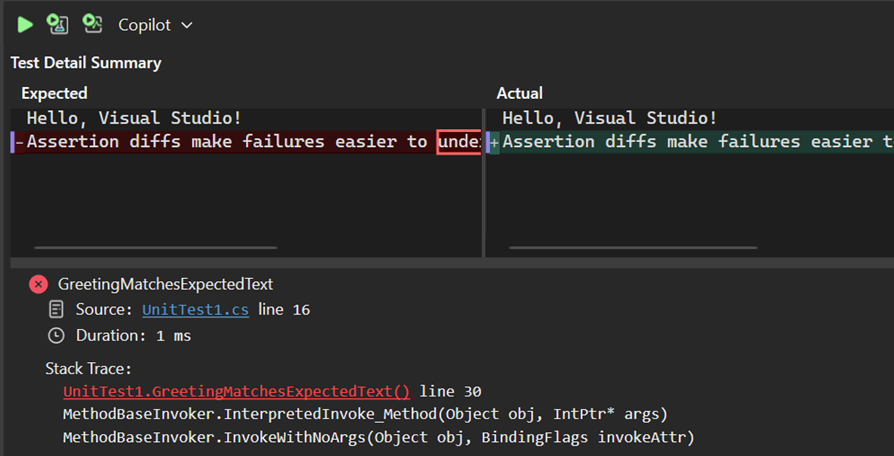
Open test logs from the result header
The Open Test Log command (Ctrl+L) now appears as an icon in the header of Test Detail Summary, so you don't need to scroll through lengthy output to find it.
The button is enabled for one selected test, disabled for other selection states, and hidden in Live Unit Testing. The context-menu command, keyboard shortcut, and link at the bottom of long or truncated output still open the same full log.

📣 See feature ticket to share your feedback and continue the conversation.
Desktop
More WinUI project and item templates
Start WinUI C# apps with MVVM, TabView, or NavView templates and add ContentDialog items.
Start a WinUI C# app with a project template that provides the initial structure you need. The new choices include MVVM, TabView, and NavView, so you don't have to assemble the same starting point for each app.
For an existing app, use the new ContentDialog item template when you need to add a dialog. This adds a starting point for that item without requiring you to create another project.
These additions cover Visual Studio's WinUI C# project and item templates. The separate Reactor dotnet new templates aren't part of this update.
Web
CSS editing improvements 📣
Preview stylesheet colors and discover modern CSS properties, values, and media queries through IntelliSense.
Visual Studio's web editors now show color swatches beside CSS, SCSS, and LESS color values, so you can see colors as you work.
Swatches also preview colors from CSS custom properties, including nested var() references and fallbacks, and from resolvable SCSS and LESS variables.

Select a swatch to open named-color suggestions or the color picker for hex and functional colors. You can also focus a swatch and press Enter or Space.
Complete modern CSS and media queries
Updated schema data expands IntelliSense for anchor positioning, animations, fonts, masking, scroll animations, view transitions, inline layout, MathML core properties, SVG geometry, and CSS Values and Units Level 5.
Media-query completion suggests feature names and values appropriate to each feature rather than only generic values. Your target browsers still determine runtime support.

📣 See feature ticket to share your feedback and continue the conversation.
Entra setup for new Blazor Web Apps
Configure Microsoft Entra ID authentication directly after creating a Blazor Web App targeting .NET 10 or later.
You can now start Microsoft Entra ID setup as part of creating a Blazor Web App, rather than finding the scaffolder after the project opens.
When creating the project:
- Target .NET 10 or later.
- Choose Microsoft Identity Platform as the authentication option.
- After Visual Studio creates the project, continue configuring authentication in the Entra ID scaffolder that opens for it.
The project-creation choice takes you into the existing scaffolding workflow; it doesn't complete the authentication setup on your behalf.

This choice applies to Blazor Web Apps, not other ASP.NET Core templates. Projects targeting .NET 8 or .NET 9 don't show the new choice. Existing authentication workflows for other project types and Individual Accounts stay unchanged.
Debug browsers from the Aspire Dashboard
Launch Edge or Chrome debugging from the Aspire Dashboard as part of your Visual Studio debugging session.
The Aspire Dashboard can now request Edge or Chrome debugging through Visual Studio, keeping Dashboard-requested browser sessions connected to your app's debugging workflow.
Run Visual Studio without administrator elevation, then start your Aspire app with F5. This makes browser debugging available to the Dashboard. Starting with Ctrl+F5 doesn't advertise that capability, so use a debugging launch when you want the Dashboard to request a browser-debugging session.
Stop the browser session from the Dashboard when you're finished; that action terminates the targets it requested. Closing the browser alone doesn't automatically end the Dashboard session.
Gaming
Recognize Unity scene-import callbacks
Visual Studio Tools for Unity recognizes the Unity 6.7 scene-import callback and its parameter types.
Visual Studio Tools for Unity now recognizes the Unity 6.7 AssetPostprocessor.OnProcessScene(Scene, SceneImportContext) callback in its shared Unity message metadata.
The update records the callback's Scene and SceneImportContext parameters and supporting types so tooling recognizes the correct signature. It doesn't change Unity's scene-import lifecycle or add the callback to older Unity runtimes.
.NET
NuGet package management improvements
Set a minimum age for package updates and see clearer authentication prompts for package sources.
NuGet adds package-age controls and makes authenticated package sources easier to identify.
Set a package update cooldown
Give newly published package versions time before assisted updates select them. In Package sources, set Minimum publish age (hours) for a feed. For example, a value of 72 keeps assisted updates from automatically choosing versions published less than three days ago. The default is zero hours, so existing behavior stays unchanged until you configure a cooldown.

Use Minimum publish age exceptions to exempt package IDs or prefix patterns, such as System.*, from the age check. This lets you choose where the delay applies rather than imposing the same policy on every package.

You can also set the policy with --min-publish-age-hours on dotnet nuget add source or dotnet nuget update source. Package add and update commands honor it when choosing versions. Floating versions that require cooldown calculations fail with NU1020.
The cooldown guides version selection; it isn't a blanket restore restriction. Explicit versions can still restore even while they're in cooldown. Choose exceptions carefully because a cooldown can delay security fixes as well as other updates.
Identify package-source sign-in prompts
When an authenticated feed asks you to sign in, the Windows credential dialog now identifies package-source authentication instead of incorrectly describing it as proxy authentication. You can tell which service needs your credentials, especially when you use an authenticated feed alongside a network proxy.
Enter the credentials your package source requires as before. This corrects the prompt's description; it doesn't change which credentials the feed accepts or replace the separate proxy-authentication workflow.
C++
C++ indexing and include-scanning improvements
Navigate your C++ codebase with indexing enabled by default and less repeated work during include scanning.
Visual Studio now enables whole-codebase indexing by default for C++ projects. The index enables faster code navigation and colorization and provides repository context for C++ questions in Copilot.
Results become available as indexing progresses in the background. Indexing resource usage and completeness depend on the size and configuration of your codebase.
Reduce repeated include-scanning work
Visual Studio now reuses normalized search paths and resolved directory nodes during include scanning. Repeated references to the same file also reuse its file-type classification within the current pass.
This helps large codebases with shared headers without requiring include-path or project-setting changes. Context-sensitive searches, custom filename mappings, and open-file language overrides retain their existing behavior.
C++ project configuration updates
New CMake configurations default to presets, and C++23 project settings select the stable compiler switch.
C++ project configuration gains a portable default for new CMake configurations and a stable compiler switch for projects targeting C++23.
Use CMake Presets for new configurations
Visual Studio now creates and uses CMakePresets.json by default when you add a new CMake configuration. This gives new projects a portable configuration format that works across Visual Studio, CMake command-line tools, and other editors.
Existing repositories that use CMakeSettings.json continue to use that file and are not migrated automatically. Teams can commit CMake presets to share consistent build settings between Visual Studio and command-line automation.

Select the stable C++23 switch
The stdcpp23 value for LanguageStandard now maps to the stable MSVC /std:c++23 switch instead of the deprecated /std:c++23preview spelling. Existing projects using stdcpp23 pick up the mapping without project-file changes.
Use a toolset that supports the stable switch. If you intentionally use an older toolset or compiler that still requires the preview spelling, upgrade it or remove this language-standard selection and supply /std:c++23preview through Additional Options.
MSVC Build Tools 14.52: C++23 complete and more
Try out MSVC Build Tools 14.52 with production-ready C++23 support, optimization improvements, and bug fixes.
Microsoft C++ (MSVC) Build Tools version 14.52 is shipping in Visual Studio 2026 version 18.12. The new MSVC packages shipping in the Visual Studio Insiders Channel in October 2026 are considered the release candidate, and will be considered stable and fully supported when they reach the Visual Studio Stable Channel in November.
With this release, C++23 is ready for production use and available through the /std:c++23 compiler option; see below for details. MSVC Build Tools v14.52 is now the default toolset installed with C++ workloads. To check if it's installed simply make sure one or both of these components are checked in the installer:
- MSVC Build Tools for x64/x86 (Latest)
- MSVC Build Tools for ARM64/ARM64EC (Latest)
You can also select the MSVC components in the installer explicitly labelled with the 14.52 version.
The version number printed by cl.exe and link.exe will be at least 14.52.37025 / 19.52.37025.
We appreciate any feedback that you may have. Please report any issues on Visual Studio Developer Community.
This release includes changes across the compiler frontend, backend, linker, standard library, and related tools since MSVC 14.51.
C++ standards conformance
- C++23 language mode: Use
/std:c++23 to select C++23 language rules. The existing /std:c++23preview spelling still works and is an alias for /std:c++23. The preview form is now deprecated and will be removed in a future update.
- Immediate escalation: C++23 immediate escalation (P2564R3) lets eligible
constexpr functions and lambdas become immediate when their use requires it. It is enabled in C++23 and later modes; C++20 builds can opt in with /Zc:immediateEscalation.
- Unicode identifiers: C++23 and C23 modes recognize the mathematical compatibility identifier ranges from P3658R1.
- Constexpr allocation in modules: Module interfaces can represent
constexpr functions that contain new T[n] expressions.
- Preprocessor behavior:
_Pragma works in more macro-expansion cases and is supported under /E.
- Constexpr cmath: Support for C++ compile-time cmath functions remains off-by-default under /std:c++23 and may be enabled via the /Zc:cmath switch. Please see https://devblogs.microsoft.com/cppblog/msvc-c23-constexpr-cmath-with-llvm-libc/ for additional details.
C++/CLI, C, and language tooling
/clr is now available in C++23 and later modes.- The opt-in
/Zc:functionToObjectPtr switch rejects implicit conversions from function pointers to void*.
- The compiler now accepts selected
constexpr constructor-template instantiations involving virtual base classes. Constructing those virtual bases during constant evaluation remains unsupported, so this is limited to the declaration checks for a constexpr function.
- In C code, C4815 and C4816 now warn when a structure is allocated without storage for its flexible array member or when a structure with a flexible array member is passed by value.
- The Linux C++ IntelliSense parser maps C++20 and C++23 standard options to the corresponding language modes.
- Argument-dependent lookup now handles more names that are not exported from a module, and nested template and module instantiation is less prone to failure.
- Module serialization preserves class data members and template information more consistently. Type merging also works better when several modules share a header unit.
- Header units preserve macro whitespace so stringized macros survive a round trip. Module processing also handles types first defined in the global module fragment more reliably.
- Math intrinsics and math headers now work more consistently with modules and constant evaluation.
- Caret diagnostics use less memory, and several diagnostics reproduce the original source expression more accurately.
- Preprocessor diagnostics better identify malformed and nested constant expressions.
- The compiler handles invalid type-trait inputs and malformed function-parameter scopes more consistently.
- The compiler warns when overriding a deprecated non-pure virtual function.
Code generation and optimization
Inlining:
- LTCG now considers which fields of a small return object the caller reads, so inlining can discard work that computes unused fields.
- Whole-program optimization can favor an inline when doing so exposes parts of a local object and makes unused stores removable.
- A large outlined loop body can now inline through a small wrapper called from a loop.
- With PGO, small size-optimized virtual-call targets can be speculatively inlined when the profile, size, and growth limits allow it.
- The inliner follows function-pointer values through aggregate assignments, preserving more indirect-call opportunities in template adapters.
- Type-based devirtualization now works alongside profile-guided inlining. Hot/cold information also does more to prevent cold code from being pulled into hot callers.
Loop and scalar optimization:
- The compiler can move more invariant loads out of loops after proving that each load executes on every iteration and remains safe across aliased pointers.
- Equality-tested loops shed more loop-carried work, and strength reduction handles more wrapping integer induction expressions.
- When three or more multiplications share a divisor, the optimizer can compute one reciprocal and reuse it instead of restoring repeated divisions.
- Copy propagation through aliased fields is on by default and understands known-size
memcpy and memset operations.
- x64 conditional selection handles more nonzero constants and safe aliased operands.
- Unsigned comparisons and induction-variable ranges now establish more nonzero, ordering, and non-overflow facts for later optimization.
- Scalar conditional expressions gain more value-equivalence, incoming-value, multiply, and shift simplifications.
- Calls use
restrict arguments more precisely when determining memory interference, exposing more optimization around those calls.
- The x86 optimizer performs more local and cross-block copy propagation.
- The compiler recognizes more rotate idioms and dynamic bit-field extraction controls, and removes redundant POPCNT zero extension.
- Small-aggregate optimization removes padding-only assignments, decomposes qualifying whole-struct loads, and forwards eligible loads through local
memcpy operations.
- Constant conversions can fold without
/fp:fast when the transformation is otherwise valid.
- Earlier loop-invariant motion and broader expression reassociation expose more work to later optimization.
- Larger functions reuse more repeated expressions. Min/max expressions, mixed-signedness compare diamonds, and repeated vector-element extraction also simplify in more cases.
- More indirect calls to
noexcept functions become tail calls. Static constant arrays can also disappear when their storage is unnecessary.
- Loop unswitching handles more nested-loop cases before vectorization, while straight-line vectorization handles more merged values.
- Jump chains and induction variables simplify in more cases without losing useful predicates or signedness information.
- The compiler emits less attribute data, scans exception regions fewer times, bounds pathological dead-use searches, and processes large chained function expressions in linear rather than quadratic time.
Vectorization:
- On x64 and ARM64, the compiler vectorizes more code that selects values through branches.
- Integer reductions such as
sum += a[i] - b[i] can be reassociated into a form the loop vectorizer recognizes.
- On x64 and ARM64, vector loads and stores reach copy propagation and scalar replacement earlier. Full-width vectors remain intact when splitting them would discard useful vector operations.
- The vectorizer recognizes more adjacent-address patterns and is more willing to pack user-written SIMD values when the result can remain in a vector register.
- A parameter-derived pointer advanced by a loop is recognized as non-aliasing a local array in more cases, avoiding an unnecessary runtime overlap check.
- The loop vectorizer handles qualifying memory-only swaps and multi-stream copies, including
std::swap on arrays of trivial types.
- More loop-control expressions shared by a following conditional simplify after the loop.
ARM64
- ARM64 now shares address calculations across related loads and stores, including array-of-structures loops based on function parameters. This removes repeated arithmetic and creates more opportunities for paired loads and stores.
- Known NEON constants can be built without unnecessary data loads. Scalar loads, broadcasts, and lane inserts also fold into NEON load instructions in more cases.
- The compiler combines more NEON construction and lane operations, removes unused lane inserts, and eliminates redundant mask comparisons.
- The loop vectorizer now handles additional
floor, ceil, trunc, and round operations.
- Tail-call decisions are now made per call, so one ineligible call no longer blocks another eligible call in the same function.
- ARM64 and ARM64EC inlining accounts for floating-point and vector register pressure. This preserves profitable native ARM64 inlines while avoiding excessive spills on restricted ARM64EC targets.
- Native ARM64 SVE2 supports code generation and disassembly for lane-indexed
svmullb and svmullt intrinsics. Execution requires SVE2-capable hardware.
- LUTI2 and LUTI4 lookup-table support includes BF16 forms. Floating-point absolute minimum/maximum instructions and Common Short Sequence Compression operations are also supported. Each family requires the corresponding processor feature.
ARM64_FPMR names the FPMR register for _ReadStatusReg and _WriteStatusReg; armasm64 and the disassembler recognize the same name. Execution requires FEAT_FPMR hardware and OS permission.- Native ARM64 supports
__preserve_none and [[msvc::musttail]], including specialized interpreter dispatch. The __preserve_none calling convention is C-only and is not supported on ARM64EC.
- With
/feature:sme, the compiler accepts SME attributes and ZA-state types on supported external declarations. Eligible scalar noexcept calls can perform the required streaming-mode transitions, including selected function-pointer, reference, whole-program, and Control Flow Guard cases. Streaming function definitions, ZA-bearing calls, unsupported pointer forms, and vector or aggregate arguments remain unsupported. ARM64EC is excluded.
- The native ARM64 CRT supplies the AAPCS64 SME state-management routines for TPIDR2, ZA, and ZT0. Availability depends on processor and operating-system state support; ARM64EC is excluded.
- On ARM64, the
/Zc:cmath math runtime now supports the floating-point environment. This initial implementation reports math errors through floating-point exceptions rather than errno.
- ARM64 stack layout can reuse slots for locals in mutually exclusive switch cases, greatly reducing the frame size of large switches.
- Stateless SVE all-true predicates can move out of loops when the usual safety and profitability checks allow it.
- Proven-dead switch edges are removed before switch expansion, exposing more control-flow and value optimizations.
- Bitfield operations use narrower immediate forms where possible.
- Register assignment preserves more adjacent load pairs and makes better spill/rematerialization choices for frequently used values.
- Used-lane tracking now crosses more scalar floating-point operations, exposing dead vector work.
- The compiler recognizes more vector permutations, per-lane rotations, and vector bit-clear immediate forms.
- SVE comparisons and the MATCH/NMATCH/WHILE families reuse condition flags more effectively. NEON-to-SVE bridge moves, upper-lane float extraction, and by-element multiply addressing also produce shorter sequences.
x64 and x86
- Speed-optimized x64 builds have more strategies for fixed-length
memcmp. Eligible copies larger than 256 bytes use the runtime copy path instead of a large inline sequence.
- x64 removes more redundant zero extensions before jump-table address calculations and lowers unsigned division by a constant power of two to a shift.
- Constant
f64x2 assignments can combine so a later vector operation folds to one 128-bit constant move.
- 32-bit x86 builds can inline
fmin, fmax, and copysign; ARM64 can inline copysign.
- AVX2 and AVX-512 targets can build wider vectors from smaller register values without a memory round trip.
- AVX-512 code generation uses suitable VEX moves for intrinsic operands and folds eligible single-use masked arithmetic followed by a blend into one merge-masked operation.
- Builds using
/feature:APX gain more arithmetic and conditional-selection forms, fewer redundant moves and comparisons, and APX-aware unrolling and strength-reduction decisions for scalar integer loops.
- APX support now spans the ABI, assembler, disassembler, and debugging tools. R30 and R31 are nonvolatile, register assignment treats them as killed across
setjmp, MASM and the disassembler handle eligible extended-register encodings, and DIA reads APX register context.
- APX-enabled x64 code generation can fold eligible operands and makes better spill, recomputation, and fold choices.
- Unwind V3 support now spans code generation, linking, ML64, DIA, and binary instrumentation. It covers chained runtime-function records, large prologs and epilogs,
.PUSHFRAME/.POPFRAME, and stack walking. ML64 requires /unwindv3; compiler emission is on by default only for APX functions, and stack walking requires a V3-aware operating system and debugger.
- x64 recognizes more condition-code-safe
INC/DEC forms, including eligible atomic fetch-add sequences.
- AVX2 intrinsic lowering removes unnecessary scalar-to-vector moves in qualifying
_mm_set_sd and _mm256_set1_pd paths.
- APX code generation includes more new-destination and memory-operand forms, shorter LEA replacements for eligible INC/DEC and SUB sequences, and broader shift, compare, conditional-compare, conditional-move, and constant-propagation support.
- All-bits-set vector constants and functions containing paired register operations receive better code generation.
- Shift-range analysis models the hardware shift-count mask, and adjacent two-element double stores combine more effectively.
- Under
/O1 and /Os, additional pre-allocation optimizations and size-aware instruction costs reduce code size.
- RDPRU uses its required fixed-register constraints.
Standard Library
See the STL Changelog - MSVC Build Tools 14.52 for a complete list of all of the changes in this release, grouped by features, LWG issue resolutions, bug fixes, performance improvements, etc. Some highlights:
- The STL is C++23 feature complete now that P0533R9 "
constexpr For <cmath> And <cstdlib>" has been implemented.
- This is initially supported for MSVC only, under
/std:c++23 /Zc:cmath. We expect to make /std:c++23 imply /Zc:cmath in a future release, but it is currently opt-in. Clang and EDG support will be enabled when the necessary compiler machinery becomes available.
- For more info, read MSVC C++23: constexpr cmath with LLVM Libc by Cody Miller (MSVC compiler front-end dev) and Bringing Correctly Rounded Math to Production with LLVM-libc by Michael Jones and Tue Ly (LLVM-libc maintainers at Google).
- And under
/std:c++latest /Zc:cmath, we've mostly implemented C++26 P1383R2's constexpr additions for <cmath>. (No <complex> changes yet.) A few functions are not yet implemented by LLVM-libc (see LLVM libc math status) and accordingly are not yet constexpr. For double, the functions acosh, asinh, atanh, cosh, sinh, tanh, and erf are missing. For float and double, the functions erfc, lgamma, and tgamma are missing. (MSVC uses 64-bit long double, so we don't need a third implementation of each function.) As soon as they become available, we'll activate them as constexpr in future releases.
- 19 LWG issue resolutions, which are bugfixes in the Standard.
- Improved
<regex> performance in several scenarios.
- Special thanks to Julian Müller (@muellerj2 on GitHub) for this ongoing correctness and performance overhaul of
<regex>.
- Added ARM64 SVE vectorized implementations of several STL algorithms.
- Also fixed regressions and improved performance in some of the ARM64/ARM64EC Neon vectorized implementations that were previously added.
- Special thanks to Hari Limaye at Arm (@hazzlim on GitHub) for this ongoing vectorization work.
AddressSanitizer
- Improved runtime performance by removing duplicated quarantine work
- Use MSDIS (MSVC disassembler) as a fallback instruction-length decoder for interception, reducing "unrecognized instruction" failures. This is on by default and can be disabled via ASAN_OPTIONS=windows_use_msdis_decoder=false . To trace what instructions were intercepted by MSDIS instead of the manual instruction decoder, set verbosity=3 and search for logs prefixed with "MSDIS instruction decoder:".
- Runtime performance improvements including heap address caching, more efficient memory-mapped heap checks, and faster allocator flag assignments, resulting in significant performance gains across multiple runtime scenarios.
Build tools and diagnostics
- The C++ frontend accepts more valid designated-initialization forms.
- The C++ frontend accepts more deeply nested initializers, and the legacy preprocessor allows larger macro buffers.
- Code Analysis SARIF output includes rule names, descriptions, and help links by default, plus tags where available.
- LNK2022 and LNK4227 name the relevant metadata item. LNK4323 explains a missing ARM64EC/native object pair.
- Incremental linking trims excess growth space from program-database files.
- The disassembly library recognizes MIPS32 and MIPS64 Release 6 instructions and ARM64 matrix-state start/stop instructions.
/analyze:log:format:sarifandxml writes both Code Analysis log formats.- LNK4321 identifies duplicate C++ module exports while generating an import library.
- C5089 identifies the experimental combination of
/fsanitize=address with /clr, including /clr:netcore.
- In C++, two new level-4 warnings diagnose implicit and explicit conversions between
HRESULT/SCODE and bool-like types. They are off by default and do not apply to C.
- The opt-in
/PDB4GBSTREAMS option raises the size limit for the PDB global/public symbol-record stream to roughly 4 GiB. Other PDB streams retain their existing limits.
- MASM and the disassembly library recognize the x86
int1/ICEBP instruction (0xF1).
- LTCG emits C4744 when
extern declarations disagree on type.
- PE reproducibility improves because the image hash no longer includes the PDB age.
- Tag-based Code Analysis warning groups simplify ruleset authoring.
- Debugger clients can release a program-database file handle without discarding loaded data, allowing the file to be rebuilt sooner. Debug information also merges module and header-unit types more reliably.
- Debug records can identify alternate object names, and type-record processing performs fewer allocations and improves throughput on large programs.
- Linker and assembler diagnostics are clearer, and malformed object files, libraries, and module metadata are handled more defensively.
Community Tickets fixed
These public Developer Community tickets were fixed or completed during this development interval, including changes later serviced to MSVC 14.51.
- _mm256_cvtxps_ph produces incorrect results
- "Unable to match function definition" for template member function using member constants
[[msvc::dispatch]]: nested all() inside any() is flattened- /Brepro causes build errors when VS Code (its file watcher) is watching for file changes in the output directory
- /fp:strict reordering regression _mm_getcsr / _mm_setcsr
- /LTCG:incremental falls back to full compilation every second time when nothing is changed, due to supposed IPDB IOBJ mismatch
- /std:c++23preview triggers internal compiler error C1001
- <coroutine> emits an unexpected dynamic initializer for the no-op coroutine
- <numbers> header appears cause compiler issues when a variable/type with the name "e" is used.
- #pragma warning(disable: 4668) not working when generating preprocessor output only with /E
- A non-specialized variable template is instantiated wrongly, when instantiated a specialization
- Abbreviated function templates are treated incorrectly
- Aggressive instantiation in lambda init-capture
- An rvalue reference is allowed as a catch type
- Apps built with /QSpectre-load and /CETCOMPAT crashes with EXCEPTION_STACK_OVERFLOW
- APX compilation causes linker error LNK1379
- APX LTCG codegen keeps caller-saved registers live across calls
- ARM64 /O2 /Gs0 destroys the return address while probing stack space
- ARM64 backend miscompiles NEON logical ops with narrow splat constants
- ARM64 build errors with C4737 when compiling with std::generator
- ARM64 code generation breaks function-scope try/catch in a noexcept function
- ARM64 code generation overallocates switch-case locals, causing kernel stack overflow
- ARM64 codegen: paired int->double SIMD conversion emits USHLL+UCVTF instead of SSHLL+SCVTF; negative ints become ~4.29e9 doubles
- ARM64 constant NEON vector loading produces suboptimal code (part 1)
- ARM64 constant NEON vector loading produces suboptimal code (part 2)
- ARM64 hotpatch generation fails on direct references
- ARM64 internal compiler error when compiling zlib-ng
- ARM64 link-time optimization fails with C1001 and LNK1257
- ARM64 link-time optimization reorders assertion checks incorrectly
- ARM64 misoptimizes +0.0 vs. -0.0.
- Arm64 MSVC misses optimization opportunity by not fusing two ldrs to ldp
- ARM64 optimizer loop unrolling emits incorrect /O2 assembly in cl.exe
- ARM64EC compilation fails with an internal compiler error
- ARM64EC link-time optimization emits mismatched thunks and LNK4279
- ARM64EC linker emits LNK4279 for a PtInRect indirect-call thunk
- ARM64EC linking crashes with LNK1000 while searching a library
- ARM64EC LTCG emits an incorrect LoadLibraryExW export thunk
- ARM64EC runtime prototype mismatch triggers LNK4279
- ARM64X linker fails with LNK2055 misaligned import tables and LNK1000
- armasm64 drops symbol offset in adrp/add/ldr
- armasm64 ldr fails to reference later declared symbols
- Assembly Errors (AMX instructions)
- ATL/MFC uses invalid nullptr reinterpret_cast (14.52 preview)
- AVX optimizer generates incorrect code
- Bad code gen for
x64/x86 with msvc v19.51 VS18.6 with /O2 and inlined methods
- Bad code generation:
static local initialized via ternary with non-trivial return type produces nullptr
- Bad codegen for x86 _mul_full_overflow_i8/_mul_full_overflow_u8
- Binary inspection exits with error code 9 on kernel binaries
- Binary inspection fails on an unsupported instruction in usbhub.sys
- Binary inspection fails on ntkrnlmp.exe with BB1028
- Binary inspection fails while locating instructions in x64 kernel binaries
- Binary inspection fails with BB0113 on wof.sys
- Binary inspection runs over ten times slower than before
- Binary inspection tool reports an error
- Binary optimization exits with an access violation
- bit rotate pattern detection
- Bogus warning C5202
- Bug: Calling FileSavePicker::FileTypeChoices::Insert throws an exception with C++/WinRT 3.0 modules.
- Build speed slows dramatically with inline expansion
- Build system reports LINK100 with an unknown internal failure
- C structs containing only a flexible array member can have size not a multiple of alignment
- C/C++ compiler doesn't optimize trivial C++ structs assignments
- C++ 20 Modules unable to import std using build tools 14.51
- C++ aggregate paren-init rejects a conversion operator with an initializer-list error
- C++ alignas rejects pack expansion in constexpr function call with C3520
- C++ Code Analysis crashes with SEH, std::span and initializer_list
- C++ compiler crashes with access violation compiling AsyncGenerator coroutine
- C++ compiler emits erroneous C2672 for templated static constexpr member
- C++ compiler emits erroneous C2675/C2676/C2677 for
requires clause in generic lambda inside template
- C++ compiler rejects some character in identifiers under /std:c++latest that are allowed in the draft standard
- C++ lambda triggers C2872 ambiguous symbol error with using directives
- C++ Modules compiler hits fatal error C1001 compiling .ixx files
- C++ modules error with
undefined struct although it is defined, and identical project with different identifiers compiles
- C++ modules reject first imported specialization with requires pack fold
- C++ Modules: Boost.Beast/OpenSSL triggers internal compiler error C1001
- C++ Modules: C1001 internal compiler error when overloading constrained special member function
- C++ modules: error C7760 on specialization that is not exported
- C++ optimizer causes access violation with catch by reference
- C++ passing a derived class from the lambda class as the explicit
this parameter corrupts the program
- C++ std::invocable rejects nested generic lambda with nontrivial return type
- C++/CLI with /clr rejects C++20
using enum with error C2868
- C++/CLI: syntax error on function with a variable argument list with [[maybe_unused]]
- C++20 modules MSVC error C2440 when default member initializer uses lambda capturing this
- C++20 nested template lambda deduces lambda's type as int regression
- C++20 requires pack expansion triggers C7602 in alias template chaining
- C1001 error when try to compile with SYCL kernel
- C1001 internal compiler error at /O2 when an AVX-512 mask intrinsic gets two equal constant operands (e.g. _mm512_kand(5, 5))
- C1001: Internal Compiler Error - Access Violation Linker
- C1001: Internal compiler error. Using std::mutex and /std:c++20
- C2440 when selecting an overloaded member function with a deduced return type in a class template
- C2672: Incorrect "no matching overloaded function found" with MSVC 14.51
- C2678 for decltype(a * b * c) with a deducing-this conversion in scope the evaluated form compiles
- C4754 warning incorrectly suggests that comparison branch cannot execute
- C4864 unexpectedly requires a template keyword before a dependent template name
- C4865 does not print the current underlying type
- C7602: unsatisfied constraint escapes a requires-expression in a class template with a parameter pack
- Calling std::format inside of lambda produces an unexpected compilation error
- calls in aggregate initializer are missing
- Can't initialize constinit or constexpr references from another variable
- Cannot deduce the type of the placeholder for class type templates
- Capture of constexpr variable not working inside template lambda
- cl.exe fatal error C1001 and exit 0xE06D5034
- Class member with auto deduced return type, can have its return type deduced before the function is defined
- Code is rejected with error C2228 when compiled in C++20 mode
- colocated locals/parameters with overlapping lifetime 14.40.33814 and newer
- Combining <ranges> with import std triggers C2382
- Compile time of large chained function expressions improves
- Compilation time grows quadratically in a large C++ project
- Compiler crashes with optimization O2 when calling _hypot in 17.14.21
- Compiler diagnostics for HRESULT-to-bool conversions
- compiler does not emit implicit return 0 from main after catch with empty loop construct
- Compiler emits warning C4864 for alias template member access in a namespace
- Compiler error message misspells "statement" as "statment"
- Compiler warning C5264 ignores [[maybe_unused]] on const variables
- Concepts cause external member function definition to fail to compile
- consteval causes C1054: compiler limit: initializers nested too deeply initializing tuple
- constexpr pointer is rejected in some cases
- Converting an ARM64X static library fails with C1001
- Coverage sanitizer instrumentation breaks after optimization passes
- CWG3129 Error on overflow in floating-point literal instead of infinity
- Debugger breakpoints are not hit when symbols fail to load
- Default switch case is optimized away in debug builds
- DIA detects corrupt cyclic type records without overflowing the stack
- error C1001: Internal compiler error
- error C3615 on empty std::optional destructor when contained type has non-constexpr destructor
- error C7595: 'std::source_location::current': call to immediate function is not a constant expression
- Expectation to expand a pack is too early in lambda in fold expression
- Extremely bad code generation bug reported fixed but still not fixed
- Fast-fail calls are not compiled as no-return operations
- fatal error C1001: Internal compiler error
- fatal error LNK1000: Internal error during 14.51 MSVC toolset test
- First instantiation of a nested class through a colliding member variable template is done in the wrong scope (C3646, C4430)
- Float range fill is not optimized to a bulk zero-fill
- gRPC compile fails in Visual Studio with error C3539 template argument type
- Hotpatch build failures
- illegal code leading to internal compiler error in C++20 mode
- Improve build output when "library is corrupt"
- Incomplete static_assert diagnostic omits the instantiating function
- incorrect AVX512 code generated when using optimization
- Incorrect Code Generation for Virtual Function Call with Virtual Base Class and __declspec(empty_bases)
- Incorrect compilation: static constexpr member with invalid initialisation is zero-initialised when defined out-of-line
- Incorrect coroutine codegen when resuming std::noop_coroutine with /Gz
- Incorrect offset for .savereg when using unwind V3 with frame pointer + non-zero offset
- Incorrect overload resolution for reference-to-array member access through prvalue object
- Incorrect processing of template class NTTP in lambda function
- Incorrect type is passed through nested lambdas
- Incorrectly permissive requires-statement re: negated concepts in C++20
- Increase compiler limit for nested initializers (fatal error C1054)
- Incremental linking fails with LNK1000 while emitting relocations
- Incremental linking is broken when using the -noexp flag with link.exe
- Initializing a pointer to a data member now requires a dynamic initializer in 64-bit targets
- IntelliSense C++23 misparses concepts/consteval/constinit as identifiers
- Internal Compiler Error (C1001) in MSVC v14.51 ARM64 compiling ARM SVE intrinsics (arm_sve.h)
- Internal compiler error (internal compiler error) on using function type alias with auto deduced return type
- internal compiler error arm64 tds_c_events.cpp(6444) 19.52preview
- internal compiler error C1001 with
cl -E regarding #pragma pack if pack is a macro
- internal compiler error linking binary with LTCG when specifying /Od for some of the objs
- internal compiler error preprocessing file with
_Pragma.
- Internal compiler error v19.50 around nested lambdas
- Internal compiler error when compiling ARM64 with optimizations enabled
- Internal Compiler Error when struct implicitly converted to bool
- Internal compiler error with a requires-expression before a template parameter pack
- Internal Compiler Error with ARM SVE: svdupq_n_* + Pointer to vector with /RTCs
- Internal Compiler Error with C++23 modules and MSVC Build Tools Preview 14.51
- internal compiler error with MSVC Insiders Preview 19.52.36530
- Invalid C2102 when passing a pointer to function to a class template
- Invalid code generation when using
deducing this in a lambda
- Lambda with empty capture cannot be used as template auto parameter
- Leaf functions that return an object with a non-empty destructor allocates stack space
- Linker crashes when function overrides are combined with /FIXED
- LNK4279 icall thunk mismatch on ARM64EC with std::filesystem::path and std::chrono::tzdb
- LNK4279 warning when building ARM64EC projects with VS2026 18.6.0 Compiler 19.51
- Manifestly constant evaluated constexpr constructor allows call of non-constexpr function
- MASM rejects .setframe on r15
- Memory reference error due to excessive optimization in /O1, /O2, /Ox options
- Microsoft Analyzer crashes with fatal error C1001 on throw in ternary operator
- Miscompile: constant evaluator aliases two distinct string literals used in constexpr initializers
- Missed optimization for a bit-extraction sequence
- Missed optimization for expressions with equivalent value ranges
- Missing address-taken functions from GFIDs table
- Module Partition Implementation Units ("Internal Partitions") fail to build when importing interfaces containing exported function declarations
- MSBuildTools emits C2382 for template member with dependent noexcept
- MSVC /external:W with /Zc:cmath emits C4193 in standard headers
- MSVC /O1 and /O2 miscompiles signed modulo comparison expression
- MSVC /O1 miscompiles nested array loop, regression from 19.50
- MSVC /O2 /arch:AVX2 emits incorrect store for highway Reverse on one-lane int32_t
- MSVC /O2 miscompiles global assignment followed by XOR operation
- MSVC /O2 miscompiles LZ4F_decompress by dropping block flag check
- MSVC /O2 triggers fatal error C1001 with function named gsl::details::terminate
- MSVC /Ox Optimizer Incorrectly Handles Control Flow with goto Statements in Nested try-catch Blocks with Exception Re-throwing
- MSVC /wd4100 instantiation internal compiler error
- MSVC 14.44 reports internal compiler error C1001
- MSVC 14.50+ generates incorrect AVX code
- MSVC 14.51 C7658 rejects array variable as non-type template argument ('the initializer must be the address of a variable or function')
- MSVC 14.51 codegen: ternary picks wrong =default constructed branch for std::string class
- MSVC 14.52 LTCG reports C4744 for incomplete extern when completed struct contains anonymous union
- MSVC 14.52 LTCG with profile-guided optimization reports C1001
- MSVC 18.0+ incorrectly handles optimizations in the face of changes to floating point rounding mode
- MSVC 19.51 /O2 regression increases C++20 coroutine frame sizes ~18x under /O2
- MSVC 19.51 empties a static initialized from a conditional expression of two class prvalues (wrong code at /Od and /O2)
- MSVC 19.51.36210.1 and 19.51.36223.2 miscompile ffmpeg for arm64
- MSVC 19.52 miscompiles ffmpeg for arm64 (h264pred, h264qpel, qpeldsp, intrax8dsp, vp9dsp_8bpp)
- MSVC accepts taking address of rvalue reference in unevaluated context with /permissive-
- MSVC ARM64 SVE loop keeps ptrue in body and clobbers b.lo flags
- MSVC auto-vectorizer with /O2 /arch:AVX2 miscompiles vecdot loop using vphaddd result in vpmulld
- MSVC AVX-512 emits invalid EVEX vpgatherdd with high ZMM index register
- MSVC AVX2 codegen emits vblendps mask 16 instead of 8 for _mm_blend_ps
- MSVC backend C1001 compiling captured coroutine lambda with this auto
- MSVC Build Tools 14.51 miscompiles Qt QMap<double,T>::upperBound() loop
- MSVC Build Tools AVX2 intrinsic inlining corrupts output in release builds
- MSVC Build Tools update breaks full-module builds with undefined class errors
- MSVC C compiler types unary ! as _Bool instead of int in C11/C17
- MSVC C++ compiler miscompiles when taking a reference to a member variable from a xvalue
- MSVC C++ modules omit inline variable export, causing LNK2001
- MSVC C++ overload resolution reports C2668 for concept shorthand
- MSVC C++20 namespace-scope constexpr capture triggers C1001 or C2326
- MSVC C++20 resolves
decltype(func<int>) to a non-template overload
- MSVC C1001 compiling C++20 operator<=> with conditional strong_ordering (cl 19.51)
- MSVC C1001 compiling constexpr reference as non-type template parameter
- MSVC C2039/C2504 when importing a module that includes full standalone Asio with io_context::service
- MSVC C2079 error when importing <sstream> as header unit with two modules that include it in GMF
- MSVC C2751 rejects dependent qualified alias packs in lambda parameters
- MSVC cl.exe hangs compiling some Unreal Engine 5 source files
- MSVC cl.exe hits fatal error C1001 compiling amd64 SIMD C files
- MSVC CL.exe Release build hits internal compiler error in plutovg-font.c
- MSVC class template fails to inherit constrained constructor via using base::base
- MSVC compiler C1001 on range-for over std::initializer_list in lambda
- MSVC compiler internal compiler error regression building QtWebEngine with Google Highway code
- MSVC coroutines internal compiler error C1001 on aggregate init with shared_ptr field
- MSVC crashes while compiling ARM64 code
- MSVC doesn't drop cv-qualification from the result of operator const T() conversion function when T is a scalar type
- MSVC emits C2718 for over-aligned argument with C-style variadic overload
- MSVC emits spurious warning C4996 on deprecated virtual overrides
- MSVC explicit-object conversion operator misses implicit move, C2664
- MSVC fails to compile a specialized unary operator in a template
- MSVC header units trigger C1116 in Boost.Asio thread_pool constructor
- MSVC incorrectly accepts reinterpret_cast of function pointer in constexpr
- MSVC incorrectly accepts using built-in operator& on rvalues in C++20 concepts
- MSVC incorrectly lacks array decay of the type an auto template parameter in a default template parameter in namespace std
- MSVC incorrectly rejects some constrained friend templates with C2995 duplicate definition
- MSVC internal compiler error with CTAD, designated initializer, and local lambda
- MSVC link.exe LTCG with profile-guided optimization reports C1001
- MSVC linker crashes during incremental linking
- MSVC LTCG compilation reports C1001 in link.exe
- MSVC member template out-of-class definition rejected with C2244/C2131
- MSVC miscompiles signed (x << k) > 0 as x > 0
- MSVC misses LD1R for an ARM64 scalar broadcast
- MSVC module raise internal compiler error on exported operator==
- MSVC Modules Regression: Non-type template parameter loses constant-expression status inside dependent alias template
- MSVC modules: exported template calling exec::start_detached fails with C2064
- MSVC modules: fatal error C1116 importing a partitioned C++23 module (compiled with
import std;) after #includeing asio
- MSVC nested lambda pack expansion emits C2440 when capturing this
- MSVC out-of-class conversion operator misbinds Transform, C2976/C7753
- MSVC preprocessor crashes on function-like macro expanded at _Pragma
- MSVC produces suboptimal code for NEON-to-SVE bridge intrinsics
- MSVC raises internal compiler error when handling an explicit object member function template with an invalid return type
- MSVC recursive variadic template NSDMI lambda misfires C3482/C2951
- MSVC rejects local struct NTTP on a lambda nested in another immediately-invoked template lambda
- MSVC rejects nested lambda decltype(lambda expression)::type alias in using declaration
- MSVC rejects range-for over C++23 auto cast
- MSVC rejects some uses trailing return type in member function templates
- MSVC rejects stdexec::sync_wait with C2672
- MSVC rejects valid concepts using explicitly deleted functions with C1903
- MSVC rejects valid program involving using using declaration to inherit constructor
- MSVC rejects valid template non-type argument auto& bound to F::f
- MSVC Release optimizer reorders position of if block and skips reachable code with cout
- MSVC reports an internal compiler error on valid C++ source
- MSVC reports C1001 for a square-root operation with /Od in C mode
- MSVC reports C3321 in <shared_mutex>
- MSVC reports incorrect constructibility results
- MSVC sometimes incorrectly deduces
decltype(auto) from an auto template parameter
- MSVC template static_assert accepts invalid parameter pack in Y<...>
- MSVC triggers C1001 compiling ssefilter.c with AddressSanitizer and APX
- MSVC v145: C2352 on member function call in templated noexcept context
- MSVC vectorizer crashes on an APX build
- MSVC x64 /O1 and /O2 miscompile bit 31 test after shift and doubling
- MSVC x64 /O2 clobbers constant-initialized GUID members Data2/Data3
- MSVC x64 /O2 folds memcpy of constant int array into wrong memset
- MSVC x64 /Oxs miscompiles signed bitfield when TEST clears CF before SBB
- MSVC x64 hits C1001 on /O2 coroutine await in counted loop within try
- MSVC x64 Preview toolset generates incorrect code for Unreal Engine
- MSVC x86 LTCG drops conditional malloc size term, causing 0xC0000374
- MSVC: __pragma(loop(no_vector)) and _Pragma("loop(no_vector)") inside lambdas cause compilation error under /std:c++20 and /std:c++latest
- Nested templated lambda fails to find local lambda variable in decltype
- No compiler error for lambdas with undefined const ref/pointer parameter types
- nodiscard is silently ignored
- Numerical error in ARM Neon
vqrshrnh_n_u16 intrinsic
- Optimizer reorders operations across __rdtscp in __forceinline functions
- Optimizer: __forceinline inflates stack usage and triggers release stack overflow
- PGO instrumentation runtime crash on ARM64
- Poor AVX2 codegen for simple double load and broadcasts..
- Poor x64 code generation for popcount intrinsics
- Potential incorrect code generation during Empty Base Optimization (EBO) in MSVC
- pragma warning disable used to disable preprocessor warnings does not work when just the preprocessor is ran via /P
- Preprocessor falsely reports missing ')' for nested macro conditions
- Previously removed code gets into the binary
- Problems with msvc preprocessing macro implementation (__has_builtin)
- Profile-data conversion fails with an inconsistent block count
- Range-based for variable scope is incorrect
- range-based for variables can be shadow by loop's block scope
- Regression MSVC 19.51 updated lambda processor (/Zc:lambda) triggers C2086 redefinition
- reinterpret_cast(1); throws error C2440: 'reinterpret_cast': cannot convert from 'int' to 'int'
- Sanitizer coverage and profile-guided optimization cause a linker crash
- SFINAE probe of a member call instantiates same-named enclosing-namespace function template; unbounded memory use (C1060) in 19.51
- Specific file takes ~15x longer to compile with latest cl.exe
- Static members of class templates are instantiated even when those members are not referenced
- std::bit_cast does not work for empty classes
- std::ellint_2 produces the wrong result near two pi
- std::generator fails to compile for 32-bit x86 with /guard:cf with error C4737
- std::is_constructible_v fails to compile with private destructor in C++20
- std::swap of arrays of trivial type is not getting vectorized
- std::vector::emplace_back does not work for a class with default initializer
- Template parameter unrecognized in noexcept expression inside template specialization inside class
- Template parameter unrecognized in noexcept expression when synthesizing inherited constructor in __declspec(dllexport) class
- The C++ optimizer hangs during a Qt build
- The x86 compiler reports C1001 while preprocessing a C++ header
- There is a problem with MSVC optimizing the immintrin instruction
- throw from destructor inside catch block raises bogus C4530
- Type trait std::is_layout_compatible returns false negative when used on struct with nested structs
- unclear C4702: unreachable code warning
- Unexpected error C2888 when templated lambda in templated class being NTTP parameter to be a type-alias
- Variadic template class breaks if constexpr( requires{...} ) in module
- VC rejects instantiation of a lambda with constraints based on other parameter names
- VC++ compiler hits fatal error C1001 and 0xC0000005 on longvectors.cpp
- VC++ optimizer bug: /EHa with nested try/catch blocks.
- VC++ optimizer emits AVX-512 vpmullq under /arch:AVX2, causing invalid instruction
- Visual C++ empty fold expression on + accepts invalid code or ICEs C1001
- Visual Studio C++ RelWithDebInfo miscompiles bit-mask check as always false
- Visual Studio gets stuck while inlining
- Visual Studio x64 optimizer miscompiles byte-composed unsigned short bit-15 test
- VS 18.4.2 __no_init_all_default_constructor errors when using /d1initall1023
- VS2026 18.2 generates incorrect IL when inlining template function pointer calls in C++/CLI virtual destructors
- VS2026 VC14.50 c++/cli /O2 Common Language Runtime detected an invalid program error
- VSInstr/CodeCoverage.Console misinstrument switch tables, hang or crash
- Windows MSVC 32-bit v19 compiler bug: round and convert double to unsigned long long
- Within lambdas with parameters of type auto, constexpr object evaluations fail with C2131 in nested structs.
- x64 optimizer incorrectly removes unsigned short bit-15 test under /O2
- x64/ARM64 codegen spills int_pair(int32_t,int32_t) arg to stack
Reduce UI work during CMake project discovery
Repeated CMake project scans no longer trigger duplicate project-discovery notifications.
Removed duplicate project-discovery notifications from repeated scans of a CMake workspace, reducing unnecessary UI-thread work during project discovery.
Open or refresh your CMake project as usual. Visual Studio still reports newly discovered project providers, without repeatedly reporting the same provider within that workspace.
C++ Dynamic Debugging leaves Preview
Debug optimized C++ code with on-demand function deoptimization using a feature that is no longer marked as Preview.
C++ Dynamic Debugging's Preview labels were removed. You can continue to debug optimized code with on-demand function deoptimization, with updated labels in the project property pages and compiler, linker, and librarian option descriptions.
To use it in an x64 C++ project, open the project properties, set Configuration Properties → Advanced → Use C++ Dynamic Debugging to Yes, and rebuild. This mode turns off Whole Program Optimization.
See C++ Dynamic Debugging for setup instructions and limitations.
Reduce CPU work when resolving C++ includes
Visual Studio avoids repeated path processing when resolving include files in large C++ solutions.
Reduced CPU work when resolving include files while parsing large C++ solutions. The include resolver reuses normalized include paths and cached directory lookups instead of repeating that work for each search.
The improvement applies automatically as Visual Studio parses your C++ code. You do not need to change your project's include directories or enable a new option.
Avoid hangs during concurrent C++ project updates
A deadlock between C++ project updates and background directory imports was resolved.
A deadlock that could freeze the IDE when C++ project updates overlapped with background directory imports was resolved. The project system now avoids holding a shared cache lock while accessing the project database.
The fix applies automatically to existing C++ projects, without changes to your project settings.
Run remote CMake tests more reliably
Test Explorer establishes remote connections before launching CMake tests and retries transient connection failures.
Fixed cases where Test Explorer discovered tests in a remote CMake project but left them as Not Run when you tried to run or debug them. Before launching tests, Test Explorer now establishes the remote connection and retries transient connection failures.
For an existing CMake project configured for a remote Linux target, select a discovered test in Test Explorer and run or debug it as usual. Connection setup also respects cancellation; authentication failures and rejected host keys still require you to resolve the underlying connection issue.
Avoid false rebuild prompts in Unreal projects 📣
Start debugging an already-built Unreal Engine project without a false out-of-date prompt.
We fixed a false out-of-date prompt that appeared when you started debugging an already-built Unreal Engine project. Previously, pressing F5 without changing the project could still prompt you to rebuild.
The fix applies to NMake configurations that do not provide the build-state information required by Visual Studio's built-in up-to-date check, including the affected Unreal Engine projects. Build your project and press F5 as usual; you do not need to disable up-to-date checks globally.
📣 See feature ticket to share your feedback and continue the conversation.
Extensibility
Build extensions for multiple SDK targets 📣
The updated extension compatibility model adds a Visual Studio 2026 SDK, SDK-style project choices, and multi-targeted extension payloads.
As part of the updated extension compatibility model, you can now build extensions with the first Visual Studio SDK (VSSDK) specifically targeting Visual Studio 2026, version 18.12 and later.
Use the new SDK when your extension needs APIs available in this target. You can also publish extensions built against the new SDK to Visual Studio Marketplace.
If you also support earlier Visual Studio versions, you can use multi-targeted builds to produce a separate payload for each SDK target and publish them under one Marketplace entry. This lets you adopt newer APIs while keeping a compatible payload available for your existing users.
Choose a project build style
In the Modern VSIX Project template, clear Use top-level Visual Studio SDK to create a regular Microsoft.NET.Sdk project with explicit package references. This option supports VSSDK, VisualStudio.Extensibility, and hybrid extensions.
The top-level SDK stays selected by default. The existing C# VSIX Project and Empty VSIX Project templates remain available.
Build a payload for each SDK target
Target multiple Visual Studio SDK versions in one VSIX project. The build tooling supports top-level SDKs and target framework monikers, producing a separate payload for each SDK target declared in TargetFrameworks.
<Project Sdk="Microsoft.VisualStudio.Sdk.Build">
  <PropertyGroup>
  <TargetFrameworks>vs17_14;vs18_12</TargetFrameworks>
  <ExtensionType>VisualStudio.Extensibility</ExtensionType>
  <LangVersion>latest</LangVersion>
  </PropertyGroup>
</Project>
Your 18.12 payload can use APIs introduced for that target, while the 17.14 payload remains available for compatible earlier installations. Upload and manage these payloads under one Marketplace entry. Multiple payloads are supported for listings that support Visual Studio 2022 or later.

Install the matching payload automatically
When you install or update a multi-targeted Marketplace extension, Visual Studio selects the best compatible payload. You still see one extension entry and don't need to choose an SDK target yourself.
For example, with 17.14 and 18.12 payloads available, Visual Studio 17.14 receives the 17.14 payload and Visual Studio 18.12 receives the 18.12 payload. Updates use the same selection logic.
📣 See feature ticket to share your feedback and continue the conversation.
Extension Manager renderings 📣
Read extension descriptions with working animations, clearer tables, and properly rendered headings.
Extension Manager now renders animated GIFs, tables, and headings correctly in extension descriptions. You can read structured information and watch an extension's animations directly in its description.
Tables now use padding, borders, and alternating row highlights, making their contents easier to scan and compare.

📣 See feature ticket to share your feedback and continue the conversation.
| Top bug fixes |
From the community |
| Fixes an issue where SSMS reuses query filenames across sessions, causing conflicts across two instances of SSMS |
Feedback ticket |
| Support OpenAICompatible Provider and per provider model validations, add UI to edit BYOK models |
Feedback ticket |
| The new Copilot chat experience is now the default. |
|
| Visual Studio 18.12 GA will no longer offer or bundle Live Share. Previously installed Live Share extensions will be disabled on Visual Studio 18.11.3 and later. API assemblies used by other Visual Studio features remain available. |
|
Version 18.11.4
Released on November 10, 2026.
Security Advisory Notices
| Advisory |
CVE |
Description |
| CVE-2026-105437 |
CVE-2026-105437 |
Git for Windows / MinGit Security Update |
| CVE-2026-105544 |
CVE-2026-105544 |
.NET SDK Elevation of Privilege Vulnerability |
| CVE-2026-109476 |
CVE-2026-109476 |
ASP.NET Core Information Disclosure Vulnerability |
| CVE-2026-109478 |
CVE-2026-109478 |
ASP.NET Core Denial of Service Vulnerability |
| CVE-2026-111760 |
CVE-2026-111760 |
Git for Windows / MinGit Security Update |
| CVE-2026-113408 |
CVE-2026-113408 |
Git for Windows / MinGit Security Update |
| CVE-2026-114146 |
CVE-2026-114146 |
ASP.NET Core Elevation of Privilege Vulnerability |
| CVE-2026-114149 |
CVE-2026-114149 |
ASP.NET Core Denial of Service Vulnerability |
| CVE-2026-114151 |
CVE-2026-114151 |
.NET Remote Code Execution Vulnerability |
| CVE-2026-114152 |
CVE-2026-114152 |
.NET Remote Code Execution Vulnerability |
| CVE-2026-114154 |
CVE-2026-114154 |
ASP.NET Core Denial of Service Vulnerability |
| CVE-2026-114157 |
CVE-2026-114157 |
ASP.NET Core Security Feature Bypass Vulnerability |
| CVE-2026-114158 |
CVE-2026-114158 |
.NET Remote Code Execution Vulnerability |
| CVE-2026-114159 |
CVE-2026-114159 |
.NET Remote Code Execution Vulnerability |
| CVE-2026-114466 |
CVE-2026-114466 |
Git for Windows / MinGit Security Update |
| CVE-2026-114467 |
CVE-2026-114467 |
Git for Windows / MinGit Security Update |
| CVE-2026-114469 |
CVE-2026-114469 |
Git for Windows / MinGit Security Update |
| CVE-2026-118745 |
CVE-2026-118745 |
.NET Remote Code Execution Vulnerability |
| CVE-2026-70175 |
CVE-2026-70175 |
ASP.NET Core Elevation of Privilege Vulnerability |
Version 18.11.3
Released on October 29, 2026.
Security Advisory Notices
| Advisory |
CVE |
Description |
| CVE-2026-92392 |
CVE-2026-92392 |
libcurl HTTP/2 Upload Use-after-free Vulnerability |
| CVE-2026-111497 |
CVE-2026-111497 |
Brotli Decoder Out-of-bounds Write Vulnerability |
| CVE-2026-118147 |
CVE-2026-118147 |
Visual Studio Certificate Validation Vulnerability |
Version 18.11.2
Released on October 25, 2026.
| Top bug fixes |
From the community |
| Updated IntelliSense error strings |
|
Security Advisory Notices
| Advisory |
CVE |
Description |
| CVE-2026-102870 |
CVE-2026-102870 |
ASP.NET Core Blazor Remote Code Execution Vulnerability |
| CVE-2026-70197 |
CVE-2026-70197 |
.NET Remote Code Execution Vulnerability |
| CVE-2026-111497 |
CVE-2026-111497 |
Brotli Decoder Out-of-bounds Write Vulnerability |
Known Issue
Version 18.11.1
Released on October 20, 2026.
| Top bug fixes |
From the community |
| Fixed issue debugging compose projects due to overeager failover to wslc |
Feedback ticket |
| Updating the installer to include the latest servicing release of the 10.0.26100 Windows SDK (10.0.26100.9457) |
|
| C++23 feature complete in IntelliSense minus modules support |
|
October Update 18.11.0
Released on October 13, 2026.
IDE
Numbered document tab shortcuts 📣
Quickly jump to document tabs using industry-standard keyboard shortcuts.
You can now quickly switch to open documents using Ctrl+Numpad 1 through Ctrl+Numpad 9. Each shortcut activates the corresponding visible document tab in the active document group, making it faster to navigate between files without reaching for the mouse.

The numbering follows the document well's visual order, including both pinned and unpinned tabs. Preview tabs do not consume a shortcut slot, ensuring the numbering remains predictable. The shortcuts are scoped to the active document group, so switching groups updates the tab mapping automatically.
This behavior aligns Visual Studio with common editor conventions, making it easier to transition between development environments while maintaining a consistent keyboard-first workflow. The commands are available through keyboard customization and the command system.
📣 See feature ticket to share your feedback and continue the conversation.
Open Folder respects restore settings 📣
Open Folder now honors workspace restoration preferences.
Visual Studio has long restored open documents and Solution Explorer state when reopening a folder. Previously, the Reopen documents on solution load and Restore Solution Explorer project hierarchy state on solution load settings only affected solution-based workflows, and Open Folder would restore the workspace regardless of those settings.
With this update, Open Folder now respects the same settings. If you disable either option, Visual Studio will no longer restore open documents or Solution Explorer state when reopening a folder.
To change these preferences, go to Tools → Options → Projects and Solutions → General and configure Reopen documents on solution load and Restore Solution Explorer project hierarchy state on solution load. The selected behavior now applies consistently to both solutions and folders.
📣 See feature ticket to share your feedback and continue the conversation.
Never lose unsaved work - Hot Exit 📣
Hot Exit preserves unsaved files & saved files with unsaved changes, so you can pick up exactly where you left off.
When enabled, Hot Exit saves your session state when you close Visual Studio. The next time you open Visual Studio, it restores your open documents, edits, and unsaved changes automatically, so you don't need to save manually.
To enable Hot Exit, go to Tools → Options → Projects and Solutions → General and select Reopen unsaved documents on solution load or empty environment.

Hot Exit preserves:
- Unsaved files.
- Saved files with unsaved changes.
- Undo functionality for saved files, including Ctrl+Z.
- Your tab and window layout.
📣 See feature ticket to share your feedback and continue the conversation.
Fonts and Colors 📣
Customize Visual Studio with a modernized Fonts and Colors experience built on Unified Settings.
Personalize Visual Studio with a modernized Fonts and Colors experience built on Unified Settings. Previously available through the legacy Tools > Options dialog, Fonts and Colors now benefits from the same settings platform used throughout Visual Studio.

The new experience introduces category-based navigation, integrated search, inline previews, and an updated color editing experience. Foreground colors, background colors, font styles, and previews are displayed directly within the settings grid, making it easier to review existing customizations and update multiple settings without repeatedly selecting individual items.
Backed by settings.json
Fonts and Colors settings now participate in Visual Studio's settings.json model. Changes made through the UI are reflected in settings.json, allowing advanced users to inspect, edit, share, or revert customizations directly through the file while keeping both experiences synchronized.
📣 See feature ticket to share your feedback and continue the conversation.
Productivity
Hover tooltip delay setting 📣
Control how long you need to hover over code before the Quick Info tooltip appears, so it doesn't get in your way when you're moving the mouse around the editor.
Hover tooltips in the editor have always appeared after a fixed 150 ms of hovering. If you move the mouse slowly, or just pass over code on your way somewhere else, that tooltip pops up over the exact line you were trying to click.

You can now set that delay yourself.
Tools → Options → Text Editor → Advanced → Quick Info hover delay (ms)
The default is 150 ms, which is the value Visual Studio has always used, so nothing changes until you change it. Valid values are 50 to 10000 ms. Turn it up if tooltips get in your way, turn it down if you want them faster.
The setting applies immediately. No restart, no reopening files.
One note on scope: this controls the delay for hover handlers that don't request a specific timing of their own, which is what Quick Info uses. Extensions that ask for an explicit hover delay keep their own behavior.
📣 See feature ticket to share your feedback and continue the conversation.
Stop build on first failure 📣
You can now make Visual Studio stop the build after the first failure, instead of continuing to build the remaining projects.
Visual Studio now includes an opt-in setting that stops a solution build after the first project failure. You can get back to fixing the error sooner instead of waiting for projects that can no longer produce a successful build.
Enable Stop solution build after first failure in Tools → Options → Projects and Solutions → Build and Run. When you enable it, Visual Studio stops starting queued projects and safely stops projects already building. The build still reports as failed, not canceled. If you leave the setting disabled, build behavior stays the same.

This improvement can be substantial for large solutions. In testing, four regular builds averaged 26 seconds with the setting disabled and 1.5 seconds with it enabled - a 94% reduction in post-failure completion time. Results vary by solution, but projects with longer dependency chains or many parallel builds are likely to benefit the most.
📣 See feature ticket to share your feedback and continue the conversation.
Move documents with the keyboard 📣
Rearrange document tabs using a new keyboard shortcut that makes it easier to organize your workspace.
You can now reorder the active tab in the document well without touching the mouse. Ctrl+Shift+PgUp moves the tab one visual position left, and Ctrl+Shift+PgDn moves it one position right. With vertical tabs enabled, the same shortcuts move the tab up and down instead, so the gesture stays the same whichever layout you prefer. The commands work for both documents and tool windows hosted in the document well.
Tab movement respects the structure you've already set up. Pinned and unpinned tabs keep their separation, so a tab won't jump across that boundary and quietly break your pinned set. In vertical tabs, a tab stays within its project group, and manual reordering is unavailable while alphabetical sorting is turned on. Preview tabs can't be moved.
Behind the shortcuts are two new global commands, Window.MoveTabLeft and Window.MoveTabRight, both listed in Tools → Options → Environment → Keyboard if you'd rather bind them somewhere else. The defaults take over the previous Text Editor bindings for Edit.ViewTopExtend and Edit.ViewBottomExtend; those commands are still available and can be reassigned to any shortcut you like.
Thanks to everyone who voted for this on Developer Community. Ctrl+Shift+PgUp/PgDn is the same binding most browsers use, so it should feel familiar from the first press.
📣 See feature ticket to share your feedback and continue the conversation.
Reset zoom keyboard shortcut 📣
If you've zoomed in or out of the editor, you can now reset the zoom level to 100% with a new keyboard shortcut.
Press Ctrl+NumPad0 to snap the editor zoom level straight back to 100%. Zoom in to inspect a dense block of code, zoom out to get a sense of a file's shape, then return to your normal view with a single keystroke.
Until now, getting back to 100% meant nudging the zoom with Ctrl+Mouse Wheel until it looked about right, or picking the value from the zoom control in the corner of the editor. That's easy to overshoot, and it's especially annoying when a sensitive mouse wheel changes the zoom without you asking. The new shortcut removes the guesswork and keeps a consistent editing view as you move between files.
The shortcut is backed by a new View.ZoomReset command. Ctrl+NumPad0 matches the binding used in VS Code and most browsers, but if you'd rather use something else, or you're on a keyboard without a number pad, you can remap it in Tools → Options → Environment → Keyboard.
📣 See feature ticket to share your feedback and continue the conversation.
New markdown template 📣
You can now create a new markdown file from the New File dialog.
You can now create a Markdown file directly from the New File dialog. Press Ctrl+N, select Markdown, and start writing without manually creating a file or setting its extension.

This workflow makes it faster to create notes, documentation, and other Markdown content. It also works with Hot Exit, which restores your unsaved files when you restart Visual Studio so you can continue where you left off.
📣 See feature ticket to share your feedback and continue the conversation.
GitHub Copilot
Try the new Copilot chat experience
A refreshed Copilot chat, built on the Copilot SDK that powers Copilot everywhere.
There's a new Copilot chat experience in Visual Studio, built on the Copilot SDK, the same foundation that powers the Copilot CLI and the GitHub Copilot app. It's the next step in the journey that started with Agent (Preview), the first Visual Studio experience built on the SDK. Now that same foundation powers the whole chat experience, including Ask mode, Agent mode, and the underlying chat infrastructure.
Building on a shared foundation means Visual Studio gets better as Copilot gets better. When you turn it on, you get:
- More capable agent workflows that handle end-to-end tasks with less back-and-forth.
- Longer-running sessions with more effective prompt caching for better performance.
- Consistent behavior across every Copilot surface.
Turn it on
- In Visual Studio, go to Tools → Options.
- Go to GitHub → Copilot → Copilot Chat.
- Check Use new Copilot chat experience.
- Restart Visual Studio for the change to take effect.

Then use it on the work you already do: feature changes, bug fixes, refactors, and everything in between.
We'd love your feedback. If something is missing or not working, send it through Help → Send Feedback → Report a Problem so we know what to prioritize next.
Git tooling
Compare a commit to your working tree 📣
See what's changed between a commit and your code today.
You can now compare any commit directly to your working tree, so you can see exactly what's changed since that point.
From commit history or the branch list, right-click a commit and select Compare with Working Tree. It opens a compare view where you can click through the diffs against your working tree without checking out the commit.


📣 See feature ticket to share your feedback and continue the conversation.
Bulk resolve merge conflicts 📣
Skip resolving conflicts one file at a time: keep or take them all at once.
Resolving conflicts one file at a time gets old fast when a merge touches dozens of them.
In Git Changes, right-click any file, folder, or the repo root under Unmerged Changes and select Keep All Current or Take All Incoming to resolve everything underneath it in one step.

📣 See feature ticket to share your feedback and continue the conversation.
| Top bug fixes |
From the community |
| Fixed an issue that could cause MSBuild item excludes to be ignored |
Feedback ticket |
Version 18.10.4
Released on October 13, 2026.
Security Advisory Notices
| Advisory |
CVE |
Description |
| CVE-2026-105016 |
CVE-2026-105016 |
MsQuic Remote Code Execution Vulnerability |
| CVE-2026-103572 |
CVE-2026-103572 |
SSMS SQLtoolsMCPserver.exe Remote Code Execution Vulnerability |
| CVE-2026-102869 |
CVE-2026-102869 |
Visual Studio Microsoft.DiaSymReader.Native Type Confusion Vulnerability |
| CVE-2026-66822 |
CVE-2026-66822 |
.NET Information Disclosure Vulnerability |
| CVE-2026-58280 |
CVE-2026-58280 |
.NET Denial of Service Vulnerability |
| CVE-2026-69651 |
CVE-2026-69651 |
.NET Denial of Service Vulnerability |
| CVE-2026-96958 |
CVE-2026-96958 |
.NET Denial of Service Vulnerability |
| CVE-2026-96960 |
CVE-2026-96960 |
.NET Denial of Service Vulnerability |
| CVE-2026-96959 |
CVE-2026-96959 |
.NET Denial of Service Vulnerability |
| CVE-2026-84008 |
CVE-2026-84008 |
.NET Denial of Service Vulnerability |
| CVE-2026-70174 |
CVE-2026-70174 |
.NET Remote Code Execution Vulnerability |
| CVE-2026-87697 |
CVE-2026-87697 |
.NET Remote Code Execution Vulnerability |
| CVE-2026-70035 |
CVE-2026-70035 |
.NET Remote Code Execution Vulnerability |
| CVE-2026-83520 |
CVE-2026-83520 |
.NET Remote Code Execution Vulnerability |
| CVE-2026-96229 |
CVE-2026-96229 |
.NET Spoofing Vulnerability |
| CVE-2026-96232 |
CVE-2026-96232 |
.NET Information Disclosure Vulnerability |
| CVE-2026-96234 |
CVE-2026-96234 |
.NET Spoofing Vulnerability |
| CVE-2026-70007 |
CVE-2026-70007 |
.NET Remote Code Execution Vulnerability |
| CVE-2026-96224 |
CVE-2026-96224 |
.NET Remote Code Execution Vulnerability |
| CVE-2026-96235 |
CVE-2026-96235 |
.NET Remote Code Execution Vulnerability |
| CVE-2026-85363 |
CVE-2026-85363 |
.NET Remote Code Execution Vulnerability |
| CVE-2026-96233 |
CVE-2026-96233 |
.NET Denial of Service Vulnerability |
| CVE-2026-70175 |
CVE-2026-70175 |
.NET Elevation of Privilege Vulnerability |
| CVE-2026-70196 |
CVE-2026-70196 |
.NET Denial of Service Vulnerability |
| CVE-2026-70179 |
CVE-2026-70179 |
.NET Elevation of Privilege Vulnerability |
| CVE-2026-70181 |
CVE-2026-70181 |
.NET Denial of Service Vulnerability |
| CVE-2026-70161 |
CVE-2026-70161 |
.NET Elevation of Privilege Vulnerability |
| CVE-2026-70165 |
CVE-2026-70165 |
.NET Elevation of Privilege Vulnerability |
| CVE-2026-70190 |
CVE-2026-70190 |
.NET Elevation of Privilege Vulnerability |
| CVE-2026-96238 |
CVE-2026-96238 |
NuGet Security Feature Bypass Vulnerability |
| CVE-2026-96237 |
CVE-2026-96237 |
NuGet Remote Code Execution Vulnerability |
| CVE-2026-70159 |
CVE-2026-70159 |
ASP.NET Core Denial of Service Vulnerability |
| CVE-2026-70186 |
CVE-2026-70186 |
ASP.NET Core Denial of Service Vulnerability |
| CVE-2026-85790 |
CVE-2026-85790 |
MsQuic Security Update |
| CVE-2026-70162 |
CVE-2026-70162 |
.NET Denial of Service Vulnerability |
| CVE-2026-70183 |
CVE-2026-70183 |
ASP.NET Core Security Feature Bypass Vulnerability |
| CVE-2026-88092 |
CVE-2026-88092 |
ASP.NET Core Request Smuggling Vulnerability |
| CVE-2026-70188 |
CVE-2026-70188 |
ASP.NET Core Security Feature Bypass Vulnerability |
| CVE-2026-70197 |
CVE-2026-70197 |
.NET Remote Code Execution Vulnerability |
| CVE-2026-96957 |
CVE-2026-96957 |
NuGet Security Feature Bypass Vulnerability |
| CVE-2026-70194 |
CVE-2026-70194 |
.NET Security Feature Bypass Vulnerability |
| CVE-2026-96230 |
CVE-2026-96230 |
ASP.NET Core Blazor Elevation of Privilege Vulnerability |
| CVE-2026-92707 |
CVE-2026-92707 |
ASP.NET Core SignalR Denial of Service Vulnerability |
| CVE-2026-96222 |
CVE-2026-96222 |
Active Directory Federation Services Spoofing Vulnerability |
| CVE-2026-96231 |
CVE-2026-96231 |
.NET Tampering Vulnerability |
| CVE-2026-96225 |
CVE-2026-96225 |
.NET Elevation of Privilege Vulnerability |
| CVE-2026-96236 |
CVE-2026-96236 |
ASP.NET Core Denial of Service Vulnerability |
| CVE-2026-102870 |
CVE-2026-102870 |
ASP.NET Core Blazor Remote Code Execution Vulnerability |
Version 18.10.3
Released on September 29, 2026.
| Top bug fixes |
From the community |
| Fixed an issue where Visual Studio could become unresponsive while unloading a project due to a stale designer component. |
Feedback ticket |
| Fixed an issue where component changes could cause Visual Studio to crash after reloading the .NET Framework Windows Forms Designer. |
|
Version 18.10.2
Released on September 22, 2026.
| Top bug fixes |
From the community |
| Fixed an issue where solution folders (and their contents) could appear unavailable when opening a solution directly from the root of a drive or network-share. |
Feedback ticket |
Version 18.10.1
Released on September 15, 2026.
| Top bug fixes |
From the community |
| Fixed an issue where the XAMLX Workflow Designer could fail to open workflows after updating Visual Studio. |
Feedback ticket |
| Corrects an issue causing bad codegen when dereferencing a pointer to a based pointer. |
|
September Update 18.10.0
Released on September 8, 2026.
GitHub Copilot
Updates to Bring Your Own Key 📣
Use AI in Visual Studio with the models your team prefers - through GitHub Copilot or your own model deployments, signed in to GitHub or not.
The best AI in Visual Studio is the AI you can bring with you. With Bring Your Own Key (BYOK), more developers can use AI in Visual Studio with the models their teams prefer - whether through GitHub Copilot or their own model deployments. From individual developers experimenting with new models to organizations standardizing on approved deployments, BYOK lets you use AI your way, whether or not you're signed in to GitHub.
BYOK is available in preview and enabled by default across the Community, Professional, and Enterprise SKUs. Connect to a Microsoft Foundry deployment or use a key from another supported provider, then work in Agent Mode with the new Agent (Preview).
This is an early preview, and we want your feedback. Not every model supports every Agent Mode capability yet. When a feature isn't supported, Visual Studio marks it clearly instead of failing silently. Try it and tell us what's working and where we should invest next in the Developer Community forum or fill out this short survey.
To get started:
- Open Chat.
- Open the model picker and choose Add a model or Manage Models.
- Connect to your provider.
- Start working in Agent Mode.
Supported providers: Microsoft Foundry, OpenAI, Anthropic, and Ollama and custom endpoint support for OpenAI and Ollama.
This release has breaking changes for the BYOK capability:
- BYOK now works with the new Agent (Preview), which is built on the GitHub Copilot SDK-powered harness. The earlier BYOK experience in the previous Ask and Agent modes is no longer supported. Install the latest Visual Studio Insiders release (18.10) and use the new Agent (Preview) to try it.
- Previously added Ollama models within 18.10 Insiders 1 will need to be re-added in 18.10 Insiders 2 due to a few backend updates for that provider.
📣 See feature ticket to share your feedback and continue the conversation.
Explore PRs with the Git agent
Explore pull requests in chat and navigate directly to comments and files.
Reviewing a pull request often means piecing together the discussion, the changed files, and what actually matters before you can dig in. The Git agent can now do that legwork for you.
Open Copilot Chat, select the Git agent, and ask it about your pull request, attaching the PR as context from the Git Repository window.
The response includes navigable links that open the corresponding comments and files directly in the pull request view in the IDE. Ask follow-up questions any time you want the agent to go deeper.

Connect your Git provider's MCP servers so Copilot can get more context about your PRs. GitHub and Azure DevOps are both supported.
Debugging & diagnostics
See Which Operand Decides Your if Condition
Quickly see which expression determines your if condition with inline branch highlighting.
Want to quickly understand why a compound condition took a particular branch? Visual Studio now highlights the deciding expression in C# if statements that use && or ||.
While debugging, pause on an if statement. Alongside the existing inline → true or → false hint, Visual Studio uses red and green highlighting to show which operand determined the result.
For example, when an && condition evaluates to false, the highlighting identifies the operand that failed or caused evaluation to short-circuit. When an || condition evaluates to true, it identifies the operand that satisfied the condition. This helps you understand complex branching behavior without evaluating each expression individually.


You can right-click a highlighted expression to disable branch highlighting from the editor context menu. The highlight formats are also available under Tools → Options → Environment → Fonts and Colors. You can customize them using colors that work best with your preferred Visual Studio theme.
Attach to Process now supports Podman containers
Attach the Visual Studio debugger to processes inside Podman containers, just like Docker.
Starting in Visual Studio 18.10, container discovery recognizes Podman alongside Docker.
Start a container, then go to Debug → Attach to Process. Set Connection type to Podman, then click Find. Your Podman containers appear automatically, with the same attach experience you already use for Docker.
You can debug both .NET and C++ containers with no extra configuration.

| Top bug fixes |
From the community |
| Node.js Tools njsproj build fails with MSB3030 missing Microsoft.NodejsTools.WebRole.dll |
Feedback ticket |
| MonoVsDbg created 4 times on incremental Android build, app fails to launch after VS 2026 18.9.0 update |
Feedback ticket |
| Debug launch and View in Browser stop working after Visual Studio update |
Feedback ticket |
| Copilot terminal sometimes does not start queued commands until the terminal tab is brought to the foreground |
Feedback ticket |
Version 18.9.3
Released on September 8, 2026.
| Top bug fixes |
From the community |
| Debug launch and View in Browser stop working after Visual Studio update |
Feedback ticket |
| Security advisories addressed |
CVE |
Description |
| Visual Studio Remote Code Execution Vulnerability |
CVE-2026-77907 |
An unchecked COFF relocation in DiaSymReader.Native can cause a 4-byte out-of-bounds write when a specially crafted PDB is processed. |
| Visual Studio Remote Code Execution Vulnerability |
CVE-2026-77906 |
Malformed PDB COFF COMDAT data in Microsoft.DiaSymReader.Native can cause remote code execution when a specially crafted PDB is processed. |
| SQLite Information Disclosure Vulnerability |
CVE-2025-70873 |
An information disclosure vulnerability exists in SQLite's zipfileInflate function when processing a specially crafted archive. |
| OpenSSL Vulnerability |
CVE-2026-34182 |
This security update updates OpenSSL to address CVE-2026-34182. |
| .NET Elevation of Privilege Vulnerability |
CVE-2026-69805 |
Microsoft.Diagnostics.Runtime accepts dump-controlled remote paths, which can disclose NTLMv2 credentials or load attacker-controlled native code. |
| .NET and Visual Studio Elevation of Privilege Vulnerability |
CVE-2026-69439 |
A 64-bit-to-32-bit truncation in Microsoft.DiaSymReader.Native can cause an out-of-bounds write when parsing a crafted Portable PDB. |
| .NET and Visual Studio Remote Code Execution Vulnerability |
CVE-2026-69522 |
An oversized memcpy in Microsoft.DiaSymReader.Native can write out of bounds when processing a specially crafted PDB. |
| ASP.NET Core Denial of Service Vulnerability |
CVE-2026-69304 |
IIS out-of-process hosting can allow RequestDecompressionMiddleware to process an unbounded decompressed body, resulting in a denial of service. |
| .NET Information Disclosure Vulnerability |
CVE-2026-58649 |
Insufficient cross-origin WebSocket validation in dotnet watch can expose IL and PDB information. |
| .NET Elevation of Privilege Vulnerability |
CVE-2026-69806 |
dotnet watch exposes information through procfs arguments that can enable injection into the /run_session endpoint. |
| .NET and Visual Studio Remote Code Execution Vulnerability |
CVE-2026-71328 |
An integer wrap in Microsoft.DiaSymReader.Native can cause a heap out-of-bounds write when processing a crafted MSFZ PDB. |
Version 18.9.2
Released on August 25, 2026.
| Top bug fixes |
From the community |
| Includes additional platform hardening and secure-development improvements |
|
| Normal Paste in Solution Explorer now creates a physical copy of files copied from Windows File Explorer instead of adding them as linked items |
|
Version 18.9.1
Released on August 18, 2026
| Top bug fixes |
From the community |
| Copilot Command preview dialog is not scrollable, blocking allow or deny actions |
Feedback Ticket |
| Fix to Test Agent in 18.9.0 |
|
August Update 18.9.0
Released on August 11, 2026
GitHub Copilot
Adjust model thinking effort to match your task
Choose low, medium, or high thinking effort for supported models to balance response quality and token usage.
You can now control how much a model reasons through a problem. Visual Studio 18.9 adds thinking effort controls for supported models, so you can choose low, medium, or high effort based on your task and token budget.
How thinking effort works
Some Copilot models now support adjustable thinking levels:
- Low - Gives quick responses with minimal reasoning. Best for straightforward questions and code suggestions. Uses fewer tokens.
- Medium - Balances reasoning depth and response speed. Best for everyday coding tasks.
- High - Uses deeper reasoning for complex problems. Best for tricky algorithms, architecture decisions, and hard-to-debug issues. Uses more tokens.
You can adjust thinking effort from the Model picker or the expanded Model management view. Lower levels help you stay within your token budget while still getting useful support for each task.

Review changes and commits with the Git agent
Catch issues before the pull request.
You don't have to wait for a pull request to get a second set of eyes on your code. Ask the Git agent to review your changes or commits as you work.
Review uncommitted changes
Switch to the Git agent in Copilot Chat and ask it to review your changes. The agent looks at your uncommitted work and surfaces comments inline in the editor. The Git Changes view gives you a navigable list so you can jump to each comment quickly.
You can also select the Copilot review icon in the Git Changes window to start a review.

Review a commit
Attach a commit as context in Copilot Chat and ask the Git agent to review it. Review comments appear inline on the changed files in a commit-specific view, separate from your working files.
You can also kick off a commit review directly from the Git Changes infobar after committing, or from any commit in the Git Repository window.

When you start a review through Copilot Chat, keep the conversation going to dig into findings, get explanations, or work on suggested fixes. Reviews work with both GitHub and Azure DevOps repositories and use the GitHub Copilot code review service.
Organization-level custom agents
GitHub organization owners can now add custom agents across their organization.
Note: This feature requires a GitHub organization.
You can now share custom agents across repositories in your organization. GitHub organization and enterprise owners can add custom agents that everyone in the organization can use. This helps your team stay consistent and keeps Copilot aligned with your organization's workflow.
If you're an administrator, see Preparing to use custom agents in your organization or Preparing to use custom agents in your enterprise.
When you work in repositories in your organization, Visual Studio automatically detects org-level custom agents and shows them in the agent picker. Hover over an agent to see its description and organization source. Click the definition button to open the agent definition file.

Set up org-level custom agents to support your team's workflow.
Access your Copilot usage
Jump to your Copilot plan usage from the context window or the badge menu, whichever works best for you.
Track your Copilot plan usage without leaving your workflow. In Visual Studio 18.9, you can check your plan usage directly from the context window.
Click the donut chart in the upper-right corner of the prompt box to view your context window usage, then click the button to open your full plan usage details.

We've also refined the usage window and notifications so they're clearer and easier to act on. You'll know when you're approaching your limit and what options you have to continue.
Better model control
Pin your favorite models, collapse the rest, and access a comprehensive management view with full model details and customization options.
Finding and managing models is easier in Visual Studio 18.9. The redesigned model picker and new management view give you clearer control over your Copilot models.
Improved model picker - The picker is faster to scan and easier to use. Pin your favorite models to keep them at the top, and collapse models you rarely use to reduce clutter. You can focus on the models that matter most.

Model management view - Select Manage models in the picker to open an expanded view with full details and controls.
- View cost information, capabilities, and context window sizes for each model.
- Manage your custom models and Copilot models in one place.
Git tooling
Multi-file summary diff 📣
View file changes in a unified diff for fast comprehension.
The multi-file summary diff shows all changed lines from several files in one unified view, so you can quickly understand the scope of a commit or pull request without jumping between files.

You'll find the Open changes summary button in several places:
- Git Changes
- Commit details in Git → View Branch History
- Pull requests in the View → Git Repository window
The pull requests list is currently available only in Visual Studio Insiders with the preview feature View pull requests for a Git repository.

📣 See feature ticket to share your feedback and continue the conversation.
Git submodule support 📣
Manage Git submodules directly in Visual Studio with integrated add, update, delete, and navigation support.
One of the most requested Git features, first-class submodule support is now available in Visual Studio 18.9, so you can manage submodules without leaving the IDE.
Submodules are fully integrated into the Git experience. You now get:
- A dedicated Submodules section in the Git Repository window.
- Better visibility in Git Changes.
- A branch and repository picker that shows the parent-child repository hierarchy.

From the Submodules section, you can add, update, and remove submodules. Visual Studio also discovers and activates submodules automatically when you open a solution or folder, and keeps them out of the general local repositories list to reduce clutter.

Submodules are read-only by default. If you want to work inside a submodule instead of only consuming it, go to Tools → Options → Source Control → Git, find Automatically activate multiple repositories, and select Yes, include submodules.
This is the first milestone in an evolving experience, and more improvements are planned for future releases.
📣 See feature ticket to share your feedback and continue the conversation.
Worktrees: work on multiple branches at once 📣
Create, open, and manage Git worktrees to work on multiple branches simultaneously without stashing or re-cloning.
If you've ever stashed half-finished work just to check another branch, worktrees let you skip that step. Each worktree is a separate working directory for the same repo, so your in-progress work stays untouched while you work elsewhere.
In the Git Repository window, right-click any branch and select New Worktree from to create a worktree. You can start from a new branch or use the selected branch. You can also create a worktree from any commit in the history graph. Open it in your current window or in a new Visual Studio instance to work on both branches side by side.

Worktrees appear inline with your branches. You can switch between them from the branch list, branch picker, or repo picker. When you're done, right-click the worktree and select Delete Worktree to clean up.

📣 See feature ticket to share your feedback and continue the conversation.
Review commits with Copilot
Get a private Copilot code review on your commits.
Copilot code review already gives you feedback on uncommitted changes. Now you can run the same review on committed changes.
Right-click any commit in the Git Repository window and select Review Commit to review that commit. Select two commits to review everything that changed between them.

You can also reference a commit in Copilot Chat and ask the Git agent to review it.

Copilot's review comments appear inline in the changed files. A single commit opens in the Commit Details window. A two-commit range opens in the Compare Commits view. Select any comment to jump directly to that code.

Reviews stay local to your Visual Studio session and work with both GitHub and Azure DevOps repositories.
To enable this feature, go to Tools → Options → GitHub → Copilot → Source Control Integration and turn on Review Git changes locally and provide suggestions from comments.
Compare a file to your working tree 📣
Compare an earlier version of a file with your current local changes.
Want to see how a file changed since an earlier commit? You can now compare any file version with your current working tree.
In Solution Explorer, right-click the file and select Git → View History. Then, in the file history, right-click a commit and select Compare with Working Tree.

Visual Studio opens a diff with the commit version on the left and your working tree version on the right. You can review all changes since that commit, including committed and uncommitted edits.

📣 See feature ticket to share your feedback and continue the conversation.
PR review updates - autocomplete and timeline 📣
Set a pull request to complete automatically and see its update history in Visual Studio.
We're continuing to improve the pull request experience in Visual Studio.

- Autocomplete / Auto-merge: Set a pull request to complete automatically after it meets required approvals and policy checks.
- Update timeline: View a pull request history of pushes, votes, and other events on the Overview tab.
These updates work with GitHub and Azure DevOps repositories.
📣 See feature ticket to share your feedback and continue the conversation.
| Top bug fixes |
From the community |
| TypeScript 7.0 fixes in VS. This update resolves previously reported issues with IntelliSense and auto imports, Quick Fix availability, navigation and code search, hover tooltips, Task List results, Vue diagnostics, and Expand Selection. Compile on Save remains a known issue when the Native Language Service is enabled. |
|
| Solution Explorer right-click on selected item in a C++ solution does not open context menu |
Feedback ticket |
| Fixed an issue where JAWS would read the entire tree view hierarchy when navigating items in the Solution Explorer |
Feedback ticket |
Version 18.8.3
Released on August 11, 2026.
| Security advisories addressed |
CVE |
Description |
| .NET Information Disclosure Vulnerability |
CVE-2026-62898 |
Use after free in Microsoft QUIC allows an unauthorized attacker to disclose information over a network. |
| .NET Security Feature Bypass Vulnerability |
CVE-2026-62899 |
Inconsistent interpretation of HTTP requests ('HTTP request/response smuggling') in .NET allows an unauthorized attacker to bypass a security feature over a network. |
| .NET Information Disclosure Vulnerability |
CVE-2026-62900 |
Improper removal of sensitive information before storage or transfer in .NET allows an unauthorized attacker to disclose information over a network. |
| .NET Denial of Service Vulnerability |
CVE-2026-62901 |
Uncontrolled resource consumption in .NET allows an unauthorized attacker to deny service over a network. |
| .NET Elevation of Privilege Vulnerability |
CVE-2026-62886 |
Integer overflow or wraparound in .NET allows an unauthorized attacker to elevate privileges locally. |
| .NET Elevation of Privilege Vulnerability |
CVE-2026-62871 |
Out-of-bounds write in .NET allows an unauthorized attacker to elevate privileges locally. |
| .NET Core Remote Code Execution Vulnerability |
CVE-2026-70354 |
An out-of-bounds heap write exists in WindowsDesktop.App DirectWriteForwarder.dll when XpsDocumentWriter.Write(String) encounters a 16-bit iterator wrap. |
| .NET Information Disclosure Vulnerability |
CVE-2026-62902 |
Inclusion of functionality from an untrusted control sphere in .NET allows an unauthorized attacker to disclose information over a network. |
| .NET Remote Code Execution Vulnerability |
CVE-2026-62897 |
Integer overflow or wraparound in .NET Framework allows an unauthorized attacker to execute code locally. |
| .NET Elevation of Privilege Vulnerability |
CVE-2026-62909 |
Improper handling of exceptional conditions in .NET allows an authorized attacker to elevate privileges locally. |
| Git for Windows Vulnerability |
CVE-2026-62960 |
This security update updates Git for Windows and MinGit to address CVE-2026-62960. |
Future removal of Git for Windows Individual Component on Windows 8.1
Git for Windows is ending support for Windows 8.1, so the Git for Windows Individual Component will no longer be available through the Visual Studio Installer on Windows 8.1.
This change affects only the optional, system-wide Git installation. Git functionality built into Visual Studio is not affected. If you rely on this component, upgrade to a supported version of Windows to continue receiving current Git updates and security fixes.
Version 18.8.2
Released on July 28, 2026.
| Top bug fixes |
From the community |
| Extension update is failing to uninstall the old version, leading to VS loading both copies |
Feedback ticket |
Version 18.8.1
Released on July 22, 2026.
| Top bug fixes |
From the community |
| ASP.NET .NET Framework 4.8 scaffolding no longer offers views/controllers |
Feedback ticket |
July Update 18.8.0
Released on July 14, 2026.
GitHub Copilot
Built-in .NET and Azure skills
Discover built-in .NET and Azure skills in Visual Studio to customize your agentic workflow.
Visual Studio now includes built-in skills, created by experts from the .NET and Azure teams, to help you better customize your agentic workflow and complete development tasks more efficiently. These skills are available when the corresponding .NET and Azure workloads are installed.
You can find the skills in the Built-in category in the tool picker. Hover over each skill to see its description and path, and use the three-dot menu to open the full skill or open its folder location.

Built-in skills are currently off by default, so you can review and enable only the ones that suit your tasks. This gives you a controlled way to bring in guided, domain-specific help directly where you work. You can also learn more about the .NET skills and Azure skills via the links.
Copilot usage tracking and alerts
Stay informed about your Copilot usage with real-time tracking and alerts when approaching limits.
GitHub Copilot recently transitioned to usage-based billing, so your Copilot usage is now calculated based on token consumption rather than by request (learn more from GitHub's blog).
To help you make the most of your usage in Visual Studio, we're continuously improving the product to help you optimize and track your Copilot usage. As part of this ongoing work, we've refreshed the Copilot Usage window and added proactive alerts as you approach your limits.
What's new
The updated Copilot Usage window in Visual Studio gives you a clearer view of your current usage based on the new billing model, making it easier to track how much you're using Copilot throughout your development workflow. You'll see real-time updates on your usage metrics, helping you understand your patterns and plan accordingly.
Access the usage window anytime from the Copilot badge menu → Copilot Usage.

Visual Studio also alerts you about your usage proactively, giving you time to adjust your usage before hitting any limits.
You'll see alerts when:
- You're approaching your usage limit
- You've reached your usage limit
- You have additional usage (also called overages) activated after reaching your usage limit
You can customize when the approaching usage alert appears by adjusting your quota warning threshold percentage in your settings, giving you control over how early you want to be notified.
More to come
This is just the start. We're continuously improving Visual Studio to help you optimize your Copilot usage and give you better visibility into how you're using it. Expect more updates across the product in the coming releases.
Share your feedback
We'd love to hear your thoughts on how we can help you better navigate your Copilot usage. Share your feedback and suggestions on Developer Community.
Try the new Agent (Preview)
Switch to a smarter, less chatty Copilot agent.
Copilot Chat in Visual Studio has a new Agent (Preview) option in the agent picker, built on the same GitHub Copilot SDK that powers the GitHub Copilot CLI. The agent gets more tasks right the first time, with less back-and-forth to keep it on track. Responses are also shorter and easier to scan.
How to try it
- Open GitHub Copilot Chat
- Click the agent picker at the bottom of the window
- Select Agent (Preview)

Use it on the work you already do in Visual Studio: feature changes, bug fixes, refactors, and all your other day-to-day tasks.
This feature is still in preview, and we'd love your feedback. Send it through Help → Send Feedback → Report a Problem.
Review selected code with Copilot
Get targeted code review feedback from Copilot on any code you select.
Sometimes you don't need a full code review, just a second opinion on a specific block of code. Select code in the editor, right-click, and choose Copilot Actions → Review Selection.
Copilot leaves inline comments on your selection that you can review and act on. Use the sparkle icon on any comment to apply a code suggestion or, if there isn't one, have Copilot generate one for you.

This is powered by GitHub Copilot code review, the same experience you get when reviewing your changes in the Git Changes window before committing.
Organization-level custom instructions
Organization owners can now add custom instructions to tailor Copilot's responses across the entire organization.
Note: This feature requires the repository to belong to a GitHub organization.
GitHub organization owners can now add custom instructions for Copilot to tailor responses to specific needs and preferences across the entire organization. This is especially helpful for teams who want to set up ground rules for using Copilot or have common instructions that everyone in the team can benefit from. For organization administrators who want to set up these instructions, see add organization custom instructions. Note that custom instructions are intended for setting preferences and are not suitable for enforcing policies.
When you're working on repositories that belong to your organization, organization-level custom instructions are automatically applied. You can see these instructions in the reference list during your Copilot interactions and you can click on the link to view the full instructions.

If you prefer not to use organization-level instructions or want to avoid potential conflicts with your user-level instructions, you can disable this feature. Go to Tools → Options → GitHub → Copilot → Copilot Chat and uncheck Enable organization-level custom instructions.
Git tooling
Pull request updates 📣
React to PR comments and open the PR view in its own tab.
Reviewing pull requests is smoother and more comfortable with these updates.
- Emoji reactions on comments: The same reactions available on the web are supported for both GitHub and Azure DevOps.

- Open pull request in new tab: Click Open in New Tab in the PR header to pop the pull request into its own tab. Arrange it alongside your code for a more flexible review layout.

📣 See feature ticket to share your feedback and continue the conversation.
Attach branches to Copilot Chat
Ask Copilot about any branch by attaching it from the Git Repository window.
Branches join commits, changes, and PRs as context you can attach to Copilot Chat. Right-click any branch in the Git Repository window and select Add to Chat to include it in your conversation.

For example, ask Copilot to tell me about this branch to get a quick summary before diving into the code.
C++
MSVC Build Tools auto-discovery across VS installs
Visual Studio now finds pinned toolset versions from other installations instead of stopping at the first matching platform toolset in the current install.
You can now opt in to automatic discovery of MSVC Build Tools across all Visual Studio IDE and Visual Studio Build Tools installations on your machine, ensuring that a pinned VCToolsVersion is resolved correctly even when it lives in a different install.
Previously, Visual Studio only searched other installations for a matching toolset if your current install had no toolset at all for your target platform toolset. For example, if your project targeted v143 and your current Visual Studio already had any v143 toolset installed, the search stopped there, even if you explicitly pinned a specific VCToolsVersion that only existed in a separate installation.
Now, Visual Studio continues searching other installations to find the exact version you pinned, even when a different version of the same platform toolset is already present locally.
How to enable
Set EnableVCToolsVersionDiscovery to true in your project or Directory.Build.props:
<PropertyGroup>
  <EnableVCToolsVersionDiscovery>true</EnableVCToolsVersionDiscovery>
  <VCToolsVersion>14.43.34604</VCToolsVersion>
</PropertyGroup>
Why this matters
- Version pins actually work: A specified
VCToolsVersion is honored regardless of which installation contains it, even when your current install already has the same platform toolset at a different version.
- Build reproducibility: Pin a known-good toolset version across your team without worrying about individual IDE updates changing compiler behavior.
- No manual path overrides: Cross-install toolset references are resolved automatically instead of requiring you to hand-wire
VCToolsInstallDir.
| Top bug fixes |
From the community |
| _statusfp scheduled before floating point operations |
Feedback ticket |
| Corrects an issue causing bad codegen when dereferencing a pointer to a based pointer. |
|
| Corrects an issue with decltype of variables captured by value in certain non-mutable lambdas. |
|
| C++ IntelliSense in v145 flags unresolved includes and false syntax errors |
Feedback ticket |
| Visual Studio freezes when stopping debugger at breakpoint hit from Immediate Window |
Feedback ticket |
Version 18.7.4
Released on July 14, 2026.
| Top bug fixes |
From the community |
| Updated MinGit to version 2.54.0.2 |
|
| C++ IntelliSense in v145 flags unresolved includes and false syntax errors |
Feedback ticket |
| Security advisories addressed |
CVE |
Description |
| .NET Elevation of Privilege Vulnerability |
CVE-2026-47300 |
An elevation of privilege vulnerability exists in the ASP.NET Core Negotiate authentication handler where the LdapAdapter does not properly validate LDAP queries, allowing an authenticated attacker to bypass authorization checks. |
| .NET Elevation of Privilege Vulnerability |
CVE-2026-47303 |
An elevation of privilege vulnerability exists in the ASP.NET Core Negotiate authentication handler where the LdapAdapter confuses CN and sAMAccountName identifiers, allowing an authenticated attacker to impersonate another user. |
| .NET Denial of Service Vulnerability |
CVE-2026-47302 |
A denial of service vulnerability exists in .NET XML processing where EncryptedXml handling and duplicate-attribute parsing in XmlTextReader cause uncontrolled resource consumption. |
| .NET Security Feature Bypass Vulnerability |
CVE-2026-47304 |
A security feature bypass vulnerability exists in the .NET XML encryption implementation (System.Security.Cryptography.Xml), allowing an attacker to forge XML signatures via an empty HMAC and bypass signature protections. |
| .NET Denial of Service Vulnerability |
CVE-2026-50524 |
A denial of service vulnerability exists in .NET where malformed TLS packets during the System.Net.Security SslStream handshake cause the application to crash or become unresponsive. |
| .NET Security Feature Bypass Vulnerability |
CVE-2026-50528 |
A security feature bypass vulnerability exists in .NET where the System.Net.Security SslStream implementation ignores channel binding, allowing an attacker to bypass authorization checks during secure communication. |
| .NET Denial of Service Vulnerability |
CVE-2026-50525 |
A denial of service vulnerability exists in the .NET XML encryption implementation (System.Security.Cryptography.Xml) where a crafted XML transform chain causes uncontrolled resource consumption. |
| .NET Denial of Service Vulnerability |
CVE-2026-50648 |
A denial of service vulnerability exists in the .NET XML encryption implementation (System.Security.Cryptography.Xml) where crafted encrypted XML causes uncontrolled resource consumption. |
| .NET Denial of Service Vulnerability |
CVE-2026-50527 |
A denial of service vulnerability exists in the .NET XML encryption implementation (System.Security.Cryptography.Xml) where improperly validated input leads to a stack-based buffer overflow. |
| .NET Tampering Vulnerability |
CVE-2026-50526 |
A tampering vulnerability exists in the .NET SDK container image build process where a predictable, world-writable cache location allows a local attacker to inject malicious blobs into container images built by other users on the same machine. |
| .NET Denial of Service Vulnerability |
CVE-2026-50651 |
A denial of service vulnerability exists in .NET where an attacker can flood SocketsHttpHandler HTTP/2 connections with SETTINGS and PING ACK frames, causing an out-of-memory condition in Http2Connection. |
| .NET Spoofing Vulnerability |
CVE-2026-50659 |
A spoofing vulnerability exists in the .NET SMTP client (System.Net.Mail) where SMTP command smuggling via CRLF sequences split across buffers allows injection of arbitrary email commands. |
| .NET Remote Code Execution Vulnerability |
CVE-2026-50646 |
A remote code execution vulnerability exists in Windows Presentation Foundation (WPF) when parsing specially crafted XAML input, allowing an attacker to execute arbitrary code in the context of the current user. |
| .NET Remote Code Execution Vulnerability |
CVE-2026-50649 |
A remote code execution vulnerability exists in Windows Presentation Foundation (WPF) when parsing specially crafted XAML input, allowing an attacker to execute arbitrary code in the context of the current user. |
| .NET Elevation of Privilege Vulnerability |
CVE-2026-50650 |
An elevation of privilege vulnerability exists in Windows Presentation Foundation (WPF) when parsing specially crafted XAML input, allowing an attacker to elevate privileges on the affected system. |
| Visual Studio Remote Code Execution Vulnerability |
CVE-2026-47305 |
A remote code execution vulnerability exists in Visual Studio where a Mark-of-the-Web (MOTW) bypass allows a crafted .vcxproj InitialTargets or PreBuildEvent to execute project commands when a solution is opened. |
Version 18.7.3
Released on June 30, 2026.
| Top bug fixes |
From the community |
| VSCopilot ChatError: Cannot find an instance of the Microsoft.VisualStudio.Copilot.ICopilotInteractionService service. |
Feedback ticket |
| Copilot Chat window fails to initialize with NullReferenceException in ThreadsViewModel.AddThreadInternalAsync |
Feedback ticket |
Version 18.7.2
Released on June 23, 2026.
| Top bug fixes |
From the community |
| Fixed an issue where Copilot chat fails to open due to a RemoteInvocationException |
Feedback ticket |
| Fixed a std::regex regression where a repeated pattern with a lookahead assertion would throw an exception instead of being properly handled. |
Feedback ticket |
Version 18.7.1
Released on June 16, 2026.
| Top bug fixes |
From the community |
| Fix poor contrast of datatip text in light theme |
Feedback ticket |
| Fix an issue with certain ambiguous qualified-ids not being diagnosed |
|
June Update 18.7.0
Released on June 9, 2026.
IDE
Edit theme colors 📣
You can now easily edit the theme colors to personalize your Visual Studio experience. Change the colors of the editor, tool windows, and more to match your preferences.
Visual Studio now includes a new Theme colors options page that lets you customize any Fluent color token directly in the IDE - no extension required. Your customizations are saved per theme, so each theme keeps its own set of tweaks.

What you can do
- Tweak any Fluent token on the fly - accent colors, hover states, shell chrome, and more. Search for the token you want and pick a new color.
- Per-color reset - revert an individual token without wiping all your other customizations.
- Customize on top of any theme - your overrides layer on top of the theme you've selected.
- New tokens for shell and tab/window header separation - lets you give the shell and tab headers different colors (handy if you want a more retro look).
How to get there
Use the new Edit theme colors menu command, or open the Environment → Visual Experience → Theme colors page in settings.
📣 See feature ticket to share your feedback and continue the conversation.
Productivity
Color emojis
Visual Studio now displays emojis in full color throughout the IDE, making your code comments, markdown files, and chat conversations more expressive.
Visual Studio now renders emojis in full color across the entire IDE. Whether you're documenting code with helpful visual cues or collaborating in chat, emojis now appear with their full color and detail instead of monochrome outlines.
Where you'll see color emojis
You can use color emojis in:
- Code comments - Add visual markers to TODO items, warnings, or section headers
- Markdown files - Preview and edit markdown documents with rich emoji support
- GitHub Copilot Chat - See colorful emojis in chat responses and your questions
- Output windows - Build output and logs now display emojis in color
- Solution Explorer - Emojis in file names and project items are now rendered in color

Why it matters
Color emojis make it easier to scan code and quickly identify important sections. A red ❌ in a comment stands out more than a gray outline, and a green ✅ provides clearer visual feedback. This small change improves readability, especially in large codebases where visual markers help you navigate quickly.
The rendering uses modern font technologies to display emojis consistently across different Windows versions, so what you see matches what your teammates see.
GitHub Copilot
Copilot usage tracking and alerts
Stay informed about your Copilot usage with real-time tracking and alerts when approaching limits.
GitHub Copilot recently transitioned to usage-based billing, so your Copilot usage is now calculated based on token consumption rather than by request (learn more from GitHub's blog).
To help you make the most of your usage in Visual Studio, we're continuously improving the product to help you optimize and track your Copilot usage. As part of this ongoing work, we've refreshed the Copilot Usage window and added proactive alerts as you approach your limits.
What's new
The updated Copilot Usage window in Visual Studio gives you a clearer view of your current usage based on the new billing model, making it easier to track how much you're using Copilot throughout your development workflow. You'll see real-time updates on your usage metrics, helping you understand your patterns and plan accordingly.
Access the usage window anytime from the Copilot badge menu → Copilot Usage.

Visual Studio also alerts you about your usage proactively, giving you time to adjust your usage before hitting any limits.
You'll see alerts when:
- You're approaching your usage limit
- You've reached your usage limit
- You have additional usage (also called overages) activated after reaching your usage limit
You can customize when the approaching usage alert appears by adjusting your quota warning threshold percentage in your settings, giving you control over how early you want to be notified.
More to come
This is just the start. We're continuously improving Visual Studio to help you optimize your Copilot usage and give you better visibility into how you're using it. Expect more updates across the product in the coming releases.
Share your feedback
We'd love to hear your thoughts on how we can help you better navigate your Copilot usage. Share your feedback and suggestions on Developer Community.
Long-distance next edit suggestions
GitHub Copilot can now suggest edits anywhere in your file, not just near your cursor.
Next edit suggestions (NES) in GitHub Copilot extend Copilot completions by not just inserting code at your cursor, but suggesting edits nearby, anticipating what you'd change next. This is a great addition to completions, but it was limited to a narrow range around your current position. In practice, the edits you need to make are frequently located much further away in the file.
Now, Copilot can suggest edits anywhere in your file with long-distance next edit suggestions. Instead of being limited to changes near your cursor, Copilot can predict and suggest edits throughout your entire file, helping you maintain consistency and make related changes even when they're far apart.

If you want to learn more about the behind-the-scenes of long-distance suggestions, check out this blog post, which includes a deep dive into the model training and evaluation. This experience is currently off by default. To try it out, go to Tools → Options → Text Editor → Inline Suggestions and check Enable extended range suggestions. Please give it a try and share your feedback with us!
Trust validation for MCP servers
Detects any changes to MCP server configurations and assets, and prompts for re-approval before running.
MCP servers extend Copilot's capabilities, but keeping them secure matters. Visual Studio now includes trust validation for MCP servers, a security layer that detects when a server's configuration or assets have changed since you last approved them and prompts you to re-approve before proceeding.
How it works
Trust is validated at two points during server startup:
- Configuration trust - Before the server process starts, the current server configuration is compared against a previously trusted baseline. If the configuration has changed, you are prompted via a trust dialog.
- Asset trust - After the server starts and its assets (tools, prompts, resources, instructions) are loaded, their fingerprint is compared to the last-trusted fingerprint. If assets have changed, the trust dialog shows what diverged between the old and new versions.

Trust decisions
When prompted, you can:
- Accept the changes - trusts once and updates the baseline for future comparisons.
- Always trust - you will never be prompted again for this server.
- Reject the changes - aborts the server startup and leaves it in a trust-rejected state. Trust is re-validated on the next activation attempt.
Servers you are connecting to for the first time are implicitly trusted on first activation, no dialog is shown. The current configuration and asset fingerprints are saved as the initial baseline for future change detection.
Trust validation is also automatically skipped when the server is built-in, the MCP registry policy is set to RegistryOnly (meaning it's pre-approved by organizational policy), you previously chose "always trust" for that server, or you turn off this feature.
This feature is enabled by default. You can manage it at Tools → Options → GitHub → Copilot → Copilot Chat → Show trust dialog before running tools from an updated MCP server.
Git tooling
Review and approve pull requests in the IDE 📣
Browse pull request changes, leave comments, and approve without leaving Visual Studio.
Got a pull request to review, or feedback to address on your own? Whether your repo is on GitHub or Azure DevOps, you can handle it without leaving Visual Studio.
Browse and open pull requests
Select any pull request to open an embedded review view without checking out the branch. Find PRs from the Git Repository window (View → Git Repository), Git Changes, or Git → GitHub (or Azure DevOps) > View Pull Requests.

- PR description, changed files, commits, related items, and reviewers in one view
- Switch between active PRs without disrupting your working branch
- View commit details and changes for individual commits in the PR
Comment and discuss
Leave feedback directly in the diff view, and keep the conversation going without switching to the browser.

- Inline comments on specific lines, replies, and thread resolution
- Comments per file shown in the Changes list
- Comments render inline images and formatted text, similar to the web
Approve, complete, and merge
When you're ready, approve and complete the PR from Visual Studio. Vote and completion actions are available from any view, so you can approve while reviewing changes.
- Approve the pull request, with more vote options available in the dropdown for Azure DevOps
- View status checks, merge conflicts, and required approvals on the Overview tab
- Complete or merge the pull request, with options to convert to draft and abandon or close
You can manage this experience in Tools → Options → Preview Features:
- Pull Request Comments
- View pull requests for a Git repository
📣 See feature ticket to share your feedback and continue the conversation.
Add PRs to Copilot Chat
Attach pull request context directly to Copilot Chat.
Copilot Chat already knows about your commits and changes, and now you can bring pull requests into the conversation as well.
Right-click a pull request in the Git Repository window and select Add to Copilot Chat to attach its context, including the PR description, changed files, and comments. You can also reference a pull request directly in the chat input by typing # and a pull request ID.
For example, ask Copilot to "summarize this pull request" to get a quick overview without reading through every file.

Make sure Tools → Options → Preview Features → View pull requests for a Git repository is enabled.
C++
GitHub Copilot modernization agent for C++
The MSVC upgrade scenarios for GitHub Copilot modernization have completed their public preview and are now generally available.
The GitHub Copilot modernization agent is an AI-powered tool in Visual Studio that helps you modernize and upgrade your applications. We are excited to announce that our first C++-specific scenarios that help you upgrade your projects to use the latest version of the Microsoft C++ (MSVC) Build Tools have completed their public preview and are now generally available.
Staying up to date with the latest MSVC version gives you access to new features, performance improvements, and security updates. The modernization agent for C++ simplifies this process by analyzing your project, identifying compatibility issues, and executing a clear upgrade plan to ensure a smooth transition to the latest MSVC version. You can have it run in Automated mode to reduce manual effort, or in Guided mode to review and approve the assessment, plan, and execution steps.
How to get started
- In Visual Studio, open your C++ project that compiles with MSVC.
- Launch the modernization agent using one of the following methods:
- Right-click the solution or project in Solution Explorer and select Modernize, or
- Open the Copilot Chat window and type
@Modernize followed by your upgrade request.
- Let the
@Modernize agent know that you'd like to upgrade to the latest version of MSVC.

Thanks to the many users who evaluated GitHub Copilot modernization agent on their C++ projects during the public preview! Your feedback was instrumental in helping us improve the experience, and we are excited to continue building on this foundation to support more C++ modernization scenarios in the future. Let us know what you'd like to see next by sharing your suggestions and feedback at Developer Community.
NuGet PackageReference Support for C++ Projects 📣
C++ .vcxproj projects now have experimental support for NuGet PackageReference, both for in the command-line and the Visual Studio IDE.
NuGet PackageReference is now supported for Visual Studio C++ projects (.vcxproj). This feature is currently experimental and off by default.
To enable this feature in C++ projects, set the EnableNativePackageReferenceSupport property to true in your project's Globals property group or in a Directory.Build.props file. You can then add PackageReference dependencies as you would for your .NET projects.
PackageReference allows you to reference NuGet packages directly in your project file, and have them automatically restored and included in your build. This is a more modern way to manage dependencies compared to the older packages.config approach. To learn more about PackageReference, see the NuGet documentation on PackageReference and Migrate from packages.config to PackageReference.
This feature builds on the existing support we added for C++/CLI projects targeting modern .NET versions.
Scope and compatibility:
- Supported: Native C++ projects (.vcxproj) and C++/CLI projects targeting .NET Core or .NET 5+.
- Not supported: C++/CLI projects targeting .NET Framework. For those projects, you can continue to use the older packages.config approach for NuGet dependencies.
- Not supported: C++ projects that reference C++/CLI projects or C# projects. We are investigating support for this scenario in a future update. In the meantime, you can use one of these workarounds to get PackageReference working:
- Setting
<ReferenceOutputAssembly>false</ReferenceOutputAssembly> and <SkipGetTargetFrameworkProperties>true</SkipGetTargetFrameworkProperties> on the <ProjectReference> item will allow NuGet to ignore it and not cause restore and build issues.
- Set
AssetTargetFallback to include frameworks compatible with the referenced C# project. For example: <PropertyGroup> <AssetTargetFallback>net472;net10.0</AssetTargetFallback> </PropertyGroup>.
📣 See feature ticket to share your feedback and continue the conversation.
| Top bug fixes |
From the community |
| MSVC v14.51 Linker Crash in IncrCalcPtrs |
Feedback ticket |
| MSVC CL.exe Release build hits internal compiler error in plutovg-font.c |
Feedback ticket |
| CHPE /d2hybrid:emit_guest_references causes ICE |
Feedback ticket |
| Fixed an issue causing the VC Redistributable branding to revert to an older version. |
|
| Correcting order of contents in Copilot Chat window after upgrading VS |
|
Version 18.6.3
Released on June 9, 2026.
| Security advisories addressed |
CVE |
Description |
| SQLite Memory Corruption Vulnerability |
CVE-2025-6965 |
There exists a vulnerability in SQLite versions before 3.50.2 where the number of aggregate terms could exceed the number of columns available. This could lead to a memory corruption issue. |
| .NET SDK Elevation of Privilege Vulnerability |
CVE-2026-45490 |
dotnet.exe workload elevate - Arbitrary file creation/truncation via LogFile named pipe allows an unauthorized attacker to elevate privileges locally. |
| .NET Core Tampering Vulnerability |
CVE-2026-45491 |
Symlink path traversal in System.Formats.Tar enables arbitrary file write when extracting tar entries. |
| ASP.NET Core Denial of Service Vulnerability |
CVE-2026-45591 |
Stack overflow DoS via deeply-nested MessagePack arrays in SignalR and Blazor Server. |
Version 18.6.2
Released on May 27, 2026.
| Top bug fixes |
From the community |
| Web Deploy publish fails in Visual Studio Community 2026 Insiders for legacy ASP.NET project |
Feedback ticket |
| Fixing error for Claude Opus 4.5 agent unexpected error: Unhandled exception in AskInConversationAsync: StreamJsonRpc.RemoteInvocationException: Illegal characters in path |
Feedback ticket |
| Addressing build failures for compiler - Macros with nested parentheses inside a VA_OPT not correctly materialized when imported from a header unit |
|
Version 18.6.1
Released on May 20, 2026.
| Top bug fixes |
From the community |
| Arm64: Can't set breakpoints vs2026 |
Feedback ticket |
May Update 18.6.0
Released on May 12, 2026.
IDE
System dark/light themes 📣
Automatically switch Visual Studio themes when your system moves between Light and Dark mode, keeping your IDE in sync with your environment.
You might prefer a lighter, higher-contrast theme during the day and a darker theme at night. Visual Studio now automatically switches between your selected Light and Dark themes when your system setting changes, keeping your IDE in sync with your environment.
How to use it
- Open Tools → Options → Environment → Visual Experience
- Set Color theme to Use system setting
- Select a System Light theme and a System Dark theme
Visual Studio automatically applies the matching theme when you change your Windows theme.

📣 See feature ticket to share your feedback and continue the conversation.
GitHub Copilot
View and manage Agent Skills
Browse, edit, and locate all your Copilot Agent Skills from the chat window.
You can now view all your Agent Skills in one place. By clicking the tools icon on the bottom right corner of your chat window, you can open a dedicated skills panel that lists every skill discovered from your workspace and user profile, making it easy to see what's available at a glance.
From the panel, you can manage skills directly without leaving Visual Studio:
- Edit a skill - click the three-dot menu (⋯) on any skill to open and edit it directly in VS.
- Open file location - use the same menu to jump straight to the skill file on disk.
- Search a skill - use the search bar at the top to quickly find a specific skill by name or keyword.

This builds on the Agent Skills support introduced earlier, giving you a more user-friendly way to browse and maintain your skills. Try it out and share your feedback!
Multi-file summary diff for Copilot changes
Review all Copilot changes across multiple files in a single summary view with granular accept and undo controls.
When Copilot edits multiple files, you don't need to review each one separately anymore. The new multi-file summary diff view shows all changes in one place.
Click the Open Changes Summary button in the Copilot Chat working set after Copilot finishes editing. You'll see a single tab with all changed files and their diffs together.

You can accept or undo changes at different levels:
- Across all files at once
- On a per-file basis
- Per individual diff chunk
You can also open any file separately to see its full context.

Use the controls in the top-left corner to:
- Collapse all file contents to see only file headers for a quick overview
- Navigate between diff chunks using the next and previous buttons to jump through changes quickly
This view makes it easier to understand what Copilot changed across your codebase and gives you precise control over which edits to keep.
Context window indicator
See how much context Copilot is using and optimize it with one-click summarization.
When you chat with Copilot, it tracks your conversation history, attached files, and other context to give you relevant responses. This is called the context window, and it has a limit. Once it fills up, Copilot may lose track of earlier parts of your conversation.
You can now see exactly how much of that context window you've used with the new context window indicator.
Look for the ring icon in the upper right corner of the Copilot Chat prompt box. This mini donut chart fills up as your conversation grows, showing you at a glance how much context you've consumed.
Click the indicator to see:
- Exact percentage of context used
- Detailed breakdown of what's contributing to the context
- Summarize conversation button to compact your conversation and free up space

When your context is running low, click Summarize to compress earlier parts of your conversation. This lets you keep chatting without losing important context or starting a new conversation.

Plan before you build with Planning mode
Create and iterate on implementation plans before making any code changes.
Sometimes you want to think through an approach before diving into code. The new Planning chat mode lets you collaborate with Copilot on an implementation plan - without making any changes to your codebase.
How it works

When you select Planning mode, Copilot follows a two-step process:
- Explore and clarify - Copilot uses read-only tools to understand your codebase and asks clarifying questions. For straightforward tasks, it drafts a plan immediately.
- Draft and refine - Copilot creates a detailed implementation plan that you can review, discuss, and refine together.

When you're ready, click Implement plan to hand it off to Agent mode for execution.
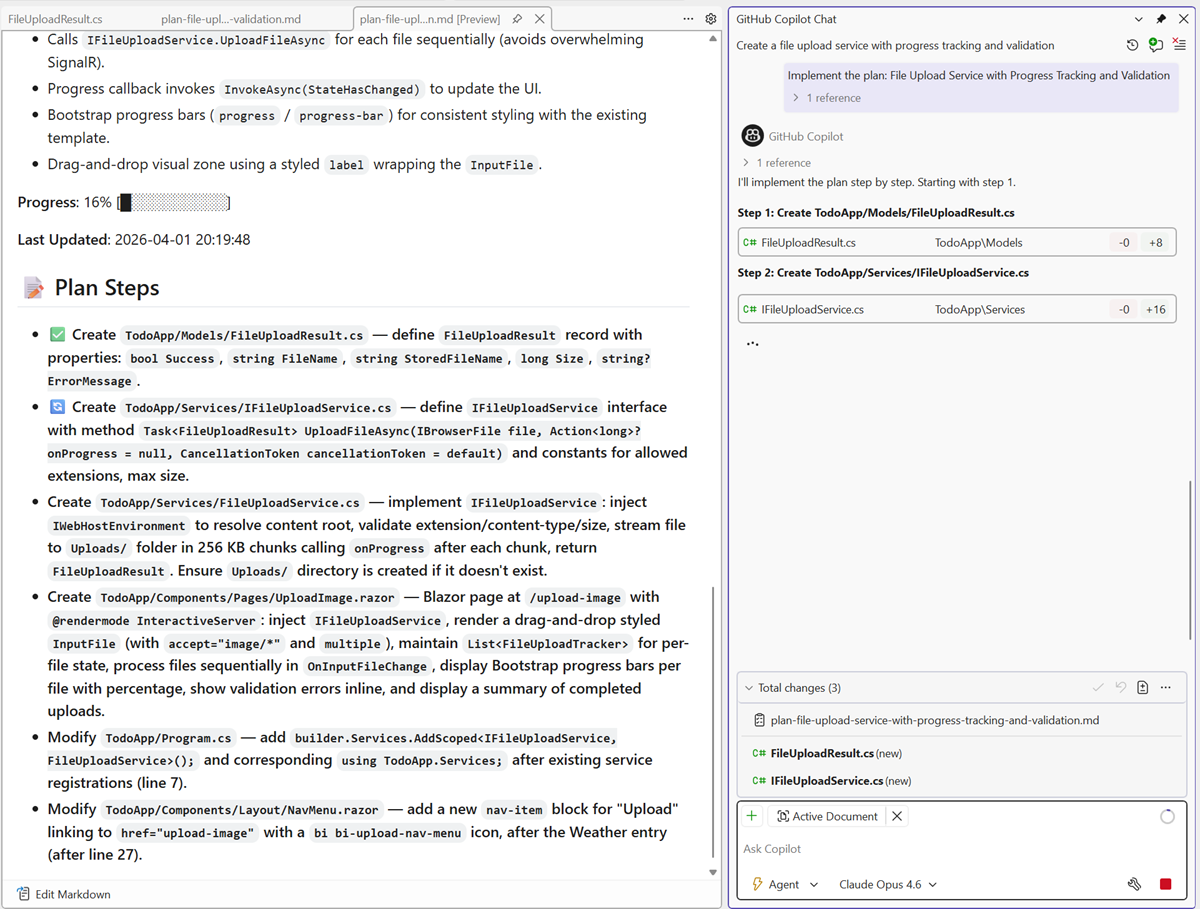
Plans are saved as markdown
Copilot saves every plan as a markdown file in your repo at .copilot/plans/plan-{title}.md. This file is the single source of truth. You can edit it directly in your editor or refine it through chat. Copilot detects your changes and keeps the plan in sync.
When to use Planning mode
- Big features - Break down complex work into clear steps before writing code.
- Unfamiliar codebases - Let Copilot explore and explain before proposing changes.
- Team collaboration - Share plans as markdown files for review before implementation
Git tooling
Add commit to Copilot Chat
Attach commit context to Copilot Chat directly from the IDE.
Reviewing a commit and want Copilot's help understanding it, spotting issues, or basing new edits off of it? Instead of hunting down the commit ID and pasting it into Chat, you can now right-click a commit and add it directly as context in Copilot Chat.
You can find this command in the following surfaces:
- Git History (Git > View Branch History)
- File History (Right-click a file in Solution Explorer, then Git > View History)
- Annotate (Blame) (Right-click in the editor, then Git > Annotate (Blame))
You can also multi-select commits to attach several to chat at once.

Copilot receives the commit as context, so you can ask things like explain this change, does this introduce any issues, or write a similar change for this other file.

Commit message instructions moved
Commit message custom instructions now use the Copilot instructions file instead of the Visual Studio setting.
If you've been using the Commit message custom instructions text input under the GitHub → Copilot → Source Control Integration setting to tailor Copilot-generated commit messages, that setting will no longer apply. Going forward, commit message instructions are managed through the Copilot custom instructions file.
This brings commit message instructions in line with how other Copilot custom instructions work across your repository, keeping everything in one place.
Set up custom instructions
Add your commit message instructions to your repository's Copilot instructions file. For full setup details, see Add repository instructions.

C++
Improved optimizations for iterative C++ builds
Improved optimization scenarios for C++ builds when GitHub Copilot build performance for Windows finds potential improvements that may only be visible in iterative builds.
When using GitHub Copilot build performance for Windows, Copilot may detect a regression in full rebuild analysis. In these cases, Copilot now reruns a comparable incremental build to better reflect real-world gains from optimizations such as precompiled headers and header refactoring, which can appear slower in rebuilds but improve your day-to-day workflows.
 @BuildPerfCpp in GitHub Copilot chat to optimize your build time" />
GitHub Copilot build performance for Windows
GitHub Copilot build performance for Windows uses Build Insights to identify and fix build performance issues in C++ projects using MSVC. By analyzing your build process, this agent suggests optimizations and implements changes to reduce build times:
- Reduce header parsing time by creating precompiled headers and optimizing include paths, such as removing unused includes.
- Refactor functions to reduce and eliminate function parsing time.
- Modernize C++ code to use newer language features that improve compilation speed.
- Optimize build settings to leverage parallel builds and optimal linker settings.
Getting started
- Make sure GitHub Copilot Agent Mode is enabled in your IDE.
- Open a C++ project.
- Ask @BuildPerfCpp in the GitHub Copilot Chat window to optimize your build time.
Note: Build Insights needs to run and collect build performance data. It also requires ETL trace collection permissions. Accept the UAC prompt once to enable Build Insights to collect ETW events from MSVC.
 @BuildPerfCpp in GitHub Copilot chat to optimize your build time" />
Segment Heap support for C++
New MSBuild and CMake C++ projects now use Segment Heap by default, helping applications take advantage of modern Windows memory management and security features.
Visual Studio now enables Segment Heap by default for new C++ projects. Segment Heap is a modern Windows heap implementation that improves performance, scalability, and security compared to the legacy NT heap. This change helps applications adopt these benefits and prepares them for future platform capabilities.
You can configure this behavior in project properties under Manifest Tool → Input and Output. Existing projects are not modified automatically but can opt in using the same settings.
MSVC Build Tools v14.51
Improved C++23 support, performance, and many bug fixes.
Microsoft C++ (MSVC) Build Tools version 14.51 is now available and is installed by default with the C++ desktop and gaming workloads. To check if it's installed simply make sure one or both of these components are checked in the installer:
- MSVC Build Tools for x64/x86 (Latest)
- MSVC Build Tools for ARM64/ARM64EC (Latest)
You can also select one of the components labelled with the v14.51 version number to pin your installation to this version.

The version number printed by cl.exe and link.exe will be at least 14.51.36231.
The stable release of v14.51 will receive 9 months of servicing fixes, as described in New release cadence and support lifecycle for Microsoft C++ Build Tools
.
See below for a complete list of what's new.
C++ Standards Conformance
The frontend team continued implementing CPP23 and CPP20 features and fixing conformance issues:
- C++23 Implementations: Please see the CPP23 Support in MSVC Build Tools 14.51 blog post for details.
- Consteval Improvements: Multiple fixes to
consteval function handling, constexpr new/delete in modules, initializer list backing arrays, /experimental:constevalVfuncVtable behavior now enabled by default, and better error diagnostics for failed constant expressions.
- Coroutine Improvements: Coroutine-related globals refactoring, and deprecation of experimental coroutine headers.
- Parser Modernization: Recursive descent parser now handles
[[attributes]], with continued improvements to error recovery and removal of legacy token accessors.
- C Language Improvements: Added
_Atomic qualifier support, removed incorrect diagnostics for C99 flexible array members, and added __typeof__ support for function types.
Code Generation
The backend optimizer received significant investment across many areas:
- Sample-based profile guided optimizations: Support for sample-based profile guided optimizations with supporting tools. More details to follow in a future blog post.
- Static Single-Assignment (SSA) optimization improvements: Implemented dozens of new algebraic simplification patterns, including ternary operator patterns, arithmetic patterns, and min/max.
- Common Subexpression Elimination (CSE): Improve CSE of loads of
[x + C] through if/else joins, redundant stores, and has improved multibyte aliasing checks.
- Scalar Replacement of Aggregates (SROA): More aggressive unpacking of structures.
- Loop Optimizations: Linear Function Test Replace (LFTR) signedness fixes and counted loop optimizations when the primary induction is used after the loop.
- Inlining: Extended limited call-site inlining, and improved propagation of parameter type information when inlining.
- Copy Propagation: Multiple improvements to copy propagation for integer constants and sequential copies.
- Strength Reduction: Implemented reduction of conversions as a strength-reduction optimization.
- Predicate and Jump Threading: Improvements to predicate-based optimizations for eliminating bound checks, including better use of predicates from min patterns.
- Stack Layout: The compiler now prefers pushing callee-saved registers onto the stack over using shadow slots, reducing function prologue/epilogue overhead.
- PGO: Improved per-function size/speed trade-offs to mitigate unrepresentative profiles and PGO trimming improvements.
- Restrict Pointers: Added support for restrict pointer semantics to enable additional aliasing optimizations.
- Pattern matching optimizations: New patterns for
MSUB/MADD generation, ADC/SBB for conditional add/subtraction, and CMOVE/NE variants.
- Intel APX: Preview support of Intel APX (Advanced Performance Extensions) in the MSVC toolchain. This support is enabled via the
/feature:APX compiler option to target various APX features like Extended General-Purpose Registers (EGPRs), New Data Destination (NDD), No-Flags Update (NF), new conditional ISA and optimized registers save/restore operations. These are documented at https://www.intel.com/content/www/us/en/developer/articles/technical/advanced-performance-extensions-apx.html.
Other code generation changes:
ARM64 & SVE
- SVE (Scalable Vector Extension) Support: Major new feature bringing ARM SVE to MSVC, including frontend type support for SVE scalar and aggregated types, intrinsic lowering, callee-saved register unwinding, variadic function parameter passing, header file installation, and tryblock/funclet support. Multiple ICE and miscompilation fixes were addressed.
- Shrink Wrapping: Fixed multiple issues including epilog-only fragment unwind info, codegen bugs with chkstk killing X15, and multi-entry shrink wrap regions.
- Code Quality: New patterns for
CSEL pow2, 0 + ORR → CSET + ORR_SHIFT, optimized NEON_DUPR, removed redundant NEON_INSR after NEON_DUPR, ARM NEON patterns for x264, instruction fusion improvements, register retyping after globregs, and function alignment tuning.
- DIA SDK: Full SVE support in the debug interface, including
RtlpGetSveContextPointers and IDiaStackWalkHelper3.
SIMD & Vectorization
- SLP Vectorizer: Improvements to Superword Level Parallelism (SLP) vectorization:
- Scalar reduction vectorization
- Generic and oversized vector instruction support
- Permute optimizations and oversized select support
- Vectorizer Improvements: Hoisting of vectorized inner loop pointer overlap checks to parent loops, character-count loop support, non-contiguous memory access support for 2-byte data types, and improved low trip count heuristics on ARM64.
- AVX/SSE: AVX512
memcpy/memset, AVX2 memcmp override, AVX10.2, and vectorized bitmasking patterns for x264.
Linker & PDB
- DIA: COM initialization thread safety, and SVE support.
- PDB Fuzzing: Triggered PDB fuzzing from nightly builds.
- SPGO: Sample-based profile guided optimizations available for use.
Standard Library (STL)
On GitHub, the microsoft/STL repo tracks its status with a high level of detail; see the Changelog for MSVC Build Tools 14.51. Notable library features that are newly available:
- P0429R9 -
<flat_map>
- P1222R4 -
<flat_set>
- P2255R2 - Type Traits To Detect References Binding To Temporaries
- P2590R2 - Explicit Lifetime Management
- P2674R1 -
is_implicit_lifetime
Other notable changes:
- We've massively overhauled
<regex> to fix long-standing correctness and performance problems that have been present since its initial implementation in VS 2008 SP1. After almost two decades, the stack overflows are finally fixed!
- We've continued to add and improve SIMD-vectorized STL algorithms, using SSE4.2 and AVX2 for x64/x86, and (newly shipping in MSVC Build Tools 14.51) using NEON for ARM64/ARM64EC.
- We've implemented 18 LWG issue resolutions.
- We've removed long-deprecated non-Standard features, such as TR1,
<hash_map>, <hash_set>, <experimental/filesystem>, stdext::checked_array_iterator, and stdext::unchecked_array_iterator.
All of this has been possible thanks to our amazing GitHub contributors.
AddressSanitizer (ASan)
- ARM64 Support: Improved ASan for ARM64 support with comprehensive library packaging, interception fixes, and false-positive resolutions.
- SanitizerCoverage: Fixed blocklist handling, codegen issues, and forward declarations to ensure sancov initializers are invoked.
- Performance: Cached walked heaps for performance improvements during shadow memory operations.
Modules & IFC
- IFC Version Update: The MSVC frontend generates IFC files according to the 0.44 version of the IFC specification.
- Concurrency Fix: Fixed a use-after-free race in concurrent IFC debug record resolution.
Static Analysis
- EspX Consolidation: Merged EspX and its extensions like CppCoreCheck into a single DLL, simplifying deployment.
- Bug Fixes: Fixed false positives from inexact location dereference, and a number of internal compiler errors (ICE) under /analyze.
ARM64EC & ARM64X
- Coroutine Support: Fixed missing entry thunks for coroutine outlines and ramp functions.
- ICF: Improved identical COMDAT folding (ICF) optimization in ARM64X binaries.
- Volatile XMM: Fixed ARM64EC volatile XMM assignment.
Diagnostics
- Fixed C4319 not being emitted when compiling C code.
- Removed incorrect diagnostics for C99 flexible array members.
- Warning C4789 improved to reduce false positives.
Debug Info
- Enabled debug info pruning to reduce PDB sizes.
Tickets Fixed
The following customer-reported issues were fixed in this release:
- builtin_bit_cast Internal compiler error
- typeof not working with function types
- Must_inspect_result false positive
- statusfp scheduled before floating point operations
- LINK : error LNK2001: unresolved external symbol after upgrading to VS 17.14.5
- REX.B NOP is interpreted as ''XCHG EAX,R8d' by the CPU, but VS 2026 disassembles it as a NOP
- /permissive- and template implies error C3688: invalid literal suffix '_s'
- CPP dynamic debugging initialises static locals incorrectly
- ARM64 - Subtraction and comparison of ULONGLONG's uses W registers
- min/max ternary logic expression broken in combination with integer type promotions
- Error LNK2001 when importing a static class/struct member from a module from a DLL
- Pointer-to-member of base class as template argument
- Deleting of templated class-specific operator new is not detected by constraints
- One can modify a capture in non-mutable lambda via C++ deducing this
- No CopyElision performed when initializing via initializer list
- std::enable_if compile error after updating from 17.13 to 17.14
- Issue in specific conditions with modulo operator in variadic template with '/permissive-' after version 19.32.
- msvc error C1001: Internal compiler error (compiler file 'msc1.cpp', line 1589)
- No ADL in default member initializer due to local free function
- FUNCSIG is empty for an auto lambda assigned to a std::function
- 'warning C5287: operands are different enum types' even with an explicit cast
- C2106 '=': left operand must be l-value Visual Studio 2026 Insiders [11206.111]
- cl: internal compiler error on relatively simple, bit-manipulation code
- Empty compound literal array causes internal compiler error
- error C2593 caused by static operator[] in C++23 mode
- fatal error C1001: Internal compiler error
- Incorrect code generation for &= in 17.14
- Incorrect math result using boost::rational and google test
- Internal compiler error in VS2022 17.10+
- Internal compiler error when trying to compile simple C++ program
- lambda capture nonmovable by reference doesn't work since MSVC17.4
- msdia140.dll ver 14.50.35719.0 CDiaSymbol::get_virtual always returns false
- MSVC 19.44.35207.1 C2352 when calling base class method
- MSVC 19.51 miscompiles ffmpeg for arm64
- MSVC 2026 pointer subtraction of consecutive members of struct with same type leads to unexpected value
- MSVC crashes when there are at least 65536 template parameter in a parameter pack in CTAD
- problems with Visual Stdio 2022 17.14.15 update - LINK : fatal error LNK1000
- v.19.50 x64 optimizer generates incorrect code with /O2 and /EHs
- Visual Studio compiler falsely optimize branch in code under v143 and v145 toolsets
- VS2026 generates incorrect FP code
- Lambda with deducing this parameter of unrelated type is wrongly permitted
- InitAll in VS2026 in initializing a pointer in a vector
- Forward type declaration doesn't work during type specialization if the forward-declared type name is ambiguous
- ICE on CTAD for alias template with std::array
- Internal compiler error when using conditionally-copyable types
- Rejects valid qualified type name involving lambda in decltype
- Silent Bad CodeGen: Regression in Lambda Capture Constant Folding (v143, v145)
- INTERNAL COMPILER ERROR: MSVC V19.50.35615 for x64
- Arm64 optimization bug for expf
- Internal Compiler Error when defining C++17 static data member of template and its constructor takes certain arguments
- CL.exe exited with code -529706956.
- rejects valid operator call
- alias template deduction guide doesn't work in c++20
- An inline friend function template cannot access the template arguments of the class template (C2065)
- Binary left fold expression in return type leads to compilation error
- explicit variable template instantiation causes internal compiler error when using precompiled header
- CLI - inline namespace does not work
- CLI: ::typeid cannot be used on builtin types
- requires requires clause with non-type template parameter inconsistently generates strange compiler error
- consteval fails to compile
- C7602 false positive, constant template parameter constraint bug
- Can't allocate heap memory at compile time
- Cannot forward declare class in internal module partition (C++20)
- Cannot pass one consteval function as an argument to another consteval function
- Cannot use a pointer on immediate function within constant expression
- Class template argument deduction for alias template fails
- Compiler-generated code for certain C++ coroutines give unexpected warnings and refer to negative line numbers
- constant expression is not considered constant in immediate function
- Consteval code does not compile in MSVC
- Error C2100 is incorrect for non-generic lambda expressions
- Error C2514: class template cannot be constructed
- error C7535 due to rvalue reference when a constructor delegates to another constructor
- ICE when indexing into an NTTP multidimensional c-array on MSVC 14.44.35207
- If constexpr and require do not check for the existence of members correctly
- Including a header with #pragma system_header from an external include directory treats the whole translation unit as an external header
- Internal compiler error (ICE) on manipulating with pointer to immediate function
- Internal Compiler Error when specializing on floats
- Making a call on consteval lambda's returned function leads to error C7595
- MSVC fails to compile C++20 template lambda with consteval specifier
- MSVC incorrectly deduplicates two different member pointers (&Case01::a, &Case02::num) passed as auto non-type template parameters
- MSVC rejects valid program involving inheriting conversion function from a closure type with no capture
- No warning C4706 for assignment to std::unqiue_ptr used as a condition
- Removal of placemarker tokens incorrectly removes surrounding whitespace with /Zc:preprocessor
- requires requires constraint on a member function treats a base call like a static call
- Runtime stack corruption reported with std::visit
- source_location() returns wrong value.
- std::is_constructible gives incorrect answer for arrays in C++20
- std::source_information::current() outputs different location in consteval context
- std::source_location::current().function_name() produces empty string when used as default argument value
- Unable to call a consteval function from another one
- Using a dependent qualified name as a default argument for a constraint template type parameter breaks the MSVC compiler
- When ASSERTE is given an expression with '"', it results in internal compiler error
- Wrong error C3640 in getting a pointer on a pure virtual function
- Wrong overload called due to rvalue reference leading to a recursion
- Deduction of class template arguments picks up wrong constructor
- Regression, array access on result on ternary incorrectly returns a prvalue
- 20 modules C1001: Internal compiler error
- Array reference is incorrectly calculated leading to access violation or wrong memory address being accessed
- Cannot partially specialize template across C++20 module
- Failed to specialize function template for abstract type after SFINAE call on type
- Internal Compiler Error Found in MSVC 14.44.35207
- Internal compiler error when when using a bad return type in a template user defined conversion function
- Internal Compiler Error while compiling C++20 coroutine code
- Invalid Operation: FP optimization bug
- Spurious C2102 error initializing static inline constexpr member with partial designated initializer list
- STL hardening checks (_MSVC_STL_HARDENING) are not optimised away (2)
- template function specialization and decltype compiler discrepancies
- VS 17.12 regression, ICE with structured bindings and lambda in constexpr variable template instantiation
- When a throwing expression appears somewhere in a lambda capture list,
noexcept(<lambda expression>) gives incorrect result
- VS2026 regression: lambda cannot access local constant
- Spurious compiler error C2872 when building with C++23preview
- CLI & C++23 - multidimensional managed arrays don't work
- #pragma warning(disable) not working in nested headers used with header units
- Anonymous unions in unnamed namespaces are incorrectly required to use static
- Buggy declspec(selectany) constant initialisation across C++ modules
- modules compile error when using a using declaration from a different module
- C2355 is wrongly triggered when local class is defined in a static member function
- C4389 is triggered when comparing a bitfield member of one bit with a bool
- Can not initialize array with consteval constructed elements
- Compiler crashes with C1001 error when using CTAD in a nested type with template dependent noexcept
- Compiler error with constexpr user-defined literals in a requires expression
- CTAD with designated initializer doesn't compile
- Deleted function disables ADL in immediate context
- Enum names publicly imported into class declaration with using-enum-declaration (using enum) are lost across module boundaries
- error C3535: you can't deduce the type for 'auto' from 'overloaded-function'
- error C7595: call to immediate function is not a constant expression
- Error parsing function declaration taking a function pointer and having an empty init list as a default argument
- Extra blank line output with /E and #warning
- False positive warning C4305 when using a defaulted non-type template parameter
- Fold expression fails to expand full pack in nested template after C7515 fix
- Function Specialisation and Concepts Causes an Ambiguous Call to Overloaded Function
- ICE using Boost.PFR with CPP modules (vs-17.14.0-preview1)
- ICE while compiling mp-units
- ICE with modules and if consteval
- ICE with template deduction guide
- ICE: writer.cpp:542 the impossible happened when using folly + modules
- identifier not found in nested fold expression
- In msvc V145, the BUG triggered when using intra-class members in constraints in templates within classes
- Interaction between no_unique_address and has_unique_object_representations is incorrect
- Internal compiler error when linking c++20 module
- Internal compiler error when using CPP modules
- Internal compiler error. (compiler file 'D:\a_work\1\s\src\vctools\Compiler\CxxFE\sl\p1\c\trees.c', line 19104)
- Mixins pack fold expressions error
- MSVC : Nested struct depending on outer class template parameters fails as NTTP within the class scope (C2993)
- MSVC fails to compile (working) code involving template metaprogramming
- Nested lambdas errors out in msvc with labeled structured binding
- Note that follows warning C4477 is inaccurate for size_t, redux
- Overload resolution fails for enum non-type template parameters
- Parameter pack with reference to C array issue
- Unable to deduce argument type to std::optional
- Unions are not layout-compatible despite containing layout-compatible data members
- Universal CL.exe Crash (Exit Code -1073741819) with Nested std::filesystem::path in C++17+
- The destructor is private, but compiler allows create an object on stack.
- Apparent C++ parser bug - emits C2143 + C2451 (+ optional C2530 + C3531) if range-for expression inside a template function contains a lambda
- C3520 when expanding template parameter pack in a member function template of a class template
- Can't use templated alias instance if the parser first sees the instantiation of the alias in a template class
- Internal Compiler Error in latest versions of MSVC when compiling specific fold expression
- Internal compiler error involving member function pointer, multiple inheritance and constexpr passthrough function.
- Internal Compiler Error with Lambda and Constexpr Reference in Visual Studio 2026 ( CL.exe Version 19.50.35722 for x64 )
- Lambda cannot access local constant
- MSVC 14.50.35503 Internal Compiler Error [Visual Studio 2026 Insiders]
- Overload resolution failing with a class template specialization
- Regression (Compile Error) when using modules and fmtlib
- Incorrect result when struct contains a [[no_unique_address]] member
- Using an initializer list as a template argument when an incompatible overload exists results in error C2440
- Warning C4864 incorrectly raised when calling overridden non-template member functions of the template base class
- IntelliSense and the compiler complain about the wrong variable being const
- Ternary operator does not propagate temporary operand to the resulting rvalue reference.
- Using an elaborated-type-specifier to refer to an enum whose underlying type is not int results in errors C3432 and C3433
- MSVC incorrectly warns that C99 flexible array members are a nonstandard extension (zero-sized arrays)
- ARM64 /EHa incorrect code motion
- ARM64 issue with static initializers and destructors and /OPT:ICF
- ARM64EC: Crash when calling C++ function in DLL containing OpenMP pragmas, from C# app through DllImport
- arm64x forwarding dll does not support DATA
- ASAN_VCASAN_DEBUGGING is broken in 17.14.3 Preview 1.0
- Bitfields with a bool type at the beginning are broken in C mode
- Compiler crash with fabsf in loop with optimization (/O2 /Ob /Ot) and /fp:precise
- constexpr pointer subtruction incorrect result
- Dynamic Debugging Null String Literals
- CLI C2668 Ambiguous Call in .NET 9 and later
- CLI rethrowing .NET exception crashes with .NET Framework 4.8 in x64
- C1001: Internal compiler error with 64-bit optimized builds of recent VIM using VS 17.14
- C1090: PDB API call failed, error code '3'
- C2034 (about overwide bit-fields) shouldn't be an error in C++ modes
- C4319 not emitted when compiling C code
- C4756 related issues in VS 2022
- colocated locals/parameters with overlapping lifetime 14.40.33814 and newer
- CTime throws error in timezones behind GMT. Changes in VS 15.8 produced a regression
- CTime::CTime fails with year 1900
- Dangling pointer in cpp file atlmfc Visual Studio occsite.cpp
- Default member initializers for bit-fields doesn't work when importing struct (or class) from a module
- Erroneous warning C5061: the use of a comma operator as a subscript expression has been deprecated
- EXE compiled with ASAN (and ASAN libs and DLLs sometimes hangs during exit
- Failure to optimize redundant DUP, SMOV sequence (ARM64)
- Fatal error C1001: Internal compiler error
- GC collects during method call on c++/cli ref class
- Guarded_by_ on a static local variable reports an annotation syntax error
- Illegal code is accepted due to rvalue reference leading to a recursion
- Improper concatenation of Unicode string literals
- Incorrect Code writing bitfield
- Incorrect initialization of nested aggregate member with unrelated member's value
- Incorrect instructions generated in AVX2
- Incorrect switch-case generation on arm64 target
- Incorrect template argument deduction for function called with argument this from out-of-line, ref qualified member function.
- Internal compiler error for ternary expression with non copyable type and throw
- internal compiler error in msvc 14.50.35717
- Internal compiler error in type_traits and operator bool in derived class
- Internal Compiler Error targeting ARM64 with VS 2026 18.0 Insiders
- Internal compiler error when enabling Code Analysis (/analyze) with variadic templates + SAL
- Internal compiler error when using OpenMP and try/catch in same function with /clr enabled
- Internal Compiler Error with C/C++ Optimizing Compiler Version 19.50.35710 for ARM64
- Internal Compiler Error with C/C++ Optimizing Compiler Version 19.50.35722 for ARM64
- Internal Compiler Error with C++ template template parameters and missing template keyword
- KASAN drivers fail to link referencing wide string functions (wcscat, wcscpy, wcsncpy)
- Keywords MUST NOT be translated in errors, warnings or suggestions.
- lambda-nested decltype of lambda triggers C2011
- Linker shouldn't warn for differing Arm64EC 'icall push thunks' that are equivalent
- Long octal formatted strings DoS the user's machine and cause C1060
- MFC static lib reports memory leak
- Microsoft.VCToolsVersion.v143.default.txt in 17.2 is not updated from 17.1
- Miscompilation of
svset_neonq (arm_neon_sve_bridge.h) with 19.50.35722 for ARM64
- Miscompilation of AArch64 SVE loop (Version 19.50.35722 for ARM64)
- Missing destructor call when /Zc:nrvo is enabled (/O2 and /std:c++20)
- Misuse of _BitScanForward result can crash the compiler
- Modules: using-declarations leak from exported functions
- MSDIS is incorrectly decoding some xchg instructions as nop
- MSVC fails to bind a noexcept function to template instantiated with a noexcept signature
- MSVC fails to generate INCP (and friends) - Version 19.50.35722 for ARM64
- MSVC fails to generate MLA/MAD (Version 19.50.35722 for ARM64)
- MSVC fails to optimize LASTA idiom (Version 19.50.35722 for ARM64)
- MSVC generates an incorrect C6001 warning
- MSVC x64: _mm_shuffle_ps incorrectly optimized away after vcvtpd2ps at /O1 or /O2
- New CPP Dynamic Debugging feature occasionally causes link error 1136
- noexcept deduction is not working (CWG 2355)
- Not implemented mandatory copy elision in ternary operator
- Observing non-deterministic output when building UCRT for CHPE builds
- Optimisation is missed during UB-safe negation
- Performance regression on hash calculation with custom hash function when switching to msvc 17.14.7
- PGO instrumentation runtime crash on ARM64
- Placement operator new[] in <vcruntime.h> should be marked _MSVC_CONSTEXPR
- Poor x64 code generation for range for loop on member array
- Raw string literals have a limit of ~16380 characters
- SAL2 analyzer fails to handle shared_locks for Guarded_by annotation
- Sanitizer Coverage Blocklist Broken
- Sanitizer Coverage Produces Bad Codegen for C++ binaries
- SIMD Code optimization bug
- specialization of static template function requires static to be specified; clang warns it should not
- SSA CSE conflates different pointers
- Standard Library Modules: Random number machinery emits bogus error C2512
- Static local thread epoch has incorrect TLS offset when using /dynamicdeopt, resulting in crash
- std:c17 and unsized arrays != LOVE
- string literal concatenation with different encoding prefixes fails
- template function not found
- Ternary operator unnecessarily requires copy constructor
- Unexpected error C7595 reported
- Unexpected result while compiling consteval function
- Unused compile-time constant in x64 release build causes access violation in compiler during linking stage
- Using 17.14 toolset one of our projects generates a LNK1120 link error
- VCPP 17.6 preview 1 ARM64EC compiler ICEs when it encounters __vectorcall keyword
- VisualCppTools.14.50.35724 PdbCopy.Exe Arm64 Pdb Copy Crashes
- Volatile local variable is assumed to not change on x64
- Volatile variable not read after write
- VS 17.14.13 Bad codegen for x64 SIMD register not set up correctly
- VS18.0 Insiders MSVC ICE in MFC message map of a class with virtual base
- vs2022 optimization error
- VS2026 MSVC Warning C4865 lies about underlying type change with /Zc:enumTypes
- Windows SDK is missing #include
<utility> in atlcom.h
- x64 compiler crash while compiling Mesa source file with optimizations
- x64 Emulator crash when an ARM64EC thread calls an x64 coroutine that calls another ARM64EC coroutine
- Copilot usage shows incorrect license and is missing data about premium requests
| Top bug fixes |
From the community |
| ARM64 /EHa incorrect code motion |
Feedback ticket |
| [Regression] arm64 specific crash in MSVC 19.50.35728 for ARM64 |
Feedback ticket |
| Fix decltype of a parenthesized, mutable member inside a const-qualified member function. |
|
| Correct an issue causing error C2106 when certain ternary expressions are used on the LHS of an assignment |
|
| Fix a false C2106 error in certain initializations involving array-type members. |
Feedback ticket |
| Updating the installer to include the latest servicing release of the 10.0.26100 Windows SDK (10.0.26100.8249) and the 10.0.28000 Windows SDK (10.0.28000.1839) |
|
Version 18.5.3
Released on May 12, 2026.
| Security advisories addressed |
CVE |
Description |
| SQLite Memory Corruption Vulnerability |
CVE-2025-6965 |
There exists a vulnerability in SQLite versions before 3.50.2 where the number of aggregate terms could exceed the number of columns available. This could lead to a memory corruption issue. |
| .NET Core Tampering Vulnerability |
CVE-2026-32175 |
A tampering vulnerability exists when .NET Core improperly handles specially crafted files. |
| .NET Elevation of Privilege Vulnerability |
CVE-2026-32177 |
Heap-based buffer overflow in .NET allows an unauthorized attacker to elevate privileges locally. |
| .NET Elevation of Privilege Vulnerability |
CVE-2026-35433 |
Improper input validation in .NET allows an unauthorized attacker to elevate privileges locally. |
| ASP.NET Core Denial of Service Vulnerability |
CVE-2026-42899 |
Loop with unreachable exit condition ('infinite loop') in ASP.NET Core allows an unauthorized attacker to deny service over a network. |
Version 18.5.2
Released on April 28, 2026.
| Top bug fixes |
From the community |
| [After upgrading to 18.5] Keyboard input may stop responding after using Find in Files |
Feedback ticket |
| Latest install of VS 2026 Insiders (11709.129) is removing 14.50 build tools |
Feedback ticket |
| Claude Opus 4.7 stopped working after the last update |
Feedback ticket |
| [C++] Bad codegen for switch(*optional) in 64 bit in Visual Studio 2026 |
Feedback ticket |
| Security advisories addressed |
CVE |
Description |
| ASP.NET Core Elevation of Privilege Vulnerability |
CVE-2026-40372 |
Improper verification of cryptographic signature in ASP.NET Core allows an authorized attacker to elevate privileges over a network. |
Version 18.5.1
Released on April 21, 2026.
| Top bug fixes |
From the community |
| F# Empty string matching in code quotations causes FS045 |
Feedback ticket |
| Adding UI to show model thinking process |
Feedback ticket |
April Update 18.5.0
Released on April 14, 2026.
IDE
JSON editor schema updates
JSON editor updated to support more JSON schema features.
The JSON editor now supports newer JSON Schema specifications, giving you access to modern schema features like $defs, $anchor, and improved vocabulary support.
Previously, the editor only supported JSON Schema Draft 4 and Draft 7. You can now use:
This means better IntelliSense and validation when working with schemas that use the latest specifications.
GitHub Copilot
Use agent skills 📣
Copilot agents in Visual Studio now automatically discover and use skills defined in your repository or user profile.
Copilot agents in Visual Studio can now automatically discover skills. Agent skills are reusable instruction sets that teach agents how to handle specific tasks, like running a build pipeline, generating boilerplate, or following your team's coding standards. Define a skill once to save time and keep behavior consistent across your workflow. See awesome-copilot for community examples.
Skills are discovered from these locations:
- Workspace or project skills (stored in your repository):
.github/skills/, .claude/skills/, .agents/skills/.
- Personal skills (stored in your user profile):
~/.copilot/skills/, ~/.claude/skills/, ~/.agents/skills/.
To create a skill:
- Create a
.github/skills/ directory for a workspace skill or a ~/.copilot/skills/ directory for a personal skill.
- Create a subdirectory for your skill. Give each skill its own directory (for example,
.github/skills/github-issues/).
- Create a
SKILL.md file in that directory. Follow the agentskills.io/specification format.
- Optionally, add scripts, examples, or other resources to the skill directory.
After you create a skill in one of these directories, the agent decides when to use it. When a skill is active, it appears in chat so you know it's being applied.

More user-friendly flows for browsing and creating skills in Visual Studio are coming in upcoming releases. Try Agent Skills and share your feedback.
📣 See feature ticket to share your feedback and continue the conversation.
Cloud agent integration
Start new cloud agent sessions directly from Visual Studio.
Cloud agents, including Copilot coding agent, run on remote infrastructure for scalable, isolated execution. You can now start new cloud agent sessions directly from Visual Studio.

To try it, select Cloud from the agent picker in the Chat window, then share the work you want help with. The cloud agent first asks for permission to open an issue in your repository, then creates a pull request to address it. While it prepares the PR, you can keep working on other tasks in Visual Studio, or close Visual Studio and come back later. When the PR is ready, you'll get a notification and can review it in Visual Studio or in your browser.

Cloud agent in Visual Studio is currently powered by Copilot coding agent. To use it, make sure you're in a GitHub repository and that Copilot has permission to create issues in that repository. Try it out and let us know what you think.
Build your own custom agents 📣
Define custom agents tailored to your team's workflow using .agent.md files in your repository or user profile.
Custom agents help you build specialized Copilot agents for your team's workflow. They can use workspace awareness, code understanding, tools, your selected model, and MCP connections to external knowledge sources such as internal documentation, design systems, APIs, and databases.
Custom agents are defined as .agent.md files in your repository or user profile.
Workspace or project-specific agents are stored under .github/agents/ in your repository. For example:
your-repo/
└── .github/
    └── agents/
        └── code-reviewer.agent.md
User-level agents are stored in %USERPROFILE%/.github/agents/ by default. You can change this location in Tools → Options → Copilot Chat → Custom agents user directory.
To create a custom agent, either create a .agent.md file directly in one of the locations above, or click the + button in the agent picker and follow the prompts.

After you create a custom agent, it appears in the agent picker so you can use it anytime.
A few things to note:
- If you don't specify a model, the agent uses the model currently selected in the model picker.
- Tool names vary across GitHub Copilot platforms - check the tools available in Visual Studio to make sure your agent works as expected.
- The awesome-copilot repo has community-contributed agent configurations you can use as starting points. Verify tool names before you use them in Visual Studio.
📣 See feature ticket to share your feedback and continue the conversation.
Customizable Copilot keyboard shortcuts 📣
Customize the keyboard shortcuts for accepting Copilot inline suggestions.
You can now customize the keyboard shortcuts for accepting Copilot inline suggestions. You can change the key for accepting a full suggestion, the next word, or the next line in standard keyboard settings.
To set your preferred shortcuts:
- Go to Tools → Options → Environment → Keyboard.
- Search for the command you want to customize:
Edit.AcceptSuggestionEdit.AcceptNextWordInSuggestionEdit.AcceptNextLineInSuggestion
- Remove the existing key binding.
- Assign a new shortcut under the Inline Suggestion Active scope.

For example, the image below changes the default accept shortcut from Tab to Ctrl+Tab. The new shortcut appears throughout the hint bar.

📣 See feature ticket to share your feedback and continue the conversation.
IntelliSense takes priority over Copilot 📣
IntelliSense now takes priority over Copilot completions so you only see one suggestion at a time.
We heard your feedback: seeing IntelliSense and Copilot completions at the same time can be distracting. The editor now prioritizes the IntelliSense list and shows only one suggestion at a time.

When IntelliSense is active, Visual Studio temporarily suppresses Copilot completions so you can focus on your current selection. After you dismiss or commit the IntelliSense selection, Copilot completions resume. This behavior is now enabled by default. Update your VS to the latest version and code as you normally do. Please let us know any feedback you have!
📣 See feature ticket to share your feedback and continue the conversation.
New chat history panel 📣
Browse and navigate your Copilot chat sessions with the new chat history panel.
The chat history experience has moved from a simple dropdown to a dedicated panel. You now see each chat title, a preview of the latest message, and when the session was last updated, so you can quickly find and reopen past conversations.

More chat history management capabilities are on the roadmap. We'd love your feedback, so please file a ticket on Developer Community and tell us what you want to see next.
📣 See feature ticket to share your feedback and continue the conversation.
Debugging & diagnostics
Auto-Decoding in Text Visualizer
Easily decode text with Copilot.
We are introducing the Auto-detect and format feature within the Text Visualizer. This enhancement is designed to streamline your debugging workflow by automatically identifying the encoding or compression format of a string and applying the necessary transformations in a single click.

Simply click the Auto-detect and format button in the top-right of the Text Visualizer. Powered by Copilot, this feature instantly identifies and converts complex data (like GZip-compressed Base64) into readable text removing the need for manual decoding or external tools.
Agentic Issue to Resolution
Agentic Bug Resolution helps you find and fix bugs with runtime-proofed, interactive AI guidance.
We are introducing a new Debugger Agent workflow in Visual Studio that validates bugs against real runtime behavior instead of relying on static analysis guesses. The experience walks you through a complete agentic loop from understanding and reproducing the issue, to instrumenting the application, isolating the root cause, and validating the fix through live execution.
You can start from an issue in GitHub or Azure DevOps, or simply describe the bug or code behavior in natural language. The Debugger Agent uses this input to map the problem directly to your local source and guide you through resolution. Unlike static approaches, you can interact with the agent during the debugging process to provide more input, discuss your theory, or refine the fix in real time.

How the agentic loop works:
- Context Injection – Provide an issue link or describe the bug in Debugger Mode in Copilot Chat (you can switch modes using the dropdown in the lower-left corner of the chat). The agent connects the report to your local code.
- Autonomous Reproducer – The agent analyzes the bug description and, if reproduction steps are missing, creates a minimal scenario to trigger the failure automatically.
- Hypothesis & Instrumentation – It generates failure hypotheses and instruments your app with tracepoints and conditional breakpoints to capture runtime state.
- Runtime Validation – The agent runs the debug session and analyzes live telemetry to isolate the root cause.
- Targeted Correction – It suggests a precise fix at the exact failure point rather than broad refactoring.
- Final Human Validation – You rerun the scenario and confirm the fix in the live environment alongside the agent.
C++
C++ code editing tools for agent mode
C++ Code Editing Tools for GitHub Copilot Agent Mode are now available by default.
We're excited to share that C++ Code Editing Tools for GitHub Copilot Agent Mode are now generally available by default. These tools help Copilot navigate your C++ codebase more effectively when refactoring or modifying code.
With these tools enabled, Copilot can:
- Map out class inheritance hierarchies
- Follow function call chains
To get started:
- Open a C++ project and ensure IntelliSense is configured.
- Enable specific tools using the Tools icon in Copilot Chat.
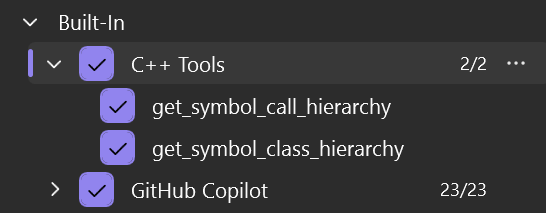
Once enabled, Copilot uses these tools automatically when answering questions or suggesting code changes.

For best results, use AI models that support tool-calling. Learn more at AI model comparison - GitHub Docs
| Top bug fixes |
From the community |
| VS 2026 hangs while unloading projects |
Feedback ticket |
| Copilot terminal sometimes does not start queued commands until the terminal tab is brought to the foreground |
Feedback ticket |
| ASan supression does not work |
|
| Improved ASan runtime performance in applications that heavily utilize COM, mixed language bindings, and Win32 allocator API's |
|
Version 18.4.4
Released on April 14, 2026.
| Security advisories addressed |
CVE |
Description |
| .NET Denial of Service Vulnerability |
CVE-2026-26171 |
A vulnerability exists in EncryptedXml class where uncontrolled resource consumption can give an attacker to the ability to perform a Denial of Service attack. |
| .NET Spoofing Vulnerability |
CVE-2026-32178 |
Improper neutralization of special elements in .NET allows an unauthorized attacker to perform spoofing over a network. |
| SQLite Memory Corruption Vulnerability |
CVE-2025-6965 |
There exists a vulnerability in SQLite versions before 3.50.2 where the number of aggregate terms could exceed the number of columns available. This could lead to a memory corruption issue. |
| Visual Studio Information Disclosure Vulnerability |
CVE-2026-32631 |
An information disclosure vulnerability exists in MinGit due to NTLM hash leak to untrusted server. |
Version 18.4.3
Released on March 31, 2026.
| Top bug fixes |
From the community |
| Copilot chat fails with invalid_request_body: github_push_files schema requires additionalProperties=false |
Feedback ticket |
| Fix to Visual Studio crash when VS project is loaded |
|
Version 18.4.2
Released on March 24, 2026.
| Top bug fixes |
From the community |
| Fix proxy support page for Visual Studio 2026 |
Feedback ticket |
Version 18.4.1
Released on March 17, 2026.
| Top bug fixes |
From the community |
| VS repeatedly need to refresh credentials when logging into a GitHub account with Copilot license |
Feedback ticket |
| Devenv command-line switches /Run on /Runexit not working |
Feedback ticket |
| Fix AddressSanitizer compatibility issue with Xbox Game OS |
Feedback ticket |
| Add support for Agent Skills for Copilot's agent mode |
|
March Update 18.4.0
Released on March 10, 2026.
IDE
JSON editor improvements
JSON editor now a part of the Core Editor.
Improvements in the JSON Editor
JSON Editor installed with the Core Editor
In previous releases in order to get the JSON editor you were required to install the Web Development workload. With this release, the JSON editor is now included in the Core Editor,
so you can get JSON editing capabilities without needing to install the full Web Development workload. This change allows for a more streamlined installation experience for users who need JSON editing features but do not require the full set of web development tools.
Productivity
HTML rich copy/cut
Copy and cut code snippets with rich formatting.
Visual Studio now supports HTML clipboard format when cutting or copying code from the editor. You can paste colorized code into web versions of Office apps, Azure DevOps work items, or other HTML-based controls.

This feature maintains syntax highlighting and formatting when you paste code into HTML-based applications, making it easier to share and present code snippets. It's turned on by default. To customize it, go to Tools → Options → Text Editor → Advanced where you can check or uncheck Copy rich text on copy/cut and set the max length.
GitHub Copilot
Build your own custom agents 📣
Define custom agents tailored to your team's workflow using .agent.md files.
Custom agents let you build specialized Copilot agents tailored to your team's workflow. They have full access to workspace awareness, code understanding, tools, your preferred model, and MCP connections to external knowledge sources like internal documentation, design systems, APIs, and databases.
Custom agents are defined as .agent.md files in your repository. For example,
your-repo/
└── .github/
    └── agents/
        └── code-reviewer.agent.md

Successfully created custom agents will appear in the agent picker for your use at any time.
A few things to note:
- If you don't specify a model, the agent uses whatever is selected in the model picker.
- Tool names vary across GitHub Copilot platforms - check the tools available in Visual Studio to make sure your agent works as expected.
- The awesome-copilot repo has community-contributed agent configurations you can use as starting points. Verify tool names before using them in VS.
📣 See feature ticket to share your feedback and continue the conversation.
Find_symbol tool for agent mode
New Find_symbol tool for GitHub Copilot Agent Mode helps you access symbol information across your codebase.
We're introducing the new find_symbol tool for GitHub Copilot agent mode, bringing language-aware symbol navigation directly to the agent.
The find_symbol tool lets you:
- Find all references to symbols across your project
- Access metadata like type information, declarations, and scope

Once you enable the tools, Copilot uses them automatically when answering your questions or suggesting code changes.

Supported languages include C++, C#, Razor, and TypeScript, plus any other language for which you have a supported Language Server Protocol (LSP) extension installed.
For best results, write clear prompts and use AI models that support tool-calling. Learn more at AI model comparison - GitHub Docs
Enterprise level MCP governance
Easily safeguard your data with enhanced MCP governance features.
MCP server usage in Visual Studio now respects allowlist policies set through GitHub. Admins can specify which MCP servers are allowed within their organizations.
When an allowlist is configured, you can only connect to approved MCP servers. If you try to connect to an unauthorized server, you'll see an error message explaining the server isn't allowed.
This helps organizations control which MCP servers process sensitive data and maintain compliance with security policies.
Debugging & diagnostics
Smart Watch Suggestions
Copilot now suggests context-aware expressions in Watch window.
Copilot now offers context-aware suggestions directly in Watch windows. Just place your cursor in the text box, and Copilot suggests relevant expressions based on your current debugging context.

This speeds up watch creation, reduces guesswork, and helps you monitor the most meaningful runtime values - making your debugging workflow faster and more precise.
Profile Tests with Copilot
Easily profile a test with Copilot.
We've added a new Profile with Copilot command to the Test Explorer context menu, making it easy to profile a specific test with just a click.

When selected, the Profiling Agent automatically runs the chosen test and analyzes its performance, combining CPU usage and instrumentation data to deliver actionable insights.
By default, the command uses Instrumentation profiling and is currently supported in .NET. If deeper analysis is needed, you can launch the selected test directly from the Copilot chat window and choose additional profiling tools.
Perf tips powered by live profiling
Debug-Time Performance Tips with Profiler Agent.
Performance optimization now happens while you debug, not after. Debug-time Perf Tips and Profiler Agent let you analyze performance instantly as you step through code, giving you actionable insights right when you need them.

As you step through code, Visual Studio shows execution time and performance signals inline for each step. When you spot a slow line or method - like a sluggish LINQ query, a calculation-heavy helper, or any step that takes longer than expected - just click the Perf Tip and ask Copilot for optimization suggestions on the spot.
Profiler Agent automatically captures runtime data during debugging: elapsed time, CPU usage, and memory behavior. Copilot uses this data to pinpoint performance hot spots and suggest targeted fixes, keeping optimization part of your regular debugging workflow instead of something you tackle later.
.NET
Fix vulnerabilities with Copilot
Fix NuGet package vulnerabilities precisely and easily with Copilot.
Fix NuGet package vulnerabilities effortlessly with Copilot directly from Solution Explorer. When Copilot detects a vulnerability, you'll get an immediate notification. Click through, and Copilot automatically resolves it with the right dependency updates.
No more manual vulnerability research or hunting down the correct package versions. Copilot analyzes the vulnerability and recommends targeted fixes that keep your dependencies secure without disrupting your workflow. You address security issues right when they're discovered - not later.
This integrates security directly into your daily work. Spend less time on vulnerability triage and more time building with confidence.

C++
MSVC Build Tools version 14.51 Preview
Microsoft C++ (MSVC) Build Tools version 14.51 Preview is now available for C++ developers.
The first Microsoft C++ (MSVC) Build Tools version 14.51 Preview is now available for C++ developers. This release includes several new features and runtime performance improvements. We encourage you to explore MSVC previews to adapt to breaking changes and report issues early. MSVC previews do not receive servicing patches and thus should not be used in production environments.
Installing MSVC Build Tools v14.51 Preview
To install, select either MSVC Build Tools for x64/x86 (Preview) or MSVC Build Tools for ARM64/ARM64EC (Preview), depending on your target architecture, from the Visual Studio Installer. You will find these components under the Desktop development with C++ workload as well as the Individual components tab.

Under Individual components, you can additionally install Spectre-mitigated libraries, MFC, ATL, or C++/CLI support for MSVC v14.51 Preview.

Compiler front-end
MSVC is making progress with C++23 conformance and 133 Developer Community bugs have been fixed. More details will be shared in a future blog post and release notes.
Compiler back-end
MSVC Build Tools version 14.51 improved runtime performance compared to v14.50 on the SPEC CPU 2017 benchmark suite by the following amounts in different build scenarios:
- +6.5% Integer, Arm64, PGO
- +1.1% Floating Point, Arm64, PGO
- +4.4% Integer, Arm64, VS Defaults
- +1.4% Floating Point, Arm64, VS Defaults
- +5.0% Integer, X64, PGO
- +1.9% Floating Point, X64, PGO
- +4.3% Integer, X64, VS Defaults
- +1.8% Floating Point, X64, VS Defaults
Optimization improvements:
- Improved the SLP vectorizer to consider more alternatives, such as using partial vectors or using a vector size larger than the target width before mapping to the target vector width later.
- Improved SROA's handling of indirect accesses, larger structs, and typecasts.
- Allowed the loop vectorizer to hoist runtime checks.
- Added elimination of logical-OR short-circuiting when safe.
- Improved usage of conditional move instructions.
- Better optimization of AVX vector intrinsics.
- More aggressive inlining by default for functions with few uses.
- Better inline expansion of memset/memcpy for AVX.
- Improved copy propagation across block boundaries.
- Added unrolling of outer loops and loops with multiple exits.
Standard library updates
- A full list of MSVC Build Tools v14.51 standard library changes can be found in the STL Changelog. The changelog tracks everything merged to microsoft/STL main, though very recently merged changes may not yet be reflected in this particular preview. Those changes will still be reflected in future previews or the final 14.51 release.
AddressSanitizer
- Improved the quality of our experimental ASan ARM64 support by fixing several code generation and runtime issues.
Known issues
Issue #1: There is a bug configuring CMake targets using the Visual Studio (MSBuild) generator.
Workaround:
- Open Developer Command Prompt for VS Insiders (or the prompt for the version of Visual Studio you are using) as an administrator
- Run the following commands, which create a new folder and copy a file from another location to it:
pushd %VCINSTALLDIR%\Auxiliary\Build
mkdir 14.51
copy .\v145\Microsoft.VCToolsVersion.VC.14.51.props .\14.51\Microsoft.VCToolsVersion.14.51.props
copy .\v145\Microsoft.VCToolsVersion.VC.14.51.txt .\14.51\Microsoft.VCToolsVersion.14.51.txt
- Run a build to make sure it works
Issue #2: Command line builds in PowerShell are not yet configured for the preview. A fix will be deployed in a future preview.
Top bug fixes
| Top bug fixes |
From the community |
| Severe IntelliSense Delay After Upgrading to Visual Studio 2026 |
Fedback Ticket |
| VS2026 generates incorrect FP code |
Fedback Ticket |
| "Operation is not valid due to the current state of the object" when opening a file with an "unknown" extension |
Fedback Ticket |
| NoWarn in PackageReference is ignored since Visual Studio 18.3.0 |
Fedback Ticket |
| In some instances, Visual Studio 2026 not showing variable values on hover during debugging |
Feedback ticket |
| Bug fix in MSVC optimizer that causes bad assembly code generation |
|
| VisualCppTools. 4.50.35724 PdbCopy.Exe Arm64 Pdb Copy Crashes |
Fedback Ticket |
| Update MinGit and Git for Windows to handle new allowNTLMAuth setting |
|
Version 18.3.3
Released on March 10, 2026.
| Top bug fixes |
From the community |
| Bug fix in MSVC optimizer that causes bad assembly code generation |
|
| Security advisories addressed |
CVE |
Descritpion |
| .NET Denial of Service Vulnerability |
CVE-2026-26130 |
A denial of service vulnerability exists in ASP.NET Core due to uncontrolled resource consumption. |
| .NET Elevation of Privilege Vulnerability |
CVE-2026-26131 |
An elevation of privilege vulnerability exists in .NET due to improper authorization. |
| Visual Studio Information Disclosure Vulnerability |
CVE-2025-66413 |
An information disclosure vulnerability exists in MinGit due to NTLM hash leak to untrusted server. |
Version 18.3.2
Released on February 24, 2026.
| Top bug fixes |
From the community |
| Compiler optimization codegen causing access violation introduced with v145 toolset |
Feedback ticket |
| Bug fix in MSVC optimizer that causes bad assembly code generation |
|
Version 18.3.1
Released on February 18, 2026.
| Top bug fixes |
From the community |
| Fix for variable value on hover during debugging |
Feedback ticket |
| Fix to show missing linked .xaml files in solution explorer |
Feedback ticket |
| GitHub Copilot terminal steals the focus |
Feedback ticket |
| Add support for building and analyzing with Build Performance Agent for specific projects |
|
| Fix bug in the MSVC optimizer that causes bad assembly code generation |
|
February Update 18.3.0
Released on February 10, 2026.
IDE
Perform certificate revocation checks
Visual Studio now alerts you if it detects digital certificate problems during network calls.
Visual Studio now checks digital certificates for network calls and lets you know if there's a problem.
If it finds an issue, you'll see a dialog with details about the certificate error. You can choose to cancel or continue the connection.

We recommend keeping this feature on, but you can turn it off in Tools → Options → Environment → Security → Certificates.

Compact spacing in Solution Explorer
The spacing between items in Solution Explorer can now be adjusted to suit your preferences for improved readability.
Visual Studio 2026 introduced extra spacing between items in Solution Explorer to enhance accessibility. It proves helpful when using the mouse since it reduces the chance of misclicks. However, we understand that some users prefer a more compact view to see more items at once.
To accommodate different preferences, Visual Studio now allows you to adjust the spacing between items in Solution Explorer. You can choose between the default spacing and a more compact option.
In the picture below, you can see the difference between the default spacing (on the left) and the compact spacing (on the right):

Go to Tools → Options → Environment → Visual Experience and enable the Use compact spacing in Solution Explorer option to switch to the compact view. After enabling this option, the changes will take effect immediately.
M365 Agents Toolkit
2 new templates onboarded to M365 Agents Toolkit.
We added a new Teams Collaborator Agent template to help you build agents that enhance collaboration in Microsoft Teams. These agents use the Teams SDK and secure RSC patterns to assist with daily work across Teams chats, channels, and meetings. They can summarize conversations, automate workflows, extract tasks, answer questions, and boost productivity right where your team collaborates. The template includes ready-to-use scaffolding and best practices to help your team stay organized and productive.

We also added a Travel Agent template that demonstrates how to build an intelligent travel assistant. The agent answers travel-related questions, helps users understand company travel policies, and finds flights and hotels that comply with organizational guidelines. You can find these new samples in View Samples from the ATK menu.
The Travel Agent uses Azure OpenAI and the Microsoft 365 Retrieval API to access company travel documents and policies stored in SharePoint or OneDrive for Business, providing contextual and policy-compliant travel recommendations directly within Microsoft Teams.

Productivity
Fast scrolling 📣
You can now scroll faster by holding the Alt key while scrolling the mouse wheel.
Scrolling through large files is now faster and easier. Hold down the Alt key while scrolling the mouse wheel to move quickly when reviewing code or reading documentation.
You can adjust the fast scrolling speed in Tools → Options → Text Editor → Advanced → Touchpad and mouse wheel scrolling sensitivity.

This feature helps you jump to the section you need without lots of scrolling. Try it out!
Thank you Aymen Hamadi for suggesting this feature and to everyone who voted for it!
📣 See feature ticket to share your feedback and continue the conversation.
Hide symbols under files 📣
You can now disable the display of symbols under files in the Solution Explorer.
Solution Explorer used to show symbols - like classes, methods, and properties - under files to help you navigate your code. Some users found this cluttered the view, since every file had an expander icon like folders and projects. Now, you can turn this off for a cleaner look.
Here's how symbols appeared before:

To hide symbols under files, go to Tools → Options → Projects and Solutions → General and uncheck Show symbols under Solution Explorer files. Solution Explorer will then only show files, without extra symbols:

Thank you Escalante Adriano for suggesting this feature and to everyone who voted for it!
📣 See feature ticket to share your feedback and continue the conversation.
New markdown preview features 📣
View preview-only and zoom in/out the preview content in the Visual Studio Markdown editor.
Visual Studio Markdown editor gives you more control over the preview.
- You can switch between preview modes: Split Preview shows the editor and preview side by side, Open Preview shows only the preview, and Edit Markdown shows just the editor. The preview-only mode helps you focus on rendered content, especially for large images or complex Mermaid diagrams.
- When previewing a Mermaid diagram, use the zoom controls in the top left corner to zoom in or out. This makes it easier to view large diagrams and see details.

Try out these new controls and let us know what you think!
📣 See feature ticket to share your feedback and continue the conversation.
Insignificant line compression
Enable syntactic line compression to make better use of your screen's vertical real estate.
Syntactic line compression gives you more vertical space in the editor. Lines without letters or numbers compress by 25%, letting you see more code at once without hurting readability. Regular lines stay the same height. In the image below, the right side shows compression enabled - notice how you can see more lines in the same space compared to the left side.

Enable this feature in Tools → Options → Text Editor → Advanced by checking Compress blank lines and Compress lines that do not have any alphanumeric characters. This popular feature from Productivity Power Tools is now built into Visual Studio.
Middle-click scroll 📣
Press down on your scroll wheel and move the mouse to quickly scroll through your document.
You can now unlock the full potential of the middle mouse button for faster navigation. Press down on your scroll wheel and move the mouse to quickly scroll through your document. This makes it easier to explore large files without relying on traditional scroll bars or repeated wheel scrolling.

This feature is off by default in 18.3 Insiders 2 and needs to be enabled via Tools → Options → Text Editor → Advanced → Middle click to scroll. Give it a try and share your feedback with us!
Thank you to everyone who voted for this feature!
📣 See feature ticket to share your feedback and continue the conversation.
Slimmer left margin in editor 📣
Reduce the space of left margin by cutting down the space occupied by Quick Actions icon.
The left margin in the code editor is now slimmer, giving you more horizontal space for your code. We've moved the Quick Actions icon (lightbulb or screwdriver) from the margin into the editor, where it appears inline with your code when fixes or refactorings are available.
 Left: Slimmer left margin with inline Quick Actions icon, Right: Previous margin
To try out the experience now, go to Tools → Options → Text Editor → Advanced and check Show Quick Actions icon inside the editor.
📣 See feature ticket to share your feedback and continue the conversation.
GitHub Copilot
Enterprise level MCP governance
Easily safeguard your data with enhanced MCP governance features.
MCP server usage in Visual Studio now respects allowlist policies set through GitHub. Admins can specify which MCP servers are allowed within their organizations.
When an allowlist is configured, you can only connect to approved MCP servers. If you try to connect to an unauthorized server, you'll see an error message explaining the server isn't allowed.
This helps organizations control which MCP servers process sensitive data and maintain compliance with security policies.
NuGet MCP Server
Provides a way of updating packages with known vulnerabilities and can retrieve real-time information about packages for GitHub Copilot.
The NuGet MCP server is built-in but must be enabled once in order to use its functionality.
For more information, see the documentation on NuGet MCP server.
Getting Started
To enable the NuGet MCP server, follow these steps within Visual Studio 2026:
- Open the GitHub Copilot Chat window and make sure you are signed in.
- Click the tools icon in the bottom toolbar to bring up the Tools menu.
[Page truncated to keep GeezerVison snappy.] |