GeezerVisonThe World Wide Web, restored to 800 pixels of glory. |
| Home|About|Gaming cabinet|Archives|How it works|Starter sites |
GeezerVison is showing pythonprogramming.net — Python Programming Tutorials 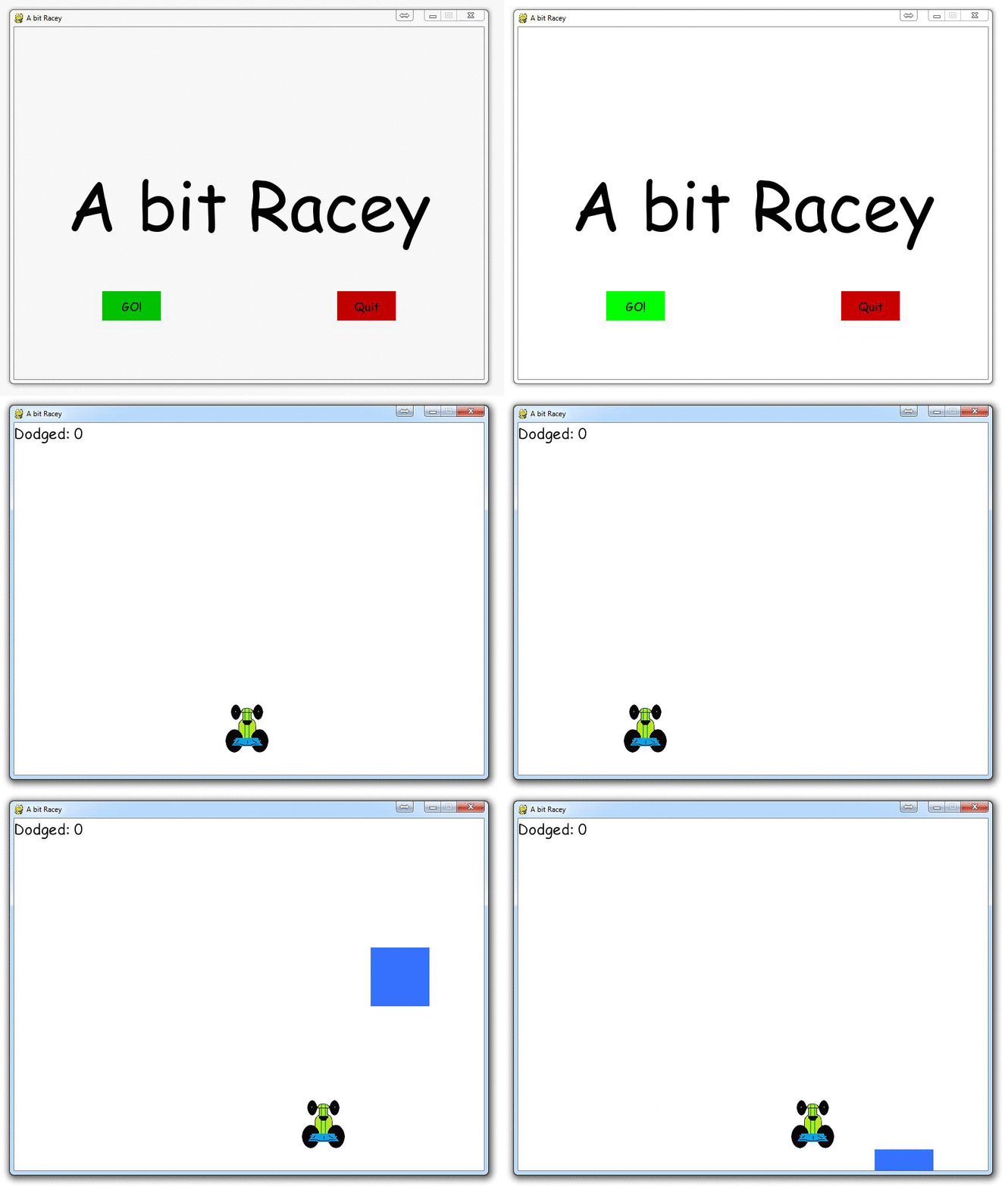
PyGame Buttons, part 5, running functions on a button clickWow, we have such a neat button. It has text, color, and hover effects. The only downside at this point? It does nothing. Well that's kind of a problem, __init__? ...I crack myself up. We saw that we could use mouse = pygame.mouse.get_pos() to grab the actual position of the mouse, what about where the mouse clicks? There is a way to collect clicks, like key presses, using "pygame.mouse.get_pressed()" This means we can combine both of these to find out if there was a click within the button. Here's the new button function: def button(msg,x,y,w,h,ic,ac,action=None):
mouse = pygame.mouse.get_pos()
click = pygame.mouse.get_pressed()
print(click)
if x+w > mouse[0] > x and y+h > mouse[1] > y:
pygame.draw.rect(gameDisplay, ac,(x,y,w,h))
if click[0] == 1 and action != None:
action()
else:
pygame.draw.rect(gameDisplay, ic,(x,y,w,h))
smallText = pygame.font.SysFont("comicsansms",20)
textSurf, textRect = text_objects(msg, smallText)
textRect.center = ( (x+(w/2)), (y+(h/2)) )
gameDisplay.blit(textSurf, textRect)
and the new game_intro function showing us passing the function: def game_intro():
intro = True
while intro:
for event in pygame.event.get():
#print(event)
if event.type == pygame.QUIT:
pygame.quit()
quit()
gameDisplay.fill(white)
largeText = pygame.font.SysFont("comicsansms",115)
TextSurf, TextRect = text_objects("A bit Racey", largeText)
TextRect.center = ((display_width/2),(display_height/2))
gameDisplay.blit(TextSurf, TextRect)
button("GO!",150,450,100,50,green,bright_green,game_loop)
button("Quit",550,450,100,50,red,bright_red,quitgame)
pygame.display.update()
clock.tick(15)
|
| You are visitor 01402503 — GeezerVison does not store the pages you look up. Best viewed with Netscape Navigator 4.7 or Internet Explorer 6 at 800×600. No cookies required. |