GeezerVisonThe World Wide Web, restored to 800 pixels of glory. |
| Home|About|Gaming cabinet|Archives|How it works|Starter sites |
GeezerVison is showing pythonprogramming.net — Python Programming Tutorials Remote Access with Raspberry Pi tutorialWelcome to part 3 of the Raspberry Pi tutorial series. In this part, we're going to cover how we can remotely access our Raspberry Pi, both with SSH and with a remote desktop client. We want to eventually be able to remotely access our Raspberry Pi because much of the "value" of the Raspberry Pi is its size, and that it can be put in a variety of places that we might not want to have a keyboard, mouse, and monitor attached to it at all times and we probably don't want to have to carry over all of this stuff when we do want to access it. First, let's connect via shell (SSH). Open the terminal on the Raspberry Pi ( On Mac and Linux, to do this, open a terminal and type: On Windows, you will need to use an SSH client. I recommend PuTTY . Once downloaded, you can open PuTTy, fill in "host name" field with your Pi's local ip, hit enter, and then you will be asked for a username and password. When successful, you should have something like: 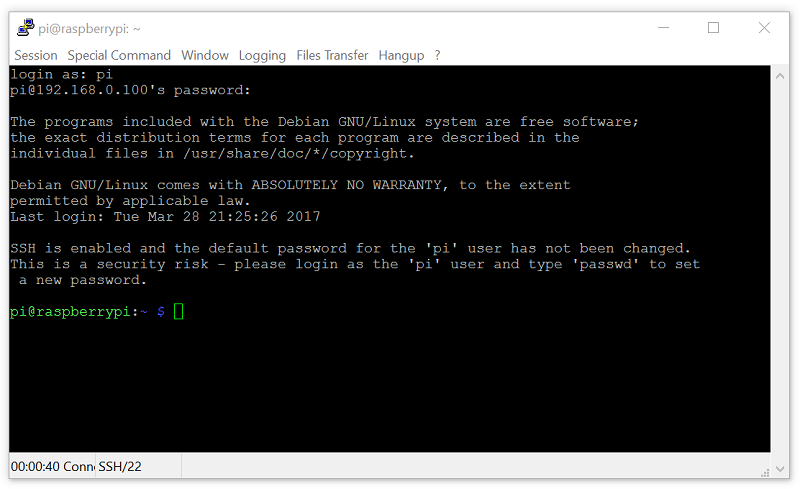
This is identical to the terminal you accessed earlier from the Pi's desktop. Now, sometimes, you might really want to get access to the desktop instead of just the terminal. To do this, you need the "host" to have remote desktop capabilities, as well as whatever remote PC you attempt to use to access it. First, let's deal with the Raspberry Pi. We're going to install
Now let's deal with the computer from which you plan to connect your Raspberry Pi. For Mac and Windows, you can use the Microsoft application called When done, you should have something like: 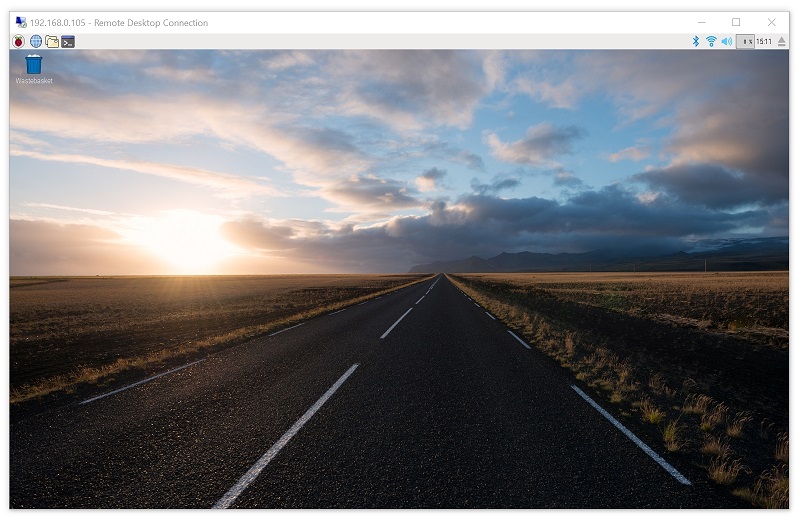
With the SSH server turned on, you will likely be seeing warnings every time you log in that your password is still the default password. The SSH server is turned off by default because, as the Pi has gained popularity, people who might not realize the security risk are using it in places like their homes and businesses. All it takes is someone to connect to your wifi, scan for other local ips, and try them all with default usernames and passwords for various devices, like the Raspberry Pi, and boom they're in. If you want to change your password, you can do In the next tutorial, we're going to have a crash course in navigating the terminal, since this is where we'll be spending most of our time.

|
| You are visitor 01402520 — GeezerVison does not store the pages you look up. Best viewed with Netscape Navigator 4.7 or Internet Explorer 6 at 800×600. No cookies required. |