GeezerVisonThe World Wide Web, restored to 800 pixels of glory. |
| Home|About|Gaming cabinet|Archives|How it works|Starter sites |
GeezerVison is showing pythonprogramming.net — Python Programming Tutorials Tkinter images, text, and conclusionTo round off our intro to tkinter, I will be showing how to add text and images to your window. We're going to make them show conditionally, to illustrate how simple it is to make the windows interactive. # Simple enough, just import everything from tkinter.
from tkinter import *
#download and install pillow:
# http://www.lfd.uci.edu/~gohlke/pythonlibs/#pillow
from PIL import Image, ImageTk
# Here, we are creating our class, Window, and inheriting from the Frame
# class. Frame is a class from the tkinter module. (see Lib/tkinter/__init__)
class Window(Frame):
# Define settings upon initialization. Here you can specify
def __init__(self, master=None):
# parameters that you want to send through the Frame class.
Frame.__init__(self, master)
#reference to the master widget, which is the tk window
self.master = master
#with that, we want to then run init_window, which doesn't yet exist
self.init_window()
#Creation of init_window
def init_window(self):
# changing the title of our master widget
self.master.title("GUI")
# allowing the widget to take the full space of the root window
self.pack(fill=BOTH, expand=1)
# creating a menu instance
menu = Menu(self.master)
self.master.config(menu=menu)
# create the file object)
file = Menu(menu)
# adds a command to the menu option, calling it exit, and the
# command it runs on event is client_exit
file.add_command(label="Exit", command=self.client_exit)
#added "file" to our menu
menu.add_cascade(label="File", menu=file)
# create the file object)
edit = Menu(menu)
# adds a command to the menu option, calling it exit, and the
# command it runs on event is client_exit
edit.add_command(label="Show Img", command=self.showImg)
edit.add_command(label="Show Text", command=self.showText)
#added "file" to our menu
menu.add_cascade(label="Edit", menu=edit)
def showImg(self):
load = Image.open("chat.png")
render = ImageTk.PhotoImage(load)
# labels can be text or images
img = Label(self, image=render)
img.image = render
img.place(x=0, y=0)
def showText(self):
text = Label(self, text="Hey there good lookin!")
text.pack()
def client_exit(self):
exit()
# root window created. Here, that would be the only window, but
# you can later have windows within windows.
root = Tk()
root.geometry("400x300")
#creation of an instance
app = Window(root)
#mainloop
root.mainloop()
Result: 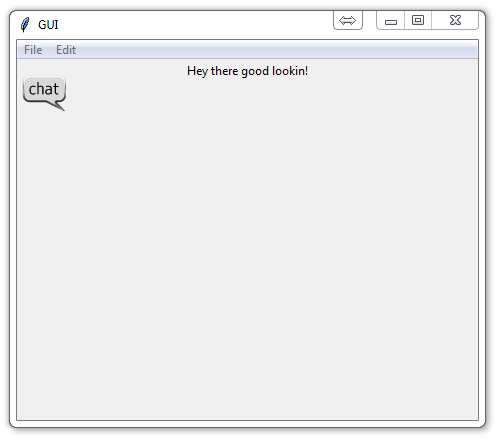
There exists 1 challenge(s) for this tutorial. for access to these, video downloads, and no ads.
|
| You are visitor 01402503 — GeezerVison does not store the pages you look up. Best viewed with Netscape Navigator 4.7 or Internet Explorer 6 at 800×600. No cookies required. |