GeezerVisonThe World Wide Web, restored to 800 pixels of glory. | ||||||||||||||
| Home|About|Gaming cabinet|Archives|How it works|Starter sites | ||||||||||||||
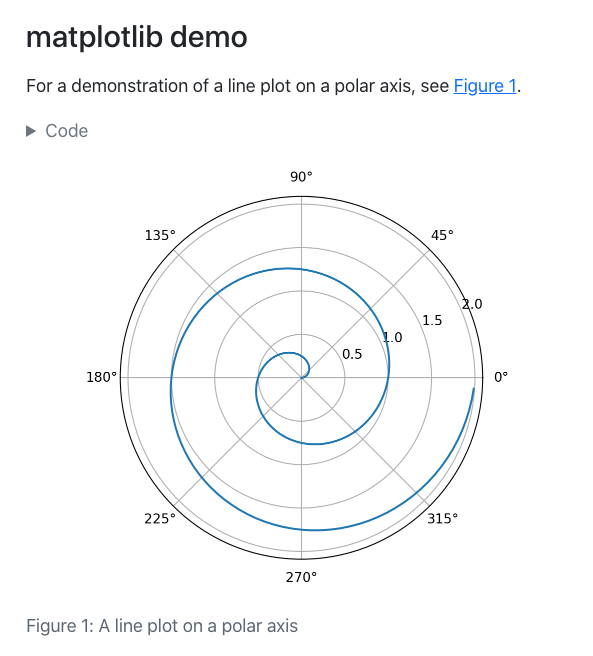
GeezerVison is showing quarto.org — Using Python – Quarto OverviewQuarto supports executable Python code blocks within markdown. This allows you to create fully reproducible documents and reports—the Python code required to produce your output is part of the document itself, and is automatically re-run whenever the document is rendered. If you have Python and the Code BlocksCode blocks that use braces around the language name (e.g. You’ll note that there are some special comments at the top of the code block. These are cell level options that make the figure cross-referenceable. This document would result in the following rendered output:
You can produce a wide variety of output types from executable code blocks, including plots, tabular output from data frames, and plain text output (e.g. printing the results of statistical summaries). There are many options which control the behavior of code execution and output, you can read more about them in the article on Execution Options. In addition to code blocks which interrupt the flow of markdown, you can also include code inline. Read more about inline code in the Inline Code article. RenderingQuarto will automatically run computations in any markdown document that contains executable code blocks. For example, the example shown above might be rendered to various formats with: Terminal The Quarto can also render any Jupyter notebook (.ipynb): Note that the target file (in this case Note that when rendering an .ipynb Quarto will not execute the cells within the notebook by default (the presumption being that you already executed them while editing the notebook). If you want to execute the cells you can pass the InstallationIf you already have Python 3 and Jupyter installed in your environment, then you should have everything required to render Jupyter notebooks with Python kernels. If you don’t yet have Python 3 on your system, we recommend you install a version using the standard installer from https://www.python.org/downloads/. If you are in a fresh Python 3 environment, installing the
You can verify that Quarto is configured correctly for Jupyter with: Quarto will select a version of Python using the Python Launcher on Windows or system If you are using a virtual environment with your environment or project, see more at Virtual Environments. WorkflowYou can author Quarto documents that include Python code using any text or notebook editor. No matter what editing tool you use, you’ll always run Terminal Note that when rendering an You can also specify this behavior within the notebook’s YAML front matter: Embed NotebooksIn addition to including executable Python code chunks in a Quarto document, you can also embed cells from an external Jupyter Notebook ( PositronThe Quarto Extension is bundled with Positron, and provides a variety of tools for working with
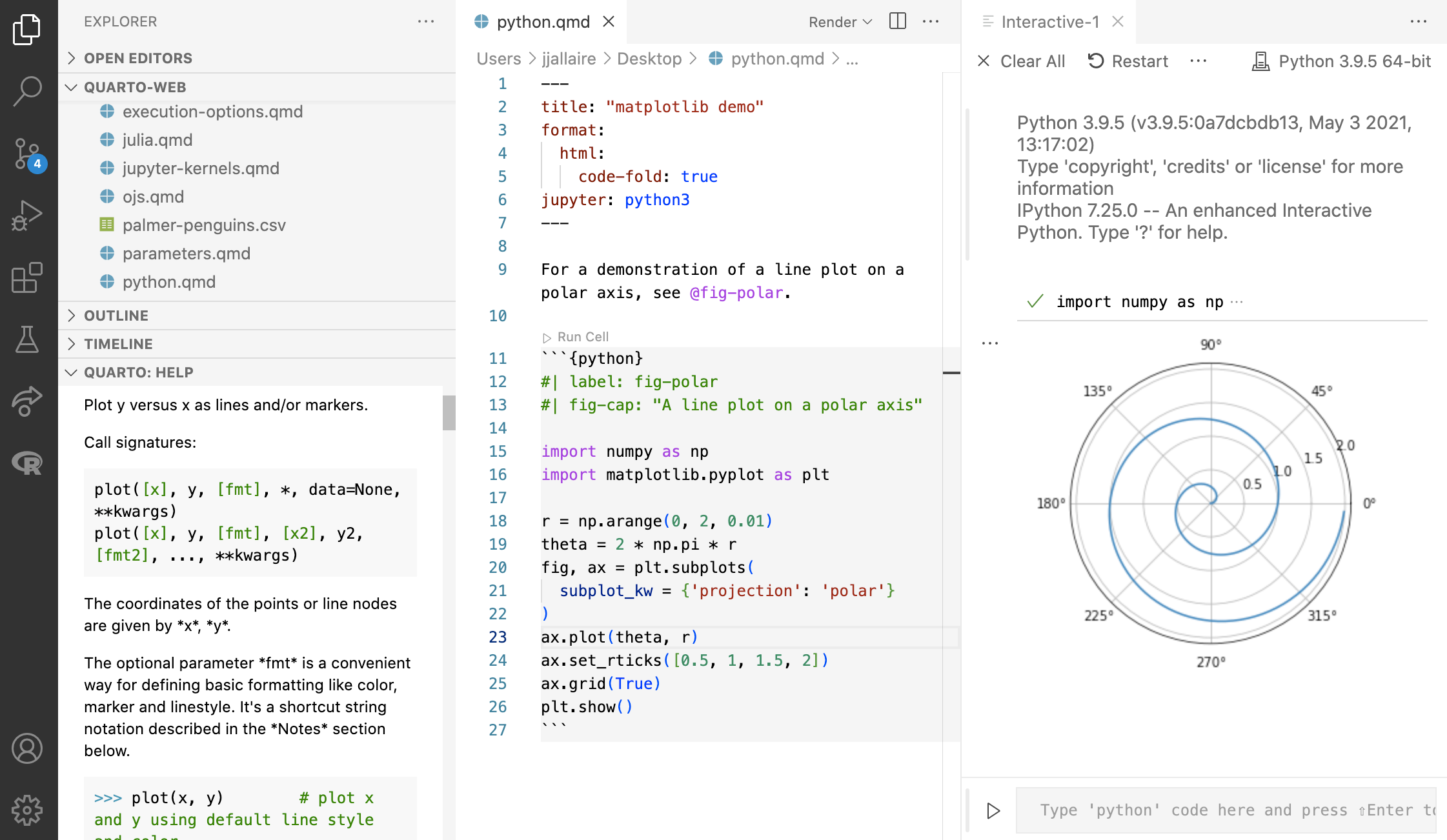
The extension includes a Quarto: Preview command that can be accessed via the Command Palette, the keyboard shortcut , or a Preview button ( You can read more about using Positron in Tools: Positron. You can also use the Positron notebook editor to create VS CodeThe Quarto Extension for VS Code provides a variety of tools for working with
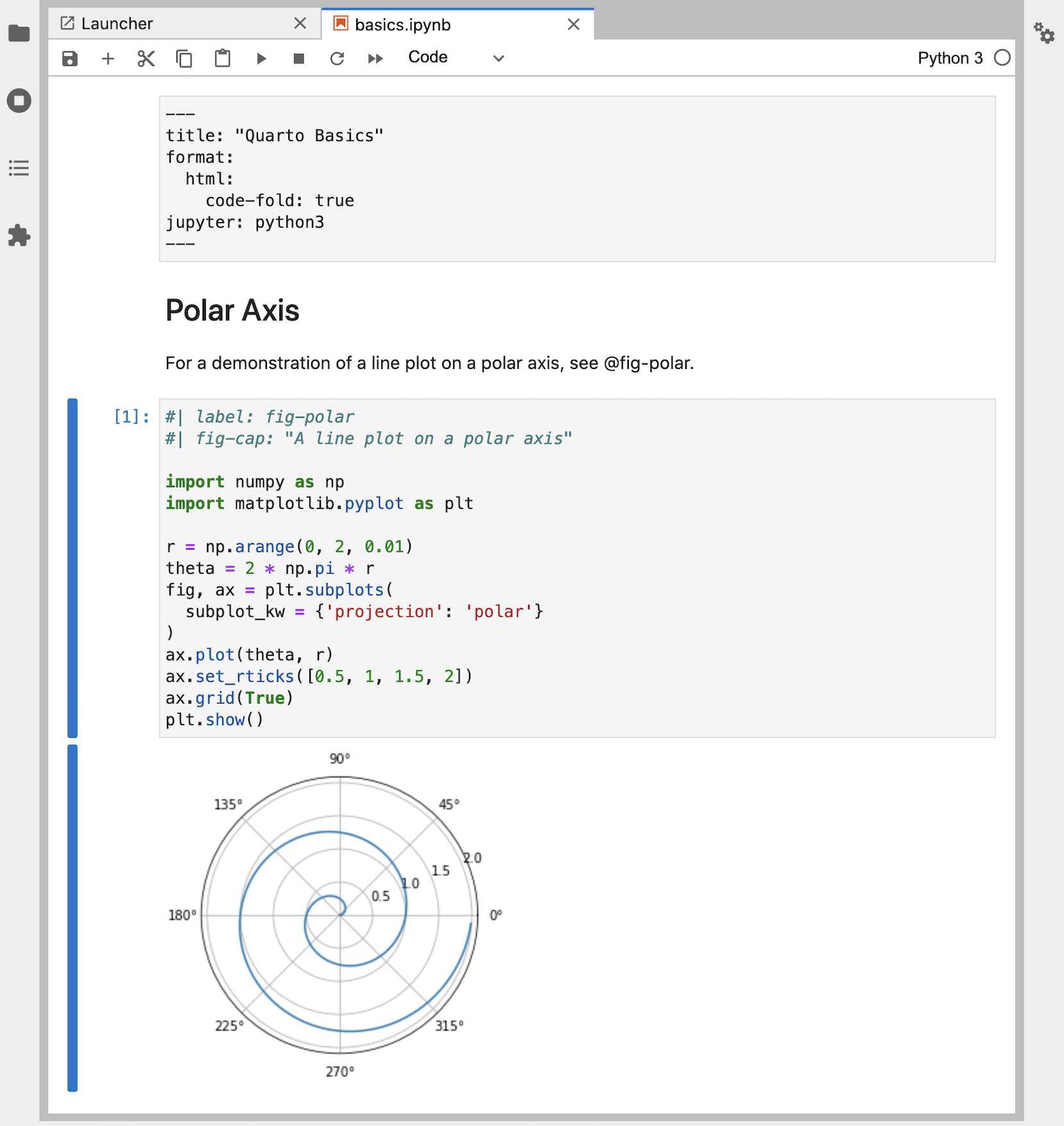
You can install the VS Code extension by searching for ‘quarto’ in the extensions panel or from the extension marketplace. You can also use the VS Code notebook editor to create Python notebooks that you will render with Quarto. The next section discusses using notebooks with Quarto in the context of Jupyter Lab, but the same concepts apply to VS Code. Jupyter LabWe could convert the simple If we open this notebook in Jupyter Lab and execute the cells, here is what we see:
Note that there are three different types of cell here:
When working in a Jupyter notebook, you can use The preview will be updated every time you save the notebook in Jupyter Lab. CachingJupyter Cache enables you to cache all of the cell outputs for a notebook. If any of the cells in the notebook change then all of the cells will be re-executed. To use Jupyter Cache you’ll want to first install the
To enable the cache for a document, add the You can also specify caching at the project level. For example, within a project file: Note that changes within a document that aren’t within code cells (e.g. markdown narrative) do not invalidate the document cache. This makes caching a very convenient option when you are working exclusively on the prose part of a document. Jupyter Cache include a RenderingYou can use AlternativesIf you are using caching to mitigate long render-times, there are some alternatives you should consider alongside caching. Disabling ExecutionIf you are working exclusively with prose / markdown, you may want to disable execution entirely. Do this by specifying the Note that if you are authoring using Jupyter Freezing ExecutionIf you are working within a project and your main concern is the cumulative impact of rendering many documents at once, consider using the You can use the Note that Terminal Learn more about using Kernel SelectionThe Jupyter kernel used by Quarto is determined using the Note that you can also provide a full If no Jupyter kernel is specified, then the kernel is determined by finding an available kernel that supports the language of the first executable code block found within the file (e.g.
ImportantKernels from Conda
If you are using a kernel that is contained within an external conda environment you need to take an extra step to make sure it is recognized by Quarto. Please follow the instructions here to make conda managed kernels available: https://github.com/Anaconda-Platform/nb_conda_kernels#use-with-nbconvert-voila-papermill Note that this step is not required if you are merely using conda with Quarto. It applies to using kernels other than the default Python kernel that happen to be installed within a conda environment separate from the one you are using. Kernel DaemonTo mitigate the start-up time for the Jupyter kernel Quarto keeps a daemon with a running Jupyter kernel alive for each document. This enables subsequent renders to proceed immediately without having to wait for kernel start-up. The purpose of the daemon is to make render more responsive during interactive sessions. Accordingly, no daemon is created when documents are rendered without an active tty or when they are part of a batch rendering (e.g. in a Quarto Project). Note that Quarto does not use a daemon by default on Windows (as some Windows systems will not allow the socket connection required by the daemon). You can customize this behavior using the Note that if you want to use a daemon on Windows you need to enable it explicitly: Command LineYou can also control use of the Jupyter daemon using the following command line options: Terminal You can also force an existing daemon to restart using the This might be useful if you suspect that the re-use of notebook sessions is causing an error. Finally, you can print extended debugging information about daemon usage (startup, shutdown, connections, etc.) using the Conditional ExecutionTo execute a cell only for certain output formats, read the This pairs well with conditional content when both visibility and execution should depend on format. See Execution Context Information for the full JSON schema. | ||||||||||||||
| You are visitor 01402503 — GeezerVison does not store the pages you look up. Best viewed with Netscape Navigator 4.7 or Internet Explorer 6 at 800×600. No cookies required. |
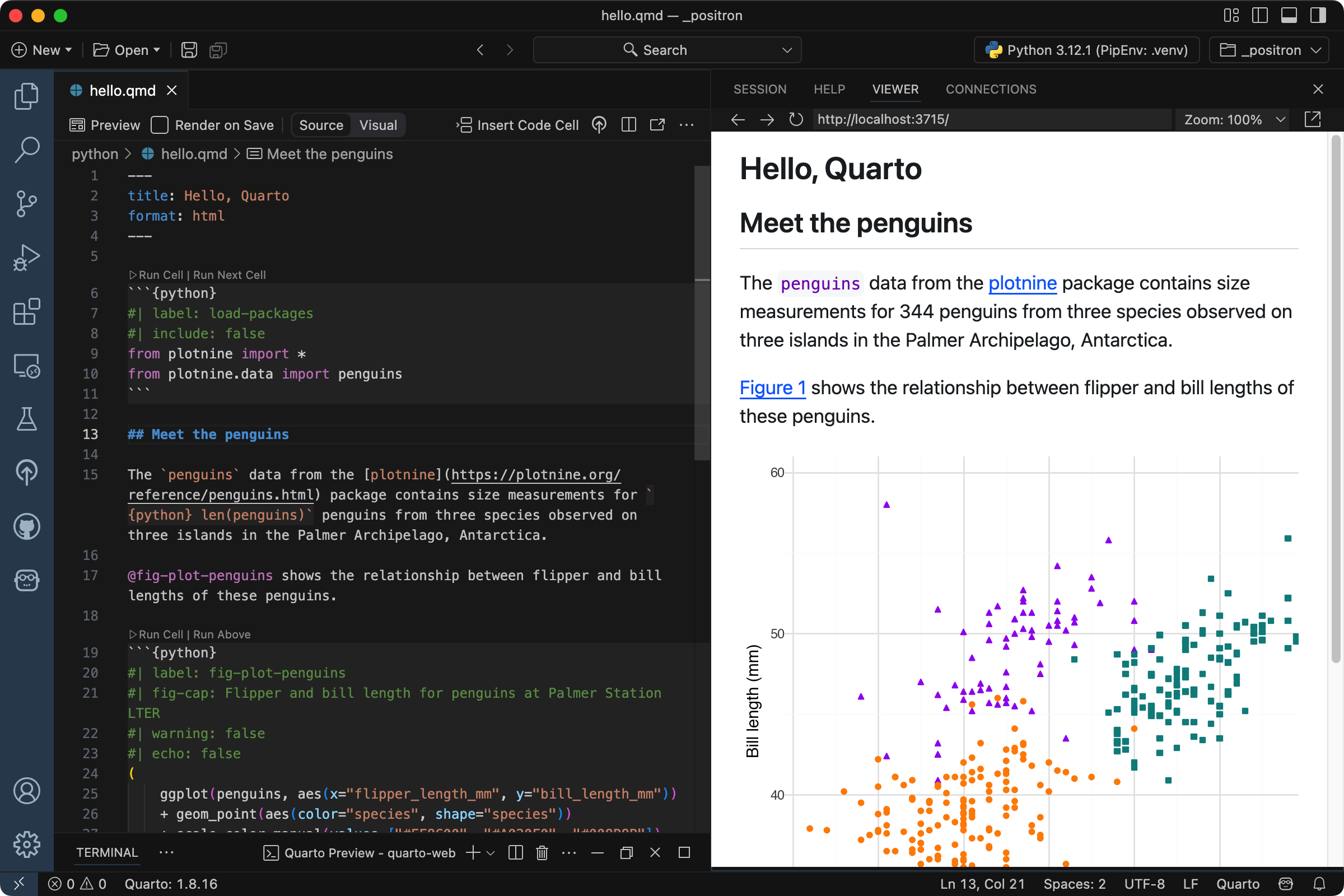
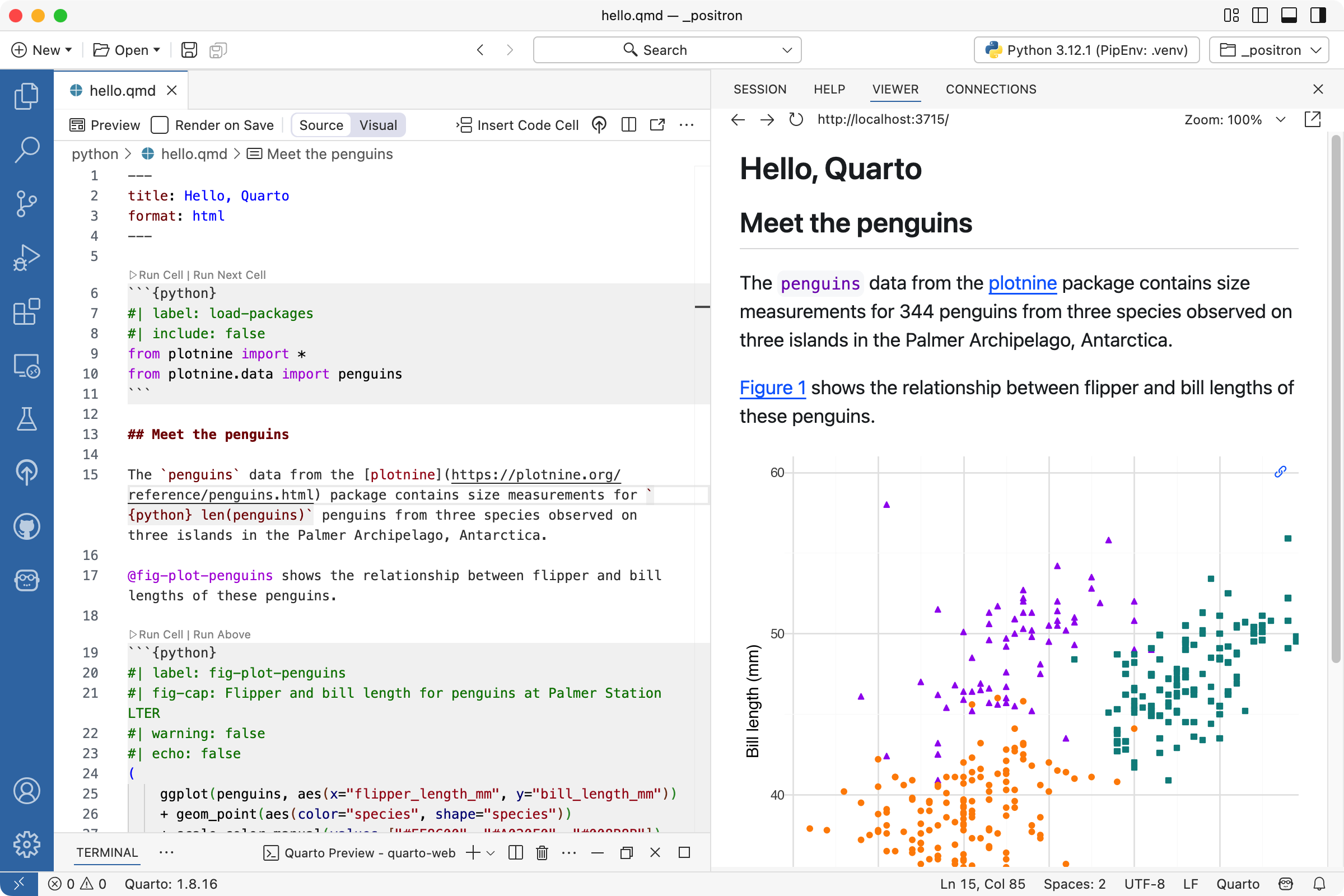

 ) in the editor toolbar. After rendering, a preview is displayed in the Viewer pane within Positron.