GeezerVisonThe World Wide Web, restored to 800 pixels of glory. |
| Home|About|Gaming cabinet|Archives|How it works|Starter sites |
GeezerVison is showing redis.io — Redis for VS Code Redis for VS CodeConnect to Redis from Visual Studio Code. Redis for VS Code is an extension that allows you to connect to your Redis databases from within Microsoft Visual Studio Code. After connecting to a database, you can view, add, modify, and delete keys, and interact with your Redis databases using a Redis Insight like UI and also a built-in CLI interface. The following data types are supported: Install the Redis for VS Code extensionOpen VS Code and click on the Extensions menu button. In the Search Extensions in Marketplace field, type "Redis for VS Code" and press the 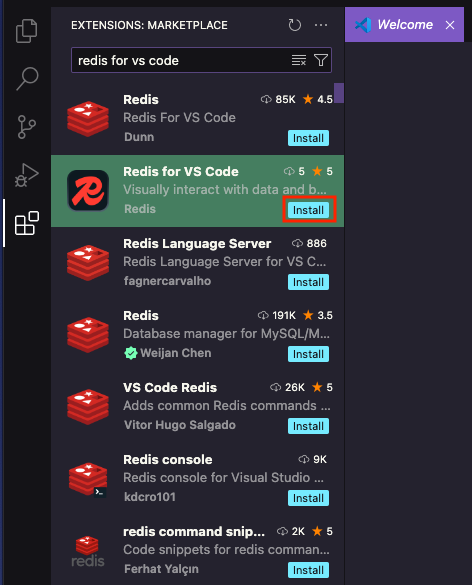
Once installed, check the Auto Update button to allow VS Code to install future revisions of the extension automatically. 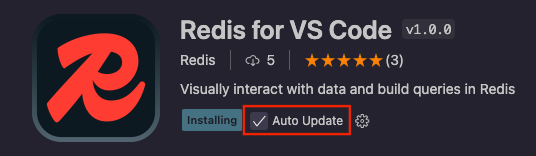
After installing the extension, your VS Code menu will look similar to the following. 
Connect to Redis databasesClick on the Redis mark (the cursive R) in the VS Code menu to begin connecting a Redis database to VS Code. If you do not currently have access to a Redis database, consider giving Redis Cloud a try. It's free. 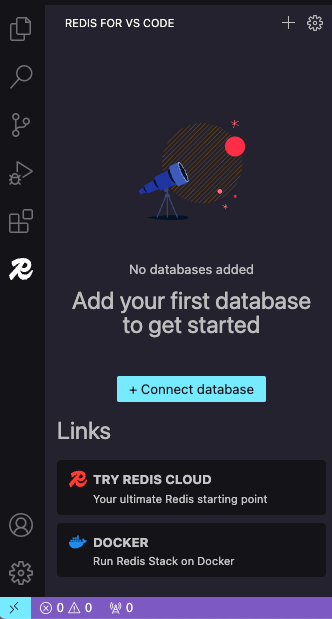
Click on the + Connect database button. A dialog will display in the main pane. In the image shown below, all the options have been checked to show the available details for each connection. These connection details are similar to those accessible from Note:
In the first release of Redis for VS Code, there is no way to change the logical database after you have selected it. If you need to connect to a different logical database, you need to add a separate database connection. 
After filling out the necessary fields, click on the Add Redis database button. The pane on the left side, where you would normally see the Explorer view, shows your database connections. 
Note:
Local databases, excluding OSS cluster databases, with default usernames and no passwords will automatically be added to your list of database connections. Connection toolsSeveral tools are displayed for each open connection. 
Left to right, they are:
Key viewHere's what you'll see when there are no keys in your database (the image on the left) and when keys are present (the image on the right). 
Redis for VS Code will automatically group the keys based on the one available setting, Delimiter to separate namespaces, which you can view by clicking on the gear icon in the top-right of the left side pane. Click on the current value to change it. The default setting is the colon ( 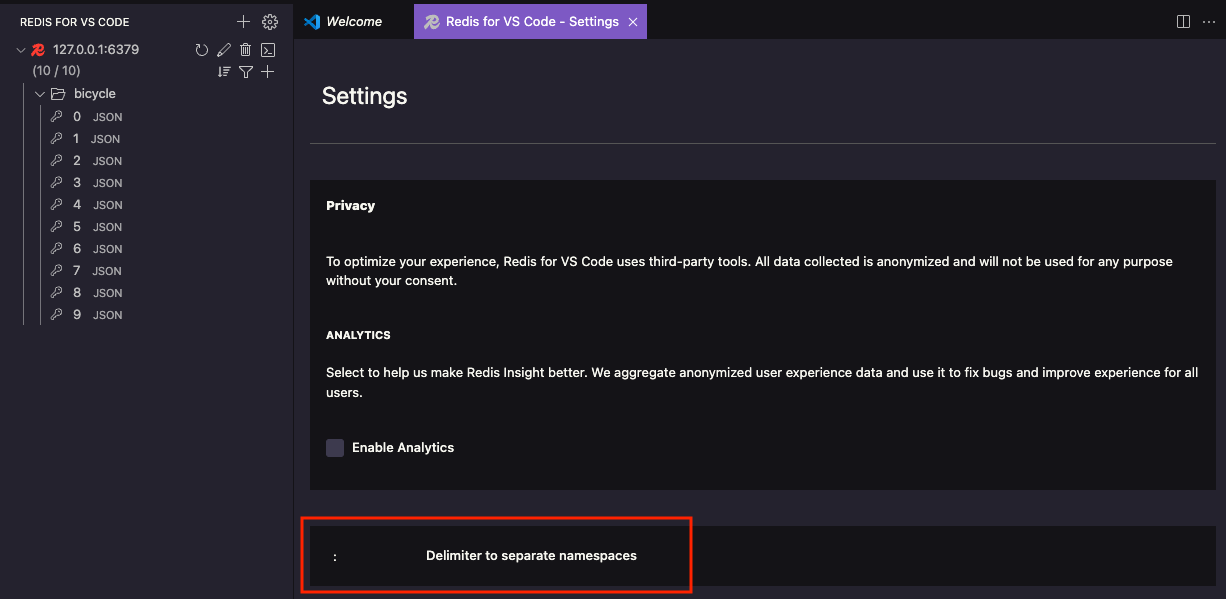
Click on a key to display its contents. 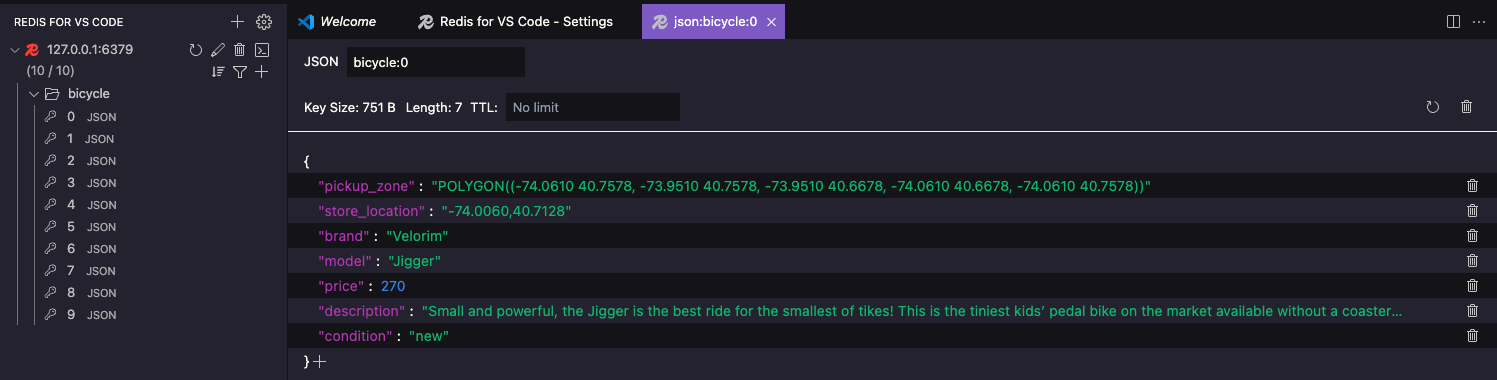
Key editing toolsThere are several editing tools that you can use to edit key data. Each data type has its own editing capabilities. The following examples show edits to JSON data. Note that changes to keys are immediately written to the server.
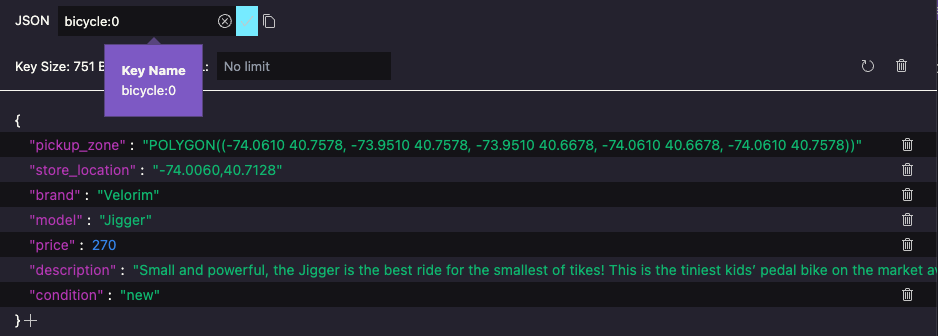


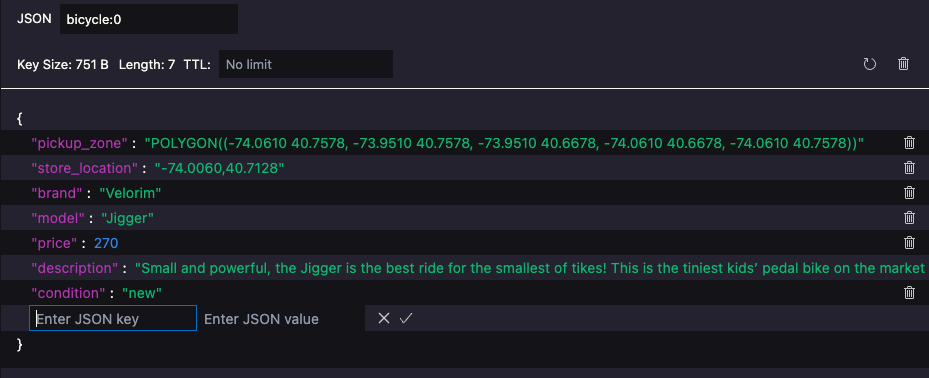

For strings, hashes, lists, sets, and sorted sets, the extension supports numerous value formatters (highlighted in red in the image below). They are:
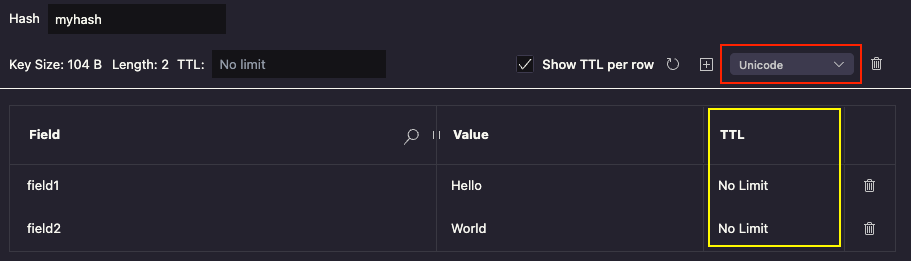
Also for Hash keys, you can set per-field TTLs (highlighted in yellow in the image above), a new feature added to Redis Open Source 7.4. CLI toolThe connection tool with the boxed 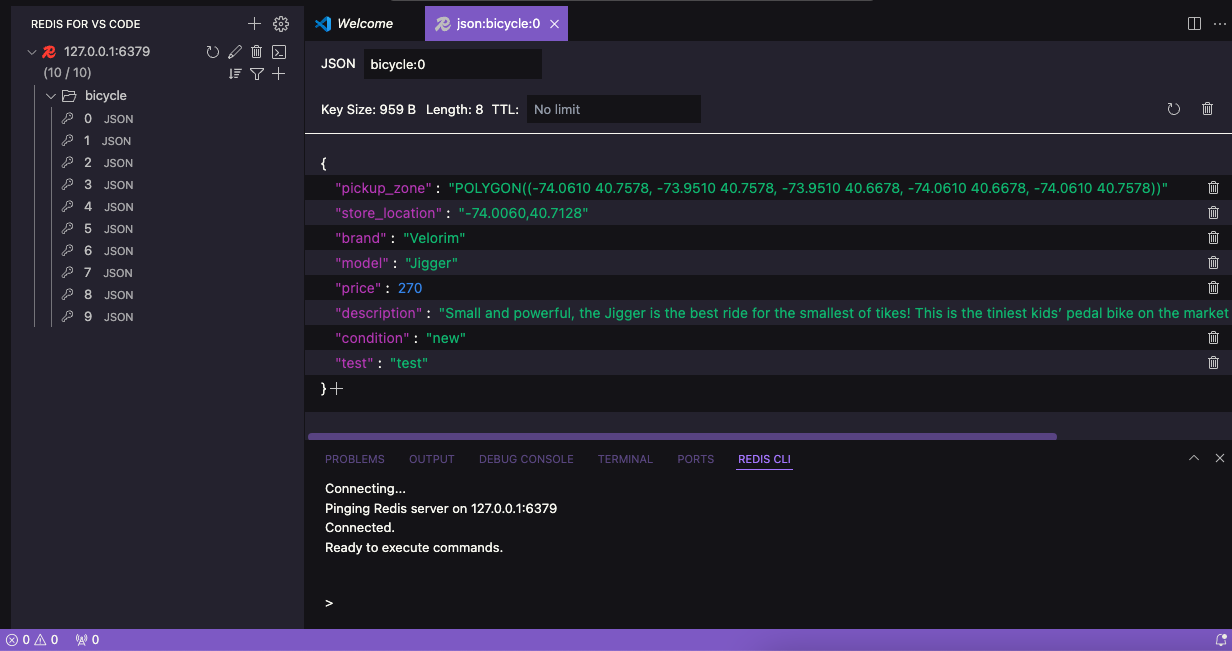
The CLI interface works just like the
RATE THIS PAGE
Back to top ↑
On this page |
| You are visitor 01402792 — GeezerVison does not store the pages you look up. Best viewed with Netscape Navigator 4.7 or Internet Explorer 6 at 800×600. No cookies required. |