GeezerVisonThe World Wide Web, restored to 800 pixels of glory. | |||||||||||||||||||||||||||||||||||||||||||||||||||||||||||||||||||||||||||||||||
| Home|About|Gaming cabinet|Archives|How it works|Starter sites | |||||||||||||||||||||||||||||||||||||||||||||||||||||||||||||||||||||||||||||||||
GeezerVison is showing reelyactive.github.io — reelyActive Minew B10 Wristband Configuration Guide Configure a Minew B10 WristbandOur step-by-step guide to configure the multi-use wristband with the BeaconSET+ app. 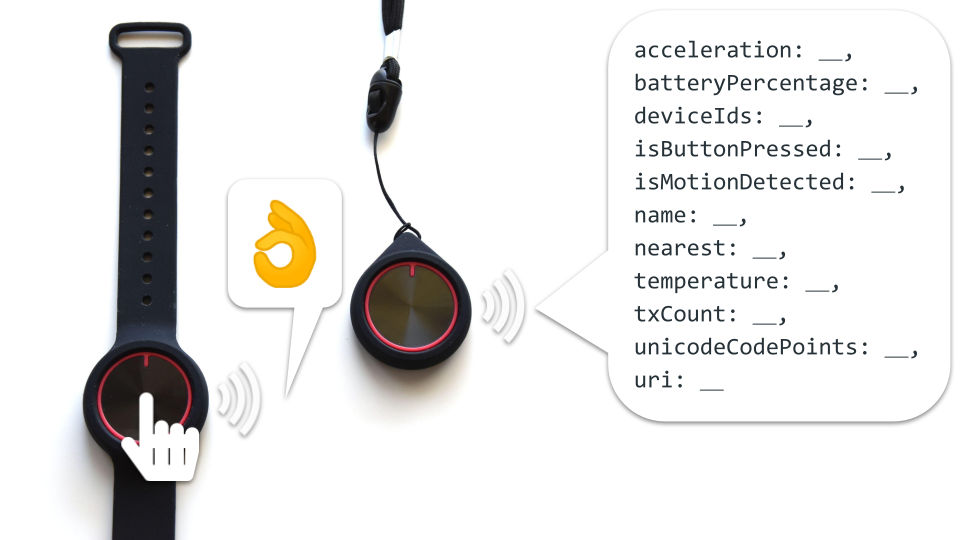
The TL;DR (Too Long; Didn't Read)Learn how we at reelyActive configure the wristbands for real-time sensing and location
PrerequisitesA Minew B10 wristband and the BeaconSET+ mobile app. 
Detect and connect Step 1 of 3Identify and connect to the B10 in the BeaconSET+ mobile app.

Physically prepare and identify the B10 Part 1The B10 must be charged and powered on in order to be detected by the BeaconSET+ mobile app. 
Check that the B10 is powered on by pressing the button once and observing a haptic vibration. If no haptic vibration is observed, power on the B10 by holding down the button until a vibration is observed. If the B10 cannot be powered on, first charge the device. Remove the B10 from its silicone wristband or pendant and note the 48-bit (16 character) identifier on the reverse side of the button (ex: AC233FABF61A). This uniquely identifies the B10 in the BeaconSET+ mobile app (and in Pareto Anywhere too). 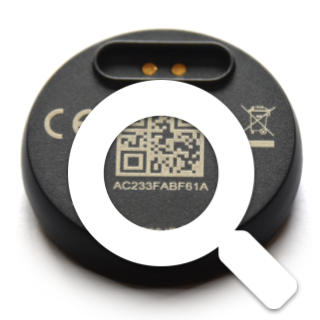
Identify and connect in BeaconSET+ Part 2The BeaconSET+ mobile app requires Bluetooth and Location to be enabled on the mobile device. 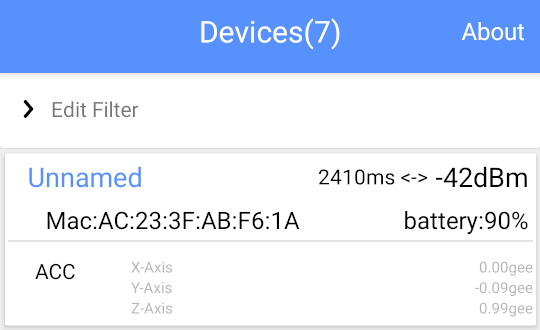
Too many devices detected? Select Edit Filter in the app and reduce the RSSI threshold to display only devices in close proximity. Configure the transmission SLOTs Step 2 of 3Configure the B10 to transmit button presses and motion.

Determine what to transmit Part 1The Minew B10 can transmit any of the following packets periodically, or spontaneously given any of the following triggers: Packets
Triggers
Countless combinations are possible. In Part 2 next, we'll provide the configuration details for one specific combination—a personnel safety application—with the following behaviour:
Configure each SLOT Part 2From the BeaconSET+ app, individually configure each of the six SLOTs as follows: EmptySet the Frame Type to Empty and Save to maximise battery life. UID
UID
EmptySet the Frame Type to Empty and Save to maximise battery life. INFODo not modify this SLOT: the BeaconSet+ app requires the INFO packet to connect! ACC
Observe data in Pareto Anywhere Step 3 of 3Optionally observe the transmitted data in your web browser.

Install Pareto Anywhere (OPTIONAL) Part 1Follow one of our tutorials to install Pareto Anywhere on your platform of choice:
Observe the /context API (OPTIONAL) Part 2Browse to the /context API of the Pareto Anywhere instance, specifying the B10's identifier in the route as follows: http://pareto.local/context/device/ac233fabf61a/2 Change pareto.local to the IP address and port (ex: 127.0.0.1:3001) as required, and the identifier of the device (ex: ac233fa000000) to that of your B10.* The /2 at the end specifies that the identifier is an EUI-48. *alternatively, browse to …/context and select your B10 from the list of detected devices. 
Enjoy the data (OPTIONAL) Part 3Our cheatsheet details the raddec and dynamb JSON output from the Pareto Anywhere open source middleware.
Tutorial prepared with ♥ by jeffyactive. You can reelyActive's open source efforts directly by contributing code & docs, collectively by sharing across your network, and commercially through our packages.Where to next?Continue exploring our open architecture and all its applications.
| |||||||||||||||||||||||||||||||||||||||||||||||||||||||||||||||||||||||||||||||||
| You are visitor 01402792 — GeezerVison does not store the pages you look up. Best viewed with Netscape Navigator 4.7 or Internet Explorer 6 at 800×600. No cookies required. |


