GeezerVisonThe World Wide Web, restored to 800 pixels of glory. |
| Home|About|Gaming cabinet|Archives|How it works|Starter sites |
GeezerVison is showing reference.wolfram.com — Installing MathLM—Wolfram Documentation Installing MathLMRequirements
MathLM is available for Windows, Linux, and macOS. For a detailed list of specific platforms, visit www.wolfram.com/mathematica/system-requirements.html. Each MathLM license server can support any combination of client machines, regardless of the platform on which MathLM itself is running. MathLM automatically supports both IPv4 and IPv6 environments.
The machine that you choose as a license server should be stable and should have a reliable TCP/IP connection to the clients you want to serve. As MathLM requires minimal processor and memory resources, an older machine with a reliable network connection would be an acceptable license server. Ideally, there should not be any intervening firewalls between the license server and the clients. If there is an intervening firewall, you will need to configure the network to allow traffic to an appropriate port through the firewall. The license server must be located at the physical site where your product is registered, as stipulated by your license agreement.
To install and run MathLM, you must register with Wolfram Research and receive a password. See "Registration and Passwords" for further information.
Installing MathLM on Windows
To install MathLM on Windows, you must have administrative privileges.
To Install MathLM on Windows:1. On the My Products tab in your Wolfram Account, select the appropriate license and download the MathLM installer (if you do not see your products, go to your Wolfram User Portal). Double-click the MathLM Setup executable file. The MathLM Setup dialog box appears: 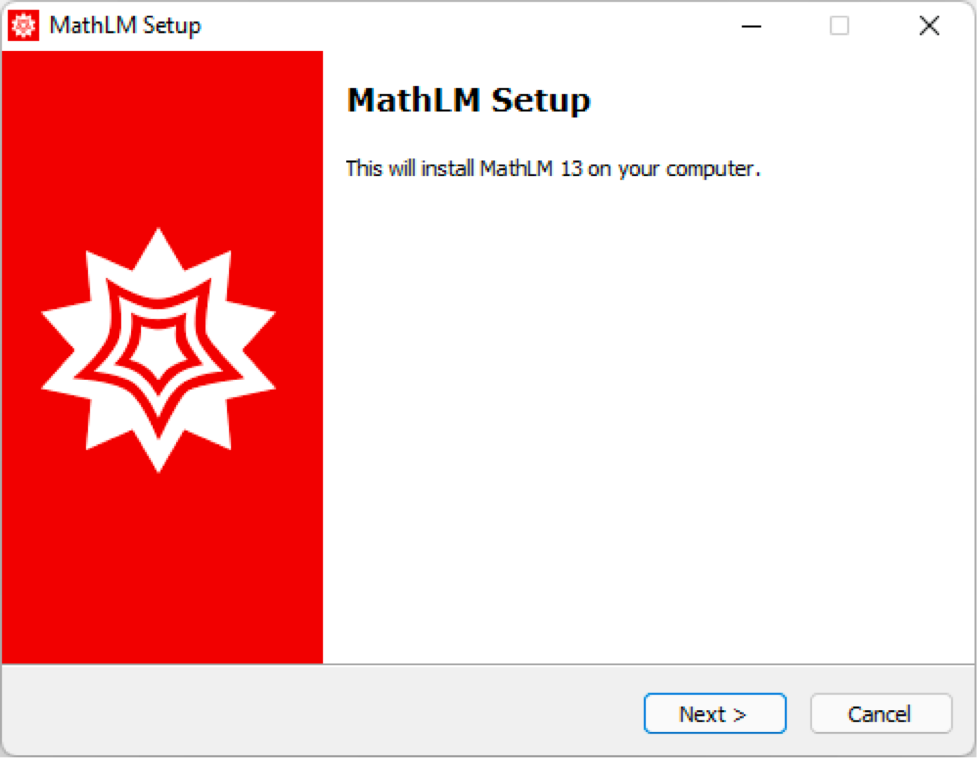
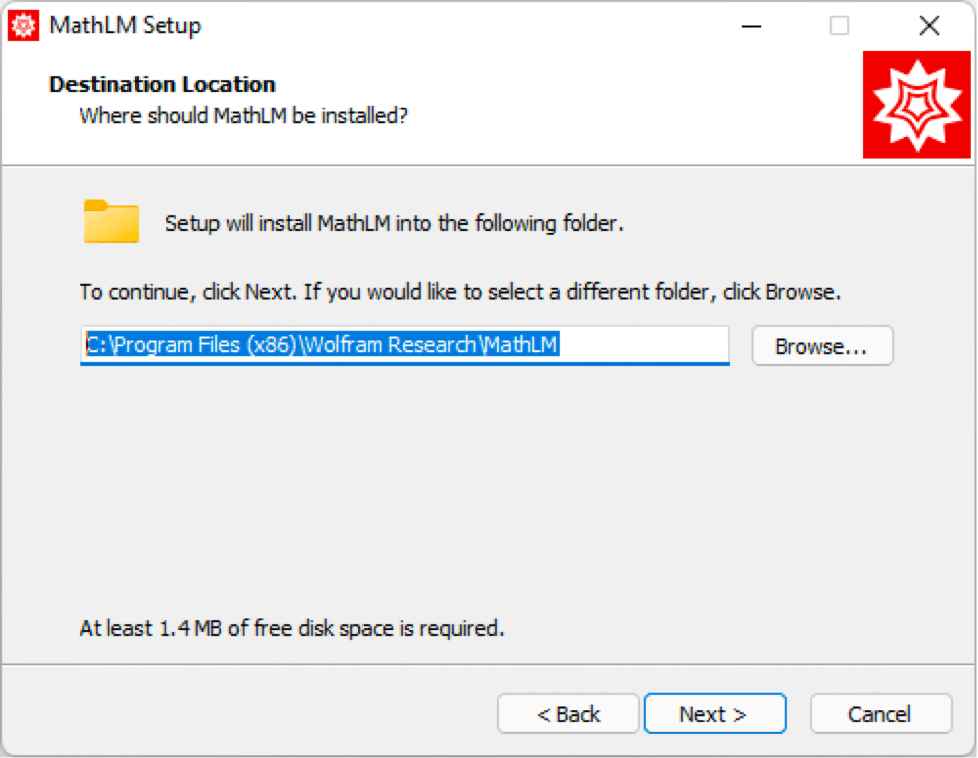
2. Click Next. The Destination Location dialog appears:
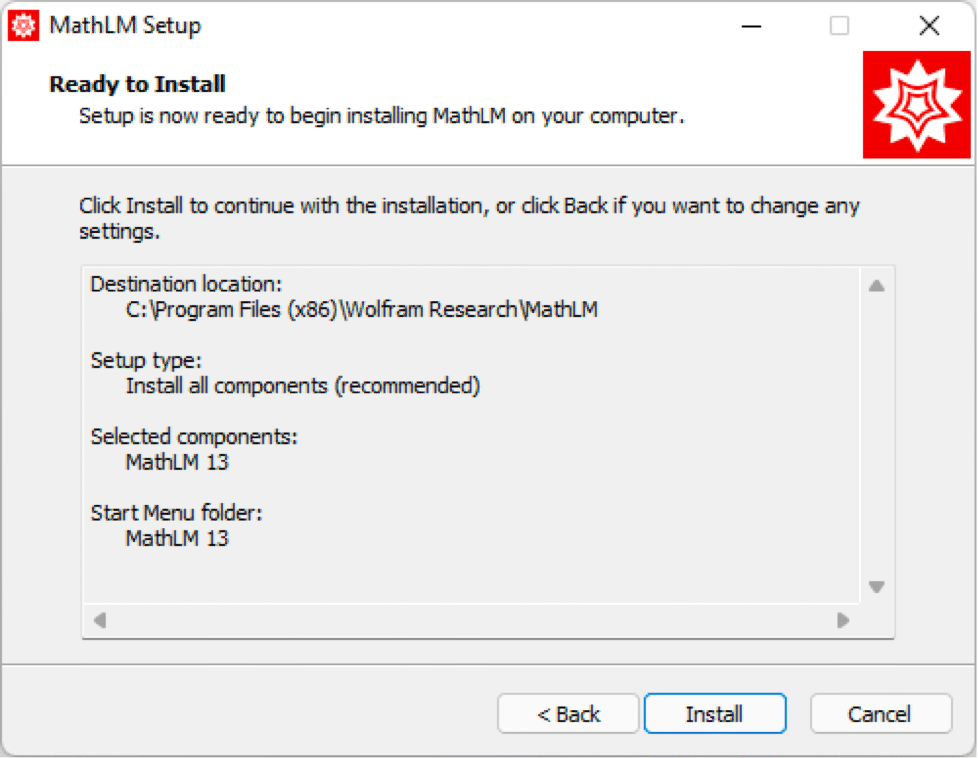
3. By default, MathLM is installed in the directory C:\Program Files (x86)\Wolfram Research\MathLM. If you want to install to the default directory, click Next to continue; otherwise, click Browse and select your desired installation directory. If applicable, select any previous MathLM installations you want to remove. Click Next to continue. The Ready to Install dialog appears.
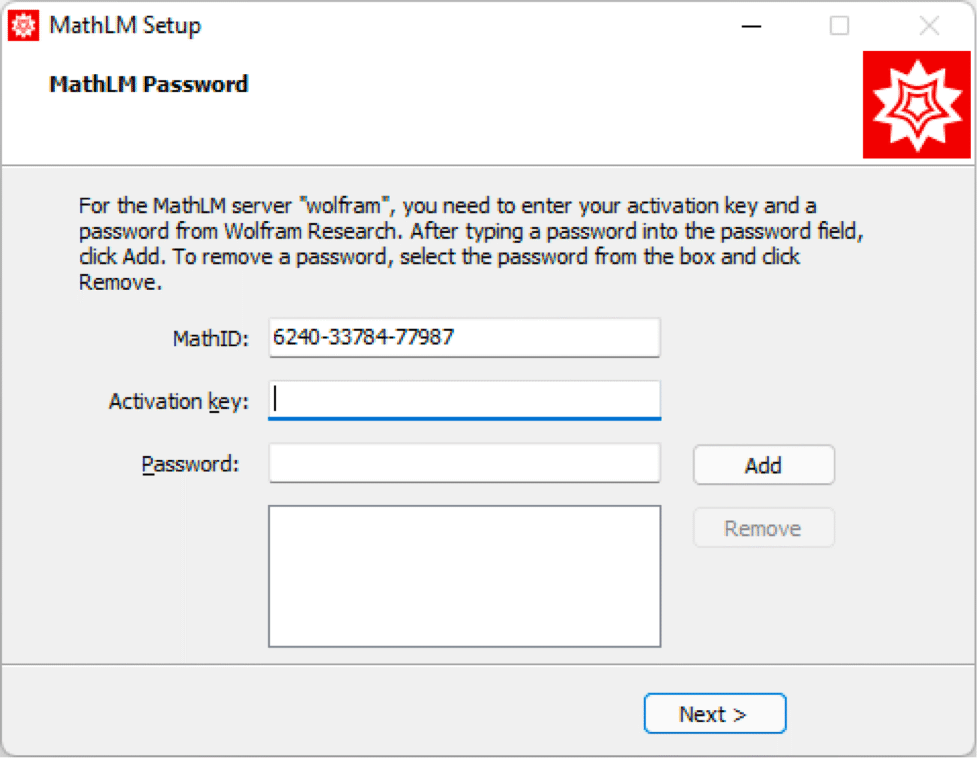
Note: If you are installing over a previous version of MathLM, your existing mathpass file, custom settings and MonitorLM configuration files will not be deleted. 4. Click Install. MathLM is installed, and the MathLM Password dialog appears:
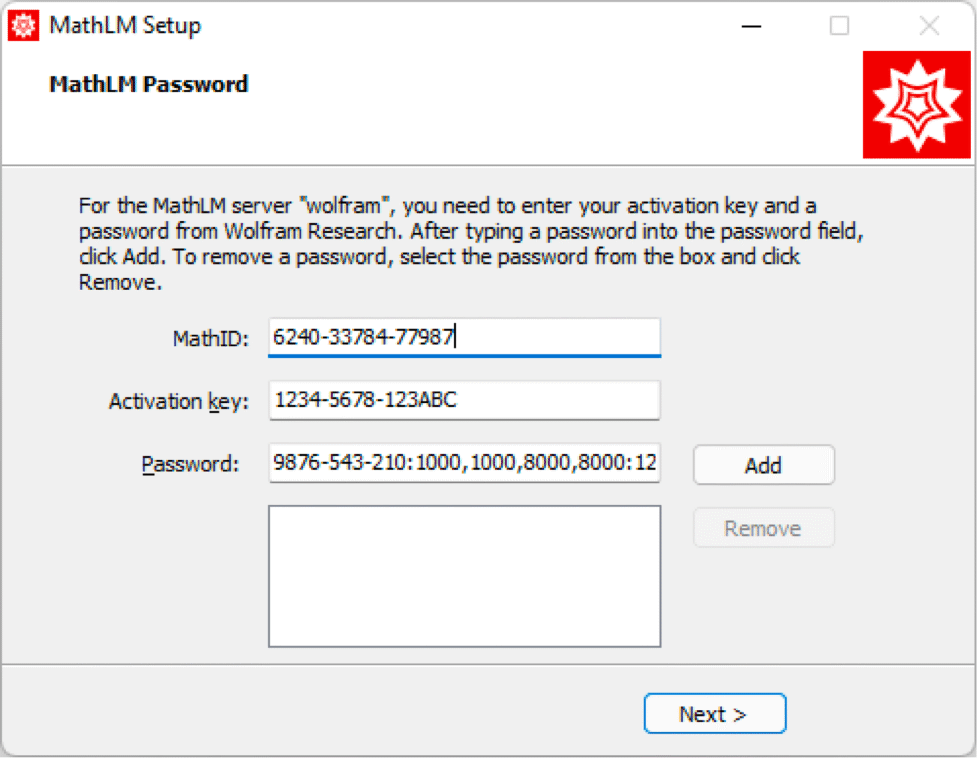
5. Note the MathID in the MathID field (also known as MachineID). Enter the activation key and your MathID in the Password Generator in your Wolfram Account (or the Password Request form in your User Portal). A password is returned. 6. Enter your activation key and password in the MathLM Password dialog:
7. Click Add. The password is moved to the lower box in the dialog. 8. Click Next. The Completing the MathLM installation screen appears.
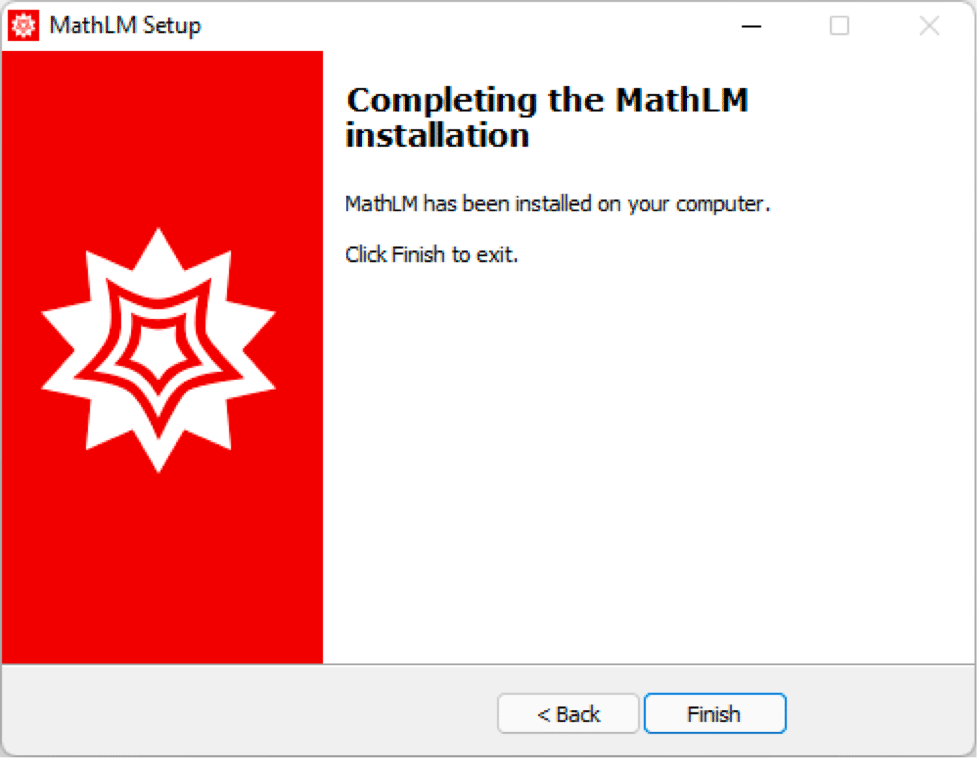
9. Click Finish. The installer quits. After the installation is completed, MathLM will start automatically. For information on configuring MathLM with additional options, refer to "Launching MathLM". To activate Wolfram with a Mathematica license using a license server, follow the instructions in the reference material.
Installing MathLM on macOS and Linux
To install and run MathLM on macOS and Linux, you may need administrative privileges.
To Install MathLM on macOS and Linux:1. On the My Products tab in your Wolfram Account, select the appropriate license and download the MathLM_15.0_MULT installer (if you do not see your products, go to your Wolfram User Portal). 2. Unzip the files into your chosen folder (e.g. Downloads). 3. Open a terminal and change the directory to where the installer is located. For example, if the installer is located in your Downloads folder, run: cd ~/Downloads/MathLM_15.0_MULT This changes the directory to your unzipped installation files folder in Downloads. If you wish to verify that the installer file is in your Downloads folder, use the command ls. 4. Installing MathLM under its default locations typically requires administrative privileges. Use the command sudo to run the installer script. For example, if the installer is called M-UNIX-LM.sh, run: sudo bash M-UNIX-LM.sh sudo asks you to enter your password on the machine. After providing it, the installer starts. sudo can be omitted when installing to a location for which you have the necessary write permissions. 5. After providing the administrative password, the installer starts. Note the machine name and MathID here, as you will need them later. MathLM 15.0 for UNIX Installer Archive 6. Type “c” to continue installation. Enter your activation key from your Wolfram Account license (or the User Portal). Enter your activation key located on your electronic or printedLicense Certificate. Your activation key is of the formXXXX-XXXX-XXXXXX, where the X are digits or letters.Enter your activation key : 1234-5678-123ABC 7. To generate a password for MathLM, go to the Password Generator in your Wolfram Account (or the Password Request form in your User Portal) and enter the activation key and MathID (also known as MachineID) obtained in the preceding steps. Click the Generate button to get your new password. In the MathLM installer, enter your MathLM password and press Enter to continue. Enter your MathLM password: 2222-222-222:100,100,800,800:9:20251231:CB 8. If you are using MathLM with a single Wolfram product (e.g. Mathematica), type “n” and press Enter to continue. Enter additional activation key? (y/n)[y]: If you are using MathLM for several Wolfram products (e.g. Mathematica and System Modeler), follow steps 6 and 7 from the MathLM installation instructions once more to enter the activation key and password for the other product. 9. The installer prompts you to enter an installation directory. Press Enter to install MathLM to the default directory. The installer will copy relevant files from the distribution Alternatively, type the full directory path to your desired installation directory and press Enter. 10. If the directory does not exist, the installer will create it for you. Type “y” and press Enter to continue. "/usr/local/Wolfram/MathLM" does not exist. Create? (y/n)[y]: 11. Press Enter to select the default linking directory. The installer will copy relevant files from the distribution Alternatively, type in the full directory path and then press Enter. 12. The installation is now complete. /usr/local/Wolfram/MathLM 13. Launch the MathLM server from the terminal. cd /usr/local/Wolfram/MathLM Note: This command assumes you installed MathLM to the default location. If you installed it in a different location, please replace “/usr/local/Wolfram/MathLM” with the path to your installation directory. 14. Verify your MathLM server is running by activating Mathematica via this network licensing server. As the server name, use <machine_name>.local (for macOS) and <machine_name> (for Linux) where <machine_name> is the machine name you noted earlier. Related Tech Notes |
| You are visitor 01402503 — GeezerVison does not store the pages you look up. Best viewed with Netscape Navigator 4.7 or Internet Explorer 6 at 800×600. No cookies required. |