GeezerVisonThe World Wide Web, restored to 800 pixels of glory. |
| Home|About|Gaming cabinet|Archives|How it works|Starter sites |
GeezerVison is showing smallbasic.github.io — SmallBASIC | android Android
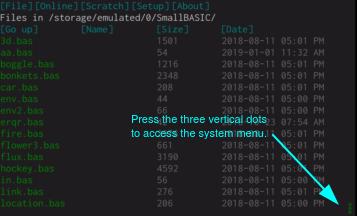
The Android version of SmallBASIC comes with a built-in Integrated Development Environment (IDE), you can write programs on your Android-powered tablet or mobile phone and run them instantly. Getting startedIn the video below the basic steps of creating a file, opening it in the internal editor and executing the program are shown. Please note, that at the first start of the Android version of
SmallBASIC, the editor is turned off. A tap on a program name will start
it immediately. If you want to edit the file, please turn on the editor
by tapping on the three dots in the lower right corner and choosing the
entry Step-by-Step Guide
The items displayed depend on whether the file browser, code editor or a running program is active.
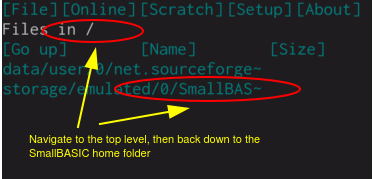
When the file browser is active you should see an “Editor” item followed by either [ON] or [OFF]. If it shows “OFF” then press the item to switch it to “ON”. Before you start editing a program you should navigate to the “SmallBASIC” folder. You can get there by pressing “[Go Up]” until you hit the root level “/”. You should then see an entry for “SmallBASIC”. If there’s not enough room to display the entire text it might appear as something like “storage/emulated/0/SmallBAS~”. You may need to accept a permission request to allow access to this folder when you first launch SmallBASIC for the first time. Also make sure you do not select the internal “net.sourceforge.smallbasic” folder since this could be overwritten in a future SmallBASIC update.
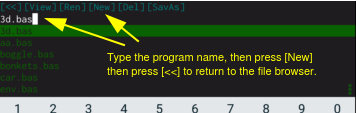
Now press the “[File]” link in the top left corner of the screen. This will take you to the file manager. From here you can enter a file name then press “[New]” to create it. Now press “[<<]” to exit the file manager.
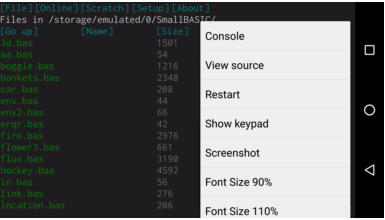
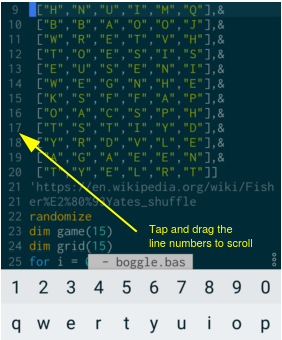
Your new file should be listed in the file browser. Press the file name link. You should finally see the program editor. If the keypad does not appear, press the system menu button and select “Show Keypad”. For best results you may need to install a separate keyboard. “AnySoftKeyboard”, “Hacker’s Key” and “GBoard” all seem to work well. Start typing out your program. When you are ready to test your program, press the system menu button then select “Run”. In the help screen, the “>” characters on the left are buttons to expand (or contract) the help item contents. In the editor, the line number display also functions as a scrollbar. If you want to write a quick experimental program you can use the “[Scratch]” option to bypass the above file name setup steps.
All of the above UI elements are written in SmallBASIC, see main.bas Using Location, Sensor and Text to speech services.To use the following services, your program must start with the following two lines: The first line tell SmallBASIC to dynamically load runtime modules. The second line imports the android module. LocationGPS_ON Instructs the system to commence recording location information. Note: This relies on the device location services being enabled by the user. GPS_OFF Turns off recording of location information. LOCATION Returns a MAP variable holding the following details:
Note: the location data is updated internally at 1 second intervals. For more details, see: https://developer.android.com/reference/android/location/Location.html SensorSENSOR_ON Enables the given sensor (currently only one may be enabled at a time). Throws an exception if the given sensor is not available (for example, not all devices have a gyroscope). SENSOR_OFF Disables any active sensor. SENSOR Returns a MAP variable holding sensor details. x, y, z - The spatial position light - (SensorLight) distance - (SensorProximity) For more details, see:
Text to speechOutput data as spoken text. Notes: - The text to speech module takes a moment to initialise. This is performed the first time you call SPEAK. - You may want to turn off the system setting to send TTS usage statistics to google before using this feature. TTS_PITCH Sets the voice pitch (default is 1.0). TTS_RATE Sets the rate of speaking (default is 1.0) TTS_LANG Sets the locale, for example “en”, “de”, “fr” for English, German, France. May cause the system to download the language codec if not already installed. TTS_OFF Turns off text to speech output. SPEAK Performs text to speech (default is ENGLISH). HTTPS Web request
The Note: For desktop versions, you can utilize the
The code snippet demonstrates how to use REQUEST to interact with a specified endpoint, providing necessary data and token for authentication. IoT Device CommunicationUSB Serial SupportThese functions allow you to connect, send, and receive data over a USB serial connection. 🔌 Open a USB Serial ConnectionParameters:
Returns:
❌ Close the USB ConnectionCloses the current USB connection. Always call this when you’re done using the device. 📋 Get Device DescriptionReturns a string with details about the connected USB device, such as product name or manufacturer info (if available). 📥 Receive DataReads incoming data from the connected USB device. Returns: A string containing the received data, or an empty string if no data is received before timeout. 📤 Send DataSends data to the connected USB device. Parameters: dat – The data to send as a string. Returns: The number of bytes successfully sent. 📝 ExampleBluetooth SupportThese functions allow you to connect to Bluetooth serial devices, send and receive data, and manage the connection within your SmallBASIC program. 🔌 Open a Bluetooth Serial ConnectionParameters:
Returns:
❌ Close the Bluetooth ConnectionCloses the current Bluetooth connection. Tip: Always close the connection when you’re done to free resources. 🔌 Check whether the Bluetooth Connection is openReturns true if the Bluetooth connection is currently open, otherwise false. 📋 Get Device DescriptionReturns a string with details about the Bluetooth connection inclusing name and address (if available). 📥 Receive DataReads incoming data from the connected Bluetooth device. Returns: A string containing the received data, or an empty string if no data is received before the timeout. 📤 Send DataSends data to the connected Bluetooth device. Parameters: dat – The data to send as a string. Returns: The number of bytes successfully sent. 📝 ExampleThis example opens a connection to a device named “TeensyBT”, then continuously sends and receives data in a loop. How to edit and run a programInternal editor:
Desktop SmallBASIC
File browser:
Separate editor on device:
Web Service:
QRcode:
Note: the tool to convert source code to QR codes is here: qrcode Playing musicPLAY(“file:///sdcard/VoiceRecorder/recordings/hello.mp3”) Use the PLAY command with the prefix “file://” to play an audio track. For supported formats, see: https://developer.android.com/guide/appendix/media-formats.html Release historyPrivacy Policy
This page was last edited on Sun, 20 Apr 2025 10:37:03 +0930
|
Markdown
processed with
pandoc 3.1.12.1
|
| You are visitor 01402503 — GeezerVison does not store the pages you look up. Best viewed with Netscape Navigator 4.7 or Internet Explorer 6 at 800×600. No cookies required. |