GeezerVisonThe World Wide Web, restored to 800 pixels of glory. | |||||||||||||||||||||||||
| Home|About|Gaming cabinet|Archives|How it works|Starter sites | |||||||||||||||||||||||||
GeezerVison is showing support.apple.com — Mac Pro (Late 2013): Installing or replacing memory - Apple Support
This article has been archived and is no longer updated by Apple.
Mac Pro (Late 2013): Installing or replacing memoryLearn how to properly remove and install memory in your Mac Pro (Late 2013). Your Mac Pro (Late 2013) has four upgradeable memory slots. These support up to 64GB of memory when all four slots are full using 1866 MHz DDR3 ECC RDIMMs. Before upgrading memoryMake sure that the memory you plan to use is compatible with your computer. The Mac Pro supports both unbuffered UDIMMs and registered RDIMMs, but it is important not to mix these types of memory. All DIMMS must be 240 pin DIMMs and support voltages of 1.5V or 1.35V. DIMMs that are not properly installed or do not meet the system requirements may effect system performance or not be recognized. DIMMs with heat sinks are not supported and may damage the DIMM mechanism. Apple recommends that you use Apple-approved DIMMs. You shouldn't use DIMMs from older Mac Pro computers in your new Mac Pro. You can purchase Apple-branded memory by visiting an Apple Retail store or Apple Authorized Reseller. Refer to Mac Pro (Late 2013): Memory specifications for additional information. Removing and installing memoryPart 1: Remove the enclosure
Part 2: Removing existing DIMMsYour Mac Pro shipped with DIMMs already installed in some or all of the DIMM slots. Before upgrading the memory, you may need to remove some or all of the DIMMs. Refer to the table below to determine how your Mac Pro is configured and to determine which DIMMs you need to remove and replace to maintain a recommended memory configuration. See the numbered steps following the table to locate specific DIMM slots. Important: All DIMMs are 1866MHz DDR3 ECC. Do not mix UDIMMs and RDIMMs.
Remove DIMMs with these steps.
Part 3: Installing DIMMsEach DIMM (F) has a notch (E) that must line up with the key (D) inside of the DIMM slot (C). Note: The key/notch position is different on each side of the computer. 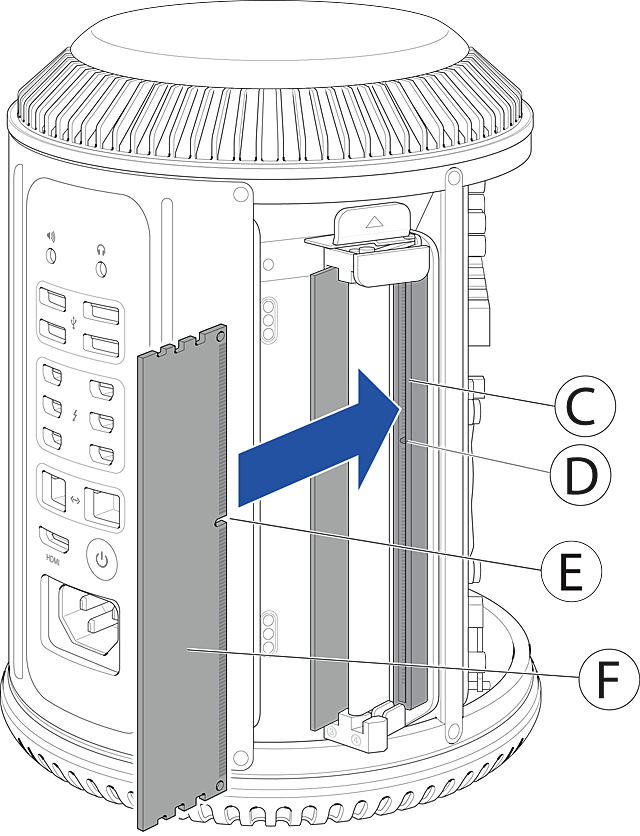
Part 4: Reinstall the enclosure
If your Mac doesn't start up properly after installing memory, you might have mixed UDIMMs and RDIMMs. Mixing UDIMMs and RDIMMs will result in a memory error tone when you turn on your computer. Check the memory requirements for your Mac. If your Mac beeps during startupIf your computer detects an issue with its memory (RAM), you might hear the following tones. One beep every 5 secondsYour Mac isn't detecting any memory (RAM). If you recently added or replaced memory, make sure that it's properly installed. Three beeps, then a 5-second pause, repeatingThe memory in your Mac didn't pass an integrity check. If you added or replaced memory, make sure that it's properly installed. Memory verificationTo be sure that you correctly installed the memory and that it's recognized by the Mac Pro, follow these steps.
Published Date:
Character limit:
250
Maximum character limit is 250.
Thanks for your feedback.
| |||||||||||||||||||||||||
| You are visitor 01402503 — GeezerVison does not store the pages you look up. Best viewed with Netscape Navigator 4.7 or Internet Explorer 6 at 800×600. No cookies required. |


