GeezerVisonThe World Wide Web, restored to 800 pixels of glory. |
| Home|About|Gaming cabinet|Archives|How it works|Starter sites |
GeezerVison is showing www.devprotocol.com — Use appsettings in a Giraffe web app – DevProtocol Use appsettings in a Giraffe web app
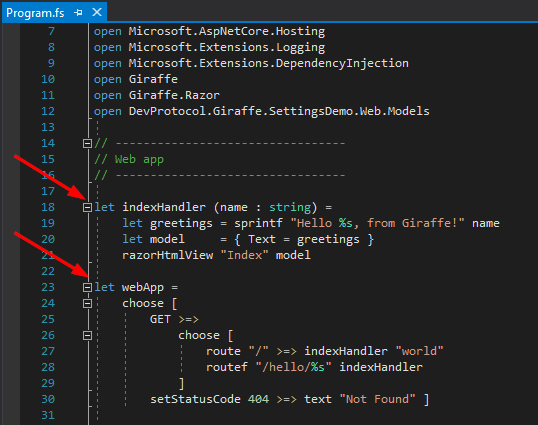
During the learning of F# the inevitable question arises on how to use the language for your day to day tasks. You can create a web site using F# using the Giraffe framework. The framework can be found on github. The most amazing part that I found is their documentation. A lot can be found to get you started. A missing piece in tutorials is how to use an appsettings.json file with the Giraffe framework, and that’s what this post is about. Installing the .net core Giraffe templateWe’ll start of by installing the Giraffe template: You can verify if the template is already installed by opening a command prompt and execute This will give you a list of all installed .net core templates. If you don’t have the template yet, you can install it via: Quick start to create a solutionOrganize your projectThe template will get you up and running with Giraffe, but I like to organize the things a bit. By default all application logic can be found in the Program.fs file. I like to separate the routing and the http handling. Remove the indexHandler and webApp method from your Program.fs file.
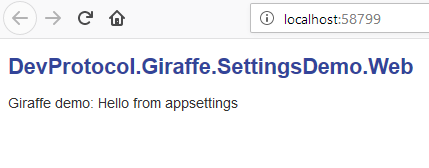
Note: If you’re using Visual Studio 2017 you can move the files up and down via ALT+arrow Add routesAdd a default route in your Routing.fs file The configuration of the routes is nearly identical to the route configuration of Suave (another popular F# web framework). Add a httpHandlerIn the HttpHandler.fs file we need to define the indexHandler: Adding the appsettings.jsonAdd a appsettings.json file to your project containing Make sure the file is copied to the output directory In visual studio change the properties of the file to copy to output if newer. Or in VSCode open the fsproj file and verify the ItemGroup: Add the NuGet package So if you use VSCode add the following to your fsproj file: In your Program.fs file you’ll find the main method. You’ll notice that the WebHostBuilder is configured in that method. We’ll add the ConfigureAppConfiguration there: Now we need to configure what this ConfigureAppConfiguration does: The first AddJsonFile method says that the appsettings.json file is not optional (so mandatory). The second AddJsonFile method says that the appsettings.[environment].json file is optional (so it will be used if available). The result is that we now get access to the IConfiguration via the HttpContext And finally add an open statement: Using the appsettingsNow we can use our appsettings in our httpHandlers. Our indexHandler functions has access to the HttpContext. So all we need to do is get an IConfiguration from it and request our Greeting setting: You should now be able to run the app and seeing the content of the Greeting
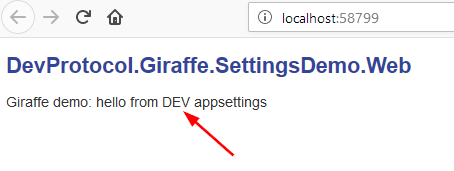
The transformations of the appsettings files will work as expected. Add another appsettings file “appsettings.Development.json”, make sure the file is copied to the output directory. Change the Greetings value:
DownloadDownload the code from my github References
|
| You are visitor 01402605 — GeezerVison does not store the pages you look up. Best viewed with Netscape Navigator 4.7 or Internet Explorer 6 at 800×600. No cookies required. |