GeezerVisonThe World Wide Web, restored to 800 pixels of glory. |
| Home|About|Gaming cabinet|Archives|How it works|Starter sites |
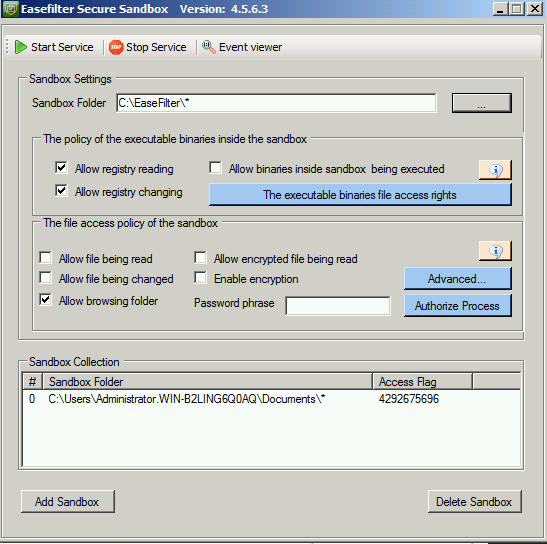
GeezerVison is showing www.easefilter.com — Secure Sandbox - A File Protection Tool Secure Sandbox with File Access ControlStart Building Your Security PoC TodayGet the full-featured 30-day trial SDK for free. Includes pre-built C# /C++/Python/Rust/Java templates to test file, process, and registry security instantly. A sandbox is a secure, isolated and a tightly controlled environment where programs can be run and data can be protected. Sandboxes restrict what a piece of code can do, giving it just as many, permissions as it needs without adding additional permissions that could be abused. Prevent malicious or malfunctioning programs from runningMalware — short for malicious software — refers to various types of programs written with the purpose of gaining access to a computer for malicious intent, and often without the user’s knowledge. Malware comes in a variety of forms, such as viruses, spyware, adware, ransomware, and Trojans.There are a number of ways that your device can be infected with malware, but many times it comes from a malicious website, or open the attachment file from your email. By default, anything you download from a web browser will normally go to the %appdata% Downloads folder on your computer. To prevent the malware from running in the first place, you can setup the sandbox with the policy which not allow the binaries inside the sandbox being launched for those folders where will store the malware, for example "C:\Users\Username\AppData\Local\Temp", "C:\Documents and Settings\ username \Local Settings\Temporary Internet Files". With the sandbox protection, you never have to worry about suspicious attachments or spear phishing attacks, you are safe to download the files from your web browser or you are safe to open your attachment from your email, because of the malware never be launched without your permission. Run untrusted Windows programs safely in EaseFilter Secure SandboxHow many times have you downloaded an executable file, but were afraid to run it? Have you ever been in a situation which required a clean installation of Windows, but didn’t want to set up a virtual machine? With EaseFilter Secure Sandbox protection, now you can restrict the permission of the untrusted programs running, prevent the programs from changing, deleting your data, or modifying your registry key. So you can safely test and try these untrusted programs and applications within Sandbox and prevent unauthorized changes to your underlying system that may occur. Protect your confidential files in EaseFilter Secure SandboxThe secure sandbox can setup a folder with secure access policies, it can encrypt your sensitive files inside the sandbox, prevent the files from being accessed or modified by unauthorized users or processes. It helps you protect valuable data from malicious apps and threats, such as ransomware. It protects your data by checking against a list of known, trusted processes. Secure folder access works by only allowing processes to access protected folders if the process is included on a list of trusted software. If a process isn't on the list, secure folder access will block it from making changes to files inside secure folders. EaseFilter Secure Sandbox Screenshot
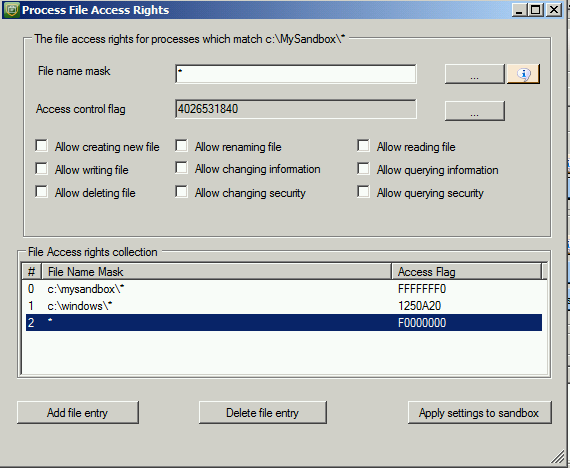
1. Prevent or restrict the executable binaries runninga. Setup secure sandbox folder filter mask, i.e., c:\sandbox\*, this is the folder which the executable binaries located. b. Allow the binaries being executed if you want to test the binaries, or disable the execution of the binaries to prevent the untrusted processes from running. For example, you can setup a sandbox for the download folder to prevent the untrusted download binaries from running. c. If you allow the binaries to run, you can also allow or deny the binaries to access or change the registries. To protect the registries being changed by the binaries, you can disable the registries changing feature. d. Setup the specific file access rights to different file folders for the process. By default, set the least access rights for all files to the process, then if you want to allow the process to access some specific folders, add these folders with specific rights to the process as the below image, allow the process with read access to the folder c:\windows, allow full rights access to the folder c:\mysandbox.
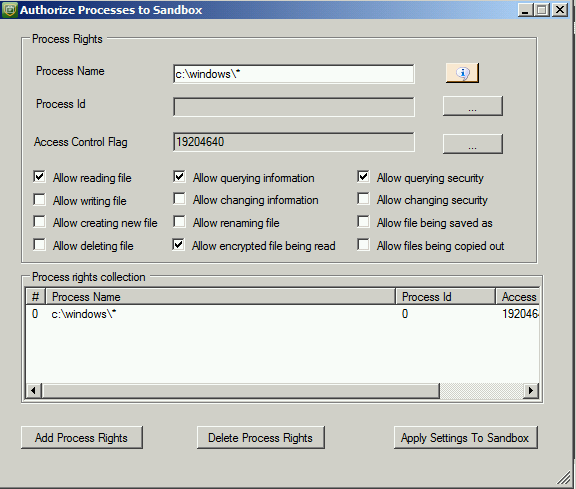
2. Protect your confidential files with sandboxa. Setup the sandbox for the protected folder, i.e., c:\protectedFolder\*. b. Setup the default access rights to the protected folder, i.e., add the least access rights to the protected folder, it meant only the authorized processes can access the protected folder. c. Enable encryption for the protected folder, prevent the confidential files from being distributed to out of your company. d. Add authorized processes to the protected folder, i.e., the below image shows that all processes which were launched from c:\windows folder were authorized to read the sandbox.
About EaseFilterEaseFilter is a company who specializes in windows file system filter driver development. It can provide architect, implement and test file system filter drivers for a wide range of functionalities. It also can offer several levels of assistance to meet your specific needs: Provide consulting service for your existing file system filter driver; Customize the SDK to meet your requirement; Create your own filter driver with SDK source code.
ABOUT USWe specialize in file system filter driver development. We architect, implement and test file system filter drivers for a wide range of functionalities. We can offer several levels of assistance to meet your specific needs. QUICK LINKSSUBSCRIBECONTACT US
COPYRIGHT EASEFILTER, ALL RIGHT RESERVED. |
| You are visitor 01402792 — GeezerVison does not store the pages you look up. Best viewed with Netscape Navigator 4.7 or Internet Explorer 6 at 800×600. No cookies required. |