Introduction
The EaseFilter File Control SDK allows you to build kernel-level file access control and protection applications on Windows, preventing your files from being accessed by unauthorized users or processes. Powered by a high-performance file system minifilter driver, it intercepts and manages all file I/O operations in real time—giving developers deep, granular control far beyond standard Windows APIs or Access Control Lists (ACLs).
With the SDK, developers can control file operations at every stage of the I/O lifecycle. Before an I/O request reaches the underlying file system, you can block or allow file access either natively in the kernel using static filter rules or dynamically at runtime through user-mode callbacks. Additionally, after the file system processes the request, you can intercept and modify the I/O data returned from the file system—enabling advanced capabilities such as transparent encryption, data redaction, and virtualized file views.
How It Works: Kernel-Level I/O Interception
The SDK bridges the gap between your custom user-mode application and the Windows OS kernel. It integrates directly into the Windows I/O stack, sitting between the Windows I/O Manager and the underlying file system drivers (e.g., NTFS, FAT). This privileged position enables the interception of operations before they ever reach the storage disk.
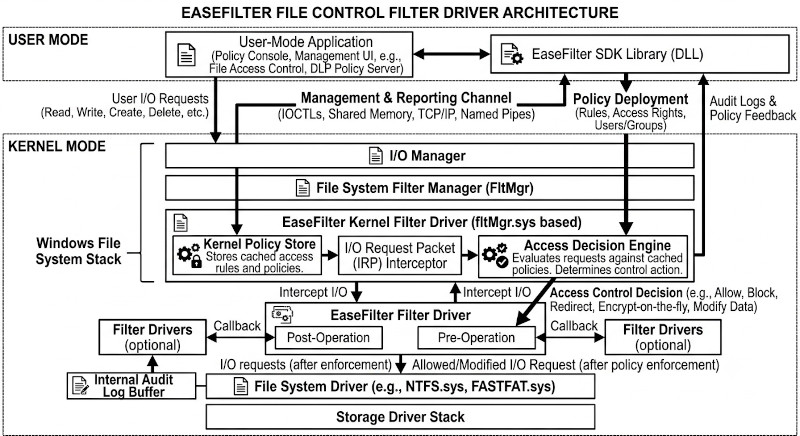
The driver utilizes a dual-layered interception mechanism:
- Pre-Operation Callbacks (PRE-IO): These allow your application to evaluate, block, or modify I/O requests (such as
CreateFile, ReadFile, WriteFile) before they reach the file system. You can explicitly deny requests instantly by returning an "access denied" status.
- Post-Operation Callbacks (POST-IO): These are triggered after the file system has processed the request but before the result is handed back to the user application. This stage is primarily used for logging, auditing, or modifying returned data (such as on-the-fly encryption/decryption).
What You Can Build with the File Control SDK
The EaseFilter SDK offers a robust set of features. Below are the key capabilities, expanded with practical use cases demonstrating how these features are applied in real-world scenarios.
Real-Time Interception and Access Control
Intercept and manage key file operations—including create, open, read, write, rename, and delete—at the kernel level before they ever reach the disk.
- Use Case: Preventing unapproved or untrusted applications from opening sensitive financial databases by instantly denying the
CreateFile request at the kernel level.
FileFilterRule dbRule = new FileFilterRule(@"D:\FinanceDB\*");
// Deny by default at the kernel level
dbRule.AccessFlags = FilterAPI.LEAST_ACCESS_RIGHT;
// Explicitly allow only the approved application
dbRule.AddProcessRight("FinanceApp.exe", FilterAPI.ALLOW_MAX_ACCESS_RIGHT);

filterControl.AddFilter(dbRule);
Pre- and Post-Operation Filtering
Gain the flexibility to block or modify requests dynamically in Pre-Operation callbacks, or monitor and audit operations after execution in Post-Operation callbacks.
- Use Case: Dynamically blocking a file save operation (Pre-IO) if the system detects unauthorized data exfiltration, while simultaneously logging successful, authorized file reads (Post-IO) to an external security dashboard.
FileFilterRule ioRule = new FileFilterRule(@"C:\SensitiveData\*");
ioRule.AccessFlags = FilterAPI.ALLOW_MAX_ACCESS_RIGHT;
ioRule.ControlFileIOEventFilter = ControlFileIOEvents.OnPreFileWrite;
ioRule.MonitorFileIOEventFilter = (uint)FileIOEvents.OnPostFileRead;

ioRule.OnPreWrite += (sender, e) => {
    // Synchronously block unauthorized writes before they hit the disk
    if (ExfiltrationEngine.IsThreatDetected(e.ProcessName)) {
        e.ReturnStatus = NtStatus.StatusAccessDenied;
    }
};

ioRule.OnFileRead += (sender, e) => {
    // Asynchronously log successful reads after they complete using the monitor event
    SecurityDashboard.LogRead(e.FileName, e.UserName);
};

filterControl.AddFilter(ioRule);
Tamper-Proof File Protection
Protect critical business files and application directories from being modified, moved, or deleted by unauthorized processes or users.
- Use Case: Locking down antivirus configuration files, security logs, and core application binaries so that even compromised administrator accounts or ransomware cannot alter or delete them.
FileFilterRule tamperRule = new FileFilterRule(@"C:\Program Files\SecurityApp\*");
// Allow reading and executing, but globally strip modifications at the kernel level
tamperRule.AccessFlags = FilterAPI.ALLOW_MAX_ACCESS_RIGHT
                        & ~FilterAPI.ALLOW_FILE_DELETE
                        & ~FilterAPI.ALLOW_FILE_WRITE
                        & ~FilterAPI.ALLOW_FILE_RENAME;

// optional, ENABLE GLOBAL DENIED EVENT LOGGING
// This is the optimal way to receive notifications when the filter driver blocks an I/O
tamperRule.BooleanConfig |= FilterAPI.BooleanConfig.ENABLE_SEND_DENIED_EVENT;
tamperRule.NotifiyFileIOWasBlocked += (sender, e) => {
Console.WriteLine("User(e.UserName),ProcessName(e.ProcessName),FileName(e.FileName) I/O Name(e.EventName)
	was blocked by Filter Driver: e.Description");
};

// Grant the application's trusted background service full control
tamperRule.AddProcessRight("SecurityService.exe", FilterAPI.ALLOW_MAX_ACCESS_RIGHT);

filterControl.AddFilter(tamperRule);
Virtual File Systems and Sandboxing
Render virtual views of files or redirect access to isolated sandbox locations dynamically without affecting normal user applications.
- Use Case: Transparently redirecting legacy application write operations from protected system folders (like
C:\Program Files) to a user-specific virtual sandbox, preventing privilege elevation vulnerabilities without breaking the application.
FileFilterRule sandboxRule = new FileFilterRule(@"C:\Program Files\LegacyApp\*");
sandboxRule.ControlFileIOEventFilter = ControlFileIOEvents.OnPreFileCreate;

sandboxRule.OnPreCreate += (sender, e) => {
    // Redirect file creation/open requests to a sandbox dynamically
    if (e.DesiredAccess.HasFlag(FileAccess.Write)) {
        string newPath = e.FileName.Replace(@"C:\Program Files\", @"C:\Sandbox\");
        e.FileName = newPath;
        // Instruct the kernel to re-evaluate the I/O request at the new path
        e.ReturnStatus = NtStatus.StatusReparse;
    }
};

filterControl.AddFilter(sandboxRule);
Transparent File Encryption (TFE) Integration
Seamlessly pair with transparent encryption filters to enforce automated file encryption and decryption policies based on real-time access rules.
- Use Case: Enforcing automatic, on-the-fly AES-256 encryption without user intervention whenever an employee saves a document into a designated "Secure Projects" folder or removable USB drive.
FileFilterRule tfeRule = new FileFilterRule(@"C:\SecureProjects\*");

// Enable the transparent encryption module for this rule
tfeRule.EnableEncryption = true;

// Set the 256-bit AES encryption key (in production, this is managed securely)
tfeRule.EncryptionKey = Encoding.UTF8.GetBytes("YourSecure256BitEncryptionKey123");

filterControl.AddFilter(tfeRule);
Low-Level Kernel-Mode Performance
Built on a Windows minifilter framework to ensure high-performance, stable operation.
- Use Case: Monitoring and protecting thousands of file I/O operations per second on a high-throughput enterprise file server without introducing noticeable system latency or CPU overhead.
Filter Rule Configuration
Filter rules are the core mechanism that dictates where the driver monitors and what security parameters apply. The SDK evaluates every intercepted I/O request against these rules to determine the appropriate action.
Rule Matching Criteria
You can construct highly specific boundaries for your rules using a combination of the following criteria:
- File/Folder Path Masks: Use wildcards (e.g.,
C:\SensitiveData\* or *.docx) to specify target directories. You can also define exclude masks to establish operational exceptions and reduce processing overhead.
- Process Verification & Trusted Paths: Filter requests based on the name or path of the originating process. For robust zero-trust security, verify trusted processes by checking their signed digital certificate signatures or validating their SHA-256 binary hashes.
- User Security Identifiers (SIDs): Restrict or grant file privileges based on specific local or domain Windows user accounts and groups.
- Time-Based Rules: Limit file access permission states to specific hours of the day or calendar dates.
Understanding Access Control Flags
Access control in the EaseFilter SDK is managed via static bitwise integer flags. By combining these flags, you create a precise matrix of allowed and denied operations natively within the kernel, meaning policies are enforced with virtually zero performance overhead.
| Common Access Flag |
Description |
| ALLOW_MAX_ACCESS_RIGHT |
Grants full privileges (read, write, delete, execute, modify). |
| LEAST_ACCESS_RIGHT |
Denies all access, effectively locking or hiding the target. |
| ALLOW_READ_ACCESS |
Allows the file to be opened and read. |
| ALLOW_WRITE_ACCESS |
Allows data to be written to the file. |
| ALLOW_FILE_RENAME |
Permits the file or directory to be renamed. |
| ALLOW_FILE_DELETE |
Permits the file or directory to be deleted. |
Static Rule Use Case: Securing an Audit Log Directory
Scenario: You have a directory (C:\AuditLogs\*) where your application writes critical compliance logs. You want to ensure that general applications can create and write to these logs, and administrators can read them, but to prevent tampering, no standard user or process should be able to delete or rename the files. However, the official logging service requires full control (including delete and rename privileges for log rotation).
Explanation of the Implementation: The static rule configuration achieves this by defining kernel-level bitwise permissions directly in the driver, requiring zero round-trip communication to user-mode space during the I/O operation:
- Targeting:
FileFilterRule isolates the policy strictly to the C:\AuditLogs\* path.
- Bitwise Access Control: By taking
ALLOW_MAX_ACCESS_RIGHT and applying the bitwise NOT operator (~) against ALLOW_FILE_DELETE and ALLOW_FILE_RENAME, the driver globally strips those specific modification rights from standard processes while leaving read, write, and execute intact.
- Process-Level Trust: The
ProcessNameAccessRightList binds ALLOW_MAX_ACCESS_RIGHT exclusively to LoggingService.exe. This grants the trusted logging service full privileges, overriding the global delete/rename restrictions.
using EaseFilter.FilterControl;

// 1. Initialize the filter rule for the target directory
FileFilterRule auditLogRule = new FileFilterRule(@"C:\AuditLogs\*");

// 2. Configure the Global Access Control Flags
// Grant maximum access generally, but explicitly REVOKE delete and rename capabilities
auditLogRule.AccessFlags = FilterAPI.ALLOW_MAX_ACCESS_RIGHT
                          & ~FilterAPI.ALLOW_FILE_DELETE
                          & ~FilterAPI.ALLOW_FILE_RENAME;

// 3. Refine: Grant the official logging service full control (including delete/rename for log rotation)
auditLogRule.AddProcessRight("LoggingService.exe",
                                            FilterAPI.ALLOW_MAX_ACCESS_RIGHT);

// 4. Add the rule to your Filter Control engine
filterControl.AddFilter(auditLogRule);
Dynamic Rule Use Case: Context-Aware Protection via Callbacks
In modern enterprise environments, static rule-based controls can be augmented with dynamic callbacks, such as an AI decision engine, to provide context-aware protection. Dynamic access control allows your user-mode logic to evaluate each I/O request at runtime rather than relying strictly on predefined flags.
Scenario: You want to evaluate file writes to a protected directory dynamically using an external policy engine or AI service that checks for sophisticated threats or ransomware-like behavior.
Implementation: Callbacks allow your user-mode logic to evaluate each request at runtime. Crucially, the OnPreWrite callback must be implemented using synchronous code execution, as asynchronous calls are not supported within the kernel-mode callback context. The file operation remains suspended by the kernel until your user-mode function returns a verdict.
FileFilterRule rule = new FileFilterRule(@"c:\protected\*");
rule.AccessFlags = FilterAPI.ALLOW_MAX_ACCESS_RIGHT;

// Register the pre-write callback
rule.ControlFileIOEventFilter = (ControlFileIOEvents.OnPreFileWrite);

// Use a synchronous delegate to handle the I/O event
rule.OnPreWrite += (sender, e) => {
    // Construct payload for the AI/Policy service
    string file = e.FileName;
    string process = e.ProcessName;

    // Perform a SYNC call to your decision service or local policy check
    // Ensure 'CheckDecisionSync' is a blocking, synchronous method
    string decision = DecisionService.CheckDecisionSync(file, process);

    if (decision.Equals("block", StringComparison.OrdinalIgnoreCase)) {
        // e.ReturnStatus is the standard way to block the operation in a sync callback
        e.ReturnStatus = NtStatus.StatusAccessDenied;
        e.FilterReply.ReturnMessage = "Blocked by policy engine.";

        Console.WriteLine($"Dynamic engine blocked write to: {e.FileName}");
    }
};
Common Use Cases
The EaseFilter SDK can be deployed to solve a wide variety of enterprise security challenges. Below are the most common implementations, complete with technical code snippets demonstrating how to configure the filter engine for each scenario.
Ransomware Protection
Monitor file writes and renames dynamically to stop unauthorized bulk-encryption behaviors or known malicious file extensions from untrusted processes before data is compromised.
FileFilterRule ransomwareRule = new FileFilterRule(@"C:\Users\*");
ransomwareRule.AccessFlags = FilterAPI.ALLOW_MAX_ACCESS_RIGHT;

// Monitor file rename operations
ransomwareRule.ControlFileIOEventFilter = ControlFileIOEvents.OnPreFileRename;

ransomwareRule.OnPreRename += (sender, e) => {
    // Block common ransomware extensions dynamically
    if (e.DestinationFileName.EndsWith(".locked") || e.DestinationFileName.EndsWith(".enc")) {
        e.ReturnStatus = NtStatus.StatusAccessDenied;
        Console.WriteLine($"[RANSOMWARE BLOCKED] Process {e.ProcessName} attempted to rename {e.FileName}");
    }
};
filterControl.AddFilter(ransomwareRule);
Zero-Trust Security
Establish strict directories where only explicitly trusted corporate applications can interact with specific files. All other processes (even Windows Explorer) are denied access entirely.
FileFilterRule zeroTrustRule = new FileFilterRule(@"C:\SecureVault\*");

// 1. Block everything globally by default
zeroTrustRule.AccessFlags = FilterAPI.LEAST_ACCESS_RIGHT;

// 2. Grant explicit maximum access ONLY to the verified finance application
zeroTrustRule.AddProcessRight("FinanceApp.exe", FilterAPI.ALLOW_MAX_ACCESS_RIGHT);

filterControl.AddFilter(zeroTrustRule);
Data Loss Prevention (DLP) & File Tracking
Capture detailed file telemetry—including user SIDs, process names, and timestamps—to log every data access and modification without interfering with the user's workflow.
FileFilterRule dlpRule = new FileFilterRule(@"C:\ConfidentialIP\*");
dlpRule.AccessFlags = FilterAPI.ALLOW_MAX_ACCESS_RIGHT;

// PERFORMANCE BEST PRACTICE: Use Monitor events for passive tracking
dlpRule.MonitorFileIOEventFilter = (uint)(FileIOEvents.OnPostFileRead | FileIOEvents.OnPostFileWrite);

dlpRule.OnFileRead += (sender, e) => {
    // Forward telemetry to SIEM or DLP dashboard asynchronously
    Console.WriteLine($"[DLP] User {e.UserName} read {e.FileName} via {e.ProcessName}");
};

dlpRule.OnFileWrite += (sender, e) => {
    Console.WriteLine($"[DLP] User {e.UserName} modified {e.FileName} via {e.ProcessName}");
};
filterControl.AddFilter(dlpRule);
Endpoint Security Agents
Implement lightweight, high-performance host security software to block malicious system actions (like deleting agent binaries or modifying configuration files) directly within the Windows kernel stack.
FileFilterRule agentProtectionRule = new FileFilterRule(@"C:\Program Files\MySecurityAgent\*");

// Allow read/execute so the agent can run, but globally strip delete, write, and rename
agentProtectionRule.AccessFlags = FilterAPI.ALLOW_MAX_ACCESS_RIGHT
                                 & ~FilterAPI.ALLOW_FILE_DELETE
                                 & ~FilterAPI.ALLOW_FILE_WRITE
                                 & ~FilterAPI.ALLOW_FILE_RENAME;

// Explicitly allow the agent's dedicated updater service to modify the files
agentProtectionRule.AddProcessRight("AgentUpdater.exe", FilterAPI.ALLOW_MAX_ACCESS_RIGHT);

filterControl.AddFilter(agentProtectionRule);
Audit & Compliance Tools
Record full file I/O history and feed audit logs into SIEM software or compliance monitoring environments to meet strict regulatory standards (e.g., HIPAA, GDPR).
FileFilterRule auditRule = new FileFilterRule(@"C:\PatientRecords\*");
auditRule.AccessFlags = FilterAPI.ALLOW_MAX_ACCESS_RIGHT;

// PERFORMANCE BEST PRACTICE: For auditing usage, register the Monitor Driver Post-IO event
// rather than the Control Driver Post-IO event to maximize system performance.
auditRule.MonitorFileIOEventFilter = (uint)(FileIOEvents.OnPostFileCreate | FileIOEvents.OnPostFileDelete);

auditRule.OnFileCreate += (sender, e) => {
    AuditLogger.LogAsync("FILE_CREATED", e.FileName, e.UserName, e.ProcessName, DateTime.UtcNow);
};

auditRule.OnFileDelete += (sender, e) => {
    AuditLogger.LogAsync("FILE_DELETED", e.FileName, e.UserName, e.ProcessName, DateTime.UtcNow);
};
filterControl.AddFilter(auditRule);
Next-Generation AI Integration
Augment standard rule-based controls by feeding real-time I/O context into an AI or machine learning model. This allows the driver to dynamically identify and block zero-day anomalies, unauthorized mass-exfiltration, or unusual user behavior that static rules would miss.
FileFilterRule aiRule = new FileFilterRule(@"*.*"); // Monitor globally
aiRule.AccessFlags = FilterAPI.ALLOW_MAX_ACCESS_RIGHT;

// Intercept file creation/opening to evaluate risk beforehand
aiRule.ControlFileIOEventFilter = ControlFileIOEvents.OnPreFileCreate;

aiRule.OnPreCreate += (sender, e) => {
    // Send contextual telemetry to a local AI agent for anomaly scoring
    // Must be a synchronous, high-speed evaluation to avoid system stutter
    double anomalyRiskScore = LocalAIAgent.EvaluateRiskSync(e.UserName, e.ProcessName, e.FileName);

    if (anomalyRiskScore > 0.95) { // 95% confidence of malicious intent
        e.ReturnStatus = NtStatus.StatusAccessDenied;
        e.FilterReply.ReturnMessage = "Blocked by AI Anomaly Detection Engine.";
        Console.WriteLine($"[AI BLOCK] High risk activity detected for {e.ProcessName} on {e.FileName}");
    }
};
filterControl.AddFilter(aiRule);
Conclusion and Developer Best Practices
The EaseFilter File Control SDK empowers developers to bypass the steep learning curve, complex debugging, and WHQL certification processes typically associated with Windows kernel driver development. By abstracting the intricacies of the Windows I/O Manager into a clean, accessible user-mode API, you can focus entirely on building your application's core security, auditing, or encryption logic.
Best Practices for Implementation
- Test in Isolation: Kernel-level access control is absolute. A misconfigured rule (e.g., globally denying read access to
C:\Windows\*) can instantly crash the operating system or lock you out. Always develop and test your filter rules within a secure Virtual Machine (VM) or isolated sandbox environment before deploying to production endpoints.
- Optimize Auditing Performance: When building audit and compliance tools that only require logging (and not blocking or modifying), always register for the monitor driver post-IO events (
MonitorFileIOEventFilter) rather than the control driver post-IO events (ControlFileIOEventFilter). The control driver post events will block the kernel file system thread while waiting for a response from your user-mode application, whereas the monitor driver post events operate asynchronously and will not impact system file I/O performance.
- Keep Synchronous Callbacks Lightweight: Keep synchronous Pre-Operation callbacks (Control events) as fast as possible. Since the OS pauses the file I/O thread while waiting for your callback to return a status, heavy processing (like complex network requests or deep file analysis) can cause system sluggishness.
- Leverage Sample Code: The SDK includes extensive sample code repositories for both C# and C++. Use these pre-configured projects as a foundation to accelerate your development timeline and understand the recommended API implementation patterns.