GeezerVisonThe World Wide Web, restored to 800 pixels of glory. | ||||||||||||
| Home|About|Gaming cabinet|Archives|How it works|Starter sites | ||||||||||||
GeezerVison is showing www.ericbt.com — Vault 3 Installation Vault 3 InstallationWindows (Intel/AMD 64-bit)Step 1: Install Vault 3
Step 2: Run Vault 3 Double-click the desktop shortcut to launch Vault 3, or run it from the Start menu. Vault 3 listens to a TCP/IP socket in order to ensure that only one instance of the program runs. If you have Windows Firewall enabled you'll see the following warning message. Click Unblock. 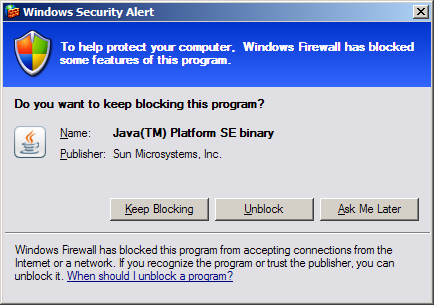 Step 3: If you have Multiple Monitors If you are running with multiple monitors, and they do not all have the same resolution, read this. Windows (ARM 64-bit)
Double-click the desktop shortcut to run Vault 3. You can also right-click the shortcut and drag it to the taskbar for one-click launching. Linux (Intel/AMD 64-bit)Step 1: Install Vault 3 Note: in the instructions below, replace "{install folder}" with the path of the folder containing the Vault 3 app. Replace "{settings folder}" with a path to a folder in which Vault 3's configuration settings will be stored. For example, on my Linux system I use the following paths:
Step 2: Run Vault 3 Double-click the Vault 3 launcher. Linux (ARM 64-bit)Step 1: Install Vault 3 Note: in the instructions below, replace "{install folder}" with the path of the folder containing the Vault 3 app. Replace "{settings folder}" with a path to a folder in which Vault 3's configuration settings will be stored. For example, on my Linux system I use the following paths:
Step 2: Run Vault 3 Double-click the Vault 3 launcher. Convert Your Existing Vault and/or The Photo Program Files to Vault 3 Format | ||||||||||||
| You are visitor 01402503 — GeezerVison does not store the pages you look up. Best viewed with Netscape Navigator 4.7 or Internet Explorer 6 at 800×600. No cookies required. |