Run commands in the Command Menu


The Command Menu provides a fast way to navigate the Chrome DevTools UI and accomplish common tasks, such as disabling JavaScript. You may be familiar with a similar feature in Visual Studio Code called the Command Palette, which was the original inspiration for the Command Menu.

Open the Command Menu
To open the Command Menu:
- Press Control+Shift+P (Windows / Linux) or Command+Shift+P (Mac).
- Click
 Customize and control DevTools and then select Run command.
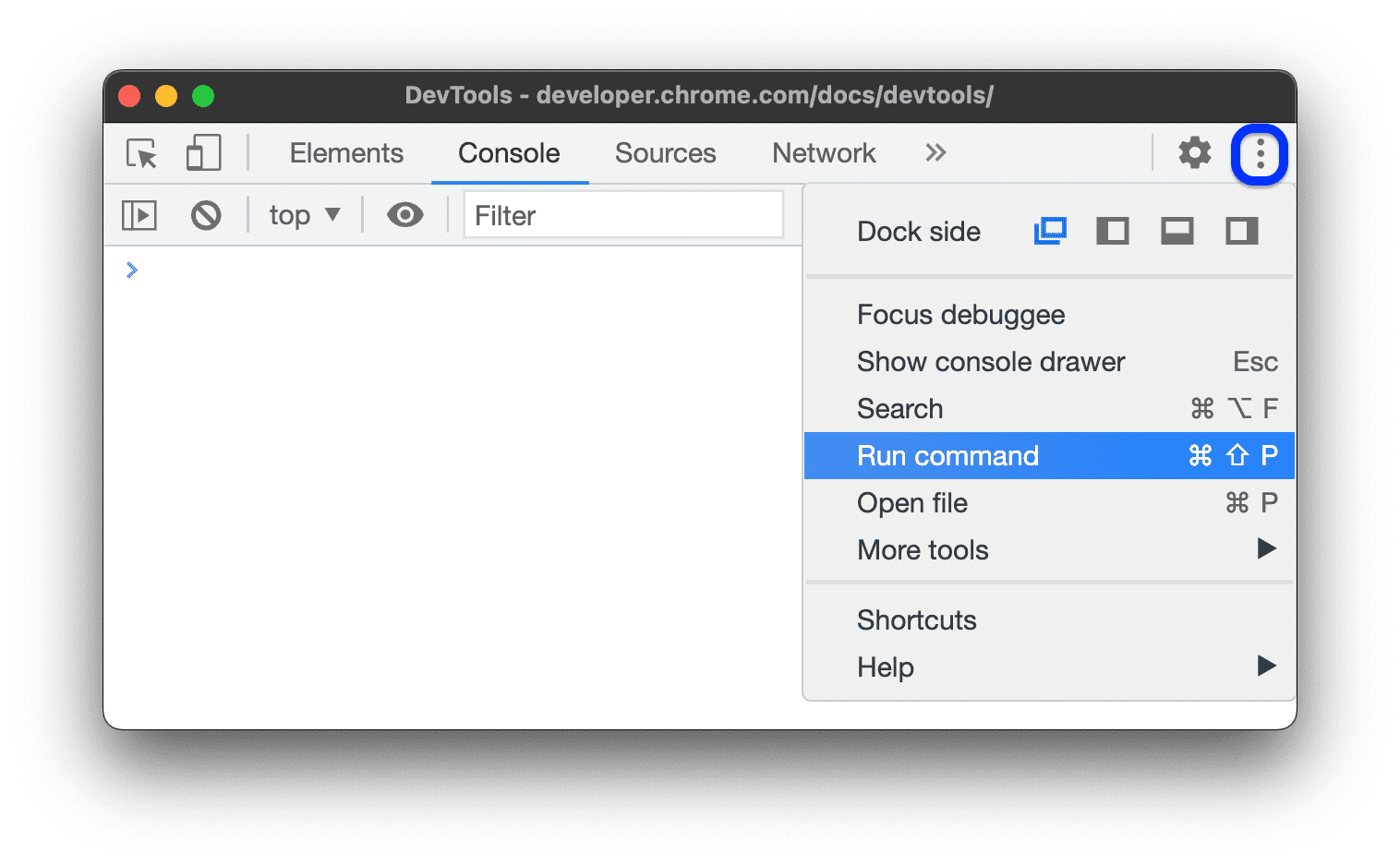
Open files
If you use the workflow outlined in Open the Command Menu, the Command Menu opens with a Run > prepended in the text box.
To open a file instead, delete the > character and start typing a filename.
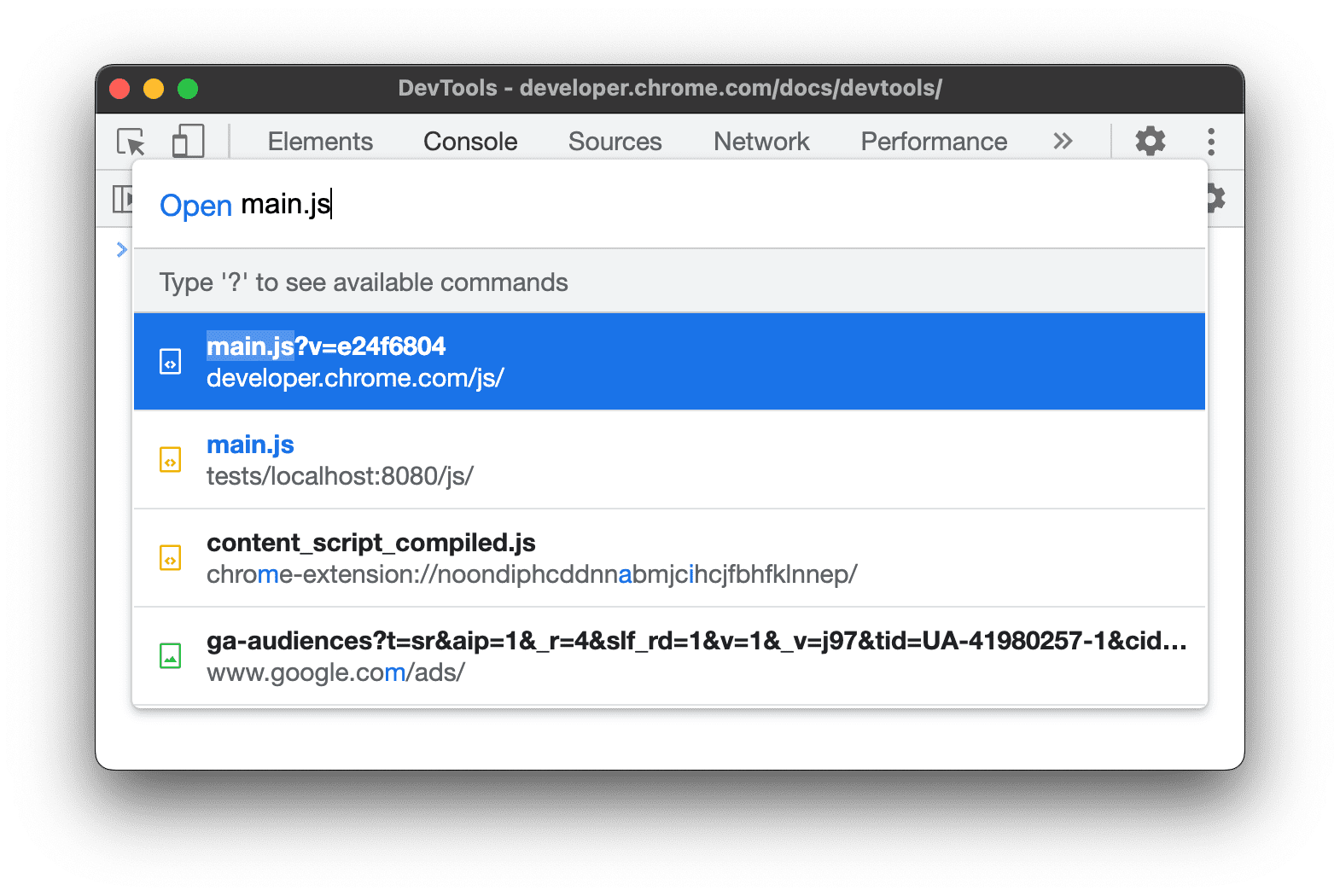
The Run prepend changes to Open and DevTools searches for relevant files instead.
Alternatively, you can go straight to the Open File menu in one of the following ways:
- Press Control+P (Windows / Linux) or Command+P (Mac).
- Click
 Customize and control DevTools and then select Open file.
Open ignore-listed files
By default, DevTools hides the files of known third-parties. To open such files from the menu, disable the Hide ignore-listed sources option in the Sources panel.
Capture area screenshots
The Command Menu lets you capture area screenshots of your website, much like the snipping tool.
To take an area screenshot, follow these steps:
- Open the Command Menu.
- Type "screenshot".
- Select Capture area screenshot.
- Drag to select anywhere on the page to capture it.
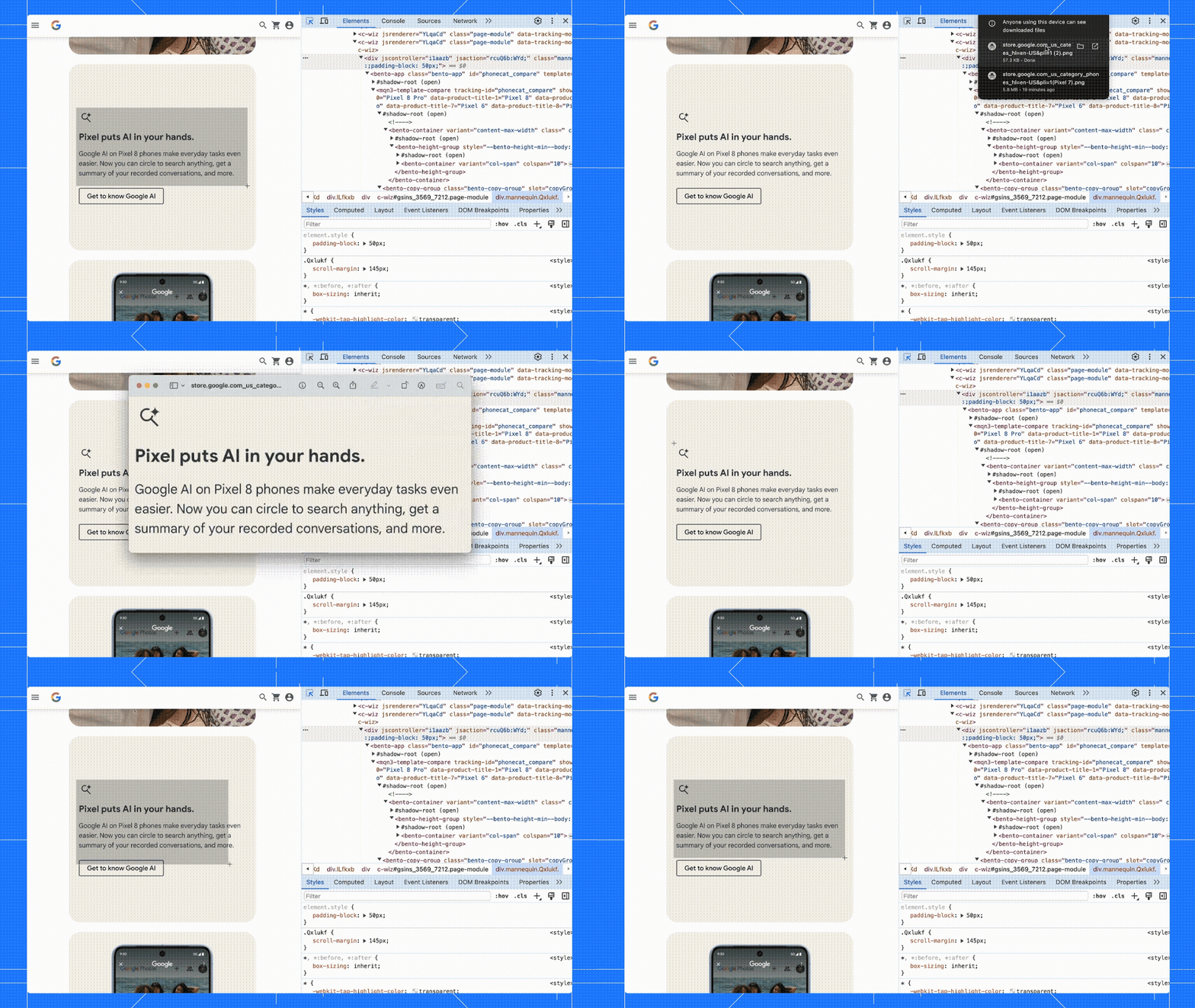
To discover more ways to take screenshots with DevTools, see 4 ways to capture screenshots with DevTools.
See other available actions
To see other actions available from the Command Menu, delete the > character and type ?.
