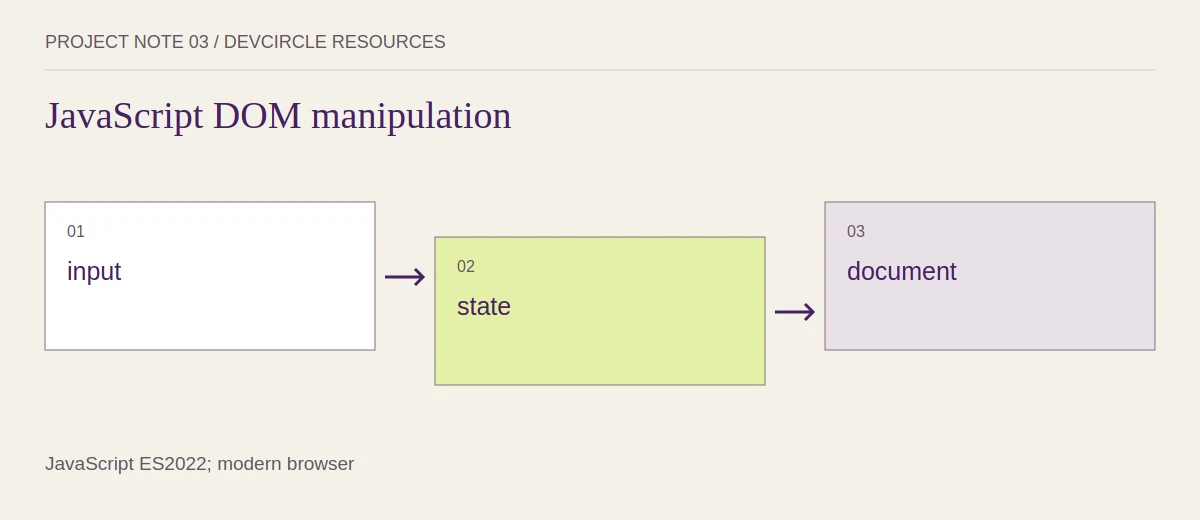
A task list makes a good DOM exercise because it passes through several states: empty, populated, partly complete, and empty once more. Construct each of those states on purpose, rather than treating the page as somewhere to tack on strings.
Start with real controls
Use a modern browser supporting ES2022. Save the full example as tasks.html and open it. If you download it, remove the final .txt extension first. The form contains a labeled input and a submit button, so Enter works without a separate keyboard handler.
<!doctype html>
<html lang="en-US"><head>
<meta charset="utf-8"><meta name="viewport" content="width=device-width, initial-scale=1">
<title>Task list exercise</title>
<style>body{max-width:40rem;margin:2rem auto;padding:1rem;font:1rem/1.6 system-ui}button,input{font:inherit}li{margin:1rem 0}button{margin-left:.5rem}:focus-visible{outline:3px solid #442160;outline-offset:3px}</style>
</head><body><main>
<h1>Tasks on the workbench</h1>
<form id="task-form"><label for="task">New task</label>
<input id="task" required maxlength="120"><button type="submit">Add task</button></form>
<p id="status" role="status">0 of 0 complete</p><ul id="tasks"></ul>
</main><script>
const form = document.querySelector('#task-form');
const input = document.querySelector('#task');
const list = document.querySelector('#tasks');
const status = document.querySelector('#status');
let tasks = [];
let nextId = 1;
function render(focusId) {
  list.replaceChildren();
  for (const task of tasks) {
    const row = document.createElement('li');
    const box = document.createElement('input');
    box.type = 'checkbox'; box.checked = task.done;
    box.id = `task-${task.id}`;
    const label = document.createElement('label');
    label.htmlFor = box.id; label.textContent = task.text;
    box.addEventListener('change', () => {
      task.done = box.checked; render(box.id);
    });
    const remove = document.createElement('button');
    remove.type = 'button'; remove.textContent = 'Remove';
    remove.setAttribute('aria-label', `Remove ${task.text}`);
    remove.addEventListener('click', () => {
      tasks = tasks.filter(t => t.id !== task.id);
      render(); input.focus();
    });
    row.append(box, label, remove); list.append(row);
  }
  status.textContent = `${tasks.filter(t => t.done).length} of ${tasks.length} complete`;
  if (focusId) document.getElementById(focusId)?.focus();
}
form.addEventListener('submit', event => {
  event.preventDefault();
  const text = input.value.trim();
  if (!text) return;
  tasks.push({id: nextId++, text, done: false});
  input.value = ''; render(); input.focus();
});
</script></body></html>
Separate data from the rendered list
The tasks array is the single source of truth. The <ul id="tasks"> element in the DOM is a view derived from that array. Every task receives a monotonically increasing numeric id (nextId++) because its text is not a unique or stable key: a user can add two tasks with the exact same wording, and the checkbox <label for="task-1"> needs a unique id attribute in the document.
The form’s submit listener begins with event.preventDefault(), which stops the browser from reloading the page. It then trims leading and trailing whitespace with input.value.trim() and discards whitespace-only entries, even when someone typed spaces to get around the HTML required attribute. Only after that does it push the new task object, reset input.value = '', re-render the list, and move focus back to input.
Scroll sideways if the columns extend beyond the frame.
| DOM API or attribute used | Why this choice matters | What goes wrong with the common alternative |
|---|---|---|
label.textContent = task.text |
Inserts user input strictly as a text node; characters like < and & are never parsed as HTML |
innerHTML = ... parses untrusted strings as markup and scripts (DOM-based XSS) and breaks when a task contains <tag> |
list.replaceChildren() |
Empties all existing child nodes of <ul id="tasks"> in one standard call before rebuilding |
Setting list.innerHTML = '' invokes the HTML parser unnecessarily |
remove.type = 'button' |
Prevents a button from acting as a submit button if it is ever moved inside a <form> |
<button> without type defaults to type="submit", triggering accidental form submissions |
aria-label="Remove ${task.text}" |
Gives each Remove button a distinct accessible name ("Remove Write tests") |
Five identical buttons named "Remove" leave screen-reader rotor lists ambiguous |
render(box.id) + getElementById(focusId)?.focus() |
Restores keyboard focus to the newly created checkbox element after replaceChildren() destroys the old DOM node |
Removing the focused node from the DOM resets document.activeElement to <body>, breaking keyboard navigation |
<p id="status" role="status"> |
Creates a polite live region that announces "1 of 2 complete" when status.textContent changes |
Updating visual text without a live region gives screen-reader users no confirmation that the count changed |
Never interpolate user input into innerHTML or insertAdjacentHTML. Type <strong>Check output</strong> or <img src=x onerror=alert(1)> into the "New task" field and press Enter: because the code assigns label.textContent = task.text, the literal angle brackets appear harmlessly on screen and no <strong> or <img> element is created in the DOM.
Keep focus after a change
Whenever list.replaceChildren() clears <ul id="tasks">, the checkbox element the user just toggled with Space is detached from the document. In a browser, detaching document.activeElement drops focus back to <body>, forcing a keyboard user to Tab from the top of the page after every single check! Passing box.id ("task-1") into render(box.id) and calling document.getElementById(focusId)?.focus() immediately re-focuses the replacement checkbox with the same ID.
When a task is deleted, its checkbox no longer exists, so the delete handler calls input.focus() to place focus deterministically on the "New task" input. In a longer list, another good pattern is focusing the next remaining task’s Remove button (or the previous one if the last row was deleted), falling back to #task when the list becomes empty. Whichever rule you pick, test the entire add, toggle, and remove loop using only Tab, Shift+Tab, Space, and Enter.
Test the empty and duplicate cases
Add two tasks with the identical text "Review diff". Check the first checkbox with Space: because each row closure references its own task.id (1 vs 2) and each <label> links to task-1 vs task-2, only the first task becomes checked and #status updates to "1 of 2 complete". Click "Remove" on the first task and verify that "Review diff" (task 2) remains unchecked and #status reads "0 of 1 complete". Remove the remaining task and verify "0 of 0 complete".
Reload the tab and the list comes back empty. That is expected rather than a bug, since tasks exists only in JavaScript memory for the lifetime of the current document. To see how completed IDs can be serialized into browser storage safely, and how to recover when the stored JSON is corrupted, read the localStorage guide.
Improve one behavior at a time
Add a <button type="button" id="toggle-filter">Show incomplete only</button> above the list. Keep a boolean let hideCompleted = false; flag, filter tasks only inside the for loop in render(), and verify that toggling the view does not delete completed objects from tasks or alter the "1 of 2 complete" summary count.
For a small list of a few dozen items, replaceChildren() on state change is fast, readable, and impossible to get out of sync with the tasks array. Measure an actual rendering bottleneck (such as thousands of rows or active text inputs inside rows) before introducing fine-grained DOM diffing or a frontend framework. Continue with loading JSON with fetch or testing pure logic with Node’s built-in test runner.
Source: MDN Document.createElement, Element.replaceChildren, and Node.textContent document the DOM operations used here.
Download the complete example. Save the file before running it; the guide above names the required runtime.
Keep building
- CSS Grid: a responsive project gallery
Build a gallery that changes columns without brittle breakpoints, then test long titles and narrow screens.
- JavaScript fetch: handle HTTP errors and cancellation
Read a local JSON file, distinguish a failed request from a failed HTTP response, and cancel stale work.
- Semantic HTML: build a page that makes sense
A complete workshop page with useful landmarks, a real heading outline, and a keyboard check.