The Quick Edit feature in Phoenix Code allows you to edit CSS files directly within HTML files. This integration helps you focus on one file at a time, reducing distractions. Using Quick Edit with the Live Preview function provides immediate feedback on your changes, allowing you to adjust your CSS efficiently.
How to Use Quick Edit
Follow these steps to use the Quick Edit feature:
-
Position the Cursor: Place the cursor where you need to start Quick Edit in the HTML file.

-
Access Quick Edit: You can access Quick Edit in one of three ways:
- Keyboard Shortcut: Press
Ctrl + E(Windows/Linux) orCmd + E(Mac). - Mouse Shortcut: Combine
Ctrl + click(Windows/Linux) orCmd + click(Mac). - Context Menu: Right-click to open the context menu and choose Quick Edit.
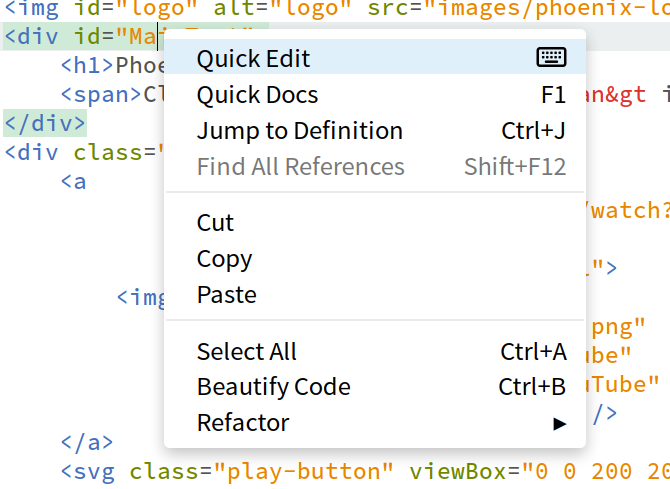
- Keyboard Shortcut: Press
-
Edit CSS: The Quick Edit window will appear, showing the CSS related to your selected HTML element.
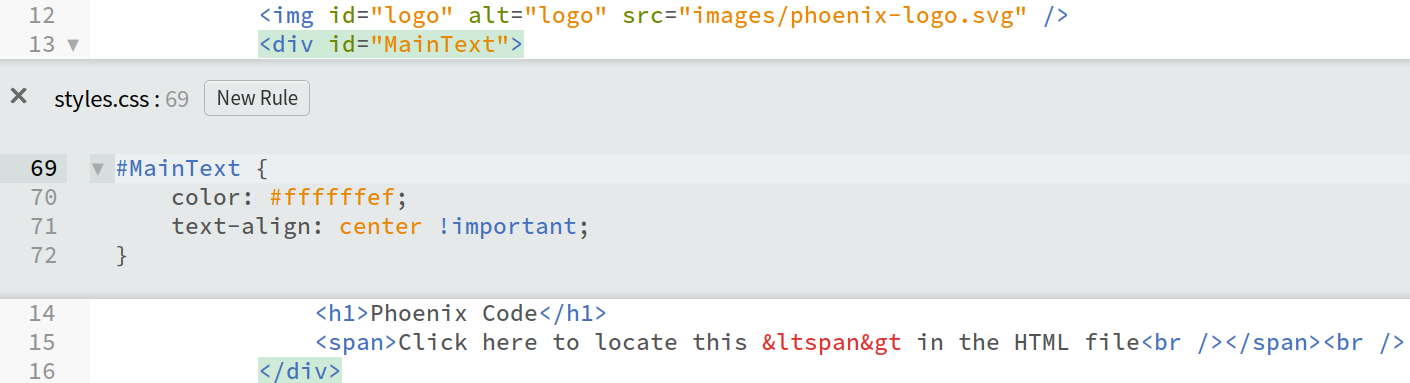
-
Save and Close: After you've made the necessary changes, save your edits and close the Quick Edit window to continue your work.
Visual Demonstration
Watch the video below to see the Quick Edit feature in action: