GeezerVison is showing docs.python.org — 4. Using Python on Windows
4. Using Python on Windows
This document aims to give an overview of Windows-specific behaviour you should
know about when using Python on Microsoft Windows.
Unlike most Unix systems and services, Windows does not include a system
supported installation of Python. Instead, Python can be obtained from a number
of distributors, including directly from the CPython team. Each Python
distribution will have its own benefits and drawbacks, however, consistency with
other tools you are using is generally a worthwhile benefit. Before committing
to the process described here, we recommend investigating your existing tools to
see if they can provide Python directly.
To obtain Python from the CPython team, use the Python install manager. This
is a standalone tool that makes Python available as global commands on your
Windows machine, integrates with the system, and supports updates over time. You
can download the Python install manager from python.org/downloads or through
the Microsoft Store app.
Once you have installed the Python install manager, the global python
command can be used from any terminal to launch your current latest version of
Python. This version may change over time as you add or remove different
versions, and the py list command will show which is current.
In general, we recommend that you create a virtual environment
for each project and run <env>\Scripts\Activate in your terminal to use it.
This provides isolation between projects, consistency over time, and ensures
that additional commands added by packages are also available in your session.
Create a virtual environment using python -m venv <env path>.
If the python or py commands do not seem to be working, see the
Troubleshooting section below. There are
sometimes additional manual steps required to configure your PC.
Apart from using the Python install manager, Python can also be obtained as
NuGet packages. See The nuget.org packages below for more information on these
packages.
The embeddable distros are minimal packages of Python suitable for embedding
into larger applications. They can be installed using the Python install
manager. See The embeddable package below for more information on these
packages.
4.1. Python install manager
4.1.1. Installation
The Python install manager can be installed from the Microsoft Store app
or downloaded and installed from python.org/downloads. The two versions are
identical.
To install through the Store, simply click “Install”. After it has completed,
open a terminal and type python to get started.
To install the file downloaded from python.org, either double-click and select
“Install”, or run Add-AppxPackage <path to MSIX> in Windows PowerShell.
After installation, the python, py, and pymanager commands should be
available. If you have existing installations of Python, or you have modified
your PATH variable, you may need to remove them or undo the
modifications. See Troubleshooting for more help with fixing
non-working commands.
When you first install a runtime, you will likely be prompted to add a directory
to your PATH. This is optional, if you prefer to use the py
command, but is offered for those who prefer the full range of aliases (such
as python3.15.exe) to be available. The directory will be
%LocalAppData%\Python\bin by default, but may be customized by an
administrator. Click Start and search for “Edit environment variables for your
account” for the system settings page to add the path.
Each Python runtime you install will have its own directory for scripts. These
also need to be added to PATH if you want to use them.
The Python install manager will be automatically updated to new releases. This
does not affect any installs of Python runtimes. Uninstalling the Python install
manager does not uninstall any Python runtimes.
If you are not able to install an MSIX in your context, for example, you are
using automated deployment software that does not support it, or are targeting
Windows Server 2019, see Advanced installation below for more
information.
4.1.2. Basic use
The recommended command for launching Python is python, which will either
launch the version requested by the script being launched, an active virtual
environment, or the default installed version, which will be the latest stable
release unless configured otherwise. If no version is specifically requested and
no runtimes are installed at all, the current latest release will be installed
automatically.
For all scenarios involving multiple runtime versions, the recommended command
is py. This may be used anywhere in place of python or the older
py.exe launcher. By default, py matches the behaviour of python, but
also allows command line options to select a specific version as well as
subcommands to manage installations. These are detailed below.
Because the py command may already be taken by the previous version, there
is also an unambiguous pymanager command. Scripted installs that are
intending to use Python install manager should consider using pymanager, due
to the lower chance of encountering a conflict with existing installs. The only
difference between the two commands is when running without any arguments:
py will launch your default interpreter, while pymanager will display
help (pymanager exec ... provides equivalent behaviour to py ...).
Each of these commands also has a windowed version that avoids creating a
console window. These are pyw, pythonw and pywmanager. A python3
command is also included that mimics the python command. It is intended to
catch accidental uses of the typical POSIX command on Windows, but is not meant
to be widely used or recommended.
To launch your default runtime, run python or py with the arguments you
want to be passed to the runtime (such as script files or the module to launch):
$> py
...
$> python my-script.py
...
$> py -m this
...
The default runtime can be overridden with the PYTHON_MANAGER_DEFAULT
environment variable, or a configuration file. See Configuration for
information about configuration settings.
To launch a specific runtime, the py command accepts a -V:<TAG> option.
This option must be specified before any others. The tag is part or all of the
identifier for the runtime; for those from the CPython team, it looks like the
version, potentially with the platform. For compatibility, the V: may be
omitted in cases where the tag refers to an official release and starts with
3.
$> py -V:3.15 ...
$> py -V:3-arm64 ...
Runtimes from other distributors may require the company to be included as
well.
It should be separated from the tag by a slash (either / or \),
and may be shortened to any prefix of its full value.
Specifying the company is optional when it is PythonCore, and specifying the
tag is optional (but not the slash) when you want the latest release from a
specific company.
$> py -V:Distributor\1.0 ...
$> py -V:distrib/ ...
If no version is specified, but a script file is passed, the script will be
inspected for a shebang line. This is a special format for the first line in
a file that allows overriding the command. See Shebang lines for more
information. When there is no shebang line, or it cannot be resolved, the script
will be launched with the default runtime.
If you are running in an active virtual environment, have not requested a
particular version, and there is no shebang line, the default runtime will be
that virtual environment. In this scenario, the python command was likely
already overridden and none of these checks occurred. However, this behaviour
ensures that the py command can be used interchangeably.
When no runtimes are installed, any launch command will try to install the
requested version and launch it. However, after any version is installed, only
the py exec ... and pymanager exec ... commands will install if the
requested version is absent. Other forms of commands will display an error and
direct you to use py install first.
4.1.3. Command help
The py help command will display the full list of supported commands, along
with their options. Any command may be passed the -? option to display its
help, or its name passed to py help.
$> py help
$> py help install
$> py install /?
All commands support some common options, which will be shown by py help.
These options must be specified after any subcommand. Specifying -v or
--verbose will increase the amount of output shown, and -vv will
increase it further for debugging purposes. Passing -q or --quiet will
reduce output, and -qq will reduce it further.
The --config=<PATH> option allows specifying a configuration file to
override multiple settings at once. See Configuration below for more
information about these files.
4.1.4. Listing runtimes
$> py list [-f=|--format=<FMT>] [-1|--one] [--online|-s=|--source=<URL>] [<TAG>...]
The list of installed runtimes can be seen using py list. A filter may be
added in the form of one or more tags (with or without company specifier), and
each may include a <, <=, >= or > prefix to restrict to a range.
A range of formats are supported, and can be passed as the --format=<FMT> or
-f <FMT> option. Formats include table (a user-friendly table view),
csv (comma-separated table), json (a single JSON blob), jsonl (one
JSON blob per result), exe (just the executable path), prefix (just the
prefix path).
The --one or -1 option only displays a single result. If the default
runtime is included, it will be the one. Otherwise, the “best” result is shown
(“best” is deliberately vaguely defined, but will usually be the most recent
version). The result shown by py list --one <TAG> will match the runtime
that would be launched by py -V:<TAG>.
The --only-managed option excludes results that were not installed by the
Python install manager. This is useful when determining which runtimes may be
updated or uninstalled through the py command.
The --online option is short for passing --source=<URL> with the default
source. Passing either of these options will search the online index for
runtimes that can be installed. The result shown by py list --online --one
<TAG> will match the runtime that would be installed by py install <TAG>.
$> py list --online 3.15
For compatibility with the old launcher, the --list, --list-paths,
-0 and -0p commands (for example, py -0p) are retained. They do not allow
additional options, and will produce legacy-formatted output.
4.1.5. Installing runtimes
$> py install [-s=|--source=<URL>] [-f|--force] [-u|--update] [--dry-run] [<TAG>...]
New runtime versions may be added using py install. One or more tags may be
specified, and the special tag default may be used to select the default.
Ranges are not supported for installation.
CPython publishes multiple runtime variants. For most users,
PythonCore is recommended and provides the standard CPython runtime.
Tags without any prefix are treated as PythonCore\<TAG>.
PythonTest includes the standard runtime together with the test suite
and debugging symbols. It is intended for contributors or users who need
these additional files for testing or debugging Python.
PythonEmbed provides a minimal embeddable distribution for
applications that bundle Python rather than for interactive use. It
would normally be used with the --target option described below.
To see the available runtime variants, run:
To install a specific variant, include it in the tag passed to
py install:
py install PythonTest\3.15
The --source=<URL> option allows overriding the online index that is used to
obtain runtimes. This may be used with an offline index, as shown in
Offline installs.
Passing --force will ignore any cached files and remove any existing install
to replace it with the specified one.
Passing --update will replace existing installs if the new version is newer.
Otherwise, they will be left. If no tags are provided with --update, all
installs managed by the Python install manager will be updated if newer versions
are available. Updates will remove any modifications made to the install,
including globally installed packages, but will leave site-packages and
Scripts directories as is. Virtual environments are also unaffected.
Passing --dry-run will generate output and logs, but will not modify any
installs.
Passing --refresh will update all registrations for installed runtimes. This
will recreate Start menu shortcuts, registry keys, and global aliases (such as
python3.15.exe or for any installed scripts). These are automatically
refreshed on installation of any runtime, but may need to be manually refreshed
after installing packages.
In addition to the above options, the --target option will extract the
runtime to the specified directory instead of doing a normal install.
This is useful for embedding runtimes into larger applications.
Unlike a normal install, py will not be aware of the extracted runtime,
and no Start menu or other shortcuts will be created.
To launch the runtime, directly execute the main executable (typically
python.exe) in the target directory.
$> py install ... [-t=|--target=<PATH>] <TAG>
The py exec command will install the requested runtime if it is not already
present. This is controlled by the automatic_install configuration
(PYTHON_MANAGER_AUTOMATIC_INSTALL), and is enabled by default.
If no runtimes are available at all, all launch commands will do an automatic
install if the configuration setting allows. This is to ensure a good experience
for new users, but should not generally be relied on rather than using the
py exec command or explicit install commands.
4.1.6. Offline installs
To perform offline installs of Python, you will need to first create an offline
index on a machine that has network access.
$> py install --download=<PATH> ... <TAG>...
The --download=<PATH> option will download the packages for the listed tags
and create a directory containing them and an index.json file suitable for
later installation. This entire directory can be moved to the offline machine
and used to install one or more of the bundled runtimes:
$> py install --source="<PATH>\index.json" <TAG>...
The Python install manager can be installed by downloading its installer and
moving it to another machine before installing.
Alternatively, the ZIP files in an offline index directory can simply be
transferred to another machine and extracted. This will not register the install
in any way, and so it must be launched by directly referencing the executables
in the extracted directory, but it is sometimes a preferable approach in cases
where installing the Python install manager is not possible or convenient.
In this way, Python runtimes can be installed and managed on a machine without
access to the internet.
4.1.7. Uninstalling runtimes
$> py uninstall [-y|--yes] <TAG>...
Runtimes may be removed using the py uninstall command. One or more tags
must be specified. Ranges are not supported here.
The --yes option bypasses the confirmation prompt before uninstalling.
Instead of passing tags individually, the --purge option may be specified.
This will remove all runtimes managed by the Python install manager, including
cleaning up the Start menu, registry, and any download caches. Runtimes that
were not installed by the Python install manager will not be impacted, and
neither will manually created configuration files.
$> py uninstall [-y|--yes] --purge
The Python install manager can be uninstalled through the Windows “Installed
apps” settings page. This does not remove any runtimes, and they will still be
usable, though the global python and py commands will be removed.
Reinstalling the Python install manager will allow you to manage these runtimes
again. To completely clean up all Python runtimes, run with --purge before
uninstalling the Python install manager.
4.1.8. Configuration
Python install manager is configured with a hierarchy of configuration files,
environment variables, command-line options, and registry settings. In general,
configuration files have the ability to configure everything, including the
location of other configuration files, while registry settings are
administrator-only and will override configuration files. Command-line options
override all other settings, but not every option is available.
This section will describe the defaults, but be aware that modified or
overridden installs may resolve settings differently.
A global configuration file may be configured by an
administrator
and would be read first. The user configuration file is stored at
%AppData%\Python\pymanager.json
(note that this location is under Roaming, not Local) and is read next,
overwriting any settings from earlier files. An additional configuration file
may be specified as the PYTHON_MANAGER_CONFIG environment variable or the
--config command line option (but not both).
These locations may be modified by administrative customization options listed
later.
The following settings are those that are considered likely to be modified in
normal use. Later sections list those that are intended for administrative
customization.
Standard configuration options
Config Key |
Environment Variable |
Description |
|---|
default_tag
|
-
PYTHON_MANAGER_DEFAULT
|
The preferred default version to launch or install.
By default, this is interpreted as the most recent non-prerelease version
from the CPython team. |
default_platform
|
PYTHON_MANAGER_DEFAULT_PLATFORM
|
The preferred default platform to launch or install.
This is treated as a suffix to the specified tag, such that py -V:3.15
would prefer an install for 3.15-64 if it exists
(and default_platform is -64),
but will use 3.15 if no tagged install exists. |
logs_dir
|
PYTHON_MANAGER_LOGS
|
The location where log files are written.
By default, %TEMP%. |
automatic_install
|
-
PYTHON_MANAGER_AUTOMATIC_INSTALL
|
True to allow automatic installs when using py exec to launch (or
py when no runtimes are installed yet).
Other commands will not automatically install, regardless of this
setting.
By default, true. |
include_unmanaged
|
PYTHON_MANAGER_INCLUDE_UNMANAGED
|
True to allow listing and launching runtimes that were not installed
by the Python install manager, or false to exclude them.
By default, true. |
shebang_can_run_anything
|
PYTHON_MANAGER_SHEBANG_CAN_RUN_ANYTHING
|
True to allow shebangs in .py files to launch applications other than
Python runtimes, or false to prevent it.
By default, true. |
shebang_templates
|
(none) |
Mapping from shebang line template to alternative command, such as
py -V:<tag> or a substitute string.
See Shebang lines for more details. |
log_level
|
PYMANAGER_VERBOSE, PYMANAGER_DEBUG
|
Set the default level of output (0-50).
By default, 20.
Lower values produce more output.
The environment variables are boolean, and may produce additional
output during startup that is later suppressed by other configuration. |
confirm
|
PYTHON_MANAGER_CONFIRM
|
True to confirm certain actions before taking them (such as uninstall),
or false to skip the confirmation.
By default, true. |
install.source
|
PYTHON_MANAGER_SOURCE_URL
|
Override the index feed to obtain new installs from. |
install.enable_entrypoints
|
(none) |
True to generate global commands for installed packages (such as
pip.exe). These are defined by the packages themselves.
If set to false, only the Python interpreter has global commands created.
By default, true. You should run py install --refresh after changing
this setting. |
list.format
|
PYTHON_MANAGER_LIST_FORMAT
|
Specify the default format used by the py list command.
By default, table. |
install_dir
|
(none) |
Specify the root directory that runtimes will be installed into.
If you change this setting, previously installed runtimes will not be
usable unless you move them to the new location. |
global_dir
|
(none) |
Specify the directory where global commands (such as python3.15.exe
and pip.exe) are stored.
This directory should be added to your PATH to make the
commands available from your terminal. |
download_dir
|
(none) |
Specify the directory where downloaded files are stored.
This directory is a temporary cache, and can be cleaned up from time to
time. |
Dotted names should be nested inside JSON objects, for example, list.format
would be specified as {"list": {"format": "table"}}.
4.1.9. Shebang lines
If the first line of a script file starts with #!, it is known as a
“shebang” line. Linux and other Unix-like operating systems have native
support for such lines and they are commonly used on such systems to indicate
how a script should be executed. The python and py commands allow the
same facilities to be used with Python scripts on Windows.
To allow shebang lines in Python scripts to be portable between Unix and
Windows, a number of ‘virtual’ commands are supported to specify which
interpreter to use. The supported virtual commands are:
/usr/bin/env <ALIAS>
/usr/bin/env -S <ALIAS>
/usr/bin/<ALIAS>
/usr/local/bin/<ALIAS>
<ALIAS>
For example, if the first line of your script starts with
The default Python or an active virtual environment will be located and used.
As many Python scripts written to work on Unix will already have this line,
you should find these scripts can be used by the launcher without modification.
If you are writing a new script on Windows which you hope will be useful on
Unix, you should use one of the shebang lines starting with /usr.
Any of the above virtual commands can have <ALIAS> replaced by an alias from
an installed runtime. That is, any command generated in the global aliases
directory (which you may have added to your PATH environment variable)
can be used in a shebang, even if it is not on your PATH. This allows
the use of shebangs like /usr/bin/python3.12 to select a particular runtime.
If no runtimes are installed, or if automatic installation is enabled, the
requested runtime will be installed if necessary. See Configuration
for information about configuration settings.
The /usr/bin/env form of shebang line will also search the PATH
environment variable for unrecognized commands. This corresponds to the
behaviour of the Unix env program, which performs the same search, but
prefers launching known Python commands. A warning may be displayed when
searching for arbitrary executables, and this search may be disabled by the
shebang_can_run_anything configuration option.
Shebang lines that do not match any of the patterns are treated as Windows
executable paths that are absolute or relative to the directory containing the
script file. This is a convenience for Windows-only scripts, such as those
generated by an installer, since the behavior is not compatible with Unix-style
shells. These paths may be quoted, and may include multiple arguments, after
which the path to the script and any additional arguments will be appended.
This functionality may be disabled by the shebang_can_run_anything
configuration option.
Since version 26.3 of the Python install manager, custom shebang templates may
be added to your configuration file. Add the shebang_templates object with
one member for each template (the string to match) and the command to use when
the template is matched. Most commands should be py -V:<tag> (or pyw) to
launch one of your installed runtimes. The py -3.<version> form is also
allowed, as is a plain py to launch the default. No other arguments are
supported.
{
    "shebang_templates": {
        "/usr/bin/python": "py",
        "/usr/bin/my_custom_python": "py -V:MyCustomPython/3"
    }
}
If the substitute command is not py or pyw, it will be written back into
the shebang and regular handling continues. If launching arbitrary executables
is permitted, then providing a full path will allow you to redirect from Python
to any executable. The template should match either the entire line (ignoring
leading and trailing whitespace), or up to the first space in the shebang line.
Note
The behaviour of shebangs in the Python install manager is subtly different
from the previous py.exe launcher, and the old configuration options no
longer apply. If you are specifically reliant on the old behaviour or
configuration, we recommend installing the legacy launcher. The legacy
launcher’s py command will override PyManager’s one by default, and you
will need to use pymanager commands for installing and uninstalling.
4.1.10. Advanced installation
For situations where an MSIX cannot be installed, such as some older
administrative distribution platforms, there is an MSI available from the
python.org downloads page. This MSI has no user interface, and can only perform
per-machine installs to its default location in Program Files. It will attempt
to modify the system PATH environment variable to include this install
location, but be sure to validate this on your configuration.
Note
Windows Server 2019 is the only version of Windows that CPython supports that
does not support MSIX. For Windows Server 2019, you should use the MSI.
Be aware that the MSI package does not bundle any runtimes, and so is not
suitable for installs into offline environments without also creating an offline
install index. See Offline installs and Administrative configuration
for information on handling these scenarios.
Runtimes installed by the MSI are shared with those installed by the MSIX, and
are all per-user only. The Python install manager does not support installing
runtimes per-machine. To emulate a per-machine install, you can use py install
--target=<shared location> as administrator and add your own system-wide
modifications to PATH, the registry, or the Start menu.
When the MSIX is installed, but commands are not available in the PATH
environment variable, they can be found under
%LocalAppData%\Microsoft\WindowsApps\PythonSoftwareFoundation.PythonManager_3847v3x7pw1km
or
%LocalAppData%\Microsoft\WindowsApps\PythonSoftwareFoundation.PythonManager_qbz5n2kfra8p0,
depending on whether it was installed from python.org or through the Windows
Store. Attempting to run the executable directly from Program Files is not
recommended.
To programmatically install the Python install manager, it is easiest to use
WinGet, which is included with all supported versions of Windows:
$> winget install 9NQ7512CXL7T -e --accept-package-agreements --disable-interactivity

# Optionally run the configuration checker and accept all changes
$> py install --configure -y
To download the Python install manager and install on another machine, the
following WinGet command will download the required files from the Store to your
Downloads directory (add -d <location> to customize the output location).
This also generates a YAML file that appears to be unnecessary, as the
downloaded MSIX can be installed by launching or using the commands below.
$> winget download 9NQ7512CXL7T -e --skip-license --accept-package-agreements --accept-source-agreements
To programmatically install or uninstall an MSIX using only PowerShell, the
Add-AppxPackage and Remove-AppxPackage PowerShell cmdlets are recommended:
$> Add-AppxPackage C:\Downloads\python-manager-25.0.msix
...
$> Get-AppxPackage PythonSoftwareFoundation.PythonManager | Remove-AppxPackage
The latest release can be downloaded and installed by Windows by passing the
AppInstaller file to the Add-AppxPackage command. This installs using the MSIX
on python.org, and is only recommended for cases where installing via the Store
(interactively or using WinGet) is not possible.
$> Add-AppxPackage -AppInstallerFile https://www.python.org/ftp/python/pymanager/pymanager.appinstaller
Other tools and APIs may also be used to provision an MSIX package for all users
on a machine, but Python does not consider this a supported scenario. We suggest
looking into the PowerShell Add-AppxProvisionedPackage cmdlet, the native
Windows PackageManager class, or the documentation and support for your
deployment tool.
Regardless of the install method, users will still need to install their own
copies of Python itself, as there is no way to trigger those installs without
being a logged-in user. When using the MSIX, the latest version of Python will
be available for all users to install without network access.
Note that the MSIX downloadable from the Store and from the Python website are
subtly different and cannot be installed at the same time. Wherever possible,
we suggest using the above WinGet commands to download the package from the
Store to reduce the risk of setting up conflicting installs. There are no
licensing restrictions on the Python install manager that would prevent using
the Store package in this way.
4.1.11. Administrative configuration
There are a number of options that may be useful for administrators to override
configuration of the Python install manager. These can be used to provide local
caching, disable certain shortcut types, override bundled content. All of the
above configuration options may be set, as well as those below.
Configuration options may be overridden in the registry by setting values under
HKEY_LOCAL_MACHINE\Software\Policies\Python\PyManager, where the
value name matches the configuration key and the value type is REG_SZ. Note
that this key can itself be customized, but only by modifying the core config
file distributed with the Python install manager. We recommend, however, that
registry values are used only to set base_config to a JSON file containing
the full set of overrides. Registry key overrides will replace any other
configured setting, while base_config allows users to further modify
settings they may need.
Note that most settings with environment variables support those variables
because their default setting specifies the variable. If you override them, the
environment variable will no longer work, unless you override it with another
one. For example, the default value of confirm is literally
%PYTHON_MANAGER_CONFIRM%, which will resolve the variable at load time. If
you override the value to yes, then the environment variable will no longer
be used. If you override the value to %CONFIRM%, then that environment
variable will be used instead.
Configuration settings that are paths are interpreted as relative to the
directory containing the configuration file that specified them.
Administrative configuration options
Config Key |
Description |
|---|
base_config
|
The highest priority configuration file to read.
Note that only the built-in configuration file and the registry can
modify this setting. |
user_config
|
The second configuration file to read. |
additional_config
|
The third configuration file to read. |
registry_override_key
|
Registry location to check for overrides.
Note that only the built-in configuration file can modify this setting. |
bundled_dir
|
Read-only directory containing locally cached files. |
install.fallback_source
|
Path or URL to an index to consult when the main index cannot be accessed. |
install.enable_shortcut_kinds
|
Comma-separated list of shortcut kinds to allow
(for example, "pep514,start").
Enabled shortcuts may still be disabled by disable_shortcut_kinds. |
install.disable_shortcut_kinds
|
Comma-separated list of shortcut kinds to exclude
(for example, "pep514,start").
Disabled shortcuts are not reactivated by enable_shortcut_kinds. |
install.hard_link_entrypoints
|
True to use hard links for global shortcuts to save disk space. If false,
each shortcut executable is copied instead. After changing this setting,
you must run py install --refresh --force to update existing
commands.
By default, true. Disabling this may be necessary for troubleshooting or
systems that have issues with file links. |
pep514_root
|
Registry location to read and write PEP 514 entries into.
By default, HKEY_CURRENT_USER\Software\Python. |
start_folder
|
Start menu folder to write shortcuts into.
By default, Python.
This path is relative to the user’s Programs folder. |
virtual_env
|
Path to the active virtual environment.
By default, this is %VIRTUAL_ENV%, but may be set empty
to disable venv detection. |
shebang_can_run_anything_silently
|
True to suppress visible warnings when a shebang launches an application
other than a Python runtime. |
source_settings
|
A mapping from source URL to settings specific to that index.
When multiple configuration files include this section, URL settings are
added or overwritten, but individual settings are not merged.
These settings are currently only for index signatures. |
4.1.12. Installing free-threaded binaries
Pre-built distributions of the free-threaded build are available
by installing tags with the t suffix.
$> py install 3.15t
$> py install 3.15t-arm64
$> py install 3.15t-32
This will install and register as normal. If you have no other runtimes
installed, then python will launch this one. Otherwise, you will need to use
py -V:3.15t or, if you have added the global aliases directory to your
PATH environment variable, the python3.15t.exe commands.
4.1.13. Index signatures
Index files may be signed to detect tampering. A signature is a catalog file
at the same URL as the index with .cat added to the filename. The catalog
file should contain the hash of its matching index file, and should be signed
with a valid Authenticode signature. This allows standard tooling (on Windows)
to generate a signature, and any certificate may be used as long as the client
operating system already trusts its certification authority (root CA).
Index signatures are only downloaded and checked when the local configuration’s
source_settings section includes the index URL and requires_signature is
true, or the index JSON contains requires_signature set to true. When the
setting exists in local configuration, even when false, settings in the index
are ignored.
As well as requiring a valid signature, the required_root_subject and
required_publisher_subject settings can further restrict acceptable
signatures based on the certificate Subject fields. Any attribute specified in
the configuration must match the attribute in the certificate (additional
attributes in the certificate are ignored). Typical attributes are CN= for
the common name, O= for the organization, and C= for the
publisher’s country.
Finally, the required_publisher_eku setting allows requiring that a specific
Enhanced Key Usage (EKU) has been assigned to the publisher certificate. For
example, the EKU 1.3.6.1.5.5.7.3.3 indicates that the certificate was
intended for code signing (as opposed to server or client authentication).
In combination with a specific root CA, this provides another mechanism to
verify a legitimate signature.
This is an example source_settings section from a configuration file. In
this case, the publisher of the feed is uniquely identified by the combination
of the Microsoft Identity Verification root and the EKU assigned by that root.
The signature for this case would be found at
https://www.python.org/ftp/python/index-windows.json.cat.
{
  "source_settings": {
    "https://www.python.org/ftp/python/index-windows.json": {
      "requires_signature": true,
      "required_root_subject": "CN=Microsoft Identity Verification Root Certificate Authority 2020",
      "required_publisher_subject": "CN=Python Software Foundation",
      "required_publisher_eku": "1.3.6.1.4.1.311.97.608394634.79987812.305991749.578777327"
    }
  }
}
The same settings could be specified in the index.json file instead. In this
case, the root and EKU are omitted, meaning that the signature must be valid and
have a specific common name in the publisher’s certificate, but no other checks
are used.
{
  "requires_signature": true,
  "required_publisher_subject": "CN=Python Software Foundation",
  "versions": [
    // ...
  ]
}
When settings from inside a feed are used, the user is notified and the settings
are shown in the log file or verbose output. It is recommended to copy these
settings into a local configuration file for feeds that will be used frequently,
so that unauthorised modifications to the feed cannot disable verification.
It is not possible to override the location of the signature file in the feed or
through a configuration file. Administrators can provide their own
source_settings in a mandatory configuration file (see
Administrative configuration).
If signature validation fails, you will be notified and prompted to continue.
When interactive confirmation is not allowed (for example, because --yes was
specified), it will always abort. To use a feed with invalid configuration in
this scenario, you must provide a configuration file that disables signature
checking for that feed.
"source_settings": {
  "https://www.example.com/feed-with-invalid-signature.json": {
    "requires_signature": false
  }
}
4.1.14. Proxy settings
By default, the Python install manager will use your system-wide proxy settings,
including automatic authentication. For most users, this behaves the same as
your browser and other applications.
To override the settings, use the NO_PROXY, HTTP_PROXY and
HTTPS_PROXY environment variables. These should be set in the terminal
session before using the Python install manager. Other applications may also
use the variables, so use caution before setting them globally for your entire
machine.
Setting NO_PROXY to any non-empty value will disable the use of any proxy.
Use this to bypass your system’s default proxy setting and attempt to access the
index server directly.
Setting HTTPS_PROXY to a string like example.com:8080 will connect to
that proxy server for all HTTPS connections. For the default index, all
connections will be using HTTPS, and so this is the usual setting to override.
The HTTP_PROXY variable may be needed if you are using a private index
server that does not use encrypted connections, but does require the default
proxy server to be overridden. It follows the same format as HTTPS_PROXY.
Credentials may be embedded in either setting, however, when HTTPS_PROXY has
credentials embedded they will be used in preference to other credentials. Only
one set of credentials will be used for both types of proxy.
4.1.15. Troubleshooting
If your Python install manager does not seem to be working correctly,
work through these tests and fixes to see if it helps. If not, report an
issue at our bug tracker,
including any relevant log files (written to your %TEMP% directory by
default).
Troubleshooting
Symptom |
Things to try |
|---|
python gives me a “command not found” error or opens the Store app
when I type it in my terminal.
|
Did you install the Python install manager? |
|
Click Start, open “Manage app execution aliases”, and check that the
aliases for “Python (default)” are enabled.
If they already are, try disabling and re-enabling to refresh the command.
The “Python (default windowed)” and “Python install manager” commands
may also need refreshing. |
|
Check that the py and pymanager commands work. |
|
Ensure your PATH variable contains the entry for
%UserProfile%\AppData\Local\Microsoft\WindowsApps.
The operating system includes this entry once by default, after other
user paths. If removed, shortcuts will not be found. |
py gives me a “command not found” error when I type it in my terminal.
|
Did you install the Python install manager? |
|
Click Start, open “Manage app execution aliases”, and check that the
aliases for “Python (default)” are enabled.
If they already are, try disabling and re-enabling to refresh the command.
The “Python (default windowed)” and “Python install manager” commands
may also need refreshing. |
|
Ensure your PATH variable contains the entry for
%UserProfile%\AppData\Local\Microsoft\WindowsApps.
The operating system includes this entry once by default, after other
user paths. If removed, shortcuts will not be found. |
py gives me a “can’t open file” error when I type commands in my
terminal.
|
This usually means you have the legacy launcher installed and
it has priority over the Python install manager.
To remove, click Start, open “Installed apps”,
search for “Python launcher” and uninstall it. |
python doesn’t launch the same runtime as py
|
Click Start, open “Installed apps”, look for any existing Python runtimes,
and either remove them or Modify and disable the PATH options. |
|
Click Start, open “Manage app execution aliases”, and check that your
python.exe alias is set to “Python (default)” |
python and py don’t launch the runtime I expect
|
Check your PYTHON_MANAGER_DEFAULT environment variable
or default_tag configuration.
The py list command will show your default based on these settings. |
|
Installs that are managed by the Python install manager will be chosen
ahead of unmanaged installs.
Use py install to install the runtime you expect,
or configure your default tag. |
|
Prerelease and experimental installs that are not managed by the Python
install manager may be chosen ahead of stable releases.
Configure your default tag or uninstall the prerelease runtime
and reinstall it using py install. |
pythonw or pyw don’t launch the same runtime as python or py
|
Click Start, open “Manage app execution aliases”, and check that your
pythonw.exe and pyw.exe aliases are consistent with your others. |
pip gives me a “command not found” error when I type it in my terminal.
|
Have you activated a virtual environment?
Run the .venv\Scripts\activate script in your terminal to activate. |
|
The package may be available but missing the generated executable.
We recommend using the python -m pip command instead.
Running py install --refresh and ensuring that the global shortcuts
directory is on PATH (it will be shown in the command output if
it is not) should make commands such as pip (and other installed
packages) available. |
I installed a package with pip but its command is not found. |
Have you activated a virtual environment?
Run the .venv\Scripts\activate script in your terminal to activate. |
|
New packages do not automatically have global shortcuts created by the
Python install manager. Similarly, uninstalled packages do not have their
shortcuts removed.
Run py install --refresh to update the global shortcuts for newly
installed packages. |
Typing script-name.py in the terminal opens in a new window. |
This is a known limitation of the operating system. Either specify py
before the script name, create a batch file containing @py "%~dpn0.py" %*
with the same name as the script, or install the legacy launcher
and select it as the association for scripts. |
Drag-dropping files onto a script doesn’t work |
This is a known limitation of the operating system. It is supported with
the legacy launcher, or with the Python install manager when installed
from the MSI. |
I have installed the Python install manager multiple times. |
It is possible to install from the Store or WinGet, from the MSIX on
the Python website, and from the MSI, all at once.
They are all compatible and will share configuration and runtimes. |
|
See the earlier Advanced installation section for ways to
uninstall the install manager other than the typical Installed Apps
(Add and Remove Programs) settings page. |
My old py.ini settings no longer work. |
The new Python install manager no longer supports this configuration file
or its settings, and so it will be ignored.
See Configuration for information about configuration settings. |
4.2. The embeddable package
The embedded distribution is a ZIP file containing a minimal Python environment.
It is intended for acting as part of another application, rather than being
directly accessed by end-users.
To install an embedded distribution, we recommend using py install with the
--target option:
$> py install 3.15-embed --target=<directory>
When extracted, the embedded distribution is (almost) fully isolated from the
user’s system, including environment variables, system registry settings, and
installed packages. The standard library is included as pre-compiled and
optimized .pyc files in a ZIP, and python3.dll, python315.dll,
python.exe and pythonw.exe are all provided. Tcl/Tk (including all
dependents, such as IDLE), pip and the Python documentation are not included.
A default ._pth file is included, which further restricts the default search
paths (as described below in Finding modules). This file is
intended for embedders to modify as necessary.
Third-party packages should be installed by the application installer alongside
the embedded distribution. Using pip to manage dependencies as for a regular
Python installation is not supported with this distribution, though with some
care it may be possible to include and use pip for automatic updates. In
general, third-party packages should be treated as part of the application
(“vendoring”) so that the developer can ensure compatibility with newer
versions before providing updates to users.
The two recommended use cases for this distribution are described below.
4.2.1. Python application
An application written in Python does not necessarily require users to be aware
of that fact. The embedded distribution may be used in this case to include a
private version of Python in an install package. Depending on how transparent it
should be (or conversely, how professional it should appear), there are two
options.
Using a specialized executable as a launcher requires some coding, but provides
the most transparent experience for users. With a customized launcher, there are
no obvious indications that the program is running on Python: icons can be
customized, company and version information can be specified, and file
associations behave properly. In most cases, a custom launcher should simply be
able to call Py_Main with a hard-coded command line.
The simpler approach is to provide a batch file or generated shortcut that
directly calls the python.exe or pythonw.exe with the required
command-line arguments. In this case, the application will appear to be Python
and not its actual name, and users may have trouble distinguishing it from other
running Python processes or file associations.
With the latter approach, packages should be installed as directories alongside
the Python executable to ensure they are available on the path. With the
specialized launcher, packages can be located in other locations as there is an
opportunity to specify the search path before launching the application.
4.2.2. Embedding Python
Applications written in native code often require some form of scripting
language, and the embedded Python distribution can be used for this purpose. In
general, the majority of the application is in native code, and some part will
either invoke python.exe or directly use python3.dll. For either case,
extracting the embedded distribution to a subdirectory of the application
installation is sufficient to provide a loadable Python interpreter.
As with the application use, packages can be installed to any location as there
is an opportunity to specify search paths before initializing the interpreter.
Otherwise, there are no fundamental differences between using the embedded
distribution and a regular installation.
4.3. The nuget.org packages
The nuget.org package is a reduced size Python environment intended for use on
continuous integration and build systems that do not have a system-wide
install of Python. While nuget is “the package manager for .NET”, it also works
perfectly fine for packages containing build-time tools.
Visit nuget.org for the most up-to-date information
on using nuget. What follows is a summary that is sufficient for Python
developers.
The nuget.exe command line tool may be downloaded directly from
https://dist.nuget.org/win-x86-commandline/latest/nuget.exe, for example,
using curl or PowerShell. With the tool, the latest version of Python for
64-bit or 32-bit machines is installed using:
nuget.exe install python -ExcludeVersion -OutputDirectory .
nuget.exe install pythonx86 -ExcludeVersion -OutputDirectory .
To select a particular version, add a -Version 3.x.y. The output directory
may be changed from ., and the package will be installed into a
subdirectory. By default, the subdirectory is named the same as the package,
and without the -ExcludeVersion option this name will include the specific
version installed. Inside the subdirectory is a tools directory that
contains the Python installation:
# Without -ExcludeVersion
> .\python.3.5.2\tools\python.exe -V
Python 3.5.2

# With -ExcludeVersion
> .\python\tools\python.exe -V
Python 3.5.2
In general, nuget packages are not upgradeable, and newer versions should be
installed side-by-side and referenced using the full path. Alternatively,
delete the package directory manually and install it again. Many CI systems
will do this automatically if they do not preserve files between builds.
Alongside the tools directory is a build\native directory. This
contains an MSBuild properties file python.props that can be used in a
C++ project to reference the Python install. Including the settings will
automatically use the headers and import libraries in your build.
The package information pages on nuget.org are
www.nuget.org/packages/python
for the 64-bit version, www.nuget.org/packages/pythonx86 for the 32-bit version, and
www.nuget.org/packages/pythonarm64 for the ARM64 version.
4.3.1. Free-threaded packages
Packages containing free-threaded binaries are named
python-freethreaded
for the 64-bit version, pythonx86-freethreaded for the 32-bit
version, and pythonarm64-freethreaded for the ARM64
version. These packages contain both the python3.15t.exe and
python.exe entry points, both of which run free-threaded.
4.4. Alternative bundles
Besides the standard CPython distribution, there are modified packages including
additional functionality. The following is a list of popular versions and their
key features:
- ActivePython
Installer with multi-platform compatibility, documentation, PyWin32
- Anaconda
Popular scientific modules (such as numpy, scipy and pandas) and the
conda package manager.
- Enthought Deployment Manager
“The Next Generation Python Environment and Package Manager”.
Previously Enthought provided Canopy, but it reached end of life in 2016.
- WinPython
Windows-specific distribution with prebuilt scientific packages and
tools for building packages.
Note that these packages may not include the latest versions of Python or
other libraries, and are not maintained or supported by the core Python team.
4.5. Supported Windows versions
As specified in PEP 11, a Python release only supports a Windows platform
while Microsoft considers the platform under extended support. This means that
Python 3.15 supports Windows 10 and newer. If you require Windows 7
support, install Python 3.8. If you require Windows 8.1 support,
install Python 3.12.
4.6. Removing the MAX_PATH limitation
Windows historically has limited path lengths to 260 characters. This meant that
paths longer than this would not resolve and errors would result.
In the latest versions of Windows, this limitation can be expanded to over
32,000 characters. Your administrator will need to activate the “Enable Win32
long paths” group policy, or set LongPathsEnabled to 1 in the registry
key HKEY_LOCAL_MACHINE\SYSTEM\CurrentControlSet\Control\FileSystem.
This allows the open() function, the os module and most other
path functionality to accept and return paths longer than 260 characters.
After changing the above option and rebooting, no further configuration is
required.
4.7. UTF-8 mode
Changed in version 3.15: Python UTF-8 mode is now enabled by default (PEP 686).
Windows still uses legacy encodings for the system encoding (the ANSI Code
Page). When the Python UTF-8 Mode is disabled, Python
uses the ANSI Code Page as the default encoding of text files, as
returned by locale.getencoding().
This may cause issues because UTF-8 is widely used on the internet
and most Unix systems, including WSL (Windows Subsystem for Linux).
The Python UTF-8 Mode, enabled by default, ignores the
system encoding and uses UTF-8 as the default text encoding.
When the UTF-8 mode is enabled, you can still use the
system encoding (the ANSI Code Page) via the “mbcs” codec.
You can disable the Python UTF-8 Mode via
the -X utf8=0 command line option, or the PYTHONUTF8=0 environment
variable. See PYTHONUTF8 for disabling UTF-8 mode, and
Python install manager for how to modify environment variables.
Hint
Adding PYTHONUTF8={0,1} to the default environment variables
will affect all Python 3.7+ applications on your system.
If you have any Python 3.7+ applications which rely on the legacy
system encoding, it is recommended to set the environment variable
temporarily or use the -X utf8 command line option.
Note
Even when UTF-8 mode is disabled, Python uses UTF-8 by default
on Windows for:
4.8. Finding modules
These notes supplement the description at The initialization of the sys.path module search path with
detailed Windows notes.
When no ._pth file is found, this is how sys.path is populated on
Windows:
An empty entry is added at the start, which corresponds to the current
directory. If the environment variable PYTHONPATH exists, as described in
Environment variables, its entries are added next. Note that on Windows,
paths in this variable must be separated by semicolons, to distinguish them
from the colon used in drive identifiers (such as C:\). Additional “application paths” can be added in the registry as subkeys of
\SOFTWARE\Python\PythonCore{version}\PythonPath under both the
HKEY_CURRENT_USER and HKEY_LOCAL_MACHINE hives. Subkeys which have
semicolon-delimited path strings as their default value will cause each path
to be added to sys.path. (Note that all known installers only use
HKLM, so HKCU is typically empty.) If the environment variable PYTHONHOME is set, it is assumed as
“Python Home”. Otherwise, the path of the main Python executable is used to
locate a “landmark file” (either Lib\os.py or pythonXY.zip) to deduce
the “Python Home”. If a Python home is found, the relevant sub-directories
added to sys.path (such as Lib and plat-win) are based on that
folder. Otherwise, the core Python path is constructed from the PythonPath
stored in the registry. If the Python Home cannot be located, no PYTHONPATH is specified in
the environment, and no registry entries can be found, a default path with
relative entries is used (for example, .\Lib;.\plat-win).
If a pyvenv.cfg file is found alongside the main executable or in the
directory one level above the executable, the following variations apply:
The end result of all this is:
When running python.exe, or any other .exe in the main Python
directory (either an installed version, or directly from the PCbuild
directory), the core path is deduced, and the core paths in the registry are
ignored. Other “application paths” in the registry are always read. When Python is hosted in another .exe (for example, in a different directory or
embedded via COM), the “Python Home” will not be deduced, so the core path from the
registry is used. Other “application paths” in the registry are always read. If Python can’t find its home and there are no registry values (frozen .exe,
some very strange installation setup) you get a path with some default, but
relative, paths.
For those who want to bundle Python into their application or distribution, the
following advice will prevent conflicts with other installations:
Include a ._pth file alongside your executable containing the
directories to include. This will ignore paths listed in the registry and
environment variables, and also ignore site unless import site is
listed. If you are loading python3.dll or python315.dll in your own
executable, explicitly set PyConfig.module_search_paths before
Py_InitializeFromConfig(). Clear and/or overwrite PYTHONPATH and set PYTHONHOME
before launching python.exe from your application. If you cannot use the previous suggestions (for example, you are a
distribution that allows people to run python.exe directly), ensure
that the landmark file (Lib\os.py) exists in your install directory.
(Note that it will not be detected inside a ZIP file, but a correctly named
ZIP file will be detected instead.)
These will ensure that the files in a system-wide installation will not take
precedence over the copy of the standard library bundled with your application.
Otherwise, your users may experience problems using your application. Note that
the first suggestion is the best, as the others may still be susceptible to
non-standard paths in the registry and user site-packages.
Changed in version 3.6: Add ._pth file support and remove applocal option from
pyvenv.cfg.
Changed in version 3.6: Add pythonXX.zip as a potential landmark when directly adjacent
to the executable.
Deprecated since version 3.6: Modules specified in the registry under Modules (not PythonPath)
may be imported by importlib.machinery.WindowsRegistryFinder.
This finder is enabled on Windows in 3.6.0 and earlier, but may need to
be explicitly added to sys.meta_path in the future.
4.9. Additional modules
Even though Python aims to be portable among all platforms, there are features
that are unique to Windows. A couple of modules, both in the standard library
and external, and snippets exist to use these features.
The Windows-specific standard modules are documented in
MS Windows Specific Services.
4.9.1. PyWin32
The PyWin32 module by Mark Hammond
is a collection of modules for advanced Windows-specific support. This includes
utilities for:
PythonWin is a sample MFC application
shipped with PyWin32. It is an embeddable IDE with a built-in debugger.
4.9.2. cx_Freeze
cx_Freeze
wraps Python scripts into executable Windows programs
(*.exe files). When you have done this, you can distribute your
application without requiring your users to install Python.
4.10. Compiling Python on Windows
If you want to compile CPython yourself, first thing you should do is get the
source. You can download either the
latest release’s source or just grab a fresh checkout.
The source tree contains a build solution and project files for Microsoft
Visual Studio, which is the compiler used to build the official Python
releases. These files are in the PCbuild directory.
Check PCbuild/readme.txt for general information on the build process.
For extension modules, consult Building C and C++ Extensions on Windows.
4.11. The full installer (deprecated)
Deprecated since version 3.14: This installer is deprecated since 3.14 and will not be produced for Python
3.16 or later. See Python install manager for the modern installer.
4.11.1. Installation steps
Four Python 3.15 installers are available for download - two each for the
32-bit and 64-bit versions of the interpreter. The web installer is a small
initial download, and it will automatically download the required components as
necessary. The offline installer includes the components necessary for a
default installation and only requires an internet connection for optional
features. See Installing without downloading for other ways to avoid downloading
during installation.
After starting the installer, one of two options may be selected:
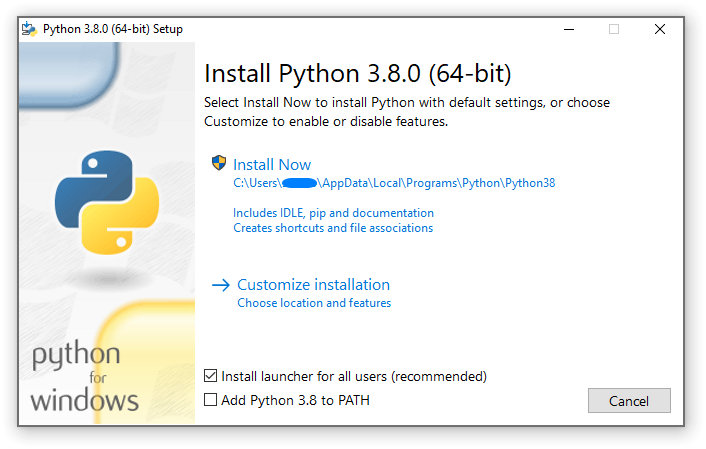
If you select “Install Now”:
You will not need to be an administrator (unless a system update for the
C Runtime Library is required or you install the Python install manager for all
users) Python will be installed into your user directory The Python install manager will be installed according to the option at the bottom
of the first page The standard library, test suite, launcher and pip will be installed If selected, the install directory will be added to your PATH Shortcuts will only be visible for the current user
Selecting “Customize installation” will allow you to select the features to
install, the installation location and other options or post-install actions.
To install debugging symbols or binaries, you will need to use this option.
To perform an all-users installation, you should select “Customize
installation”. In this case:
You may be required to provide administrative credentials or approval Python will be installed into the Program Files directory The Python install manager will be installed into the Windows directory Optional features may be selected during installation The standard library can be pre-compiled to bytecode If selected, the install directory will be added to the system PATH Shortcuts are available for all users
4.11.2. Removing the MAX_PATH limitation
Windows historically has limited path lengths to 260 characters. This meant that
paths longer than this would not resolve and errors would result.
In the latest versions of Windows, this limitation can be expanded to
approximately 32,000 characters. Your administrator will need to activate the
“Enable Win32 long paths” group policy, or set LongPathsEnabled to 1
in the registry key
HKEY_LOCAL_MACHINE\SYSTEM\CurrentControlSet\Control\FileSystem.
This allows the open() function, the os module and most other
path functionality to accept and return paths longer than 260 characters.
After changing the above option, no further configuration is required.
Changed in version 3.6: Support for long paths was enabled in Python.
4.11.3. Installing without UI
All of the options available in the installer UI can also be specified from the
command line, allowing scripted installers to replicate an installation on many
machines without user interaction. These options may also be set without
suppressing the UI in order to change some of the defaults.
The following options (found by executing the installer with /?) can be
passed into the installer:
Name |
Description |
|---|
/passive |
to display progress without requiring user interaction |
/quiet |
to install/uninstall without displaying any UI |
/simple |
to prevent user customization |
/uninstall |
to remove Python (without confirmation) |
/layout [directory] |
to pre-download all components |
/log [filename] |
to specify log files location |
All other options are passed as name=value, where the value is usually
0 to disable a feature, 1 to enable a feature, or a path. The full list
of available options is shown below.
Name |
Description |
Default |
|---|
InstallAllUsers |
Perform a system-wide installation. |
0 |
TargetDir |
The installation directory |
Selected based on
InstallAllUsers |
DefaultAllUsersTargetDir |
The default installation directory
for all-user installs |
%ProgramFiles%\Python X.Y or %ProgramFiles(x86)%\Python X.Y
|
DefaultJustForMeTargetDir |
The default install directory for
just-for-me installs |
%LocalAppData%\Programs\Python\PythonXY or
%LocalAppData%\Programs\Python\PythonXY-32 or
%LocalAppData%\Programs\Python\PythonXY-64
|
DefaultCustomTargetDir |
The default custom install directory
displayed in the UI |
(empty) |
AssociateFiles |
Create file associations if the
launcher is also installed. |
1 |
CompileAll |
Compile all .py files to
.pyc. |
0 |
PrependPath |
Prepend install and Scripts
directories to PATH and
add .PY to PATHEXT |
0 |
AppendPath |
Append install and Scripts
directories to PATH and
add .PY to PATHEXT |
0 |
Shortcuts |
Create shortcuts for the interpreter,
documentation and IDLE if installed. |
1 |
Include_doc |
Install Python manual |
1 |
Include_debug |
Install debug binaries |
0 |
Include_dev |
Install developer headers and
libraries. Omitting this may lead to
an unusable installation. |
1 |
Include_exe |
Install python.exe and
related files. Omitting this may
lead to an unusable installation. |
1 |
Include_launcher |
Install Python install manager. |
1 |
InstallLauncherAllUsers |
Installs the launcher for all
users. Also requires
Include_launcher to be set to 1 |
1 |
Include_lib |
Install standard library and
extension modules. Omitting this may
lead to an unusable installation. |
1 |
Include_pip |
Install bundled pip and setuptools |
1 |
Include_symbols |
Install debugging symbols (*.pdb) |
0 |
Include_tcltk |
Install Tcl/Tk support and IDLE |
1 |
Include_test |
Install standard library test suite |
1 |
Include_tools |
Install utility scripts |
1 |
LauncherOnly |
Only installs the launcher. This
will override most other options. |
0 |
SimpleInstall |
Disable most install UI |
0 |
SimpleInstallDescription |
A custom message to display when the
simplified install UI is used. |
(empty) |
For example, to silently install a default, system-wide Python installation,
you could use the following command (from an elevated command prompt):
python-3.9.0.exe /quiet InstallAllUsers=1 PrependPath=1 Include_test=0
To allow users to easily install a personal copy of Python without the test
suite, you could provide a shortcut with the following command. This will
display a simplified initial page and disallow customization:
python-3.9.0.exe InstallAllUsers=0 Include_launcher=0 Include_test=0
    SimpleInstall=1 SimpleInstallDescription="Just for me, no test suite."
(Note that omitting the launcher also omits file associations, and is only
recommended for per-user installs when there is also a system-wide installation
that included the launcher.)
The options listed above can also be provided in a file named unattend.xml
alongside the executable. This file specifies a list of options and values.
When a value is provided as an attribute, it will be converted to a number if
possible. Values provided as element text are always left as strings. This
example file sets the same options as the previous example:
<Options>
    <Option Name="InstallAllUsers" Value="no" />
    <Option Name="Include_launcher" Value="0" />
    <Option Name="Include_test" Value="no" />
    <Option Name="SimpleInstall" Value="yes" />
    <Option Name="SimpleInstallDescription">Just for me, no test suite</Option>
</Options>
4.11.4. Installing without downloading
As some features of Python are not included in the initial installer download,
selecting those features may require an internet connection. To avoid this
need, all possible components may be downloaded on-demand to create a complete
layout that will no longer require an internet connection regardless of the
selected features. Note that this download may be bigger than required, but
where a large number of installations are going to be performed it is very
useful to have a locally cached copy.
Execute the following command from Command Prompt to download all possible
required files. Remember to substitute python-3.9.0.exe for the actual
name of your installer, and to create layouts in their own directories to
avoid collisions between files with the same name.
python-3.9.0.exe /layout [optional target directory]
You may also specify the /quiet option to hide the progress display.
4.11.5. Modifying an install
Once Python has been installed, you can add or remove features through the
Programs and Features tool that is part of Windows. Select the Python entry and
choose “Uninstall/Change” to open the installer in maintenance mode.
“Modify” allows you to add or remove features by modifying the checkboxes -
unchanged checkboxes will not install or remove anything. Some options cannot be
changed in this mode, such as the install directory; to modify these, you will
need to remove and then reinstall Python completely.
“Repair” will verify all the files that should be installed using the current
settings and replace any that have been removed or modified.
“Uninstall” will remove Python entirely, with the exception of the
Python install manager, which has its own entry in Programs and Features.
4.11.6. Installing free-threaded binaries
To install pre-built binaries with free-threading enabled (see PEP 703), you
should select “Customize installation”. The second page of options includes the
“Download free-threaded binaries” checkbox.
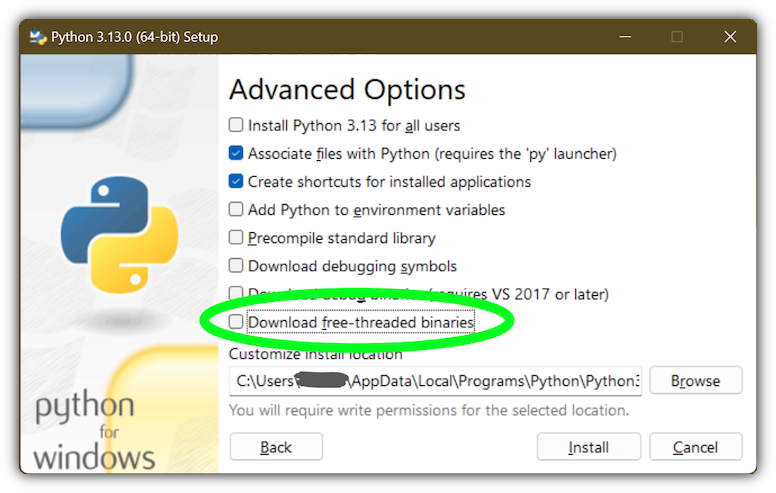
Selecting this option will download and install additional binaries to the same
location as the main Python install. The main executable is called
python3.13t.exe, and other binaries either receive a t suffix or a full
ABI suffix. Python source files and bundled third-party dependencies are shared
with the main install.
The free-threaded version is registered as a regular Python install with the
tag 3.13t (with a -32 or -arm64 suffix as normal for those
platforms). This allows tools to discover it, and for the Python install manager to
support py.exe -3.13t. Note that the launcher will interpret py.exe -3
(or a python3 shebang) as “the latest 3.x install”, which will prefer the
free-threaded binaries over the regular ones, while py.exe -3.13 will not.
If you use the short style of option, you may prefer to not install the
free-threaded binaries at this time.
To specify the install option at the command line, use
Include_freethreaded=1. See Installing without downloading for instructions on
pre-emptively downloading the additional binaries for offline install. The
options to include debug symbols and binaries also apply to the free-threaded
builds.
Free-threaded binaries are also available on nuget.org.
4.12. Python launcher for Windows (deprecated)
Deprecated since version 3.14: The launcher and this documentation have been superseded by the Python
Install Manager described above. This is preserved temporarily for historical
interest.
The Python launcher for Windows is a utility which aids in locating and
executing of different Python versions. It allows scripts (or the
command-line) to indicate a preference for a specific Python version, and
will locate and execute that version.
Unlike the PATH variable, the launcher will correctly select the most
appropriate version of Python. It will prefer per-user installations over
system-wide ones, and orders by language version rather than using the most
recently installed version.
The launcher was originally specified in PEP 397.
4.12.1. Getting started
4.12.1.1. From the command-line
System-wide installations of Python 3.3 and later will put the launcher on your
PATH. The launcher is compatible with all available versions of
Python, so it does not matter which version is installed. To check that the
launcher is available, execute the following command in Command Prompt:
You should find that the latest version of Python you have installed is
started - it can be exited as normal, and any additional command-line
arguments specified will be sent directly to Python.
If you have multiple versions of Python installed (e.g., 3.7 and 3.15) you
will have noticed that Python 3.15 was started - to launch Python 3.7, try
the command:
If you want the latest version of Python 2 you have installed, try the
command:
If you see the following error, you do not have the launcher installed:
'py' is not recognized as an internal or external command,
operable program or batch file.
The command:
displays the currently installed version(s) of Python.
The -x.y argument is the short form of the -V:Company/Tag argument,
which allows selecting a specific Python runtime, including those that may have
come from somewhere other than python.org. Any runtime registered by following
PEP 514 will be discoverable. The --list command lists all available
runtimes using the -V: format.
When using the -V: argument, specifying the Company will limit selection to
runtimes from that provider, while specifying only the Tag will select from all
providers. Note that omitting the slash implies a tag:
# Select any '3.*' tagged runtime
py -V:3

# Select any 'PythonCore' released runtime
py -V:PythonCore/

# Select PythonCore's latest Python 3 runtime
py -V:PythonCore/3
The short form of the argument (-3) only ever selects from core Python
releases, and not other distributions. However, the longer form (-V:3) will
select from any.
The Company is matched on the full string, case-insensitive. The Tag is matched
on either the full string, or a prefix, provided the next character is a dot or a
hyphen. This allows -V:3.1 to match 3.1-32, but not 3.10. Tags are
sorted using numerical ordering (3.10 is newer than 3.1), but are
compared using text (-V:3.01 does not match 3.1).
4.12.1.2. Virtual environments
If the launcher is run with no explicit Python version specification, and a
virtual environment (created with the standard library venv module or
the external virtualenv tool) active, the launcher will run the virtual
environment’s interpreter rather than the global one. To run the global
interpreter, either deactivate the virtual environment, or explicitly specify
the global Python version.
4.12.1.3. From a script
Let’s create a test Python script - create a file called hello.py with the
following contents
#! python
import sys
sys.stdout.write("hello from Python %s\n" % (sys.version,))
From the directory in which hello.py lives, execute the command:
You should notice the version number of your latest Python 2.x installation
is printed. Now try changing the first line to be:
Re-executing the command should now print the latest Python 3.x information.
As with the above command-line examples, you can specify a more explicit
version qualifier. Assuming you have Python 3.7 installed, try changing
the first line to #! python3.7 and you should find the 3.7
version information printed.
Note that unlike interactive use, a bare “python” will use the latest
version of Python 2.x that you have installed. This is for backward
compatibility and for compatibility with Unix, where the command python
typically refers to Python 2.
4.12.1.4. From file associations
The launcher should have been associated with Python files (i.e. .py,
.pyw, .pyc files) when it was installed. This means that
when you double-click on one of these files from Windows explorer the launcher
will be used, and therefore you can use the same facilities described above to
have the script specify the version which should be used.
The key benefit of this is that a single launcher can support multiple Python
versions at the same time depending on the contents of the first line.
4.12.2. Shebang lines
If the first line of a script file starts with #!, it is known as a
“shebang” line. Linux and other Unix like operating systems have native
support for such lines and they are commonly used on such systems to indicate
how a script should be executed. This launcher allows the same facilities to
be used with Python scripts on Windows and the examples above demonstrate their
use.
To allow shebang lines in Python scripts to be portable between Unix and
Windows, this launcher supports a number of ‘virtual’ commands to specify
which interpreter to use. The supported virtual commands are:
/usr/bin/env
/usr/bin/python
/usr/local/bin/python
python
For example, if the first line of your script starts with
The default Python or an active virtual environment will be located and used.
As many Python scripts written to work on Unix will already have this line,
you should find these scripts can be used by the launcher without modification.
If you are writing a new script on Windows which you hope will be useful on
Unix, you should use one of the shebang lines starting with /usr.
Any of the above virtual commands can be suffixed with an explicit version
(either just the major version, or the major and minor version).
Furthermore the 32-bit version can be requested by adding “-32” after the
minor version. I.e. /usr/bin/python3.7-32 will request usage of the
32-bit Python 3.7. If a virtual environment is active, the version will be
ignored and the environment will be used.
Added in version 3.7: Beginning with python launcher 3.7 it is possible to request 64-bit version
by the “-64” suffix. Furthermore it is possible to specify a major and
architecture without minor (i.e. /usr/bin/python3-64).
Changed in version 3.11: The “-64” suffix is deprecated, and now implies “any architecture that is
not provably i386/32-bit”. To request a specific environment, use the new
-V:TAG argument with the complete tag.
Changed in version 3.13: Virtual commands referencing python now prefer an active virtual
environment rather than searching PATH. This handles cases where
the shebang specifies /usr/bin/env python3 but python3.exe is
not present in the active environment.
The /usr/bin/env form of shebang line has one further special property.
Before looking for installed Python interpreters, this form will search the
executable PATH for a Python executable matching the name provided
as the first argument. This corresponds to the behaviour of the Unix env
program, which performs a PATH search.
If an executable matching the first argument after the env command cannot
be found, but the argument starts with python, it will be handled as
described for the other virtual commands.
The environment variable PYLAUNCHER_NO_SEARCH_PATH may be set
(to any value) to skip this search of PATH.
Shebang lines that do not match any of these patterns are looked up in the
[commands] section of the launcher’s .INI file.
This may be used to handle certain commands in a way that makes sense for your
system. The name of the command must be a single argument (no spaces in the
shebang executable), and the value substituted is the full path to the
executable (additional arguments specified in the .INI will be quoted as part
of the filename).
[commands]
/bin/xpython=C:\Program Files\XPython\python.exe
Any commands not found in the .INI file are treated as Windows executable
paths that are absolute or relative to the directory containing the script file.
This is a convenience for Windows-only scripts, such as those generated by an
installer, since the behavior is not compatible with Unix-style shells.
These paths may be quoted, and may include multiple arguments, after which the
path to the script and any additional arguments will be appended.
4.12.3. Arguments in shebang lines
The shebang lines can also specify additional options to be passed to the
Python interpreter. For example, if you have a shebang line:
Then Python will be started with the -v option
4.12.4. Customization
4.12.4.1. Customization via INI files
Two .ini files will be searched by the launcher - py.ini in the current
user’s application data directory (%LOCALAPPDATA% or $env:LocalAppData)
and py.ini in the same directory as the launcher. The same .ini files are
used for both the ‘console’ version of the launcher (i.e. py.exe) and for the
‘windows’ version (i.e. pyw.exe).
Customization specified in the “application directory” will have precedence over
the one next to the executable, so a user, who may not have write access to the
.ini file next to the launcher, can override commands in that global .ini file.
4.12.4.2. Customizing default Python versions
In some cases, a version qualifier can be included in a command to dictate
which version of Python will be used by the command. A version qualifier
starts with a major version number and can optionally be followed by a period
(‘.’) and a minor version specifier. Furthermore it is possible to specify
if a 32 or 64 bit implementation shall be requested by adding “-32” or “-64”.
For example, a shebang line of #!python has no version qualifier, while
#!python3 has a version qualifier which specifies only a major version.
If no version qualifiers are found in a command, the environment
variable PY_PYTHON can be set to specify the default version
qualifier. If it is not set, the default is “3”. The variable can
specify any value that may be passed on the command line, such as “3”,
“3.7”, “3.7-32” or “3.7-64”. (Note that the “-64” option is only
available with the launcher included with Python 3.7 or newer.)
If no minor version qualifiers are found, the environment variable
PY_PYTHON{major} (where {major} is the current major version qualifier
as determined above) can be set to specify the full version. If no such option
is found, the launcher will enumerate the installed Python versions and use
the latest minor release found for the major version, which is likely,
although not guaranteed, to be the most recently installed version in that
family.
On 64-bit Windows with both 32-bit and 64-bit implementations of the same
(major.minor) Python version installed, the 64-bit version will always be
preferred. This will be true for both 32-bit and 64-bit implementations of the
launcher - a 32-bit launcher will prefer to execute a 64-bit Python installation
of the specified version if available. This is so the behavior of the launcher
can be predicted knowing only what versions are installed on the PC and
without regard to the order in which they were installed (i.e., without knowing
whether a 32 or 64-bit version of Python and corresponding launcher was
installed last). As noted above, an optional “-32” or “-64” suffix can be
used on a version specifier to change this behaviour.
Examples:
If no relevant options are set, the commands python and
python2 will use the latest Python 2.x version installed and
the command python3 will use the latest Python 3.x installed. The command python3.7 will not consult any
options at all as the versions are fully specified. If PY_PYTHON=3, the commands python and python3 will both use
the latest installed Python 3 version. If PY_PYTHON=3.7-32, the command python will use the 32-bit
implementation of 3.7 whereas the command python3 will use the latest
installed Python (PY_PYTHON was not considered at all as a major
version was specified.) If PY_PYTHON=3 and PY_PYTHON3=3.7, the commands
python and python3 will both use specifically 3.7
In addition to environment variables, the same settings can be configured
in the .INI file used by the launcher. The section in the INI file is
called [defaults] and the key name will be the same as the
environment variables without the leading PY_ prefix (and note that
the key names in the INI file are case insensitive.) The contents of
an environment variable will override things specified in the INI file.
For example:
[defaults]
python=3
python3=3.7
4.12.5. Diagnostics
If an environment variable PYLAUNCHER_DEBUG is set (to any value), the
launcher will print diagnostic information to stderr (i.e. to the console).
While this information manages to be simultaneously verbose and terse, it
should allow you to see what versions of Python were located, why a
particular version was chosen and the exact command-line used to execute the
target Python. It is primarily intended for testing and debugging.
4.12.6. Dry run
If an environment variable PYLAUNCHER_DRYRUN is set (to any value),
the launcher will output the command it would have run, but will not actually
launch Python. This may be useful for tools that want to use the launcher to
detect and then launch Python directly. Note that the command written to
standard output is always encoded using UTF-8, and may not render correctly in
the console.
4.12.7. Install on demand
If an environment variable PYLAUNCHER_ALLOW_INSTALL is set (to any
value), and the requested Python version is not installed but is available on
the Microsoft Store, the launcher will attempt to install it. This may require
user interaction to complete, and you may need to run the command again.
An additional PYLAUNCHER_ALWAYS_INSTALL variable causes the launcher
to always try to install Python, even if it is detected. This is mainly intended
for testing (and should be used with PYLAUNCHER_DRYRUN).
4.12.8. Return codes
The following exit codes may be returned by the Python launcher. Unfortunately,
there is no way to distinguish these from the exit code of Python itself.
The names of codes are as used in the sources, and are only for reference. There
is no way to access or resolve them apart from reading this page. Entries are
listed in alphabetical order of names.
Name |
Value |
Description |
|---|
RC_BAD_VENV_CFG |
107 |
A pyvenv.cfg was found but is corrupt. |
RC_CREATE_PROCESS |
101 |
Failed to launch Python. |
RC_INSTALLING |
111 |
An install was started, but the command will
need to be re-run after it completes. |
RC_INTERNAL_ERROR |
109 |
Unexpected error. Please report a bug. |
RC_NO_COMMANDLINE |
108 |
Unable to obtain command line from the
operating system. |
RC_NO_PYTHON |
103 |
Unable to locate the requested version. |
RC_NO_VENV_CFG |
106 |
A pyvenv.cfg was required but not
found. |
© Copyright 2001 Python Software Foundation.
This page is licensed under the Python Software Foundation License Version 2.
Examples, recipes, and other code in the documentation are additionally licensed under the Zero Clause BSD License.
See History and License for more information.
The Python Software Foundation is a non-profit corporation.
Please donate.
Last updated on Nov 12, 2026 (08:53 UTC).
Found a bug?
Created using Sphinx 9.1.1.
|