GeezerVisonThe World Wide Web, restored to 800 pixels of glory. | ||||||||||||||||||||||||||||||||||||||||||||||||||||||||||||||||||||||||||||||||||||||||||||||||||||||||||||||||||||
| Home|About|Gaming cabinet|Archives|How it works|Starter sites | ||||||||||||||||||||||||||||||||||||||||||||||||||||||||||||||||||||||||||||||||||||||||||||||||||||||||||||||||||||
GeezerVison is showing docs.python.org — 4. Using Python on Windows 4. Using Python on Windows¶This document aims to give an overview of Windows-specific behaviour you should know about when using Python on Microsoft Windows. Unlike most Unix systems and services, Windows does not include a system supported installation of Python. To make Python available, the CPython team has compiled Windows installers with every release for many years. These installers are primarily intended to add a per-user installation of Python, with the core interpreter and library being used by a single user. The installer is also able to install for all users of a single machine, and a separate ZIP file is available for application-local distributions. As specified in PEP 11, a Python release only supports a Windows platform while Microsoft considers the platform under extended support. This means that Python 3.12 supports Windows 8.1 and newer. If you require Windows 7 support, please install Python 3.8. There are a number of different installers available for Windows, each with certain benefits and downsides. The full installer contains all components and is the best option for developers using Python for any kind of project. The Microsoft Store package is a simple installation of Python that is suitable for running scripts and packages, and using IDLE or other development environments. It requires Windows 10 and above, but can be safely installed without corrupting other programs. It also provides many convenient commands for launching Python and its tools. The nuget.org packages are lightweight installations intended for continuous integration systems. It can be used to build Python packages or run scripts, but is not updateable and has no user interface tools. The embeddable package is a minimal package of Python suitable for embedding into a larger application. 4.1. The full installer¶4.1.1. Installation steps¶Four Python 3.12 installers are available for download - two each for the 32-bit and 64-bit versions of the interpreter. The web installer is a small initial download, and it will automatically download the required components as necessary. The offline installer includes the components necessary for a default installation and only requires an internet connection for optional features. See Installing Without Downloading for other ways to avoid downloading during installation. After starting the installer, one of two options may be selected: 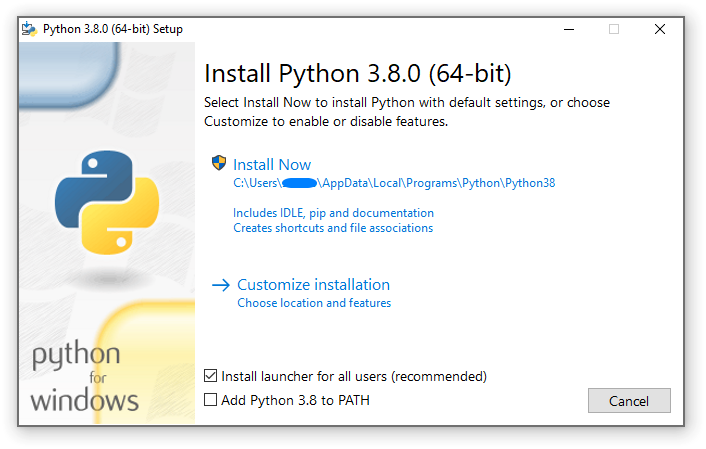
If you select “Install Now”:
Selecting “Customize installation” will allow you to select the features to install, the installation location and other options or post-install actions. To install debugging symbols or binaries, you will need to use this option. To perform an all-users installation, you should select “Customize installation”. In this case:
4.1.2. Removing the MAX_PATH Limitation¶Windows historically has limited path lengths to 260 characters. This meant that paths longer than this would not resolve and errors would result. In the latest versions of Windows, this limitation can be expanded to
approximately 32,000 characters. Your administrator will need to activate the
“Enable Win32 long paths” group policy, or set This allows the After changing the above option, no further configuration is required. Changed in version 3.6: Support for long paths was enabled in Python. 4.1.3. Installing Without UI¶All of the options available in the installer UI can also be specified from the command line, allowing scripted installers to replicate an installation on many machines without user interaction. These options may also be set without suppressing the UI in order to change some of the defaults. The following options (found by executing the installer with
All other options are passed as
For example, to silently install a default, system-wide Python installation, you could use the following command (from an elevated command prompt): python-3.9.0.exe /quiet InstallAllUsers=1 PrependPath=1 Include_test=0 To allow users to easily install a personal copy of Python without the test suite, you could provide a shortcut with the following command. This will display a simplified initial page and disallow customization: python-3.9.0.exe InstallAllUsers=0 Include_launcher=0 Include_test=0
SimpleInstall=1 SimpleInstallDescription="Just for me, no test suite."
(Note that omitting the launcher also omits file associations, and is only recommended for per-user installs when there is also a system-wide installation that included the launcher.) The options listed above can also be provided in a file named <Options> <Option Name="InstallAllUsers" Value="no" /> <Option Name="Include_launcher" Value="0" /> <Option Name="Include_test" Value="no" /> <Option Name="SimpleInstall" Value="yes" /> <Option Name="SimpleInstallDescription">Just for me, no test suite</Option> </Options> 4.1.4. Installing Without Downloading¶As some features of Python are not included in the initial installer download, selecting those features may require an internet connection. To avoid this need, all possible components may be downloaded on-demand to create a complete layout that will no longer require an internet connection regardless of the selected features. Note that this download may be bigger than required, but where a large number of installations are going to be performed it is very useful to have a locally cached copy. Execute the following command from Command Prompt to download all possible
required files. Remember to substitute python-3.9.0.exe /layout [optional target directory] You may also specify the 4.1.5. Modifying an install¶Once Python has been installed, you can add or remove features through the Programs and Features tool that is part of Windows. Select the Python entry and choose “Uninstall/Change” to open the installer in maintenance mode. “Modify” allows you to add or remove features by modifying the checkboxes - unchanged checkboxes will not install or remove anything. Some options cannot be changed in this mode, such as the install directory; to modify these, you will need to remove and then reinstall Python completely. “Repair” will verify all the files that should be installed using the current settings and replace any that have been removed or modified. “Uninstall” will remove Python entirely, with the exception of the Python Launcher for Windows, which has its own entry in Programs and Features. 4.2. The Microsoft Store package¶Added in version 3.7.2. The Microsoft Store package is an easily installable Python interpreter that is intended mainly for interactive use, for example, by students. To install the package, ensure you have the latest Windows 10 updates and search the Microsoft Store app for “Python 3.12”. Ensure that the app you select is published by the Python Software Foundation, and install it. Warning Python will always be available for free on the Microsoft Store. If you are asked to pay for it, you have not selected the correct package. After installation, Python may be launched by finding it in Start.
Alternatively, it will be available from any Command Prompt or PowerShell
session by typing All three commands are also available with version number suffixes, for
example, as Virtual environments can be created with If you have installed another version of Python and added it to your
The To remove Python, open Settings and use Apps and Features, or else find Python in Start and right-click to select Uninstall. Uninstalling will remove all packages you installed directly into this Python installation, but will not remove any virtual environments 4.2.1. Known issues¶4.2.1.1. Redirection of local data, registry, and temporary paths¶Because of restrictions on Microsoft Store apps, Python scripts may not have
full write access to shared locations such as At runtime, Python will use a private copy of well-known Windows folders and the registry.
For example, if the environment variable When reading files, Windows will return the file from the private folder, or if that does not exist, the
real Windows directory. For example reading You can find the real path of any existing file using >>> import os >>> test_file = 'C:\\Users\\example\\AppData\\Local\\test.txt' >>> os.path.realpath(test_file) 'C:\\Users\\example\\AppData\\Local\\Packages\\PythonSoftwareFoundation.Python.3.8_qbz5n2kfra8p0\\LocalCache\\Local\\test.txt' When writing to the Windows Registry, the following behaviors exist:
For more detail on the technical basis for these limitations, please consult Microsoft’s documentation on packaged full-trust apps, currently available at docs.microsoft.com/en-us/windows/msix/desktop/desktop-to-uwp-behind-the-scenes 4.3. The nuget.org packages¶Added in version 3.5.2. The nuget.org package is a reduced size Python environment intended for use on continuous integration and build systems that do not have a system-wide install of Python. While nuget is “the package manager for .NET”, it also works perfectly fine for packages containing build-time tools. Visit nuget.org for the most up-to-date information on using nuget. What follows is a summary that is sufficient for Python developers. The nuget.exe install python -ExcludeVersion -OutputDirectory . nuget.exe install pythonx86 -ExcludeVersion -OutputDirectory . To select a particular version, add a # Without -ExcludeVersion > .\python.3.5.2\tools\python.exe -V Python 3.5.2 # With -ExcludeVersion > .\python\tools\python.exe -V Python 3.5.2 In general, nuget packages are not upgradeable, and newer versions should be installed side-by-side and referenced using the full path. Alternatively, delete the package directory manually and install it again. Many CI systems will do this automatically if they do not preserve files between builds. Alongside the The package information pages on nuget.org are www.nuget.org/packages/python for the 64-bit version and www.nuget.org/packages/pythonx86 for the 32-bit version. 4.4. The embeddable package¶Added in version 3.5. The embedded distribution is a ZIP file containing a minimal Python environment. It is intended for acting as part of another application, rather than being directly accessed by end-users. When extracted, the embedded distribution is (almost) fully isolated from the
user’s system, including environment variables, system registry settings, and
installed packages. The standard library is included as pre-compiled and
optimized Note The embedded distribution does not include the Microsoft C Runtime and it is
the responsibility of the application installer to provide this. The
runtime may have already been installed on a user’s system previously or
automatically via Windows Update, and can be detected by finding
Third-party packages should be installed by the application installer alongside the embedded distribution. Using pip to manage dependencies as for a regular Python installation is not supported with this distribution, though with some care it may be possible to include and use pip for automatic updates. In general, third-party packages should be treated as part of the application (“vendoring”) so that the developer can ensure compatibility with newer versions before providing updates to users. The two recommended use cases for this distribution are described below. 4.4.1. Python Application¶An application written in Python does not necessarily require users to be aware of that fact. The embedded distribution may be used in this case to include a private version of Python in an install package. Depending on how transparent it should be (or conversely, how professional it should appear), there are two options. Using a specialized executable as a launcher requires some coding, but provides
the most transparent experience for users. With a customized launcher, there are
no obvious indications that the program is running on Python: icons can be
customized, company and version information can be specified, and file
associations behave properly. In most cases, a custom launcher should simply be
able to call The simpler approach is to provide a batch file or generated shortcut that
directly calls the With the latter approach, packages should be installed as directories alongside the Python executable to ensure they are available on the path. With the specialized launcher, packages can be located in other locations as there is an opportunity to specify the search path before launching the application. 4.4.2. Embedding Python¶Applications written in native code often require some form of scripting
language, and the embedded Python distribution can be used for this purpose. In
general, the majority of the application is in native code, and some part will
either invoke As with the application use, packages can be installed to any location as there is an opportunity to specify search paths before initializing the interpreter. Otherwise, there is no fundamental differences between using the embedded distribution and a regular installation. 4.5. Alternative bundles¶Besides the standard CPython distribution, there are modified packages including additional functionality. The following is a list of popular versions and their key features:
Note that these packages may not include the latest versions of Python or other libraries, and are not maintained or supported by the core Python team. 4.6. Configuring Python¶To run Python conveniently from a command prompt, you might consider changing some default environment variables in Windows. While the installer provides an option to configure the PATH and PATHEXT variables for you, this is only reliable for a single, system-wide installation. If you regularly use multiple versions of Python, consider using the Python Launcher for Windows. 4.6.1. Excursus: Setting environment variables¶Windows allows environment variables to be configured permanently at both the User level and the System level, or temporarily in a command prompt. To temporarily set environment variables, open Command Prompt and use the set command: C:\>set PATH=C:\Program Files\Python 3.9;%PATH% C:\>set PYTHONPATH=%PYTHONPATH%;C:\My_python_lib C:\>python These changes will apply to any further commands executed in that console, and will be inherited by any applications started from the console. Including the variable name within percent signs will expand to the existing
value, allowing you to add your new value at either the start or the end.
Modifying To permanently modify the default environment variables, click Start and search for ‘edit environment variables’, or open System properties, Advanced system settings and click the Environment Variables button. In this dialog, you can add or modify User and System variables. To change System variables, you need non-restricted access to your machine (i.e. Administrator rights). Note Windows will concatenate User variables after System variables, which may
cause unexpected results when modifying The See also
4.6.2. Finding the Python executable¶Changed in version 3.5. Besides using the automatically created start menu entry for the Python interpreter, you might want to start Python in the command prompt. The installer has an option to set that up for you. On the first page of the installer, an option labelled “Add Python to PATH”
may be selected to have the installer add the install location into the
If you don’t enable this option at install time, you can always re-run the
installer, select Modify, and enable it. Alternatively, you can manually
modify the C:\WINDOWS\system32;C:\WINDOWS;C:\Program Files\Python 3.9 4.7. UTF-8 mode¶Added in version 3.7. Windows still uses legacy encodings for the system encoding (the ANSI Code
Page). Python uses it for the default encoding of text files (e.g.
This may cause issues because UTF-8 is widely used on the internet and most Unix systems, including WSL (Windows Subsystem for Linux). You can use the Python UTF-8 Mode to change the default text
encoding to UTF-8. You can enable the Python UTF-8 Mode via
the When the Python UTF-8 Mode is enabled, you can still use the system encoding (the ANSI Code Page) via the “mbcs” codec. Note that adding Note Even when UTF-8 mode is disabled, Python uses UTF-8 by default on Windows for:
4.8. Python Launcher for Windows¶Added in version 3.3. The Python launcher for Windows is a utility which aids in locating and executing of different Python versions. It allows scripts (or the command-line) to indicate a preference for a specific Python version, and will locate and execute that version. Unlike the The launcher was originally specified in PEP 397. 4.8.1. Getting started¶4.8.1.1. From the command-line¶Changed in version 3.6. System-wide installations of Python 3.3 and later will put the launcher on your
py You should find that the latest version of Python you have installed is started - it can be exited as normal, and any additional command-line arguments specified will be sent directly to Python. If you have multiple versions of Python installed (e.g., 3.7 and 3.12) you will have noticed that Python 3.12 was started - to launch Python 3.7, try the command: py -3.7 If you want the latest version of Python 2 you have installed, try the command: py -2 If you see the following error, you do not have the launcher installed: 'py' is not recognized as an internal or external command, operable program or batch file. The command: py --list displays the currently installed version(s) of Python. The When using the # Select any '3.*' tagged runtime py -V:3 # Select any 'PythonCore' released runtime py -V:PythonCore/ # Select PythonCore's latest Python 3 runtime py -V:PythonCore/3 The short form of the argument ( The Company is matched on the full string, case-insenitive. The Tag is matched
oneither the full string, or a prefix, provided the next character is a dot or a
hyphen. This allows 4.8.1.2. Virtual environments¶Added in version 3.5. If the launcher is run with no explicit Python version specification, and a
virtual environment (created with the standard library 4.8.1.3. From a script¶Let’s create a test Python script - create a file called #! python import sys sys.stdout.write("hello from Python %s\n" % (sys.version,)) From the directory in which hello.py lives, execute the command: py hello.py You should notice the version number of your latest Python 2.x installation is printed. Now try changing the first line to be: #! python3
Re-executing the command should now print the latest Python 3.x information.
As with the above command-line examples, you can specify a more explicit
version qualifier. Assuming you have Python 3.7 installed, try changing
the first line to Note that unlike interactive use, a bare “python” will use the latest
version of Python 2.x that you have installed. This is for backward
compatibility and for compatibility with Unix, where the command 4.8.1.4. From file associations¶The launcher should have been associated with Python files (i.e. The key benefit of this is that a single launcher can support multiple Python versions at the same time depending on the contents of the first line. 4.8.2. Shebang Lines¶If the first line of a script file starts with To allow shebang lines in Python scripts to be portable between Unix and Windows, this launcher supports a number of ‘virtual’ commands to specify which interpreter to use. The supported virtual commands are:
For example, if the first line of your script starts with #! /usr/bin/python
The default Python will be located and used. As many Python scripts written
to work on Unix will already have this line, you should find these scripts can
be used by the launcher without modification. If you are writing a new script
on Windows which you hope will be useful on Unix, you should use one of the
shebang lines starting with Any of the above virtual commands can be suffixed with an explicit version
(either just the major version, or the major and minor version).
Furthermore the 32-bit version can be requested by adding “-32” after the
minor version. I.e. Added in version 3.7: Beginning with python launcher 3.7 it is possible to request 64-bit version
by the “-64” suffix. Furthermore it is possible to specify a major and
architecture without minor (i.e. Changed in version 3.11: The “-64” suffix is deprecated, and now implies “any architecture that is
not provably i386/32-bit”. To request a specific environment, use the new
The Shebang lines that do not match any of these patterns are looked up in the
[commands]
/bin/xpython=C:\Program Files\XPython\python.exe
Any commands not found in the .INI file are treated as Windows executable paths that are absolute or relative to the directory containing the script file. This is a convenience for Windows-only scripts, such as those generated by an installer, since the behavior is not compatible with Unix-style shells. These paths may be quoted, and may include multiple arguments, after which the path to the script and any additional arguments will be appended. 4.8.3. Arguments in shebang lines¶The shebang lines can also specify additional options to be passed to the Python interpreter. For example, if you have a shebang line: #! /usr/bin/python -v
Then Python will be started with the 4.8.4. Customization¶4.8.4.1. Customization via INI files¶Two .ini files will be searched by the launcher - Customization specified in the “application directory” will have precedence over the one next to the executable, so a user, who may not have write access to the .ini file next to the launcher, can override commands in that global .ini file. 4.8.4.2. Customizing default Python versions¶In some cases, a version qualifier can be included in a command to dictate which version of Python will be used by the command. A version qualifier starts with a major version number and can optionally be followed by a period (‘.’) and a minor version specifier. Furthermore it is possible to specify if a 32 or 64 bit implementation shall be requested by adding “-32” or “-64”. For example, a shebang line of If no version qualifiers are found in a command, the environment
variable If no minor version qualifiers are found, the environment variable
On 64-bit Windows with both 32-bit and 64-bit implementations of the same (major.minor) Python version installed, the 64-bit version will always be preferred. This will be true for both 32-bit and 64-bit implementations of the launcher - a 32-bit launcher will prefer to execute a 64-bit Python installation of the specified version if available. This is so the behavior of the launcher can be predicted knowing only what versions are installed on the PC and without regard to the order in which they were installed (i.e., without knowing whether a 32 or 64-bit version of Python and corresponding launcher was installed last). As noted above, an optional “-32” or “-64” suffix can be used on a version specifier to change this behaviour. Examples:
In addition to environment variables, the same settings can be configured
in the .INI file used by the launcher. The section in the INI file is
called For example:
[defaults]
python=3.7
[defaults]
python=3
python3=3.7
4.8.5. Diagnostics¶If an environment variable 4.8.6. Dry Run¶If an environment variable 4.8.7. Install on demand¶If an environment variable An additional 4.8.8. Return codes¶The following exit codes may be returned by the Python launcher. Unfortunately, there is no way to distinguish these from the exit code of Python itself. The names of codes are as used in the sources, and are only for reference. There is no way to access or resolve them apart from reading this page. Entries are listed in alphabetical order of names.
4.9. Finding modules¶These notes supplement the description at The initialization of the sys.path module search path with detailed Windows notes. When no
If a
The end result of all this is:
For those who want to bundle Python into their application or distribution, the following advice will prevent conflicts with other installations:
These will ensure that the files in a system-wide installation will not take precedence over the copy of the standard library bundled with your application. Otherwise, your users may experience problems using your application. Note that the first suggestion is the best, as the others may still be susceptible to non-standard paths in the registry and user site-packages. Changed in version 3.6: Add Changed in version 3.6: Add Deprecated since version 3.6: Modules specified in the registry under 4.10. Additional modules¶Even though Python aims to be portable among all platforms, there are features that are unique to Windows. A couple of modules, both in the standard library and external, and snippets exist to use these features. The Windows-specific standard modules are documented in MS Windows Specific Services. 4.10.1. PyWin32¶The PyWin32 module by Mark Hammond is a collection of modules for advanced Windows-specific support. This includes utilities for:
PythonWin is a sample MFC application shipped with PyWin32. It is an embeddable IDE with a built-in debugger. See also
4.10.2. cx_Freeze¶cx_Freeze
wraps Python scripts into executable Windows programs
( 4.11. Compiling Python on Windows¶If you want to compile CPython yourself, first thing you should do is get the source. You can download either the latest release’s source or just grab a fresh checkout. The source tree contains a build solution and project files for Microsoft
Visual Studio, which is the compiler used to build the official Python
releases. These files are in the Check For extension modules, consult Building C and C++ Extensions on Windows. 4.12. Other Platforms¶With ongoing development of Python, some platforms that used to be supported earlier are no longer supported (due to the lack of users or developers). Check PEP 11 for details on all unsupported platforms.
See Python for Windows for detailed information about platforms with pre-compiled installers.
© Copyright 2001-2026, Python Software Foundation.
This page is licensed under the Python Software Foundation License Version 2. Examples, recipes, and other code in the documentation are additionally licensed under the Zero Clause BSD License. See History and License for more information. The Python Software Foundation is a non-profit corporation. Please donate. Last updated on Oct 26, 2026 (15:00 UTC). Found a bug? Created using Sphinx 8.2.3. | ||||||||||||||||||||||||||||||||||||||||||||||||||||||||||||||||||||||||||||||||||||||||||||||||||||||||||||||||||||
| You are visitor 01402503 — GeezerVison does not store the pages you look up. Best viewed with Netscape Navigator 4.7 or Internet Explorer 6 at 800×600. No cookies required. |