This quickstart guide covers how to create a Slack app using the Slack CLI and the Bolt frameworks, in either Python or JavaScript.
By the end, you'll have a local environment configured with a running customized app to modify and make your own.
Prerequisites
Before you begin building, grab the required tools by following the three steps below. If you don't have a Slack workspace already, we recommend also setting up a developer sandbox.
Install the Slack CLI
Download the command-line tool for developing Slack apps.
curl -fsSL https://downloads.slack-edge.com/slack-cli/install.sh | bashConnect to your workspace
Log in and authenticate with your Slack workspace.
slack loginUse our preconfigured template
Create a project by selecting "Starter App", then either "Bolt for Python" or "Bolt for JavaScript".
slack create first-slack-appNow you've got everything you need to start developing on the Slack platform!
Creating a project
The slack create Slack CLI command created a new Bolt project on your system. This contains the code that handles logic for your app. Navigate into that project:
$ cd first-slack-app
and open the project in an editor of your choice.
Running the app
The starter app is ready to run from the start. By using the slack run command, and selecting "Create a new app", you'll install the app to the team you choose. The details of the app shown are found in the manifest.json file.
$ slack run
...
INFO:slack_bolt.App:⚡️ Bolt app is running!
...
With the app running, test it out with the following steps in the Slack workspace your app is running in:
- Open a direct message with your app or invite the bot
@first-slack-app (local)to a public channel. - Send "hello" to the current conversation and wait for a response.
- Click the attached button labeled "Click Me" to post another reply.
After confirming the app responds, celebrate! But now it's time to add on.
Updating the app
You may have a running Slack app, but the defaults included leave opportunities abound. Let's personalize this app by editing this code to respond with a kind farewell.
- Python
- JavaScript
Open the app.py file. Add the following import to the top of the file and a message listener after the "hello" handler:
import random

@app.message("goodbye")
def message_goodbye(say):
    responses = ["Adios", "Au revoir", "Farewell"]
    parting = random.choice(responses)
    say(f"{parting}!")
Open the app.js file. Add the following message listener after the "hello" handler:
app.message('goodbye', async ({ say }) => {
  const responses = ['Adios', 'Au revoir', 'Farewell'];
  const parting = responses[Math.floor(Math.random() * responses.length)];
  await say(`${parting}!`);
});
Once the file is updated, save the changes. You should notice the app restarting in your terminal.
Open Slack to perform these steps:
- Return to the direct message or public channel with your bot.
- Send "goodbye" to the conversation.
- Receive a parting response from before and repeat "goodbye" to find another one.
Your app can be stopped by pressing CTRL+C in the terminal to end these chats.
Customizing app settings
The created app will have some placeholder values and a small set of scopes to start, but we recommend exploring the customizations possible on app settings.
Open app settings for your app with the following command:
$ slack app settings
This will open the following page in a web browser:
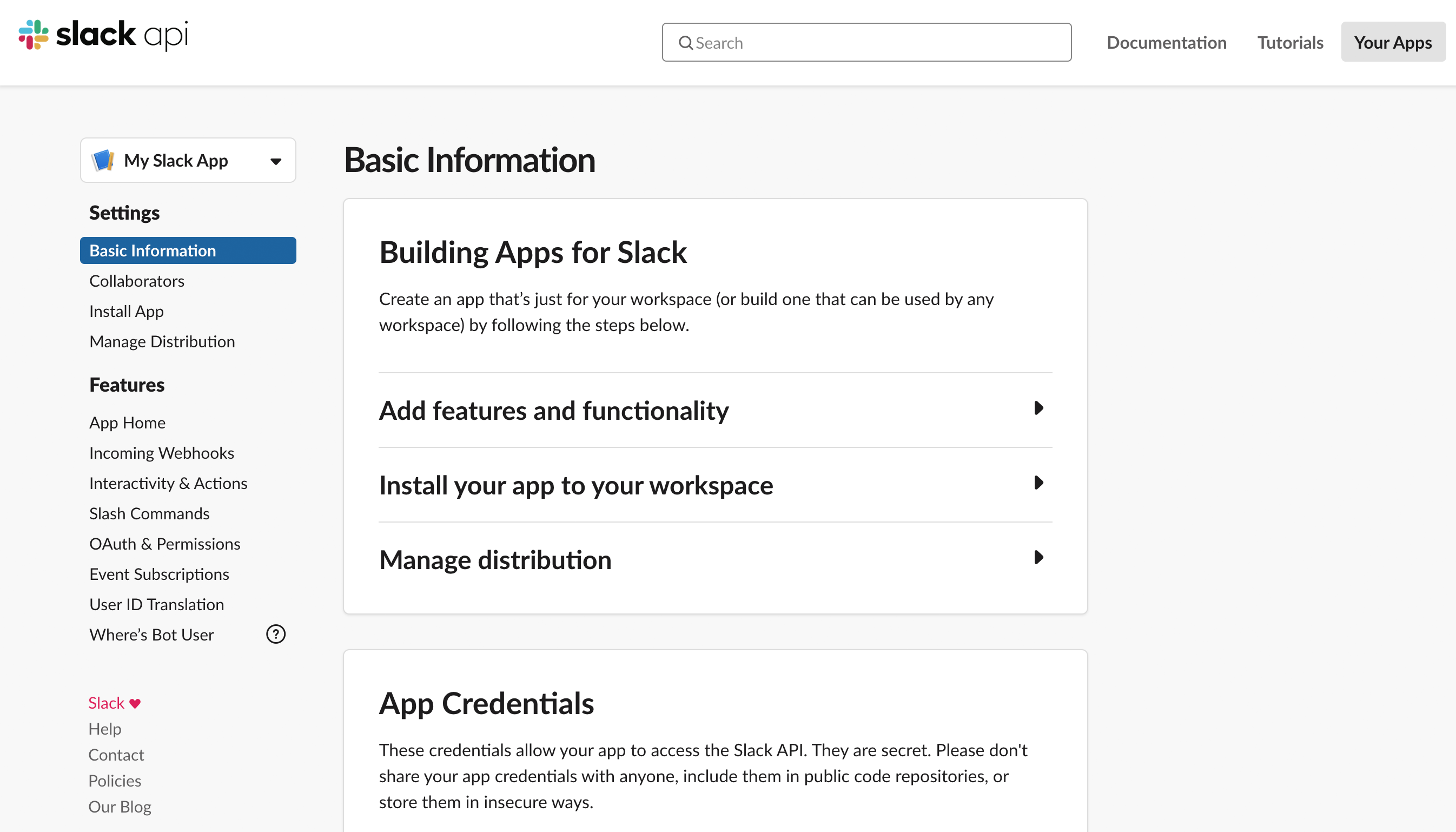
On these pages you're free to make changes such as updating your app icon, configuring app features, and perhaps even distributing your app!
Next steps
You can now continue customizing your app with various features to make it right for whatever job's at hand. Here are some ideas about what to explore next:
- Check out the Agent quickstart to get up and running with an agent.
- Browse our curated catalog of samples for more apps to use as a starting point for development.
- Try using the Slack MCP Plugin to aid in agent-assisted development.