GeezerVisonThe World Wide Web, restored to 800 pixels of glory. |
| Home|About|Gaming cabinet|Archives|How it works|Starter sites |
GeezerVison is showing docs.stackstorm.com — Using Docker for Desktop and VSCode to Develop Locally — StackStorm 3.9.0 documentation Using Docker for Desktop and VSCode to Develop LocallyEnvironment PrerequisitesRequirements:
Note Make sure you set the configuration (through environment) for “export ST2_PACKS_DEV=CUSTOMPATH” per the README instructions<https://github.com/stackStorm/st2-docker#step-by-step-first-time-instructions> so that you mount a local dir to the container’s pack.dev OverviewNote This was only tested on MacOS 12.2.x (x86_64/Intel) with Docker Desktop for Mac 4.5 and VSCode 1.65 These instructions were originally developed to get around the issues of local development on MacOS. There are still some dependencies under requirements.txt for building st2 libraries that are not compatible with MacOS (mainly pyinotify). The method described here lets us get around these issues by leveraging VSCode Extensions and a local docker-compose setup of StackStorm. InstructionsYour docker-compose should already be running with all of the st2 containers. Go ahead launch your VSCode application. Setup in VSCodeOpen your Command Palette (Shift+Cmd+P on MacOS), and enter: 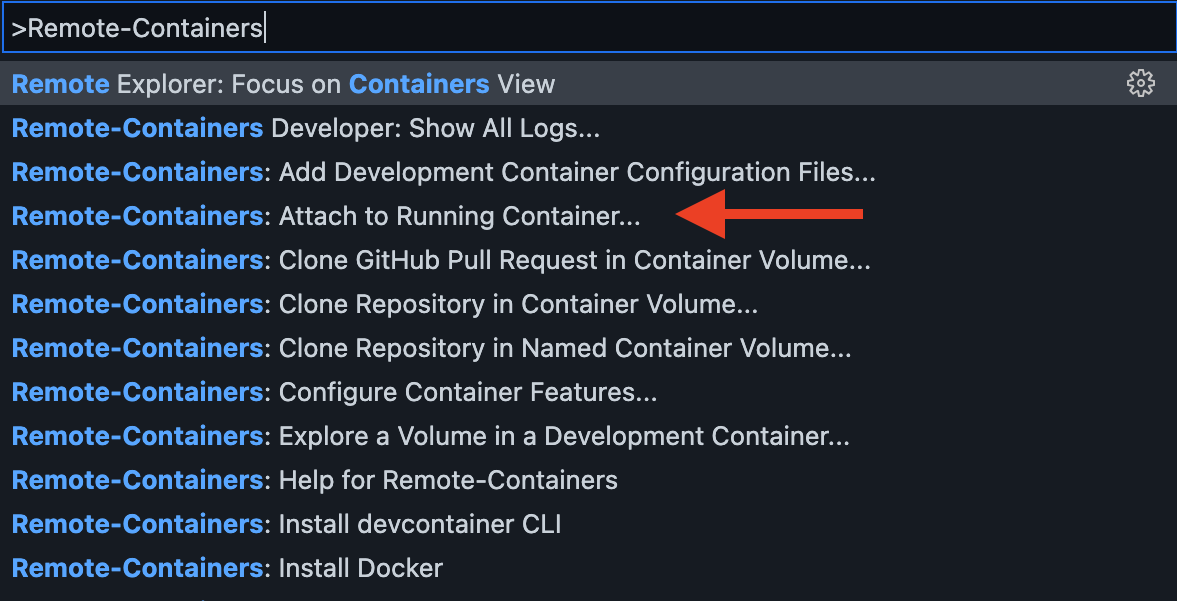
A list of running containers appear. Select A new VSCode Window should pop up and begin attaching to the st2client container. You can verify by looking at the connection status in the lower-right corner
of VSCode. It should say When you are running VSCode on remote systems or containers, it installs a local support package of VSCode. This means the extensions you have installed on your local VSCode are not available. For our purposes here, we need to install the python extension(s) again. Go ahead and install the extensions you normally would for python. Now let’s add our development directories (that are mapped to a local directory). Since we are now attached to the container, we can access and develop directly
in the pack.dev directory. Go ahead and select
The last thing we need to do and to point VSCode’s python interpreter to the correct place. This enables the virtual environment context in VSCode which gives
us access to st2 libraries such as Open your Command Palette again and enter: It may or may not automatically detect the system interpreter (which we do not want), but it’s likely you will need to manually specify the correct path.
Select Once this is all complete, you are ready to develop on MacOS with full access to st2 libraries with intellisense and validation. Note Testing frameworks have not been tested using this method. |
| You are visitor 01402503 — GeezerVison does not store the pages you look up. Best viewed with Netscape Navigator 4.7 or Internet Explorer 6 at 800×600. No cookies required. |