GeezerVisonThe World Wide Web, restored to 800 pixels of glory. |
| Home|About|Gaming cabinet|Archives|How it works|Starter sites |
GeezerVison is showing flatcoding.com — Git Create Branch: Simple Steps in 50 Seconds - FlatCoding Home Git Create Branch: Simple Steps in 50 Seconds
Table of ContentA Git branch is a lightweight movable pointer to one of your commits. A feature or fix is thought of as a separate stream of development that you can work on without affecting code in the mainline. You can always create a separate branch and make changes of your own, without tampering with the actual code which will still remain intact until you decide to merge the work done. In this tutorial you will understand how to create a new branch on your repository. Create a New BranchGit Branching is a space that Git gives to you for experimentation, adding features and changing without screwing up the production code. Every branch has their own story and can be then converge with other branches. It’s a simple concept in Git that improves the workflows of teams. Here is a diagram shows you how the branch is added to the line of development. 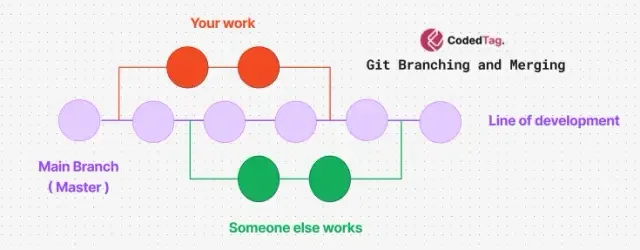 You can create a new branch with the following Git command. This command will create a new branch but is not in it yet. Suggestion: You can create the new branch and switch to it in one line. In this diagram, you will learn how this command pushes the new branch into the repository. 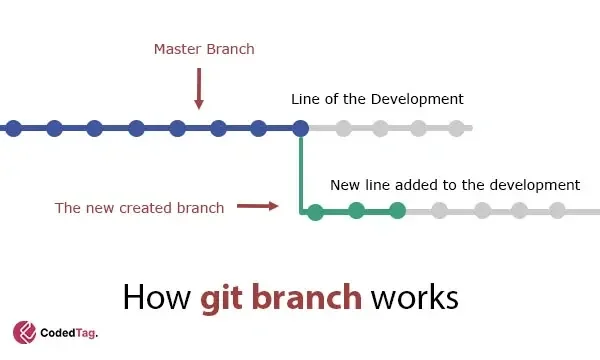 Moreover; while creating a new branch, all you need to remember are the few steps below only so that the branch name is understandable and straightforward. Well, the next section will learn you how to select good branch name. Considerations for Naming Git BranchesClear names are important so other people (or even you in a few months) can figure out what the heck this branch is all about. Here are some best practices:
If you follow these conventions, your Git history will be more legible, and your repository clean and organized so that anyone working on the project can navigate it without too much difficulty. Creating a New Branch Over a Specific CommitUsing the git branch, you can create different branches on a particular commit like below This scenario will create a new branch that will point to the above-specified commit so this way it is created at that part of the project history. Here is the command: By running this command 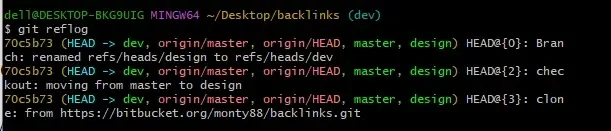 When you have found the commit, make a new branch based on it with git branch followed by SHA of the commit. For example, let’s say we want to create a new branch based on the commit with the SHA This command creates a new branch called 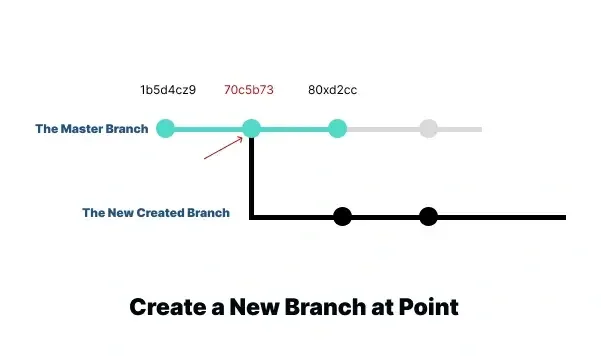 You can move to the new branch with git checkout and begin hacking as you normally would. Another way to think of it is that this command displays the entire rotating timeline (history) state of refs, and then you can reference a specific commit in order to consist on your new branch. Let’s move into the following part to learn how to create a new branch based on a tag in the workflow. Create a New Branch From a Tag in GitNote that you can do the same in Git, creating a branch from any tag. It is also so much useful when you wish to work on a specified version of your codebase. You can create a separate branch from there windows itself by issuing git checkout and adding flag -b with new-branch name after that tag name as given below:- Here’s an example: This command creates a new branch new-branch-name from the commit pointed to by If the commit you would like to turn into a branch does NOT have a tag name matching that commit, an error will be shown. This means you should first create a tag or have the right name for that tag before trying to make it into a branch. To list all available tag names in a Git repository, you can use the following command: This will display a list of all tag names in alphabetical order. If you want to see the tags sorted by their commit dates, you can use the following command: Anyway, after you understand what branching is, let’s move on to the next part, which addresses the conflict issue related to merging in Git. Let’s summarize it. Wrapping UpOne of the most powerful features in git is branching, allowing developers to run on different functionalities on a project simultaneously. This really comes in handy when working as part of a team – well so that you don’t step over each other’s toes 🙂 Basically branching is a way that allows you to create isolated changes without affecting the main line of development. The basic command to create a new branch in Git is straightforward: It is important to say that this creates a new branch but does not move into the created one. For developers to do actual work on the newly created branch, you need another command for One scenario when working with branches is creating a new branch at a specific commit. The next instruction does it; Remember, the To create a new branch based on a tag, developers can use the following command: This will create a new branch called ‘new-branch-name’, on the tag referenced by the name of the tag, and check out that branch. This is important to make sure that a branch will be created from the right tag. Similar ReadsGit Introduction: Git and GitHub Explained Guide If you're diving into coding, your introduction to Git and GitHub will happen in no time. Git's your personal time… Git Pull Rebase: How It Works, and When to Use It Git Pull Rebase works to keep your commit history simple. Git Pull Rebase helps you reduce merge noise in your… Git commit Command: How it Works with Examples The commit command in Git records changes in a local repository. It stores a snapshot of files. It also adds… How to Delete a Branch Locally in Git You sometimes need to remove old or unneeded branches locally in Git. You might want to keep your project clean… Install Git on Windows, Ubuntu & macOS: A Quick Guide The moment you dive into programming or development, the first thing you are going to bump into is Git. It's… Git Delete Branch: Remove Local and Remote Git Branches Git helps you manage code in different branches. You can delete a branch when it’s old or not being used.… Git Push: A Step-by-Step to Syncing Your Local Repository The purpose of the Git Push command is to upload local repository changes to a remote repository. Pushing your committed… Git Pull: How to Keep Your Code in Sync When you work on a project with friends, one writes the intro, one adds pictures, and others handle different parts.… Git List Branches: How to Show All Local & Remote Branches You can use Git to show all branches or use branch-related commands to list branches and their status. This helps… How to Switch Branches in Git: git switch vs checkout The switch operation in Git will make it easier. Designed to simplify the process for developers, it's safer and more… onMarch 30, 2025
Write a Comment
|
| You are visitor 01402503 — GeezerVison does not store the pages you look up. Best viewed with Netscape Navigator 4.7 or Internet Explorer 6 at 800×600. No cookies required. |