GeezerVisonThe World Wide Web, restored to 800 pixels of glory. |
| Home|About|Gaming cabinet|Archives|How it works|Starter sites |
GeezerVison is showing flight-manual.atom-editor.cc — Basic Customization Chapter 1: Getting StartedChapter 2: Using Atom
Chapter 3: Hacking Atom
Chapter 4: Behind Atom
Reference: API
Appendix A: ResourcesAppendix B: FAQ
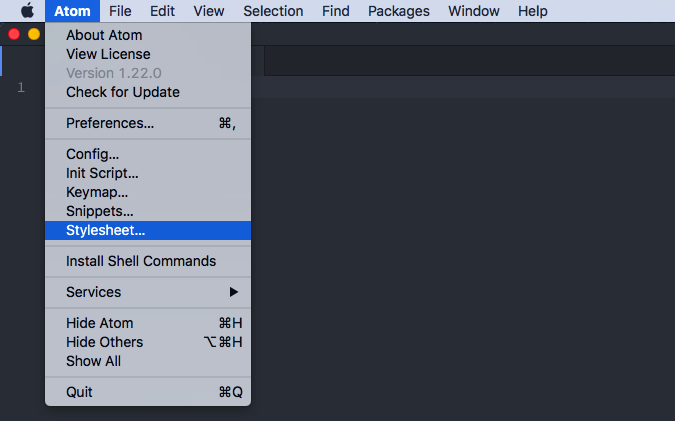
Appendix C: Shadow DOMAppendix D: Upgrading to 1.0 APIsAppendix E: Atom server-side APIsImprove this pageBasic CustomizationNow that we are feeling comfortable with just about everything built into Atom, let's look at how to tweak it. Perhaps there is a keybinding that you use a lot but feels wrong or a color that isn't quite right for you. Atom is amazingly flexible, so let's go over some of the simpler flexes it can do. Configuring with CSONAll of Atom's config files (with the exception of your style sheet and your Init Script) are written in CSON, short for CoffeeScript Object Notation. Just like its namesake JSON, JavaScript Object Notation, CSON is a text format for storing structured data in the form of simple objects made up of key-value pairs. Objects are the backbone of any CSON file, and are delineated by indentation (as in the above example). A key's value can either be a String, a Number, an Object, a Boolean, Just like the more common JSON, CSON's keys can only be repeated once per object. If there are duplicate keys, then the last usage of that key overwrites all others, as if they weren't there. The same holds true for Atom's config files. Don't do this: Use this instead: Style TweaksIf you want to apply quick-and-dirty personal styling changes without creating an entire theme that you intend to publish, you can add styles to the
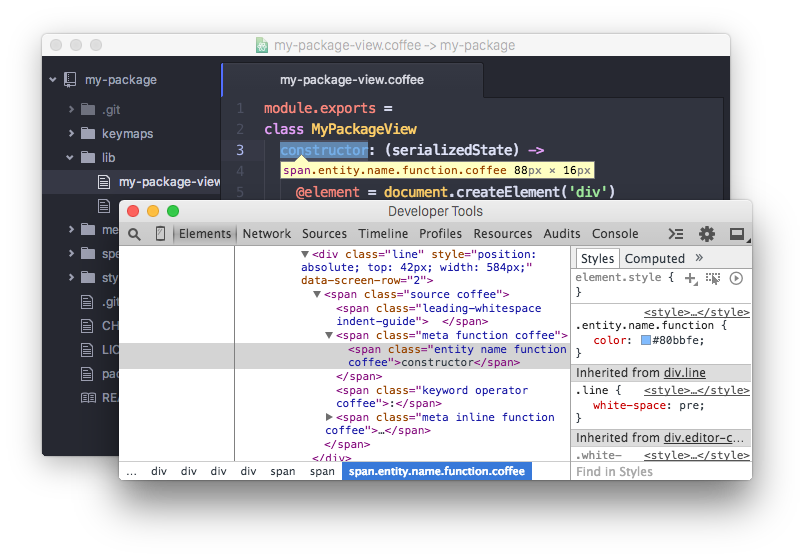
For example, to change the colors of the Status Bar, you could add the following rule to your The easiest way to see what classes are available to style is to inspect the DOM manually via the Developer Tools. We'll go over the Developer Tools in great detail in the next chapter, but for now let's take a simple look. You can open the Developer Tools by pressing Alt+Cmd+ICtrl+Shift+I, which will bring up the Chromium Developer Tools panel.
With the Developer Tools, you can inspect all the elements in Atom. If you want to update the style of something, you can figure out what classes it has and add a Less rule to your stylesheet to modify it. If you are unfamiliar with Less, it is a basic CSS preprocessor that makes some things in CSS a bit easier. You can learn more about it at lesscss.org. If you prefer to use CSS instead, you can do that in the same Customizing KeybindingsAtom keymaps work similarly to stylesheets. Just as stylesheets use selectors to apply styles to elements, Atom keymaps use selectors to associate key combinations with events in specific contexts. Here's a small example, excerpted from Atom's built-in keymap: This keymap defines the meaning of Enter in two different contexts. In a normal editor, pressing Enter triggers the By default, You can see all the keybindings that are currently configured in your installation of Atom in the Keybindings tab in the Settings View. If you run into problems with keybindings, the Keybinding Resolver is a huge help. It can be opened with the Cmd+.Ctrl+. key combination. It will show you what keys Atom saw you press and what command Atom executed because of that combination. Global Configuration SettingsAtom loads configuration settings from the The configuration is grouped into global settings under the You can open this file in an editor from the Atom > ConfigFile > ConfigEdit > Config menu. Configuration Key Reference
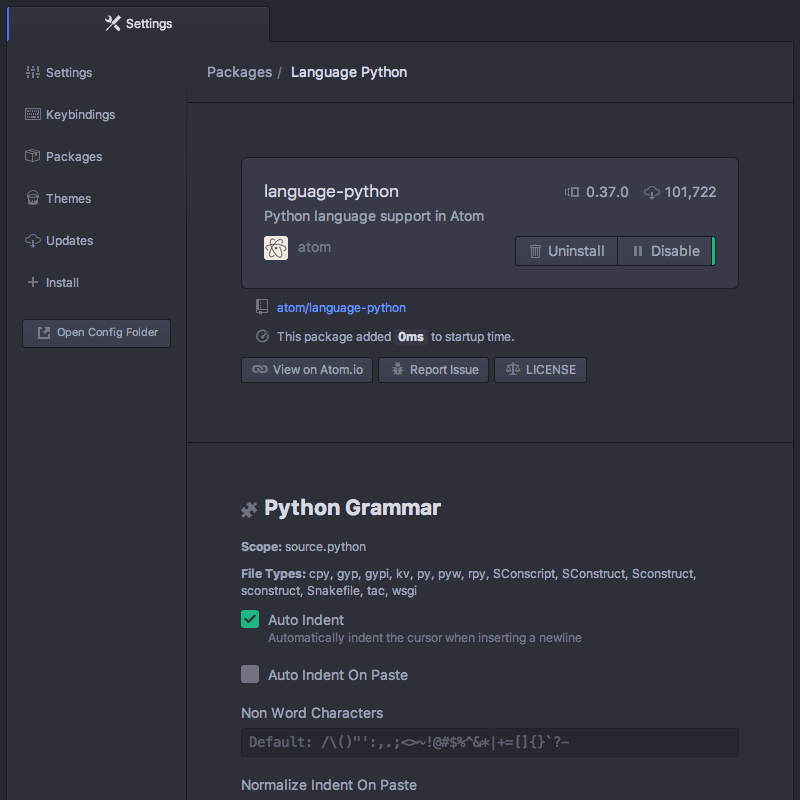
Language Specific Configuration SettingsYou can also set several configuration settings differently for different file types. For example, you may want Atom to soft wrap markdown files, have two-space tabs for ruby files, and four-space tabs for python files. There are several settings now scoped to an editor's language. Here is the current list: Language-specific Settings in the Settings ViewYou can edit these config settings in the Settings View on a per-language basis. Click on "Packages" tab in the navigation bar on the left, search for the language of your choice, select it, and edit away!
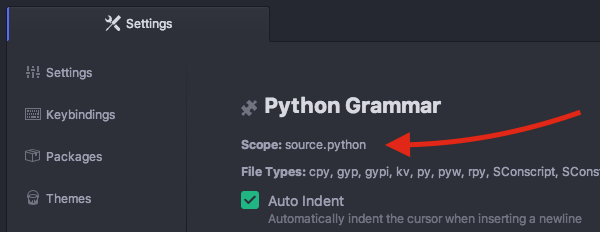
Language-specific Settings in your Config FileYou can also edit the Global settings are under the Finding a Language's Scope NameIn order to write these overrides effectively, you'll need to know the scope name for the language. We've already done this for finding a scope for writing a snippet in Snippet Format, but we can quickly cover it again. The scope name is shown in the settings view for each language. Click on "Packages" in the navigation on the left, search for the language of your choice, select it, and you should see the scope name under the language name heading:
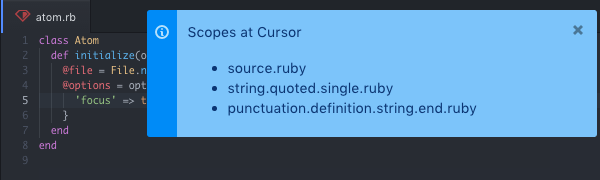
Another way to find the scope for a specific language is to open a file of its kind and press Alt+Cmd+Pchoose "Editor: Log Cursor Scope" in the Command Palette to show all scopes for the current position of the cursor. The scope mentioned top most is always the language for this kind of file, the scopes following are specific to the cursor position:
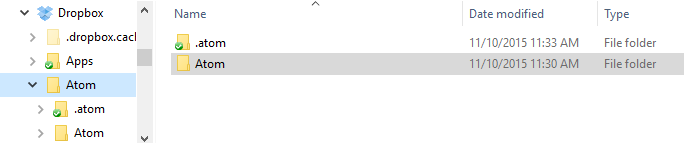
These scopes can be especially useful to style the editor, since they can also be used as class names in your stylesheet. Customizing Language RecognitionIf you want Atom to always recognize certain file types as a specific grammar, you'll need to manually edit your In the example above, Controlling Where Customization is Stored to Simplify Your WorkflowThe CSON configuration files for Atom are stored on disk on your machine. The location for this storage is customizable. The default is to use the home directory of the user executing the application. The Atom Home directory will, by default, be called Custom home location with an environment variableAn environment variable can be used to make Atom use a different location. This can be useful for several reasons. One of these may be that multiple user accounts on a machine want to use the same Atom Home. The environment variable used to specify an alternate location is called Taking your customization with you with Portable ModeIn addition to using the Portable Mode is most useful for taking Atom with you, with all your custom setting and packages, from machine to machine. This may take the form of keeping Atom on a USB drive or a cloud storage platform that syncs folders to different machines, like Dropbox. Atom is in Portable Mode when there is a directory named .atom sibling to the directory in which the atom executable file lives. For example, the installed Atom directory can be placed into a Dropbox folder next to a .atom folder.
With such a setup, Atom will use the same Home directory with the same settings for any machine with this directory syncronized/plugged in. Moving to Portable ModeAtom provides a command-line parameter option for setting Portable Mode. atom --portable
Executing atom with the |
| You are visitor 01402503 — GeezerVison does not store the pages you look up. Best viewed with Netscape Navigator 4.7 or Internet Explorer 6 at 800×600. No cookies required. |