


Get started using GitHub in less than an hour.
Welcome to "Introduction to GitHub"! 👋
What is GitHub?: GitHub is a collaboration platform that uses Git for versioning. GitHub is a popular place to share and contribute to open-source software.
📺 Video: What is GitHub?
What is a repository?: A repository is a project containing files and folders. A repository tracks versions of files and folders. For more information, see "About repositories" from GitHub Docs.
What is a branch?: A branch is a parallel version of your repository. By default, your repository has one branch named main and it is considered to be the definitive branch. Creating additional branches allows you to copy the main branch of your repository and safely make any changes without disrupting the main project. Many people use branches to work on specific features without affecting any other parts of the project.
Branches allow you to separate your work from the main branch. In other words, everyone's work is safe while you contribute. For more information, see "About branches".
What is a profile README?: A profile README is essentially an "About me" section on your GitHub profile where you can share information about yourself with the community on GitHub.com. GitHub shows your profile README at the top of your profile page. For more information, see "Managing your profile README".

-
Open a new browser tab and navigate to your newly made repository. Then, work on the steps in your second tab while you read the instructions in this tab.
-
Navigate to the < > Code tab in the header menu of your repository.

-
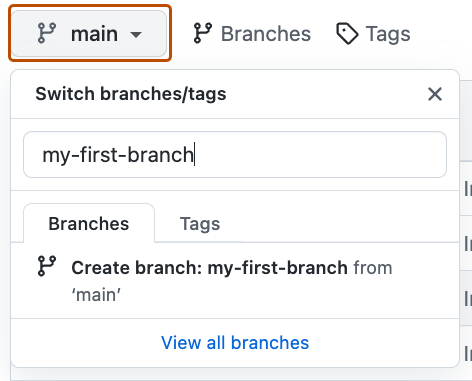
Click on the main branch drop-down.
-
In the field, enter a name for your branch:
my-first-branch. -
Click Create branch: my-first-branch to create your branch.
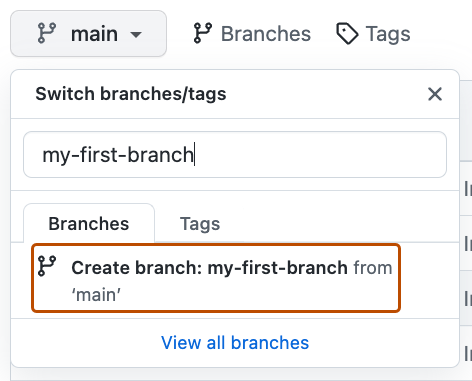
The branch will automatically switch to the one you have just created. The main branch drop-down bar will reflect your new branch and display the new branch name.
-
Wait about 20 seconds then refresh this page (the one you're following instructions from). GitHub Actions will automatically update to the next step.


Get help: Post in our discussion board • Review the GitHub status page
© 2023 GitHub • Code of Conduct • MIT License