SweetOpt makes shaders run faster, without changing what they compute.
Shaders are the little programs a graphics card runs: for games, video players, emulators, browsers, and ReShade effects like SweetFX. They do a lot of math for every pixel on your screen. Often the same result can be computed with fewer steps. SweetOpt finds those shortcuts automatically, double-checks that the result stays the same, and writes new copies of the shaders that use them. Your original files are never changed.
SweetOpt reads:
- ReShade effects (
.fx), with a simple menu for players (below). - HLSL (
.hlsl): pixel, vertex and compute shaders. - GLSL (
.frag,.vert,.comp,.glsl), including the Vulkan style.
See Your own shaders for HLSL and GLSL.
- Faster effects. Less work for your graphics card means more frames per second, or room for more effects.
- The same picture. Every shortcut is tested on millions of values before it is used. If a change could make even a tiny visible difference, SweetOpt tells you, or leaves it out.
- Safe to try. SweetOpt writes its results to a separate folder. If you don't like them, delete the folder and nothing has changed.
- Download
SweetOpt-<version>-windows-x64.zipfrom the Releases page and unzip it anywhere. - Double-click SweetOpt.bat. A simple menu opens.
- Press 1 and pick your ReShade
Shadersfolder (the one insidereshade-shaders) to optimize every effect, or press 2 to pick one folder or one effect. - Press 5 to start. SweetOpt shows how far it has come and how long is left.
- When it is done, press 7 to open the results. The
sopt-outfolder holds the faster copies of your effects, in the same folders as the originals.
Press 9 in the menu to open the full guide.
- Make a backup of your game's
reshade-shaders\Shadersfolder. - Copy everything in
sopt-outinto yourShadersfolder and choose Replace. Each file lands on the original it replaces. (Thesopt-...text files are SweetOpt's report; you can leave them out.) - Start the game. That's it: the menu starts in easy mode, so the faster code is already in the files and there is nothing to set.
Don't add sopt-out to ReShade's effect search paths instead: ReShade would then load every
effect twice. To undo, put your backup back.
Press M for expert mode if you want to choose between all the alternatives yourself (or keep easy mode with a switch for each change). The files then keep the original code next to each change, and ReShade lists these switches under the effect:
SOPT_GROUPchooses for every change at once: 0 = the original code, 1 = the first alternative everywhere, 2 = the second, and so on. Expert mode starts at 0.SOPT_<file>_<line>chooses for one change only.
SOPT_GROUP is there for testing: step it through 0, 1, 2 ... and compare the picture and the
frame rate. If one number causes a problem, set SOPT_GROUP back to 0 and turn the single
switches on one by one to find the change behind it. Please tell us when that happens.
Some shortcuts are only correct for certain values (for example when a setting stays between 0 and 1). SweetOpt works out most ranges by itself. When the results say some shortcuts "need value ranges", press 8: a list opens with one line per value it could not work out, like
# Vibrance.fx VibrancePass luma = [-1000, 1000]
If you know the real range, remove the # and correct the numbers (... luma = [0, 1]), save,
and press 5 again. Only give ranges you are sure of: a wrong range can change the picture.
For shaders of your own project, run sopt-fx (in the SweetOpt zip) on a folder or on files:
sopt-fx -o sopt-out my-project\shaders
The file type comes from the extension. --entry NAME names the entry point when it isn't
main, and -I folder adds a folder for #include files. SweetOpt writes the faster copies to
sopt-out with each change behind a #if SOPT_... switch, next to the original code, plus a
report of what it found. Texture reads and other things SweetOpt can't change are taken as they
are; it shortens the math around them. All options: docs/technical.md.
-
GPU Blueprint (
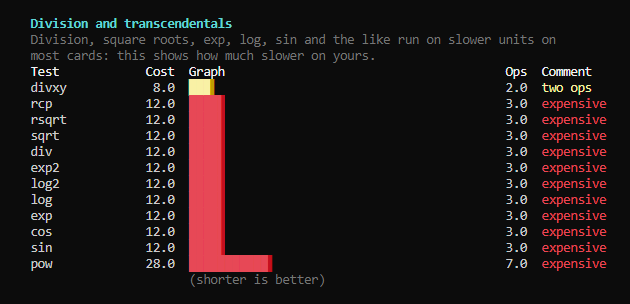
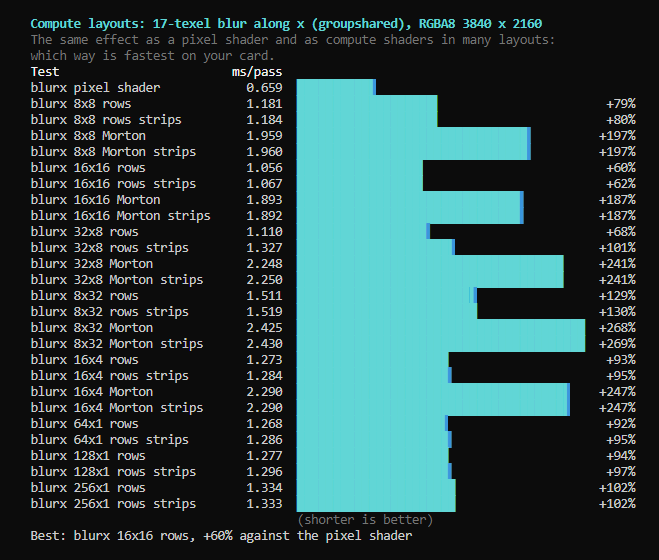
GPU-Blueprint-<version>.zip, double-clickGPU-Blueprint.bat): measures what your graphics card and driver really do. If you send us the results, SweetOpt learns to make better choices for cards like yours. Thank you!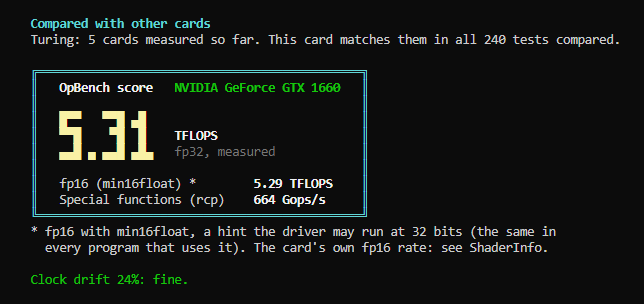
-
Test Host (
Test-Host-<version>.zip, double-clickTest-Host.bat): runs ReShade on every graphics API (Direct3D 9 to 12, Vulkan, OpenGL) without a game, to test effects and take screenshots. See tools/windows/README.md.


All of them are on the Releases page and are built automatically from the code in this repository.
- How it works, all options and how to build it: docs/technical.md
- Which file does what (a map of the code): docs/code-map.md
- Design and roadmap: docs/design.md (Danish)
Free code signing provided by SignPath.io, certificate by SignPath Foundation (once the application is approved; until then the release files are unsigned and listed with SHA256 checksums).
Only programs built from this repository's source by its release workflow are signed (OpBench.exe, sopt-host.exe, sopt-fxc.exe, sopt-timer.addon64 / .addon32). ReShade64.dll in the tools zip is built unchanged from crosire's ReShade 6.8.0 source and is not signed by this project.
None of the programs use the internet. They only write files next to themselves (GPU Blueprint
into its Reports folder, Test Host into its run folder, SweetOpt into its output folder).
GPU Blueprint's "Send the reports" option, and only if you choose it, opens a Dropbox upload
page in your browser, where you can upload the zip yourself. It contains your graphics card's
name, driver version and the measurements, nothing else.