GV

GeezerVison

The World Wide Web, restored to 800 pixels of glory.

Home|About|Gaming cabinet|Archives|How it works|Starter sites

On this site

  • Sign in
  • ActionsCI/CD and automation
  • CodespacesCloud development environments
  • All Features
  • Documentation
  • Training
  • Certifications
  • Build with Copilot
  • Customize Copilot
  • Integrations
  • Trending repos
  • GitHub Sponsors
  • Developer articles
  • Enterprises

This view

  • Original page
  • New address

GeezerVison is showing github.com — GitHub - Mullah98/EC2-NGINX-Server: NGINX web server on an AWS EC2 instance, connected to my personal domain.

BranchesTags
Open more actions menu

Latest commit


History

2 Commits
2 Commits

Folders and files

NameName
Last commit message
Last commit date
screenshots
screenshots
 
 
README.md
README.md


Repository files navigation

EC2 NGINX Server Assignment

  • This guide demonstrates how I deployed an NGINX web server on an AWS EC2 instance and connected it to my personal domain

⚙️ Setup steps:

Step 1: Domain setup

  • Purchase a personal domain from either AWS Route 53 or Cloudflare (I chose the latter)

  • Step 1


Step 2: Launch EC2 Instance

  • Go to the AWS EC2 dashboard and click "Launch Instance"

  • Choose an AMI - I selected Ubuntu 20.04 LTS

  • Select the instance type (eg: t2.micro for free tier)

  • Optional to add tags but add name

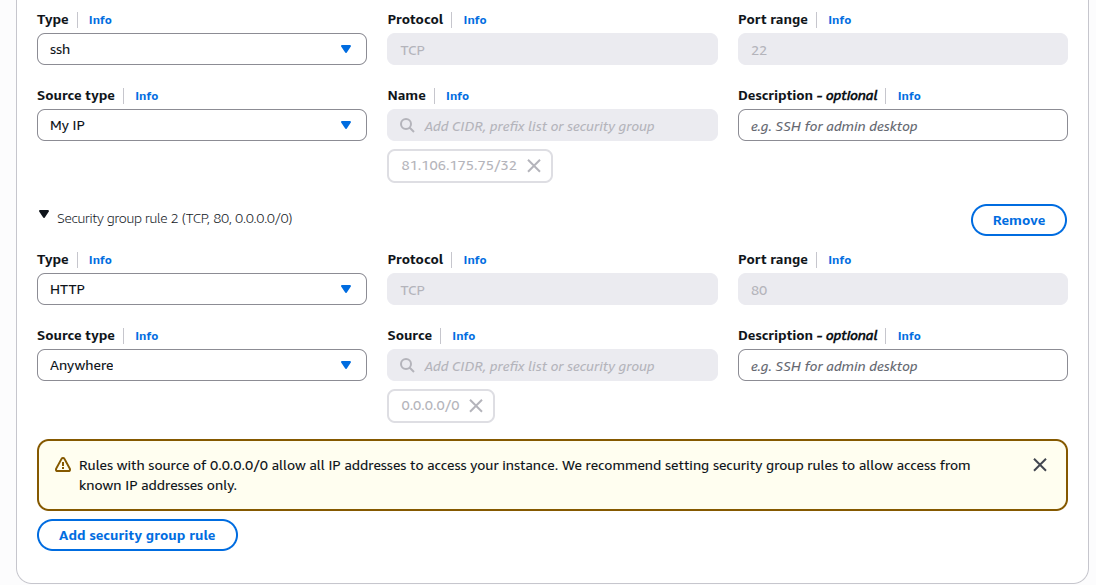
  • Configure Security group

    • SSH (22) - Connects to the server
    • HTTP (80) - Allows web browsers to view the NGINX webpage. Without this, our domain and public IP will timeout or refuse to connect
  • Step 2


Step 3: Connect to the server using ssh in your terminal

  • ssh -i /path/to/key.pem ubuntu@PUBLIC_IP

Step 4: Install & Run NGINX

  • sudo apt install nginx -y
  • sudo apt systemctl start nginx
  • sudo systemctl enable nginx - This ensures it runs on reboot if the EC2 instanc restarts keeping the webpage online
  • systemctl status nginx - Check to see if it is running. Should see active (running)

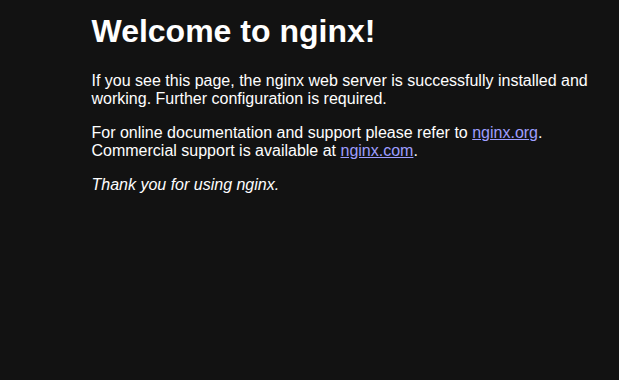
Step 5: Test in browser

  • You should see the NGINX default welcome page

  • Step 5


Step 6: Connect Domain to EC2

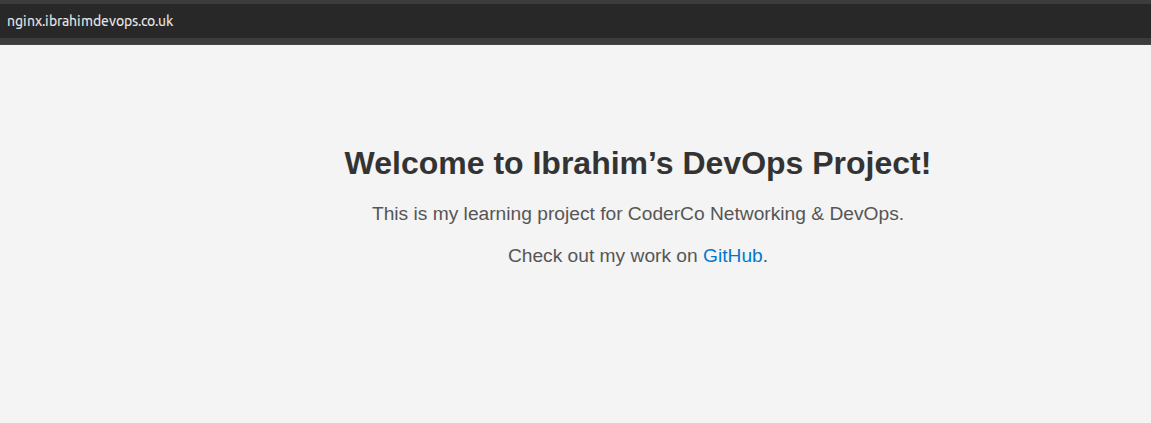
  • Create an A record in Cloudflare pointing nginx.ibrahimdevops.co.uk -> EC2 public IPv4

  • Step 6


(Optional Step): Customize website

  • sudo vim /var/www/html/index.nginx-debian.html

  • Optional Step


Outcome

  • EC2 instance running NGINX is publicly accessible via the domain: nginx.ibrahim.devops.co.uk
  • Demonstrates cloud deployment, server setup, and domain routing skills

About

NGINX web server on an AWS EC2 instance, connected to my personal domain.

Topics

awscloudec2-instancenginxserver

Resources

Readme
Activity

Stars

0 stars

Watchers

0 watching

Forks

0 forks
Report repository

Contributors

You are visitor 01402792 — GeezerVison does not store the pages you look up.
Best viewed with Netscape Navigator 4.7 or Internet Explorer 6 at 800×600. No cookies required.