

Keep your Mac awake — and looking busy.
A small macOS utility with a window and an optional menu bar icon.
Free, open source, no account, no tracking.
Features · Download · Permissions · Languages · Building · Support · Website · Manual (PDF)

| An IOKit power assertion keeps the system awake, with or without the display. No permission needed. | Key, mouse movement or mouse click: pressed at an interval, held down, or held and released in a loop. | Every function runs continuously, for a set duration or until a time of day, then switches itself off. | ⌃⌥⌘K stops everything instantly. Optional battery protection. Simulations never restart by themselves. |
Four independent functions, each in its own section you can fold in and out. Every screenshot here is the real app.
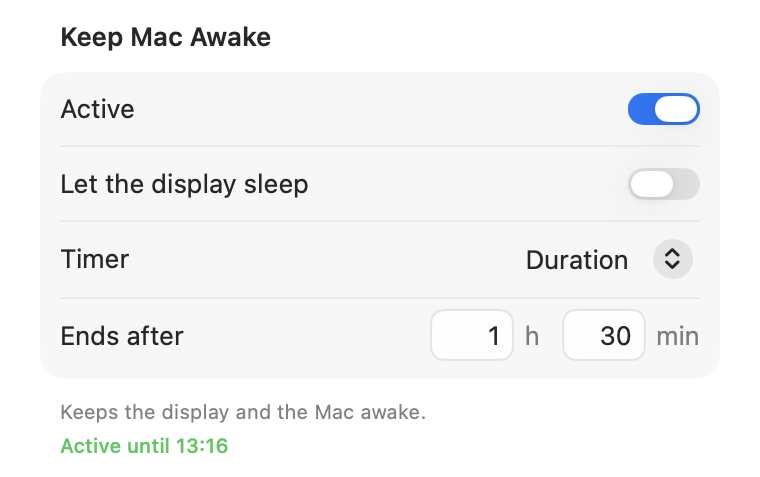
Keep Mac Awake with a 90-minute timer; the end time is shown while it runs. One switch stops the display and the system from going to sleep, regardless of your energy settings. It uses a power assertion, so it needs no permission at all. Turn on Let the display sleep to keep only the Mac awake (for downloads or renders) while the screen still turns off. Give it a timer and it switches itself off, after a set time or at a time of day. |
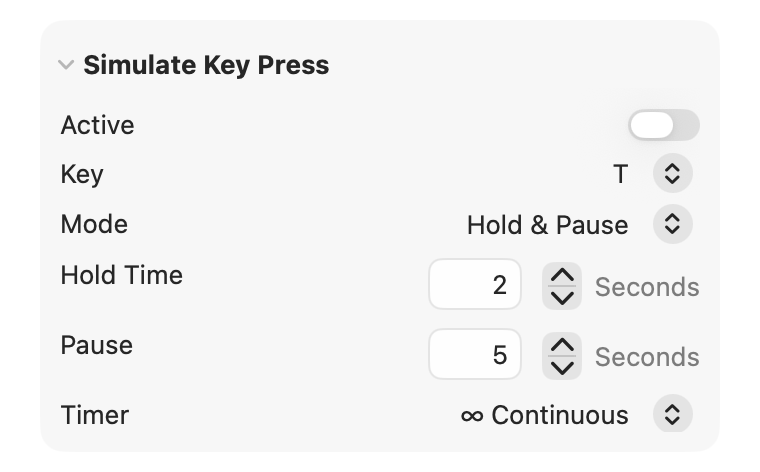
Hold & Pause: the key is held for 2 seconds, released for 5, and so on. Sends a real key press via CGEvent. Pick any letter, number, arrow key, special key (Space, Return, Control …) or F13–F19; the labels follow your keyboard layout, QWERTZ and AZERTY included. Keys that can trigger an action, such as Return or Esc, get a warning.
Press every 1–600 seconds, Hold until you switch it off, or Hold & Pause in a loop. Starts after a 5-second countdown so you can bring the target window to the front. |
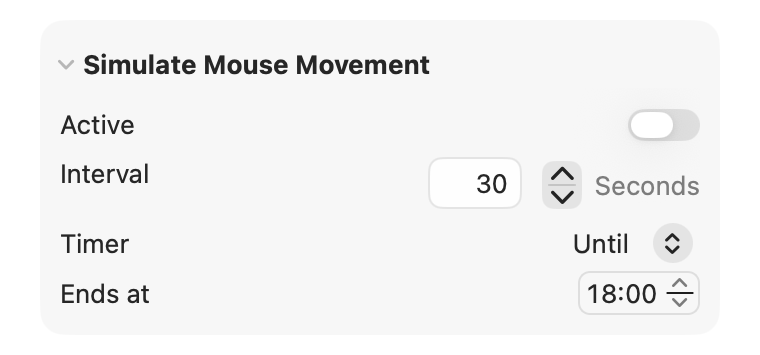
Mouse movement every 30 seconds, until 18:00. Nudges the pointer one pixel and immediately back at the interval you choose. No click, no visible jump, just enough for the system to see activity. |
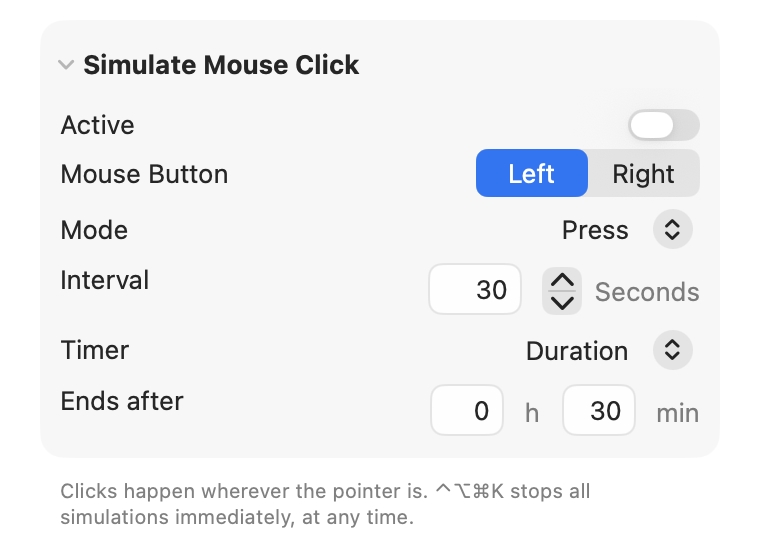
Left clicks every 30 seconds for the next 30 minutes. Clicks or holds the left or right button wherever the pointer is: press as often as every 0.1 seconds, hold, or hold and pause. Starts after a 5-second countdown and runs as long as you set. An optional 8-hour limit lives in Setup. |
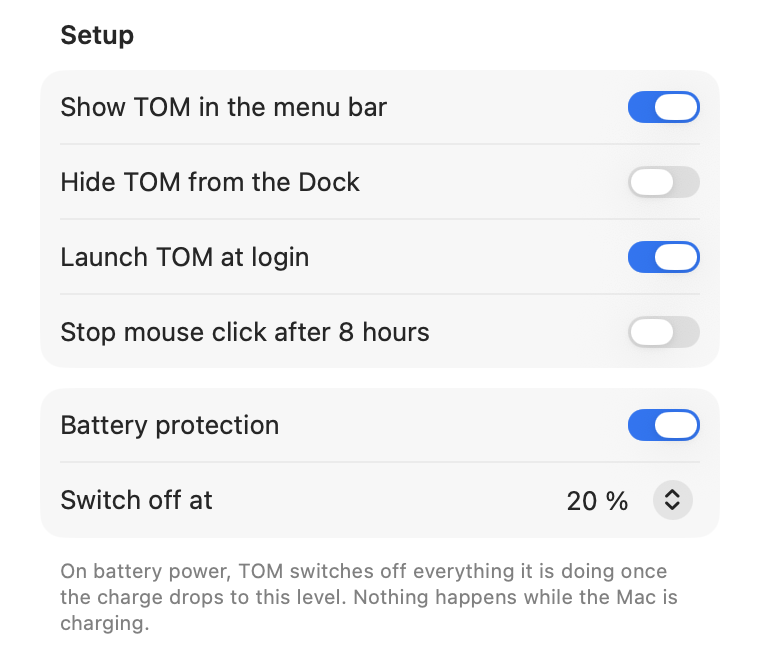
The Setup page, opened from the bottom left of the window. Show TOM in the menu bar (its icon gets a green dot while anything is on and shows the time left when a timer runs), hide it from the Dock, launch at login, and an optional 8-hour mouse click limit. Battery protection: on battery power, TOM switches everything off once the charge drops to a level you choose. Everything is off by default; changes apply with Apply. |
⌃⌥⌘K stops key press, mouse click and mouse movement immediately, from any app, and releases any key or button TOM is holding. While a simulation runs, the window reminds you of the shortcut.
Mouse movement and mouse click are mutually exclusive, and the on/off states of all three simulations are deliberately not restored on launch: an app that starts pressing or clicking by itself after a restart would be dangerous. Quitting TOM releases anything it is holding down, and if the Accessibility permission is withdrawn, the simulations switch off visibly. Settings and the folded state of each section are preserved across restarts. |
- macOS 13 (Ventura) or newer
- Apple Silicon (arm64)
Grab the latest build from the Releases page — either the installer (.dmg: open it and drag TOM onto the Applications folder) or the .zip (unzip it and move TOM.app to your Applications folder).
The app is not notarized, so macOS will refuse to open it on first launch. Go to System Settings → Privacy & Security, scroll down to the message about TOM and click Open Anyway.
The interface is available in English, German and Spanish, selected automatically from the system language. Unsupported languages fall back to English.
To try a language without changing your system settings, launch the binary directly:
TOM.app/Contents/MacOS/TOM -AppleLanguages '(es)'- Keep Mac Awake: none.
- Key press, mouse movement and mouse click: require the Accessibility permission (System Settings → Privacy & Security → Accessibility). The app asks for it the first time you switch one of them on and links straight to the right pane. Note: after rebuilding with an ad-hoc signature, macOS treats the app as new, so the permission may have to be granted again (toggle the checkbox off and on).
The app is not sandboxed — required for CGEvent injection.
Requires Xcode 15 or newer.
The Xcode project is generated from project.yml with XcodeGen, but the generated project is checked in as well:
open TOM.xcodeproj
Then build and run in Xcode (⌘R). After changing project.yml:
brew install xcodegen   # if not already installed
xcodegen generateTOM is free and always will be. If it saved you some hassle, you can buy me a coffee.
Copyright (C) 2026 NeonRost
This program is free software, released under the GNU General Public License, version 3 (or, at your option, any later version). See the LICENSE file for details.