GV

GeezerVison

The World Wide Web, restored to 800 pixels of glory.

Home|About|Gaming cabinet|Archives|How it works|Starter sites

On this site

  • Sign in
  • ActionsCI/CD and automation
  • CodespacesCloud development environments
  • All Features
  • Documentation
  • Training
  • Certifications
  • Build with Copilot
  • Customize Copilot
  • Integrations
  • Trending repos
  • GitHub Sponsors
  • Developer articles
  • Enterprises

This view

  • Original page
  • New address

GeezerVison is showing github.com — GitHub - kscript/command-manager: 超轻量级命令管理器,通过命令管理器页面, 或在json文件添加少量配置,即可在 网页 或 Windows资源管理器的任意位置, 即时运行各种命令,让你的项目开发更有条理和效率。

BranchesTags
Open more actions menu

Latest commit


History

28 Commits
28 Commits

Folders and files

NameName
Last commit message
Last commit date
.github/workflows
.github/workflows
 
 
build
build
 
 
picture
picture
 
 
public
public
 
 
server
server
 
 
shell
shell
 
 
src
src
 
 
.browserslistrc
.browserslistrc
 
 
.editorconfig
.editorconfig
 
 
.eslintrc.js
.eslintrc.js
 
 
.gitignore
.gitignore
 
 
LICENSE
LICENSE
 
 
README.md
README.md
 
 
babel.config.js
babel.config.js
 
 
jsconfig.json
jsconfig.json
 
 
package-lock.json
package-lock.json
 
 
package.json
package.json
 
 
vue.config.js
vue.config.js


Repository files navigation

command-manager

命令管理器,超轻量级的项目命令管理工具,只需在json文件添加少量的配置项,即可在 Windows资源管理器 文件区域任意位置即时运行各种命令,让你的项目开发更有 条理和 效率。

运行环境

  • Windows系统
  • PowerShell (必要)
  • nodejs(非必要,用到时有nodejs即可,如果切换版本,则需要再另外配置nvm)
  • git (非必要,用到时需在环境变量配置好git-bash.exe路径)

使用场景

当手上的项目多起来之后,
还记得你要运行的项目在什么目录吗?
还记得你是要运行 npm run start、npm run dev或者 npm run serve吗?
还记得它们的运行环境是什么样的,node12、node14、node16,git或者其它?
...... 这么多琐碎的重复性工作,为什么不 做或者找一个工具来管理它们呢?
是的,这就是 命令管理器的使用场景,让你摆脱琐碎的重复性工作,在Windows资源管理内随时随地,快捷地运行你想要运行的项目。

使用方法

这里提供两种方式进行配置

  • 使用脚本快速开始

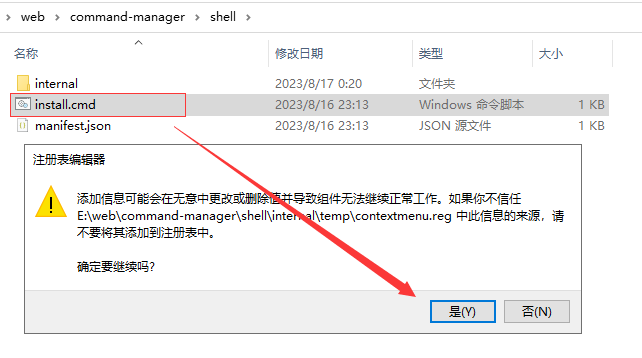
    执行脚本时, 会提示编辑注册表项, 是用来添加右键菜单的, 如果不希望添加右键菜单,可以选否

    git clone https://github.com/kscript/command-manager.git
    cd command-manager
    npm run quickstart
    
  • 按照步骤配置

    点击查看详细步骤
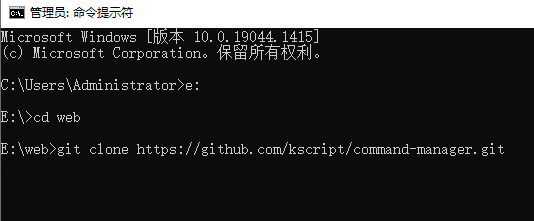
    1. clone当前项目
      clone当前项目

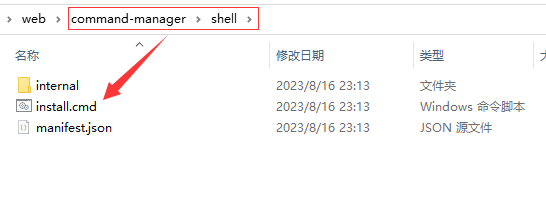
    2. 在项目的shell目录下,找到 install.cmd 文件
      找到install.md文件

    3. 双击运行install.cmd 文件(用于注册右键菜单)
      双击install.md文件,注册右键菜单

    4. 注册成功后,在Windows资源管理器内点击鼠标右键,选择 打开脚本管理器菜单项
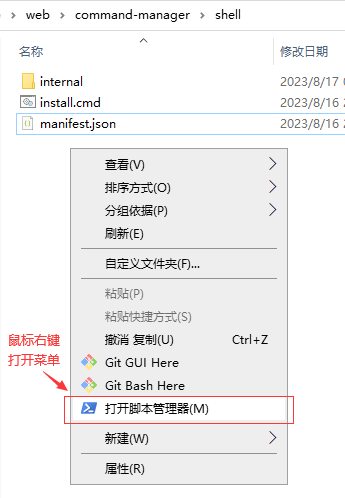
      右键菜单

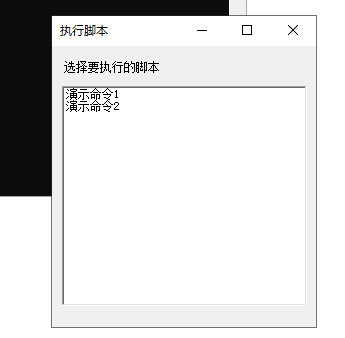
    5. 选择要执行的脚本 (使用 鼠标或 上下方向键选择后按 回车键)
      选择要执行的脚本

    6. 在shell目录下,找到 manifest.json 文件,根据示例配置项,做相应修改
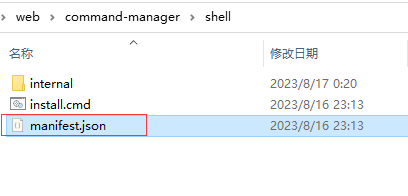
      修改配置
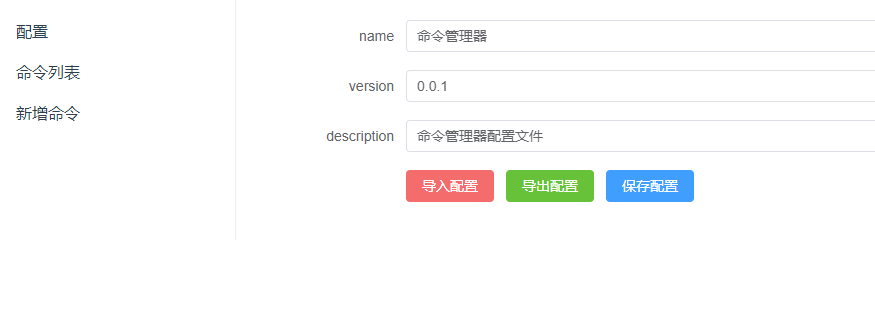
      如果觉得不直观,可以在当前项目附带的前端应用中编辑
      在当前项目附带的前端应用中编辑配置

About

超轻量级命令管理器,通过命令管理器页面, 或在json文件添加少量配置,即可在 网页 或 Windows资源管理器的任意位置, 即时运行各种命令,让你的项目开发更有条理和效率。

kscript.github.io/command-manager/

Topics

cmdcommand-linegitnodejsnpmpowershellpowershell-scripttool

Resources

Readme
BSD-3-Clause license
Activity

Stars

1 star

Watchers

1 watching

Forks

0 forks
Report repository

Releases

Used by

Contributors

Languages

You are visitor 01402503 — GeezerVison does not store the pages you look up.
Best viewed with Netscape Navigator 4.7 or Internet Explorer 6 at 800×600. No cookies required.