

An interactive theme picker for PowerShell + Windows Terminal, and for bash / zsh / fish on any Linux terminal. Browse a gallery of looks, preview them live, and apply one across all 4 layers at once, without leaving your terminal.
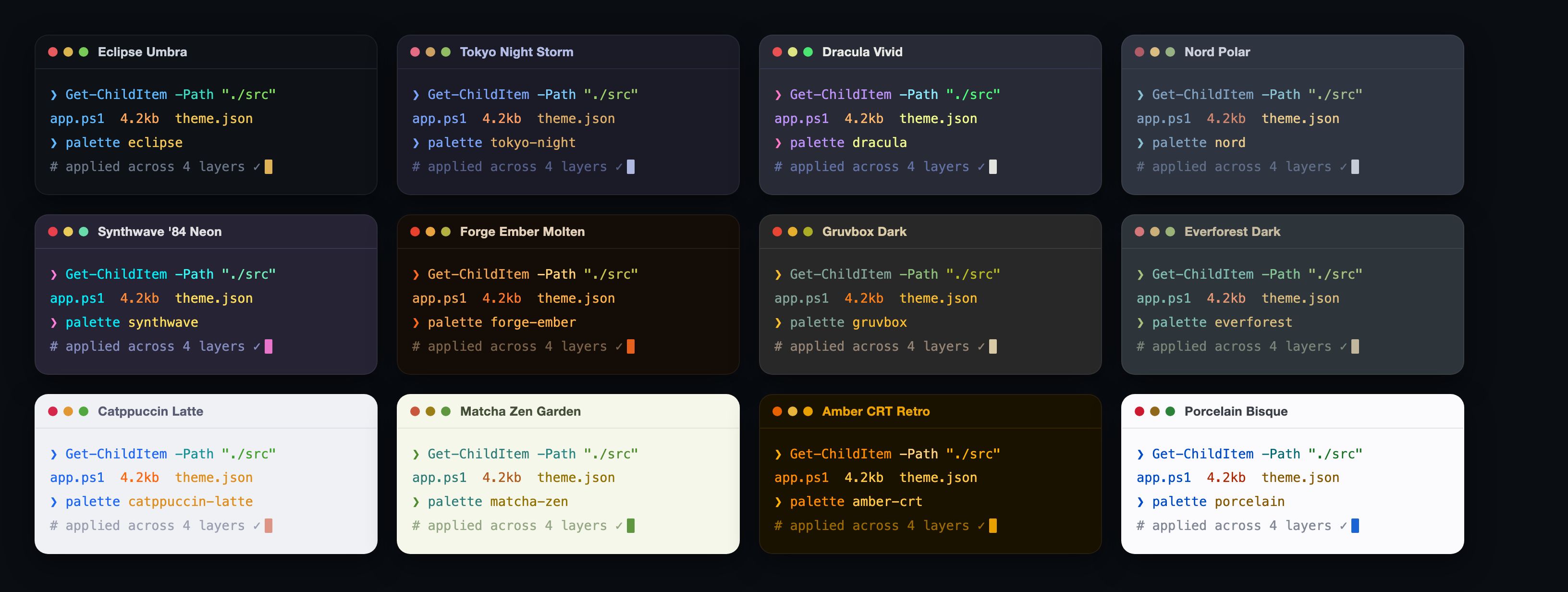
48 themes from dark dev classics to neon and retro CRT — browse the full gallery →
Platform: the Windows Terminal layer (scheme, background, opacity, font) is Windows-only. The PSReadLine,
$PSStyle, and oh-my-posh layers run in any PowerShell 7 session. On Linux, use the native front end instead:linux/applies the same themes to Ghostty, kitty, Alacritty, foot, or any terminal via OSC, and to bash, zsh and fish.
| Layer | What it colors | How it applies |
|---|---|---|
| Windows Terminal | scheme, background, opacity, font | settings.json (hot-reloads instantly) |
| PSReadLine | the command line you type | $PROFILE + live session |
$PSStyle |
command output (dirs, errors, tables) | $PROFILE + live session |
| oh-my-posh | the prompt | $PROFILE + live session |
Prerequisite: PowerShell 7.2+ — the modern, cross-platform pwsh, not the
built-in Windows PowerShell 5.1 (check with $PSVersionTable.PSVersion). Don't
have it yet? winget install Microsoft.PowerShell, then start pwsh.
Install-Module PoshPalette -Scope CurrentUser
palette
In Windows Terminal, set the default profile to PowerShell (7.x) rather than Windows PowerShell so new tabs use it automatically.
oh-my-posh is optional. Only the prompt layer uses it — the other three layers apply without it. The first time you pick a theme whose prompt needs it, PoshPalette offers to install it for you (per-user via
winget, no admin), then you re-open pwsh to see the prompt. To install it yourself ahead of time:winget install JanDeDobbeleer.OhMyPosh -s winget.
No PowerShell needed: a small python3 front end reads the same catalogs.
git clone https://github.com/livlign/posh-palette ~/Code/posh-palette
~/Code/posh-palette/linux/install.sh   # links `palette` into ~/.local/bin
palette
It themes Ghostty, kitty, Alacritty and foot through their config files, and any
other terminal (GNOME Terminal, Konsole, WezTerm, …) via OSC escapes. In the shell
it sets input colors (zsh-syntax-highlighting, fish, ble.sh), LS_COLORS /
GREP_COLORS, and the same generated oh-my-posh prompt. See
linux/README.md for the commands and how it's wired.
To move to a newer release of the module:
Update-Module PoshPalette # then open a new PowerShell tab to load it
You don't have to remember to check: on launch Posh Palette compares your version
against the Gallery (on the same once-a-day cadence it uses to fetch new themes),
and when a newer one is out the menu shows a [5] Update option — pick it to
run the update right there. New themes, separately, arrive on their own with no
module update needed (see Use → New themes show up automatically, below).
Launch the interactive picker, apply a theme by name, or tweak one layer at a time. The rest — importing schemes, the auto-update catalog, the setup doctor, and font installs — is grouped below.
The commands below are the PowerShell ones. On Linux the same actions are
palette apply <theme>,palette scheme|colors|prompt|font <id>,palette reset,palette doctor,palette import,palette font-install. See linux/README.md.
Interactive (Simple or Detail mode):
Start-PoshPalette # or just: palette
- Simple mode: scroll a list of full themes, live preview on the right, Enter to apply.
- Detail mode: choose each layer independently (scheme / prompt / input / output).
By name:
Install-PoshPaletteTheme tokyo-night
Install-PoshPaletteTheme catppuccin-mocha -DryRun   # preview without writing
Change a single part by its catalog name and keep everything else exactly as it is. Each command edits just that slot on top of your current look:
Set-PoshPaletteScheme  nord           # color scheme (Windows Terminal bg + 16 ANSI)
Set-PoshPaletteColors  tokyo-night    # input + output colors (PSReadLine / $PSStyle)
Set-PoshPalettePrompt  auto-twoline   # the oh-my-posh prompt (any oh-my-posh name works too)
Set-PoshPaletteFont    robotomono      # the terminal font
Set-PoshPaletteLayer -Opacity 90 -Acrylic $true -FontSize 12   # window + size
A name is the id of any entry in schemes/, palettes/, prompts/, or
fonts.json. Browse the options in Detail mode, in the
theme gallery, or by listing
those folders. Your current look is remembered in ~/.poshpalette/current.json, so
tweaks stack: install a theme, then swap just its prompt, then just its font.
Every command takes -DryRun to preview without writing.
Reset to default (stock Campbell scheme + Cascadia Mono + default prompt) for a
clean, repeatable baseline, e.g. to demo before/after. Also in the menu as [4] Reset:
Reset-PoshPalette                   # back to the stock default look
Reset-PoshPalette -DryRun           # preview without writing
Revert (restores settings.json from the newest backup and removes the profile block):
Restore-PoshPalette                 # full revert to your previous state
Restore-PoshPalette -WhatIf         # show what it would do
Restore-PoshPalette -KeepProfileBlock   # revert Terminal only
The scheme layer normally writes to Windows Terminal's settings.json. On other
terminals (WezTerm, kitty, Alacritty, iTerm2, macOS Terminal.app, …) you can
instead push a scheme's colors — the 16 ANSI colors plus foreground /
background / cursor — straight to the running terminal via OSC escape sequences:
Set-PoshPaletteSchemeOsc eclipse            # recolor the current session
Set-PoshPaletteSchemeOsc eclipse -ShowBytes # print the escapes instead of applying
Set-PoshPaletteSchemeOsc eclipse -Force     # try a terminal not on the known list
This is per-session (nothing is written to disk) — open a new session, or reset, to revert. Background image, opacity and font stay Windows-Terminal-only.
Import a scheme from the formats the community already publishes:
Import-PoshPaletteScheme ./Dracula.itermcolors -Save     # iTerm2
Import-PoshPaletteScheme ./gruvbox.yaml -Save            # base16
Import-PoshPaletteScheme ./scheme.json -Save             # Windows Terminal
New themes show up automatically. On launch, palette checks the GitHub
catalog (at most once a day) and pulls any new community themes — along with the
scheme / palette / prompt files they reference — into a local cache at
~/.poshpalette/catalog/, so you get them without reinstalling the module. The
check is time-boxed and best-effort: offline or slow, it just uses what you
already have. Force a check, browse, or opt out:
palette -Refresh                             # check for new themes right now
Get-PoshPaletteRemoteCatalog                 # list what's published
Save-PoshPaletteRemoteTheme some-theme       # pull one on demand
$env:POSHPALETTE_NO_AUTOUPDATE = 1           # disable the auto-check (e.g. offline / locked-down)
Check your setup (PowerShell, fonts, oh-my-posh, terminal: what's ready, what to fix):
Test-PoshPaletteSetup # or: palette, then [3] Doctor
Install a Nerd Font. The pack references fonts by name; it does not bundle the binaries, so it pulls one from the nerd-fonts releases for you:
Install-PoshPaletteFont robotomono     # any font id from the catalog
Install-PoshPaletteFont CascadiaCode   # or a raw Nerd Font name
48 themes, from muted dev classics to neon and retro CRT. Browse them all in the theme gallery.
Also upstream: 22 of these are original schemes, now published to iTerm2-Color-Schemes and windowsterminalthemes.dev — usable in any terminal, not just via PoshPalette.
- Drift set (featured):
eclipse,graphite,driftwood,prism,daybreak,porcelain— six themes that lead the catalog as a deliberate style drift from dark → grey → neutral → colorful → soft light → light - Originals:
nebula-drift,verdigris,miami-heat,forge-ember,matcha-zen,velvet-court,acid-lime,frostbyte,halcyon - Vivid / neon:
synthwave,cyberpunk,oxocarbon,monokai-pro - Dark classics:
tokyo-night,dracula,catppuccin-mocha,nord,one-dark,gruvbox,rose-pine,kanagawa,everforest,solarized-dark,github-dark - Warm:
horizon,ayu-dark,night-owl - Retro CRT:
green-phosphor,amber-crt - Light:
catppuccin-latte,github-light,solarized-light,rose-pine-dawn - Baseline & a11y:
campbell(Windows Terminal default),high-contrast
A theme is a composition: it doesn't hold colors, it references one entry from each per-layer catalog. This is what lets you swap a single layer (keep your prompt, try a new scheme) instead of forcing all-or-nothing presets.
themes/*.json     a composition: { scheme, palette, prompt, font, opacity, acrylic, fontSize }
schemes/*.json    Windows Terminal color scheme (16 ANSI + bg/fg/cursor)
palettes/*.json   PSReadLine input colors + $PSStyle output colors
prompts/*.json    oh-my-posh theme reference
fonts.json        list of (nerd) fonts to choose from
The resolver expands a composition into the flat shape the appliers write, so
Simple mode, Detail mode, Install-PoshPaletteTheme, and the Set-PoshPalette*
layer commands all share one path.
Note on prompts: every bundled prompt is generated from the active scheme, so the prompt always matches your colors and always loads (no external oh-my-posh theme files needed).
Pick a style by name — pass any to Set-PoshPalettePrompt, or choose it in Detail
mode (auto is the classic default):
auto · auto-minimal · auto-powerline · auto-robby · auto-twoline ·
auto-arrow · auto-lambda · auto-pure · auto-spaceship · auto-atomic ·
auto-smoothie · auto-1shell · auto-cert · auto-clean · auto-velvet
Prefer a specific oh-my-posh community theme? Pass its name to
Set-PoshPalettePrompt(or type it in Detail mode) and it'll be used if you have it installed underPOSH_THEMES_PATH. Either way, applying a prompt-bearing theme offers to install oh-my-posh if it's missing (per-user viawinget, no admin) — see Install.
Each layer is independently contributable: one JSON file, one PR.
- a scheme goes in
schemes/(just the 16 ANSI colors) - a palette goes in
palettes/(PSReadLine +$PSStylecolors) - a prompt goes in
prompts/(an oh-my-posh theme reference) - a preset goes in
themes/(a composition tying the above together)
Copy an existing file in the matching folder, change the values, open a PR. See CONTRIBUTING.md for the full workflow and naming conventions.
The data and catalog logic (resolver, dark/light detection, prompt generation,
and the GitHub auto-refresh — with the network mocked) is covered by
Pester tests in tests/, run in CI on both Windows and
Linux on every push and PR:
Install-Module Pester -MinimumVersion 5.5.0 -Scope CurrentUser
Invoke-Pester ./tests
- Backs up
settings.jsonand$PROFILEbefore the first write (*.poshpalette-*.bak). - Profile edits live in a single managed block (
# >>> PoshPalette >>>), so re-applying replaces cleanly and removing it reverts you.
Stable and published to the PowerShell Gallery — everything described above ships today. See CHANGELOG.md for release history. Issues and theme PRs welcome.