GV

GeezerVison

The World Wide Web, restored to 800 pixels of glory.

Home|About|Gaming cabinet|Archives|How it works|Starter sites

On this site

  • Sign in
  • ActionsCI/CD and automation
  • CodespacesCloud development environments
  • All Features
  • Documentation
  • Training
  • Certifications
  • Build with Copilot
  • Customize Copilot
  • Integrations
  • Trending repos
  • GitHub Sponsors
  • Developer articles
  • Enterprises

This view

  • Original page
  • New address

GeezerVison is showing github.com — GitHub - ryan-andrew/SupernoteLinker: Supernote Linker allows you to add links to your Atelier drawings from within your notes!

BranchesTags
Open more actions menu

Latest commit


History

23 Commits
23 Commits

Folders and files

NameName
Last commit message
Last commit date
.github/workflows
.github/workflows
 
 
app
app
 
 
docs
docs
 
 
gradle
gradle
 
 
scripts
scripts
 
 
.gitignore
.gitignore
 
 
CHANGELOG.md
CHANGELOG.md
 
 
README.md
README.md
 
 
build.gradle.kts
build.gradle.kts
 
 
gradle.properties
gradle.properties
 
 
gradlew
gradlew
 
 
gradlew.bat
gradlew.bat
 
 
settings.gradle.kts
settings.gradle.kts


Repository files navigation

App Screenshot

Supernote Linker

Supernote Linker allows you to add links to your Atelier drawings from within your notes!

App Screenshot

Linking a Drawing

Initial Link Setup Tutorial

There are some extra steps needed when setting up a link for the first time. You will need to set Supernote Linker as the default handler for its links, and you will need to grant file permissions so that it can open the drawing files. Here is a detailed breakdown of how to set up your first link!

Click here to expand the tutorial steps
  1. Select something that you want to make into a link to your drawing.

    App Screenshot
  2. Choose Web Page from the list of Link to options.

    App Screenshot
  3. The box will already have https:// entered. Just add link/YOUR_CUSTOM_LINK_ID to it. This link ID can have any text you want in it. This link will be able to be reused if you wish to use it in other places as well, just use the same link ID!

    App Screenshot
  4. Here is an example: https://link/sketch123

    App Screenshot
  5. The link is now created, and you will be taken back to your note. Now tap on your newly created link. Choose to open with Supernote Linker Always. You won't have to see this popup again. This tells Android to send all links that start with link/ to Supernote Linker. No real websites can ever start with this, so there are no conflicts with your web browser.

    App Screenshot
  6. The first time you use Supernote Linker, you will need to grant file permissions. This is so that the app can access the drawing files in order to open them. Tap Grant Permission.

    App Screenshot
  7. You will be taken to the Android settings page. Ensure that Allow access to manage all files is enabled, then press the back button at the top. You will only need to do this once.

    App Screenshot
  8. The file picker will now open. From now on, this will be the first screen you see when creating new links, as permissions have now been granted.

    App Screenshot
  9. Select whichever drawing you want to link to. Only drawing files (and folders that contain drawing files) will be shown.

    App Screenshot
  10. That's it! Now the link in your note file will open your drawing!
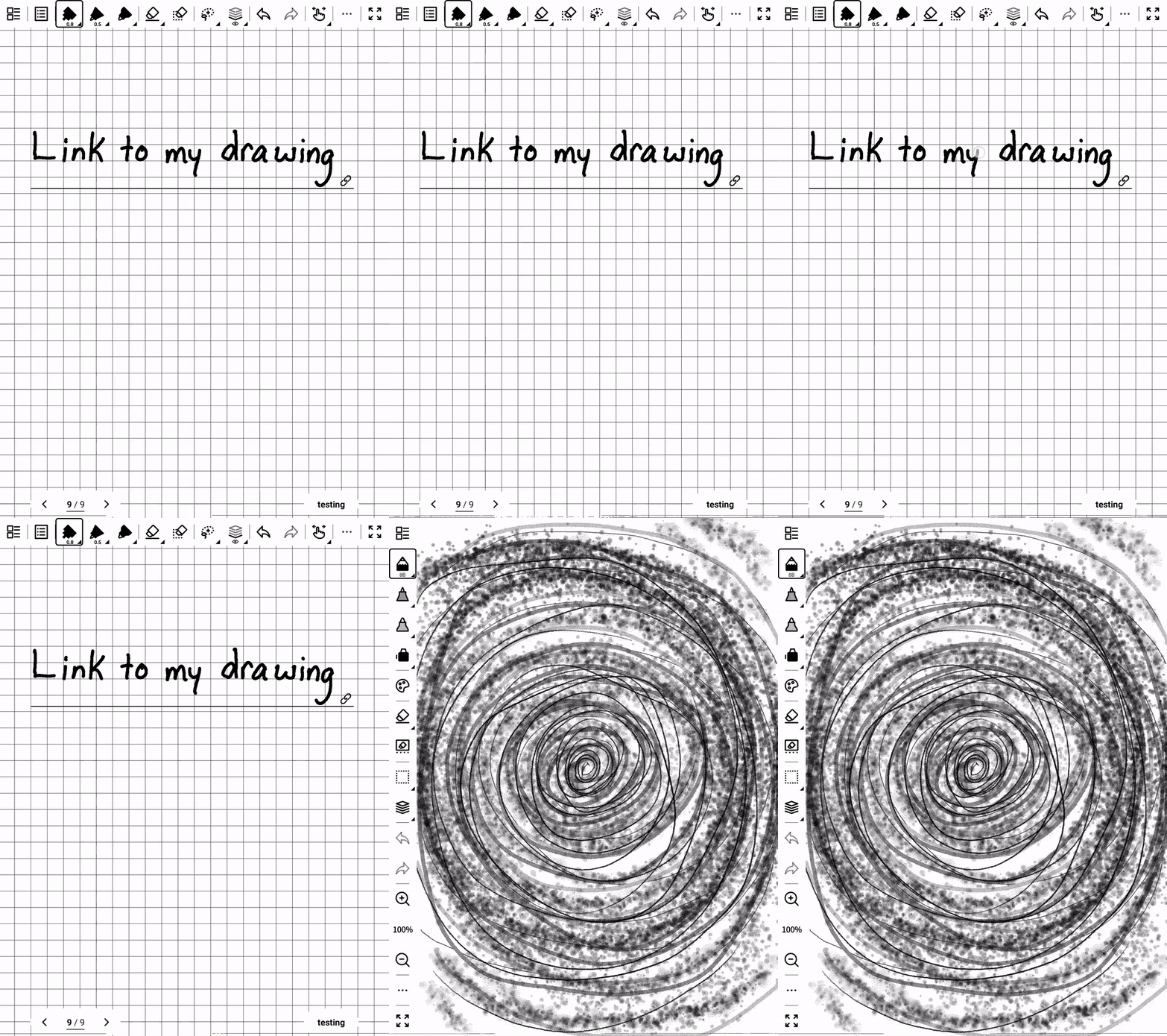
    App Screenshot

Video Demonstration

creating.a.drawing.link.mp4

Creating Popup Messages

Another feature of Supernote Linker is the ability to create a link that shows a popup message. To create a popup link, do the following:

  1. Create a link
  2. Make the web address https://popup/WHATEVER MESSAGE YOU WANT HERE!

App Screenshot

App Screenshot

In Action

App Screenshot

About

Supernote Linker allows you to add links to your Atelier drawings from within your notes!

Topics

ateliereinkmantanomadrattasupernotesupernote-planner

Resources

Readme
Activity

Stars

3 stars

Watchers

1 watching

Forks

0 forks
Report repository

Releases

Contributors

Languages

You are visitor 01402775 — GeezerVison does not store the pages you look up.
Best viewed with Netscape Navigator 4.7 or Internet Explorer 6 at 800×600. No cookies required.