
Android Sideloader is a portable app that lets you very easily sideload apps onto your Android device. Just:
- Open Android Sideloader
- Select your device
- Choose an APK file (or drag and drop one)
- Click
Install APK
That's it! The entire process only takes a few seconds. No command lines, no installing SDKs, no installing ADB, no installing drivers - Just download and run!

- Go to the Latest Release
- Choose one of the following from the
Assetsdropdown- Windows
AndroidSideloader-v*.*.*-Windows-Installer.exe(Recommended)- This will install Android Sideloader onto your PC. For those who prefer having it installed as a normal app.
- See First Time Setup > Windows after running through the installer.
AndroidSideloader-v*.*.*-Windows-Portable.zip- This is a portable package of Android Sideloader. Unzip this wherever you want and run
android_sideloader.exefrom inside the new folder. - See First Time Setup > Windows after downloading and unzipping.
- This is a portable package of Android Sideloader. Unzip this wherever you want and run
- Mac
AndroidSideloader-v*.*.*-Mac.zip- This zip file contains
Android Sideloader.app, which is portable and can be opened directly. - See First Time Setup > Mac after downloading.
- This zip file contains
- Windows
Ensure that USB debugging is turned on in your Android device settings
-
The first time you launch Android Sideloader, Windows may warn you that the app is not recognized. You will need to click "More Info", then "Run Anyway".
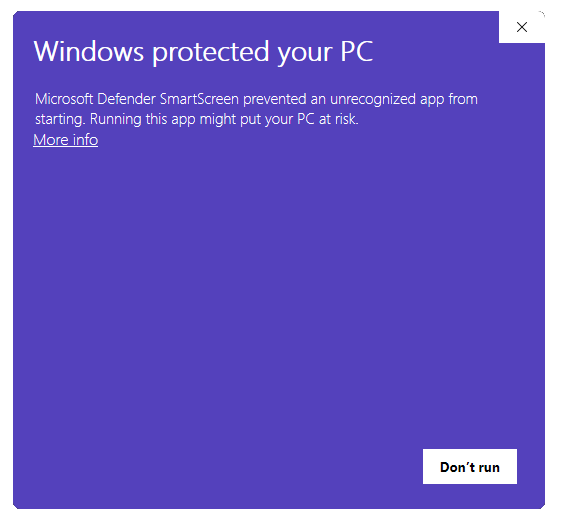
Click "More Info"
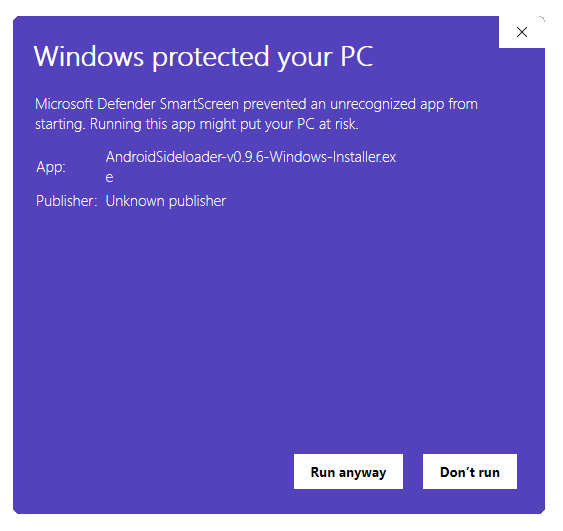
Click "Run Anyway" -
Additionally, ADB may request networking permissions from the Windows Firewall. This is due to the way ADB works internally, setting up a local server. This app does not require or use the Internet.
-
On your Android device, you may see a dialog the first time your run the app. Make sure you tap
Allowwhen prompted.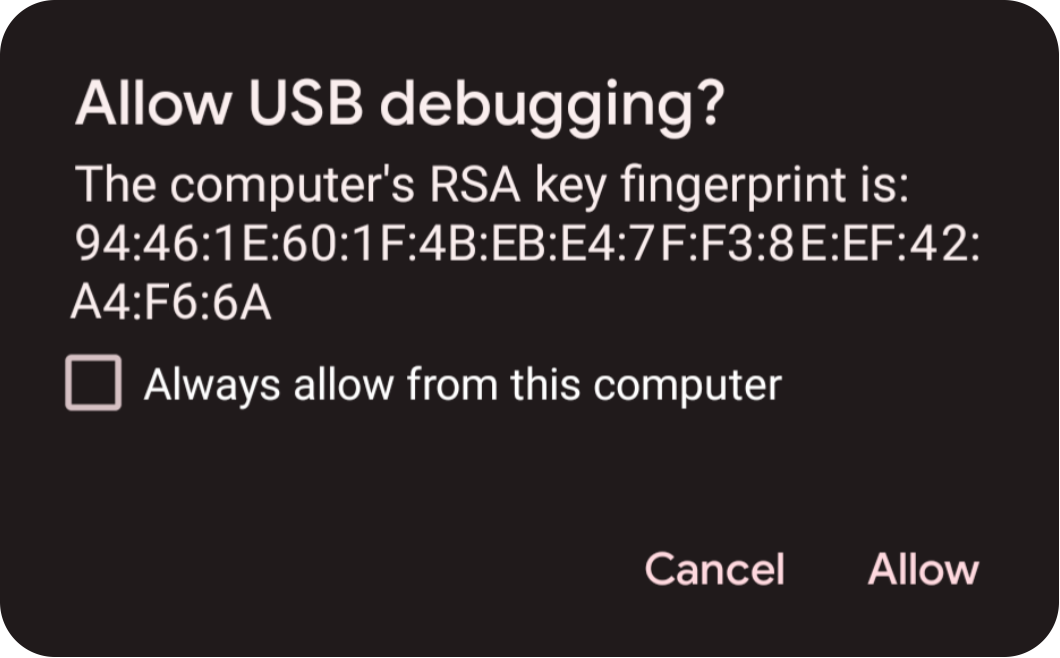
Tapping "Always allow from this computer" will ensure that you only ever need to do this once


-
Before you open the Android Sideloader app, make sure that you are allowing applications from developers. This can be done by doing the following (From Apple support):
- On your Mac, choose Apple menu > System Settings, then click Privacy & Security in the sidebar. (You may need to scroll down.)
- Go to Security, click the pop-up menu next to “Allow applications from,” then choose App Store & Known Developers.
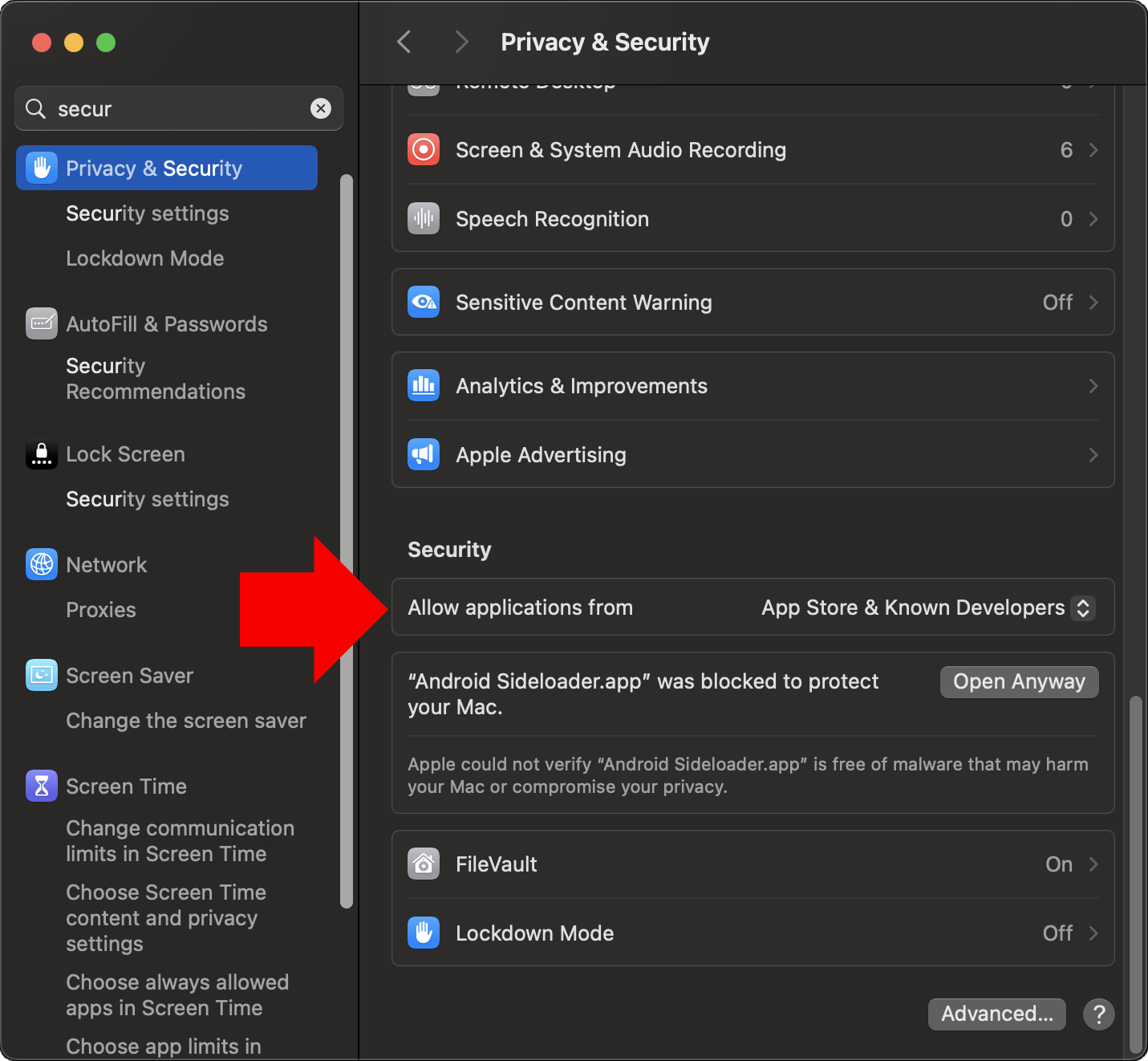
Allow applications from "App Store & Known Developers" -
The first time you try to open the app, you will receive a popup like the following. Click "Done".
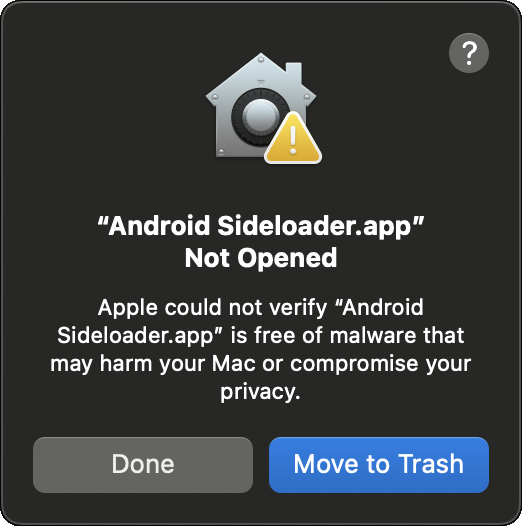
Click "Done" -
You will need to allow the app to "Open Anyway". This can be done by doing the following (From Apple support):
- On your Mac, choose Apple menu > System Settings, then click Privacy & Security in the sidebar. (You may need to scroll down.)
- Go to Security, then click Open.
- Click Open Anyway. This button is available for about an hour after you try to open the app.
- Enter your login password, then click OK.
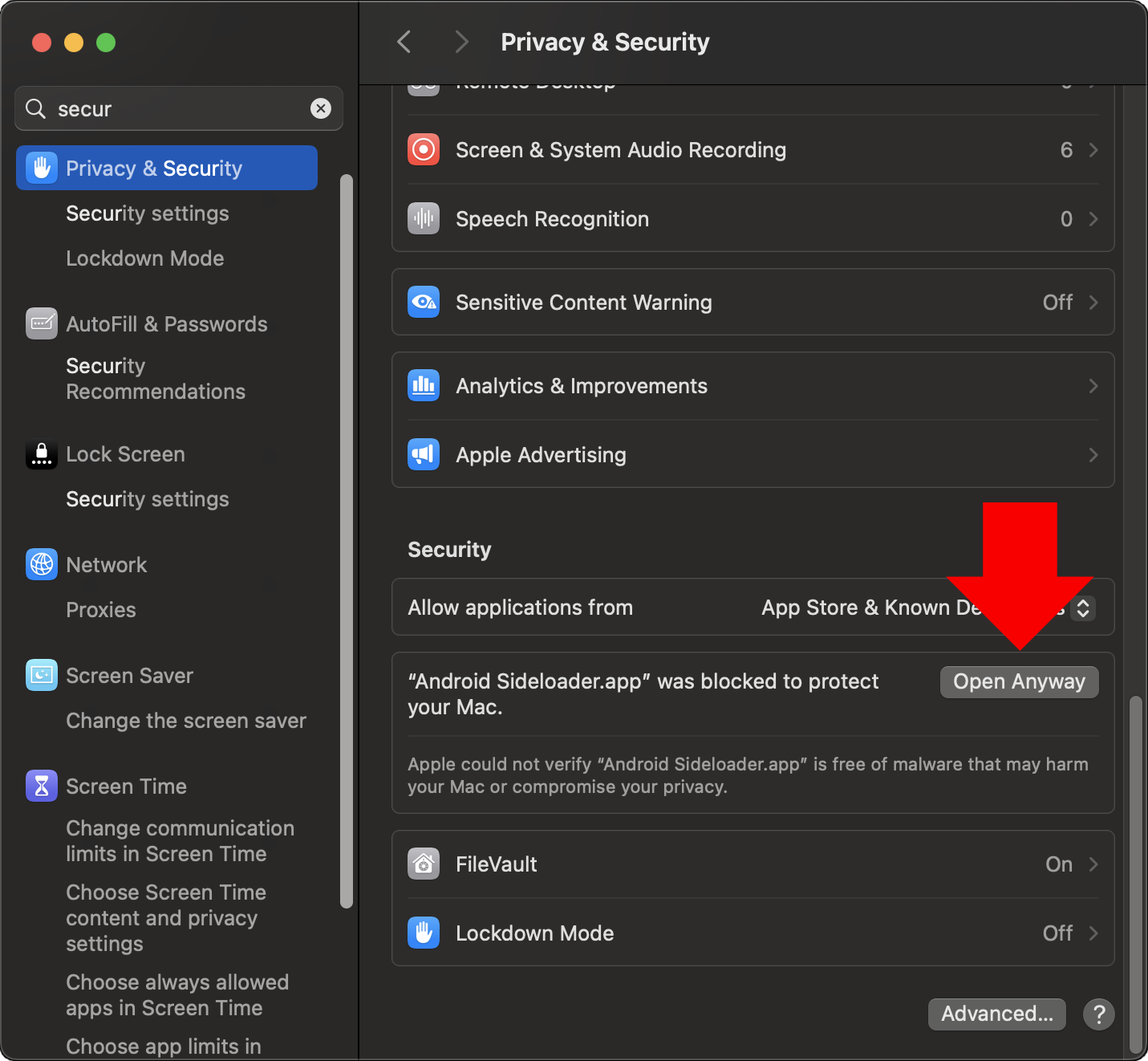
Click "Open Anyway" -
The next time you try to open Android Sideloader, You will see the following popup. Click "Open Anyway".
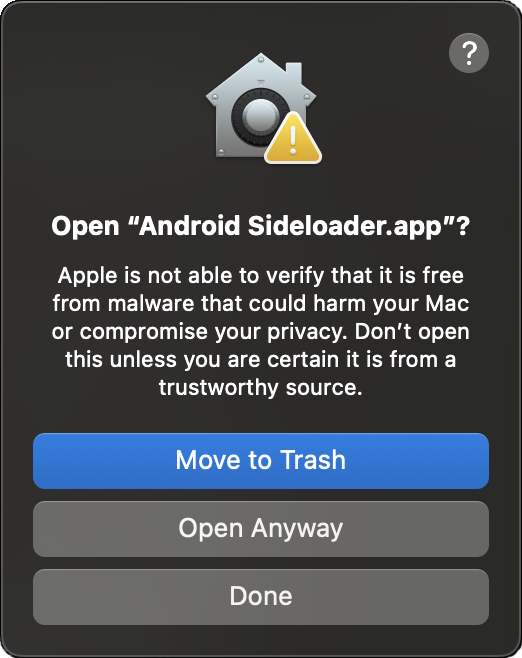
Click "Open Anyway" -
On your Android device, you may see a dialog the first time your run the app. Make sure you tap
Allowwhen prompted.
Tapping "Always allow from this computer" will ensure that you only ever need to do this once


-
Open Android Sideloader
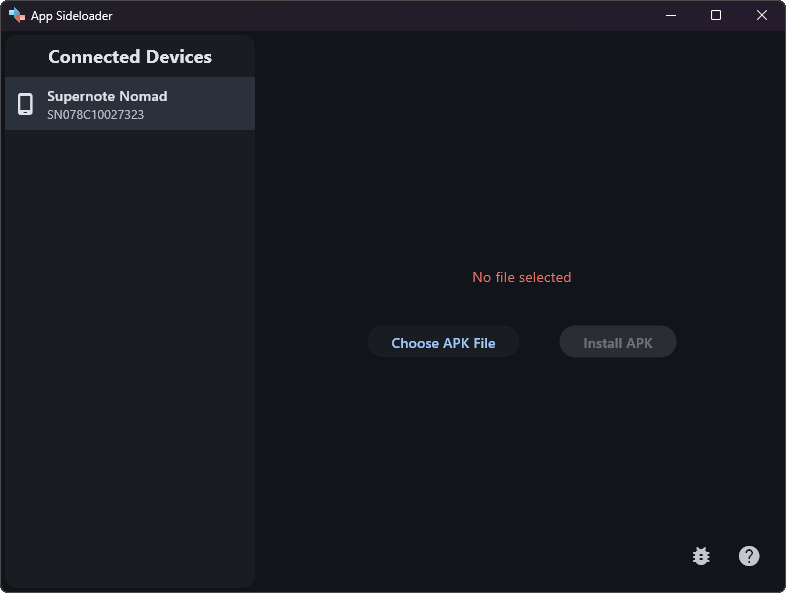
The Android Sideloader screen -
Select your device
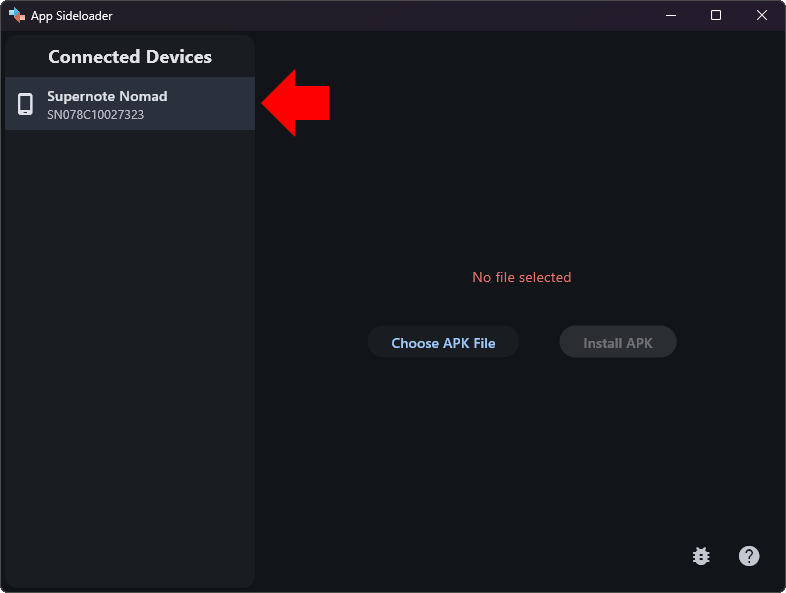
Devices appear in "Connected Devices" list -
Choose an APK file (or drag and drop one)
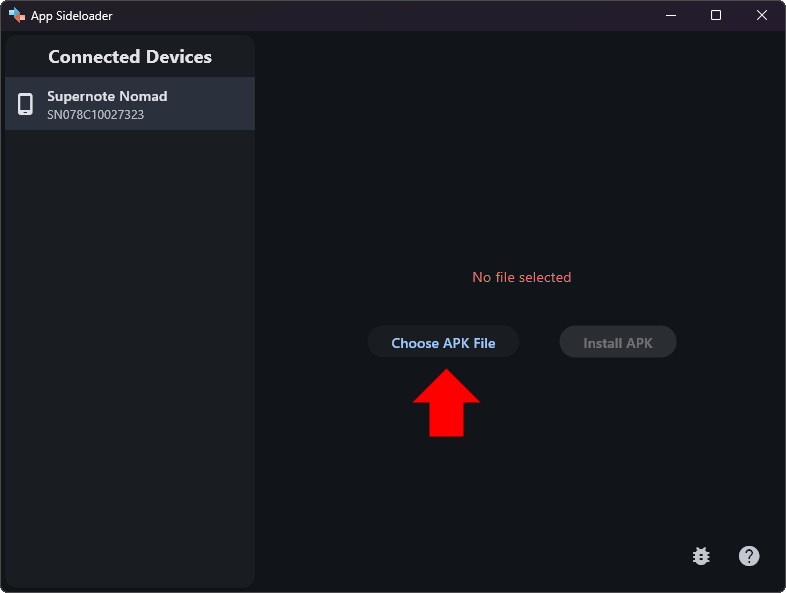
A file browser window will appear where you can select the APK file you want to install
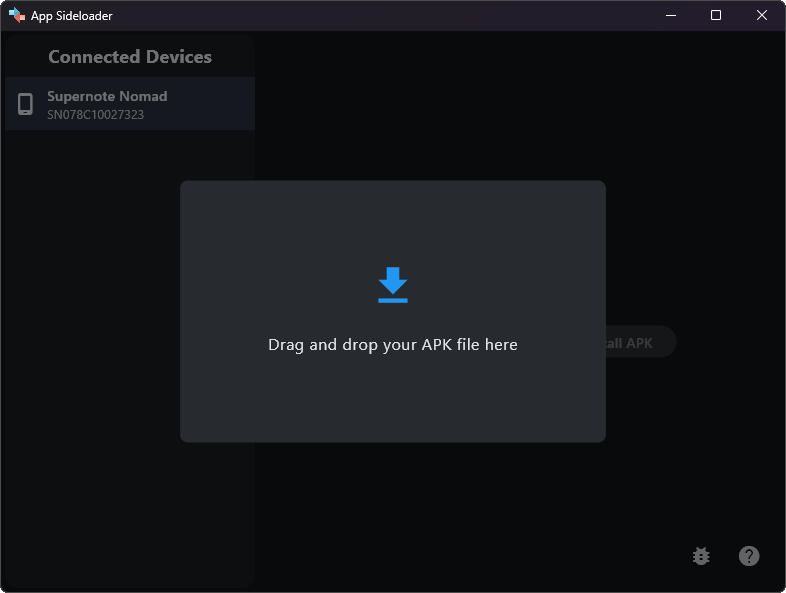
You can also just drag and drop your APK file into the Android Sideloader window at any time -
Click
Install APK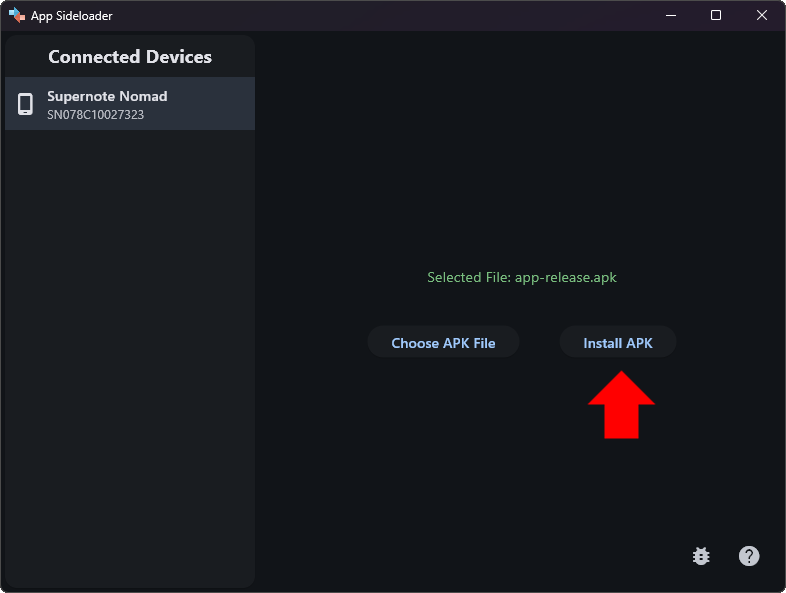
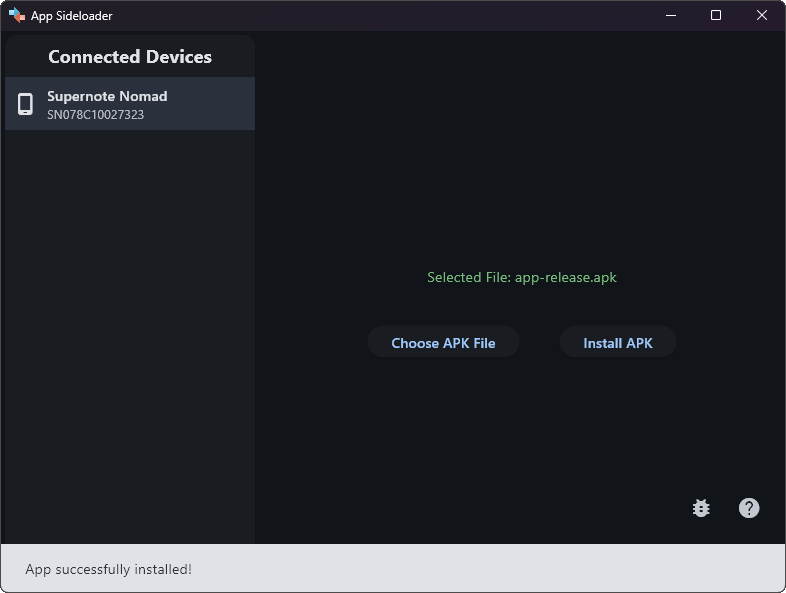
-
The app is installed


- Ensure that USB debugging is turned on in your Android device settings
- Make sure you tap
Allowwhen prompted on your Android device when you connect it to your computer
Tapping "Always allow from this computer" will ensure that you only ever need to do this once - Try a different USB cable - not all of them will work
- Try a different USB port on your computer
If you have any other problems, please create an issue. Please also attach the logs to the issue. Logs can be saved via the first button on the bottom right of the app:
