A continuation of Lobe Theme by LobeHub for Stable Diffusion WebUI Forge, Forge Classic (Neo) and reForge
with an exquisite interface design, a highly customizable UI, and efficiency-boosting features.
English · 简体中文 · Changelog · Report Bug · Request Feature
Note
Redux runs on Stable Diffusion WebUI Forge and Forge Classic (Neo), both on Gradio 4, and on reForge (Gradio 3.41). Plain AUTOMATIC1111 is not tested.
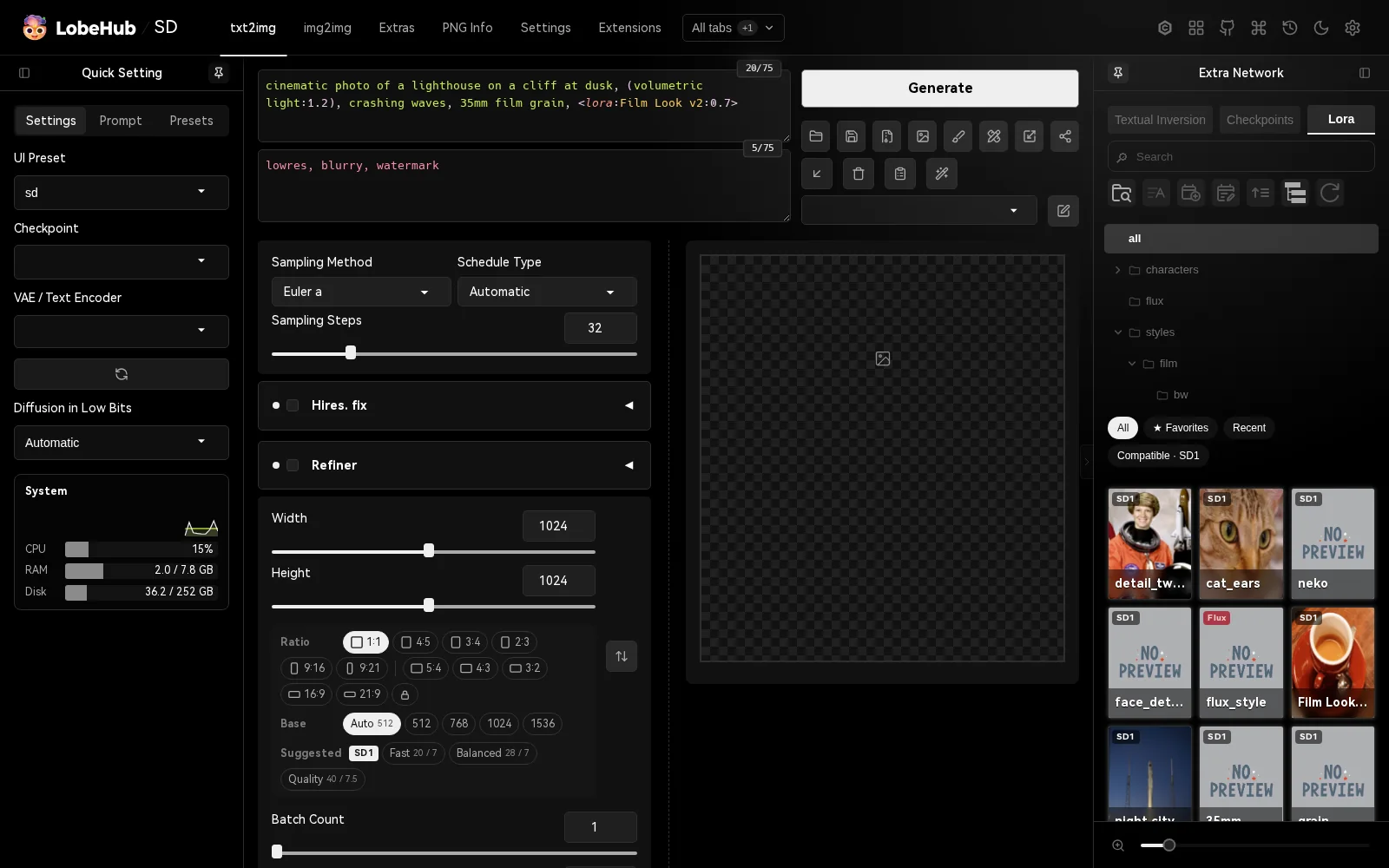
Make Lobe theme great again
The original Lobe Theme was made for AUTOMATIC1111 on Gradio 3. Redux brings it back to life for the Forge family: rebuilt for Gradio 4 on Forge and Neo, still at home on reForge's Gradio 3.41, and grown with the tools you reach for every day. Everything below is new in Redux; the original README follows further down.
Note
The images in these screenshots come from a random-weight test model, so they are colour noise. Everything around them is the real theme.
What's new, at a glance
- Runs on all three Forges
- Layout presets: Classic and Studio
- Aspect ratios and suggested settings
- Chaotic seeds
- Memory keeper
- Prompt sections
- A tab bar that stays short
- Extra Network, redesigned
- Quick Setting sidebar
- Progress you can watch
- Appearance: make it yours
- Command palette
- Generation history
- Presets
- And the small things
| Forge Classic (Neo) · Gradio 4 | Forge · Gradio 4 | reForge · Gradio 3.41 |
|---|---|---|
 |
 |
 |
One extension, the same theme on each. Redux follows what each WebUI has: Neo's and Forge's UI Preset (sd, xl, flux...), Neo's model families, Flux's Distilled CFG Scale, reForge's folder tree view.

Theme Settings → Appearance → Layout preset moves the blocks, nothing else (colours, fonts and every other setting stay):
- Classic: tabs across the top, the prompt above the settings and the result.
- Studio (above): the tabs become a rail of icons on the left, with the theme's buttons at its foot, and the page gets the full height. txt2img and img2img become two columns as tall as the window: the controls and the result. The controls show one thing at a time, Prompt, Parameters or Extensions, with Generate always in view.
- Studio, mirrored: the same, with the result on the left.
- Workbench, for wide screens (over 1600 px): three columns, so nothing has to be switched to write the prompt. txt2img: Prompt | Parameters or Extensions | the result. img2img: the input image | the prompt over the parameters | the result, so before and after sit side by side. Narrower windows get Studio.
Studio only lays out the WebUI's own blocks differently; nothing is moved or rebuilt, so extensions find everything where they expect it. Below 1000 px wide, and on phones, the pages fall back to the usual layout.

Under Width and Height:
- Ratio: 1:1 to 21:9 in one click, at the sizes models were trained on (832 × 1216 for 2:3 at 1024). The shape the sliders are at lights up.
- 🔒 keeps the shape while you move a slider.
- Base: how many pixels, from Auto (follows the loaded model) to 1536.
- Suggested: steps and CFG for the loaded model's family, including Lightning, Turbo, LCM, Hyper, DMD2 and Schnell checkpoints.
Under Seed, 🎲 Chaotic seeds: every image gets a seed with a random number of digits, between Digits min and max (4 to 15 by default), so seeds jump across magnitudes instead of always landing around ten digits as -1 does. Each image of a batch gets its own, and the infotext records Chaotic seeds: 4-15 beside the seed.
In the System card of the Quick Setting sidebar, the RAM and VRAM bars show what holds the memory: the WebUI, what it started (an LLM server...) and other programs. Free RAM, Free VRAM and Free VRAM+RAM let go of everything but what you keep; Details lists the checkpoint (and its parts), LoRA, ControlNet, upscalers, face restore, taggers and LLMs, each with 🔒 to keep it and → RAM, Unload or Clear.

The ▤ button under the prompt splits the positive prompt into sections, one box each, instead of one long box with BREAK typed by hand. Each section is its own 75-token chunk, so a concept at the end no longer drifts away from the start.
- + Add section (up to six); ✕ removes one and moves its text to the section before.
- Each section shows about how many tokens it holds, highlighted past 75.
- The prompt that is generated is still the usual one: the sections joined with
BREAK, so the infotext, PNG Info, styles and every extension see it as always. - A prompt pasted, sent from PNG Info or set by an extension is split at its
BREAKs; typingBREAKin a section splits it there. - Press ▤ again to go back to one box, with
BREAKwhere the sections met. - Ctrl+↑ / ↓ weights and Ctrl+Enter work in the sections.
This is not regional prompting: the whole image still gets the whole prompt.

With many extensions installed, the header used to fill up with tabs. Now it holds only the tabs you pin; All tabs opens the rest, grouped into Generate, Tools, Extensions and System, with a search box. The bar is saved on the WebUI server, so every browser shows the same one.

The right sidebar (on the right in the image above) keeps LoRAs, embeddings and checkpoints one glance away:
- Model types as a side rail: Embedding, Checkpoint, LoRA... in a column down the side of the sidebar, with an icon each, instead of tabs wrapping over two or three lines. The cards get the full height.
- Folder tree: one folder per line, sub-folders open on click, the active folder highlighted. Works with Windows paths and with reForge's own tree view.
- LoRA cards: a ☆ for favourites; a badge with the model family the LoRA was trained for, red when it does not match the loaded model; a weight control on hover (− / + or the mouse wheel), remembered per LoRA; a button that adds its trigger words.
- Filter bar: All, Favorites, Recent, and Compatible with the loaded model.
The left sidebar has three tabs: Settings (the WebUI's quick settings), Prompt (the prompt editor) and Presets. Under them, a System card in the spirit of ComfyUI's Crystools: CPU, RAM, GPU load, VRAM, GPU temperature and power, and disk, with a short history line. GPU readings use NVIDIA's NVML, installed on the next start.

- Aurora progress bar: a flowing gradient with a glowing head, labelled with the step, the batch position, the percent and the ETA. Or Classic.
- Result frame, around the image while it generates: Glow edge lights up as progress grows, Pulse sends a ring out on every step, Ambient glows in the live preview's colours, Scan sweeps a line down the image, Orbit sends glowing motes round the border. Or Off.
- The browser tab shows a progress ring, and a ✓ when a generation finishes while you are elsewhere. A desktop notification can be turned on.
Everything follows your primary colour and holds still when the system asks for reduced motion.

Glow edge · Pulse · Ambient · Scan · Orbit

Theme Settings → Appearance:
- Primary and neutral colours: presets or any colour.
- Corners: Sharp, Soft or Round.
- Density: Comfortable or Compact.
- Surfaces: Flat, Glass (frosted header and sidebars) or Elevated (cards with soft shadows).
- Fonts: HarmonyOS Sans, Inter, Geist, Manrope, Be Vietnam Pro; Hack, Geist Mono or JetBrains Mono for code and prompts. All ship with the theme, so they work offline.
- Logo: LobeHub, Kitchen, a spark mark, a wordmark, your own image or emoji, or none.
- Progress bar and Result frame, above.

Theme Settings → Layout swaps the sidebars and can fold accordions one at a time, so a long column of extensions stays short. Folding never switches an extension off.

Press Ctrl + K (⌘ + K on macOS) and type:
- Generate, Interrupt, Skip, theme, history, presets;
- any tab;
- samplers, schedule types, checkpoints;
- LoRAs (added with their saved weight), presets, recent generations;
- any WebUI setting: the Settings tab opens right on it.
↑ ↓ to move, Enter to run, Esc to close.

Every txt2img and img2img generation, kept with its parameters and a thumbnail. Open it from the clock in the header.
- Search prompts and parameters, filter by tab, grouped by day.
- Reuse all, or only the Prompt or the Seed.
- Copy the parameters, save them as a preset, open the full images.
- Tick two entries to compare them, prompt tokens included.
History is kept on the WebUI server (lobe_data/history/), so it is the same in every browser. It keeps the newest 2,000 entries and never touches your outputs folder.
The Presets tab in the left sidebar (in the sidebars image above) saves the parameters you have set: sampler, schedule type, steps, CFG (and Distilled CFG on Flux), size and hires fix, optionally the seed and batch settings, never the prompts. Apply puts them back and leaves your prompt alone. Presets can be renamed, reordered, and saved straight from a history entry.
- Image buttons under Generate: open folder, save, zip, send to img2img and the rest sit right below Generate instead of under the gallery.
- Split previewer, prompt syntax highlighting, prompt editor and image info are regular options now, no longer experimental.
- Works offline: logo, favicons and fonts ship with the extension.
- Chips and buttons keep readable text on any primary colour.
- Every language complete: German, Spanish, French, Japanese, Korean, Portuguese, Russian, Turkish and both Chinese translations cover all of Redux's settings and tools, and Vietnamese (Tiếng Việt) is new.
- The UI no longer shows raw translation keys on first load.
The original Lobe Theme
Everything below is the original Lobe Theme README, kept and updated for Redux.
Table of contents
Please be aware that LobeTheme is currently under active development, and feedback is welcome for any issues encountered.
| Join our Discord community! This is where you can connect with developers and other enthusiastic users of LobeHub. |
|---|
Important
Star Us, You will receive all release notifications from GitHub without any delay ~ ⭐️
Star History
Note
Redux is made for Stable Diffusion WebUI Forge, Forge Classic (Neo) and reForge.
In Stable Diffusion WebUI, you can install the Lobe Theme extension through the built-in extension market.
- First, open Stable Diffusion WebUI and go to the extension market. Enter "Lobe Theme" in the search box and click the search button. You will see a list of related extensions.
- After finding the Lobe Theme extension, click the install button. The system will start downloading and installing the extension. After installation, you can find the Lobe Theme in the extension list, and it will take effect after reloading the UI.
If you prefer to manage extensions using Git, you can clone the repository to your extensions folder. Here are the detailed steps:
- Open the command line interface and navigate to the root directory of Stable Diffusion WebUI.
- Run the following command in the command line to clone the repository:
git clone "https://github.com/sca-285/sd-webui-lobe-theme-redux.git"Once you have completed these steps, the Lobe Theme extension will be successfully installed in Stable Diffusion WebUI.
The current theme design provides two visual effects: light theme and dark theme, to meet the visual comfort needs of users in different lighting environments, which can be quickly switched in the upper right corner of the navigation bar.
If you prefer to default to the dark theme, you can achieve this by using the startup parameter --theme=dark.
Tip
To force a certain color theme in the startup file, for example, if you want to default to the dark mode in the Windows system, you can add the following content to the webui-user.bat file:
set COMMANDLINE_ARGS= --theme=darkIn addition, you can also directly switch the theme through URL parameters:
http://localhost:7860/?__theme=light
http://localhost:7860/?__theme=dark
Through these simple and intuitive operations, users can quickly switch the interface theme according to their personal preferences or current environment, in order to achieve the best user experience.
As a design engineer, LobeChat considers the personalized experience of users in interface design, and has introduced a flexible and changeable theme mode, providing a series of color customization options, allowing users to adjust the theme color of the application according to their preferences.
Whether you want a stable deep blue, a lively peach pink, or a professional gray and white, users can find color options that match their style in LobeTheme.
Tip
By clicking the gear icon in the upper right corner of the page, you can enter the settings panel for personalized customization.
- Primary Color: We provide
13carefully selected theme color schemes to meet your personalized color needs. - Neutral Color: For a more detailed adjustment of the visual experience, you can also choose from
6different neutral gray levels. - Logo Type: You can choose the default
LobeandKitchenlogos, or customize them. - Logo Customization: Support inputting
img url,base64encoded images, oremojiemoticons for logo customization. When entering a singleemoji, the system will automatically convert it into a 3D Fluent Emoji, enriching the visual effect. - Site Title Customization: Allows you to customize the title of the website according to your needs.
When using the Stable Diffusion model for Prompt writing, an effective feature is the Prompt syntax highlighting.
This feature automatically adds color coding to the input Prompt text according to preset syntax rules, enhancing the user experience and the intuitiveness of operations. Prompt syntax highlighting can not only help users identify and construct syntax structures more clearly, but also improve the efficiency of text editing and debugging.
One of the key highlights of LobeTheme is its highly customizable sidebar feature, designed to make the image generation workflow smoother, ensuring that every user can adjust and optimize their workspace according to their preferences.
Tip
By clicking the gear icon in the upper right corner of the interface, you can easily access and adjust the following settings:
- Input Area
- Display Mode:
Scroll Fixed Height|Adjust Size According to Text Lines
- Display Mode:
- Sidebar Configuration
- Default Expansion:
true - Display Mode:
Fixed|Floating - Default Width:
280 pixels
- Default Expansion:
- Extra Network Sidebar
- Enable:
true - Default Expansion:
true - Display Mode:
Fixed|Floating - Default Width:
340 pixels - Model Card Default Size:
86 pixels
- Enable:
Recommended System Settings
Extra-Networks Extension Model Window
- Thumbnail View
- Card Width: 86
- Card Height: 128
Quick-Setting
sd_model_checkpoint, sd_vae, CLIP_stop_at_last_layers, img2img_background_color, img2img_color_correction, samples_save, samples_format, grid_save, return_grid, n_rows, live_previews_enable, show_progress_every_n_steps, live_preview_refresh_period
The display of generation information has been improved, with a deep optimization of the data presentation mechanism, and the introduction of a "one-click copy" function to improve information retrieval efficiency.
Now, you can quickly obtain the required Seeds without tedious searching in long strings.
A brand-new image sharing feature has been launched. With a simple one-click operation, you can easily share the current image recipe, create exquisite shared images, and explore more customizable settings to make the shared images more personalized.
A user-friendly prompt word editor has been added to the second tab of the quick setting menu. It includes a series of preset tags covering post-processing, style description, and other key words, simplifying your operation process and helping you edit and manage prompts more efficiently.
In order to improve the interactive experience of mobile users, LobeTheme has implemented an intelligent folding mechanism for breadcrumb navigation and finely adapted the sidebar. These adjustments are aimed at providing convenient and intuitive navigation experience on any device.
However, achieving the same complex functions and detailed customization as the desktop on the mobile end poses certain challenges. Especially when integrating with the Stable Diffusion WebUI interface, high complexity and precise parameter settings are required, which may result in differences in user experience between mobile and desktop.
If you have any suggestions or ideas, please feel free to provide feedback through GitHub Issues or Pull Requests.
In today's multi-device environment, providing a seamless experience for users is crucial. Therefore, we have adopted the Progressive Web Application PWA technology, which is a modern web technology that can elevate web applications to a near-native application experience.
Through PWA, LobeTheme can provide a highly optimized user experience on desktop and mobile devices, while maintaining lightweight and high performance characteristics. Visually and perceptually, it has been carefully designed to ensure that its interface is indistinguishable from native applications, providing smooth animations, responsive layout, and adaptation to different screen resolutions of different devices.
Note
If you are not familiar with the installation process of PWA, you can follow these steps to add LobeChat as your desktop application (also applicable to mobile devices):
- Run the Chrome or Edge browser on your computer.
- Visit the LobeChat website.
- Click the Install icon in the upper right corner of the address bar.
- Follow the on-screen instructions to complete the installation of PWA.
Click the 🪄 button below the Prompt to format the prompt words with one click.
Tip
Convert full-width punctuation to half-width, remove extra spaces, add missing commas, and move the Extra-Networks model to the end.
Before formatting
photorealistic photo of a handsome male (wizard :1.2), <lora:LuisapHotlineStyle:0.5> <lora:ElegantHanfuRuqunStyle:0.2> short beard, white wizard shirt, (with golden trim:0.8),
After formatting
photorealistic photo of a handsome male, (wizard:1.2), short beard, white wizard shirt, (with golden trim:0.8), <lora:LuisapHotlineStyle:0.5>, <lora:ElegantHanfuRuqunStyle:0.2>
The header shows the tabs you use; every tab is one click away in All tabs, grouped into Generate, Tools, Extensions and System, with a search box. The pin next to a tab puts it in the bar or takes it out; the tab you have open always shows. The bar starts with txt2img, img2img, Extras, PNG Info, Settings and Extensions, and is kept on the WebUI server, so every browser shows the same one. Reset bar goes back to that.
Press Ctrl + K (⌘ + K on macOS), or the ⌘ button in the header, and type. One search box reaches:
- actions: Generate, Interrupt, Skip, light/dark theme, theme settings, history, presets, save the current parameters as a preset;
- every top-level tab;
- samplers, schedule types and checkpoints (picked in the WebUI's own dropdowns);
- LoRAs (added to the prompt with their saved weight), presets, recent generations;
- every WebUI setting: the Settings tab opens, filtered to it, and the setting is highlighted.
Use ↑ ↓ to move, Enter to run, Esc to close.
Every finished txt2img and img2img generation is kept with its full parameters and small thumbnails. Open it from the clock button in the header.
- search prompts and parameters, filter by tab, grouped by day;
- Reuse all applies every parameter through the WebUI's own "read generation parameters" logic; Prompt and Seed reuse only those;
- copy the parameters, save them as a preset, open the full images;
- tick two entries and press compare to see what changed, prompt tokens included.
History is stored on the WebUI server in lobe_data/history/ inside the extension folder, so it is the same in every browser and survives clearing browser data. It keeps the newest 2,000 entries; clearing it does not touch the images in your outputs folder.
Note
The theme's routes (/lobe/...) have no login of their own, like the WebUI's /file= route. When the WebUI is started with --listen or --share, anyone who can open it can also read this history. Turn it off under Theme Settings → Tools if that matters.
A Presets tab in the left sidebar. Save current stores the sampler, schedule type, steps, CFG (and Distilled CFG on Flux), size, and hires fix settings, optionally the seed and batch count and size, without the prompts. Apply sets them through the WebUI's own parameter reader and leaves the prompts as they are. Presets can be renamed, overwritten, reordered, and saved straight from a history entry.
On the LoRA cards of the Extra Networks sidebar:
- a ☆ to mark favourites;
- a badge with the model family the LoRA was trained for, red when it does not match the loaded model. The families follow Forge Classic (Neo)'s UI presets: SD1, XL, Flux, Klein (Flux.2), Qwen, Lumina, Z-Image, Wan, Anima, Ernie, PiD and Krea, plus SD2 and SD3 on the WebUIs that load them. The family is taken, in this order, from the Preset set in the card's metadata editor, from the trainer's metadata in the file, and from the LoRA's layer names and sizes;
- on hover, a weight control: − / + or the mouse wheel. The weight is remembered per LoRA, used when the card is clicked, and updates the LoRA's tag if it is already in the prompt. Click the number to go back to the default;
- a tag button that adds the LoRA's trigger words (from its "Activation text", a Civitai
.civitai.infofile, or its most frequent training tags); - a filter bar: All, Favorites, Recent, Compatible with the loaded model. On Forge and Neo, Compatible follows the UI Preset as it changes.
While a generation runs, the tab icon shows a progress ring. When it finishes while you are in another tab or window, the icon gets a check mark and the title starts with ✓ until you come back. Desktop notification (off by default, under Theme Settings → Tools) also shows a system notification with the prompt and a thumbnail.
The logo, favicons and web fonts ship with the extension (assets/) and are served by the WebUI itself, so the theme looks the same without internet access. Chinese and Japanese UIs still load the large CJK web font from the CDN when it is reachable, and fall back to system fonts otherwise.
The row of image buttons (open folder, save, zip, send to img2img, inpaint and extras, and those extensions add) sits right under Generate / Interrupt / Skip instead of under the gallery, in txt2img and img2img, with or without the split previewer. Theme Settings → Layout → Image buttons under Generate puts it back.
Under Width and Height, in txt2img and img2img:
- Ratio: 1:1, 4:5, 3:4, 2:3, 9:16, 9:21, 5:4, 4:3, 3:2, 16:9, 21:9. A click sets a width and height of that shape with about the pixels of the Base size, on the sliders' own step; the tooltip shows the size first. At 1024 these are the sizes SDXL-class models were trained on (1344 × 768 for 16:9, 832 × 1216 for 2:3...). The shape that matches the sliders is highlighted.
- 🔒 keeps the current shape: moving one slider moves the other.
- Base: how many pixels the image has, about base × base. Auto follows the loaded model (512 for SD1, 768 for SD2, 1024 for the rest), or pick 512, 768, 1024 or 1536. Choosing a base resizes the image at once and keeps its shape.
- Suggested: steps and CFG scale for the loaded model's family (SD1, SD2, XL, SD3, Flux, Krea, Qwen, Lumina, Z-Image), and for the fast variants named in the checkpoint (Lightning, Turbo, LCM, Hyper, DMD2, Schnell). On Forge and Neo, the Flux suggestions also set Distilled CFG Scale. The family follows Forge's UI Preset and the checkpoint as they change.
Theme Settings → Tools → Aspect ratios and suggested settings turns them off.
Theme Settings → Appearance:
- Corners: Sharp, Soft (the default) or Round, for buttons, fields, panels and cards.
- Density: Comfortable or Compact. Compact tightens tabs, accordions, fields and spacing so more fits on screen.
- Surfaces: Flat, Glass (frosted, translucent header and sidebars) or Elevated (cards with soft shadows).
- Font and Monospace font: HarmonyOS Sans, Inter, Geist, Manrope, Be Vietnam Pro or the system font; Hack, Geist Mono, JetBrains Mono or the system mono font. All ship with the theme (SIL Open Font License), so they work offline.
- Logo: LobeHub, Kitchen, a spark mark or a wordmark in the primary colour, your own image or emoji, or none.
Theme Settings → Layout:
- Swap sidebars: Quick Setting on the right, Extra Network on the left.
- Accordions → One at a time: opening an accordion folds the others next to it, so a long column of extensions stays short. Folding never switches an extension off: accordions with a ticked checkbox are only folded by the theme, and a click on the title unfolds them.
- Split Previewer, Prompt Syntax Highlighting, Prompt Editor and Image Info (under Tools) are regular options now; they used to be experimental.
Under the quick settings: CPU, RAM, GPU load, VRAM, GPU temperature and power, and disk, with a short history line, in the spirit of ComfyUI's Crystools. GPU load and temperature come from NVIDIA's NVML: the theme installs nvidia-ml-py on the next start (a small pure-Python package); without it, VRAM still shows. Theme Settings → Sidebar → System monitor turns it off.
Folders of LoRAs, embeddings and checkpoints show as a tree: one folder per line, indented by depth, only the top level at first; a folder with sub-folders has a caret and opens when clicked. The folder the cards are filtered to is highlighted. The buttons keep doing what the WebUI does with them (search that folder), with the folder text exactly as the WebUI wrote it, so Windows paths and the "Add a '/' to the Dir buttons" option work. On WebUIs that use the A1111 1.8+ tree view (reForge by default), that tree goes above the cards in the sidebar. Theme Settings → Sidebar → Folder tree turns it off.
Two independent options under Theme Settings → Appearance:
- Progress bar: Aurora (default) is a taller bar with a flowing gradient, a moving sheen and a glowing head, labelled with the step, the batch position, the percent and the ETA ("Step 7/20 · 2/4" … "35% · ETA 00:12"). Classic keeps the WebUI's bar.
- Result frame: an animated edge around the result box while an image is generated. Glow edge (default) is a slowly turning multi-coloured edge that lights up as progress grows; Pulse sends a ring outward on every sampling step; Ambient takes its colours from the live preview; Scan sweeps a line down the image; Orbit sends glowing motes round the border, one more for every eighth of the job. Off turns it off.
Both follow the primary colour (a violet when the primary colour is a grey). The step count comes from the theme's /lobe/state route; without it, the label shows the percent and ETA only. With the system's "reduce motion" setting on, the effects stay still.
The ▤ button among the tools under the prompt (txt2img and img2img) turns the positive prompt into sections: one box per BREAK chunk, at least two, up to six. The WebUI's own prompt box stays the real prompt: every change in a section writes all sections back into it, joined with BREAK on its own line, so generation, the infotext, PNG Info, styles and other extensions see the usual prompt. Changes made from outside (paste, Send to txt2img, PNG Info, styles, other extensions) rebuild the sections from the prompt, split at each BREAK. Each section shows an estimate of its tokens, highlighted past 75; the WebUI's counter keeps the exact total. The switch is remembered per tab. It is not regional prompting. Theme Settings → Tools → Prompt sections removes the button.

In the Extra Network sidebar, the model types (Textual Inversion, Hypernetworks, Checkpoints, Lora, and tabs added by extensions) become a narrow column on the side, an icon and a short name each, the full name on hover. The search and sort controls move above the cards, and the cards get the whole height of the sidebar. Theme Settings → Sidebar → Model types as a side rail brings the tabs back.
Theme Settings → Appearance → Layout preset: Classic, Studio, Studio, mirrored or Workbench, each shown as a small picture of where the blocks go. Only the layout changes.
In the Studio layouts the WebUI's tabs become a rail on the left (pinned tabs as icons, extension tabs by their initials, All tabs below them, and the theme's history, palette, light/dark and settings buttons at the foot), and the header goes. In txt2img and img2img, the controls and the result sit side by side, each as tall as the window and scrolling on its own. At the top of the controls, Prompt shows the prompts with their tools and styles, Parameters the sampler, size, seed, Hires. fix and the rest (and img2img's image), Extensions the extensions' blocks and scripts; Generate stays in view. The choice is remembered per tab. The WebUI's blocks are laid out with a CSS grid and not moved, so extensions keep working. Windows narrower than 1000 px, and phones, get the usual layout. With a Studio layout, Split previewer has no effect. Workbench (windows over 1600 px wide, Studio below) shows three columns: in txt2img the prompt, the parameters or extensions, and the result; in img2img the input image, the prompt over the parameters or extensions, and the result. The input image stays in the WebUI's own block, only placed over the first column.
Under Seed, in txt2img and img2img (the reForge Chaotic Seeds extension, built into the theme):
- 🎲 Chaotic seeds turns it on for that tab. For each image, the theme's script (
scripts/chaotic_seeds.py) first picks a number of digits between Digits min and max, then a seed with that many digits: with 4–15, a 5-digit seed is as likely as a 15-digit one. - Every image of a batch gets its own seed, and so does Variation seed when its strength is above 0, so a batch does not all vary the same way.
- The Seed box is skipped while it is on and keeps its value. Each image's seed is in its infotext, with
Chaotic seeds: 4-15; the Reuse seed button next to Seed brings it back, and pasting the parameters (PNG Info,↙️ , history) turns the tool on with that range, or off when the key is missing. - The choice and the range are remembered per tab, in the browser. Through the API, the script takes one argument:
"4-15"to turn it on,""for off. - Remove the old extension if it is installed, or both will roll.
Theme Settings → Tools → Chaotic seeds turns it off.
In the System card of the Quick Setting sidebar (the sd-webui-memory-keeper extension, built into the theme; with the System monitor off, in a Memory card of its own):
- The RAM and VRAM bars are split into the WebUI (in the bar's load colour), what it started (an LLM server such as Prompt Vault's Qwen) and every other program; the tooltip gives each in GB.
- Free VRAM: everything not kept off the GPU; models go to RAM (back fast), servers are stopped. Free RAM: what is only in RAM (models moved off the GPU, caches, servers on the CPU) is let go of; what is on the GPU stays. Free VRAM+RAM: everything not kept is let go of. Freed RAM is handed back to the system.
- The › button beside them opens the details: what holds memory, in sections: Checkpoint (UNet, text encoders, VAE, each movable on its own), LoRA, ControlNet & adapters, Upscalers, Face restore & detailers, Taggers & interrogators, LLM / VLM, Other models, Other processes. Each section has its total and a Free of its own; each thing has → RAM, Unload or Clear as it allows.
- VRAM · High · Normal · Low: the memory manager's VRAM mode, switched without a restart (on Forge, Forge Classic/Neo and reForge alike). The models are taken off the GPU and the checkpoint is unloaded, so the next generation places them under the new mode: Normal and High keep the text encoder on the GPU, Low keeps it in RAM; High keeps models on the GPU instead of moving them back to RAM. A restart goes back to the mode of the command line (
--lowvram...); the tooltip marks it. Not shown when the WebUI runs in another state (--novram, CPU, Apple silicon). - 🔒 keeps a thing: freeing leaves it alone. Kept across restarts, in
memory_keeper.jsonin the WebUI folder (the same file as the extension, so what you kept stays kept). - While a generation runs, the checkpoint and the WebUI's models are not touched.
- Settings → Memory Keeper: free VRAM, RAM, or VRAM and RAM after each generation; hand freed RAM back to the system.
- SeedVR2 (seedvr2-webui-neo-extension) shows under Upscalers once it has run with Keep SeedVR2 models in RAM: its DiT and VAE, each movable to RAM, and Unload to drop them.
- Extensions that tell the extension what they hold (
shared.memory_holders) show here the same way.
The work is done by the theme's scripts/memory_keeper.py at /lobe/memory; remove the standalone extension if it is installed. Theme Settings → Quick Setting Sidebar → Memory keeper turns it off.
- 💎 Exquisite UI Design: Carefully designed interface with elegant appearance and smooth interactive effects.
- 🖼️ Multiple Layout Modes: In the dual-column mode, it achieves adjustable canvas proportions, ensuring that the generated images are always on top.
- 🌍 Internationalization Support: Fully supports major i18n languages and welcomes contributions on PR.
✨ With continuous updates in product iterations, we hope to bring more exciting features!
 Chrome |
 Edge |
 Safari |
|---|---|---|
| last 2 versions | last 2 versions | last 2 versions |
Caution
There is currently a known compatibility issue with styles on Firefox browser.
| NPM | Repository | Description | Version |
|---|---|---|---|
| @lobehub/ui | lobehub/lobe-ui | Lobe UI is an open-source UI component library dedicated to building AIGC web applications. | |
| @lobehub/lint | lobehub/lobe-lint | LobeLint provides configurations for ESlint, Stylelint, Commitlint, Prettier, Remark, and Semantic Release for LobeHub. | |
| @lobehub/assets | lobehub/assets | Logo assets, favicons, webfonts for LobeHub. |
You can use Github Codespaces for online development:

Alternatively, you can clone it for local development. To enable hot-reloading mode, you need to start stable diffuison on port 7860 in advance.
$ git clone https://github.com/lobehub/sd-webui-lobe-theme.git
$ cd sd-webui-lobe-theme
$ bun install
$ bun devContributions of all types are more than welcome, if you are interested in contributing code, feel free to check out our GitHub Issues to get stuck in to show us what you’re made of.
|
|
|
|---|---|
|
|
|
|
|
|
Every bit counts and your one-time donation sparkles in our galaxy of support! You're a shooting star, making a swift and bright impact on our journey. Thank you for believing in us – your generosity guides us toward our mission, one brilliant flash at a time.

- 🤖 Lobe Chat : An open-source, extensible (Function Calling), high-performance chatbot framework. It supports one-click free deployment of your private ChatGPT/LLM web application.
- 🌏 Lobe i18n : Lobe i18n is an automation tool for the i18n (internationalization) translation process, powered by ChatGPT. It supports features such as automatic splitting of large files, incremental updates, and customization options for the OpenAI model, API proxy, and temperature.
- 💌 Lobe Commit : Lobe Commit is a CLI tool that leverages Langchain/ChatGPT to generate Gitmoji-based commit messages.
- stable-diffusion-webui:https://github.com/AUTOMATIC1111/stable-diffusion-webui
- gradio-theme-gallery: https://huggingface.co/spaces/gradio/theme-gallery
- cozy-nest: https://github.com/Nevysha/Cozy-Nest
- Fonts bundled in
assets/fonts: HarmonyOS Sans (Copyright 2021 Huawei Device Co., Ltd., HarmonyOS Sans Fonts License Agreement) and Hack (MIT / Bitstream Vera License); Inter, Geist, Geist Mono, Manrope, Be Vietnam Pro and JetBrains Mono (SIL Open Font License 1.1, via Fontsource; latin, latin-ext, vietnamese and cyrillic subsets). Each folder contains its license. - System monitor: GPU readings through NVIDIA's nvidia-ml-py (BSD); the idea follows ComfyUI-Crystools.
- Thanks also to Claude, for help building this version.
- before
1.0.0version- sd-web-ui-quickcs: https://github.com/Gerschel/sd-web-ui-quickcss/
- Dark-Themes-SD-WebUI-Automatic1111: https://github.com/Nacurutu/Dark-Themes-SD-WebUI-Automatic1111