GeezerVisonThe World Wide Web, restored to 800 pixels of glory. | ||||||||||||
| Home|About|Gaming cabinet|Archives|How it works|Starter sites | ||||||||||||
GeezerVison is showing inventwithpython.com — Chapter 3 - Strings and Writing Programs
(close)
Prev: Chapter 2 -Programming in the Interactive Shell | Next: Chapter 4 - The Reverse Cipher
Use this link to get 70% off the Automate the Boring Stuff online video course. Support me on Patreon 3
|

Escape character |
Printed result |
\\ |
Backslash (\) |
\' |
Single quote (') |
\" |
Double quote (") |
\n |
Newline |
\t |
Tab |
The backslash always precedes an escape character. Even if you just want a backslash in your string, you can’t add a backslash alone because Python will interpret the next character as an escape character. For example, this line of code wouldn’t work correctly:
>>> print('It is a green\teal color.')
It is a green eal color.
The 't' in 'teal' is identified as an escape character because it comes after a backslash. The escape character \t simulates pushing the tab key on your keyboard.
Instead, enter this code:
>>> print('It is a green\\teal color.')
It is a green\teal color.
This time the string will print as you intended, because putting a second backslash in the string makes the backslash the escape character.
Quotes and Double Quotes
Strings don’t always have to be between two single quotes in Python. You can use double quotes instead. These two lines print the same thing:
>>> print('Hello, world!')
Hello, world!
>>> print("Hello, world!")
Hello, world!
But you can’t mix single and double quotes. This line gives you an error:
>>> print('Hello, world!")
SyntaxError: EOL while scanning string literal
I prefer to use single quotes because they’re a bit easier to type than double quotes and Python doesn’t care either way.
But just like you have to use the escape character \' to have a single quote in a string surrounded by single quotes, you need the escape character \" to have a double quote in a string surrounded by double quotes. For example, look at these two lines:
>>> print('Al\'s cat is Zophie. She says, "Meow."')
Al's cat is Zophie. She says, "Meow."
>>> print("Zophie said, \"I can say things other than 'Meow' you know.\"")
Zophie said, "I can say things other than 'Meow' you know."
You don’t need to escape double quotes in single-quote strings, and you don’t need to escape single quotes in double-quote strings. The Python interpreter is smart enough to know that if a string starts with one kind of quote, the other kind of quote doesn’t mean the string is ending.
Writing Programs in IDLE’s File Editor
Until now, you’ve been entering instructions one at a time into the interactive shell. But when you write programs, you’ll enter several instructions and have them run without waiting on you for the next one. It’s time to write your first program!
The name of the software program that provides the interactive shell is called IDLE (Integrated DeveLopment Environment). In addition to the interactive shell, IDLE also has a file editor, which we’ll open now.
At the top of the Python shell window, select File▸New Window. A new blank window, the file editor, will appear for you to enter a program, as shown in Figure 3-3. The bottom-right corner of the file editor window shows you what line and column the cursor currently is on.
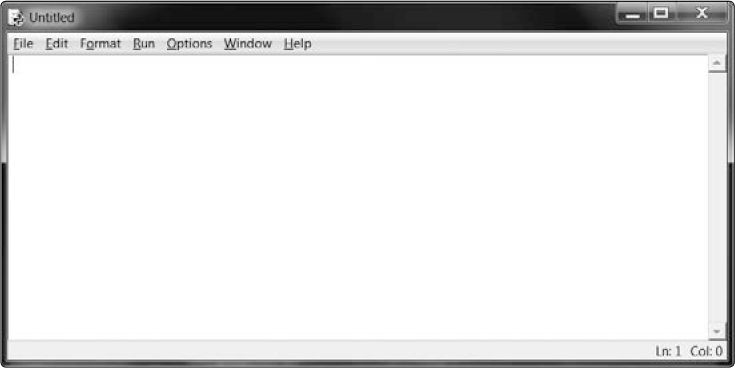
Figure 3-3: The file editor window with the cursor at line 1, column 0
You can tell the difference between the file editor window and the interactive shell window by looking for the >>> prompt. The interactive shell always displays the prompt, and the file editor doesn’t.
Source Code for the “Hello, World!” Program
Traditionally, programmers who are learning a new language make their first program display the text "Hello, world!" on the screen. We’ll create our own “Hello, world!” program next by entering text into the new file editor window. We call this text the program’s source code because it contains the instructions that Python will follow to determine exactly how the program should behave.
You can download the “Hello, world!” source code from https://www.nostarch.com/crackingcodes/. If you get errors after entering this code, compare it to the book’s code using the online diff tool (see “Checking Your Source Code with the Online Diff Tool” next). Remember that you don’t type the line numbers; they only appear in this book to aid explanation.
hello.py
1. # This program says hello and asks for my name.
2. print('Hello, world!')
3. print('What is your name?')
4. myName = input()
5. print('It is good to meet you, ' + myName)
The IDLE program will display different types of instructions in different colors. When you’re done entering this code, the window should look like Figure 3-4.
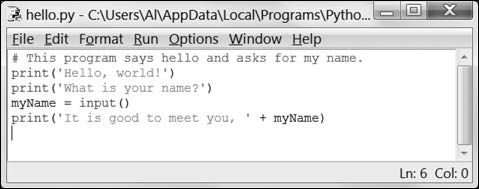
Figure 3-4: The file editor window will look like this after you enter the code.
Checking Your Source Code with the Online Diff Tool
Even though you could copy and paste or download the hello.py code from this book’s website, you should still type this program manually. Doing so will give you more familiarity with the code in the program. However, you might make some mistakes while typing it into the file editor.
To compare the code you typed to the code in this book, use the online diff tool shown in Figure 3-5. Copy the text of your code and then navigate to the diff tool on the book’s website at https://www.nostarch.com/crackingcodes/. Select the hello.py program from the drop-down menu. Paste your code into the text field on this web page and click the Compare button. The diff tool shows any differences between your code and the code in this book. This is an easy way to find any typos causing errors in your program.
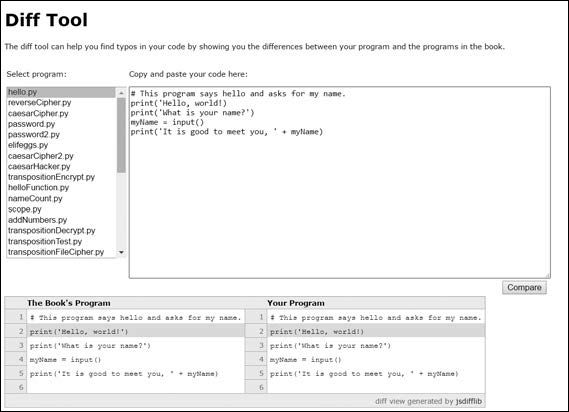
Figure 3-5: The online diff tool
Using IDLE to Access Your Program Later
When you write programs, you might want to save them and come back to them later, especially after you’ve typed a very long program. IDLE has features for saving and opening programs just like a word processer has features to save and reopen your documents.
Saving Your Program
After you’ve entered your source code, save it so you won’t have to retype it each time you want to run it. Choose File▸Save As from the menu at the top of the file editor window. The Save As dialog should open, as shown in Figure 3-6. Enter hello.py in the File Name field and click Save.
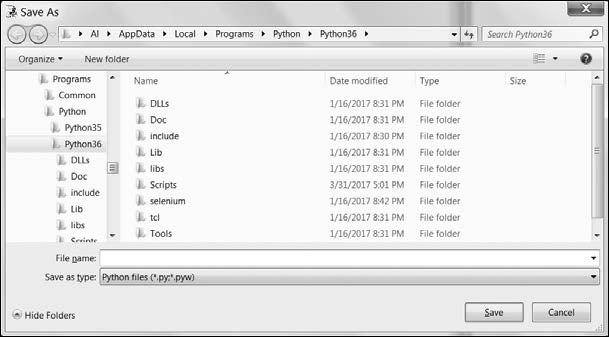
Figure 3-6: Saving the program
You should save your programs often as you type them so you won’t lose your work if the computer crashes or if you accidentally exit from IDLE. As a shortcut, you can press ctrl-S on Windows and Linux or  -S on macOS to save your file.
Running Your Program
Now it’s time to run your program. Select Run▸Run Module or just press the F5 key on your keyboard. Your program should run in the shell window that appeared when you first started IDLE. Remember that you must press F5 from the file editor’s window, not the interactive shell’s window.
When the program asks for your name, enter it, as shown in Figure 3-7.
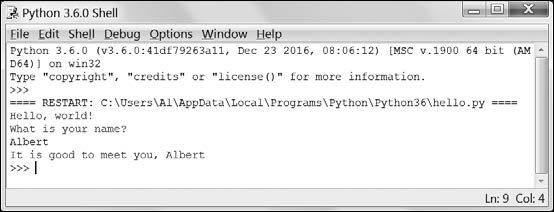
Figure 3-7: The interactive shell looks like this when running the “Hello, world!” program.
Now when you press enter, the program should greet you (the user, that is, the one using the program) by name. Congratulations! You’ve written your first program. You are now a beginning computer programmer. (If you like, you can run this program again by pressing F5 again.)
If instead you get an error that looks like this, it means you are running the program with Python 2 instead of Python 3:
Hello, world!
What is your name?
Albert
Traceback (most recent call last):
File "C:/Python27/hello.py", line 4, in <module>
myName = input()
File "<string>", line 1, in <module>
NameError: name 'Albert' is not defined
The error is caused by the input() function call, which behaves differently in Python 2 and 3. Before continuing, install Python 3 by following the instructions in “Downloading and Installing Python” on page xxv.
Opening the Programs You’ve Saved
Close the file editor by clicking the X in the top corner. To reload a saved program, choose File▸Open from the menu. Do that now, and in the window that appears, choose hello.py. Then click the Open button. Your saved hello.py program should open in the file editor window.
How the “Hello, World!” Program Works
Each line in the “Hello, world!” program is an instruction that tells Python exactly what to do. A computer program is a lot like a recipe. Do the first step first, then the second, and so on until you reach the end. When the program follows instructions step-by-step, we call it the program execution, or just the execution.
Each instruction is followed in sequence, beginning from the top of the program and working down the list of instructions. The execution starts at the first line of code and then moves downward. But the execution can also skip around instead of just going from top to bottom; you’ll find out how to do this in Chapter 4.
Let’s look at the “Hello, world!” program one line at a time to see what it’s doing, beginning with line 1.
Comments
Any text following a hash mark (#) is a comment:
1. # This program says hello and asks for my name.
Comments are not for the computer but instead are for you, the programmer. The computer ignores them. They’re used to remind you what the program does or to tell others who might look at your code what your code does.
Programmers usually put a comment at the top of their code to give the program a title. The IDLE program displays comments in red text to help them stand out. Sometimes, programmers will put a # in front of a line of code to temporarily skip it while testing a program. This is called commenting out code, and it can be useful when you’re trying to figure out why a program doesn’t work. You can remove the # later when you’re ready to put the line back in.
Printing Directions to the User
The next two lines display directions to the user with the print() function. A function is like a mini-program inside your program. The great benefit of using functions is that we only need to know what the function does, not how it does it. For instance, you need to know that print() displays text onscreen, but you don’t need to know the exact code inside the function that does this. A function call is a piece of code that tells the program to run the code inside a function.
Line 2 of hello.py is a call to print() (with the string to be printed inside the parentheses). Line 3 is another print() call. This time the program displays 'What is your name?'
2. print('Hello, world!')
3. print('What is your name?')
We add parentheses to the end of function names to make it clear that we’re referring to a function named print(), not a variable named print. The parentheses at the end of the function tell Python we’re using a function, much as the quotes around the number '42' tell Python that we’re using the string '42', not the integer 42.
Taking a User’s Input
Line 4 has an assignment statement with a variable (myName) and the new function call input():
4. myName = input()
When input() is called, the program waits for the user to type in some text and press enter. The text string that the user enters (their name) becomes the string value that is stored in myName.
Like expressions, function calls evaluate to a single value. The value that the call evaluates to is called the return value. (In fact, we can also use the word “returns” to mean the same thing as “evaluates” for function calls.) In this case, the return value of input() is the string that the user entered, which should be their name. If the user entered Albert, the input() call evaluates to (that is, returns) the string 'Albert'.
Unlike print(), the input() function doesn’t need any arguments, which is why there is nothing between the parentheses.
The last line of the code in hello.py is another print() call:
5. print('It is good to meet you, ' + myName)
For line 5’s print() call, we use the plus operator (+) to concatenate the string 'It is good to meet you, ' and the string stored in the myName variable, which is the name that the user input into the program. This is how we get the program to greet the user by name.
Ending the Program
When the program executes the last line, it stops. At this point it has terminated or exited, and all the variables are forgotten by the computer, including the string stored in myName. If you try running the program again and entering a different name, it will print that name.
Hello, world!
What is your name?
Zophie
It is good to meet you, Zophie
Remember that the computer only does exactly what you program it to do. In this program, it asks you for your name, lets you enter a string, and then says hello and displays the string you entered.
But computers are dumb. The program doesn’t care if you enter your name, someone else’s name, or just something silly. You can type in anything you want, and the computer will treat it the same way:
Hello, world!
What is your name?
poop
It is good to meet you, poop
Summary
Writing programs is just about knowing how to speak the computer’s language. You learned a bit about how to do this in Chapter 2, and now you’ve put together several Python instructions to make a complete program that asks for the user’s name and greets that user.
In this chapter, you learned several new techniques to manipulate strings, like using the + operator to concatenate strings. You can also use indexing and slicing to create a new string from part of a different string.
The rest of the programs in this book will be more complex and sophisticated, but they’ll all be explained line by line. You can always enter instructions into the interactive shell to see what they do before you put them into a complete program.
Next, we’ll start writing our first encryption program: the reverse cipher.
PRACTICE QUESTIONS
Answers to the practice questions can be found on the book’s website at https://www.nostarch.com/crackingcodes/.
If you assign spam = 'Cats', what do the following lines print?
spam + spam + spam
spam * 3What do the following lines print?
print("Dear Alice,\nHow are you?\nSincerely,\nBob")
print('Hello' + 'Hello')If you assign spam = 'Four score and seven years is eighty seven years.', what would each of the following lines print?
print(spam[5])
print(spam[-3])
print(spam[0:4] + spam[5])
print(spam[-3:-1])
print(spam[:10])
print(spam[-5:])
print(spam[:])Which window displays the >>> prompt, the interactive shell or the file editor?
What does the following line print?
#print('Hello, world!')
Best viewed with Netscape Navigator 4.7 or Internet Explorer 6 at 800×600. No cookies required.